Upgrade Orchestrator
This section discusses how to upgrade the VeloCloud Orchestrator.
Orchestrator Upgrade Overview
- Prepare for the Orchestrator Upgrade.
- Send Upgrade Announcement.
- Proceed with the Orchestrator upgrade.
- Complete the Orchestrator Upgrade.
Upgrade an Orchestrator
This section discusses how to upgrade an Orchestrator.
Step 1: Prepare for the Orchestrator Upgrade
Contact Arista Support team to prepare for the Orchestrator upgrade.
To upgrade Orchestrator:
- Provide the current and target Orchestrator versions, for example: current version (i.e. 2.5.2 GA-20180430), target version (3.3.2 p2).
Note: For the current version, this information can be found on the top, right corner of the Orchestrator by selecting the Help link and choosing About.
- Provide a screenshot of the replication dashboard of the Orchestrator.
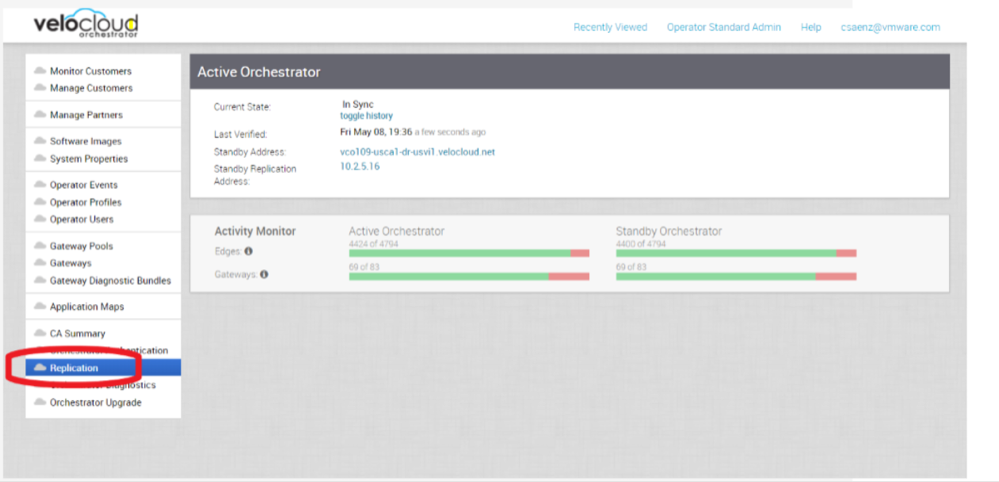
- Hypervisor Type and version (i.e. vSphere 6.7)
- Commands from the Orchestrator:
Note: Commands must be run as root (e.g. sudo <command> or sudo-i).
- Run the script /opt/vc/scripts/vco_upgrade_check.sh to check:
- LVM layout
- Memory Information
- CPU Information
- Kernel Parameters
- Some system properties
- ssh configurations
- Mysql schema and database sizes
- File_store locations and sizes
- Copy of
/var/logtar -czf /store/log-`date +%Y%M%S`.tar.gz --newer-mtime="36 hours ago" /var/log
- From the Standby Orchestrator:
sudo mysql
--defaults-extra-file=/etc/mysql/velocloud.cnf
velocloud -e 'SHOW SLAVE STATUS \G'
- Run the script /opt/vc/scripts/vco_upgrade_check.sh to check:
- From the Active Orchestrator:
sudo mysql --defaults-extra-file=/etc/mysql/velocloud.cnf
velocloud -e 'SHOW MASTER STATUS \G'
Step 2: Send Upgrade Announcement
The Upgrade Announcement area enables you to configure and send a message about an upcoming upgrade. This message will be displayed to all users the next time they login to the Orchestrator.
To send an upgrade announcement:
- In the Upgrade Announcement area, type in your message in the Banner Message text box.
Figure 2. Configuring the Upgrade Announcement 
- Select the Announce Orchestrator Upgrade button. A popup message appears indicating successful creation of your announcement and your banner message displays at the top of the Orchestrator.
Figure 3. Removing the Upgrade Announcement 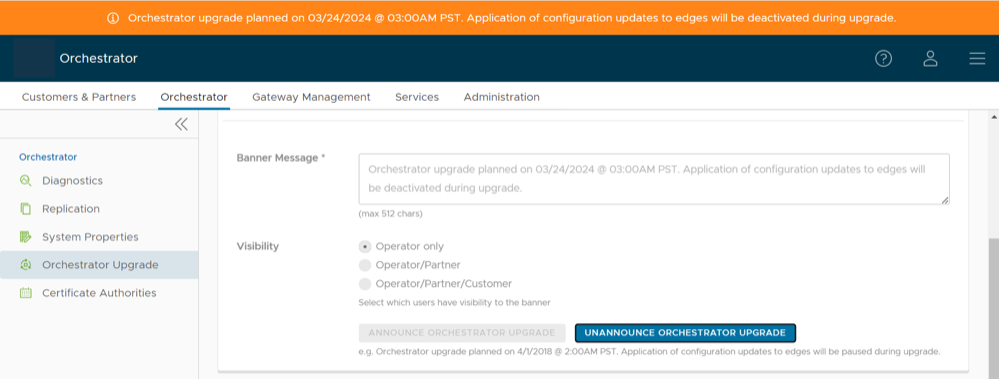
Step 3: Before Proceeding with the Orchestrator Upgrade
This section provides important information and best practices to consider prior to upgrading an Orchestrator. Remember to contact Arista Support to assist you with Orchestrator upgrades.
- This upgrade work does not modify any existing APIs.
- Just like other releases, there are schema changes when upgrading to a newer release. However, these changes will not impact the upgrade process.
The OS for the SD-WAN Orchestrator virtual appliance and the underlying data stores that store the configuration and statistics data are being upgraded. The specific upgrades include the following:
- The OS version is changing from Ubuntu 14.04 to 18.04.
- The Config store is moving to MySQL 8.0.
- The Stats store is moving to ClickhouseDB.
Best Practices/Recommendations:
- From the System Properties page in the Orchestrator, make a note of the value of the
edge.heartbeat.spread.factorsystem property. Then, change the heartbeat spread factor to a relatively high value for a large Orchestrator (e.g. 20, 40, 60). This will help reduce the sudden spike of the resource utilization (CPU, IO) on the system. Make sure to verify that all Gateways and Edges are in a connected state before restoring the previousedge.heartbeat.spread.factorvalue from the System Properties page in the Orchestrator. - Leave the demoted SD-WAN Orchestrator up for a few hours before complete shutdown or decommission.
- Freeze configuration modifications to avoid any additional configuration changes until the upgrade process is completed.
Step 4: Proceed with the Orchestrator Upgrade
Contact Arista Support at for assistance with the Orchestrator upgrade.
Step 5: Complete the Orchestrator Upgrade
After you have completed the Orchestrator upgrade, select Complete Orchestrator Upgrade. This re-enables the application of the configuration updates of Edges at the global level.
dpkg -l|grep vcoOrchestrator Disaster Recovery
This section discusses how to set up and upgrade disaster recovery in the VeloCloud Orchestrator.
Set Up Disaster Recovery
To set up disaster recovery in the Orchestrator:
- Install a new Orchestrator whose version matches the Product version that is currently the Active Orchestrator.
- Set the following properties on the Active and Standby Orchestrator, if necessary:
- Set
vco.disasterRecovery.transientErrorToleranceSecsto a non-zero value (it defaults to 900 seconds in version 3.3 and later, but to zero in earlier versions). This prevents any transient errors from resulting in an Edge/Gateway management plane update. - Set
vco.disasterRecovery.mysqlExpireLogsDays(defaults is 1 day). This is the amount of time the Active Orchestrator keeps themysql binlogdata.
- Set
- Set up the
network.public.addressproperty on the Active and Standby Orchestrators to the address contacted by the Edges (Heartbeats). - Set up DR by following the usual DR Setup procedure that is described in Orchestrator Disaster Recovery.
Upgrade the DR Setup
dr-standby-schema.sh on the Standby before starting the upgrade.- Prepare for the Upgrade. For instructions, go to Step 1: Prepare for the Orchestrator Upgrade of the section titled, Upgrade an Orchestrator with DR Deployment.
- Proceed with the Orchestrator upgrade. For instructions, go to Step 4: Proceed with the Orchestrator Upgrade of the section titled, Upgrade an Orchestrator with DR Deployment.