Manage User Agreements
Orchestrator allows an Operator Super User and Operator Standard Administrator to create and manage End User License Agreements. Only an Operator Super User can create an End User License Agreement.
Create a User Agreement
Only Operator Super Users and Operator Standard Administrator can create a new user agreement. You can create multiple active user agreements and configure the default one from the list of active user agreements. You can also choose and configure an active user agreement that you want to show for a particular customer.
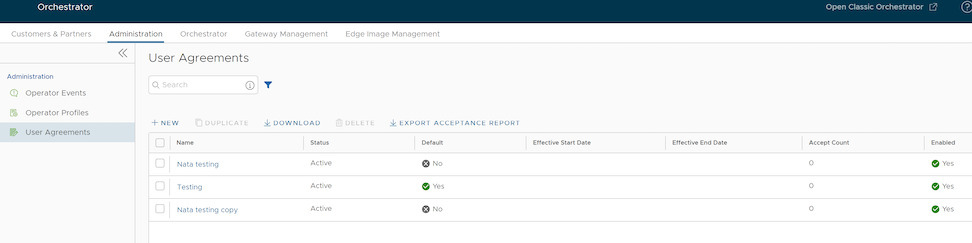
- In the Administration tab, select User Agreements and select .
User Agreement dialog box appears.
- Enter the following information in the User Agreement dialog box:
-
Figure 2. User Agreement- Agree 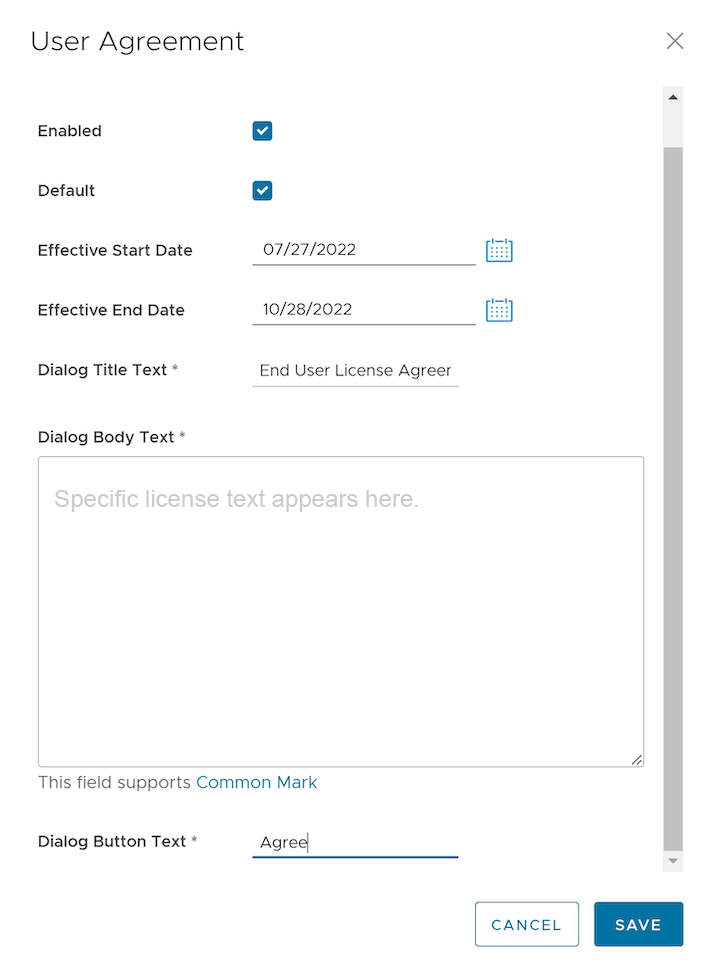
-
Table 2. User Agreement Option Descriptions Option Description Name Enter the name for the user agreement. Enabled By default, this check box is selected. If unselected, the user agreement is Inactive. Effective Start Date Enter the date from which the user agreement is effective. Effective End Date Enter the date until which the user agreement is effective. Dialog Title Text Enter a title for the user agreement. Dialog Body Text Enter the descriptive user agreement text that would be visible to the Customer. Dialog Button Text Enter the text to be displayed on the button that customer would select to accept the agreement. - Select Create.
The agreements get displayed on the User Agreements page.
Figure 3. User Agreement- Accept 
- Select an inactive agreement and select Delete, to delete it.
Note: Active agreements cannot be deleted.
When an Enterprise Super User or Partner Super User logs into the Orchestrator for the first time, a User Agreement message pops up prompting the user to accept the agreement. The user must accept the agreement to get access to the Orchestrator. If the user does not accept the agreement, it gets automatically logged out.