Orchestrator Branding-Operator
This section provides guidelines to customize the Orchestrator user interface (UI) to your company’s brand. As a Operator user, you can brand the Orchestrator UI by applying your company’s name, logo, and colors at a global level.
operator.branding.enabled to True.
operator.branding.enabled property to true will immediately override any Partner/Enterprise branding even if the Operator branding is unchanged.As an Operator user, to customize the branding at a global level for all the Partners and Enterprises in the Orchestrator, perform the following steps:
- From the left menu, select Orchestrator Branding.
The Orchestrator Branding page appears.
Figure 1. Orchestrator Branding 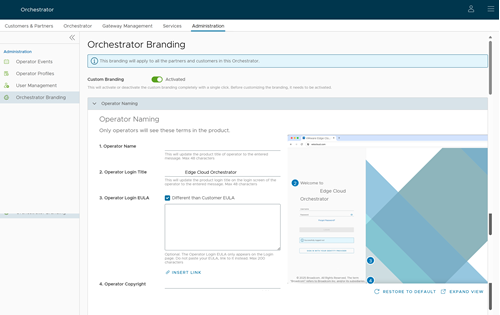
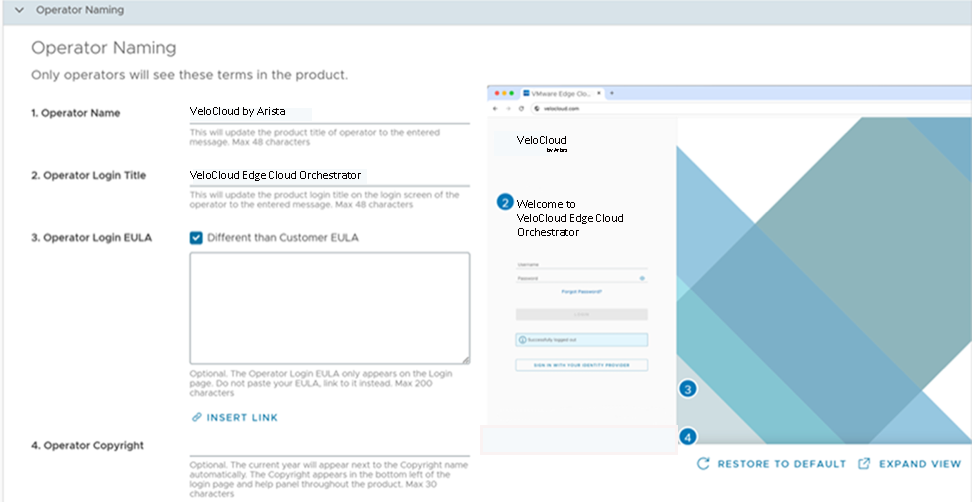
Operator Naming Branding
| Element | Description |
|---|---|
| Operator Name | Enter your Operator name. This updates the product title of Operator to the entered text. The Operator name can be a maximum of 48 characters. |
| Operator Login Title | Enter your Operator login title. This updates the product login title on the login screen of the Operator to the entered text. The Operator login title can be a maximum of 48 characters. |
| Operator Login EULA | This is optional. Add your Operator login EULA with a maximum of 200 characters. The Operator login EULA only appears on the login screen.
You can either enter your EULA in the box and then add link by selecting the EULA, or directly add link to EULA login by selecting Insert Link. 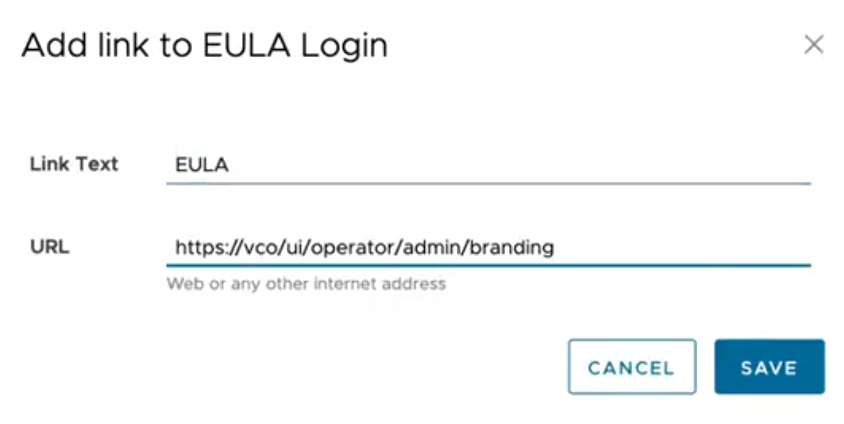 |
| Operator Copyright | This is optional. Enter your Operator copyright name and text. The current year will appear next to the copyright name automatically. The copyright appears in the bottom left of the login page and help panel throughout the product. The Operator copyright text can be a maximum of 30 characters.
If you have not entered any customized copyright text, the default copyright will be displayed. |
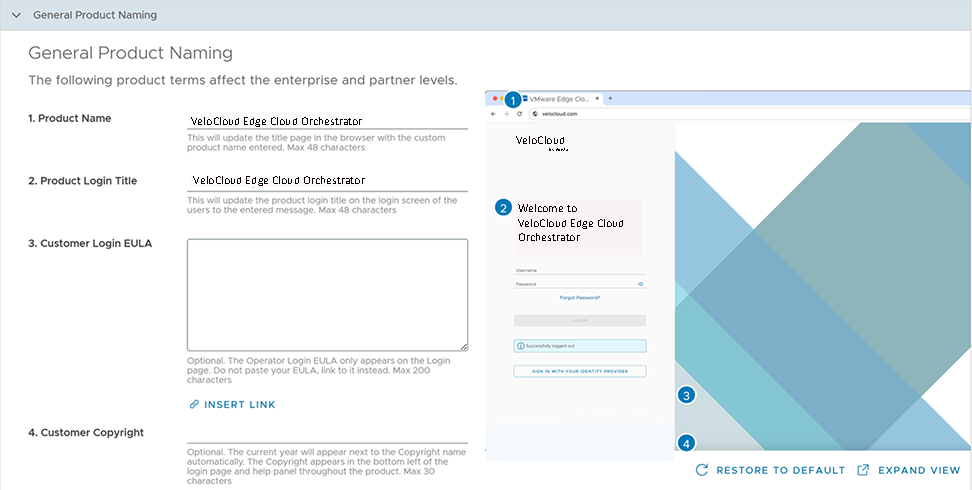
General Product Naming Branding
| Element | Description |
|---|---|
| Product Name | Enter your product name. This updates the title page in the browser with the custom product name entered. The product name can be a maximum of 48 characters. |
| Product Login Title | Enter your product login title. This updates the product login title on the login screen of the users to the entered text. The product login title can be a maximum of 48 characters. |
| Customer Login EULA | This is optional. Add your Customer login EULA with a maximum of 200 characters. The Customer login EULA only appears on the login screen.
You can either enter your EULA in the box and then add link by selecting the EULA, or directly add link to EULA login by selecting Insert Link. |
| Customer Copyright | This is optional. Enter your Customer copyright name and text. The current year will appear next to the copyright name automatically. The copyright appears in the bottom left of the Customer login page and help panel throughout the product. The Customer copyright text can be a maximum of 30 characters.
If you have not entered any customized copyright text, the default copyright will be displayed. |
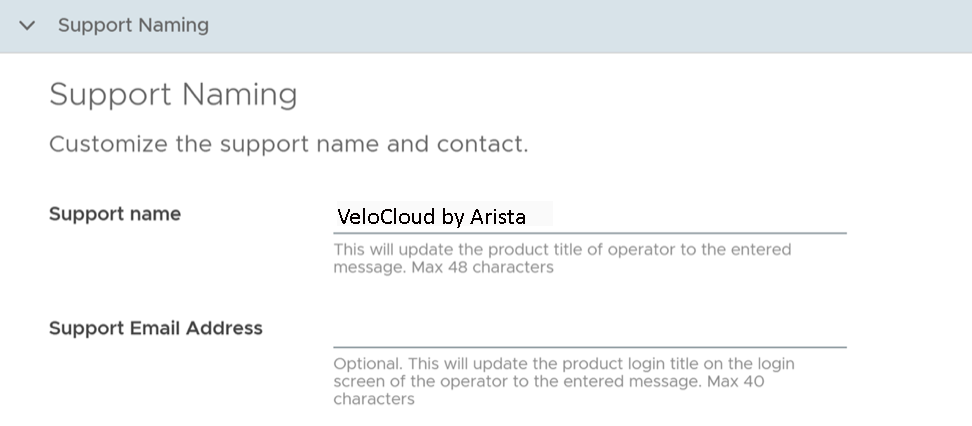
Support Naming Branding
| Element | Description |
|---|---|
| Support Name | Enter your custom support name. This updates the product title of Operator to the entered text. The support name can be a maximum of 48 characters. |
| Support Email Address | This is optional. Enter your custom support email address. This updates the product login title on the login screen of the Operator to the entered text. The support email address can be a maximum of 40 characters. |
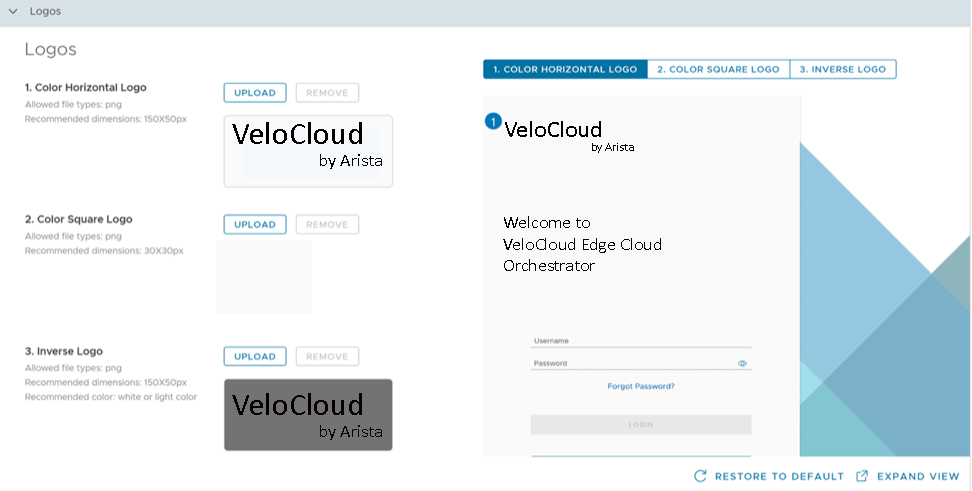
Logos Branding
| Element | Description |
|---|---|
| Color Horizontal Logo | Select and upload your custom horizontal logo by selecting Upload.
Adhere to the following Logo requirements:
|
| Color Square Logo | Select and upload your custom square logo by selecting Upload.
Adhere to the following Logo requirements:
|
| Inverse Logo | Select and upload your custom inverse logo by selecting Upload.
Adhere to the following Logo requirements:
|
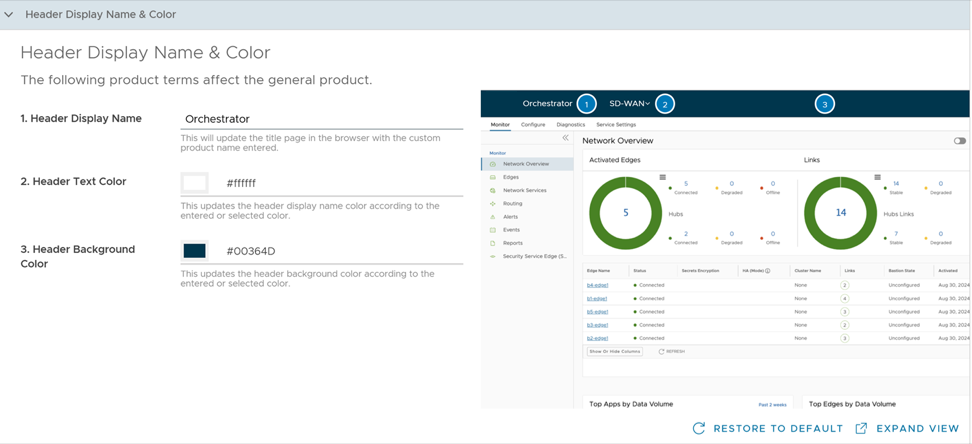
Header Display Name and Color Branding
| Element | Description |
|---|---|
| Header Display Name | Enter your header display name. This updates the title page in the browser with the custom product name entered. |
| Header Text Color | Enter or select the header text color. This updates the header display name color according to the entered or selected color. |
| Header Background Color | Enter or select the header background color. This updates the header background color according to the entered or selected color. |