User Management-Operator
The User Management feature allows you to manage users, their roles, service permissions (formerly known as Role Customization), and authentication.
Users
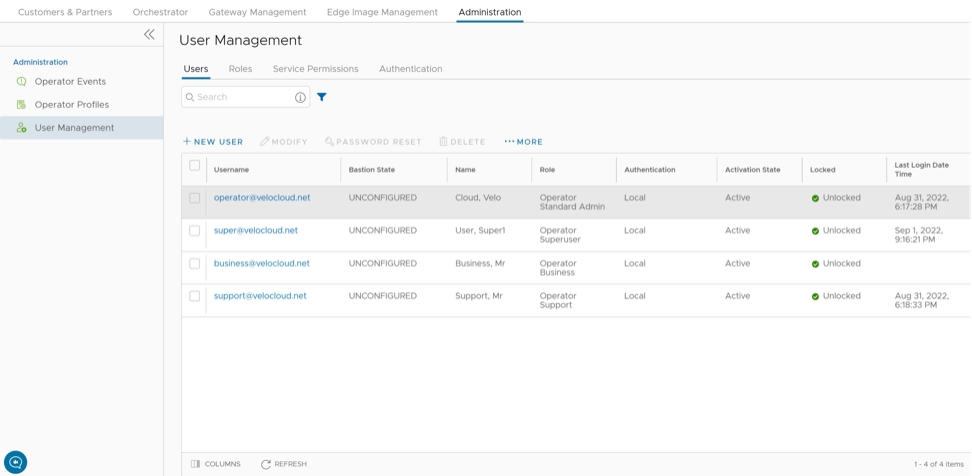
As an Operator, you can view the list of existing users and their corresponding details. You can add, modify, or delete a user. However, you cannot modify or delete an Operator Superuser. An Operator Superuser can create new Operator users with different role privileges and configure API tokens for each Operator user.
To access the Users tab:
- From the left menu, select User Management. The Users tab is displayed by default.
Figure 2. Users-Operator
Add New User
In the Operator portal, you can add new users and configure the user settings. Only Operator Superusers and Operator Standard Admins can add a new user. To add a new user, perform the following steps:
- Select New User. The following screen appears:
Figure 3. Add New User 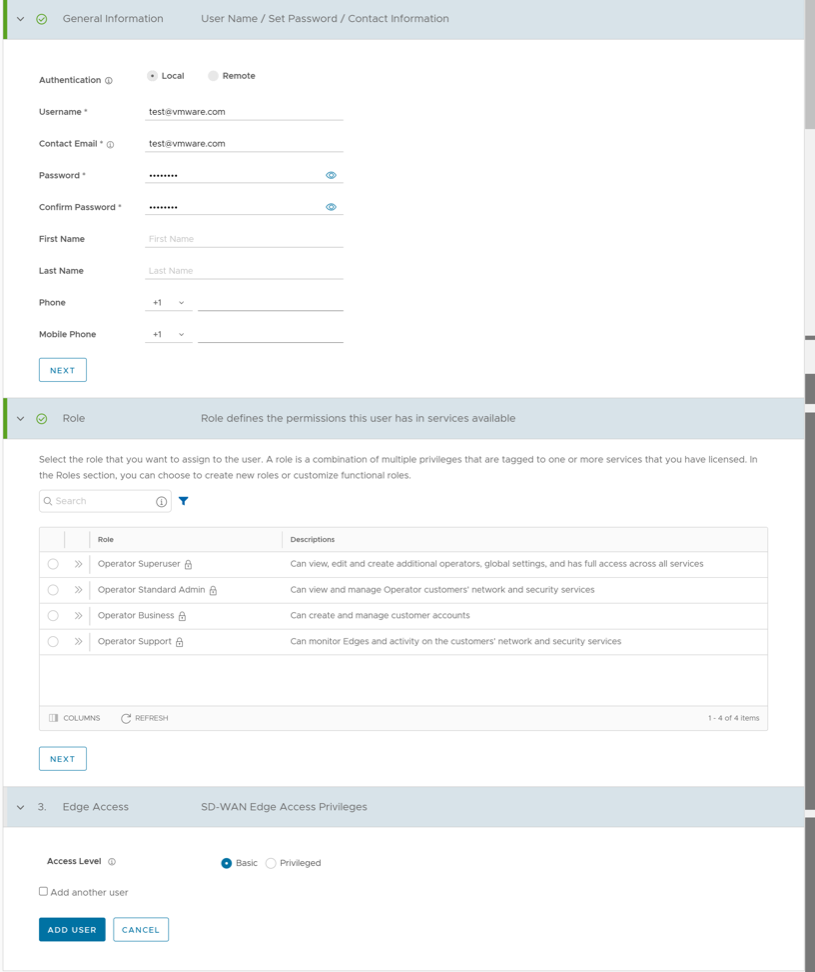
API Tokens
You can access the Orchestrator APIs using tokens instead of session-based authentication. As an Operator Superuser, you can manage the API tokens. You can create multiple API tokens for a user.
session.options.enableApiTokenAuth as False.
The users can create, revoke, and download the tokens based on their roles.
To manage the API tokens:
- Select a user and select Modify or select the link to the username. Go to the API Tokens section.
Figure 4. API Tokens 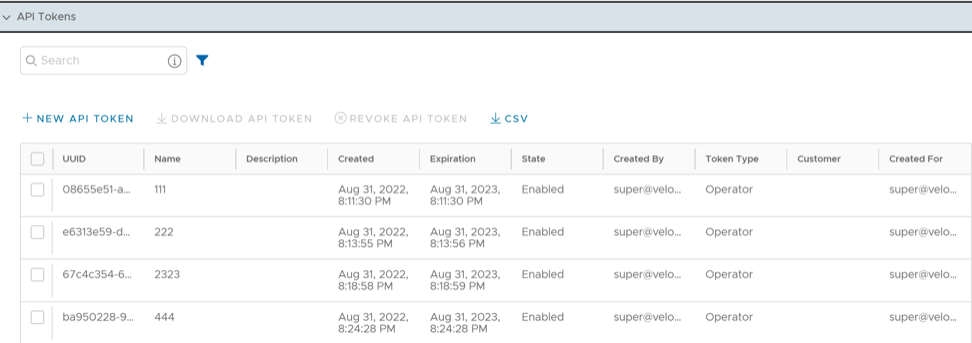
- Select New API Token.
Figure 5. New API Token 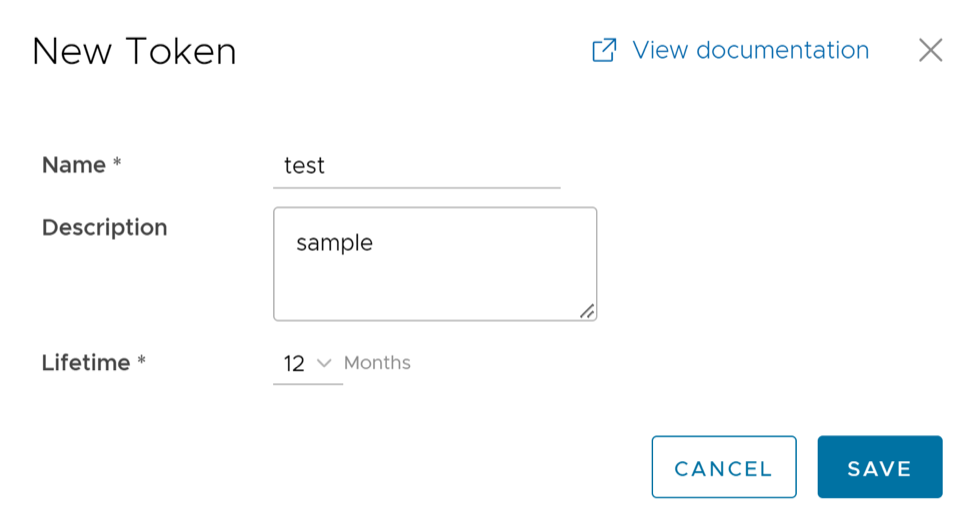
curl -k -H "Authorization: Token <Token>"
  -X POST https://vco/portal/
  -d '{ "id": 1, "jsonrpc": "2.0", "method": "enterprise/getEnterpriseUsers", "params": { "enterpriseId": 1 }}'
Similarly, you can configure additional properties and create API tokens for Partner Admins, Enterprise Customers, and Partner Customers.
Roles
Starting from the 5.1.0 release, Functional Roles are renamed as Privileges, and Composite Roles are renamed as Roles.
- Privileges – Privileges are a set of roles relevant to a functionality. A privilege can be tagged to one or more services. Users require privileges to carry out business processes. For example, a Customer support role in SD-WAN is a privilege required by an SD-WAN user to carry out various support activities. Every service defines such privileges based on its supported business functionality.
- Roles – The privileges from various categories can be grouped to form a role. By default, the following roles are available for an Operator user:
Table 5. Roles Role SD-WAN Service Global Settings Service Operator Standard Admin SD-WAN Operator Admin Global Settings Operator Admin Operator Superuser Full Access Full Access Operator Business SD-WAN Operator Business Global Settings Operator Business Operator Support SD-WAN Operator Support Global Settings Operator Support If required, you can customize the privileges of these roles. For additional information, see Service Permissions.
As an Operator, you can view the list of existing standard roles and their corresponding descriptions. You can add, edit, clone, or delete a new role. However, you cannot edit or delete a default role.
To access the Roles tab:
- From the left menu, select User Management, and then select the Roles tab. The following screen appears:
Figure 6. Roles- Operator 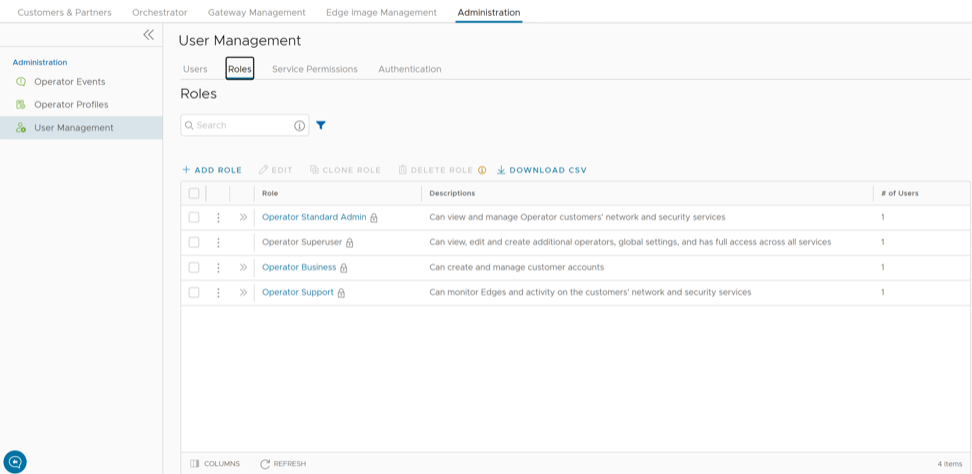
- Select >> displayed before the Role link, to view more details about the selected Role, as shown below:
Figure 7. Role Details 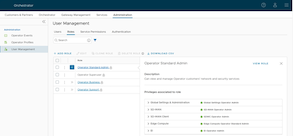
Add Role
To add a new role for an Operator, perform the following steps:
- Select Add Role. The following screen appears:
Figure 8. Add Role 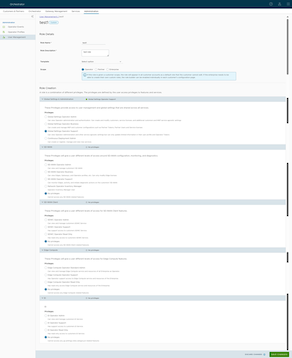
Enterprise Security Admin Role
Starting from the 6.1.0 release, customization of the Enterprise Security Admin role is enhanced to separate network and security actions. This customization allows you to configure only the Firewall settings at Profile and Edge level. All other SD-WAN configurations become read-only for an Enterprise Security Admin role.
- SD-WAN Enterprise Security Admin
- Global Settings Enterprise Admin
You can either create these new permissions or directly upload these permissions using JSON files. Both these methods are explained below:
- Create a Permission
- Select New Permission. The following screen appears:
Figure 9. Enterprise Security Admin Role 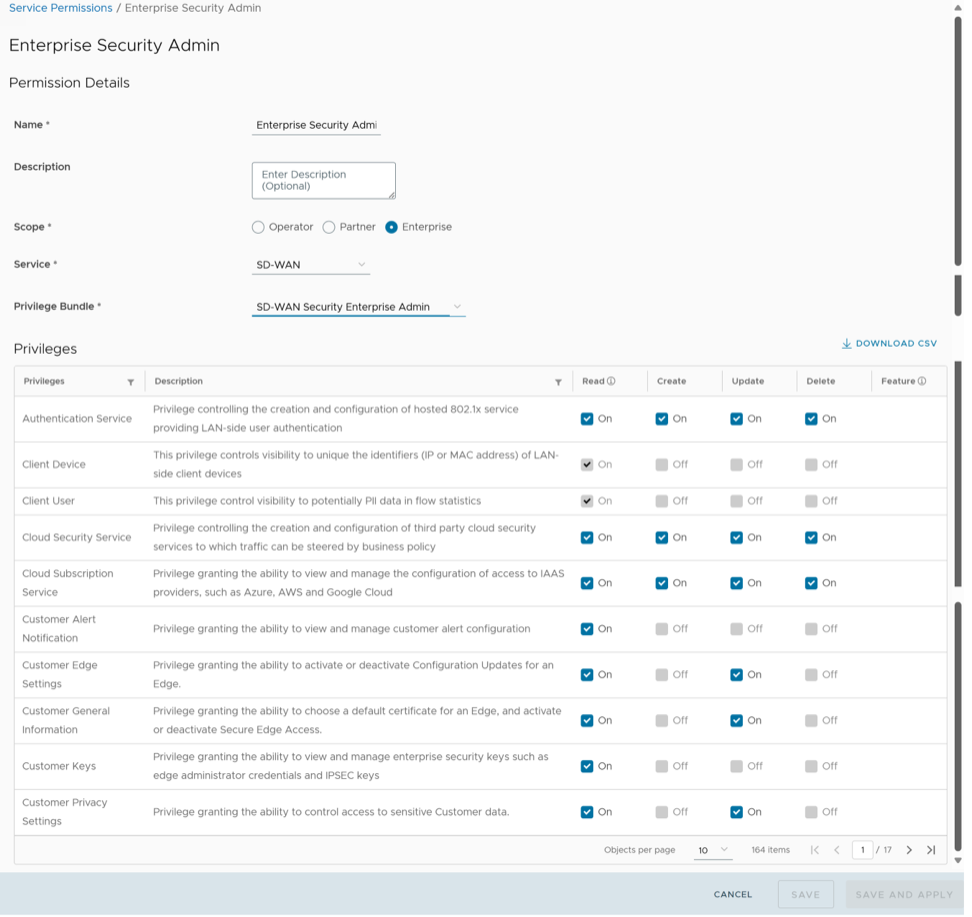
- Select New Permission. The following screen appears:
Service Permissions
Service Permissions allow you to granularly define actions (Read, Create, Update, and Delete) assigned to each Privilege (such as Cloud Security Service and Customer Segment configuration) within a Privilege Bundle.
- Starting from the 5.1.0 release, Role Customization is renamed as Service Permissions.
- To activate this feature, an Operator user must navigate to , and then check the Role Customization check box.
Roles can be customized by changing the service permissions held by each role. You can customize both, default roles and new roles. Roles are created based on the selected default role. Operator, Partner, and Enterprise roles are defined separately. So, there are default roles for each level, such as Operator Superuser, Partner Standard Admin, and Enterprise Support.
When customizing a role, you must select both, the user level and the role. Typically, Operator roles have more privileges by default, than Partners or Enterprise Customers. When creating a user, you must assign a role to the user. Any change to that specific role's privileges is immediately applied to all users assigned to that role. Role customizations only apply to one role at a time. For example, changes to Operator Standard Admin roles do not get applied to Enterprise Standard Admin roles.
For more information, see the topic Roles.
- The customizations done at the Enterprise level override the Partner or Operator level customizations.
- The customizations done at the Partner level override the Operator level customizations.
- Only when there are no customizations done at the Partner level or Enterprise level, the customizations made by the Operator are applied globally across all users in the Orchestrator.
- From the left menu, select User Management, and then select the Service Permissions tab. The following screen appears:
Figure 10. Service Permissions- Operator 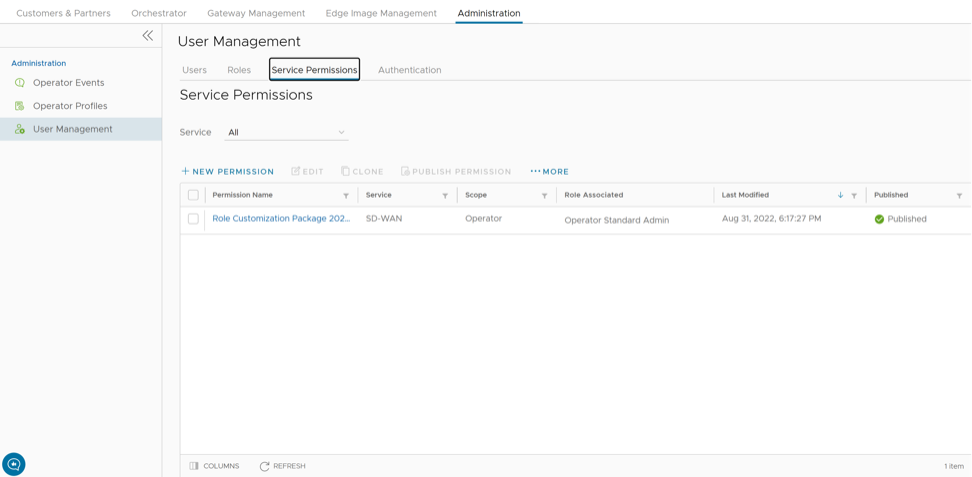
New Permission
You can customize the privileges and apply them to the existing permission in the Orchestrator.
To add a new permission, perform the following steps:
- Select New Permission. The following screen appears:
Figure 11. New Permission 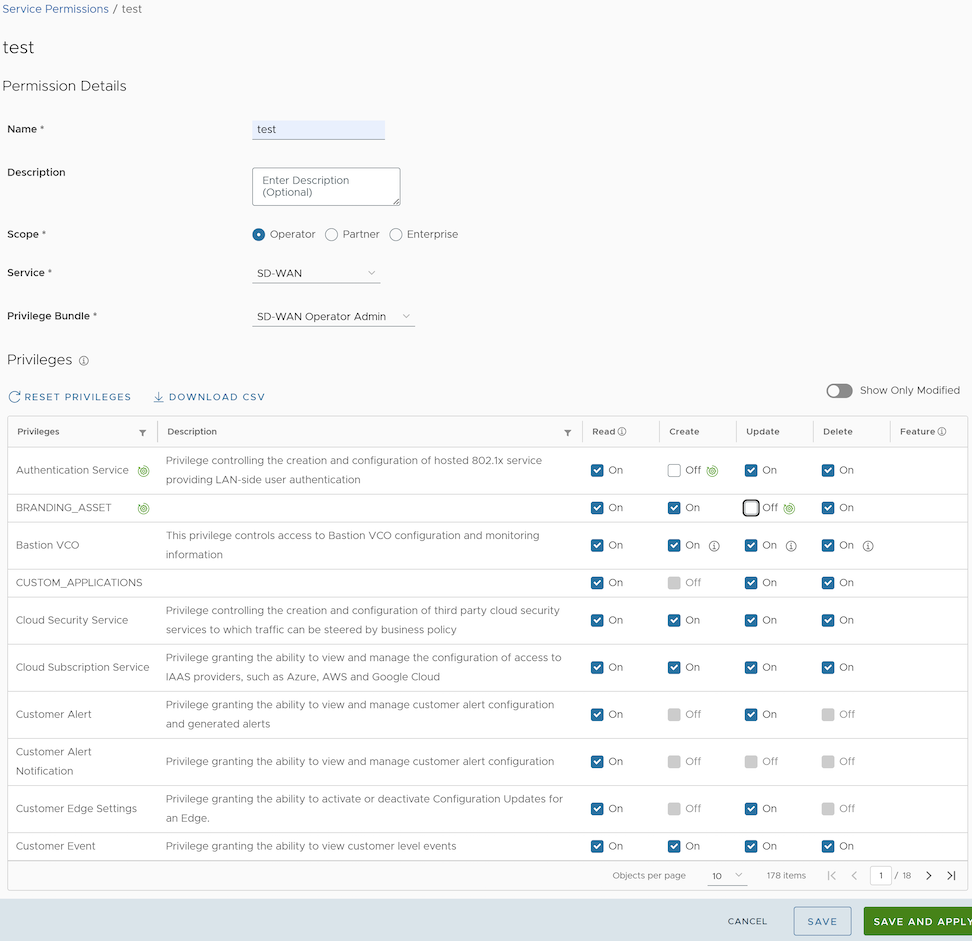
List of User Privileges
This section lists all the privileges available in the Operator portal.
- Allow Privilege – Do the privileges have allow access?
- Deny Privilege – Do the privileges have deny access?
- Customizable – Is the privilege available for customization in the Service Permissions tab?
| Feature | Name of the Privilege | Description | Allow Privilege | Deny Privilege | Customizable |
|---|---|---|---|---|---|
| Manage Customers | Create Customer | Grants ability to view and manage Enterprise Customers as an Operator or a Partner | Yes | No | No |
| Read Customer | |||||
| Update Customer | Yes | Yes | |||
| Delete Customer | No | No | |||
| Manage Customer | |||||
| Manage Partners | Create Partner | Grants ability to view and manage Partners | Yes | No | No |
| Read Partner | |||||
| Update Partner | |||||
| Delete Partner | |||||
| Manage Partner | |||||
| Software Images | Create Software Package | Grants access to upload and assign Edge Software Images and Application Maps | Yes | Yes | Yes |
| Read Software Package | |||||
| Update Software Package | |||||
| Delete Software Package | |||||
| Manage Software Package | |||||
| System Properties | Create System Property | Grants access to view and manage System Properties | Yes | Yes | No |
| Read System Property | Yes | ||||
| Update System Property | No | ||||
| Delete System Property | No | ||||
| Manage System Property | Yes | ||||
| Edit Restricted System Properties | Controls the ability of user to edit restricted system properties | Yes | No | No | |
| Operator Events | Create Operator Event | Grants ability to view Operator events | Yes | Yes | Yes |
| Read Operator Event | |||||
| Update Operator Event | |||||
| Delete Operator Event | |||||
| Manage Operator Event | |||||
| Operator Profiles | Create Operator Profile | Grants ability to view and manage Operator profiles | Yes | Yes | Yes |
| Read Operator Profile | |||||
| Update Operator Profile | |||||
| Delete Operator Profile | |||||
| Manage Operator Profile | |||||
| View Tab Operator Profile | Controls ability of the user to view and configure within the Operator profile menu | No | Yes | Yes | |
| Operator Users | Create Operator User | Grants ability to view and manage Operator administrative users | Yes | Yes | No |
| Read Operator User | Yes | ||||
| Update Operator User | No | ||||
| Delete Operator User | No | ||||
| Manage Operator User | Yes | ||||
| Create Operator Token | Grants ability to view and manage the operator Authentication Tokens | Yes | No | No | |
| Read Operator Token | |||||
| Update Operator Token | |||||
| Delete Operator Token | |||||
| Manage Operator Token | |||||
| Gateway Pools Gateways Gateway Diagnostic bundles | Create Gateway | Grants ability to view and manage Gateway pools and Gateways as an Operator or a Partner | Yes | Yes | Yes |
| Read Gateway | |||||
| Update Gateway | |||||
| Delete Gateway | |||||
| Manage Gateway | |||||
| View Tab Gateway List | Controls the ability of user to view the list of Gateways | No | Yes | Yes | |
| Create Operator PKI | Grants ability to view and manage Operator level PKI configuration including Gateway certificates and certificate authority | Yes | Yes | No | |
| Read Operator PKI | Yes | ||||
| Update Operator PKI | No | ||||
| Manage Operator PKI | Yes | ||||
| Download Gateway Diagnostics | Grants ability to download Gateway Diagnostics | No | Yes | Yes | |
| Application Maps | Create Software Package | Grants access to upload and assign Edge software images and Application Maps | Yes | Yes | Yes |
| Read Software Package | |||||
| Update Software Package | |||||
| Delete Software Package | |||||
| Manage Software Package | |||||
| Service Permissions | Create Service Permissions Package | Grants access to manage Service Permissions packages | Yes | No | No |
| Read Service Permissions Package | |||||
| Update Service Permissions Package | |||||
| Delete Service Permissions Package | |||||
| Manage Service Permissions Package | |||||
| Edge Licensing | Create License | Grants ability to view and manage Edge licensing | Yes | No | No |
| Read License | Yes | Yes | |||
| Update License | |||||
| Delete License | No | No | |||
| Manage License | |||||
| Read Operator PKI | Grants ability to view and manage operator level PKI configuration including Gateway certificates and certificate authority | Yes | Yes | Yes | |
| Delete Operator PKI | No | ||||
| Manage Operator PKI | Yes | ||||
| Read Customer PKI | Grants ability to view and manage Enterprise PKI settings | Yes | No | No | |
| Delete Customer PKI | |||||
| Manage Customer PKI | |||||
| Create Operator Authentication | Grants ability to view and manage Operator authentication mode, like SSO, RADIUS, or Native | Yes | Yes | Yes | |
| Read Operator Authentication | |||||
| Update Operator Authentication | |||||
| Delete Operator Authentication | |||||
| Manage Operator Authentication | |||||
| Create Customer Authentication | Grants ability to view and manage Customer authentication mode, like RADIUS or Native | Yes | Yes | Yes | |
| Read Customer Authentication | |||||
| Update Customer Authentication | |||||
| Delete Customer Authentication | |||||
| Manage Customer Authentication | |||||
| Replication | Create Replication | Grants access to view and configure Orchestrator disaster recovery | Yes | Yes | No |
| Read Replication | Yes | ||||
| Update Replication | No | ||||
| Delete Replication | |||||
| Manage Replication | Yes | ||||
| Create Orchestrator Diagnostics | Grants access to request and view Orchestrator diagnostic bundles | Yes | Yes | Yes | |
| Read Orchestrator Diagnostics | |||||
| Update Orchestrator Diagnostics | |||||
| Delete Orchestrator Diagnostics | |||||
| Manage Orchestrator Diagnostics | |||||
| Orchestrator Upgrade for Standalone | Create Software Package | Grants access to upload and assign Edge software images and Application Maps | Yes | Yes | Yes |
| Read Software Package | |||||
| Update Software Package | |||||
| Delete Software Package | |||||
| Manage Software Package | |||||
| Orchestrator Upgrade for DR Setup | Create Replication | Grants access to view and configure Orchestrator disaster recovery | Yes | Yes | No |
| Read Replication | Yes | ||||
| Update Replication | No | ||||
| Delete Replication | |||||
| Manage Replication | Yes | ||||
| User Agreements | Create User Agreement | Grants access to configure the customer user agreement | Yes | No | No |
| Read User Agreement | |||||
| Update User Agreement | |||||
| Delete User Agreement | |||||
| Manage User Agreement | |||||
| Orchestrator Owners Manage Orchestrators Edge Inventory | Create Edge Inventory | Grants ability to view and manage Edge inventory as needed for Redirect configuration | Yes | No | No |
| Read Edge Inventory | |||||
| Update Edge Inventory | |||||
| Delete Edge Inventory | |||||
| Manage Edge Inventory |
When the corresponding user privilege is denied, the Orchestrator window displays the 404 resource not found error.
| Navigation Path in the Enterprise Portal | Name of the Tab | Name of the Privilege | Description |
|---|---|---|---|
| Overview | Assign Edge Profile | Grants ability to assign a Profile to Edges | |
| Firewall | Configure Edge Firewall Logging | Grants ability to configure Edge level firewall logging | |
| Firewall | Configure Profile Firewall Logging | Grants ability to configure Profile level firewall logging | |
| Deactivate Edge | Grants ability to reset the device configuration to its factory default state | ||
| Enforce PCI Compliance | Deny PCI Operations | Denies access to sensitive Customer data including PCAPs, etc. on the Edges and Gateways, for all users including VMware Support | |
| Download Edge Diagnostics | Grants ability to download Edge Diagnostics | ||
| Download Gateway Diagnostics | Grants ability to download Gateway Diagnostics | ||
| Duplicate | Duplicate Customer Profile | Grants ability to edit duplicate customer level Profiles | |
| Segments drop-down menu | Edit Tab Segments | Grants ability to edit within the Segments tab | |
| Device | Enable HA Cluster | Grants ability to configure HA Clustering | |
| Device | Enable HA Active/Standby Pair | Grants ability to configure active/standby HA | |
| Device | Enable HA VRRP Pair | Grants ability to configure VRRP HA | |
| Clear ARP Cache | Remote Clear ARP Cache | Grants ability to clear the ARP cache for a given interface | |
| Cloud Traffic Routing (drop-down menu) | Remote Cloud Traffic Routing | Grants ability to route cloud traffic remotely | |
| DNS/DHCP Service Restart | Remote DNS/DHCP Restart | Grants ability to restart the DNS/DHCP service | |
| Flush Flows | Remote Flush Flows | Grants ability to flush the Flow table, causing user traffic to be re-classified | |
| Flush NAT | Remote Flush NAT | Grants ability to flush the NAT table | |
| LTE Switch SIM Slot
Note: This is for 610-LTE and 710 5G devices only.
|
Remote LTE Switch SIM Slot | Grants ability to activate the SIM Switchover feature. After the test is successful, you can check the status from Monitor > Edges > Overview tab | |
| List Paths | Remote List Paths | Grants ability to view the list of active paths between local WAN links and each peer | |
| List current IKE Child SAs | Remote List current IKE Child SAs | Grants ability to use filters to view the exact Child SAs you want to see | |
| List current IKE SAs | Remote List Current IKE SAs | Grants ability to use filters to view the exact SAs you want to see | |
| MIBs for Edge | Remote MIBS for Edge | Grants ability to dump Edge MIBs | |
| NAT Table Dump | Remote NAT Table Dump | Grants ability to view the contents of the NAT table | |
| Remote Rebalance Hub Cluster | Grants ability to either redistribute Spokes in Hub Cluster or redistribute Spokes excluding this Hub | ||
| Remote Reset SFP Firmware Configuration | Grants ability to reset the SFP Firmware Configuration | ||
| Reset USB Modem | Remote Reset USB Modem | Grants ability to execute the Edge USB modem reset remote action | |
| Scan for Wi-Fi Access Points | Remote Scan for Wi-Fi Access Points | Grants ability to scan the Wi-Fi functionality for the VeloCloud Edge | |
| System Information | Remote System Information | Grants ability to view system information such as system load, recent WAN stability statistics, monitoring services | |
| VPN Test | Remote VPN Test | Grants ability to execute the Edge VPN test remote action | |
| WAN Link Bandwidth Test | Remote WAN link Bandwidth Test | Grants ability to re-test the bandwidth of a WAN link | |
| Shutdown Edge | Grants ability to execute the Edge shutdown remote action | ||
| Update Customer SMS Alert | Grants ability to configure SMS alerts at the customer level | ||
| Top Sources | View Edge Sources | Grants ability to view Monitor Edge Sources tab | |
| Firewall Logging | View Firewall Logs | Grants ability to view collected firewall logs | |
| Top Sources | View Flow Stats | Grants ability to view collected flow statistics | |
| Firewall Logs | View Profile Firewall Logging | Grants ability to view the details of firewall logs originating from VMware VeloCloud Edges | |
| Firewall | View Stateful Firewall | Grants ability to view collected flow statistics | |
| View Syslog Forwarding | Grants ability to view logs that are forwarded to a configured syslog collector | ||
| Gateways | View Tab Gateway List | Grants ability to view the Gateway list tab | |
| Operator Profiles | View Tab Operator Profile | Grants ability to view and configure settings within the Operator Profile menu tab | |
| Top Sources | View User Identifiable Flow Stats | Grants ability to view potentially user identifiable flow source attributes |
Authentication
The Authentication feature allows you to set the authentication modes for both, Operators and Enterprise users. You can also view the existing API tokens.
- In the Operator portal, select Administration from the top menu.
- From the left menu, select User Management, and then select the Authentication tab. The following screen appears:
Figure 12. Authentication- Operator 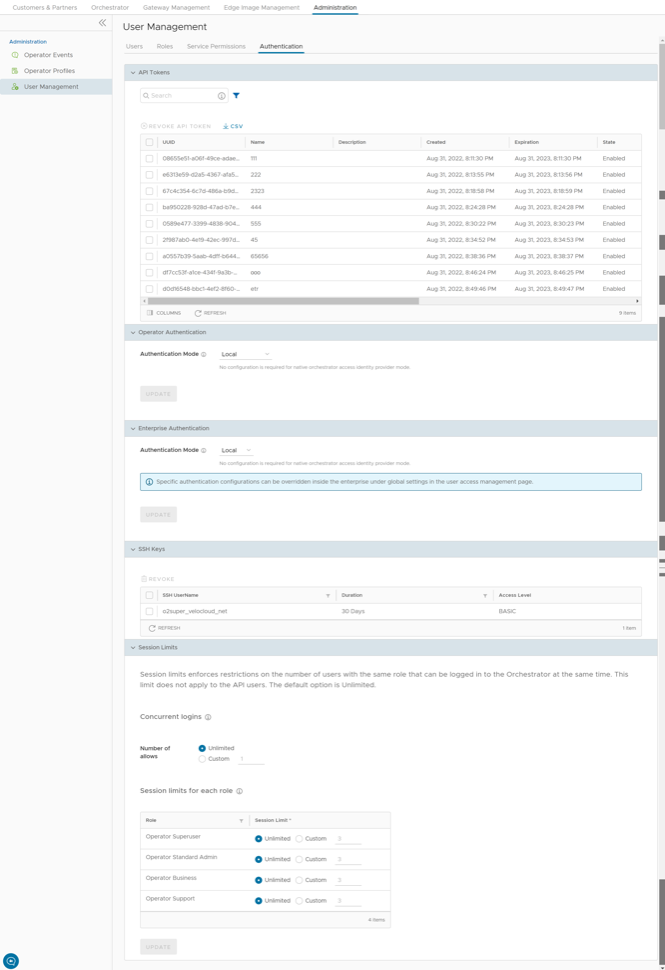
The various sections in the Authentication tab are explained below:
API Tokens
You can access the Orchestrator APIs using token-based authentication, irrespective of the authentication mode. Operator Administrators with right permissions can view the API tokens issued to Orchestrator users, including tokens issued to the Partner and Customer users. If required, an Operator Administrator can revoke the API tokens.
By default, the API Tokens are activated. If you want to deactivate them, go to , and set the value of the system property session.options.enableApiTokenAuth as False.
| Option | Description |
|---|---|
| Search | Enter a search term to search for the matching text across the table. Use the advanced search option to narrow down the search results. |
| Revoke API Token | Select the token and select this option to revoke it. Only an Operator Super User or the user associated with an API token can revoke the token. |
| CSV | Select this option to download the complete list of API tokens in a .csv file format. |
| Columns | Select and select the columns to be displayed or hidden on the page. |
| Refresh | Select to refresh the page to display the most current data. |
As an Operator Super User, you can manage the API tokens for Enterprise users. For information on creating and downloading API tokens, see API Tokens.
Operator Authentication / Enterprise Authentication
- Local: This is the default option and does not require any additional configuration.
- Single Sign-On: Operator users with Superuser permission can set up and configure Single Sign On (SSO) in Orchestrator. Single Sign-On (SSO) is a session and user authentication service that allows users to log in to multiple applications and websites with one set of credentials. Integrating an SSO service with Orchestrator enables the Orchestrator to authenticate users from an OpenID Connect (OIDC)-based Identity Providers (IdPs).
Note:
Beginning in Release 6.1.0, the Orchestrator is capable of having multiple IdPs configured so that a Partner on their Dedicated Orchestrator can configure an IdP independently of the VMware VeloCloud SD-WAN TechOPS team. As a result the Partner with Operator level access can log into their Dedicated Orchestrator with an integrated Single Sign-On service.
Pre-requisites:- Ensure that you have the Operator Superuser permission.
- Before setting up the SSO authentication in Orchestrator, make sure that you have set up Users, Service Permissions, and OpenID connect (OIDC) application for Orchestrator in your preferred identity provider’s website.
Note:- Single Sign-On mode is available only for Operator Authentication in the Operator portal.
- Token-based authentication is deactivated for SSO users.
To enable Single Sign On (SSO) for Orchestrator, you must enter the Orchestrator application details into the Identity Provider (IdP). Select each of the following links for step-by-step instructions to configure the following supported IdPs:The Operator Authentication screen for Single Sign-On with Optional Multiple IdPs
With the new Multiple IdP feature in Release 6.1.0, the Single Sign-On screen changes from displaying one configuration screen for one Single Sign On account to displaying a table where multiple IdPs can be configured and tracked.
Figure 13. Operator Authentication 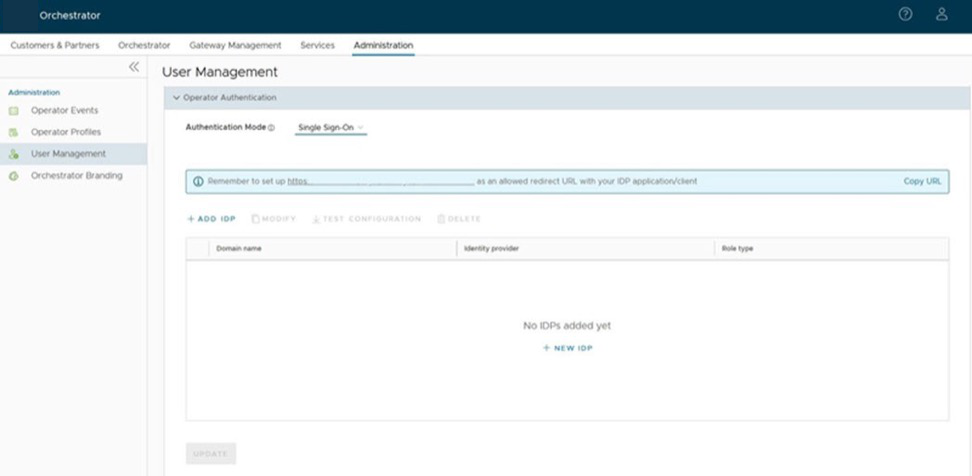
With this new format, a Superuser Operator must select + NEW IDP to add an IdP. Only then will the Single Sign-On Setup screen appear for configuring that particular IdP.
The workflow for configuring a Single Sign-On changes slightly with a user seeing two screens.
Figure 14. Single Sign-On Setup 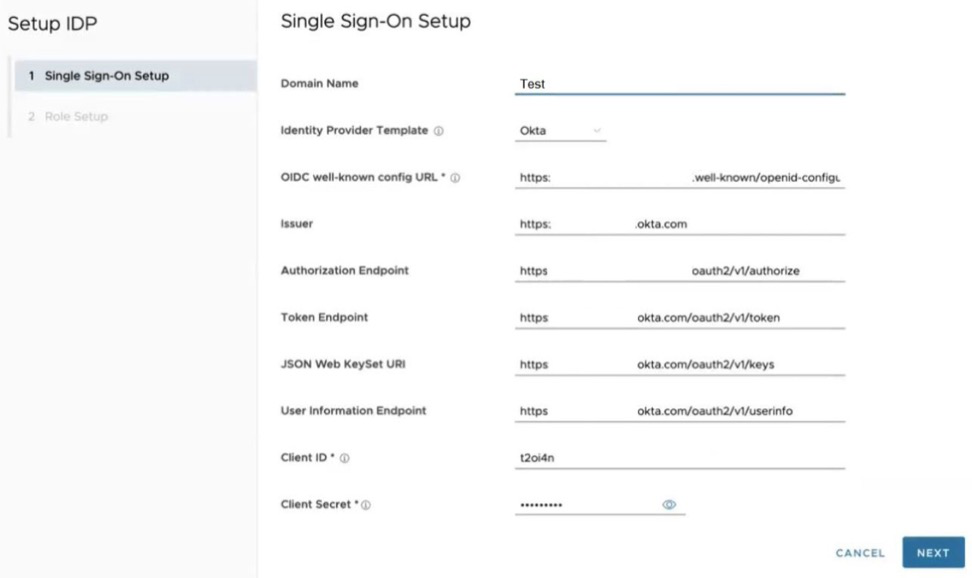
Once you are on the Single Sign-On Setup screen, you can configure the following options when you select the Authentication Mode as Single Sign-on.
Table 18. Single Sign-On Setup Option Description Option Description Identity Provider Template From the drop-down menu, select your preferred Identity Provider (IdP) that you have configured for Single Sign On. This pre-populates fields specific to your IdP. OIDC well-known config URL Enter the OpenID Connect (OIDC) configuration URL for your IdP. For example, the URL format for Okta will be: https://{oauth-provider-url}/.well-known/openid-configuration. Issuer This field is auto-populated based on your selected IdP. Authorization Endpoint This field is auto-populated based on your selected IdP. Token Endpoint This field is auto-populated based on your selected IdP. JSON Web KeySet URI This field is auto-populated based on your selected IdP. User Information Endpoint This field is auto-populated based on your selected IdP. Client ID Enter the client identifier provided by your IdP. Client Secret Enter the client secret code provided by your IdP, that is used by the client to exchange an authorization code for a token. Scopes This field is auto-populated based on your selected IdP. Once the Single Sign-On Setup is complete, the Operator needs to configure the Role Setup section.
Figure 15. Role Setup- Use Default Role 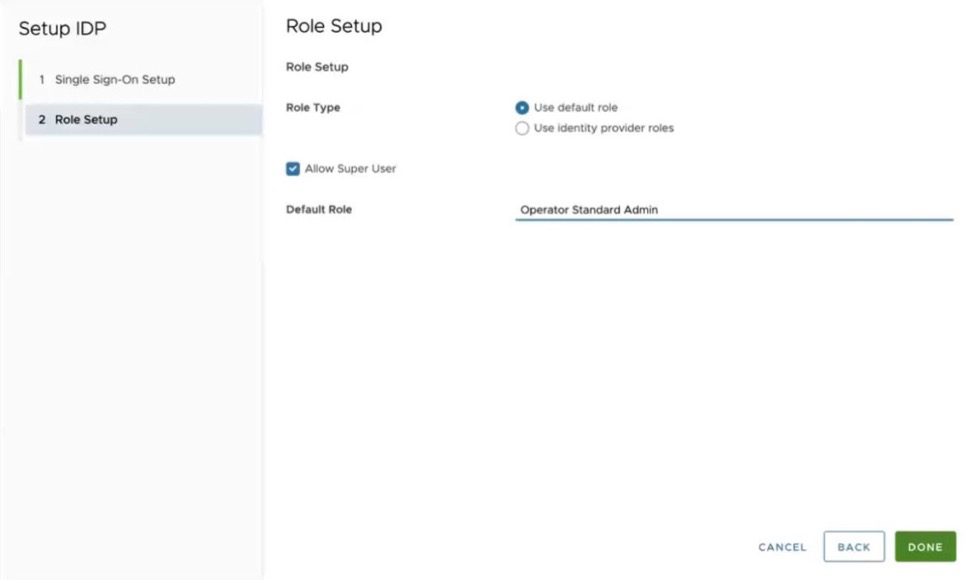
Figure 16. Role Setup- Use Identity Provider Roles (Default) 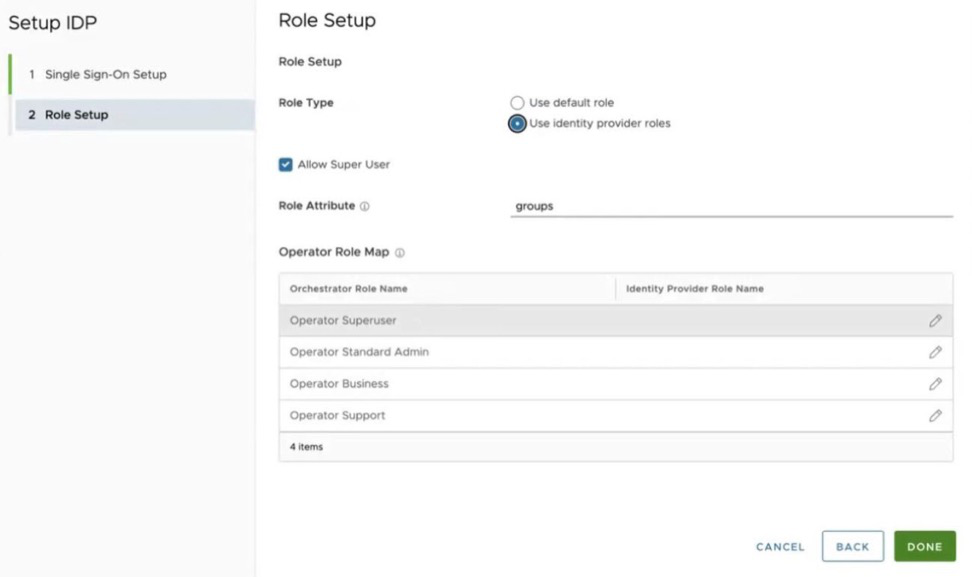
Once you are on the Role Setup screen, you can configure the following options.
Role Type Select one of the following two options: - Use default role
- Use identity provider roles
Allow Super User This option is for the Partner adding a second IdP. Unchecked this option as a Partner cannot have a Super User role on a Dedicated Orchestrator managed by VMware VeloCloud. In addition, remove the Super User role on the Use identity provider roles screen. Role Attribute Enter the name of the attribute set in the IdP to return roles. Operator Role Map Map the IdP-provided roles to each of the Operator user roles. CAUTION: If configuring a second IdP for a Partner on an Orchestrator hosted by VeloCloud (Dedicated Orchestrator), the configuration must not include an Operator Superuser role.Role Setup for a Partner-added second IdP where the Allow Super User check box is unchecked: This screen also shows that if you enter Operator Superuser as a default role, the Orchestrator displays an error when that box is unchecked. The Default Role should be Operator Standard Admin for Partner Operator users.Figure 17. Allow Super User 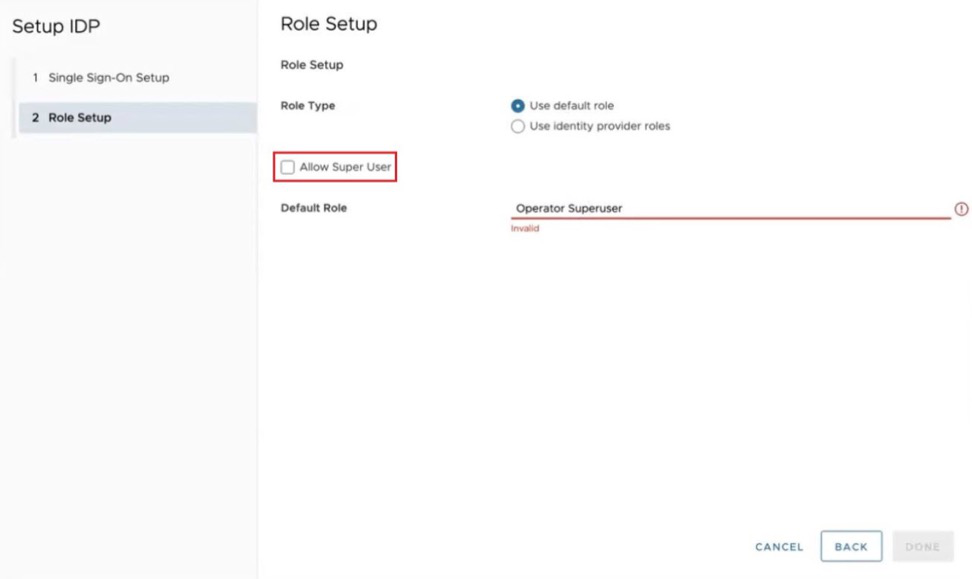 Role Setup for a Partner-added second IdP where the Operator Superuser role must be removed.
Figure 18. Removing Operator Superuser role 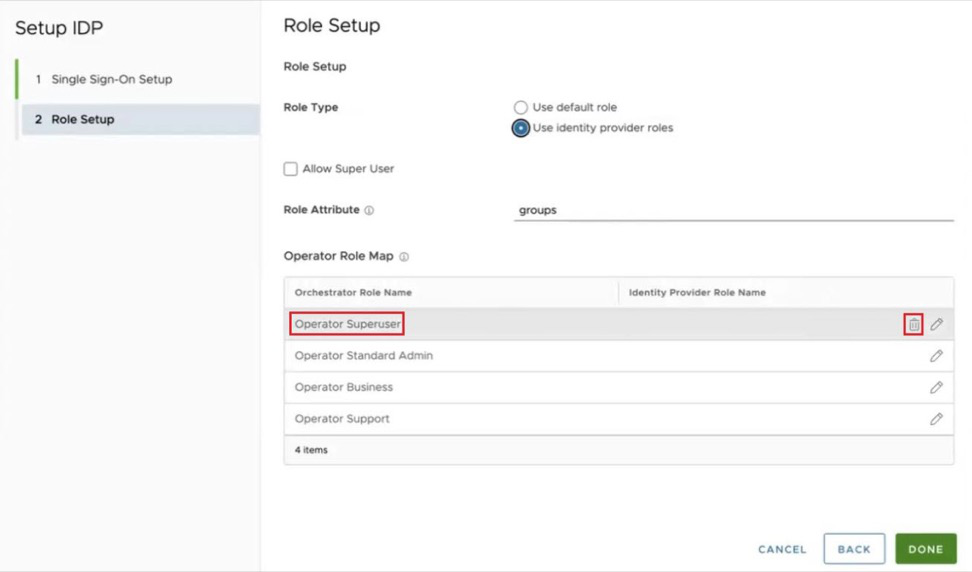 The Operator user can also test the configuration for a particular Single Sign-On/IdP configuration, by selecting the Test Configuration option
Figure 19. Test Configuration 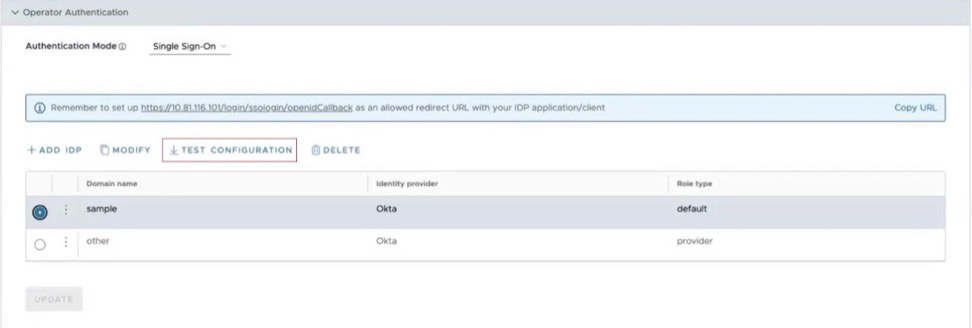 Successful SSO Configuration Test: The "Partial Success" message only indicates this configuration does not have a refresh token configured. It is still a valid configuration.
Figure 20. SSO Configuration Test 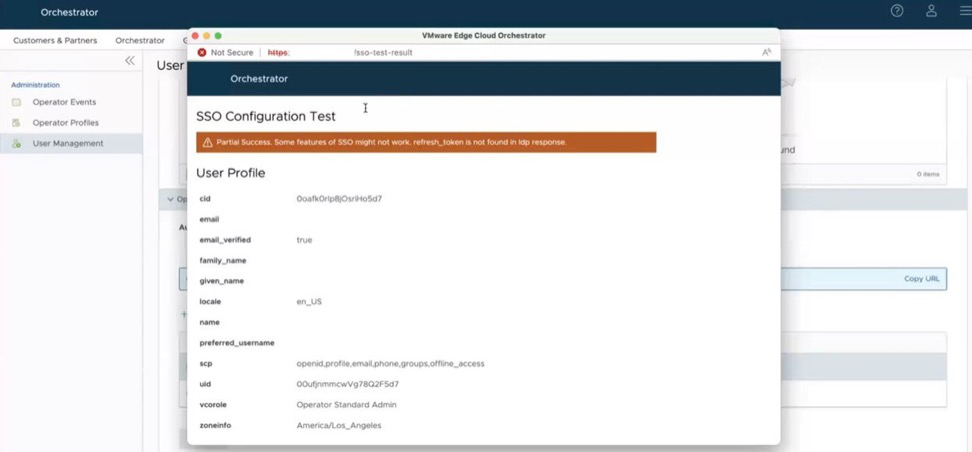
Logging in as a Partner with an Operator Role using your own IdP: A partner with an IdP configured can login to their Orchestrator by pulling up a browser and entering in the usual URL except they would add /operator to that URL. This pulls up the Operator login screen and includes a button SIGN IN WITH YOUR IDENTITY PROVIDER. On an Orchestrator with just one SSO IdP configured, selecting that button logs them in assuming the Operator user has the proper IdP credentials.
The Operator login screen has '/operator' in the URL and includes the 'Sign In With Your Identity Provider' button. Select this button to move on to the SSO screen.Figure 21. Operator Login Screen 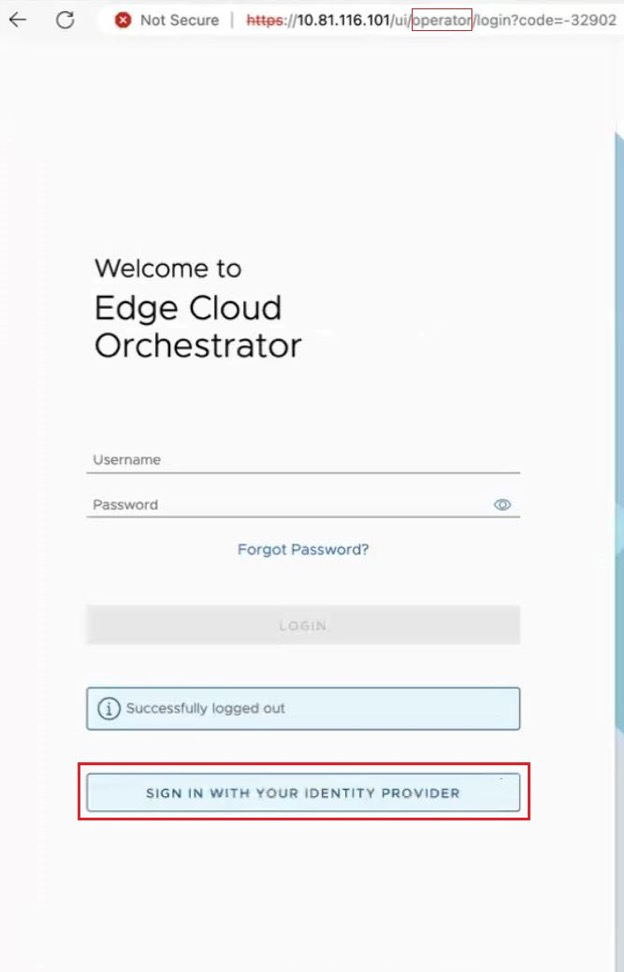
On an Orchestrator with multiple IdPs configured, selecting that button takes you to a new screen for SSO sign-in. This is where the Partner Operator would enter in the Domain Name configured for the IdP. Once entered, select Sign In and you will be logged into the Orchestrator.
Where there are multiple IdPs configured, all users including the Partner are moved to this screen. The URL includes the text stringdomainFinder, but where it reads Organization Domain, you actually enter your 'Domain Name' for the IdP as configured earlier.Figure 22. Enter your IdP 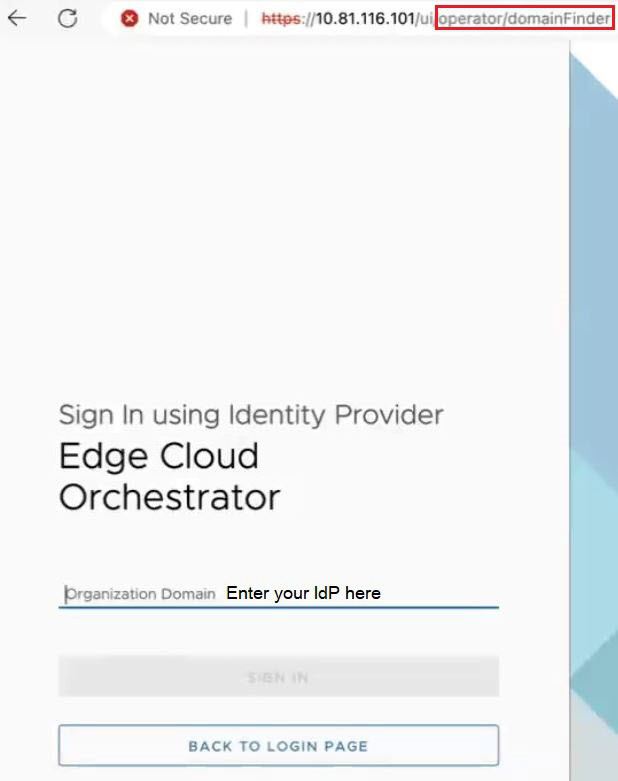 Note: An easier method for a Partner using their own IdP is to bookmark the following their Orchestrator URL with this format: https://orchestrator hostname or IP address/ui/operator/login?domain=IdP Domain Name. This will automatically take you to the login screen and prepopulate the IdP Domain Name. For example for an Orchestrator with hostname vco11-usor1.velocloud.net where the IdP Domain Name is Acme, the Partner Operator could bookmark: https://vco11-usor1.velocloud.net/ui/operator/login?domain=Acme and when they selected that bookmark, the browser would still go to the Operator login screen. The difference is that now when they select SIGN IN WITH YOUR IDENTITY PROVIDER, the user is immediately logged in the Orchestrator with no extra step, as the domain is already provided in the URL.
For all configurations of an IdP, select Update to save the entered values. The SSO authentication setup is complete in the SD-WAN Orchestrator.
- RADIUS: Remote Authentication Dial-In User Service (RADIUS) is a client-server protocol that enables remote access servers to communicate with a central server. RADIUS authentication provides a centralized management for users. You can configure the Orchestrator Authentication in RADIUS mode, so that the Operator and Enterprise Customers log into the portals using the RADIUS servers. Enter appropriate details in the following fields:
Figure 23. Radius Authentication Mode 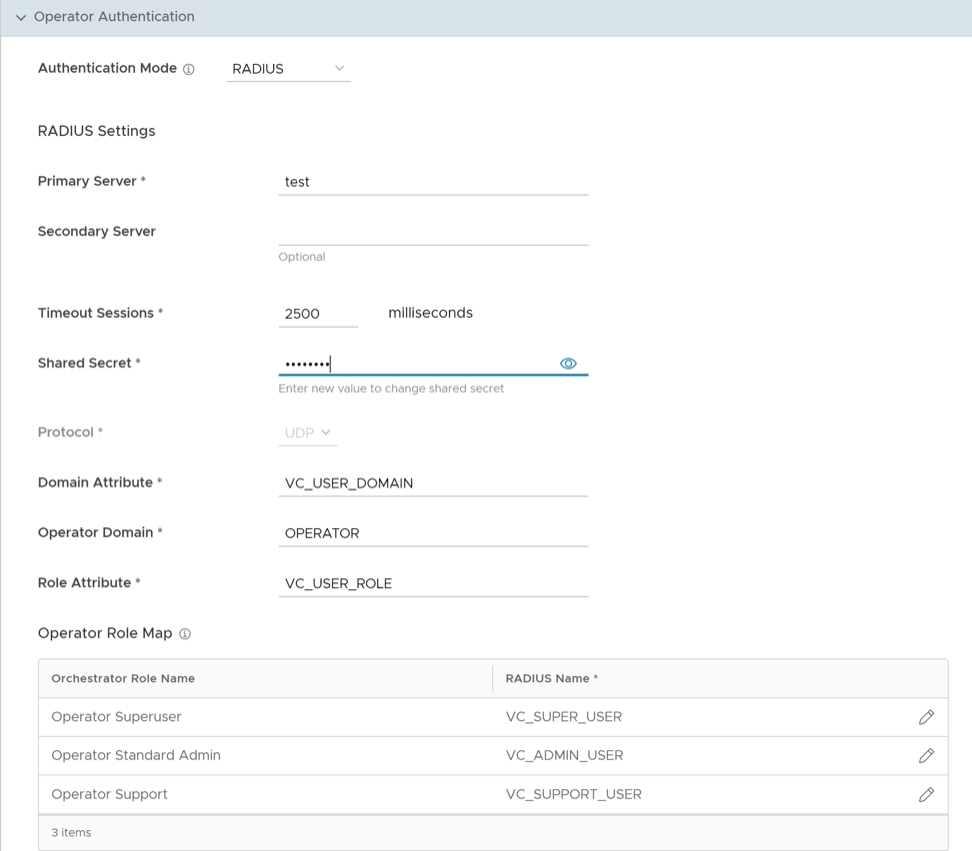
- You can edit the Protocol value only in the System Properties. Navigate to , and edit the protocol in the Value field of the system property
vco.operator.authentication.radius. - Operator Domain field is available only for Operators.
- In the Operator Role Map / Enterprise Role Map section, map the RADIUS server attributes to each of the Operator or Enterprise user roles. This role mapping is used to determine the role the users would be assigned when they login to the Orchestrator using the RADIUS server for the first time.
- Select Update to save the entered values.
- You can edit the Protocol value only in the System Properties. Navigate to , and edit the protocol in the Value field of the system property
SSH Keys
You can create only one SSH Key per user. Select the User Information icon located at the top right of the screen, and then select to create an SSH Key.
As an Operator, you can also revoke an SSH Key.
Select the Refresh option to refresh the section to display the most current data.
For additional information, see Configure User Account Details.
Session Limits
session.options.enableSessionTracking to True.| Option | Description |
|---|---|
| Concurrent logins | Allows you to set a limit on concurrent logins per user. By default, Unlimited is selected, indicating that unlimited concurrent logins are allowed for the user. |
| Session limits for each role | Allows you to set a limit on the number of concurrent sessions based on user role. By default, Unlimited is selected, indicating that unlimited sessions are allowed for the role.
Note: The roles that are already created by the Operator in the Roles tab, are displayed in this section.
|
Select Update to save the selected values.
Configure Azure Active Directory for Single Sign On
Ensure you have an Azure AD account to sign in.
To set up an OpenID Connect (OIDC)-based application in Microsoft Azure Active Directory (Azure AD) for Single Sign On (SSO), perform the following steps.
- To create a new application, search and select the Azure Active Directory service.
Figure 24. Microsoft Azure 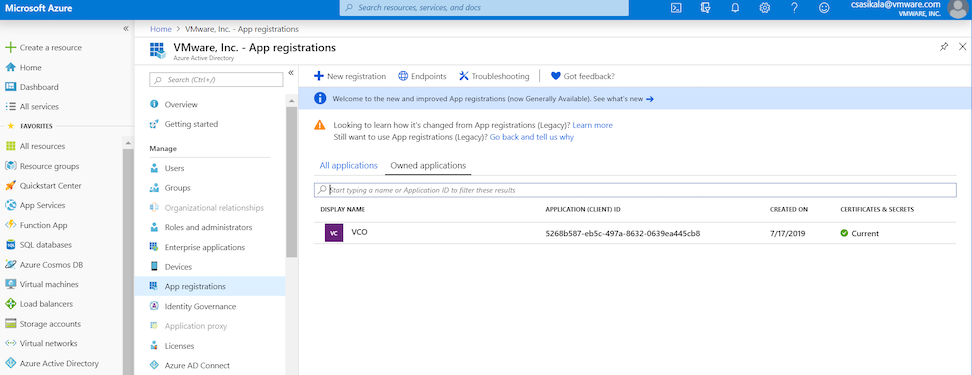
- Go to . The Register an application screen appears.
Figure 25. Register an Application 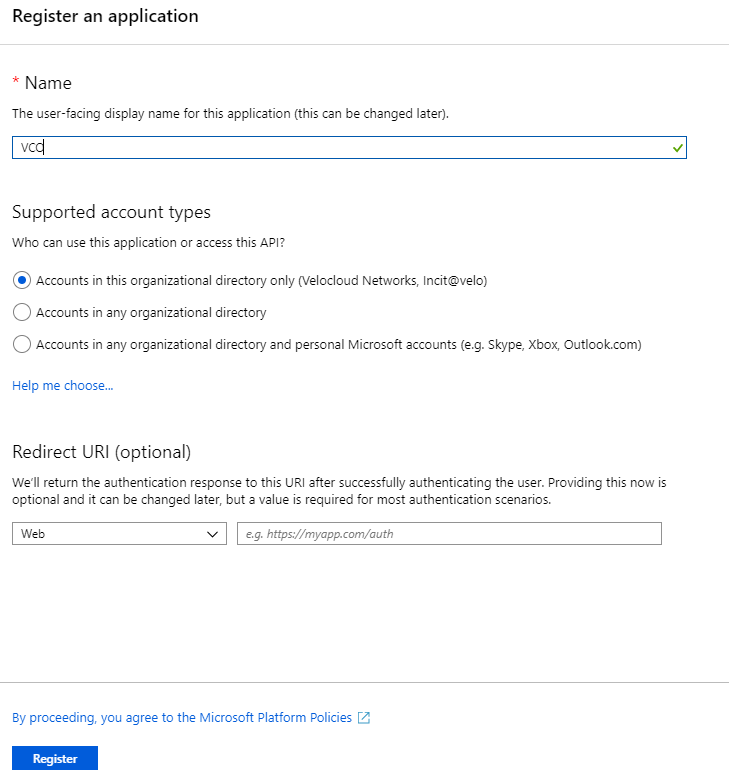
- Go to . The Add a client secret screen appears.
Figure 26. Adding a Client Secret 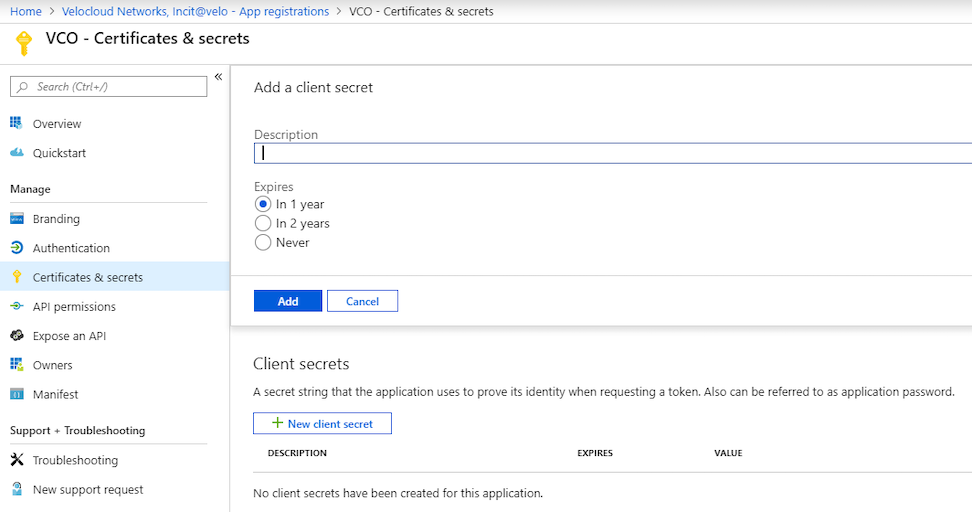
- To configure permissions for your Orchestrator application, select on your Orchestrator application and go to . The Request API permissions screen appears.
Figure 27. Adding API Permissions 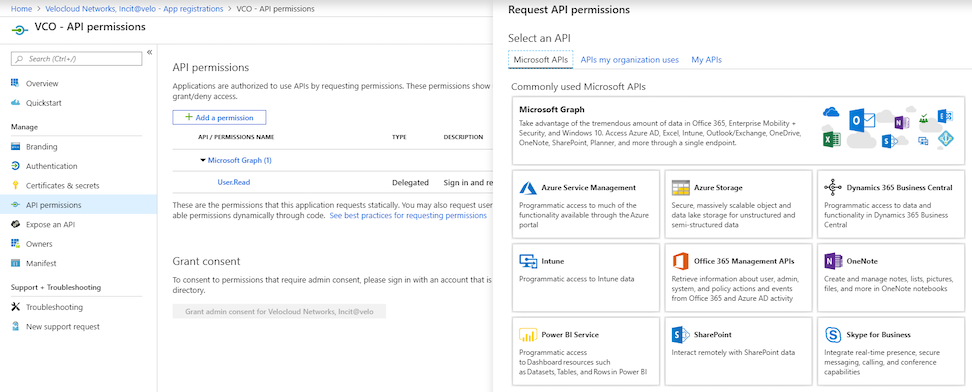
- To add and save roles in the manifest, select on your Orchestrator application and from the application Overview screen, select Manifest. A web-based manifest editor opens, allowing you to edit the manifest within the portal. Optionally, you can select Download to edit the manifest locally, and then use Upload to reapply it to your application.
Figure 28. Viewing the Manifest 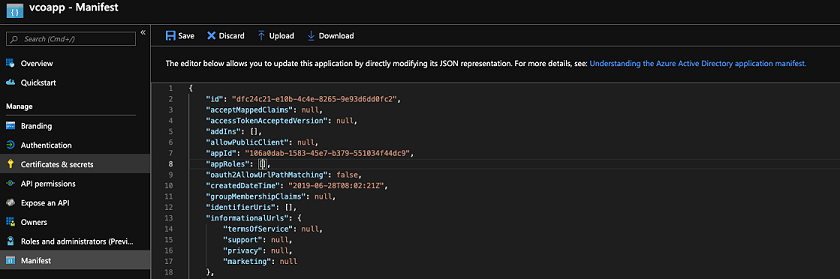
- In the manifest, search for the
appRolesarray and add one or more role objects and select Save.Note: The value property from appRoles must be added to the Identity Provider Role Name column of the Role Map table, located in the Authentication tab, in order to map the roles correctly.Sample role objects{ "allowedMemberTypes": [ "User" ], "description": "Standard Administrator who will have sufficient privilege to manage resource", "displayName": "Standard Admin", "id": "18fcaa1a-853f-426d-9a25-ddd7ca7145c1", "isEnabled": true, "lang": null, "origin": "Application", "value": "standard" }, { "allowedMemberTypes": [ "User" ], "description": "Super Admin who will have the full privilege on Orchestrator", "displayName": "Super Admin", "id": "cd1d0438-56c8-4c22-adc5-2dcfbf6dee75", "isEnabled": true, "lang": null, "origin": "Application", "value": "superuser" }Note: Make sure to set id to a newly generated Global Unique Identifier (GUID) value. You can generate GUIDs online using web-based tools (for example, https://www.guidgen.com/), or by running the following commands:- Linux/OSX-
uuidgen - Windows-
powershell
                                                  [guid]::NewGuid()
Figure 29. Manifest 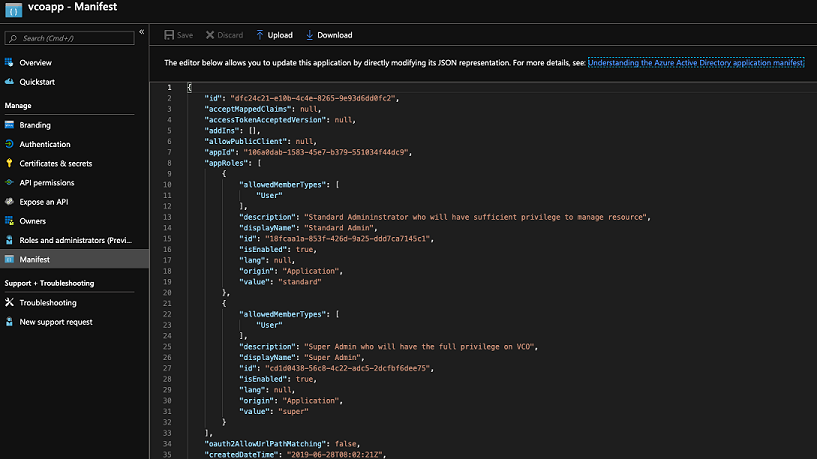
Roles are manually set up in the Orchestrator, and must match the ones configured in the Microsoft Azure portal.
Figure 30. App Roles 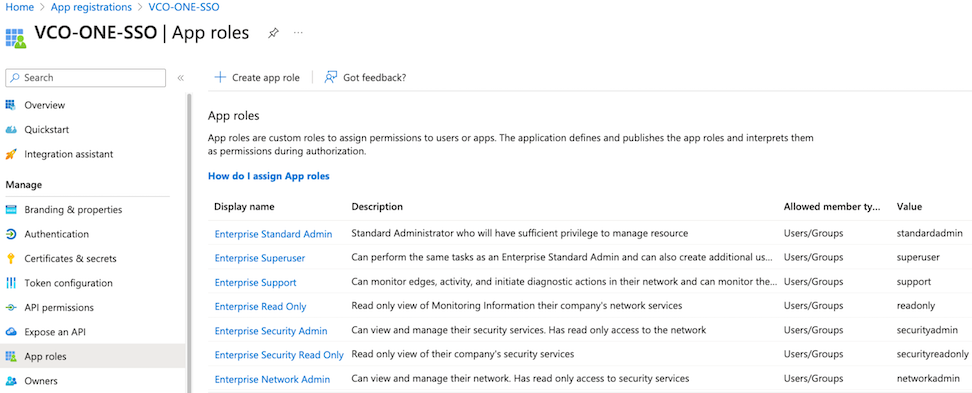
- Linux/OSX-
Configure Okta for Single Sign On
To support OpenID Connect (OIDC)-based Single Sign On (SSO) from Okta, you must first set up an application in Okta. To set up an OIDC-based application in Okta for SSO, perform the steps on this procedure.
Ensure you have an Okta account to sign in.
- To create a new application, select . The Add Application screen displays.
Figure 31. Adding an Application to Okta 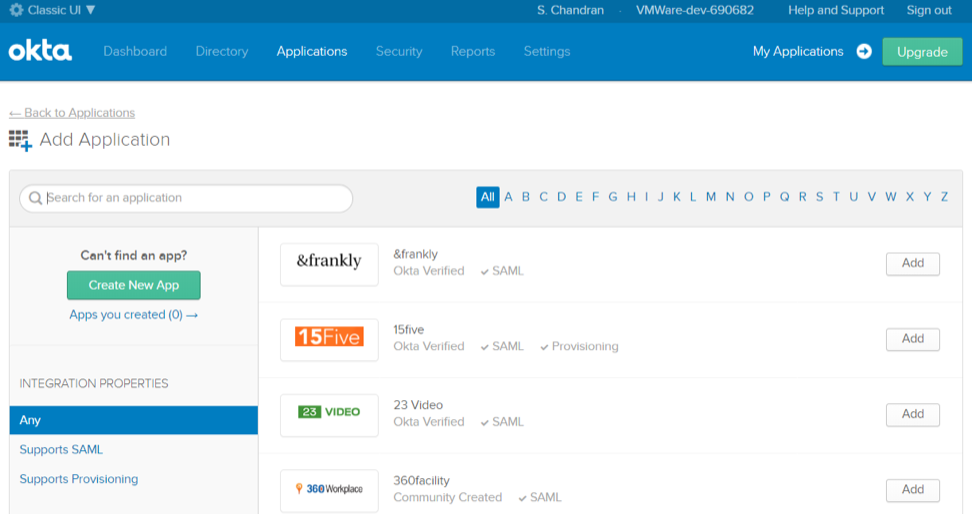
- Select OpenID Connect as the Sign on method and select Create. The Create OpenID Connect Integration screen appears.
Figure 32. Creating an OpenID Connect Integration 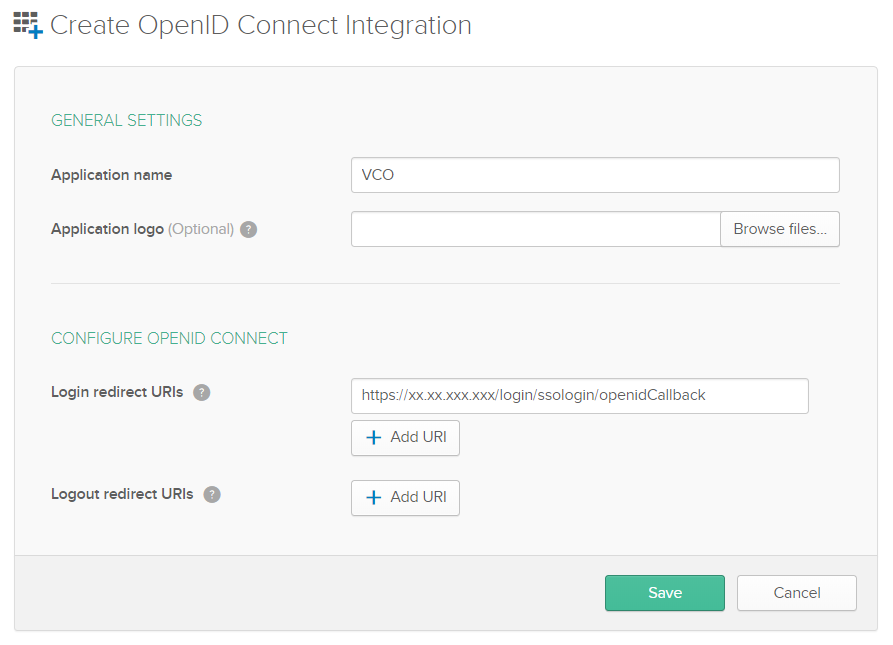
- On the General tab, select Edit and select Refresh Token for Allowed grant types, and select Save. Note down the Client Credentials (Client ID and Client Secret) to be used during the SSO configuration in Orchestrator.
Figure 33. Configuring General Settings 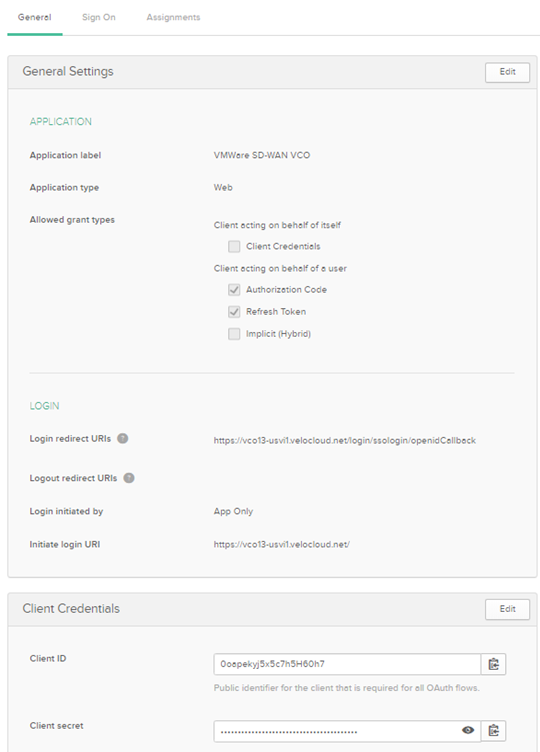
- Select Save. The application is setup in IDP. You can assign user groups and users to your Orchestrator application.
Figure 34. Configuring Settings 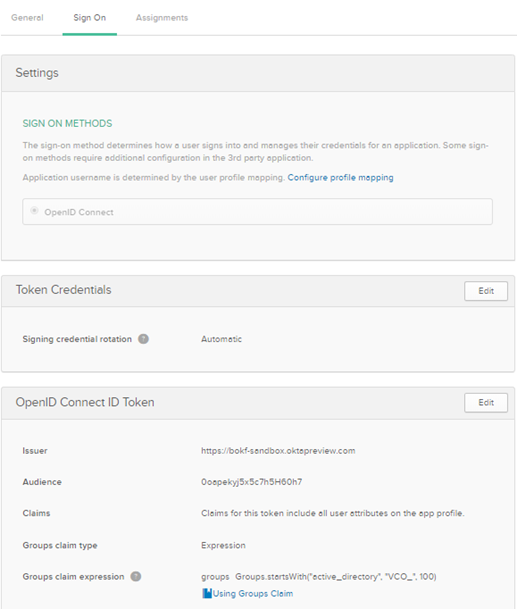
- Select Assign next to available user groups or users you want to assign the Orchestrator application and select Done. The users or user groups assigned to the Orchestrator application displays.
Figure 35. Assigning the Configuration 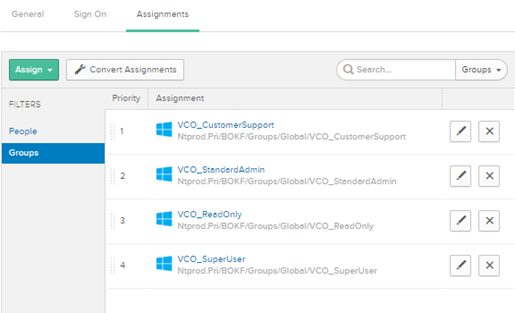
You have completed setting up an OIDC-based application in Okta for SSO.
Configuring OneLogin for Single Sign On
To set up an OpenID Connect (OIDC)-based application in OneLogin for Single Sign On (SSO), perform the steps below:
Ensure you have an OneLogin account to sign in.
- In the Find Applications text box, search for “OpenId Connect” or “oidc” and then select the OpenId Connect (OIDC) app. The Add OpenId Connect (OIDC) screen appears.
Figure 36. Add OpenID Connect 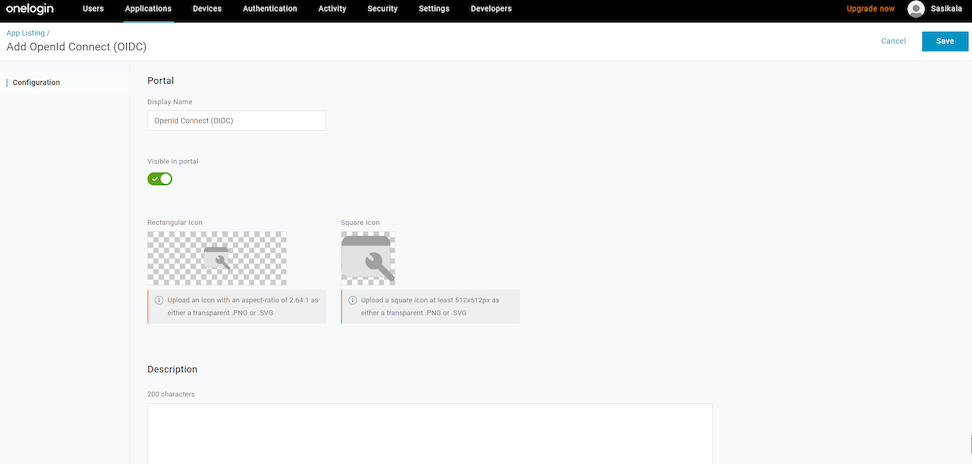
- On the Configuration tab, enter the Login URL (auto-login URL for SSO) and the Redirect URI that Orchestrator uses as the callback endpoint, and select Save.
- Login URL- The login URL will be in this format: https://<Orchestrator URL>/<Domain>/ login/doEnterpriseSsoLogin. Where, Domain is the domain name of your Enterprise that you must have already set up to enable SSO authentication for the Orchestrator. You can get the Domain name from the page.
- Redirect URI's- The Orchestrator redirect URL will be in this format: https://<Orchestrator URL>/login/ssologin/openidCallback. In the Orchestrator application, at the bottom of the Authentication screen, you can find the redirect URL link.
Figure 37. Configuring OpenID Connect 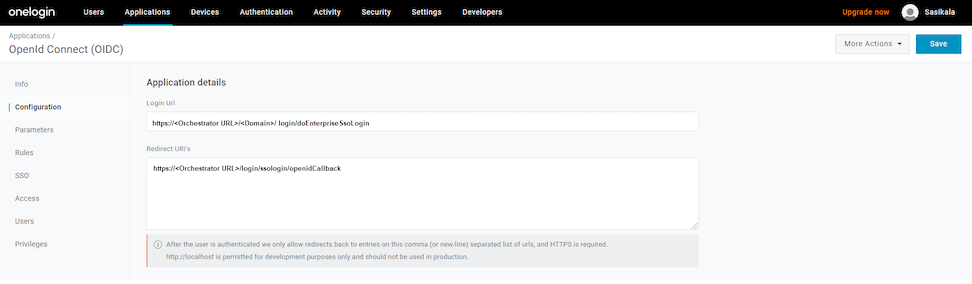
- On the Parameters tab, under OpenId Connect (OIDC), double select Groups. The Edit Field Groups pop-up appears.
Figure 38. Editing Field Groups 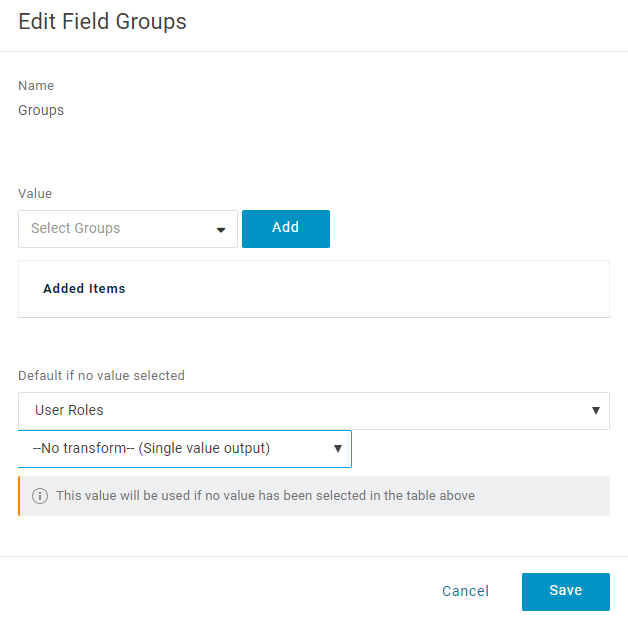
- From the Authentication Method menu, select POST as the Token Endpoint and select Save.
Also, note down the Client Credentials (Client ID and Client Secret) to be used during the SSO configuration in Orchestrator.
Figure 39. Configuring the Authentication Method 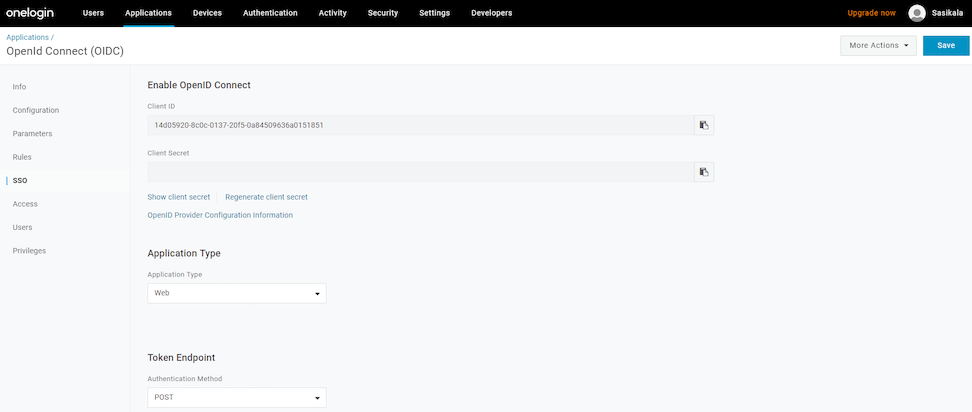
- On the Access tab, choose the roles allowed to login and select Save.
Figure 40. Access 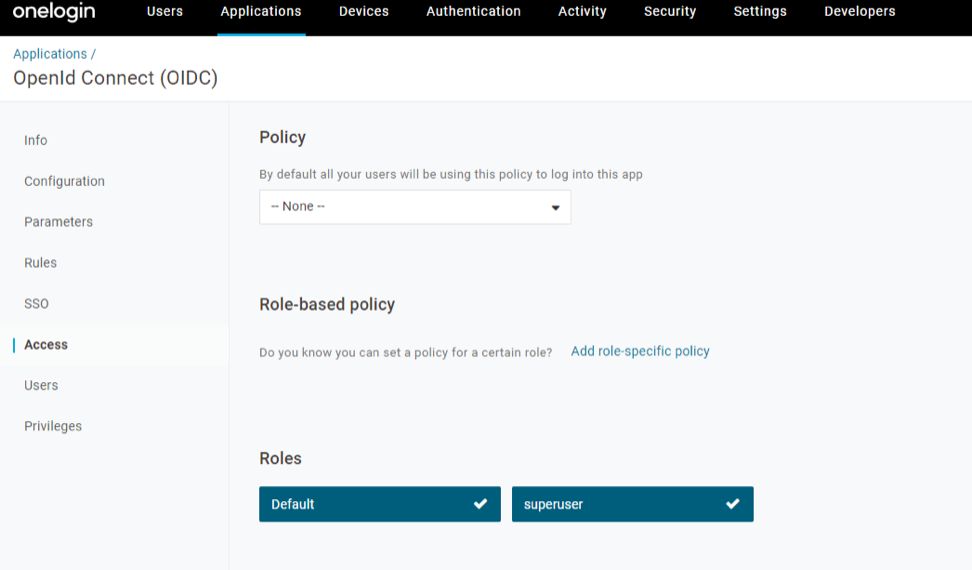
Configure Single Sign On in Orchestrator.
Configuring PingIdentity for Single Sign On
To set up an OpenID Connect (OIDC)-based application in PingIdentity for Single Sign On (SSO), perform the steps on this procedure.
- In the upper navigation bar, select Applications.
Figure 41. My Applications 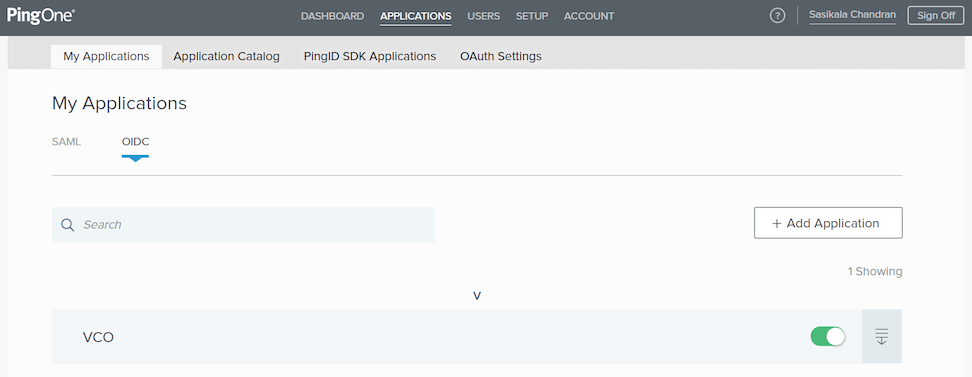
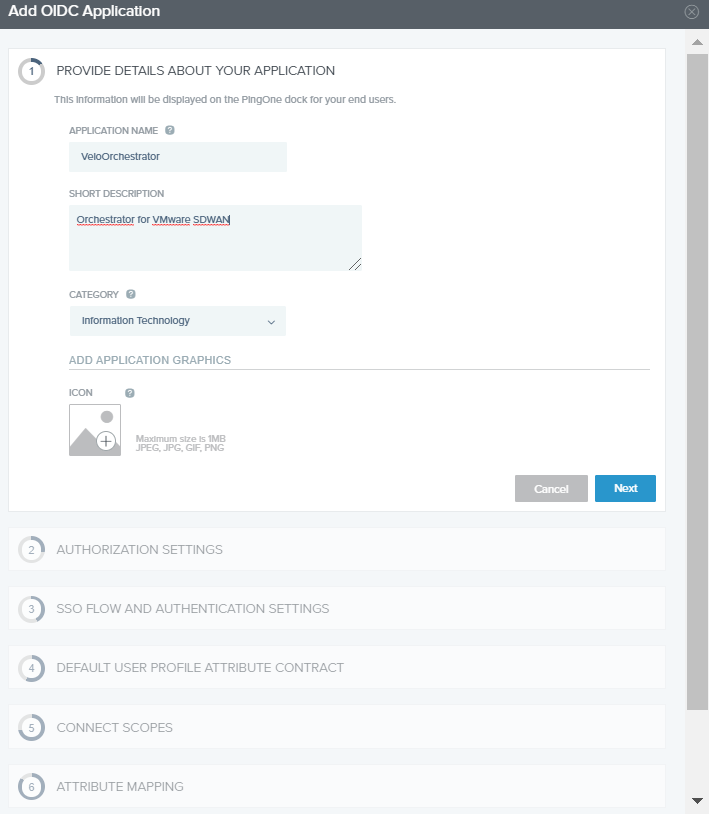
- On the My Applications tab, select OIDC and then select Add Application. The Add OIDC Application window appears.
Figure 42. Adding an OIDC Application