Edge Licensing
Only Operators can enable the Edge Licensing and assign the licenses to a Partner user.
The Orchestrator activates the Edge Licensing feature by default. If the feature is inactive, contact the Operator.
To deactivate Edge Licensing, in the Operator portal, go to , and set the value of the system property session.options.enableEdgeLicensing to False.
Edge Licenses provide the following components:
| Component | Supported Attributes |
|---|---|
| Bandwidth | 10M, 30M, 50M, 100M, 200M, 350M, 500M, 750M, 1G, 2G, 5G, 10G |
| Editions | Standard, Enterprise, Premium |
| Region | North America, Europe Middle East and Africa, Latin America, Asia Pacific |
| Term | 12 months, 36 months, 60 months |
An Operator can assign different types of Edge licenses from the 324 types of licenses available with various combinations.
Apart from the above list, Arista offers a trial version of license with the following attributes:
| Component | Supported Attributes |
|---|---|
| Bandwidth | 10 Gbps |
| Edition | POC |
| Region | North America, Europe Middle East and Africa, Asia Pacific and Latin America |
| Term | 60 Months |
- In the Operator portal, select Services, and then from the left menu, select Edge Licensing.
Note: Starting from the 5.4.0 release, Edge Image Management is renamed to Services.
Figure 1. Manage Edge Licensing 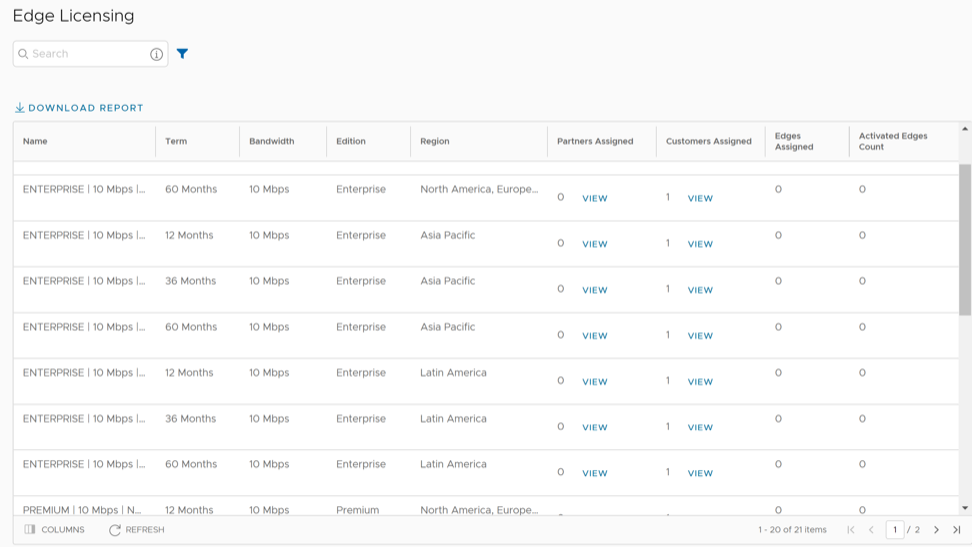
- Users can view and update the following options on this page:
Table 3. Edge Licensing - Options and Descriptions Option Description Search Enter a term to search for a matching text across the table. Select the advanced search option to use filters to narrow down the search results. Download Report Select this option to download a report of the licenses, associated customers, and Edges in a CSV format. Columns Selecting this option enables the selection of specific columns to display in the table. Refresh Select this option to refresh the displayed list of licenses. - Selecting the View link under the Partners assigned column displays the Edge license details of the selected Partner.
- Selecting the View link under the Customers assigned column displays the Edge license details of the selected Customer.
To assign Edge Licenses to new Partners, see Create a New Partner.
To manage and assign Edge Licenses to existing Partners, see Manage Edge Licenses for Partners.
To assign Edge Licenses to new Customers, see Create a New Customer.
To manage and assign Edge Licenses to existing Customers, see Manage Edge Licenses for Customers.
Manage Edge Licenses for Partners
Perform the following steps to manage and assign Edge Licenses to existing Partners. To assign Edge Licenses to new Partners, see Create a New Partner.
- In the Partner portal, select Edge Management, and then from the left menu, select Edge Licensing.
Figure 2. Manage Edge Licensing for Partners 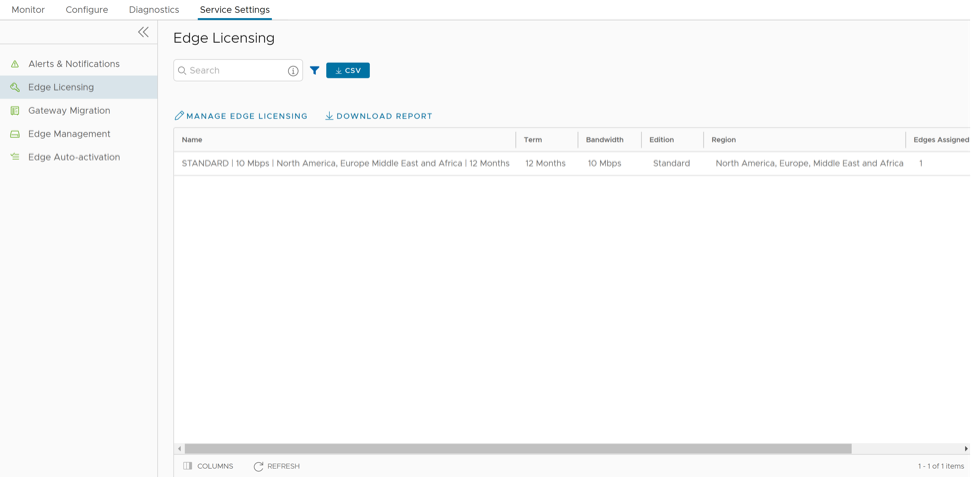
- Select Manage Edge Licensing.
Figure 3. Select Edge Licenses for Partners 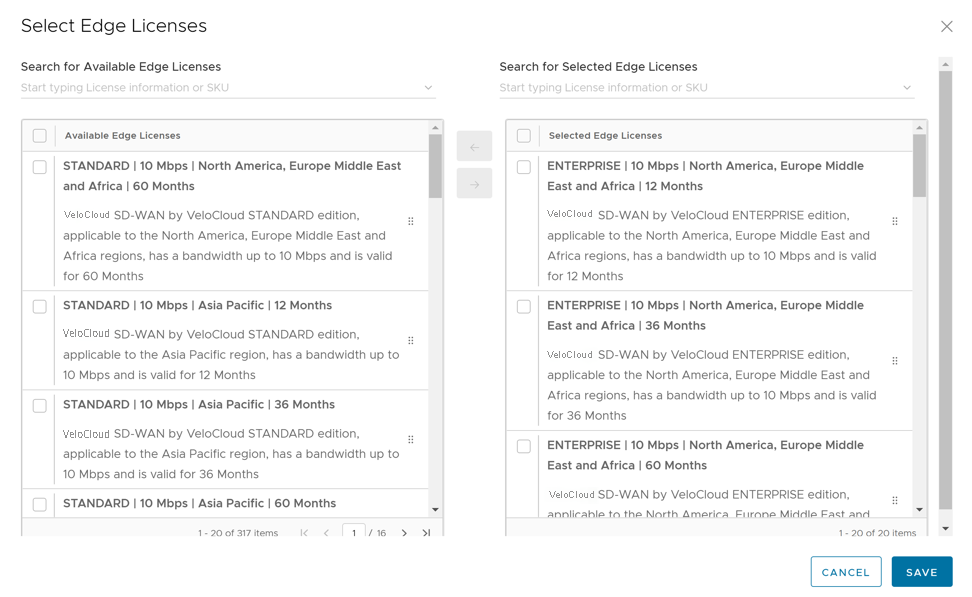
Manage Edge Licenses for Customers
- In the Enterprise portal, select .
Figure 4. Manage Edge Licensing for Customers 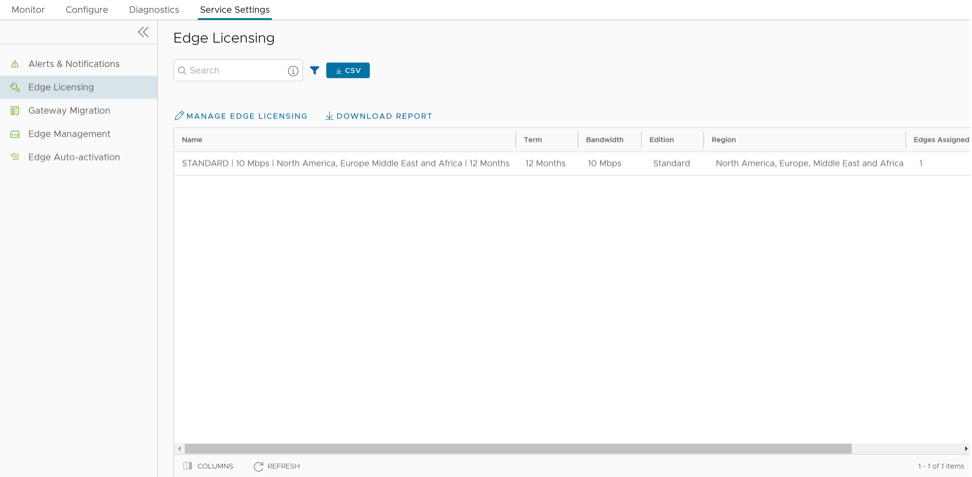
- Select Manage Edge Licensing.
Figure 5. Select Edge Licenses for Customers 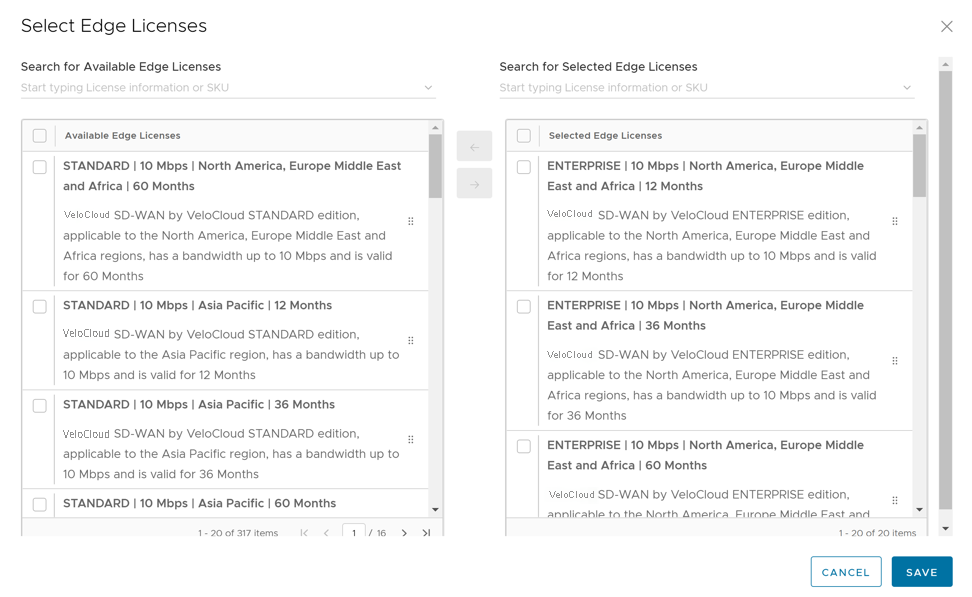
To assign a license to an existing Edge:
- In the SD-WAN service of the Enterprise portal, select .
- To assign license to each Edge, select the Edge link, and then select the License in the Properties section of the Edge Overview page. Alternatively, select the Edge, and then select to assign the license.
- To assign a license to multiple Edges, select the appropriate Edges, select , and then select the License.