
Manage Partners
- Log in to the VeloCloud Edge Cloud Orchestrator as an Operator user. In the SD-WAN service of the Operator portal, select Manage Partners.
Figure 1. Manage Partners 
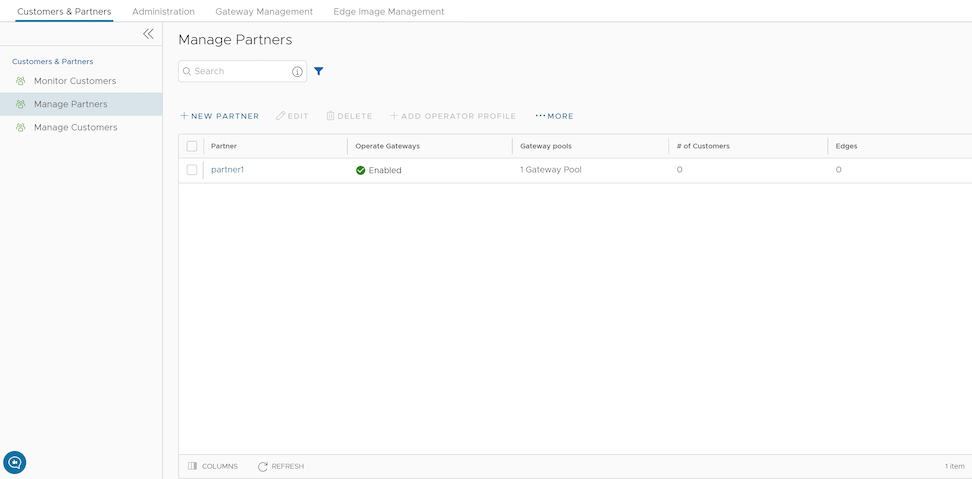
- Perform the following actions:
Table 1. Manage partners Option Descriptions Option Description Search Enter a search term to search for the matching text across the table. Use the advanced search option to narrow down the search results. New Partner Select this option to add a new Partner. For additional information, see Create New Partner. Edit This option takes you to the Partner Overview page in the Partner portal, where you can edit the Partner Capabilities, Available Software Images, and Gateway Pool of the selected Partner. For additional information, see Configure Partner. Delete Deletes the selected Partners. Enter the number of selected Partners in the pop-up window, and then select Delete. Note: Ensure that you have removed all Customers associated with the selected Partner before deleting the Partner.Add Operator Profile Assigns an Operator profile to the selected Partners, which specifies the network settings managed by Orchestrator. In the Add Profiles to Selected Partners pop-up window, select a profile and select the arrow to add it. Select Save. For additional information, see Manage Operator Profiles More Select this option,then select Download to download the list of Partners' profiles in a CSV format. - Following are the other options available in the Manage Partners area:
Table 2. Manage Partners Additional Option Descriptions Option Description Columns Select this option, then select the checkboxes to view the required columns. Refresh Select this option to refresh the page.
Create a New Partner
Only Operator Superusers, Standard Operators, and Business Specialist Operators can create a new Partner.
session.options.disableCreateEnterpriseProxy to True. You can use this option when Orchestrator exceeds the usage capacity.- Log in to the VeloCloud Edge Cloud Orchestrator as an Operator user. In the Operator portal, go to Customers and Partners > Manage Partners , and then select New Partner.
Figure 2. Create a New Partner 
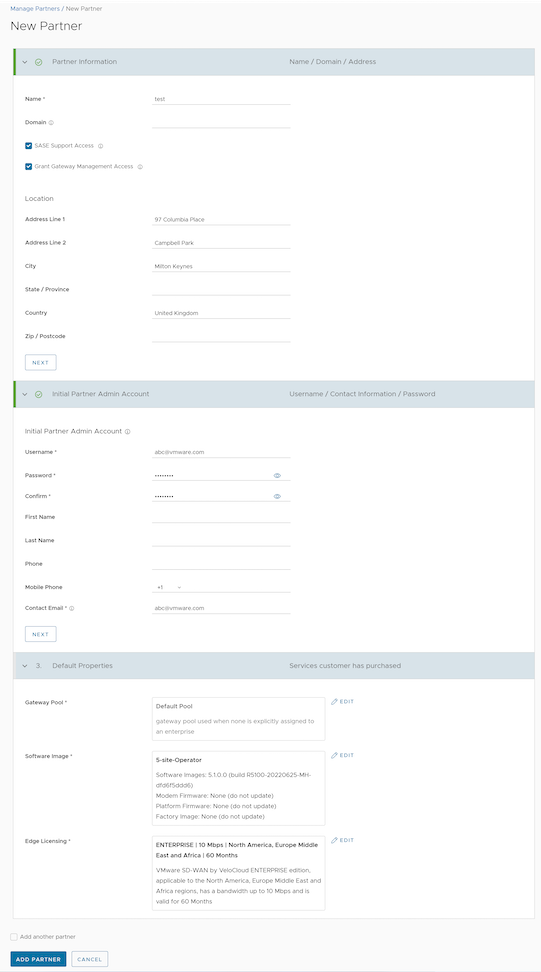
- On the New Partner page, enter the following details. Select Next to go to the next section on the page. The Next button is activated only when you enter all the mandatory details in each section.
Table 3. New Partner Option Descriptions Option Description Partner Information Name Enter the Partner name. Domain Enter the domain name of the Partner. SASE Support Access This option is selected by default and grants access to Arista Support to view, configure, and troubleshoot the settings of the Partner. Grant Gateway Management Access Select the checkbox to allow the Partner to create and manage the Gateways. Location Enter relevant address details in the respective fields. Initial Partner Admin Account Username Enter the username in the This email address is being protected from spambots. You need JavaScript enabled to view it. format. Password Enter a password for the Partner. Note: Starting from the 4.5 release, the use of the special character "<" in the password is no longer supported. In cases where users have already used "<" in their passwords in previous releases, they must remove it to save any changes on the page.Confirm Re-enter the password. First Name, Last Name, Phone, Mobile Phone Enter relevant details in the respective fields. Contact Email Enter the email address. The alerts on service status are sent to this email address. Default Properties Gateway Pool Select Add to select the Gateway Pool from the available list. After adding the Gateway Pools, select Edit to add or remove them. For additional information on Gateway Pools, see Manage Gateway Pools.
Software Image Select Add to select the Software Image from the available list. After adding the Software Image, you can select Edit to add or remove the images. For additional information on Software Images, see Firmware and Software Images with New Orchestrator UI. Edge Licensing Select Add to select the Edge licenses from the available list. After adding the licenses, you can select Edit to add or remove the licenses. This option is available only when the value of System Property session.options.enableEdgeLicensingis set to True.Note: The license types can be used on multiple VeloCloud Edges. It is recommended to provide the Partners with access to all types of licenses to match their edition and region. For additional information, see Edge Licensing. - Select Add Another Partner to create another new Partner, or select Add Partner.
The new Partner name displays on the Manage Partners page. You can select the Partner name to navigate to the Partner portal and add additional configurations to the Partner. For additional information, see Configure Partner.
Configure a Partner
Creating a new Partner automatically triggers a redirection for Operator Superusers and Operator Admins to the Partner Overview page. This interface allows configuration of Partner capabilities, Software images, Gateway pools and other accessible settings.
To configure Partner information for an existing Partner:
- In the Operator portal of the VeloCloud Orchestrator, select Manage Partners, and then select the Partner name to navigate to the Partner portal.
- Select Administration > Partner Configuration to add additional configurations to the Partner.
The Partner Overview page for the selected Partner appears.
Figure 3. Partner Overview 
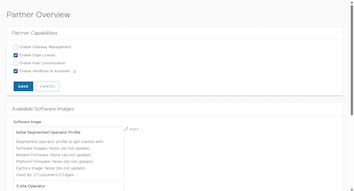
- Configure the following capabilities and settings for the selected Partner:
Table 4. Partner Overview - Options and Descriptions Option Description Partner Capabilities Selecting Edit allows users to select the following capabilities for the current Partner: - Enable Gateway Management: Allows the Partner users to create, configure, and manage their own Gateways.
- Enable Edge License: Allows the Partner users to manage their Edge Licenses.
- Enable Role Customization: Allows a Partner Superuser to customize the service permissions of other Partner users and Enterprise users of the Partner.
- Enable VeloBrain AI Assistant: Allows Partners to access the VeloBrain Assistant and provides them with the privilege to manage the VeloBrain feature for their Customers.
Select Save after editing the Partner capabilities.
Available Software Images Displays all the software images assigned to the Partner. Select Edit to add or remove the software images in the list. Note: Users cannot remove the software images that are assigned to a Customer.Gateway Pool Displays the Gateway pools associated with the selected Partner. Select Edit to add or remove the Gateway pools in the list. Note: Users cannot remove the Gateway Pools that are assigned to a Customer.Other Settings Displays the User Agreement settings only when the User Agreement feature is active. By default, the User Agreement feature is not active. To enable this feature, navigate to System Properties in the Operator portal and set the session.options value.enableUserAgreementssystem property to True.Choose to override the default display settings of the User Agreement, by selecting the Edit button, and then selecting relevant option from the User Agreement Display menu. By default, the Customer inherits the display mode set in the system properties.
- After configuring the required Partner details, select Save Changes.
