Log into the Orchestrator Using SSO for an Operator User
- Ensure to configure SSO authentication in Orchestrator.
- Ensure to set up users, roles, and OIDC application for the SSO in your preferred IDPs.
For additional information, see Authentication.
Note: If other authentication mechanisms fail, there must always be a native Operator Superuser as a system fallback.
To login into Orchestrator using the SSO as an Operator user:
- In a Web browser, launch the Orchestrator application as an Operator user.
Figure 1. Log into VeloCloud Orchestrator 
- Select Sign In With Your Identity Provider.
Figure 2. Sign In Using Identity Provider 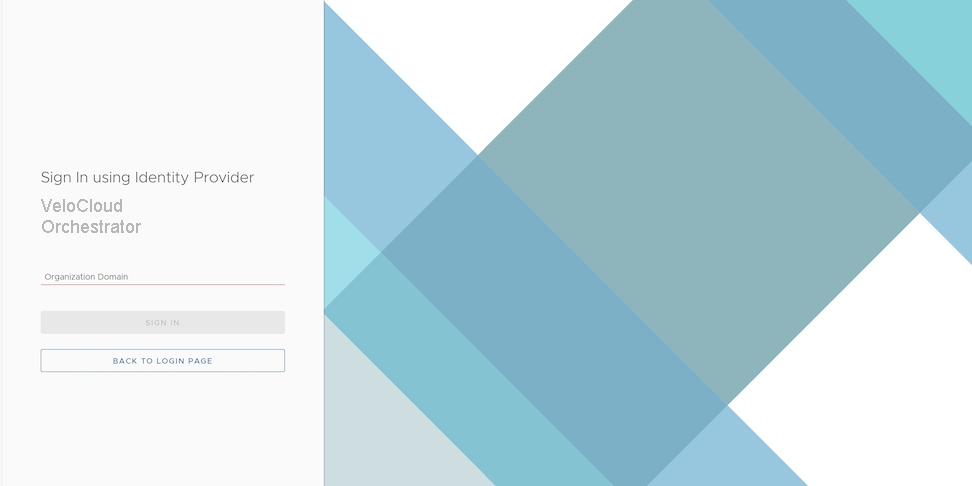
- In Organization Domain, enter the domain name used for the SSO configuration and select Sign In. The IdP configured for the SSO authenticates the user and redirects the user to the configured Orchestrator URL.
Note: Once the users log in to the Orchestrator using the SSO, they cannot log in again as native users.Next Steps
- Manage Customers and Partner
- Manage Operators
- Configure User Account details
- Manage Gateway pools and Gateways
- Manage Software and Firmware images
Additionally, from the Orchestrator page, users can access the following features from the Global Navigation bar:
- The user selects the User icon to access the My Account page. The My Account page allows users to configure basic user information, SSH keys, and API tokens. Users can also view the current user role, associated privileges, and additional information such as version number, build number, legal and terms information, and cookie usage. For additional information, see Configure User Account details.
Figure 3. Monitor Customers Dashboard 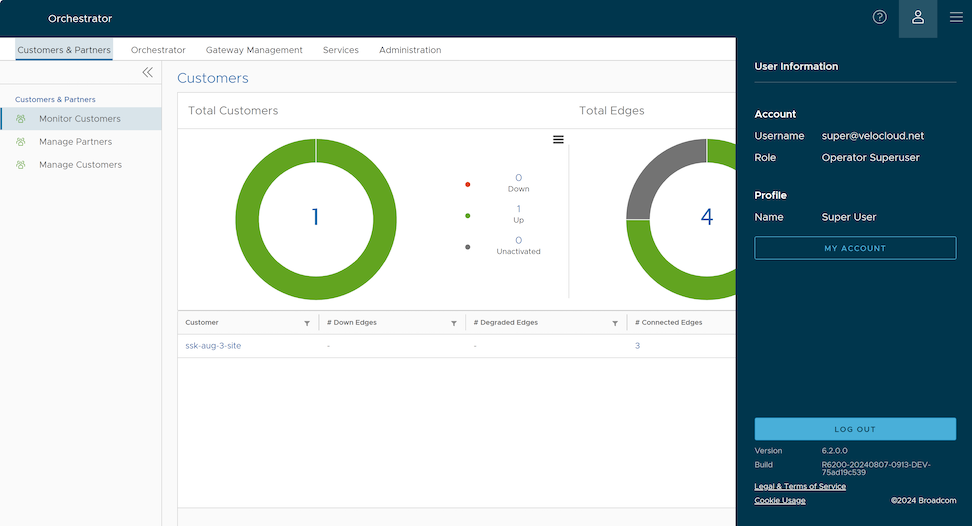
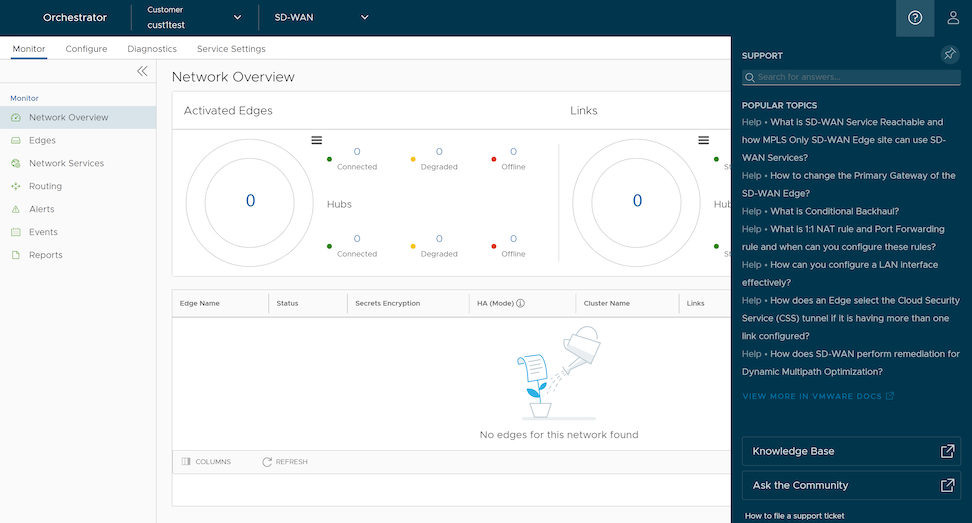
- Starting with the 5.4.0 release, Orchestrator supports the In-product Contextual Help Panel, with context-sensitive user assistance, as well as for the Operator and Partner levels. In the Global Navigation bar, select the Question Mark icon to access the Support panel.
The Support panel allows users across all levels to access helpful and important information such as Question-Based Lists (QBLs), Knowledge base links, Ask the Community link, how to file a support ticket, and other related documentation from within the Orchestrator page. This makes it easier for the user to learn Orchestrator without navigating to another site for guidance or contact the Support Team.
Note: By default, the Support Panel does not have availability to all Customers. Users can activate this feature for a Customer by navigating to the page. For additional information, see Configure Customers.Figure 4. Monitor Network Overview