Edge Licensing
Edge Licensing allows a customer to link a software subscription to an Edge. A software subscription is defined by bandwidth, the Edge software edition, Gateway regional geolocation, and subscription duration.
Edge License Types
The Orchestrator provides different types of licenses for deployed Edges. These license types account for POC deployments where no subscription has been purchased, and production deployments where a variety of license types are available to align with the customer’s purchased subscriptions.
POC Deployments
If an Enterprise is deployed as a proof-of-concept (POC) deployment, choose the POC license. There is only one POC license type available as follows:
POC | 10 Gbps | North America, Europe, Middle East and Africa, Asia Pacific, and Latin America | 60 months
This is the only license that should be chosen for a POC enterprise and the only license used by Edges in the POC enterprise. The Orchestrator does not permit additional licenses to be selected if a POC license is chosen.
Production Deployments
When an Edge is deployed in a production Enterprise, the license type assigned should align with the software subscription purchased. For example, if the subscription SKU NB-VC100M-PRE-HO-HG-L34S312P-C was purchased for use with the Edge being configured, the correct license type has the format:
PREMIUM | 100 Mbps | gateway geolocation region | 12 months as displayed in the highlighted sections of the SKU.
Assigning an Edge License Type to a New Edge
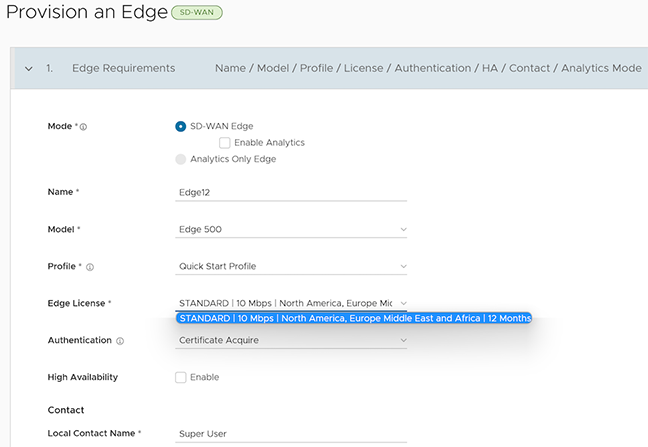
When a new Edge is provisioned, the Provision an Edge configuration screen includes an Edge License menu. This menu provides a list of available Edge licenses types which may be assigned to the newly created Edge.
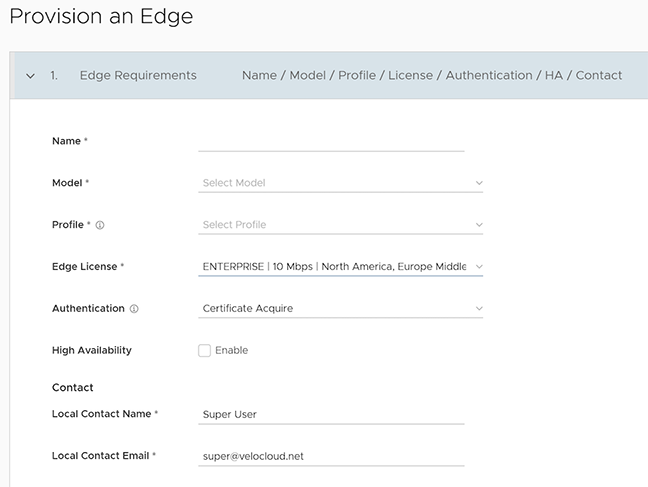
For more information on provisioning a new Edge, see Provision a New Edge.
Assigning an Edge License Type to an Existing Edge
To assign a license to an existing Edge:
- In the SD-WAN Service of the Enterprise portal, select .
- To assign a license to each Edge, select the link to the Edge, and then select the license in the Properties section of the Edge Overview page. You can also select the Edge and select Assign Edge License to assign the license.
- To assign a license to multiple Edges, select the appropriate Edges, select Assign Edge License and select the license.
If the correct license type is not shown for a subscription, contact the supporting partner to assign the license to the enterprise. If the partner is unable to locate the correct license type or if the Enterprise is managed directly by Arista Networks, then contact VeloCloud SD-WAN Support. Until the correct license type is available, another license type can be assigned temporarily. The correct license type should be assigned after it is made available.
If an incorrect Edge license type is chosen, the activation report for that enterprise is incorrect, and the license assignment does not align with the customer’s purchases. These licensing inconsistencies are flagged during an audit.
Edge License Reports
Standard Administrator Superusers, Standard Administrators, Business Specialists, and Customer Support users can view and generate a report of the licenses assigned to their Enterprise.
In the SD-WAN Service portion of the Enterprise portal, select .
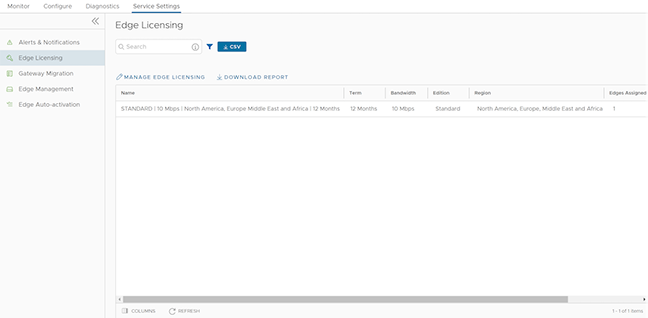
Select Download Report to generate a report of the licenses and the associated Edges in CSV format.
Example of Edge Licensing
The following example describes how to assign subscription licenses to Edges as per the Order.
Assume that the Enterprise User has purchased the following:
| Product | Description | Quantity |
|---|---|---|
| VC-510-HO-36-P | VeloCloud Edge 510 Appliance, Deployment: Hosted Orchestrator for 3 years | 11 |
| VC-610-HO-36-P | VeloCloud Edge 610 Appliance, Deployment: Hosted Orchestrator for 3 years | 1 |
| VC100M-STD-HO-L34S1-36P | VeloCloud SD-WAN 100 Mbps Standard Service Subscription for 3 years, Prepaid, Hosted Orchestrator, Basic Support Backline (L3-4) | 11 |
| VC350M-STD-HO-L34S1-36P | VeloCloud SD-WAN 350 Mbps Standard Software Subscription for 3 year, Prepaid, Hosted Orchestrator, Basic Support Backline(L 3-4) | 1 |
The purchase consists of 12 Edges and 12 Subscription Licenses. You can activate 12 Edges and assign:
- STANDARD | 100Mbps | Gateway Geolocation Region | 36 Months to 11 Edges
- STANDARD | 350Mbps | Gateway Geolocation Region | 36 Months to 1 Edge
Follow these steps to assign the license type to an Edge:
- In the Provision an Edge window, configure a new edge and assign the license type:
Figure 3. Provisioning An Edge