Remote Diagnostic Tests on Edges
VeloCloud Orchestrator allows you to run various remote diagnostics test on a selected Edge. The remote diagnostic information contains Edge-specific logs for analysis.
ARP Table Dump
What is the Purpose of This Test
- Verify the IP address to MAC address binding on the LAN/WAN interfaces that are connected to the Edge on which the test is run.
- View the status of the ARP cache.
When Can You Run This Test
- Clients in the same broadcast domain are not reachable.
- Interface device not reachable.
- Next hop is not reachable.
What to Check in the Test Output
Run the arp table dump test on the required Edge. For instructions, see Run Remote Diagnostic Tests on Edges.
Following is an example of the test output:
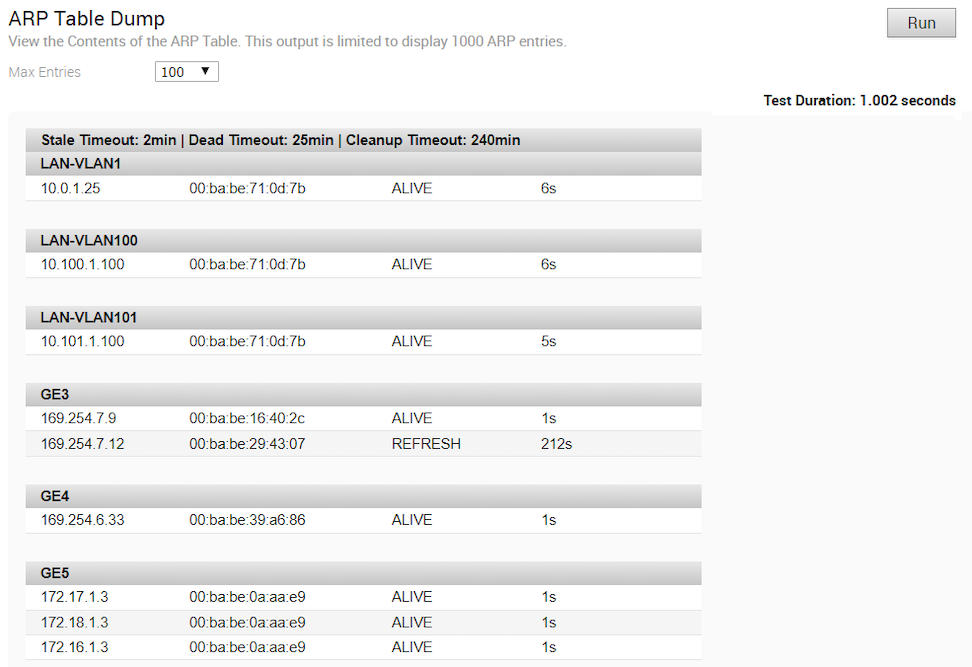
- Alive—Interface is reachable.
- Dead—Interface is not reachable.
- Refresh—Interface is trying to relearn the ARP.
- In the output of the arp table dump test, verify the ARP cache status of the interface. If the status is of any value other than Alive, run the clear arp cache test to clear the cache of the previously stored ARP value.
Note: You can clear the ARP cache for only one interface at a time.
- Run the arp table dump test again to verify the IP address and the MAC address mapping on the LAN/WAN interface.
- If the problem persists, collect Diagnostic and Packet Capture bundles and contact Arista Customer Support. See Diagnostic Bundles for Edges.
Clear ARP Cache
What is the Purpose of This Test
Clears specific interface-learned ARP entries from the ARP table.
When Can You Run This Test
This test is run when there are stale entries in the ARP table dump test. For instructions, see Run Remote Diagnostic Tests on Edges.
What to Check in the Test Output

Ping IPv6 Test
What is the Purpose of This Test
Verifies if the next hop or an IPv6 address is reachable from the interface.
When Can You Run This Test
- IPv6 reachability
- Packet Loss
- RTT
For instructions, see Run Remote Diagnostic Tests on Edges.
What to Check in the Test Output
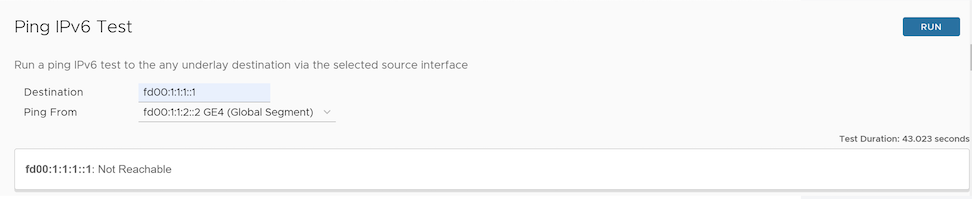
Run the ping ipv6 test on the required Edge. Check if the output displays Reachable. For a successful PING test, packet transmitted must be equal to packet received. If not, capture the Interface and Destination IP addresses to see where the packet is getting dropped. Following is an example of the test output:
Ping Test
What is the Purpose of This Test
Run this test if the next hop or an IPv4 address is reachable from the interface.
When Can You Run This Test
- IPv4 reachability
- Packet Loss
- RTT
For instructions, see Run Remote Diagnostic Tests on Edges.
What to Check in the Test Output

Traceroute
What is the Purpose of This Test
- Displays path and nodes to destination from Edge interface.
- Measures transit delays of packets at each hop across an Internet Protocol (IP) network.
When Can You Run This Test
Run this test in parallel with the PING test to understand routing or network reachability issues. For instructions, see Run Remote Diagnostic Tests on Edges.
What to Check in the Test Output
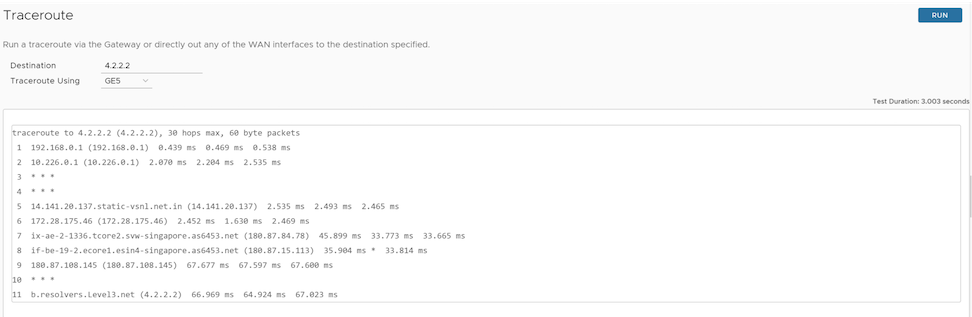
- Verify if the Destination IP address is seen as last hop.
- To measure transit delay, check the time (ms) which is displayed next to the IP address.
- If the Destination IP address is not seen, check the last hop seen for route reachability to both source and destination to resolve the routing issue.
DNS Test
What is the Purpose of This Test
Run this test to confirm whether the Edge can resolve the Domain name to IP address.
When Can You Run This Test
- Domain name is not resolved.
- Name lookup error occurs.
- Name lookup error logs are seen.
For instructions, see Run Remote Diagnostic Tests on Edges.
What to Check in the Test Output

Verify that the name provided is resolved to an IP address. If it is not resolved, kindly check the DNS setting under the Device tab of Edge configuration, and then try restarting the DNS server or check if DNS Server is reachable or not.
DNS/DHCP Service Restart
What is the Purpose of This Test
Run this test to restart both DNS and DHCP processes in the Edge.
When Can You Run This Test
- The Edge is acting as DHCP and DNS server to LAN network devices.
- The DNS and DHCP servers fail.
- DNS and DHCP processes get stalled.
For instructions, see Run Remote Diagnostic Tests on Edges.
What to Check in the Test Output
Run the DNS/DHCP Service Restart test on the required Edge. Following is an example of the test output:

EVDSL Modem Status
What is the Purpose of This Test
Run this test to check the status of the Asymmetric Digital Subscriber Line (ADSL) or Very-high-bit-rate Digital Subscriber Line (VDSL) link.
When Can You Run This Test
- Mode
- Uptime
- Peer MAC Address
- Status
- Link rate
For instructions, see Run Remote Diagnostic Tests on Edges.
What to Check in the Test Output

| Option | Description |
|---|---|
| Name | The SFP interface name where the link is connected to. |
| Mode | The mode in which the interface is operating. If the interface is used for DSL connection, then the mode will be listed as DSL. |
| Vendor MAC | The mac address of the DSL peer device. |
| xDSL Mode | VDSL or ADSL. |
| Link Time | Uptime of the link. |
| Status | Showtime indicates that the line is in sync. |
Get IP Threat Reputation Test
What is the Purpose of This Test
Run this test on the required Edge by providing the IP address to view the threat category of the given IP.
When Can You Run This Test
You can run this test when IP Threats are detected and to obtain the threat category of the given IP.
For instructions, see Run Remote Diagnostic Tests on Edges.
What to Check in the Test Output

Get URL Category and Reputation Test
What is the Purpose of This Test
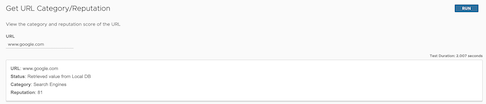
Run this test on the required Edge by providing the URL to view the category and reputation score of a given URL.
When Can You Run This Test
You can run this test to check the category and reputation score of a threat URL.
For instructions, see Run Remote Diagnostic Tests on Edges.
What to Check in the Test Output
Interface Status
What is the Purpose of This Test
- Verify the configuration and status of the interface.
- Check packet loss situation.
When Can You Run This Test
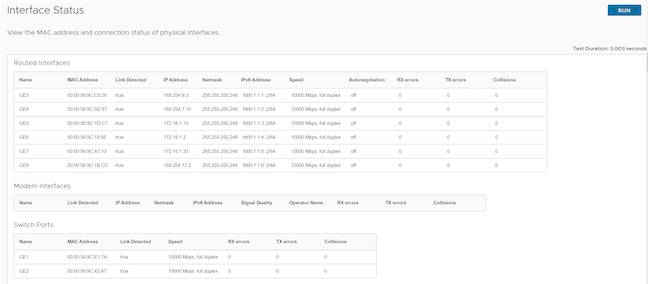
- The link detected must be true. If it is false, then you must check the physical cabling and peer end configuration.
- Ideally RX and TX should be "0". If the RX and TX errors are incrementing, then try replacing the cables/SFP's. The values do not increase when this test is run twice.
- Negotiation parameter for interface issue.
- For Modem interface, verify if the signal quality strength is above 80% for a good wireless WAN link.
For instructions, see Run Remote Diagnostic Tests on Edges.
What to Check in the Test Output
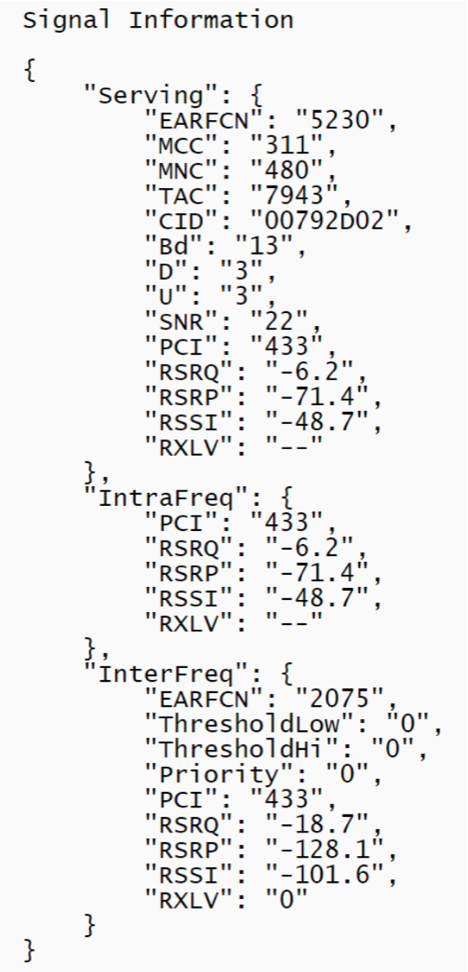
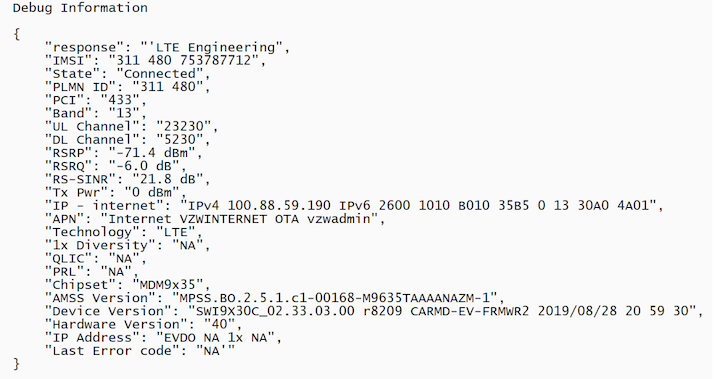
LTE Modem Information
What is the Purpose of This Test
- Modem
- Connection
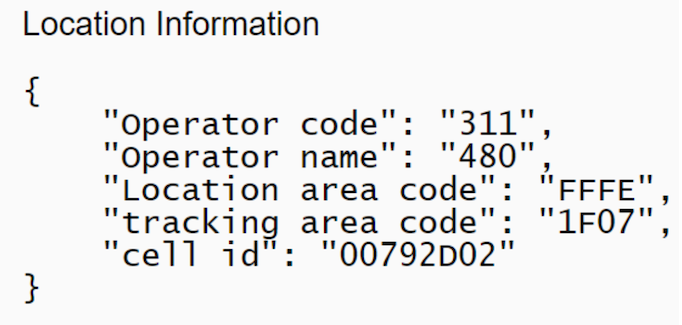
- Location
- Signal Strength
- Status of the LTE
When Can You Run This Test
- Issues with LTE disconnections.
- Failure to understand the current state of the LTE.
For instructions, see Run Remote Diagnostic Tests on Edges.
What to Check in the Test Output
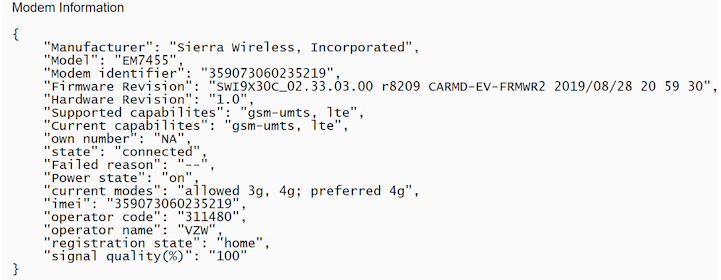
- Operator name must be correct.
- Signal quality must be above 70 % for better reception.
- Registration state must display home for better speed.
- LTE must be in a connected state. If disconnected, check for the failure reason.
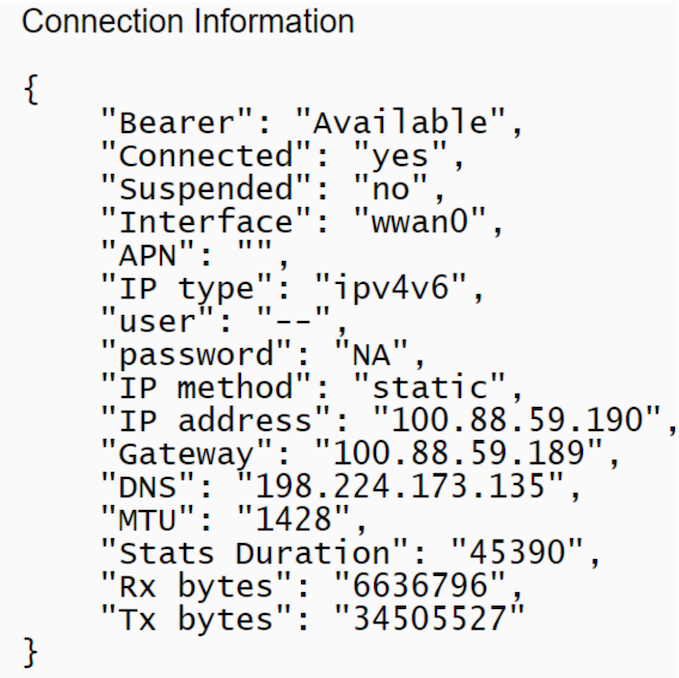
- Rx and Tx are incrementing as expected.
- IPv4 and IPv6 address and interface must be assigned with WAN information.
- Connected state must be "yes".
- If Suspended state is "yes", try resetting the LTE Modem.

Flush Firewall Sessions
What is the Purpose of This Test
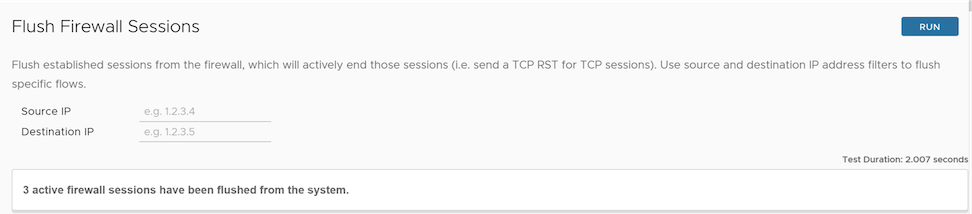
This is similar to the Flush Flows options, but is specifically for the Stateful Firewall. This causes the Edge to not just flush the sessions, but actively send a TCP RST for the TCP-based sessions.
When Can You Run This Test
Run the Flush Firewall Sessions test on the required Edge by providing the Source and Destination IP addresses to flush the active firewalls session which needs to be reset. For instructions on how to run a remote diagnostic test on Edges, see Run Remote Diagnostic Tests on Edges.
What to Check in the Test Output
Following is an example of the test output:
List Active Firewall Sessions
What is the Purpose of This Test
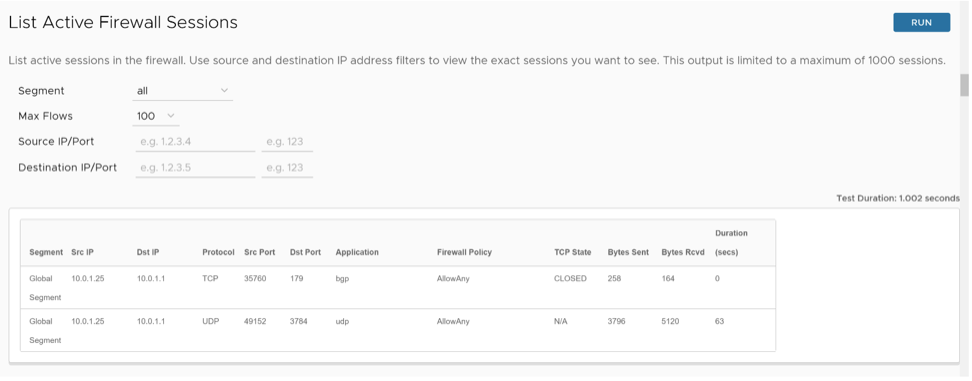
This allows you to see the current state of the active firewall sessions (up to a maximum of 1000 sessions). You can filter by Source and Destination IP and Port as well as Segment to limit the number of sessions returned.
When Can You Run This Test
To verify if the session is allowed or blocked. If it is allowed, it would be seen in the output. Also, you can see the current state of the session.
For instructions on how to run a remote diagnostic test on Edges, see Run Remote Diagnostic Tests on Edges.
What to Check in the Test Output
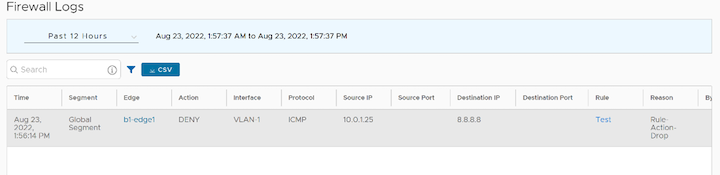
| Option | Description |
|---|---|
| Segment | Specifies the segment in which the firewall session is processed by the Edge. You can also filter the output based on specific segment. |
| Src IP | Specifies the source IP which initiated the firewall session. |
| Dst IP | Specifies the destination IP of the firewall session. |
| Protocol | Specifies the protocol that the firewall session traffic is using. |
| Src Port | Specifies the source port of the firewall session traffic. |
| Dst Port | Specifies the destination port of the firewall session traffic. |
| Application | Specifies the application that is identified by the Application engine/DPI engine. |
| Firewall Policy | Specifies the firewall rule which is being matched by the session among the configured firewall rules. |
| TCP State | Specifies the current TCP state of the session. In the output you will see the current TCP state of any flows. There are 11 distinct TCP states as defined in RFC 793:
|
| Bytes Sent | Specifies the firewall session traffic from source IP to destination IP in Bytes. |
| Bytes Received | Specifies the firewall session traffic from destination IP to source IP in Bytes. |
| Duration | Specifies the age of the firewall session in seconds. |
IPv6 Clear ND Cache
What is the Purpose of This Test
Clear Neighbor Discovery (ND) cache command is used to clear specific interface learned neighbor entries and their corresponding Layer 2 information.
When Can You Run This Test
Run this test if there is a change of neighbor IP addressing or Layer 2 information. Choose the interface for which the change has taken place.
For instructions on how to run a remote diagnostic test on Edges, see Run Remote Diagnostic Tests on Edges.
What to Check in the Test Output
The ND cache has been cleared for the selected interfaceIf you see any other result like for example, "Timed out", check the Edge status.
Following is an example of the test output:

IPv6 ND Table Dump
What is the Purpose of This Test
IPv6 Neighbor Discovery (ND) Table Dump command shows IPv6 neighbor entries and their corresponding Layer 2 information for each interface.
When Can You Run This Test
Run this test if you want to verify IPv6 neighbors and the corresponding Layer 2 MAC mapping information.
For instructions on how to run a remote diagnostic test on Edges, see Run Remote Diagnostic Tests on Edges.
What to Check in the Test Output
Following is an example of the test output:
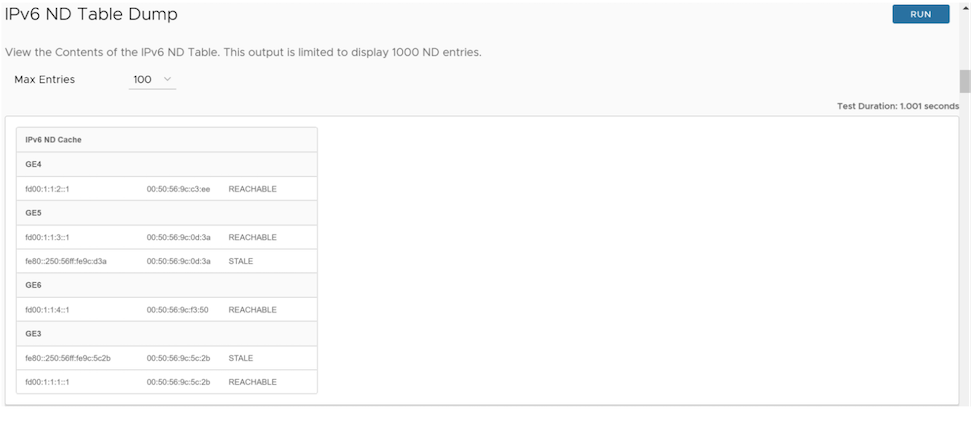
- IPv6 address of neighbor
- Corresponding Layer 2 MAC address
- Status of neighbor. The status can be any one of the following:
- Reachable- This shows the neighbor information has been updated recently.
- Stale- This shows the neighbor information was collected in past but not used currently.
IPv6 Route Table Dump
What is the Purpose of This Test
The IPv6 Route Table Dump command lists the complete Routing table in IPv6.
When Can You Run This Test
- Segment- Select the segment for which routes must be displayed. Select "all" for all segments.
- Prefix- Specify a particular prefix for which routes must be displayed.
- Routes- Select any of the following options from the drop-down menu:
- all- Display all the routes for every prefix.
- preferred- Display the most preferred route alone for every prefix (this is the route being used for data forwarding).
For instructions on how to run a remote diagnostic test on Edges, see Run Remote Diagnostic Tests on Edges.
What to Check in the Test Output
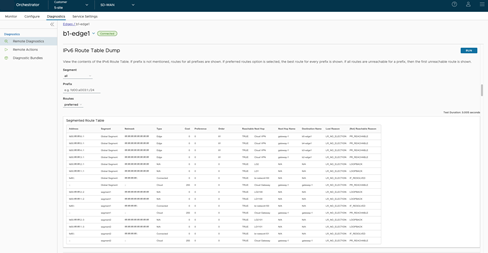
| Option | Description |
|---|---|
| Address | Specifies the IPv6 routes available in the table. |
| Segment | Specifies the segment in which the routes are available and handled by the Edge. |
| Netmask | Specifies the range of addresses in IPv6. |
| Type | Specifies the route type, such as Cloud, Edge2Edge, any (Underlay or Connected), and so on. |
| Cost | Specifies the route cost or metric used in selection of route criteria. |
| Preference | Specifies the route preference. |
| Order | Specifies the order of the route. |
| Reachable | Specifies the status of the route:
|
| Next Hop | Indicates the local exit interface in case of local routes. In case of overlay/remote routes, it indicates the type of next hop. For example, "Cloud gateway" in case of cloud routes, "Cloud VPN" in case of datacenter, or "edge to edge" routes etc, |
| Next Hop Name | Specifies the name of the next hop device. |
| Destination Name | Specifies the name of the destination device. |
| Lost Reason | Specifies the codes for different reasons for the routes being lost to next preferred route on the Edge. |
| (Not) Reachable Reason | Specifies the reason for the route being reachable or not reachable. |
| Reason Code | Description |
|---|---|
| PR_UNREACHABLE | In case of overlay routes, the remote peer, which is either Gateway or Edge, is not reachable. |
| IF_DOWN | Egress Interface is down. |
| INVALID_IFIDX | Egress Interface if-index for this route is invalid. |
| SLA_STATE_DOWN | State given by IP SLA tracking is down. |
| HA_STANDBY | When the local Edge is a Standby, all routes synced from the active are marked as reachable for operational convenience. |
| LOCAL_MGMT | Management routes are always reachable. |
| LOOPBACK | Loopback IP address is always reachable. |
| SELF_ROUTE | Self IP routes are always reachable. |
| RECUR_UNRES | Recursive routes are marked as reachable so that recursive resolution can be done for operational convenience. |
| VPN_VIA_NAT | vpnViaNat routes are always reachable. |
| SLA_STATE_UP | State given by IP SLA tracking is up. |
| IF_RESOLVED | Egress interface is up and resolved. |
| PR_REACHABLE | In case of overlay routes, the remote peer, which is either Gateway or Edge, is reachable. |
Flush DNS Cache
The Flush DNS Cache remote diagnostic test makes domain-based business policies more reliable.
What is the Purpose of This Test
Currently, even though DNS cache is removed every 10 minutes, only entries with a TTL <=0 are removed. The DPI-based entries are initially cached with a TTL of 24 hours and last at least that long in the cache, preventing new entries from being learnt. This prevents reliable DNS lookups to support domain-based business policies. The Flush DNS Cache test will remove all entries from the cache and helps to free up space for new entries in order that domain-based business policies can be reliable.When Can You Run This Test
To clear all DNS cache entries from a specific Edge, run the Flush DNS Cache test on that Edge. For instructions, see Run Remote Diagnostic Tests on Edges.
What to Check in the Test Output
Verify if all DNS cache entries are cleared from the Edge device.

Flush Flows
What is the Purpose of This Test
To clear all current active sessions/specific flows in the device.
When Can You Run This Test
When specific traffic is not hitting the correct business policy or having issues with the specific flow.
Run the Flush Firewall Sessions test on the required Edge by providing the Source or Destination IP address or both. For instructions, see Run Remote Diagnostic Tests on Edges.
What to Check in the Test Output
Verify if flows flushed is equal to the flows seen. This would create a minor and temporary blip in network.
Following is an example of the test output:

Flush NAT
What is the Purpose of This Test
To remove all the existing NAT entries from the device.
When Can You Run This Test
Run this test if NAT table is having improper NAT entry or if you have NAT related issues. For instructions, see Run Remote Diagnostic Tests on Edges.
What to Check in the Test Output
All the NAT entries would be flushed and could cause an impact for current traffic.
Following is an example of the test output:

NAT Table Dump
What is the Purpose of This Test
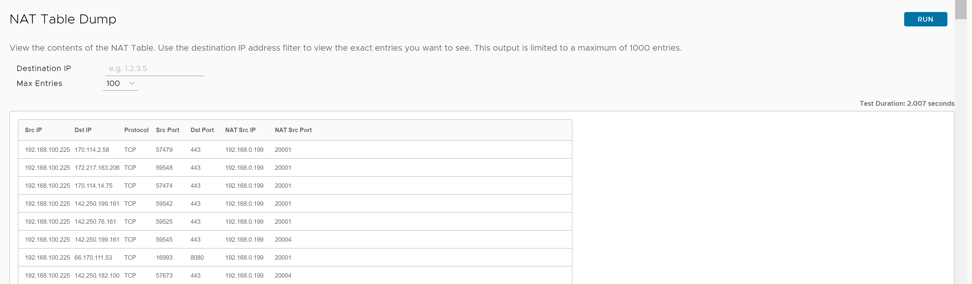
To verify if proper NATing is happening on the device.
When Can You Run This Test
Run this test if there are NATing issues. For instructions on how to run a remote diagnostic test on Edges, see Run Remote Diagnostic Tests on Edges.
What to Check in the Test Output
Use the Destination filter to view the exact entries in the NAT table. The output is limited to a maximum of 1000 entries.
Following is an example of the test output:
List Active Flows
What is the Purpose of This Test
Run this test to understand the behavior of current flows.
When Can You Run This Test
To analyze how an incoming traffic flow is sent out from VeloCloud SD-WAN. For specific flow issues, you could use Source IP/Port or Destination IP/Port as filters to view that specific traffic flow. For instructions on how to run a remote diagnostic test on Edges, see Run Remote Diagnostic Tests on Edges.
What to Check in the Test Output
Following is an example of the test output:
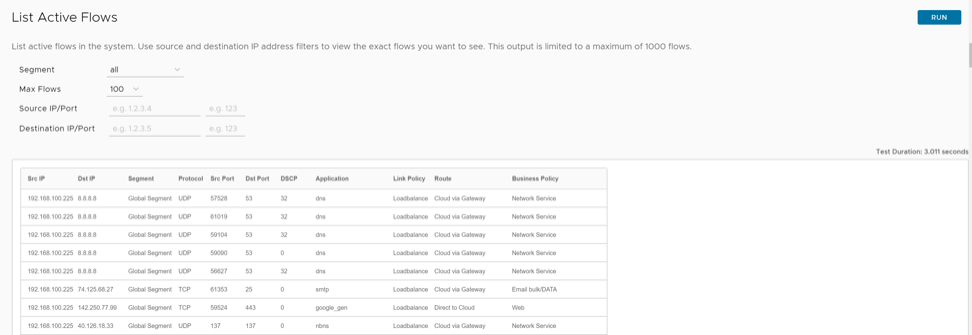
- Verify if the traffic is hitting the correct business policy.
- Verify if the traffic LINK policy and Route are taken as configured in business policy.
- Verify if the application map is able to identify the traffic with correct application signature.
- Try using flush flows if configuration changes of business policy is done prior to this.
Show BFD/BFDv6 Peer Status
What is the Purpose of This Test
Run this test to determine BFDv6 status, with BFD peer. The status can be "UP", "Down", or "Init".
When Can You Run This Test
- If BFD is failing to come up (or) is down.
- To check the "Local and Remote" timers.
- To check the "Diagnostics" code if BFD is down.
What to Check in the Test Output
Following is an example of the test output:
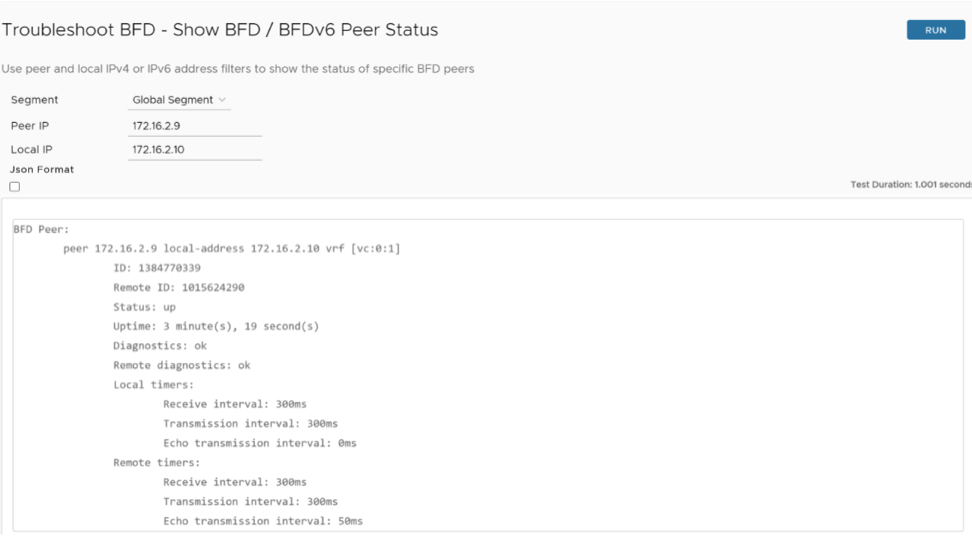
Select the Json Format check box if you want the test output in JSON format for automation validation.
| Option | Description |
|---|---|
| Peer | Specifies the IP address of BFD peer. |
| local-address | Specifies the local IPv4 or IPv6 address of the Edge interface in BFD. |
| ID | Specifies the ID of the BFD peer. |
| Remote ID | Specifies the remote ID of the BFD peer. |
| Status | Specifies the status of BFD peer. The status can be "UP" or "Down" or "Init". |
| Uptime | Specifies the time in seconds, for how long the BFD is UP or Down. |
| Diagnostics/Remote Diagnostics | Specifies a reason if BFD is down. |
| Local timers/Remote timers | Indicates the configured Receive and Transmission interval values in milliseconds (ms). Also, displays the Echo transmission interval value in milliseconds (ms) if the Echo Transmission mode is activated on peer.
Note: The Echo Transmission mode is not supported on Edge.
|
Show BFD/BFDv6 Peer Counters
What is the Purpose of This Test
Run this test to determine the BFD packet counters (Sent/Received).
When Can You Run This Test
Run this test if BFD is failing to come Up (or) is Down. For instructions on how to run a remote diagnostic test on Edges, see Run Remote Diagnostic Tests on Edges.
What to Check in the Test Output
Following is an example of the test output:
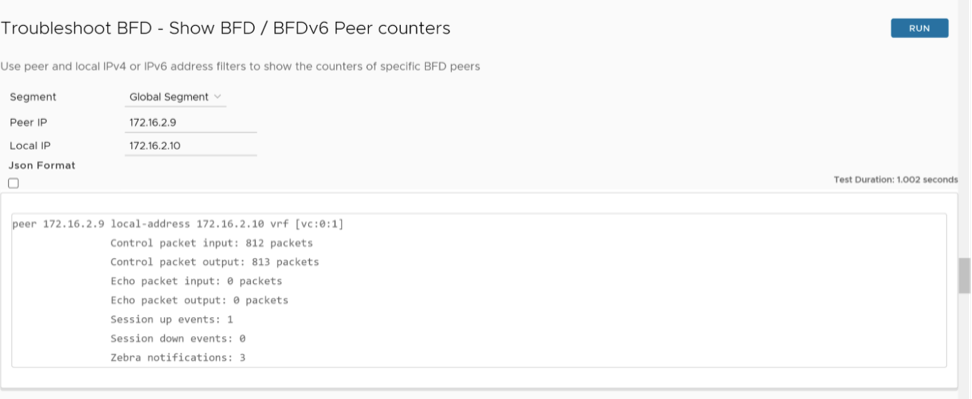
Select the Json Format check box if you want the test output in JSON format for automation validation.
- Count of BFD control Packets Sent/Received, if either only sent or only received counter is incrementing, it indicates a problem on non-incrementing side.
- Count of Echo packets Sent/Received. The Echo mode is not supported, so ideally should be deactivated on peer too.
- Count of Session Up/Down events, confirming how many UP/Down events are seen.
- Count of Zebra notifications.
Show BFD Settings
What is the Purpose of This Test
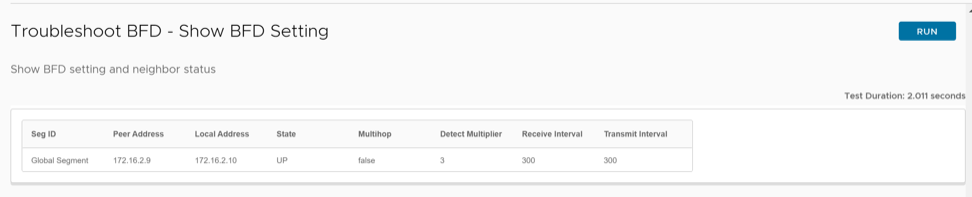
To determine the BFD IPv4 settings and neighbor status.
When Can You Run This Test
Run this test to determine the State of the BFD IPv4, along with interval values. For instructions on how to run a remote diagnostic test on Edges, see Run Remote Diagnostic Tests on Edges.
What to Check in the Test Output
Following is an example of the test output:
Show BFDv6 Settings
What is the Purpose of This Test
To determine the BFD IPv6 settings and neighbor status.
When Can You Run This Test
Run this test to determine the State of the BFD IPv6, along with interval values. For instructions on how to run a remote diagnostic test on Edges, see Run Remote Diagnostic Tests on Edges.
What to Check in the Test Output
Following is an example of the test output:

List BGP Redistributed Routes
What is the Purpose of This Test
Run this test to list the IPv4 routes redistributed by the Edge to the BGP peers.
When Can You Run This Test
Run this test to check and confirm if a prefix is redistributed by the Edge to its BGP neighbors. For instructions, see Run Remote Diagnostic Tests on Edges.
What to Check in the Test Output

The redistributed route Netmask must be present in the List BGP Redistributed table. The redistributed route must be tagged with the expected Metric Type, Next Hop IP address, Exit Interface, Segment Name, and Community tag.
List BGP Routes
What is the Purpose of This Test
Run this test to list the entire BGP routes. Use the IPv4 or IPv6 prefix to filter specific BGP routes or leave the prefix empty to see all the routes.
When Can You Run This Test
- If a prefix is received in the BGP Table.
- If a BGP prefix is allowed to redistribute into the SD-WAN overlay route table.
For instructions, see Run Remote Diagnostic Tests on Edges.
What to Check in the Test Output
Run the List BGP Routes test on the required Edge. Following is an example of the test output:
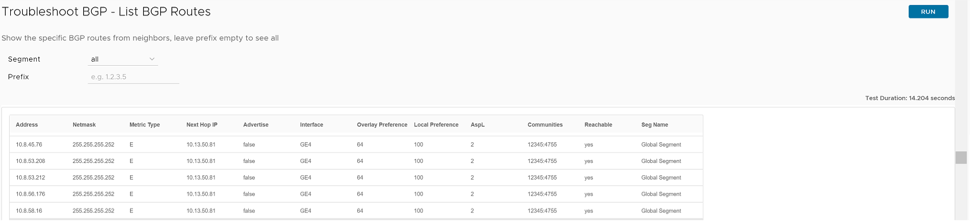
- BGP routes received from BGP neighbors must be present in the table.
- The BGP route must have the advertise flag set to True, and the reachable flag set to Yes, to redistribute the received prefix into the overlay route table.
- The BGP route must be tagged with the expected Metric Type, Next Hop IP address, Exit Interface, Segment Name, and Community Tag.
List Routes per Prefix
What is the Purpose of This Test
Run this test to list all the possible routes (Overlay and Underlay routes) available in the Edge for the specific destination prefix.
When Can You Run This Test
- If the Edge has received both Overlay and Underlay routes (if available) for the specific destination prefix.
- The availability of the primary and secondary route paths (if available) for the specific destination prefix.
For instructions, see Run Remote Diagnostic Tests on Edges.
What to Check in the Test Output
Run the List Routes per Prefix test on the required Edge. Following is an example of the test output.

The List Routes per Prefix command will display all the possible route entries for the specific destination prefix with the associated local or overlay preferences and community tags.
Based on the route order displayed in the Orchestrator UI, you could check the availability of the primary and backup route paths for the specific destination prefix in each segment. i.e., 1st Route Entry = Best path (Primary path), 2nd Route Entry = Second Best Path, 3rd Route Entry = Third Best Path, and so on.
The Route Type identifies the origin of the specific route entry (Overlay or Underlay route).
The Next Hop IP and Dest Name identify the next-hop device IP (for Underlay route types) or the Edge name (for Overlay route types), which advertised the specific route entry.
Show BGP Neighbor Advertised Routes
What is the Purpose of This Test
Run this test to list the IPv4 routes advertised by the Edge to the specific BGP peer.
When Can You Run This Test
- To check and confirm whether the Edge advertises the IPv4 prefixes to the specific BGP peer.
- If a prefix is denied by the BGP neighbor outbound filter configuration in the Orchestrator, then the Edge does not advertise the denied prefix to the specific BGP neighbor.
For instructions, see Run Remote Diagnostic Tests on Edges.
What to Check in the Test Output
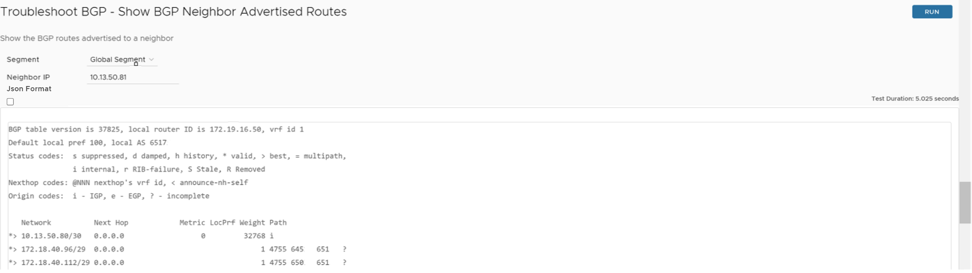
Select the Json Format check box if you want the test output in JSON format for automation validation.
- The Edge must list all the advertised prefixes in the table. If a prefix is missed, verify the BGP neighbor status and the outbound filter configuration in the Orchestrator.
- A valid route is marked with the sign "*" and the best route is marked with the sign ">".
- All the prefixes must be tagged respectively with Metric (only for self-originated routes), Local Preference, Weight, Next Hop IP Address, AS-Path, and Route Origin code attributes.
Show BGP Neighbor Learned Routes
What is the Purpose of This Test
Run this test to list the IPv4 prefixes accepted by the Edge from the BGP peer after applying the BGP neighbor inbound filters configured in the Orchestrator.
When Can You Run This Test
- To check and confirm if the Edge has accepted BGP routes learned from a neighbor.
- If a specific route is not present in the Show BGP Neighbor Learned Routes table, then we must verify the BGP neighbor inbound filter in the Orchestrator and run the diagnostic command Show BGP Neighbor Received Routes to list all the BGP routes advertised by the BGP Neighbor before applying the BGP inbound filters.
What to Check in the Test Output
Run the Show BGP Neighbor Learned Routes test on the required Edge. For instructions, see Run Remote Diagnostic Tests on Edges.
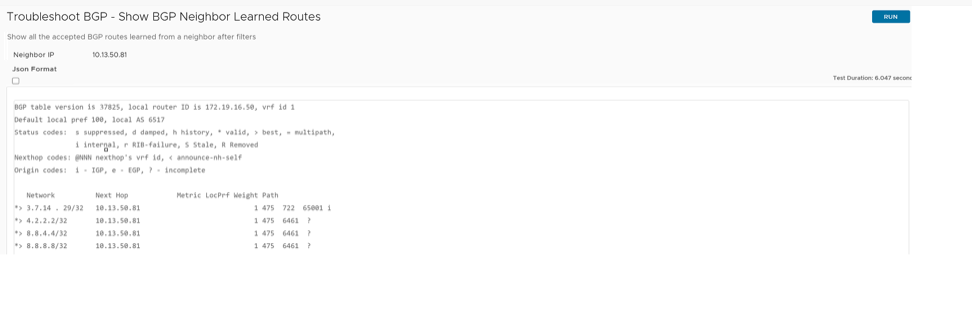
Select the Json Format check box if you want the test output in JSON format for automation validation.
- The prefix learned and accepted by the Edge from its BGP neighbor must be present.
- A valid BGP route is marked with the sign "*" and the best route is marked with the sign ">".
- The output must display the total number of prefixes received and accepted by the Edge after applying the inbound filters.
Show BGP Neighbor Received Routes
What is the Purpose of This Test
Run this test to list the IPv4 prefixes accepted by the Edge from the BGP peer before applying the BGP neighbor inbound filters configured in the Orchestrator.
When Can You Run This Test
Run this test to check and confirm that all the prefixes are received by the Edge from a BGP neighbor. For instructions, see Run Remote Diagnostic Tests on Edges.
What to Check in the Test Output
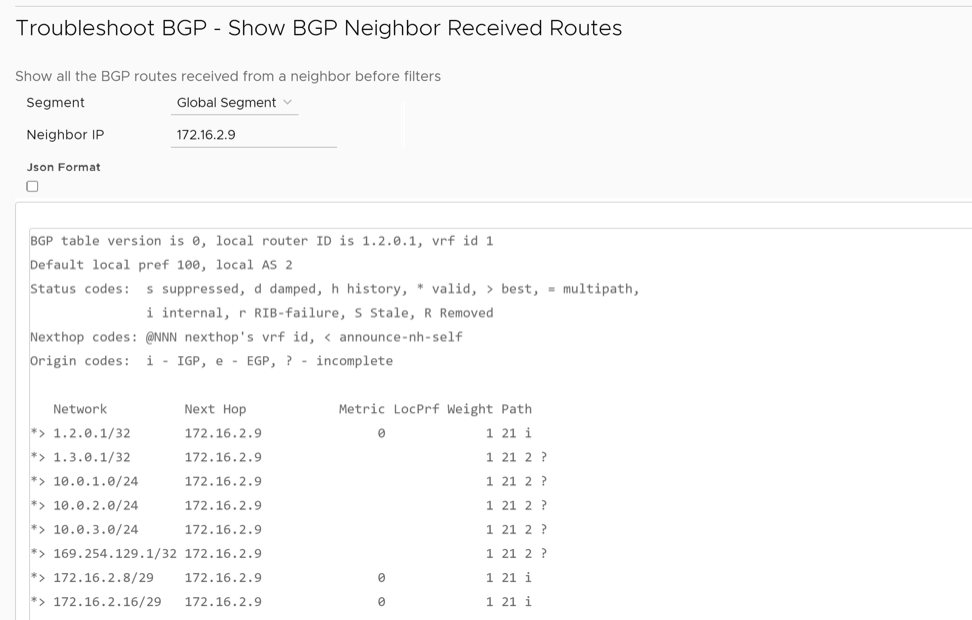
Select the Json Format check box if you want the test output in JSON format for automation validation.
- The output must display the total number of prefixes received by the Edge.
- The output must list the number of BGP prefixes filtered by the inbound filters.
- The Edge must list all the received prefixes.
- If a BGP prefix is not present in the table, check the BGP neighborship status and the list of BGP prefixes advertised by the BGP neighbor device to the Edge.
Show BGP Neighbor Details
What is the Purpose of This Test
Run this test to check the BGP neighbor status and the BGP neighborship uptime.
When Can You Run This Test
Run this test to check the details about a neighbor. For instructions, see Run Remote Diagnostic Tests on Edges.
What to Check in the Test Output
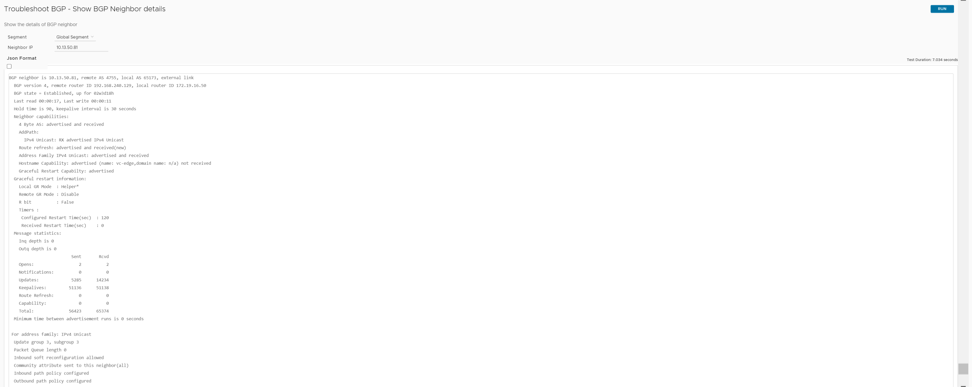
Select the Json Format check box if you want the test output in JSON format for automation validation.
- BGP neighborship status
- BGP neighborship uptime
- Local AS
- Remote AS
- Edge BGP Router ID
- Peer device BGP Router ID
- BGP Hold and Keep-alive Timers
- Neighbor capabilities
- Message statistics should display the number of BGP packets sent and received by the Edge.
- Check and confirm if any inbound/outbound filters are attached to the specific BGP neighbor and the list of prefixes accepted by the Edge from the BGP neighbor after applying the inbound filters.
- Verify the source IP address/port number and the destination IP address/port number used by the Edge to establish BGP neighborship. This can be done by looking into the local host/port and foreign host/port details.
Show BGP Routes per Prefix
What is the Purpose of This Test
Run this test to verify a particular route detail in BGP.
When Can You Run This Test
Run this test to verify how the best path route is selected using BGP attributes. For instructions, see Run Remote Diagnostic Tests on Edges.
What to Check in the Test Output
Run the Show BGP Routes per Prefix test on the required Edge. Following is an example of the test output:

- Best path to the routes along with all other paths.
- BGP attributes to compare and check how best path is chosen.
Select the Json Format check box if you want the test output in JSON format for automation validation.
Show BGP Summary
What is the Purpose of This Test
This test displays the BGP neighbors associated with the device.
When Can You Run This Test
Run this test to understand if the BGP neighbor is up or not with neighbor details. For instructions, see Run Remote Diagnostic Tests on Edges.
What to Check in the Test Output
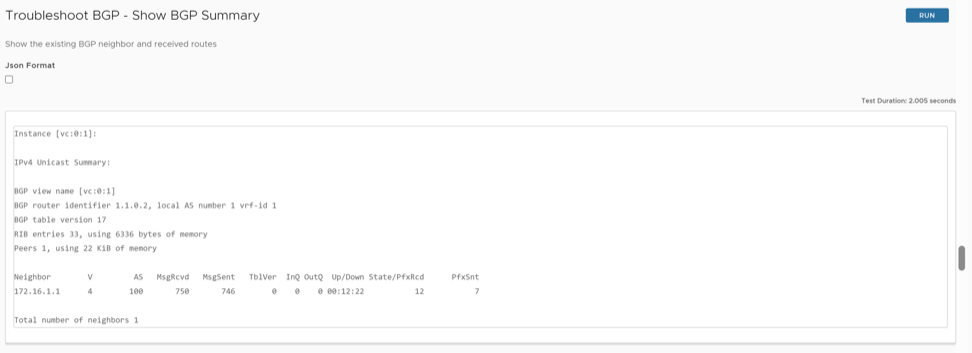
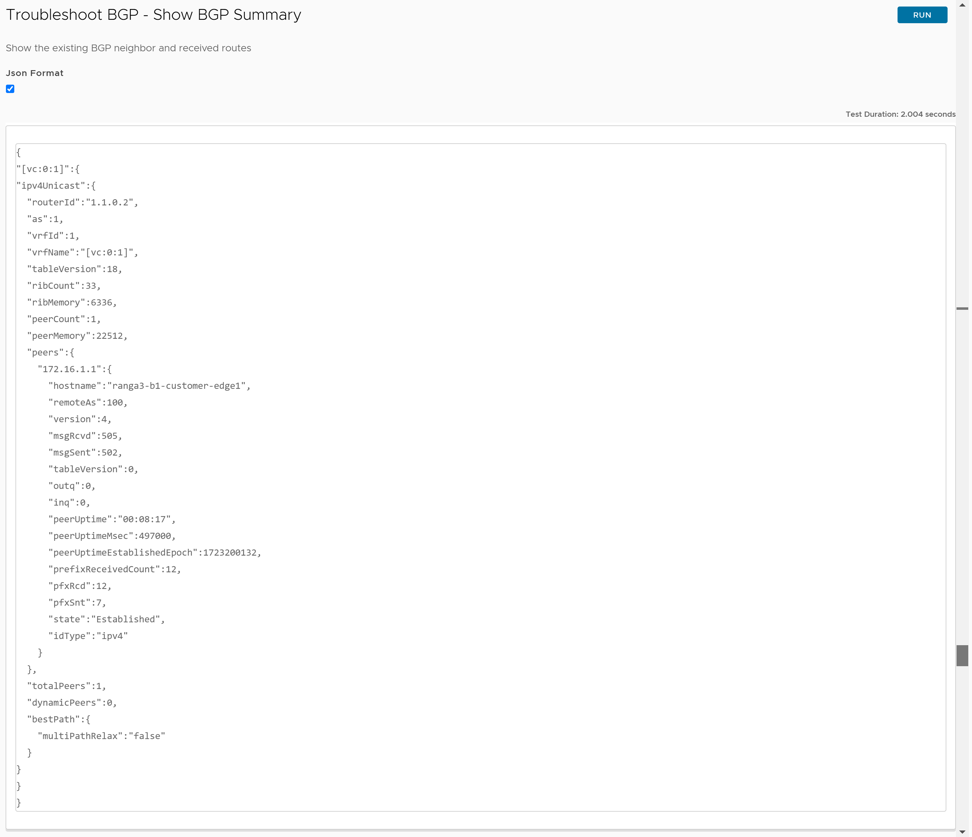
- Neighbor: Provides IP of peer which we used to peer in configuration
- V: Indicates the version of BGP running in device.
- AS: Provides the remote peer AS path
- MsgRcd: Number of packets BGP has received from its peer
- Msg Sent: Number of packets BGP has sent to its peer
- TblVer: Provides the detail of current BGP table version changes if any
- Inq: Number of packets in queue to be received from its peer
- outq: Number of packets in out queue to be sent to its peer
- State/Pfx rcd:
Table 6. Show BGP Summary- State Descriptions State Description Idle BGP resources are initialized by the router. BGP inbound connection attempts are refused. BGP initiates a TCP connection to the peer. Connect BGP waits for the 3WHS to complete. If successful, the OPEN message is sent to the peer and BGP moves to the OpenSent state. If unsuccessful, BGP continues to the Active state. However, if the ConnectRetry expires, BGP remains in this state, with the timer being reset and a new 3WHS being initiated. Active The ConnectRetry timer is reset, and BGP returns to the Connect state. OpenSent BGP waits for an OPEN message from its peer. Once received, BGP moves to the OpenConfirm state. OpenConfirm BGP waits for a keepalive message from its peer. If the message is received before the timeout expires, BGP moves to the Established state. Otherwise, BGP transitions to Idle. Established Both peers exchange UPDATE messages. If there is an error within any of the UPDATE messages, the BGP peer sends a NOTIFICATION message and enters the Idle state. Note: Any other state with a number represents the number of subnets received by the BGP from its peer.
Show BGP Table
What is the Purpose of This Test
To view complete BGP table.
When Can You Run This Test
To verify whether the list of subnets and the next hop are as expected. For instructions, see Run Remote Diagnostic Tests on Edges.
What to Check in the Test Output
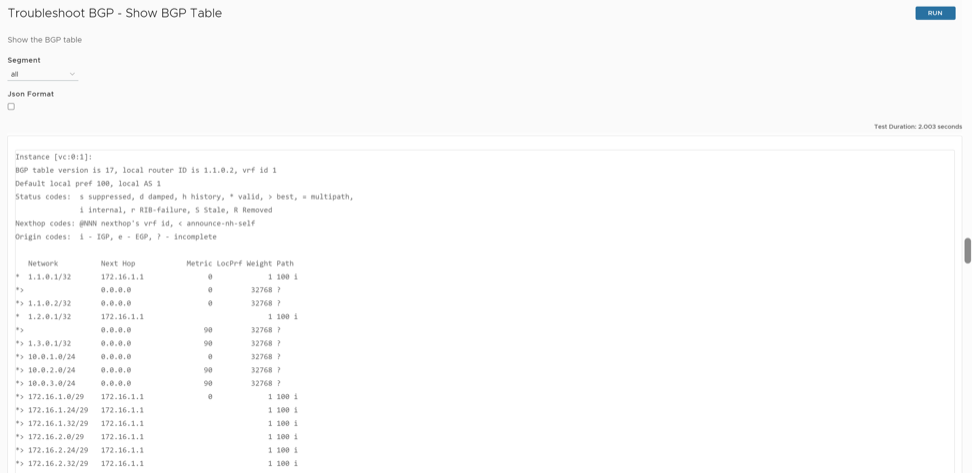
Select the Json Format check box if you want the test output in JSON format for automation validation.
- Network: *> is the best path to IP prefix. If there is no ">" before the prefix, then it is not injected to the forwarding table.
- Nexthop: Provide the next hop IP to which IP subnet must be sent.
- Metric: BGP metric is displayed.
- Local pref: BGP local preference, if present for a route, is displayed.
- Weight: BGP weight attribute of the route is displayed.
- Path: BGP AS path of the route is displayed.
Show BGPv6 Neighbor Advertised Routes
What is the Purpose of This Test
Run this test to list the IPv6 routes advertised by the Edge to the specific BGPv6 neighbor.
When Can You Run This Test
- To check and confirm whether the Edge advertises the IPv6 prefixes to the specific BGPv6 neighbor.
- If a prefix is denied by the BGPv6 neighbor outbound filter configuration in the Orchestrator, then the edge does not advertise the denied prefix to the specific BGPv6 neighbor.
For instructions, see Run Remote Diagnostic Tests on Edges.
What to Check in the Test Output
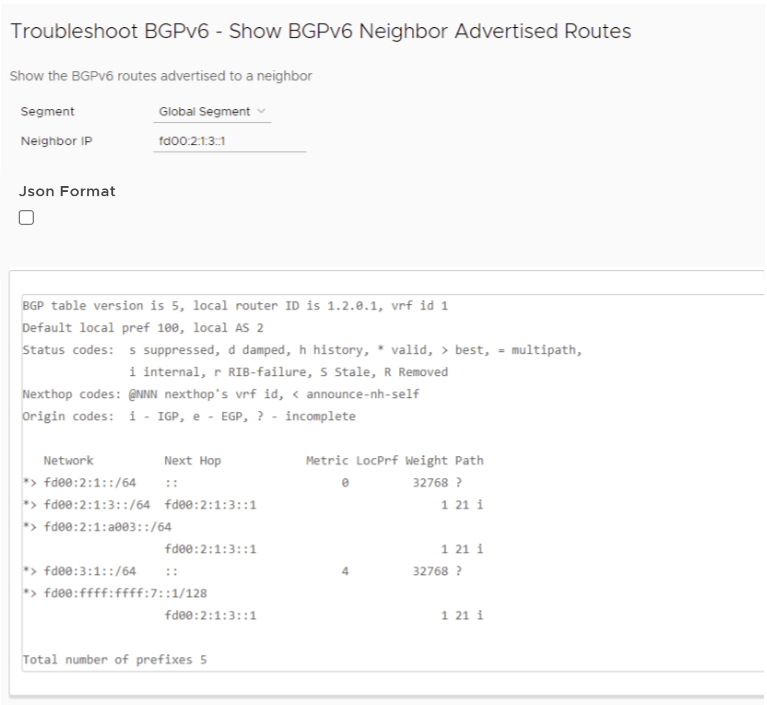
Select the Json Format check box if you want the test output in JSON format for automation validation.
- The Edge must list all the advertised prefixes in the table. If a prefix is missed, verify the BGPv6 neighbor status and the outbound filter configuration in the Orchestrator.
- A valid route is marked with the sign "*" and the best route is marked with the sign ">".
- All the prefixes must be tagged with Metric (only for self-originated routes), Local Preference, Weight, Next Hop IP Address, AS-Path, and Route Origin code attributes.
Show BGPv6 Neighbor Learned Routes
What is the Purpose of This Test
Run this test to list the IPv6 prefixes accepted by the Edge from the BGP neighbor after applying the BGP neighbor inbound filters configured in the Orchestrator.
When Can You Run This Test
- To check and confirm if the Edge has accepted BGP routes learned from a neighbor.
- If a specific route is not present in the Show BGPv6 Neighbor Learned Routes table, then we must verify the BGPv6 neighbor inbound filter in the Orchestrator and run the diagnostic command Show BGPv6 Neighbor Received Routes to list all the BGP routes advertised by the BGP Neighbor before applying the BGP inbound filters.
For instructions, see Run Remote Diagnostic Tests on Edges.
What to Check in the Test Output
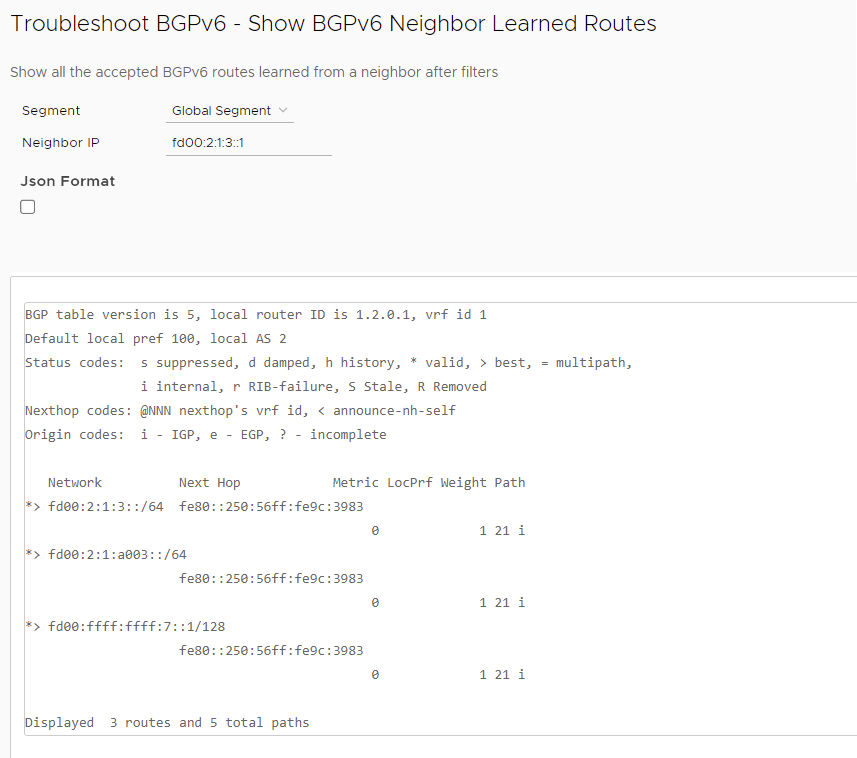
Select the Json Format check box if you want the test output in JSON format for automation validation.
- The prefix learned and accepted by the Edge from its BGP neighbor must be present.
- A valid BGP route is marked with the sign "*" and the best route is marked with the sign ">".
- The prefix accepted by the Edge must hold the correct next-hop IP address, Metric, Local preference, Weight, and AS-path.
- The output must display the total number of prefixes received and accepted by the Edge after applying the inbound filters.
Show BGPv6 Neighbor Received Routes
What is the Purpose of This Test
Run this test to list the IPv6 prefixes received by the Edge from the BGPv6 neighbor before applying the BGPv6 neighbor inbound filters configured in the Orchestrator.
When Can You Run This Test
Run this test to check and confirm that all the prefixes are received by the Edge from a BGPv6 neighbor. For instructions, see Run Remote Diagnostic Tests on Edges.
What to Check in the Test Output
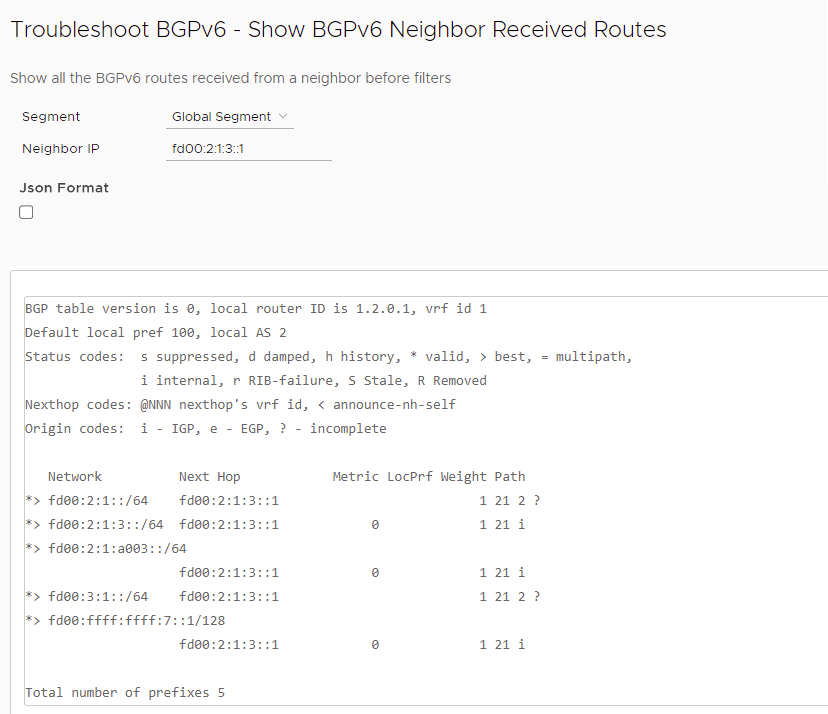
Select the Json Format check box if you want the test output in JSON format for automation validation.
- The output must display the total number of prefixes received by the Edge.
- The output must list the number of BGPv6 prefixes filtered by the inbound filters.
- The Edge must list all the received prefixes.
- If a BGPv6 prefix is not present in the table, check the BGPv6 neighborship status and also check the list of BGPv6 prefixes advertised by the peer BGP on the neighbor device.
Show BGPv6 Neighbor Details
What is the Purpose of This Test
Run this test to check the BGPv6 neighbor status and the BGPv6 neighborship uptime.
When Can You Run This Test
To confirm the current status of the BGPv6 neighborship and list the BGPv6 neighborship attributes. For instructions, see Run Remote Diagnostic Tests on Edges.
What to Check in the Test Output
Run the Show BGPv6 Neighbor Details test on the required Edge.
Select the Json Format check box if you want the test output in JSON format for automation validation.
Following is an example of the test output:
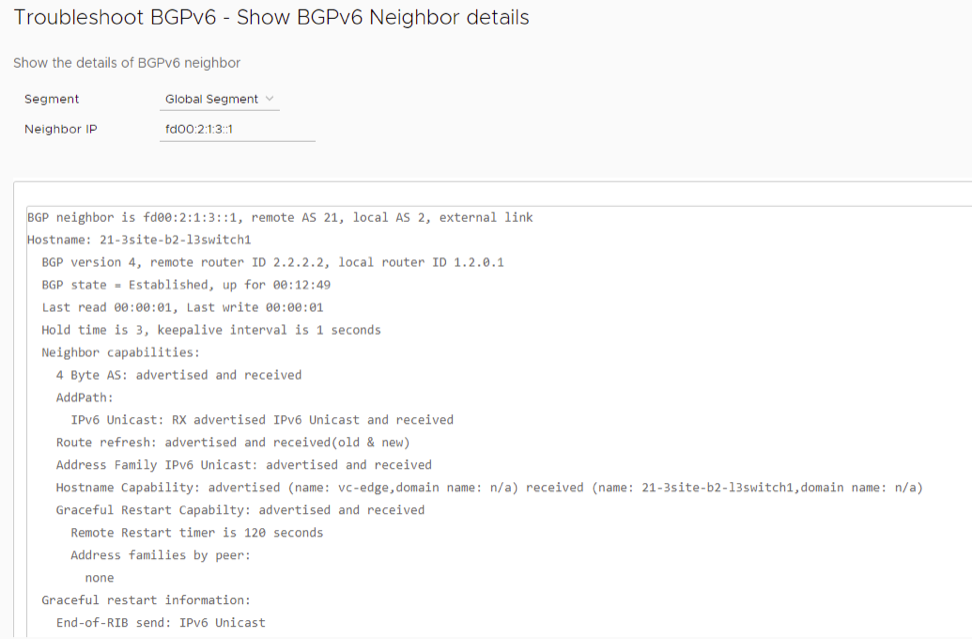
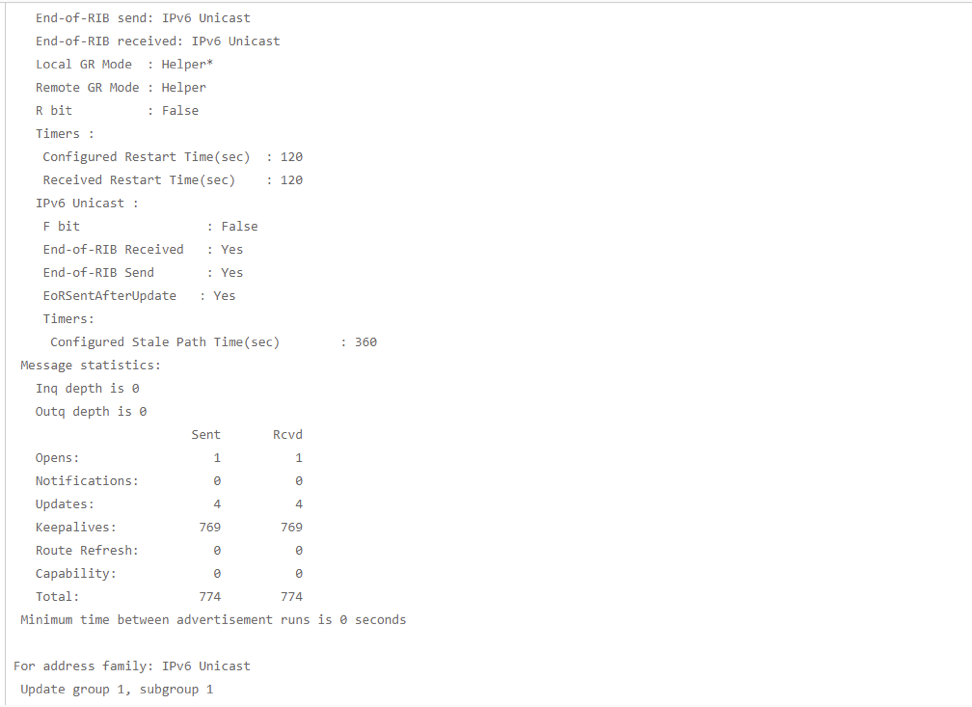
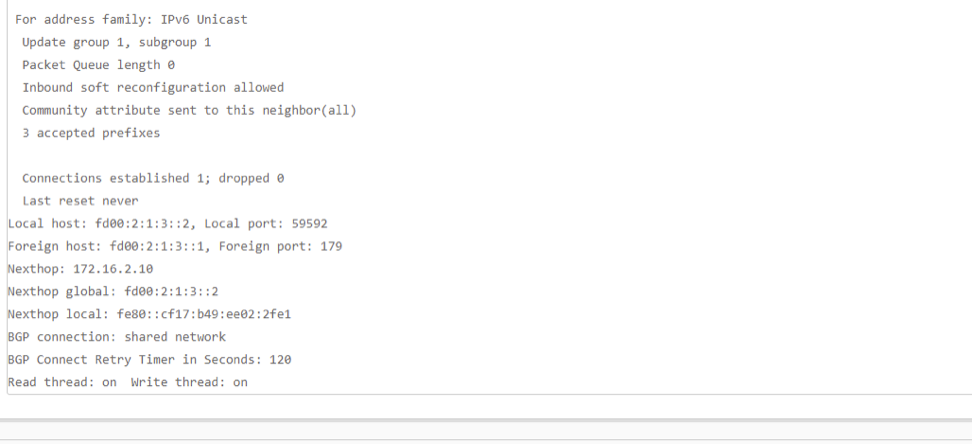
- Check the following parameters in the "BGPv6 neighbor table":
- BGPv6 neighborship status
- BGPv6 neighborship uptime
- Local AS
- Remote AS
- Edge BGP Router ID
- Peer device BGP Router ID
- BGP Hold and Keep-alive Timers
- Neighbor capabilities
- The number of BGP packets (i.e., Open, Notifications, Updates, Keepalives, Route Refresh, and Capability) sent and received by the Edge.
- Any inbound or outbound filters attached to the specific BGP neighbor.
- List of prefixes accepted by the Edge from the BGP neighbor after applying the inbound filters.
- The source IP address and port number and the destination IP address/port number used by the Edge to establish BGPv6 neighborship.
Show BGPv6 Routes per Prefix
What is the Purpose of This Test
Run this test to list all the possible Overlay and Underlay routes available in the Edge for the specific destination prefix.
When Can You Run This Test
- To check and confirm if the Edge is received for both Overlay and Underlay routes (if available) for the specific destination prefix.
- To check and confirm the availability of the primary and secondary route paths (if available) for the specific destination prefix.
For instructions, see Run Remote Diagnostic Tests on Edges.
What to Check in the Test Output
Run the Show BGPv6 Routes per Prefix test on the required Edge. Following is an example of the test output:
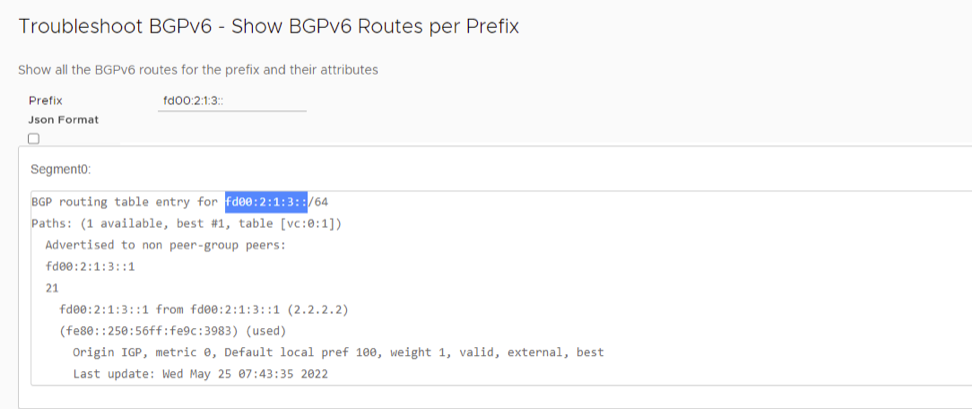
Select the Json Format check box if you want the test output in JSON format for automation validation.
- The output must display all the possible route entries for the specific destination prefix with the associated local or overlay preferences and community tags.
- Based on the route order displayed in the Orchestrator, check the availability of the primary and backup route paths for the specific destination prefix in each segment.
- The Route Type flag must help us to identify the origin of the specific route entry ( i.e., Overlay or Underlay route).
- The Next Hop IP and Dest Name flags must help us identify the next-hop device IP (for Underlay route types) or the Edge name (for Overlay route types), which advertised the specific route entry.
Show BGPv6 Summary
What is the Purpose of This Test
Run this test to view the BGPv6 neighbors associated with the device.
When Can You Run This Test
Run this test to understand if the BGPv6 neighbor is up or not with neighbor details. For instructions, see Run Remote Diagnostic Tests on Edges.
Select the Json Format check box if you want the test output in JSON format for automation validation.
What to Check in the Test Output
Run the Show BGPv6 Summary test on the required Edge. Following is an example of the test output:
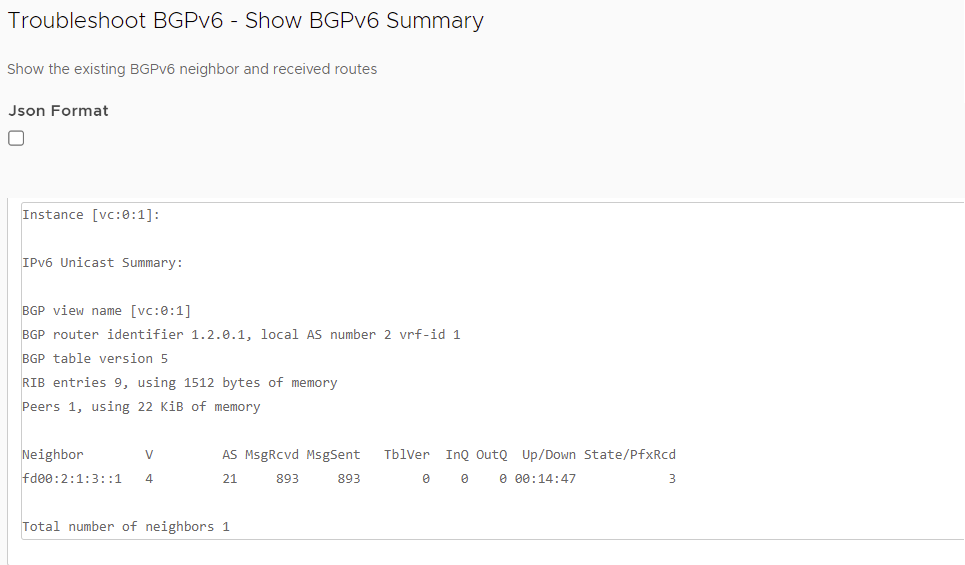
Show BGPv6 Table
What is the Purpose of This Test
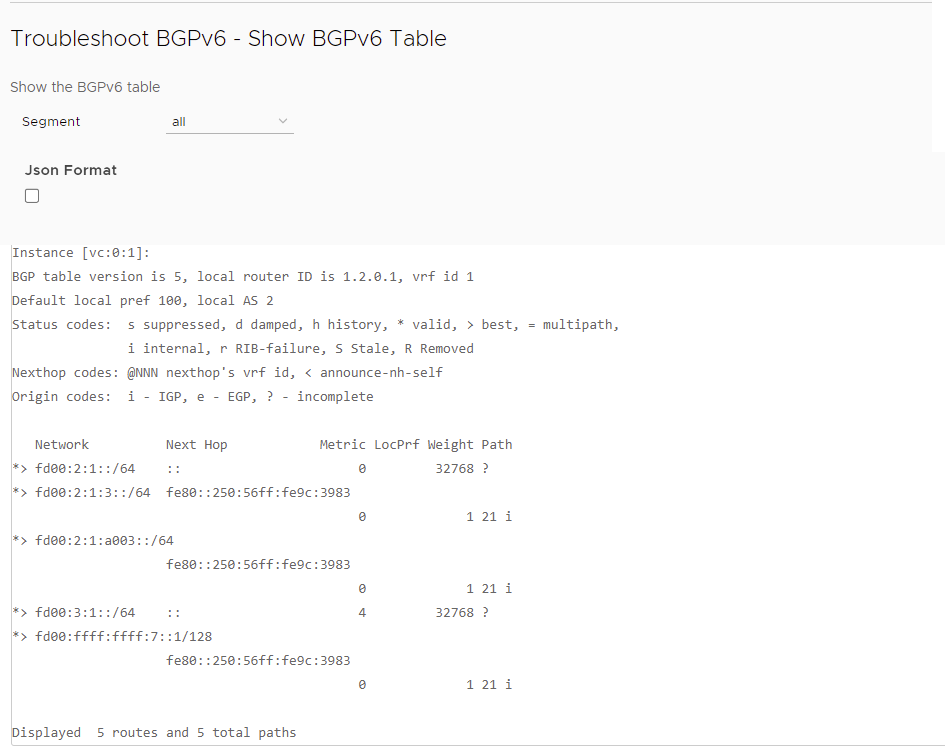
Run this test to view the completed BGPv6 table.
When Can You Run This Test
Run this test to verify the list of subnets and the next hop. For instructions, see Run Remote Diagnostic Tests on Edges.
Select the Json Format check box if you want the test output in JSON format for automation validation.
What to Check in the Test Output
Run the Show BGPv6 Table test on the required Edge. Following is an example of the test output:
List OSPF Redistributed Routes
What is the Purpose of This Test
Run this test on all or selected segments to confirm if the Overlay routes and Underlay routes (Dynamic/Static/ Connected) are redistributed to the Edge with correct route metric.
When Can You Run This Test
- There is an issue in route redistribution.
- LAN is not able to communicate with specific subnets over overlay VPN.
- OSPF is configured.
- LAN router is not able to see the routes in its routing table that is received from overlay.
For instructions, see Run Remote Diagnostic Tests on Edges.
What to Check in the Test Output
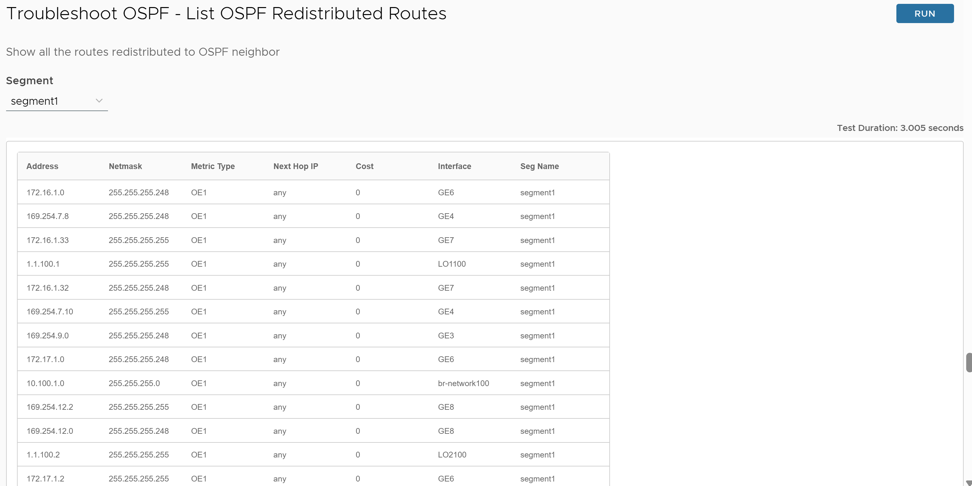
Verify the following in the output:
List OSPF Routes
What is the Purpose of This Test
Run this test on all or selected segments to show the routes received from peer LAN router.
When Can You Run This Test
You can run this test if the peer Edges are not able to receive OSR or DOSR routes from this Edge. For instructions, see Run Remote Diagnostic Tests on Edges.
What to Check in the Test Output
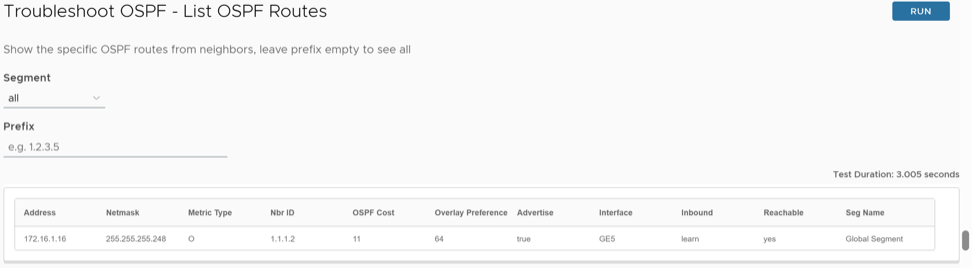
Verify the following in the output:
Show OSPF Database
What is the Purpose of This Test
Run this test on all or selected segments to verify if the OSPF database is equivalent to show ip ospf database.
When Can You Run This Test
You can run this test when the OSPF database contains all LSAs that describe the network topology. The OSPF database output displays the content of the LSDB and verifies information about specific LSAs. For instructions, see Run Remote Diagnostic Tests on Edges.
What to Check in the Test Output
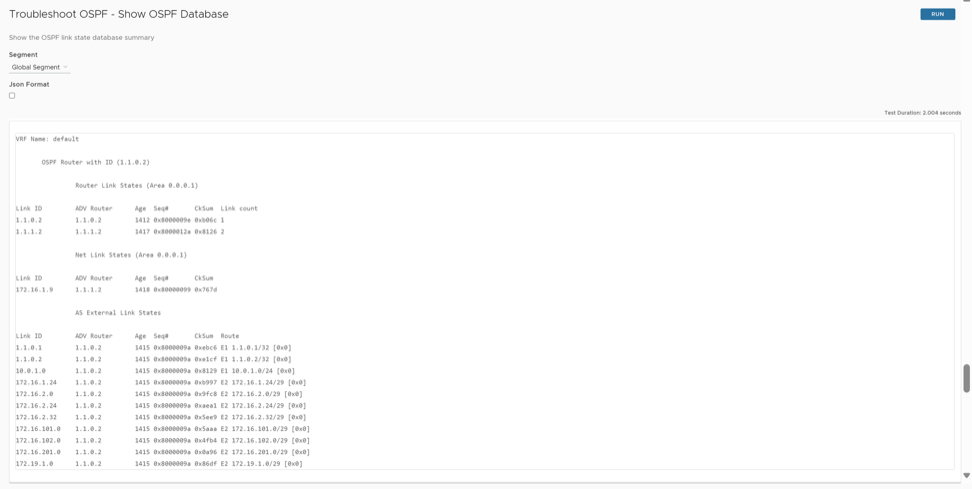
Select the Json Format check box if you want the test output in JSON format for automation validation.
Verify the following in the output:
- Verify the subnet and its advertising router if there is any asymmetric routing issue or if a different path is taken than expected.
- Verify age if there are route flaps.
- Verify if Peer database and Edge database match, in case of any issues with DB of OSPF.
Show OSPF Database for E1 Self-Originate Routes
What is the Purpose of This Test
This test provides the list of E1 self-originated routes.
When Can You Run This Test
Run this test on all or selected segments to troubleshoot routing issues on E1 type self-originated routes. For instructions, see Run Remote Diagnostic Tests on Edges.
What to Check in the Test Output
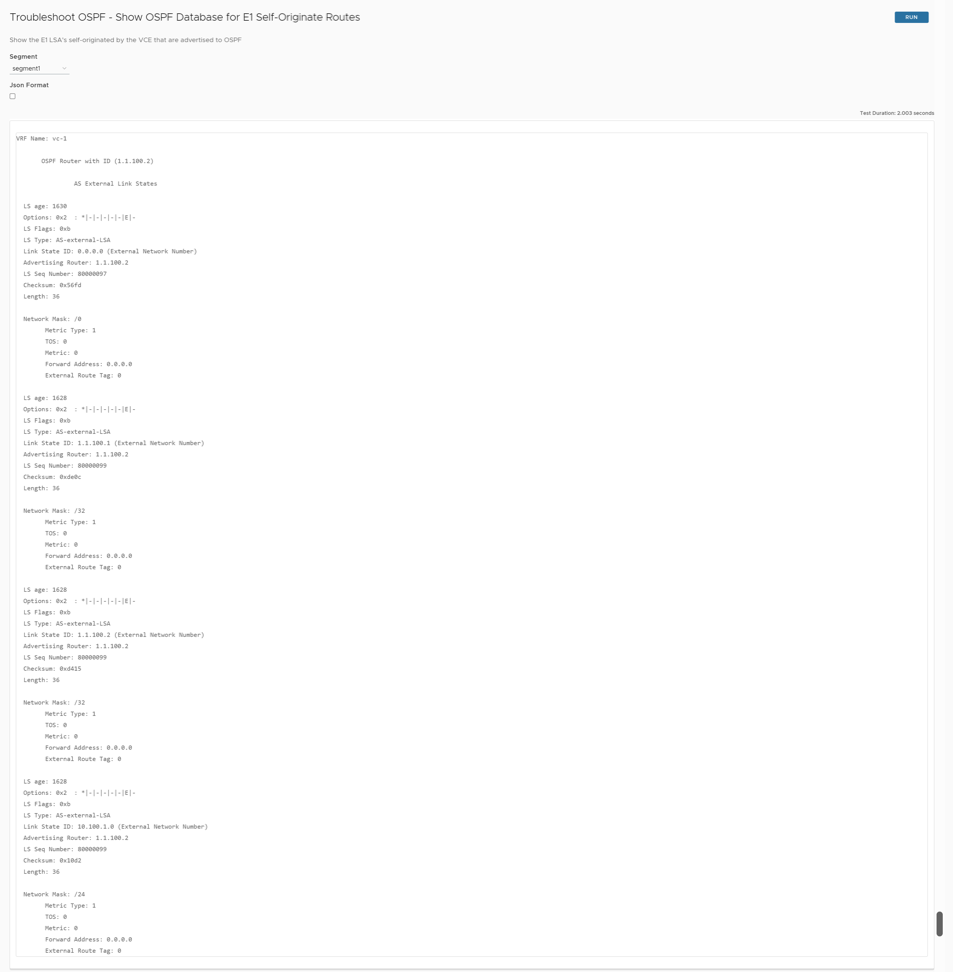
Select the Json Format check box if you want the test output in JSON format for automation validation.
Verify the following in the output:
- The LSA type is set to external LSA.
- The Advertising router should be the router which is originating this route.
- For LS age, check if there are any advertisement issues.
Show OSPF Neighbors
What is the Purpose of This Test
This test indicates if there are issues with OSPF neighbors.
When Can You Run This Test
Run this test on all or selected segments when there is an OSPF neighborship formation issue. For instructions, see Run Remote Diagnostic Tests on Edges.
What to Check in the Test Output
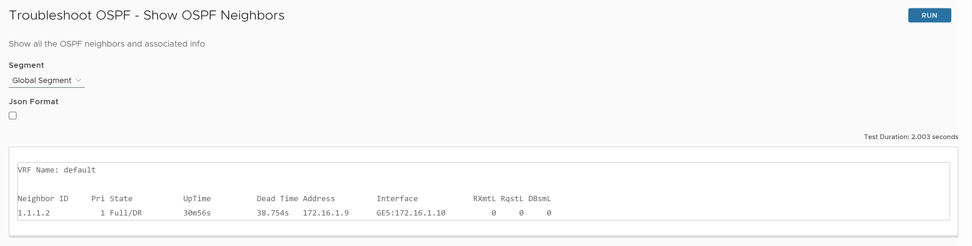
Select the Json Format check box if you want the test output in JSON format for automation validation.
Verify the following in the output:
- Verify if the state of neighbor is Full/(DR or BDR). If this state is not seen, then there is issue with OSPF neighbors' convergence.
- Down state, Attempt/Init state would be seen if you have sent/received OSPF hello packet. If the neighbor is in this state for too long, verify the Area ID, Neighbor ID, Router ID, and OSPF configuration.
- If it is stuck between 2-way state or Ext start state, verify the MTU issues.
- RxmtL is LSA retransmission list. This value is used when retransmitting Database Description and Link State Request packets. The default value is 5 seconds. If you see any values, then there is DBD packet exchange issue in transit. It should not be too high ideally. Verify transit path.
- DBsmL is database summary list for the neighbor.
- Rqstl is the Link State Request List.
Show OSPF Route Table
What is the Purpose of This Test
Run this test on all or selected segments to verify routes and their view on OSPF protocol.
When Can You Run This Test
Run this test to verify how routes are learnt on OSPF table. For instructions, see Run Remote Diagnostic Tests on Edges.
What to Check in the Test Output
Run the Show OSPF Route Table test on the required Edge.
Select the Json Format check box if you want the test output in JSON format for automation validation.
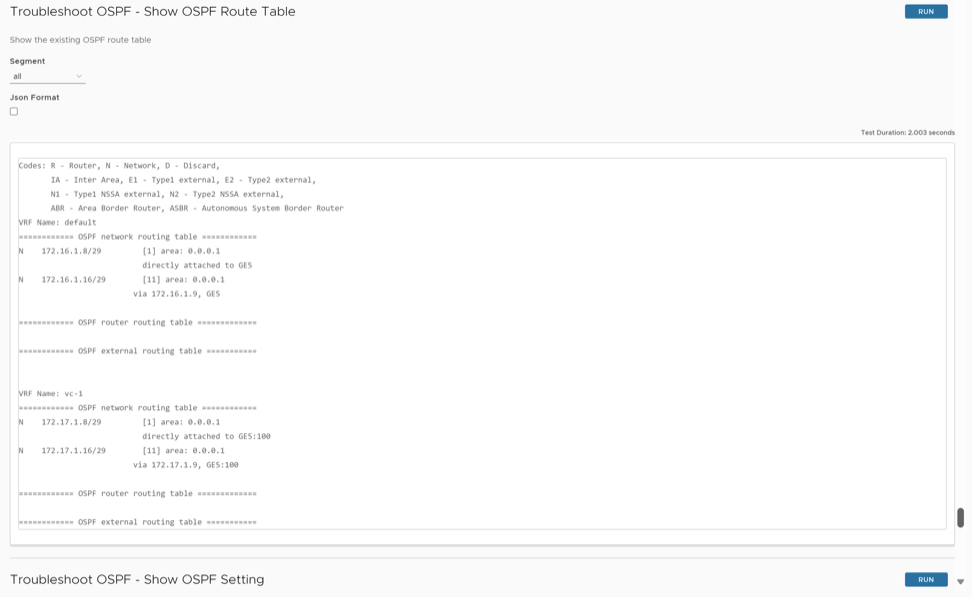
Show OSPF Setting
What is the Purpose of This Test
Run this test to verify if the OSPF configuration is pushed properly from Edge to Orchestrator.
When Can You Run This Test
Run this test to verify Edge OSPF configuration. For instructions, see Run Remote Diagnostic Tests on Edges.
What to Check in the Test Output

Verify if the Edge has got the configuration like area ID, network, authentication cost, and hello timer pushed from the Orchestrator if you have customer OSPF settings.
List OSPFv3 Redistributed Routes
What is the Purpose of This Test
Run this test on all or selected segments to view all the routes redistributed to the OSPFv3 neighbor.
When Can You Run This Test
Run this test to verify OSPFv3 redistributed routes. For instructions, see Run Remote Diagnostic Tests on Edges.
What to Check in the Test Output
Run the List OSPFv3 Redistributed Routes on the required Edge. Following is an example of the test output:
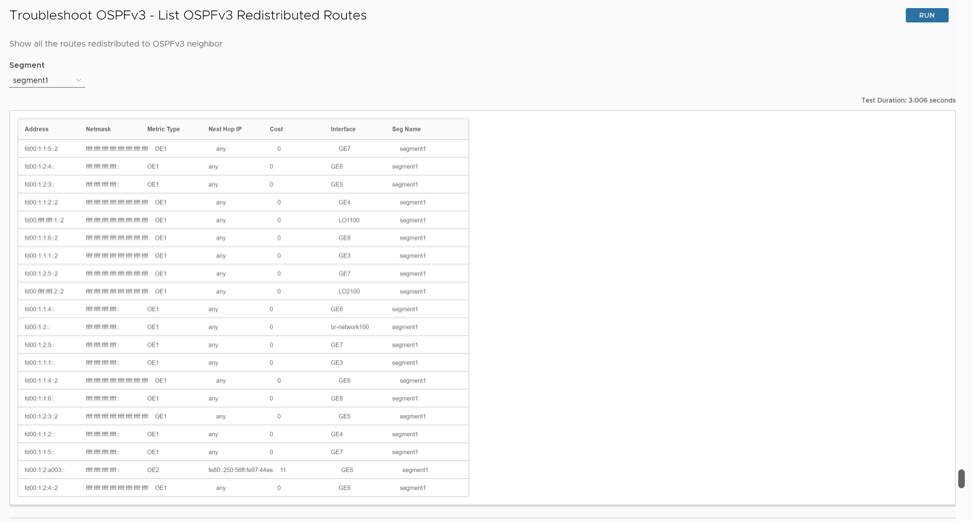
List OSPFv3 Routes
What is the Purpose of This Test
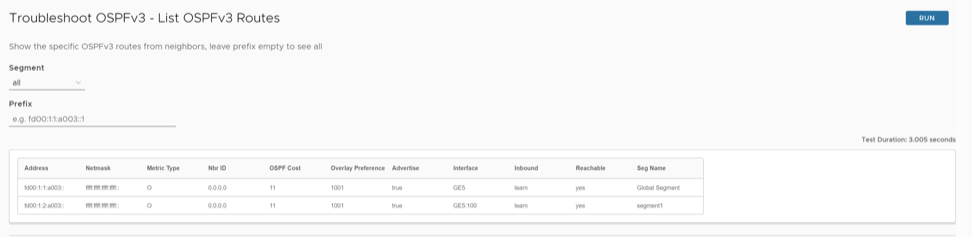
Run this test on all or selected segments to view the OSPFv3 routes learned from OSPFv3 neighbors for the specified Prefix. Displays all the OSPFv3 routes from the neighbors if the Prefix is not specified. This test displays OSPFv3 routes with actions such as an inbound filter with Overlay Flow Control from Orchestrator applied.
When Can You Run This Test
Run this test to verify OSPFv3 Routes. For instructions, see Run Remote Diagnostic Tests on Edges.
What to Check in the Test Output
Run the OSPFv3 Routes on the required Edge. Following is an example of the test output:
Show OSPFv3 Database
What is the Purpose of This Test
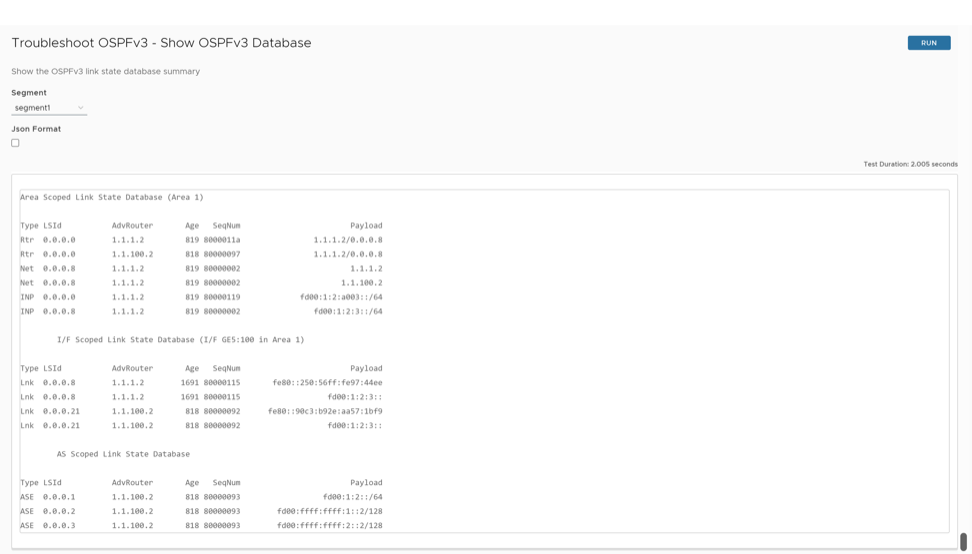
Run this test on all or selected segments to view the OSPFv3 link state database summary.
When Can You Run This Test
Run this test to verify the OSPFv3 link state database. For instructions, see Run Remote Diagnostic Tests on Edges.
What to Check in the Test Output
Run the OSPFv3 link state database on the required Edge.
Select the Json Format check box if you want the test output in JSON format for automation validation.
Following is an example of the test output:
Show OSPFv3 Database for E1 Self-Originate Routes
What is the Purpose of This Test
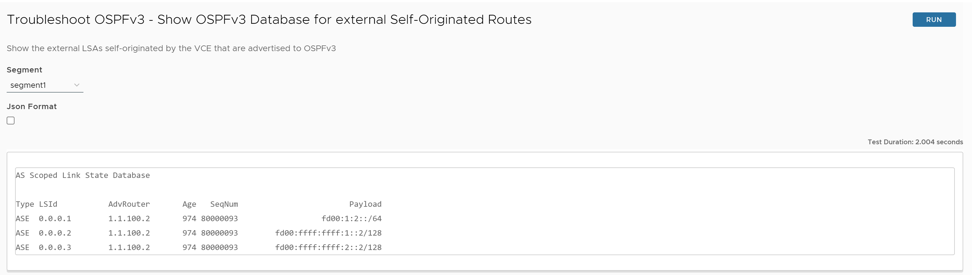
Run this test on all or selected segments to view the E1 LSA's self-originated routes that are advertised to OSPFv3 router by the Edge.
When Can You Run This Test
For instructions, see Run Remote Diagnostic Tests on Edges.
What to Check in the Test Output
Run the E1 LSA's self-originated routes that are advertised to OSPFv3 router by the Edge.
Select the Json Format check box if you want the test output in JSON format for automation validation.
Following is an example of the test output:
Show OSPFv3 Neighbors
What is the Purpose of This Test
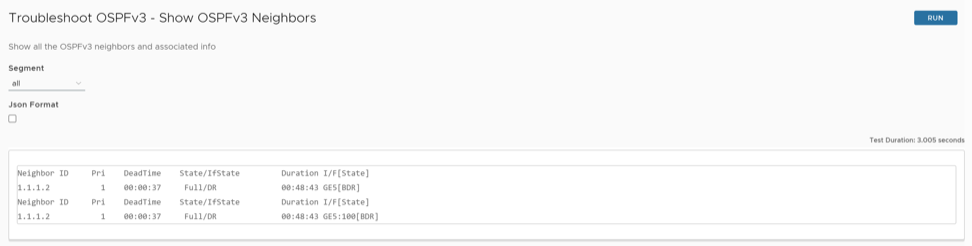
Run this test on all or selected segments to view all the OSPFv3 neighbors and associated information.
When Can You Run This Test
For instructions, see Run Remote Diagnostic Tests on Edges.
What to Check in the Test Output
Run OSPFv3 neighbors on the required Edge.
Select the Json Format check box if you want the test output in JSON format for automation validation.
Following is an example of the test output:
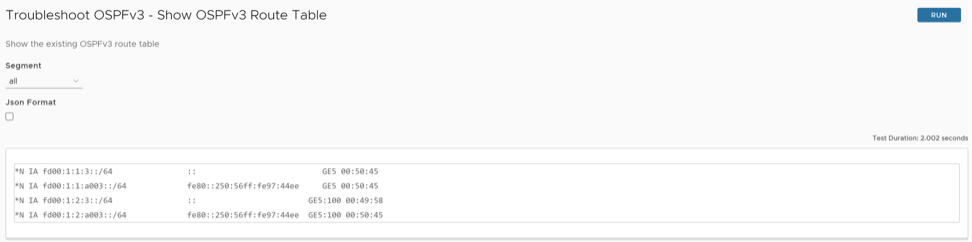
Show OSPFv3 Route Table
What is the Purpose of This Test
Run this test on all or selected segments to view the existing OSPFv3 route table, which displays OSPFv3 information from both learned and redistributed routes.
When Can You Run This Test
Run this test to view the existing OSPFv3 route table. For instructions, see Run Remote Diagnostic Tests on Edges.
What to Check in the Test Output
Run the OSPFv3 route table on the required Edge.
Select the Json Format check box if you want the test output in JSON format for automation validation.
Following is an example of the test output:
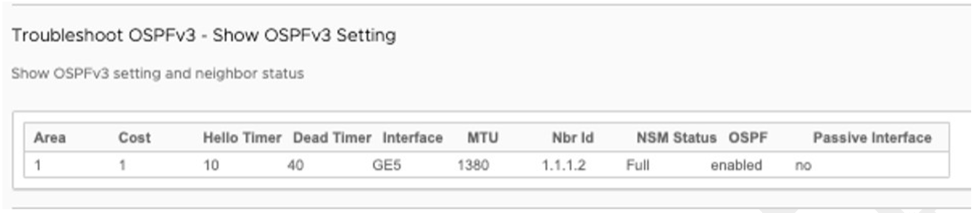
Show OSPFv3 Setting
What is the Purpose of This Test
Run this test to view the OSPFv3 setting and neighbor status.
When Can You Run This Test
For instructions, see Run Remote Diagnostic Tests on Edges.
What to Check in the Test Output
Run the OSPFv3 setting and neighbor status on the required Edge. Following is an example of the test output:
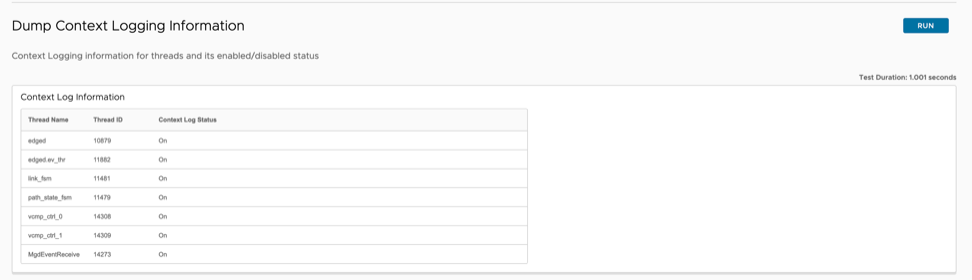
Dump Context Logging Information
What is the Purpose of This Test
When Can You Run This Test
Run this test to dump the threads which used context logging. For instructions on how to run a remote diagnostic test on Edges, see Run Remote Diagnostic Tests on Edges.
What to Check in the Test Output
- Context Log Status 'On' means context logging is activated for the given thread.
- Context Log Status 'Off' means context logging is deactivated for the given thread.
Enable or Disable Context Logging
What is the Purpose of This Test
When Can You Run This Test
Run this test to activate or deactivate context logging for specific thread or all threads. For instructions on how to run a remote diagnostic test on Edges, see Run Remote Diagnostic Tests on Edges.
What to Check in the Test Output
Specify a thread ID if you want to activate or deactivate context logging for a specific thread, or else specify the All option. Once the test is run, the action will be applied. You can validate the changes using the "Dump Context Logging Information" test command.

Gateway
What is the Purpose of This Test
To change the traffic path of Cloud (Internet) traffic.
When Can You Run This Test
Run this test if you want to change the path of data traffic either to use Business policy, or to use Gateway Path (Multi-Path), or to go direct on WAN Interface.
For instructions on how to run a remote diagnostic test on Edges, see Run Remote Diagnostic Tests on Edges.
What to Check in the Test Output

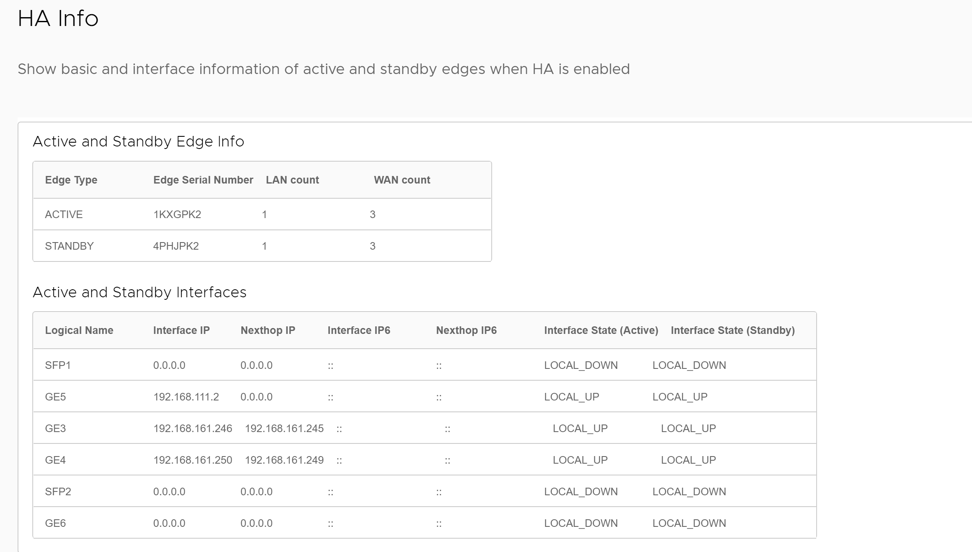
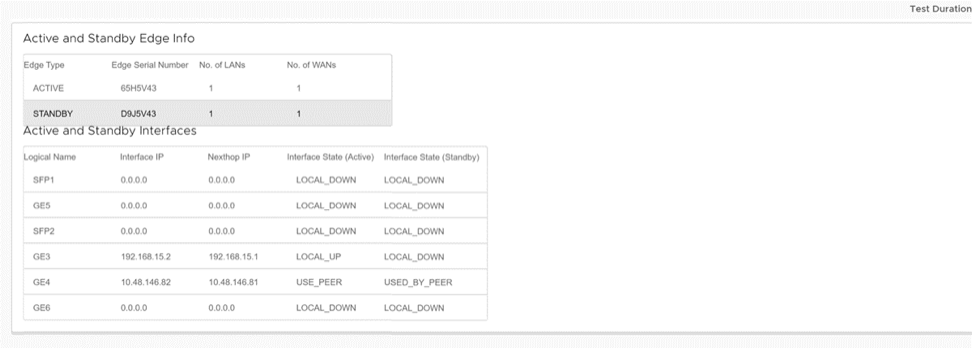
HA Info
What is the Purpose of This Test
To know more about the HA device, IP, Link, Status, and connection information.
When Can You Run This Test
Run this test to view the basic and interface information of active and standby Edges when HA is activated.
For instructions on how to run a remote diagnostic test on Edges, see Run Remote Diagnostic Tests on Edges.
What to Check in the Test Output
List Clients
What is the Purpose of This Test
Run this test to display DHCP lease expiry and interfaces through which client is connected to Edge.
When Can You Run This Test
To verify if the clients are getting the correct DHCP address. For instructions on how to run a remote diagnostic test on Edges, see Run Remote Diagnostic Tests on Edges.
What to Check in the Test Output
Following is an example of the test output:
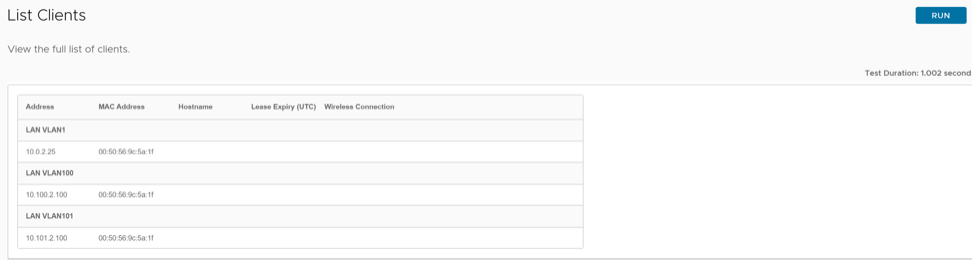
- Verify if the LAN client IP and MAC are seen on this for DHCP. If it is not listed, try running the same by restarting the DHCP service.
- Use this test to verify bogus devices in LAN device.
List Paths
What is the Purpose of This Test
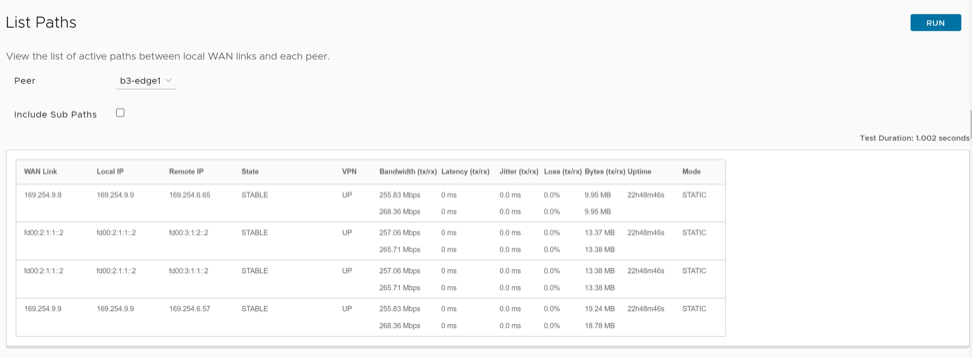
To check the active tunnel paths between local WAN links and each peer, and gateway status.
When Can You Run This Test
Whenever you face site-to-site communication issues or Gateway traffic issues, run this test to check if the tunnel is UP for destination.
For instructions on how to run a remote diagnostic test on Edges, see Run Remote Diagnostic Tests on Edges.
What to Check in the Test Output
Following is an Example of the Test Output
| Option | Description |
|---|---|
| WAN Link | Specifies the WAN link IP used to form tunnel. |
| Local IP | Specifies the Physical Interface IP for the WAN link. |
| Remote IP | Specifies the Peer IP to which tunnel is formed. |
| State | Specifies the tunnel state. The state can be any of the following:
|
| VPN | Specifies the VPN state and it should be UP for good tunnel. |
| Bandwidth (tx/rx) | Indicates the bandwidth of the tunnel. |
| Latency (tx/rx) | Indicates the latency of the tunnel. |
| Jitter (tx/rx) | Indicates the jitteriness of the tunnel. |
| Loss (tx/rx) | Indicates the packet loss of the tunnel. |
| Bytes (tx/rx) | Indicates the bytes of the tunnel in MB. |
| Uptime | Indicates the duration of tunnel uptime. |
| Mode | Specifies the mode of the tunnel:
|
MIBs for Edge
What is the Purpose
To gather the VeloCloud SD-WAN and Edge MIBs supported by the specific Edge.
When Can You Run MIBs for Edge
Select the MIBs for Edge button to download MIB dump file. For instructions on how to run a remote diagnostic test on Edges, see Run Remote Diagnostic Tests on Edges.
What to Check in the Test Output
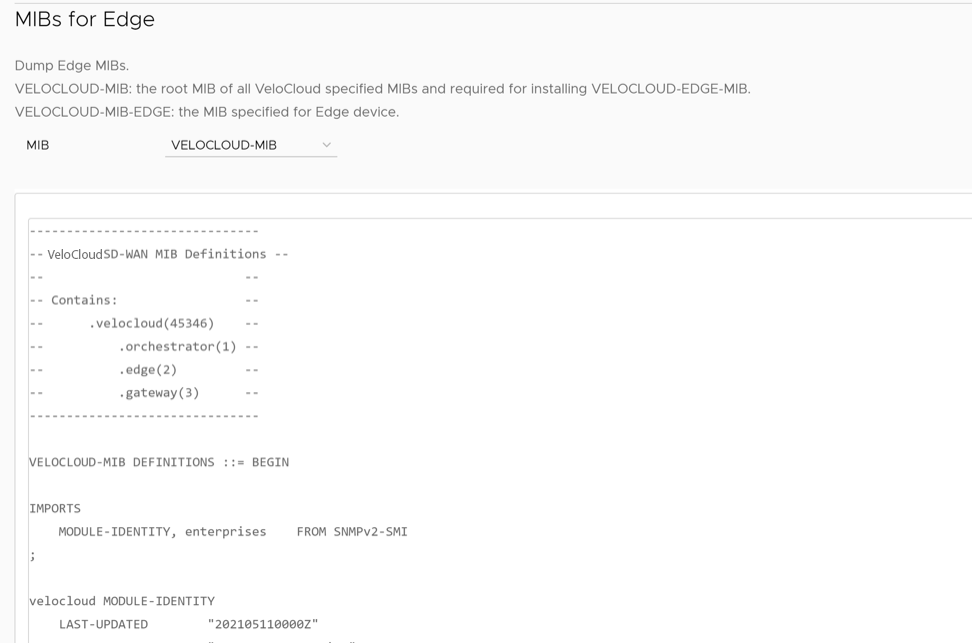
Copy the entire output to a notepad and save it as a .mib file which could further be used on SNMP server to poll the Edge.
NTP Dump
What is the Purpose of This Test
Run this test to verify the date, time, and NTP server details used by the Edge.
When Can You Run This Test
Run this test if you have an issue with date and time for logs and system time. The time is denoted in UTC time format. For instructions on how to run a remote diagnostic test on Edges, see Run Remote Diagnostic Tests on Edges.
What to Check in the Test Output
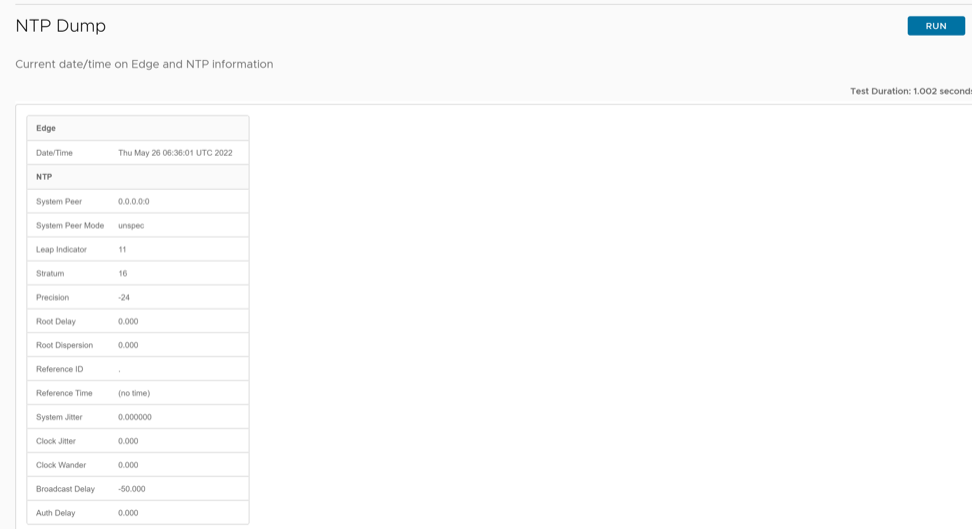
In the output, check the following:
- Verify if the date and time is correct in the UTC time format.
- Verify if the system peer is as mentioned in NTP configuration.
- The Leap Indicator indicates if an impending leap second is to be inserted or deleted in the last minute of the current day. Therefore, if the leap second occurs, the NTP client that is running is one second faster or faster than the seconds mentioned in leap indicator than the actual time.
- Stratum is the distance between Edge and NTP server. Lesser the Stratum number closer the server is. If the Stratum number is above 16 then it is considered to be unsynchronized.
- If clock is unsynchronized, change the NTP server or PCAPs to determine if the response is received by the Edge for NTP sync request.
Reset USB Modem
What is the Purpose of This Test
Run this test to reset the USB and CELL interface.
When Can You Run This Test
Run this test when USB is not detected by the device or if the USB has issues with forming tunnels. For instructions on how to run a remote diagnostic test on Edges, see Run Remote Diagnostic Tests on Edges.
What to Check in the Test Output

Verify the following:
- Check if the Restart command has been issued.
- Navigate to configuration page for checking USB carrier and tunnel information for the respective port.
System Information
What is the Purpose of This Test
System Information command is used to view the system load and WAN stability statistics of the Edge.
When Can You Run This Test
Run this test to view system information such as system load, recent WAN stability statistics, monitoring services details, and so on. The tunnel disconnects do not include the count of direct IPsec connections. WAN stability statistics include the number of times individual VPN tunnels and WAN links lost connectivity for at least 700 milliseconds.
For instructions on how to run a remote diagnostic test on Edges, see Run Remote Diagnostic Tests on Edges.
What to Check in the Test Output
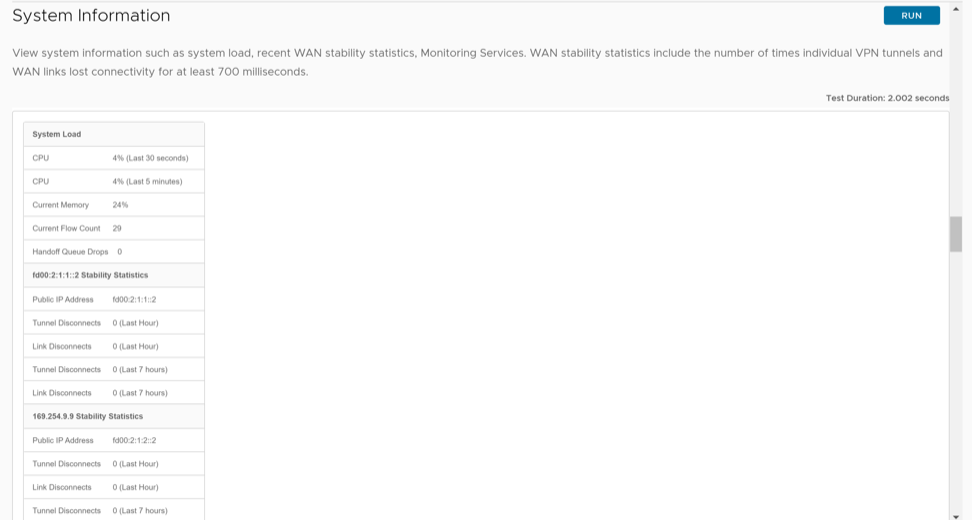
Route Table Dump
What is the Purpose of This Test
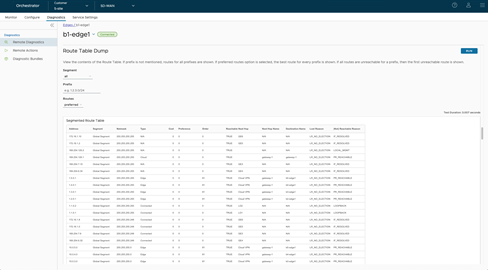
The Route Table Dump command lists the complete Routing table in IPv4.
When Can You Run This Test
- Segment- Selects the segment for which routes must be displayed. Select "all" for all segments.
- Prefix- Specifies a particular prefix for which routes must be displayed.
- Routes- Selects any of the following options from the drop-down menu:
- all- Displays all the routes for every prefix.
- preferred- Displays the most preferred route alone for every prefix (this is the route being used for data forwarding).
What to Check in the Test Output
| Option | Description |
|---|---|
| Address | Specifies the IPv4 routes available in the table. |
| Segment | Specifies the segment in which the routes are available and handled by the Edge. |
| Netmask | Specifies the range of addresses in IPv4. |
| Type | Specifies the route type, such as Cloud, Edge2Edge, any (Underlay or Connected), and so on. |
| Cost | Specifies the route cost or metric used in selection of route criteria. |
| Preference | Specifies the route preference. |
| Order | Specifies the order of the route. |
| Reachable | Specifies the status of the route whether it is True for Reachable or False for Not Reachable. |
| Next Hop | Indicates the local exit interface in case of local routes. In case of overlay/remote routes, it indicates the type of next hop. For example, "Cloud gateway" in case of cloud routes, "Cloud VPN" in case of datacenter, or "edge to edge" routes etc, |
| Next Hop Name | Specifies the name of the next hop device. |
| Destination Name | Specifies the name of the destination device. |
| Lost Reason | Specifies the code for the reason why a route loses the routing preference calculation logic to the next preferred route, on both Edges and Gateways. |
| (Not) Reachable Reason | Specifies the reason for the route being reachable or not reachable. |
| Reason Code | Description |
|---|---|
| PR_UNREACHABLE | In case of overlay routes, the remote peer, which is either Gateway or Edge, is not reachable. |
| IF_DOWN | Egress Interface is down. |
| INVALID_IFIDX | Egress Interface if-index for this route is invalid. |
| SLA_STATE_DOWN | State given by IP SLA tracking is down. |
| HA_STANDBY | When the local Edge is a Standby, all routes synced from the active are marked as reachable for operational convenience. |
| LOCAL_MGMT | Management routes are always reachable. |
| LOOPBACK | Loopback IP address is always reachable. |
| SELF_ROUTE | Self IP routes are always reachable. |
| RECUR_UNRES | Recursive routes are marked as reachable so that recursive resolution can be done for operational convenience. |
| VPN_VIA_NAT | vpnViaNat routes are always reachable. |
| SLA_STATE_UP | State given by IP SLA tracking is up. |
| IF_RESOLVED | Egress interface is up and resolved. |
| PR_REACHABLE | In case of overlay routes, the remote peer, which is either Gateway or Edge, is reachable. |
| LR_NO_ELECTION | Best route. |
| LR_NP_SWAN_VS_VELO | Predecessor is selected because it is a non-preferred static WAN route (route configured with preferred flag set to false) when compared to the current route which is a via VeloCloud route. |
| LR_NP_SWAN_VS_DEFRT | Predecessor is selected because it is a non-preferred static WAN route when compared to the current route which is default route. |
| LR_NP_ROUTE_TYPE | Predecessor is selected because its route type is better when compared to the current route. Also, one of the routes being compared is a non-preferred route in this case. |
| LR_BGP_LOCAL_PREF | Both routes are learnt using BGP. The predecessor is selected because it has a higher local preference than the current route. |
| LR_BGP_ASPATH_LEN | Both routes are learnt using BGP. Predecessor is selected because it has a lower AS path value than the current route. |
| LR_BGP_METRIC | Both routes are learnt using BGP. Predecessor is selected because it has a lower metric value than the current route. |
| LR_EXT_OSPF_INTER | Predecessor is selected because it is a route learnt from OSPF with an inter or intra area metric when compared to the current route which is learnt from BGP. |
| LR_EXT_BGP_RT | Predecessor is selected because it is a route learnt from BGP when compared to the current route which is a route learn from OSPF with metric type OE1 or OE2. |
| LR_EXT_METRIC_TYPE | Both routes are OSPF routes. The predecessor is selected because it has a better metric type than the current route.
Order of preference for OSPF metric types: OSPF_TYPE_INTRA, OSPF_TYPE_INTER, OSPF_TYPE_OE1, OSPF_TYPE_OE2. |
| LR_EXT_METRIC_VAL | Both routes are OSPF routes. The predecessor is selected because it has a lesser metric than the current route. |
| LR_EXT_NH_IP | Both routes are OSPF ECMP routes. The current route is lost to the predecessor since it was learnt later. |
| LR_PG_BGP_ORDER | Both are remote BGP routes with same BGP parameters. The current route is selected because it is a Partner Gateway (PG) route and has a lesser "order" value when compared to the current route. |
| LR_NON_PG_BGP_ORDER | Both are remote BGP routes with same BGP parameters. The current route is selected because it is a non-PG route and has a lesser "order" value when compared to the current route. |
| LR_EXT_ORDER | Both are remote OSPF routes with same metric. The predecessor is selected because it has a lesser order value than the current route. |
| LR_PREFERENCE | Both are either BGP or OSPF routes. The predecessor is selected because it has a lesser preference value than the current route. |
| LR_DCE_NSD_STATIC_PREF
DCE- Data center, NSD- Non-SD-WAN site |
Both are local NSD static routes. The predecessor is selected because it is a preferred route (preferred flag set to true) when compared to the current which is non-preferred. |
| LR_DCE_NSD_STATIC_METRIC | Both are NSD static routes. The predecessor is selected because it has a lesser metric value than the current route. |
| LR_DCE_NON_REMOTE | Both are NSD static routes. The predecessor is selected because it is a local route (non-remote), and the current route is a remote route. |
| LR_DCE_NSD_STATIC_REMOTE_ORDER | Both are remote NSD static routes. The predecessor is selected because it has a lesser order value when compared to the current route. |
| LR_DCE_DC_DIRECT | Both are NSD static routes. The predecessor is selected because its DC_DIRECT flag is set, and the current route does not have this flag set. This is the route with "n - nonVelocloud" flag set in the debug.py --routes output. These are routes learnt from an NVS from Edge. |
| LR_DCE_LOGICAL_ID | Both are NSD static routes. The predecessor is selected because it has a better logical ID than the current route. |
| LR_NETMASK | The predecessor is selected because it has a higher netmask than the current.
This will not hit since the netmask is different, it is a separate network/route entry of its own. |
| LR_NETADDR | The predecessor is selected because it has a higher network address than the current.
This will not hit since the network address is different, it is a separate network/ entry of its own route. |
| LR_CONN_FLAG | The predecessor is selected because it is a connected route, and the current route is not a connected route. |
| LR_SELF_FLAG | The predecessor is selected because it is a self route, and the current route is not a self-route. |
| LR_SLAN_FLAG | The predecessor is selected because it is a static LAN route, and the current route is not a static LAN route. |
| LR_SWAN_FLAG | The predecessor is selected because it is a static WAN route, and the current route is not a static WAN route. |
| LR_NSD_STATIC_LOCAL | The predecessor is selected because it is a local NSD static route, and the current route is an NSD BGP route. |
| LR_NSD_BGP_VS_NON_PREF_STATIC | The predecessor is selected because it is a NDS BGP route, and the current route is a local NSD static non-preferred route. |
| LR_NSD_STATIC_PREF_VS_NSD_STATIC | The predecessor is selected because it is an NSD static preferred route, and the current route is not an NSD static route. |
| LR_CONN_STATIC_VS_NSD_BGP | The predecessor is selected because it is a remote connected/static route, and the current route is an NSD BGP route. |
| LR_OPG_SECURE_STATIC | The predecessor is selected because it is a PG secure static route, and the current is not. |
| LR_ROUTED_VS_VELO | The predecessor is selected because it is a route learnt from routing protocols when compared the current route which is a "v - ViaVeloCloud" route. |
| LR_INTF_DEF_VS_ROUTED | The predecessor is selected because it is an interface default cloud route when compared to the current route which is a route learnt using routing protocols (local or remote). |
| LR_ROUTE_TYPE | The predecessor is selected because it has a better route than the current. |
| LR_E2DC_REMOTE | The predecessor is selected because it is a, Edge2DC route, and it is a local route and the current route is a remote route. |
| LR_CONNECTED_LAN | Both are connected routes. The predecessor is selected because it is a connected LAN route, and the current route is not a connected LAN route. |
| LR_VELO_REMOTE_FLAG | Both are cloud routes. The predecessor is selected because it is a remote route when compared to the current which is a local cloud route. |
| LR_VELO_EdgeD_ROUTED | Both are cloud routes. The predecessor is selected because it is a route learnt via routing protocol, and the current route is not learnt via routing protocol. |
| LR_VELO_PG_ROUTE | Both are cloud routes. The predecessor is selected because it is a PG route, and the current route is not a PG route. |
| LR_VIA_VELO_ROUTE | Both are cloud routes. The predecessor is selected because it is a via velocloud route, and the current is not a via-velocloud route. |
| LR_REMOTE_NON_ROUTED | Both are remote (overlay) routes. The predecessor is selected because it is a route not learnt via routing protocol (static/connected), and the current route is a route learnt via routing protocol. |
| LR_REMOTE_DCE_FLAG | Both are remote (overlay) routes. The predecessor is selected because it is a data center Edge route ("D - DCE" is set in the debug.py --routes output), and the current is not a data center Edge route. |
| LR_METRIC | The predecessor is selected because it has a lesser metric than the current route. |
| LR_ORDER | The predecessor is selected because it has a lesser order than the current route. |
| LR_LOGICAL_ID | The predecessor is selected because it has a better logical ID than the current route. |
| LR_EXT_BGP_VIA_PRIMGW | Both are BGP routes. The predecessor is selected because it is an NSD BGP route learnt from the primary NSD Gateway. The current route might have been learnt from the redundant NDS Gateway. |
| Reason Code | Description |
|---|---|
| LR_NO_ELECTION | Best route. |
| LR_NVS_STATIC_PREF | The predecessor is selected because it is an NVS static route, and the current route is not. |
| LR_EXT_BGP_VS_OSPF | Predecessor is selected because it is a BGP route, and the current route is an OSPF route with metric type OE1/OE2. |
| LR_EXT_BGP_ROUTE | Both are cloud routes. The predecessor is selected because it is a BGP learnt cloud route, and the current route is not (it is static). |
| LR_CLOUD_ROUTE_VS_ANY | The predecessor is selected because it is an Edge2Edge or Edge2Datacenter route, and the current route is a cloud static route.
. |
| LR_BGP_LOCAL_PREF | Both are either Edge2Edge or Edge2Datacenter routes learnt via BGP. The predecessor is selected because it has a greater local preference value than that of the current route. |
| LR_BGP_ASPATH_LEN | Both are either Edge2Edge or Edge2Datacenter routes learnt via BGP. The predecessor is selected because it has a lesser AS path value than that of the current route. |
| LR_BGP_METRIC | Both are either Edge2Edge or Edge2Datacenter routes learnt via BGP. The predecessor is selected because it has a lesser metric value than that of the current route. |
| LR_DCE_NSD_STATIC_PREF | Both are Edge2Datacenter routes. Predecessor is selected because it is an NSD static route, and the current route is not. |
| LR_DCE_NSD_STATIC_METRIC | Both are Edge2Datacenter static routes. Predecessor is selected because it has lesser metric value than that of the current route. |
| LR_DCE_NSD_STATIC_GW_NON_REMOTE | Both are Edge2Datacenter static routes. Predecessor is selected because it is a local route, and the current is a remote route. |
| LR_DCE_LOGICAL_ID | Both are Edge2Datacenter static routes. Predecessor is selected because it has better logical ID than that of the current route. |
| LR_E2DC_METRIC | Both are Edge2Datacenter routes. The predecessor is selected because its metric is lesser than that of the current route. |
| LR_DC_IPADDR | Both are Edge2Datacenter routes. The predecessor is selected because its datacenter IP address is lesser than that of the current route. |
| LR_E2DC_NETADDR | Both are Edge2Datacenter routes. The predecessor is selected because its network address is lesser than the current. |
| LR_E2E_PREFERENCE | Both are Edge2Edge routes. The predecessor is selected because its preference value is lesser than the current route. |
| LR_E2E_METRIC | Both are Edge2Edge routes. The predecessor is selected because its metric value is lesser than the current route. |
| LR_E2E_LOGICAL_ID | Both are Edge2Edge routes. The predecessor is selected because it has better logical ID than the current route. |
| LR_E2E_NETADDR | Both are Edge2Edge routes. The predecessor is selected because its network address is lesser than the current. |
| LR_OPG_SECURE_STATIC | The predecessor is selected because it is a PG secure static route, and the current route is not a PG secure static. |
| LR_ROUTE_TYPE | The predecessor is selected because it has a better route type than the current route. |
| LR_NETMASK | The predecessor is selected because it has a higher netmask than the current. |
| LR_METRIC | The predecessor is selected because it has a lesser metric value than the current route. |
| LR_PREFERENCE | Both are routes learnt from routing protocols. The predecessor is selected because it has a lesser preference value than the current route. |
| LR_NETADDR | The predecessor is selected because its network address is lesser than that of the current route. |
| LR_LOGICAL_ID | The predecessor is selected because its logical ID is better than the current route. |
VPN Test
What is the Purpose of This Test
The VPN Test command is used to view the VPN Branch to Branch Connectivity between the Edges.
When Can You Run This Test
Run this test if the data traffic between the Branches or between Hub and Spoke are not bi-directional.
For instructions on how to run a remote diagnostic test on Edges, see Run Remote Diagnostic Tests on Edges.
What to Check in the Test Output
Following is an example of the test output:
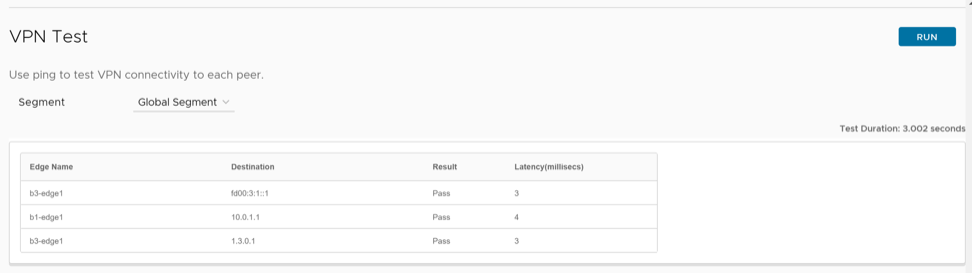
| Option | Description |
|---|---|
| Edge Name | Specifies the name of the peer Edge. |
| Destination | Specifies the logical ID of the destination device. |
| Result | The result displays one of the following:
|
| Latency (milliseconds) | Specifies the latency in milliseconds. |
WAN Link Bandwidth Test
What is the Purpose of This Test
The WAN Link Bandwidth Test command is used to measure the Bandwidth on the specific link.
When Can You Run This Test
Run this test if you want to verify the bandwidth of the WAN Link. If the link measured wrong or inaccurate bandwidth, then you can perform this test to measure the bandwidth again.
For instructions on how to run a remote diagnostic test on Edges, see Run Remote Diagnostic Tests on Edges.
What to Check in the Test Output
Following is an example of the test output:
