Configure High Availability on an Edge
This section discusses the high availability deployments and configuration supported on Edge.
How High Availability Works
The high availability solution ensures continued traffic flow in case of failures. The Edge is the data plane component that is deployed at an end user’s branch location. Edge configured in High Availability (HA) mode are mirror images of each other and they show up on the Orchestrator as a single Edge.
In a high availability configuration, Edges are deployed at the branch site in pairs of Active and Standby roles. Configurations are mirrored across both these Edges. The Active and Standby Edges exchange heartbeats using a failover link established over a wired WAN connection. If the Standby Edge loses connectivity with the Active Edge for a defined period, the Standby Edge assumes the identity of the Active Edge and takes over the traffic load. The failover has minimal impact on the traffic flow.
The Orchestrator communicates only with the Active Edge. Any changes made to the Active Edge using the Orchestrator are synchronized with the Standby Edge using the failover link.
Limitations
On software versions prior to 5.2.3, a customer cannot perform a Simple Network Management Protocol (SNMP) walk for the attributes ifHCInOctets and ifHCOutOctets on the Standby Edge in a High-Availability Edge pair.Failure Scenarios
- WAN link failure - When a WAN link on the Active Edge fails, a failover action is triggered. The Orchestrator generates the “High Availability Going Active” event. This means that another WAN link on the Standby Edge will take over as Active because the peer’s WAN interface is down.
- LAN link failure - When a LAN link on the Active Edge fails, a failover action is triggered. The Orchestrator generates the “High Availability Going Active” event. This means that another LAN link on the Standby Edge will take over as Active because the peer’s LAN interface is down.
- Edge functions not responding, or Edge crash / reboot / unresponsive - When the Active Edge crashes, reboots, or is unresponsive, the Standby Edge does not receive any heartbeat messages. The Orchestrator generates the “High Availability Going Active” event and the Standby Edge takes over as Active.
- Service restart - Configuration changes that trigger a service restart cause a failover. The service restart happens after the configuration changes are applied to the Standby Edge and Active Edge. For a list of changes that cause a service restart, see Arista VeloCloud SD-WAN Edge Configuration Changes that Trigger an Edge Service Restart.
- Non-directly connected HA pairs failure - In High Availability (HA) setups, having Active and Standby Edges in different, non-directly connected locations can cause Active/Active panics and HA instability due to missed keepalive signals.
Missing heartbeats, especially over long distances with multiple hops, can cause problems. If communication fails or the HA link disconnects, missing just 700 milliseconds of heartbeats can cause both Edges to think they are active, leading them to respond to Address Resolution Protocol (ARP) requests and potentially triggering a broadcast storm.
VeloCloud SD-WAN does not support non-directly connected HA setups. Latency between sites should be under 100 milliseconds, but distance and equipment can affect this. To avoid issues, use directly connected pairs for HA setups.Note: VeloCloud SD-WAN does not recommend using a Layer 2 switch for the HA link between the two Edge devices.
High Availability Deployment Models
- Standard HA: In this model, the Active and Standby Edges have the same configurations and have symmetric connections, that is both Edges are connected to the same WAN links. All ports on the Active Edge are open for receiving and sending traffic. Whereas all ports except GE1 on the Standby Edge are blocked. The GE1 interface is used to exchange heartbeats between Active and Standby Edges. See Standard HA.
- Enhanced HA: In this model, the Active and Standby Edges have the same configurations but have asymmetric connections, that is both Edges are connected to different WAN links. The GE1 interface is used to exchange heartbeats between Active and Standby Edges. The Active Edge can leverage the WAN link connected to the Standby Edge to send or receive traffic. It forwards the traffic through the GE1 interface to the Standby Edge, which in turn sends the traffic through the WAN link. See Enhanced HA.
- Mixed-mode HA: This model is a combination of both Standard and Enhanced HA deployments on the same site. In this model, the Active and Standby Edges have the same configurations. The connections can be both symmetric and asymmetric. See Mixed-Mode HA.
The HA options are supported on the following Edge platforms: 510, 510N, 520, 520v, 540, 610, 610N, 620, 620N, 640, 640N, 680, 680N, 840, 2000, 3400, 3800, 3810, 7x0, 4100, 5100 and any Virtual Edge.
- "HA Wi-Fi capability mismatch identified, disabled Wi-Fi." (An Edge Wi-Fi mismatch is identified and Wi-Fi is deactivated on the Wi-Fi capable Edge).
- "HA Wi-Fi capability mismatch no longer seen, reverted Wi-Fi." (Both Edges are detected as the same Wi-Fi type, and Wi-Fi functionality is restored on a Wi-Fi Edge where it was previously deactivated).
Standard HA
This section describes Standard HA.
Topology Overview for Standard HA
The following figure shows a conceptual overview of Standard HA.
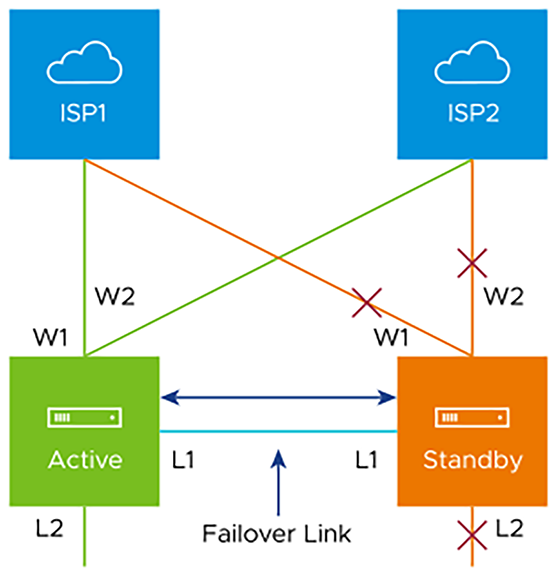
The Edges, one Active and one Standby, are connected by L1 ports to establish a failover link. The Standby Edge blocks all ports except the L1 port for the failover link.
Prerequisites for Standard HA
- The LAN side switches in the following configuration descriptions must be STP capable and configured with STP.
- In addition, Edge LAN and WAN ports must be connected to different L2 switches. If it is necessary to connect the ports to the same switch, then the LAN and WAN ports must be isolated.
- The two Edges must have mirrored physical WAN and LAN connections.
Deployment Types for Standard HA
- Deployment Type 1: High Availability (HA) using L2 switches
- Deployment Type 2: High Availability (HA) using L2 and L3 switches
Deployment Type 1: HA using L2 switches
The following sections describe these two deployment types. The following figure shows the network connections using only L2 switches.
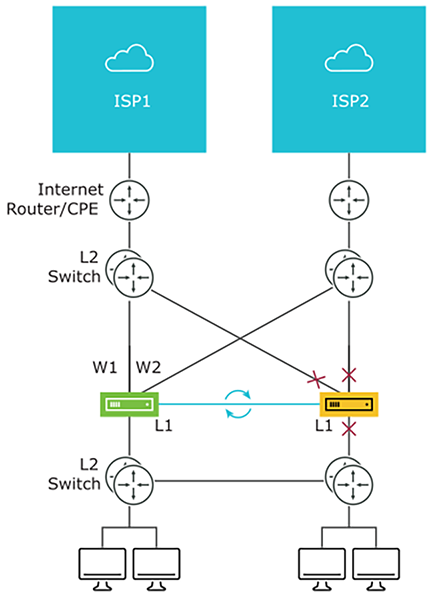
Considerations for HA Deployment using L2 switches
- The same ISP link must be connected to the same port on both Edges.
- Use the L2 switch to make the same ISP link available to both Edges.
- The Standby Edge does not interfere with any traffic by blocking all its ports except the failover link (L1 port).
- Session information is synchronized between the Active and Standby Edges through the failover link.
- If the Active Edge detects a loss of a LAN link, it will also failover to the Standby if it has an Active LAN link.
Deployment Type 2: HA using L2 and L3 Switches
The following figure shows the network connections using L2 and L3 switches
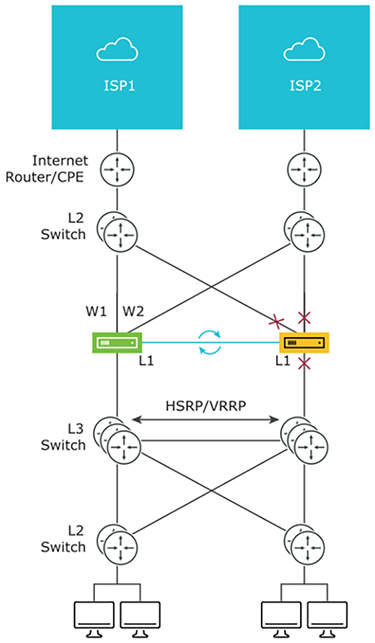
The Edge WAN connections (W1 and W2) are used to connect to L2 switches to provide a WAN connection to ISP1 and ISP2 respectively. The L1 connections on the Edge are connected to provide a failover link for HA support. The Edge LAN connections are used to connect L2 Switches, which have several end-user devices connected.
Considerations for HA Deployment using L2 and L3 switches
- HSRP/VRRP is required on the L3 switch pair.
- The Edge's static route points to the L3 switches’ HSRP VIP as the next hop to reach the end stations behind L2 switches.
- The same ISP link must be connected to the same port on both Edges. The L2 switch must make the same ISP link available to both Edges.
- The Standby Edge does not interfere with any traffic by blocking all of its ports except the failover link (L1 port).
- The session information is synchronized between the Active and Standby Edges through the failover link.
- The HA pair also does a failover from Active to Standby on detecting the L1 loss of LAN / WAN links.
- If Active and Standby have the same number of LAN links which are up, but Standby has more WAN links up, then a switchover to Standby will occur.
- If the Standby Edge has more LAN links up and has at least one WAN link up, then a failover to the Standby will occur. In this situation, it is assumed that the Standby Edge has more users on the LAN side than the Active Edge, and that the Standby will allow more LAN side users to connect to the WAN, given that there is some WAN connectivity available.
Enhanced HA
This section describes Enhanced HA. The Enhanced HA eliminates the need for L2 Switches on WAN side of the Edges. For users looking for LAN side settings, please refer to the Standard HA documentation. This option is chosen when the Active Edge detects different WAN link(s) connected to the Standby Edge when compared to the link(s) connected to itself.

The Edges, one Active and one Standby, are connected by using an HA link to establish a failover link. The Active Edge establishes overlay tunnels on both WAN links (connected to itself and the Standby Edge) through the HA link.
In order to leverage the WAN link connected to the Standby Edge, the Active Edge establishes the overlay tunnel through the HA link. The LAN-side traffic is forwarded to the Internet through the HA link. The business policy for the branch defines the traffic distribution across the overlay tunnels.
Enhanced HA Support for LTE Interface
Long-Term Evolution (LTE) is a standard for wireless broadband communication for mobile devices and data terminals, based on the GSM/EDGE and UMTS/HSPA technologies. It increases the capacity and speed using a different radio interface together with core network improvements. VeloCloud SD-WAN supports LTE in 510 and 610 Edge models which have two SIM slots.
Starting with the 4.2 release, the LTE link/CELL interface is counted in the HA election. Internally, a lesser weight is provided for CELL links than wired links. So depending on the number of wired links connected to each Edge in the eHA pair, the Edge with the LTE link can either be the Active or the Standby Edge. Here are some use cases for eHA with LTE interface.
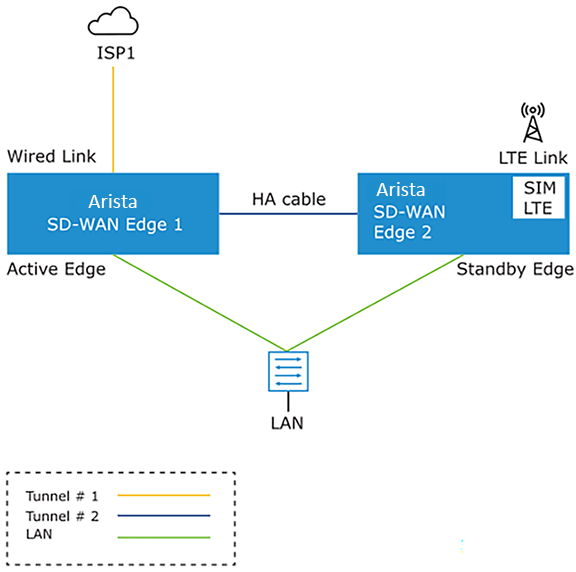
The figure illustrates the topology of Enhanced HA support for LTE Interface on a Standby Edge. In this example, there are two Edges, one Active (Edge 1) and one Standby (Edge 2), that are connected by using an HA cable to establish a failover link. The wired WAN link Edge is preferred as Active Edge. The Standby Edge uses an LTE link for tunnel establishment. The LTE link on the Standby Edge could be used as active, backup, or hot-standby link, based on the Edge configuration. The Active Edge establishes overlay tunnels on WAN link connected to itself and the LTE link on the Standby Edge through the HA link. If an Active Edge fails, the Standby Edge will continue to forward the LAN-side traffic through the LTE link.
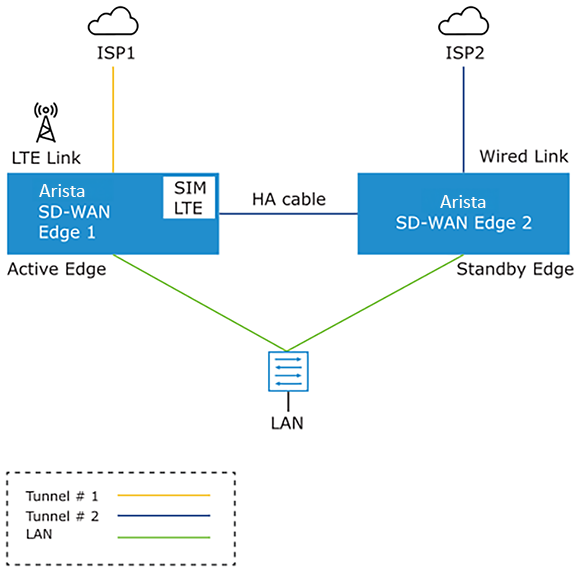
The figure illustrates the topology of Enhanced HA support for LTE Interface on an Active Edge. In this example, the Edge 1 with one wired link and one LTE link acts as an Active Edge, and Edge 2 with one wired link acts as Standby Edge. If the wired WAN link on the Active Edge goes down, the Standby Edge would take over as Active and the LTE link would be used in eHA mode.
Supported Topologies
- 510 - 510 LTE HA pair
- 610 - 610 LTE HA pair
- 510 LTE - 510 LTE HA pair
- 610 LTE - 610 LTE HA pair
- 710 W - 710 5G HA pair
- 710 5G - 710 5G HA pair
Limitations
- LTE Dual SIM Single Standby (DSSS) is not supported with eHA LTE.
- USB modems on Standby Edge in eHA mode is not supported.
Troubleshooting Enhanced HA support for LTE
You can troubleshoot the Enhanced HA support for LTE Interface feature, by running the following remote diagnostic tests on an Edge:
- LTE Modem Information: Run this test on a selected Edge interface to collect diagnostic details such as Modem information, Connection information, Location information, Signal information, and Status information for the internal LTE modem.
Figure 7. LTE Modem Information 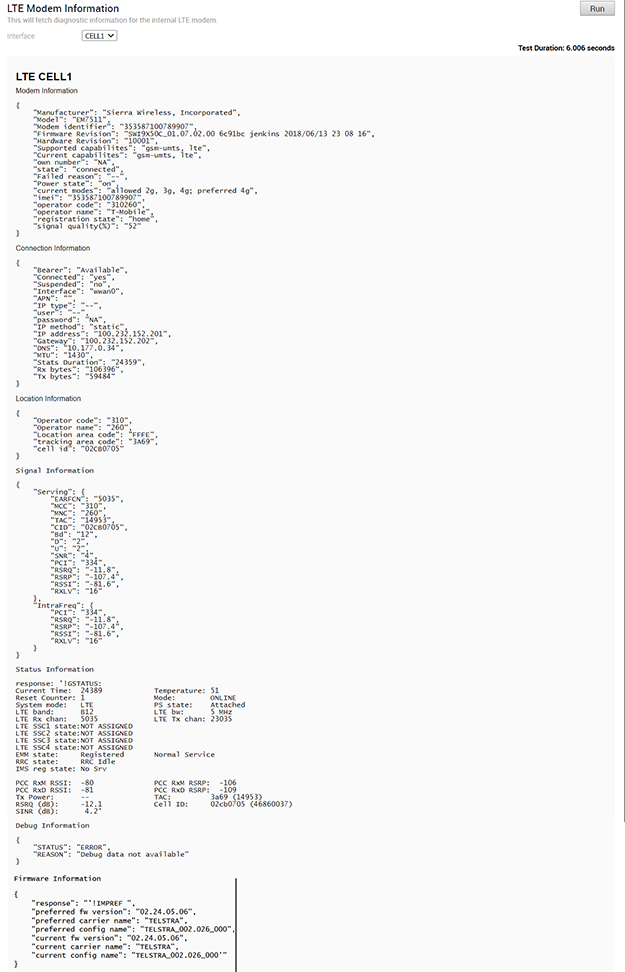
- Reset USB Modem: Run this test on a selected Edge interface to reset a non-working USB modem connected to the given interface. Note that not all USB modems support this type of remote reset.
Figure 8. Reset USB Modem 
Mixed-Mode HA
The Mixed-mode HA deployment model is a combination of Standard HA and Enhanced HA deployments. In this deployment model you can have both shared interfaces and individual interfaces.
Let us consider a scenario where the private network is unable to communicate with the Orchestrator or the Controller.
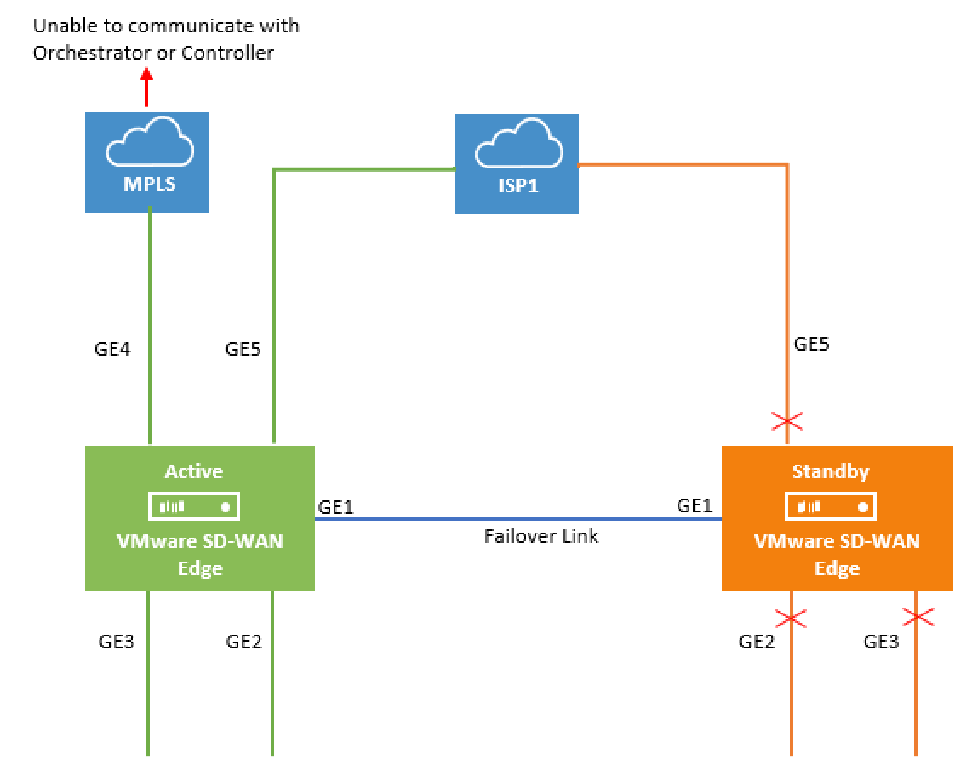
In this topology, the Active and Standby Edges exchange heartbeat messages, synchronize configuration updates, and other information over the GE1 interface. Both Edges have mirrored LAN and WAN connections over the GE2, GE3, and GE5 interfaces, which is similar to the Standard HA deployment model. However, the Active Edge is connected to the private network using the GE4 WAN link. This is similar to the Enhanced HA deployment model. All ports on the Active Edge are kept open to send and receive traffic. On the Standby Edge, all ports except GE1 are blocked.
When the MPLS network is unable to communicate with the Orchestrator or the Controller, the site would still have connectivity to the Orchestrator or the Gateway and would be able to build public overlays.
Now let us consider a scenario when both private and public networks are unable to communicate with the Orchestrator or Controller.
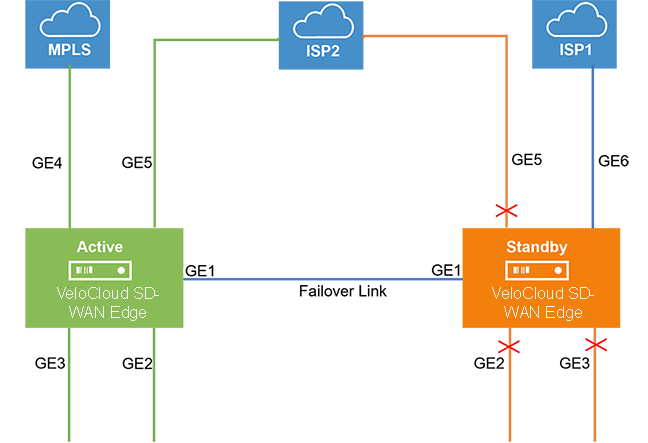
In this topology, the ISP1 is connected only to the Standby Edge using the GE6 WAN link and ISP2 is connected to both Active and Standby Edges using the GE5 WAN link. All ports on the Active Edge are kept open to send and receive traffic. On the Standby Edge, all ports except GE1 and GE6 are blocked. The Active Edge leverages GE6 WAN link to send traffic to the public network, ISP1 through GE1.
Split-Brain Condition
When the HA link is disconnected or when the Active and Standby Edges fail to communicate with each other, both Edges assume the Active role. As a result, both Edges start responding to ARP requests on their LAN interfaces. This causes LAN traffic to be forwarded to both Edges, which could result in a broadcast storm on the LAN.
Typically, LAN switches connected to the HA Edge pair LAN ports run the Spanning Tree Protocol to prevent loops which trigger broadcast storms in the network. In such a condition, the switch would block traffic to one or both Edges. However, doing so would cause a total loss of traffic through the Edge pair.
Split-Brain Detection and Prevention
This section covers the mechanisms used to detect and prevent a split-brain state in an Edge deployment using a high availability topology.
There are two mechanism for detecting and preventing a split-brain condition in a high availability deployment (where both HA Edges become Active).
The first mechanism involves sending layer 2 broadcast heartbeats between the two HA Edges when the HA heartbeat link between the devices is lost. A layer 2 broadcast (EtherType 0x9999) heartbeat is sent from the Active Edge on all its WAN interfaces in an effort to find the Standby Edge in that broadcast network. When the Standby Edge receives this packet, it interprets the packet as an indication to maintain its current Standby state. This mechanism is used by a Legacy High Availability deployment where both HA Edges have their WAN ports connected to the same layer 2 Switch.
The second mechanism used to detect and prevent split-brain conditions leverages the Primary Gateway used by the HA Edges. This mechanism is the sole means of detecting and preventing split-brain in an Enhanced High Availability deployment as this topology does not connect both HA Edges to an upstream layer 2 switch.
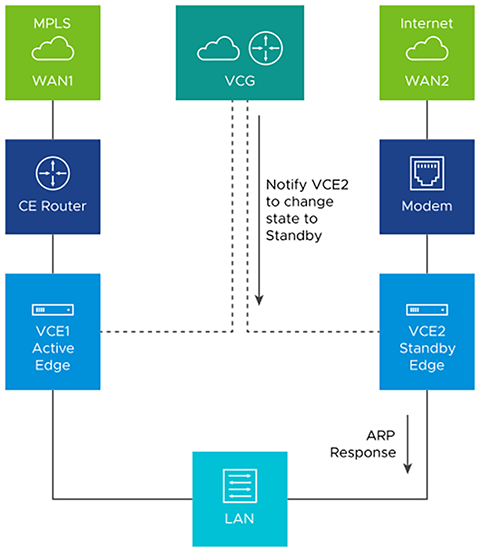
The Gateway has a pre-existing connection to the Active Edge (VCE1). In a split-brain condition, the Standby Edge (VCE2) changes state to Active and tries to establish a tunnel with the Gateway (VCG). The Gateway will send a response back to the Standby Edge (VCE2) instructing it to move to Standby state, and will not allow the tunnel to be established. The Gateway keep its tunnels only with the Active Edge. The sequence of events is as follows.
As soon as the HA link fails, the VCE2 moves to the Active state and enables the LAN/WAN ports, and tries to establish tunnels with the Primary Gateway. If the VCE1 still has tunnels, the Primary Gateway instructs the VCE2 to revert to the Standby state and thus the VCE2 blocks its LAN ports. Only the LAN interfaces remain blocked (as long as the HA cable is down). As illustrated in the following figure, the Gateway signals VCE2 to go into the Standby state. This will logically prevent the split-brain scenario from occurring.
Support for BGP over HA Link
When a pair of Edges are configured in a High Availability topology, the Active Edge will exchange BGP routes over the HA link. Where Enhanced HA is used, BGP on the Active Edge establishes neighborship with a peer connected only to the standby Edge’s WAN link.
Beginning with SD-WAN Release 5.1.0 and onwards, a site deployed in High Availability with BGP configured automatically synchronizes local routes between the Active and Standby Edges and uses these routes for forwarding on the Active Edge while also ensuring that the route table is immediately available after an HA failover. This results in improved failover times as the routes are already available on the Standby Edge when it is promoted to Active.
High Availability Graceful Switchover with BGP Graceful Restart
For a site deployed in a High Availability topology where BGP is also used, an HA failover can be both slow and disruptive to customer traffic because the peer Edges have deleted all the routes on a failover. In Release 5.1.0 and later Arista adds the BGP Graceful Restart feature for HA deployments which ensures faster and less disruptive HA failovers.
Overview
BGP Graceful Restart with Graceful Switchover ensures faster Edge restarts and HA failovers by having the neighboring BGP devices participate in the restart to ensure that no route changes occur in the network for the duration of the restart. Without BGP Graceful Restart, the peer Edge deletes all routes once the TCP session terminates between BGP peers and these routes need to be rebuilt post Edge restart or HA failover. BGP Graceful Restart changes this behavior by ensuring that peer Edges retain routes as long as a new session is established within a configurable restart timer.
Prerequisites
- A site deployed with a High Availability topology. This can be either Active/Standby or VRRP with 3rd party router. BGP Graceful Restart does not have any effect on a standalone Edge site, only on sites using HA.
- The customer enterprise must have BGP configured as the routing protocol.
Configuring BGP Graceful Restart
- Activate BGP Graceful Restart on .
- In the Customer portal, click either or depending on your preferences. The screenshot will show the steps for a single HA Edge.
- Click the Device icon next to an Edge, or click the link to the Edge, and then click the Device tab.
- Scroll down to the section and open up the BGP section for the Edge or Profile.
Figure 12. Routing & NAT 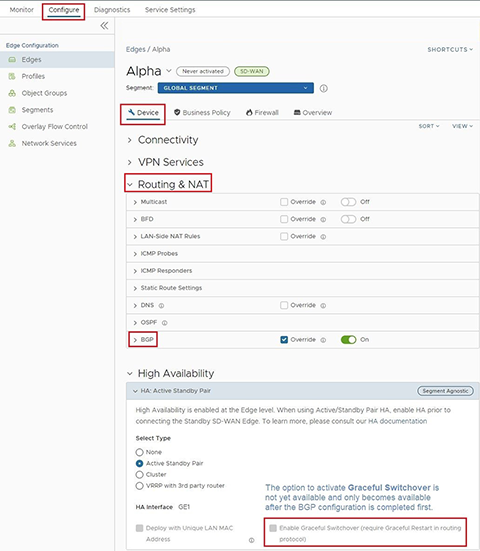
- In the BGP section check the box for Graceful Restart.
Figure 13. BGP > Graceful Restart 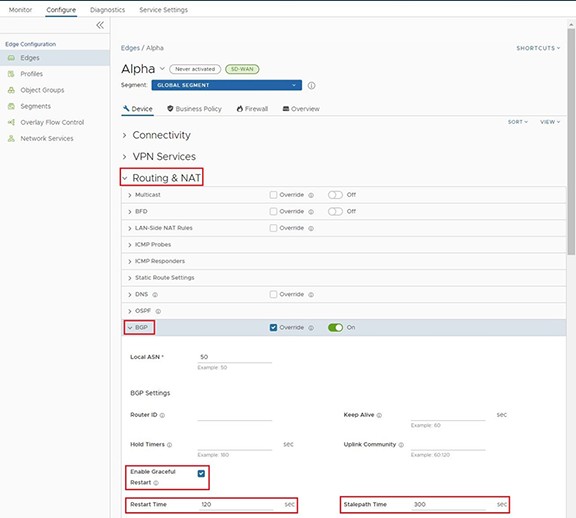
- Once the box is checked, two additional parameters appear related to Enable Graceful Restart: Restart Time, and Stalepath Time:
- Restart Time represents the maximum time the route processor (RP) waits for the RP peer to begin talking before expiring route entries. The default time for this parameter is 120 seconds and can be manually configured withing a range of 1 to 600 seconds.
- Stalepath Time represents the maximum time routes are retained after a restart (HA failover). Updated routes from a route processor peer are expected to have been received by this time. The default time for this parameter is 300 seconds and can be manually configured within a range of 1 to 3600 seconds.
- Once the user has activated BGP Graceful Restart and is satisfied with the two secondary settings, a user can then move to the High Availability section.
- Activate Graceful Switchover on .
- From the BGP section, scroll down to the High Availability section.
Figure 14. Configure > Device > High Availability 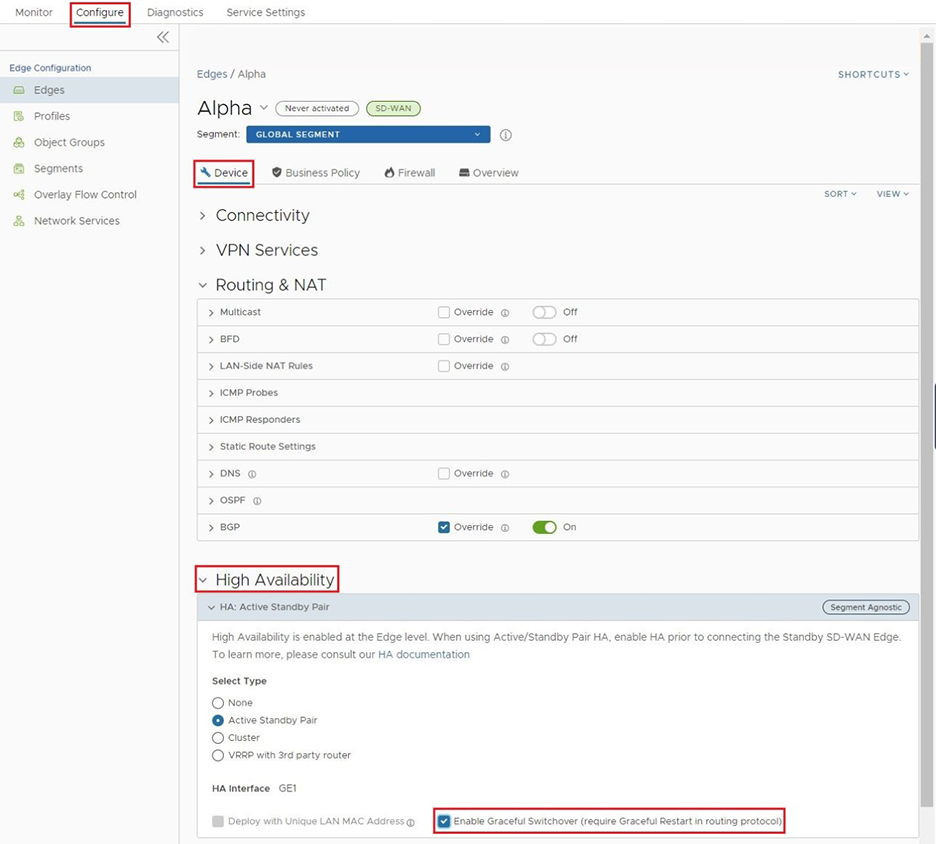
- In the High Availability section the option to check the box for Graceful Switchover is now available as a result of BGP Graceful Restart being activated.
- Check the box for Graceful Switchover.
- Nothing further is required in the High Availability section and there are no secondary parameters for Graceful Switchover.
- From the BGP section, scroll down to the High Availability section.
- Scroll down to the bottom of the page and click Save Changes in the bottom right corner. This applies the configuration changes made above.
Limitations/Known Behaviors
- BGP Graceful Failover and HA Graceful Switchover are segment agnostic and when activated on one segment (for example, the Global Segment) these settings are applied to all other segments on a customer site. This means that the Edge will synchronize routes on other segments and hold stale routes during an HA failover.
Selection Criteria to Determine Active and Standby Status
- Check for the Edge that has a higher number (L2 and L3) LAN interfaces. The Edge with the higher number of LAN interfaces is chosen as the Active one. Note that the interface used for the HA link is not counted as a LAN interface.
- If both Edges have the same number of LAN interfaces, the Edge with the higher number of WAN interfaces is chosen as the Active one.
Note: There is no preemption if the two Edges have the same number of LAN and WAN interfaces.
- Additional Support Matrix:
- Static/DHCP/PPPoE links are supported.
- Multiple WAN links each tagged with a separate VLAN ID on a single interface (e.g. Sub-Interfaces) are supported.
- USB modems are not recommended on HA. The interface will not be used when present in the Standby Edge.
VLAN-tagged Traffic over HA Link
- Internet traffic from ISP2 is VLAN tagged.
- Customer will have separate VLANs for Enterprise traffic versus DIA traffic.
- The WAN link on the Standby has sub-interfaces to carry Internet traffic.
- Multi segments.

Configure High Availability
To configure High Availability, you must configure the Active and Standby Edges.
Deploying High Availability on ESXi
You can deploy the VeloCloud SD-WAN HA on VMware ESXi using the supported topologies. While deploying HA onESXi, consider the following limitations:
ESXi vSwitch Caveats
- The upstream failures are not propagated by the vSwitch that is directly connected to a virtual SD-WAN VNF. For example, if a physical adapter goes down, the Edges see the link up and do not failover.
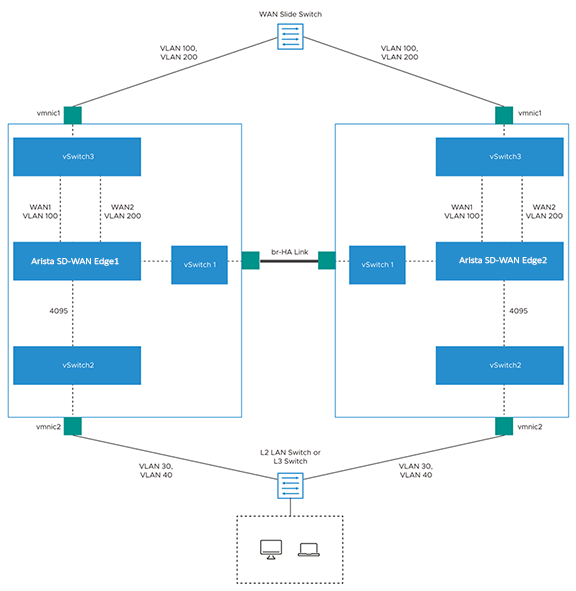
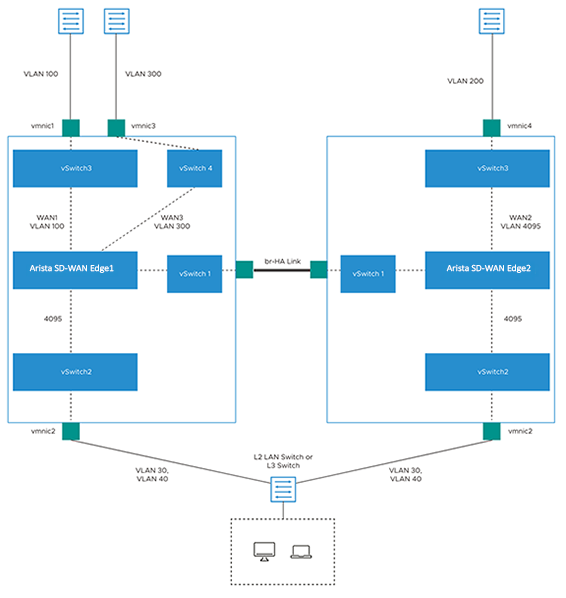
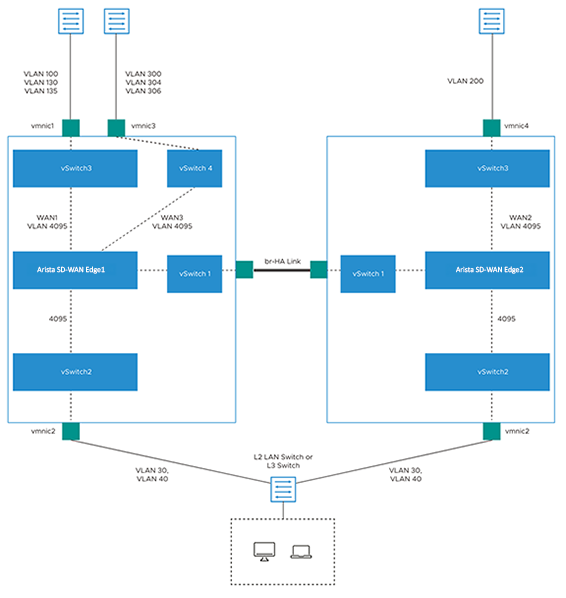
- vSwitches do not allow the ability to configure specific VLANs on a port group. If more than one VLAN is required, then VLAN 4095 must be configured. This allows all VLANs on the port group.
Note: This is not applicable to br-HA Link, which does not require VLANs.
- The virtual Edge, when working as HA, changes its original assigned MAC Address. In order to allow the virtual Edge to receive frames with a MAC Address that is different from the one originally assigned, set the MAC address changes option on the virtual switch to Accept.
- To allow the virtual Edge to receive traffic in the br-HA Link with multiple destination MAC Addresses, change the security settings on the port group or virtual switch to allow it to run in Promiscuous mode.
Limitations of VeloCloud SD-WAN High Availability
- There is no generic way of failure detection that will work on all the hardware, virtual, and uCPE platforms.
You can enable the Loss of Signal (LoS) detection to determine the HA Failover. For more information, see the topic HA LoS Detection on Routed Interfaces
VeloCloud SD-WAN supports the following topologies while deploying HA on VMware ESXi:
The following image illustrates a topology with legacy HA along with WAN links that have been uplinked using a single physical adapter and one routed LAN or trunked LAN through single physical adapter.
HA LoS Detection on Routed Interfaces
The HA Loss of Signal (LoS) detection enables an Edge to detect reachability failures in HA deployments on routed Interfaces.
When an Edge is enabled with HA, the number of LAN and WAN Interfaces connected to the Edge are detected and this count is used to take decision on performing the HA failover.
When Edges in HA mode are deployed on ESXi, the LAN and WAN vNICs of the Edge are uplinked through single or multiple physical NICs. If one of the physical NICs is down, the Interface count computed by HA will not be different from the Edge vNICs. The vSwitch connections remain intact, preventing the HA Failover.
By enabling the LoS detection on a routed Interface, it is possible to determine the Loss of Signal and Failover. The LoS detection can be done based on ARP monitoring of next hop for routed Interfaces. The LoS detection is done only on active Edge and only for Interfaces that are UP.
If an Interface is physically up but LoS is detected, then the Interface will be considered down and the relevant action, that is HA Failover, will be taken based on active and standby Interface count. LoS detection is done only on parent Interface and not on its sub Interfaces as the underlying physical link is common for both. When the Interface misses three consecutive ARP responses with the configured probe interval, it is considered to be down with LoS.
- LoS detection works only for routed Interfaces as the Edge does not know the next hop in a switched Interface. LoS detection is not supported for PPPoE Interfaces and statically configured Interfaces without default Gateway provided.
- LoS detection is not supported for Interfaces which are UP only on standby Edge.
- LoS probing is not done on the Interfaces of standby Edge. Hence, any Interface connectivity change on standby Edge cannot be detected.
- In a legacy HA deployment, all the Interfaces on Standby Edge are blocked. As LoS monitoring uses ARP probing to detect liveliness of link, the connectivity state of links present on the Standby Edge cannot be ascertained because the Interfaces on Standby Edge are blocked and the ARP packets cannot go through.
- In the SD-WAN Settings of the Enterprise portal, select .
- Select the Device Icon next to an Edge, or select the link to an Edge and then select the Device tab.
- In the Device tab, scroll down to the Interface Settings section, which displays the Interfaces available in the selected Edge.
- Select the Edit option for an Interface to view and modify the settings.
- Select the Override Interface checkbox to modify the configuration settings for the selected Interface.
- In the L2 Settings section, select the Enable LoS Detection checkbox to enable Loss of Signal (LoS) detection by using ARP monitoring.
- Select the ARP Probe Interval from the drop-down list. The available options are 1, 3, 5, 10 seconds and the default value is 3 seconds. The LoS is detected on the Interface based on the probe interval. When the Interface does not receive 3 consecutive ARP responses, then the Interface is considered to be down by LoS.
- Configure the other settings as required and select Update.
Figure 19. HA LoS Detection 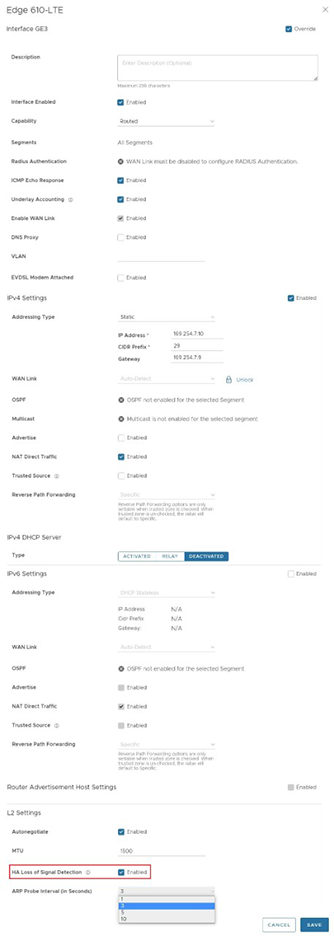
- Select Save Changes in the Device tab.
For more information on the other settings of the Interface, see Configure Edge Services. To view the LoS detection events, see Monitor Events for LoS Detection.
Monitor Events for LoS Detection
You can view the events related to the LoS Detection on a routed Interface of a virtual Edge. In the enterprise portal, click .
To view the events related to LoS Detection, you can use the filter option. Click the drop-down arrow next to the Search option and choose to filter either by the Event or by the Message column.
- LoS detected on peer's Interface Interface name.
- LoS no longer seen on Interface Interface name.
Unique MAC LAN and WAN Address
Unique MAC Address for LAN interfaces and WAN ports is intended for virtual High Availability environments that also have VNF Service Chaining, which requires a unique MAC address on the Active and Standby Edges.
Instead of generating a common or shared virtual MAC address when in HA, this feature uses the physical MAC address for hardware Edges and the assigned MAC address for virtual Edges.
This feature also helps with virtual HA deployments in general, and is recommended if MAC Learning on the vSwitch isn't an option to use.
Configure a Unique LAN and WAN MAC Address for HA Edges
By default, High Availability uses a common virtual MAC address to support seamless failover between devices. If you need to use a unique MAC address in certain virtual environments, instead of generating a common or shared virtual MAC address, you can select both the Deploy with Unique LAN MAC Address and/or the Deploy with Unique WAN MAC Address checkboxes, each of which is deactivated by default. Both options use the physical MAC address for hardware Edges and the assigned MAC address for virtual Edges. When these options are selected, the LAN, Routed LAN, and WAN links all use physical MAC addresses.
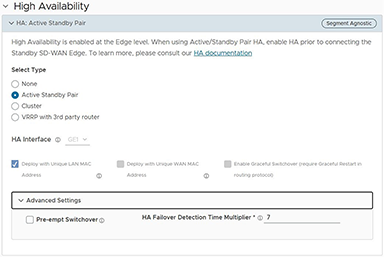

- Disconnect the Standby Edge's WAN and LAN links, leaving only the HA link connected to the Active Edge. If it is a Virtual Edge, disable the virtual NICs that correspond to the WAN and LAN links, leaving only the HA interface NIC connected.
- In the High Availability section, select None.
- Select Save Changes at the top of the Device window.
- Enable High Availability again and then select the Deploy with Unique LAN MAC checkbox to activate or deactivate the option.
- Once the HA status becomes High Availability Ready on the Orchestrator UI, reconnect the LAN and WAN cables of the Standby Edge. If using Virtual Edges, re-enable the virtual NICs.
Prerequisites
- The two Edges must be the same model.
Note: Mixing Wi-Fi Capable and Non-Wi-Fi Capable Edges in High Availability Is Supported in Release 5.4.0 and later.
Beginning in 2021, VeloCloud SD-WAN introduced Edge models which do not include a Wi-Fi module: the Edge models 510N, 610N, 620N, 640N, and 680N. Prior to Release 5.4.0, deploying a Wi-Fi capable Edge and a Non-Wi-Fi capable Edge of the same model (for example, an Edge 640 and an Edge 640N) as a High-Availability pair was not supported. With Release 5.4.0, this combination is supported and the customer can deploy Edges of the same model number with different Wi-Fi capabilities.
- Only one Edge should be provisioned on the Orchestrator.
- The Standby Edge must not have an existing configuration on it.
- Ensure not to use 169.254.2.x for management interface.
Activate High Availability
- In the SD-WAN Service of the Enterprise portal, select .
- Select the Edge from the list and select the Device tab.
- Scroll down to the High Availability section and select Active Standby Pair.
Figure 22. Activate High Availability 
- Select Save Changes at the bottom of the Device window.
- For Edges 520, 520v, and 540: The LAN1 port is used as HA interface and DPDK is not enabled on these platforms.
- For Edges 510, 610, 620, 640, 680, 840, 2000, 3400, and 3800: The GE1 port is used as HA interface and DPDK is enabled on these platforms.
Configure a Non-Default High Availability Interface
The above HA interfaces are the default interfaces for their respective platforms and are selected automatically. Beginning with Release 5.2.0 you can also configure any LAN interface to be the HA interface with the HA Interface option.
Beginning with Release 5.2.0, a user can select any Edge 1G/10G Ethernet/SFP port which does not have WAN-Overlay enabled to be the HA interface with the HA Interface drop-down option. For a list of supported SFP modules for use on SD-WAN Edges see: Arista SD-WAN Supported SFP Module List.
Both HA Edges must be upgraded to Release 5.2.0 or later prior to using a non-default interface for HA traffic. Until both HA Edges are using Release 5.2.0, they must be configured to use the default GE1 as their HA interface. Only after both HA Edges are upgraded to Release 5.2.0 can a user configure the HA Edges to use an interface other than GE1 as the HA interface.
Configuring a non-default HA Interface can only be performed when HA is not enabled for that site. This means you can configure it prior to enabling HA for a site. However, if you want to change the HA Interface on a site where HA is already enabled, you must first disable HA, then change the HA Interface, and then re-enable HA.
VeloCloud now supports factory images starting with the 5.2.4 MR. If the Edge has a factory image earlier than version 5.2.0, the Edge can automatically upgrade to the 5.2.4 MR image by connecting to a DHCP-enabled Internet connection, contacting the VeloCloud-hosted Maestro server, and downloading the latest applicable factory image. The Edge platforms 610, 610-LTE, 620, 640, 680, 3400, 3800, 3810 will get upgraded to the 5.2.4 MR image by default.
To ensure a successful activation when replacing an Edge with a factory image earlier than 5.2.0:
- Connect the Edge to a DHCP-enabled Internet connection.
- Wait a few minutes for the Edge to contact the VeloCloud Maestro server, download the 5.2 MR factory image, and complete the upgrade.
Figure 23. MR factory image 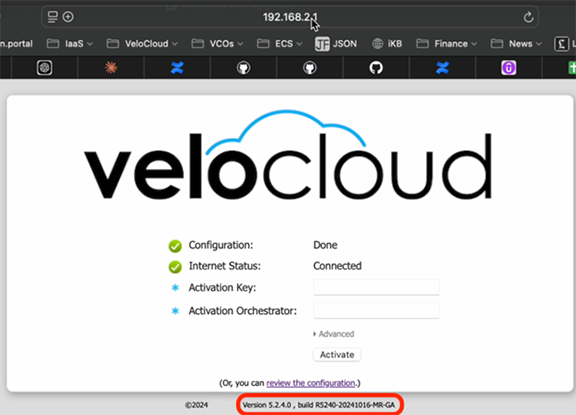
- Connect the HA interface cable on the upgraded Edge and proceed with HA activation. This process is particularly relevant for customers deploying High Availability with non GE1 interface. This is also applicable for RMA devices for the above listed platforms to the 5.2.4 MR image if they have a factory image earlier than version 5.2.0.
- Disable HA.
- Reconfigure the HA Interface to its default value (GE1 or LAN1) on the UI, and relocate the HA Interface cable to the default HA Edge interface.
- Integrate the replacement Edge into the HA topology of the site.
- Re-enable HA and allow the replacement Edge to complete the activation process, assuming the role of the Standby Edge.
- Disable HA.
- Reconfigure the HA Interface to its alternative value on the UI, and relocate the HA Interface cable back to the alternative location on the HA Edges.
- Re-enable HA to finalize the replacement process.
Configure a Unique LAN and WAN MAC Address
By default, High Availability uses a common virtual MAC address to support seamless failover between devices. If you need to use a unique MAC address in certain virtual environments, instead of generating a common or shared virtual MAC address, you can select the Deploy with Unique LAN MAC Address and/or Deploy with Unique WAN MAC Address checkbox, which are both deactivated by default. These options use the physical MAC address for hardware Edges and the assigned MAC address for virtual Edges. The LAN, Routed LAN, and WAN ports use physical MAC addresses when both options are enabled.
You can activate or deactivate the Deploy with Unique LAN MAC Address and/or Deploy with Unique WAN MAC Address option only when you enable High Availability by choosing Active Standby Pair. Once High Availability is enabled, you cannot activate or deactivate Deploy with Deploy with Unique LAN MAC Address and/or Deploy with Unique WAN MAC Address at a later point of time.
- Disconnect the Standby Edge's WAN and LAN links, leaving only the HA link connected to the Active Edge. If it is a Virtual Edge, disable the virtual NICs that correspond to the WAN and LAN links, leaving only the HA interface NIC connected.
- Scroll down to the High Availability section and select None.
- Select Save Changes at the top of the Device window.
- Enable High Availability again and then select the Deploy with Unique LAN MAC Address and or Deploy with Unique WAN MAC Address checkbox to activate or deactivate the option.
- Once the HA status becomes High Availability Ready on the Orchestrator UI, reconnect the LAN and WAN cables of the Standby Edge. If using Virtual Edges, reenable the virtual NICs.
Advanced Settings: HA Failover Detection Time Multiplier
Beginning in Release 5.2.0, a user can manually configure the time threshold before the Active Edge is marked as non-responsive which would trigger a failover to the Standby Edge. On some Edge platforms an Edge may experience a high amount of traffic sufficient to delay sending out a heartbeat response to the Standby Edge indicating that it is still functioning. This delay may exceed the default 700 millisecond threshold and trigger the Standby Edge to become active and results in an Active-Active (Split-Brain) state. With this feature, the user can increase the time threshold before the Active Edge is declared down and trigger a failover and prevent a potential split-brain state.
The value is changed under the Advanced Options section where a user configures the HA Failover Detection Time Multiplier. This multiplier is a number that is multiplied by 100 milliseconds (ms). The default value is 7 (700 ms) and be configured up to 70 (7000 ms).

Advanced Settings: Pre-empt HA Switchover
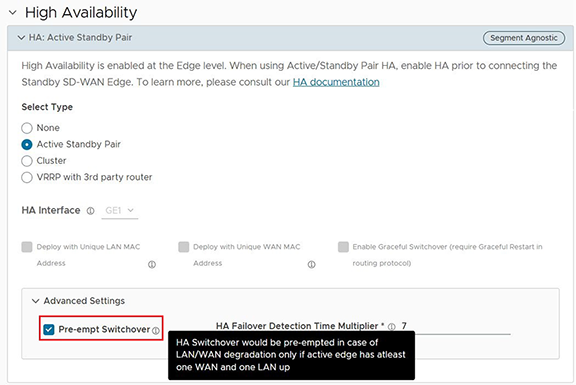
The High Availability (HA) process chooses the Active Edge device based on which Edge has the most LAN and WAN interfaces. However, this logic can cause frequent and unnecessary failovers if the interfaces briefly go down and come back up (also known as "flapping").
To address this, a new setting is added in Release 6.1.0 and later: Pre-empt Switchover. When enabled, this setting pre-empts an HA switchover where there is LAN or WAN degradation as long as the Active Edge has at least one WAN port and one LAN interface up. This setting allows the system to switch to the Standby Edge if the current Active Edge has no LAN interfaces, and the Standby Edge has at least one LAN interface.
Wait for Edge to Assume Active

Connect the Standby to the Active Edge
- Power on the Standby Edge without any network connections.
- After it boots up, connect the LAN1/GE1 interface (as indicated on the Device tab) to the same interface on the Active Edge.
- Wait for the Active Edge to detect and activate the standby Edge automatically. The Orchestrator Events displays HA Standby Activated when the Orchestrator successfully activates the standby Edge.
Figure 27. Standby to the Active Edge 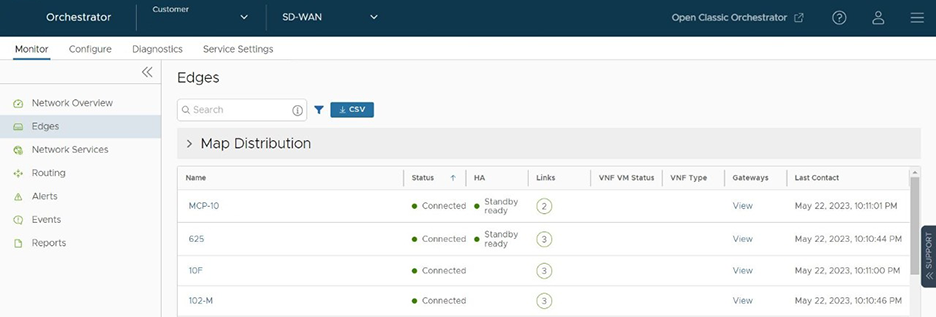
The standby Edge will then begin to synchronize with the active Edge and reboot automatically during the process.
Connect LAN and WAN Interfaces on Standby
Connect the LAN and WAN interfaces on the standby Edge mirroring the network connectivity on the Active Edge.

Deactivate High Availability
- In the SD-WAN Service of the Enterprise portal, select .
- Select the Edge from the list and select the Device tab.
- Scroll down to the High Availability section and select None.
Figure 29. Deactivate High Availability 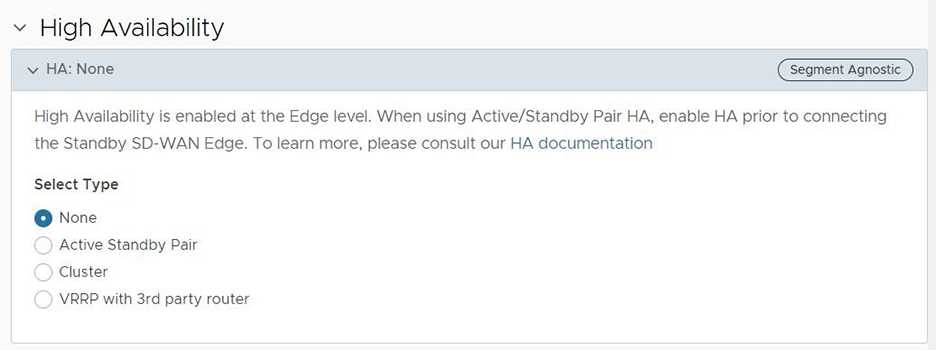
- Select Save Changes at the top of the Device window.
- The existing Active Edge becomes the Standalone Edge for this site with no disruption in customer traffic. You can use the GE1 interface on the new Standalone Edge for a different purpose as it is no longer needed for HA.
- The Standby Edge is deactivated. This means the configuration is cleared from the Edge while retaining the existing Edge software version (the Edge is NOT factory reset). Once the Edge is completely deactivated, you can then remove all cables from the former Standby Edge and repurpose it to another deployment.
HA Event Details
| HA Event | Description |
|---|---|
| HA_GOING_ACTIVE | A standby Edge is taking over as Active because it has not heard a heartbeat from the peer. |
| HA_STANDBY_ACTIVATED | When a new Standby is detected by the Active, the Active tries to activate the Edge by sending this event to the Orchestrator. On a successful response, the Active sync's the configurations and sync data. |
| HA_FAILED | Typically happens after the HA pair has formed and the Active Edge no longer hears from the Standby Edge. For example, if the Standby Edge reboots, you will receive this message. |
| HA_READY | Means the Active Edge now hears from the Standby Edge. Once the Standby Edge comes back up and reestablishes the heartbeat, then you will receive this message. |
| HA_TERMINATED | When the HA configuration is deactivated, and it is successfully applied on the Edges, this Event is generated. |
| HA_ACTIVATION_FAILURE | If the Orchestrator is unable to verify the HA activation, it will generate this Event. Examples include:
|
| VCO_IDENTIFIED_HA_FAILOVER | Event message reads: Edge HA Failover Detected.
The Orchestrator has detected that a High Availability failover has occurred on the Edge. |
| VCO_IDENTIFIED_HA_FAILURE | Event message reads: Edge HA Failover Detected.
The Orchestrator has detected that the Standby Edge has gone down. This event will include the serial number of the Edge. |
| HA_UPDATE_FAILOVER_TIME | Event message reads: Updating HA Failover time from ####ms to ####ms.
A user changed the failover time for when an HA Edge will failover based on how long the Edge will wait to receive a heartbeat from the Active Edge. Increasing this value can prevent an Active-Active "Split Brain" state for HA Edges under high load. This is done through the HA Failover Detection Time Multiplier located at on the Orchestrator. |
| HA_RESET_FAILOVER_TIME | Event message reads: Updating HA Failover time from ####ms to ####ms.
When an HA Edge's system has been stable for 60 seconds, the process reduces the failover threshold time by 50%. |