
NSD Portability Conversion
Hitless Gateway Migration enables migration of Edges and Non SD-WAN Destinations (NSDs) from a Gateway to another Gateway with minimal to no network downtime.
- Assign Portable Virtual IP to the Customer's NSD Configuration
- In the Enterprise portal, go to the customer's account view and navigate to .
- Click the NSD Portability Conversion tab.
Figure 1. NSD Portability Conversion 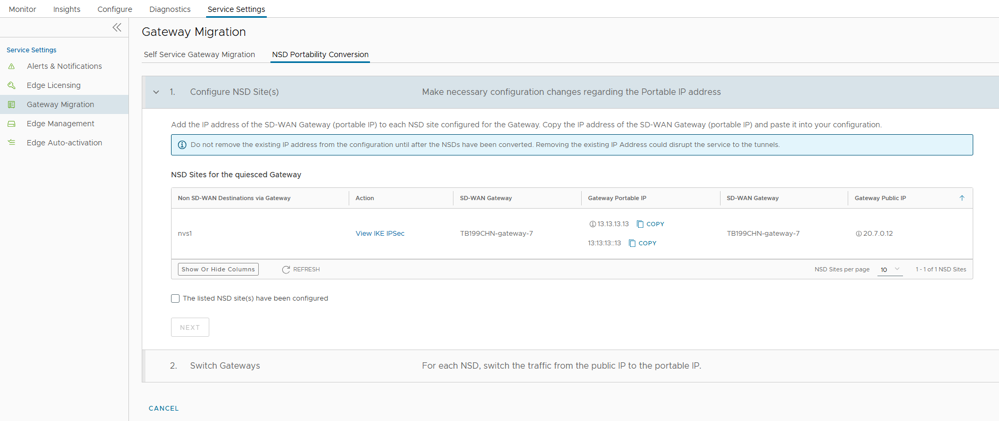
- Under the Portability Conversion Gateways section, locate the Source Gateway and click Start. The portability conversion process automatically fetches the Virtual POP IP from the Source Gateway and assigns it to the NSD.
Figure 2. Configure NSD Sites 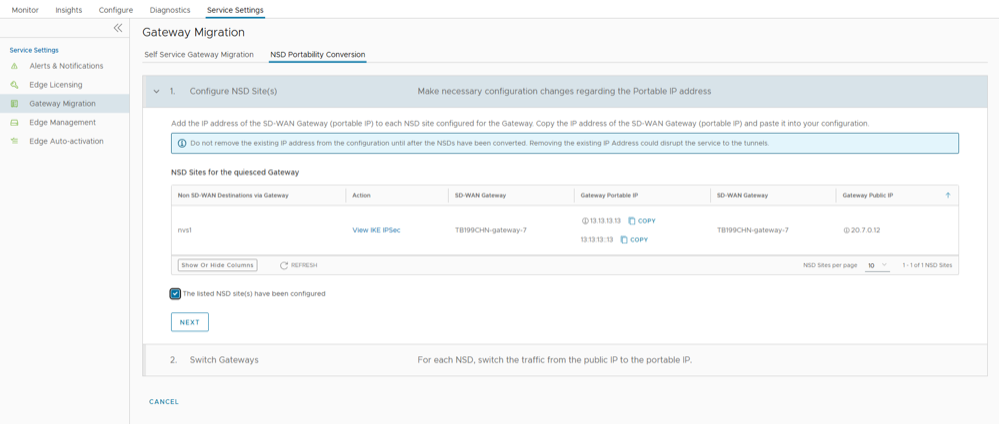
- Copy the assigned Virtual POP IP from the Gateway Portable IP column and paste to the customer's NSD configuration.
- Confirm that this Virtual IP is assigned to the Customer's NSD configuration, and then select the The listed NSD sites have been configured checkbox.
- Click Next to perform NSD conversion.
- Perform NSD Conversion and Switch Gateways
Apply configuration changes. Complete the conversion and switch tunnel parameters.
- In the Switch Gateways section, select the NSD from the list and click Convert NSD.
Figure 3. Convert NSD 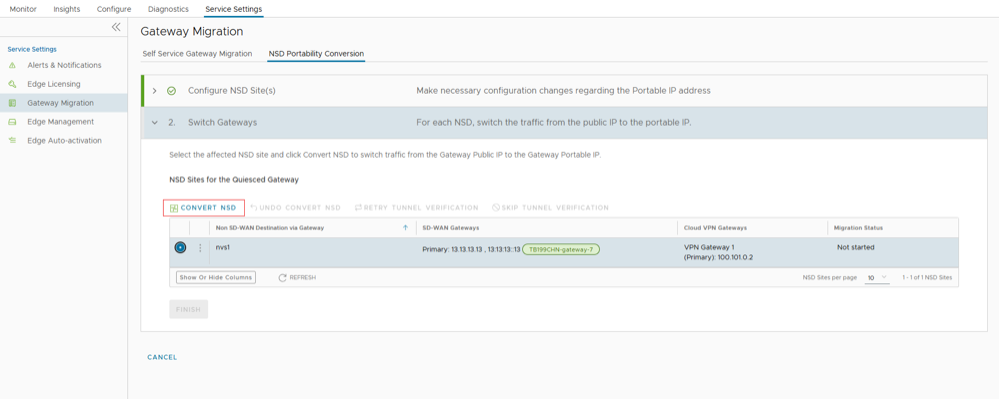
- Review the migration summary prompt in the dialog and confirm that the Customer-side NSD configuration is completed by selecting the The NSD has been configured checkbox.
- Select a virtual IP from the available Portable IPs drop-down list. By default, the system selects the first IP from the list. and click Switch Gateways.
Figure 4. Switch Gateways 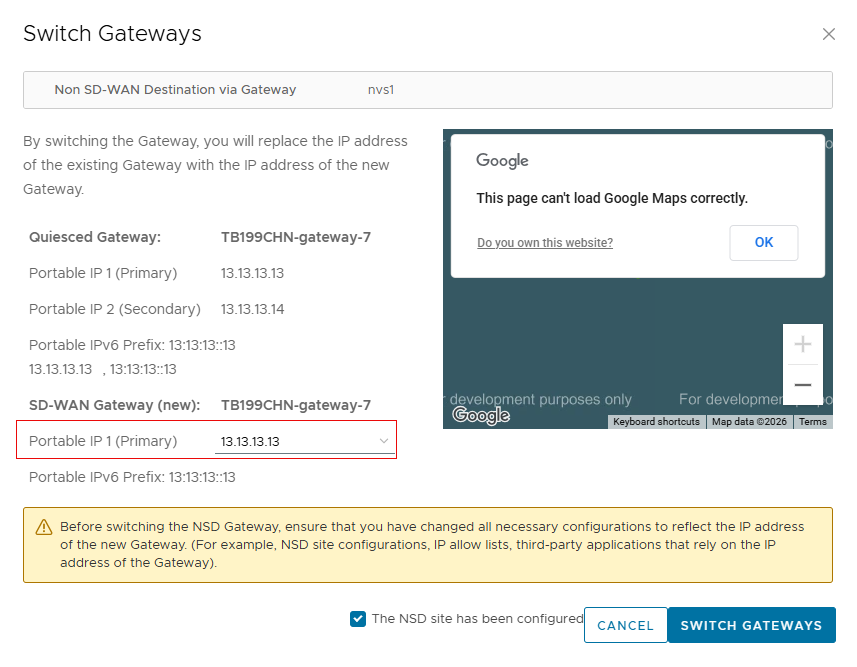
- Verify Migration Status. After the tunnel status verification is successful, click Finish to complete the portability conversion. The NSD Portability Conversion status will show as Completed.
Figure 5. Verify Migration Status 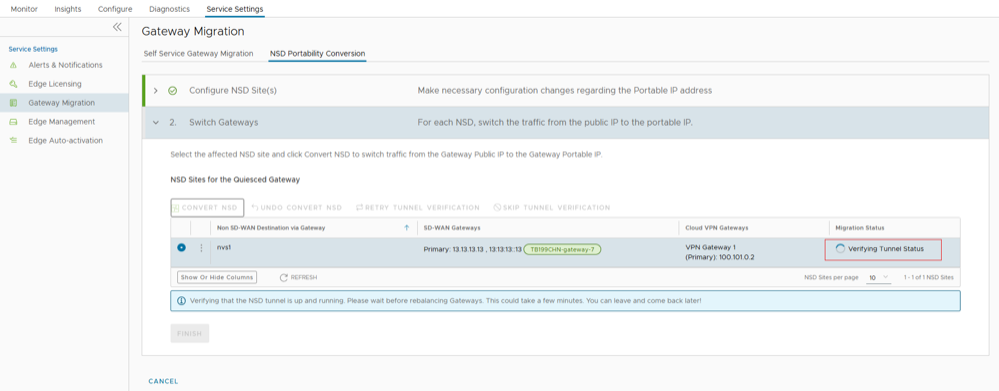 Note: If tunnel status verification fails, then the Undo Convert NSD button will be enabled.
- Click Undo Convert NSD to revert back to the Public IP.
- Click Retry Tunnel Verification to start verifying tunnel once again.
- Click Skip Tunnel Verification to skip tunnel verification.
After successful NSD portability conversion, the Gateway with NSDs associated is ready for Gateway Migration.
- In the Switch Gateways section, select the NSD from the list and click Convert NSD.