VeloBrain Troubleshooting Assistant helps in validating the Events and providing root causes and remediations. It can be launched from the Events screen of the Orchestrator.
Currently, VeloBrain provides troubleshooting assistance for the following Events:
Link Dead
Edge Physical Link Down
DNS Cache Max Limit Reached
Edge Tunnel CAP Warning
HA Interface State Changed
To launch the VeloBrain Troubleshooting Assistant, follow the steps below:
Log into the Orchestrator.
Navigate to Monitor > Events.
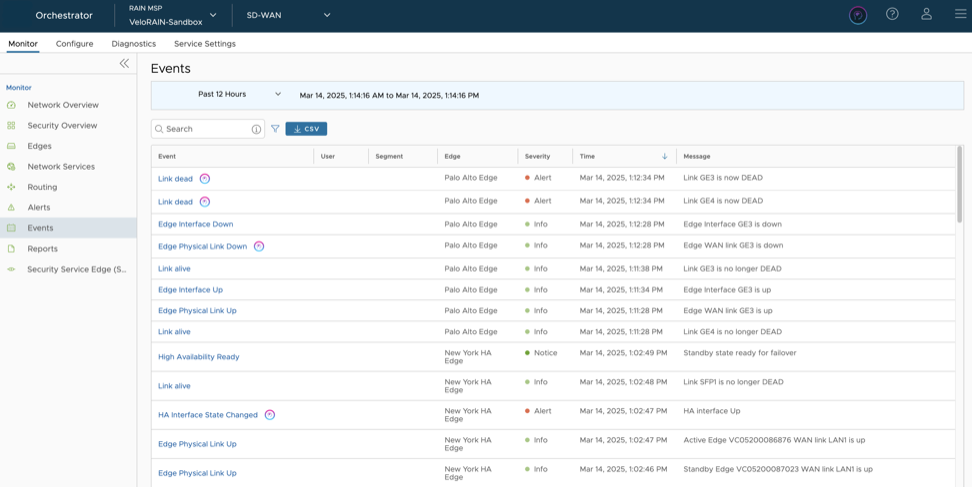
VeloBrain icon appears next to the Event names as shown below:
Figure 1. Events Screen
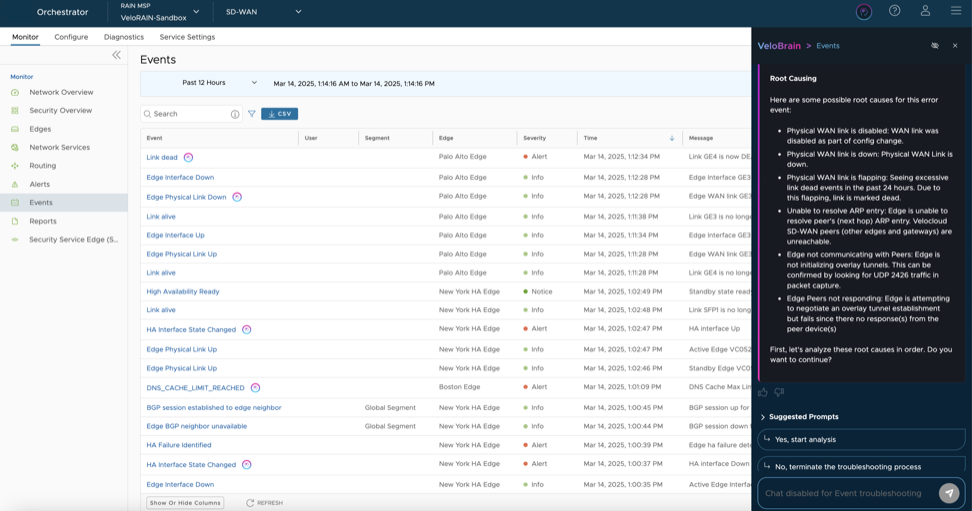
Select the icon. The VeloBrain Troubleshooting Assistant is displayed on the right side of the screen. It first displays a legal disclaimer and then the Event text along with date and time of occurrence.
Figure 2. Launching the VeloBrain Troubleshooting Assistant
Note: Launching the VeloBrain Troubleshooting Assistant from the Events screen, always creates a new chat session.
The VeloBrain Troubleshooting Assistant analyses the Event and displays the following information:
Event Description: Provides a brief description of the Event that includes information related to what might have triggered the Event and its possible impact.
Activity Status Check: Checks the following:
Edge Status: If Edge is active, you can proceed with the next step. If Edge is inactive, it displays appropriate escalation steps.
Event Status: If Event is active, you can proceed with the next step. If Event is inactive, it prompts the user to either ignore the Event or get escalation steps.
Background Checks: Checks past occurrence of Events and correlates with existing Events. It also checks configuration changes.
Root Causing: VeloBrain displays all the possible root causes.
To continue, select Yes, start analysis. VeloBrain analyses all the root causes one by one, and displays corresponding remediations.
Note: To end the troubleshooting, select No, terminate the troubleshooting process.
If you find the remediation helpful, select Yes, the issue is now resolved.
If you want the VeloBrain Troubleshooting Assistant to continue analyzing other root causes and remediations, select No, I need more assistance. You can keep selecting this option until you are satisfied with the remediation.
Note: Sometimes, this activity may take longer time. In such cases, it prompts you to either ignore the Event or proceed to determine the next steps.
After all the root causes and remediations are displayed and you still need assistance, select Get escalation steps. VeloBrain Troubleshooting Assistant then displays steps to contact the Support team.
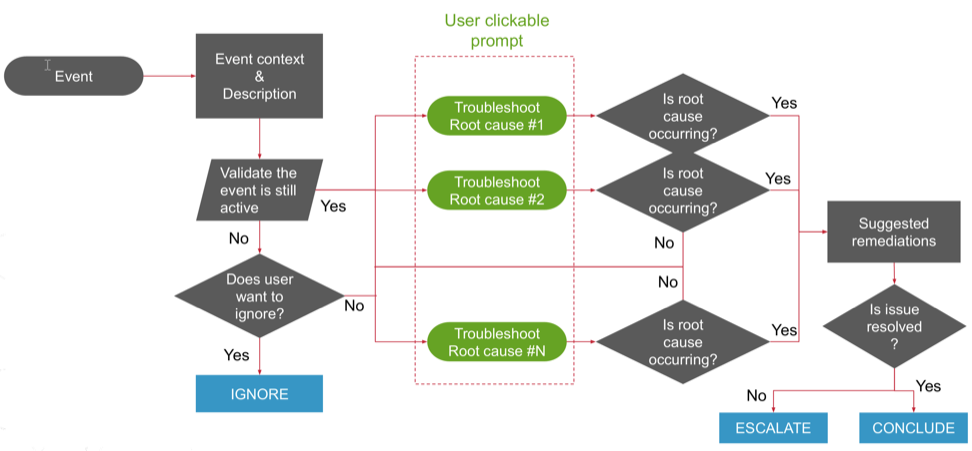
Below flowchart depicts the troubleshooting process:
Figure 3. Troubleshooting Process

 Note: Launching the VeloBrain Troubleshooting Assistant from the Events screen, always creates a new chat session.