Stage an Edge to Bastion Orchestrator
- Ensure you have configured two Orchestrators as a Bastion pair. For steps, see Configure Bastion Orchestrator.
- Ensure you have set up the Production Orchestrator to support Bastion configurations. For steps, see Set up Production Orchestrator.
- Ensure you have created a Bastion profile with a minimum configuration in the Production Orchestrator, for the purpose of staging an Enterprise customer to Bastion Orchestrator.
- Ensure you have uploaded the Software and Firmware images related to the provisioned Edge from your local repository to the Orchestrator portal. For steps to upload Firmware and Software images, see the Firmware Images and Software Images sections in the Arista VeloCloud SD-WAN Operator Guide.
Note: Only SD-WAN Edge that are not activated can be staged to the Bastion Orchestrator.
To stage a SD-WAN Edge to Bastion Orchestrator along with Edge upgrade settings, perform the following steps.
- Before you stage a SD-WAN Edge to Bastion Orchestrator, you must first stage an Enterprise associated with the Edge to the Bastion Orchestrator. In the Operator portal, select .
Figure 1. Staging an Enterprise to Bastion Orchestrator 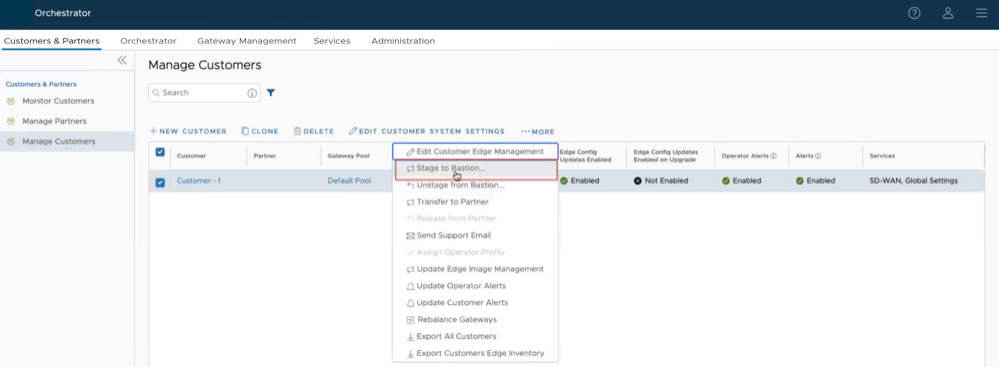
- Select an Enterprise customer to stage to Bastion Orchestrator and select . The Select Customer Profile pop-up window appears.
Figure 2. Selecting a Customer Profile 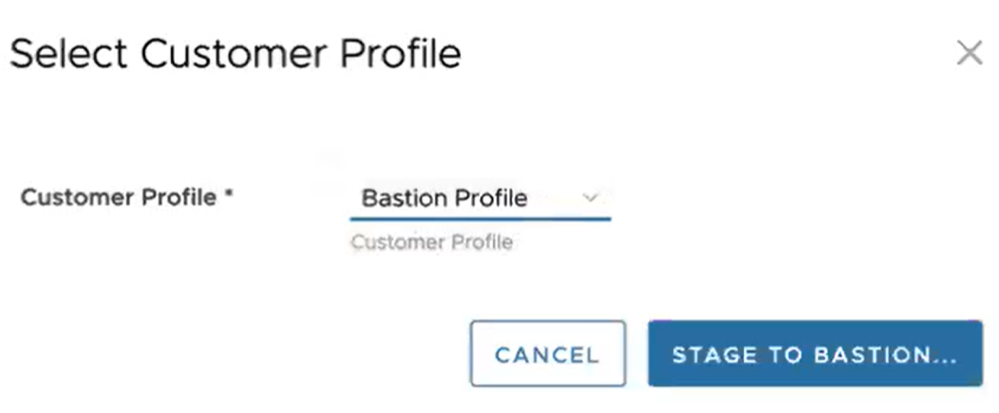
- To stage the software images related to the provisioned Edge to the Bastion Orchestrator, select . The Software Images page appears.
Figure 3. Selecting a Software Image to Stage to Bastion Orchestrator 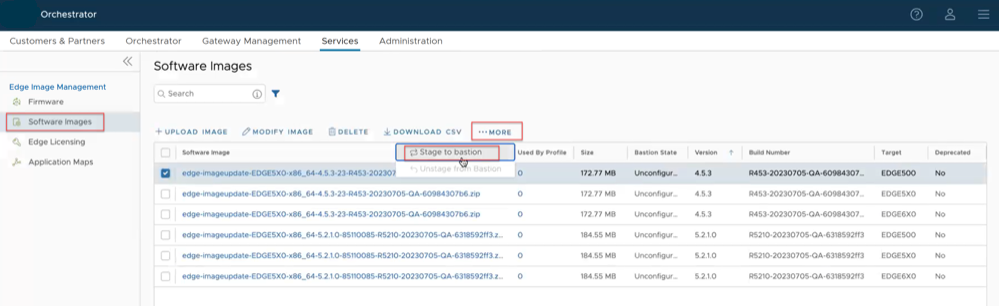
- To stage a SD-WAN Edge to the Bastion Orchestrator with Edge upgrade information, select the Edge and select .
Figure 4. Selecting an Edge to Stage to Bastion Orchestrator 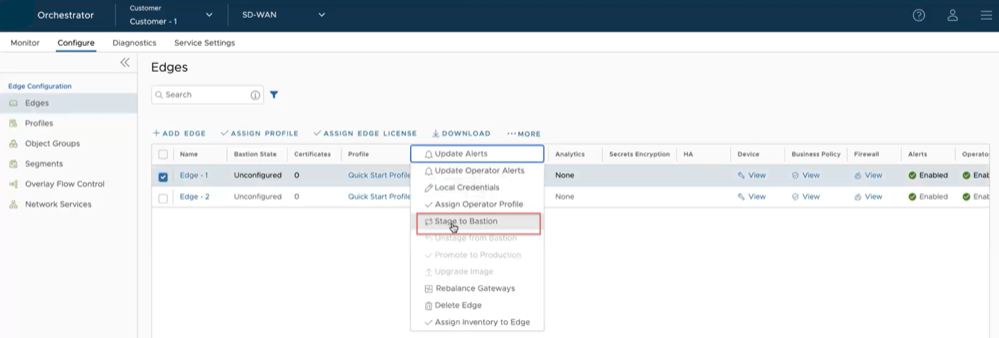
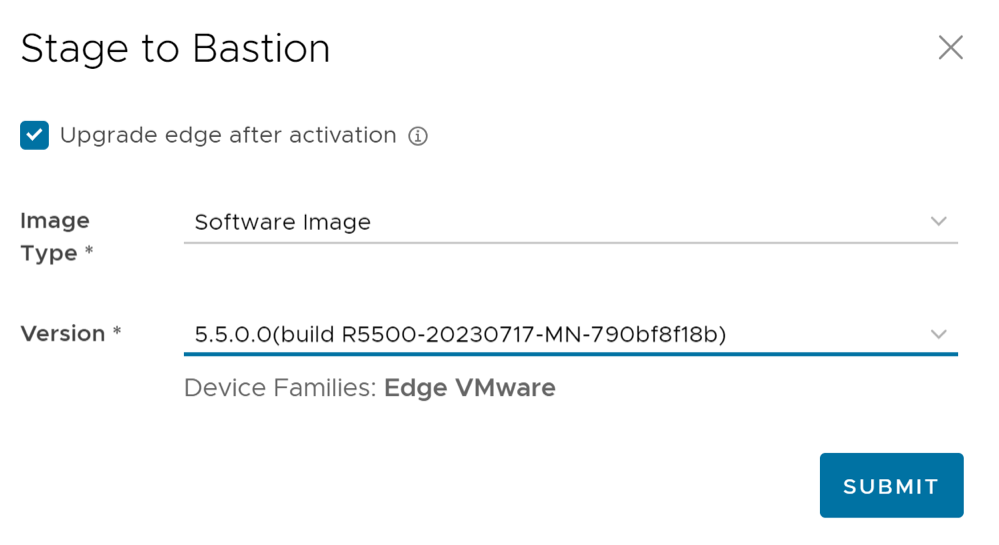
- In the Stage to Bastion pop-up window, select the Upgrade edge after activation check box and select the image type and version to upgrade the Edge after activation, and select Submit.
Figure 5. Stage to Bastion Window