
Edge Management
Edge Management feature allows you to configure general settings, authentication, and encryption for an Edge. It allows you to activate or deactivate configuration updates for an Edge. You can also select a default Software & Firmware Image.
- You can configure the following options and select Save Changes.
Figure 1. Edge Management 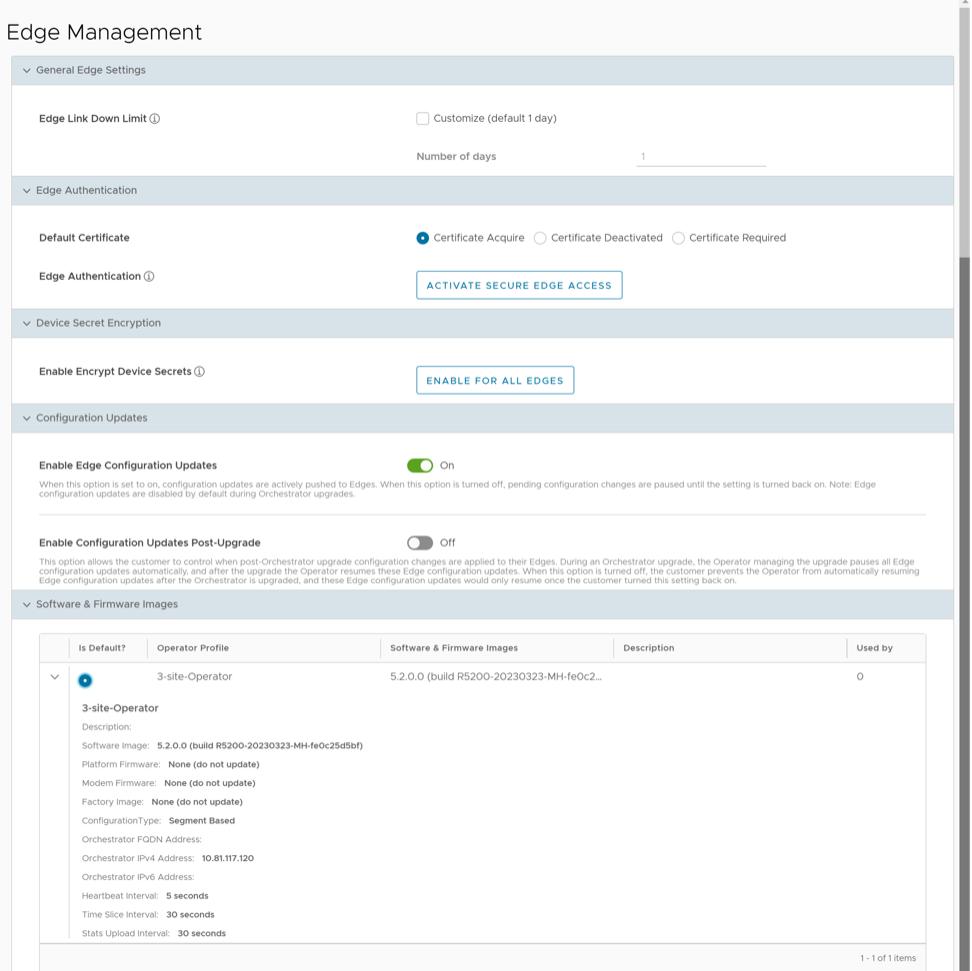
Table 1. Edge Management- Options and Descriptions Option Description General Edge Settings Edge Link Down Limit You can set this value for each Edge by selecting the Customize check box. This overrides the value set through the system property edge.link.show.limit.sec.Number of days Enter a value in the range 1 to 365. The default value is 1. Edge Authentication Default Certificate Choose the default option to authenticate the Edges associated to the Customer. - Certificate Acquire: This option instructs the Edge to acquire a certificate from the certificate authority of the Orchestrator, by generating a key pair and sending a certificate signing request to the Orchestrator. Once acquired, the Edge uses the certificate for authentication to the Orchestrator and for the establishment of VCMP tunnels.
Note: Only after acquiring the certificate, the option can be updated to Certificate Required.
- Certificate Deactivated: This option instructs the Edge to use a pre-shared key mode of authentication.
- Certificate Required: This option is selected by default, and it instructs the Edge to use the PKI certificate. Operators can change the certificate renewal time window for Edges using system properties. For additional information, contact your Operator.
Note: On selecting Save Changes, you are asked to confirm if the selected Edge authentication setting is applicable to all the impacted Edges or only the new Edges. By default, Apply to all Edges check box is selected.Edge Authentication Select the Activate Secure Edge Access button to allow the user to access Edges using Password-based or Key-based authentication. You can activate this option only once. But you can switch to either Password-based or Key-based authentication any number of times. For additional details, see Configure User Account Details. Device Secret Encryption Enable Encrypt Device Secrets Select the Enable For All Edges button to activate device secret encryption for all the Edges in the current Enterprise. This action causes restart of all the Edges. However, Edges which already have this feature activated are not affected. Note: You can activate this option for individual Edges at the time of creating a new Edge. For additional information, see the topic Provision a New Edge in the Arista VeloCloud SD-WAN Administration Guide.Configuration Updates Disable Edge Configuration Updates By default, this option is activated. This option allows you to actively push the configuration updates to Edges. Slide the toggle button to turn it Off. Enable Configuration Updates Post-Upgrade By default, this option is deactivated. This option allows you to control when post-Orchestrator upgrade configuration changes are applied to their Edges. Slide the toggle button to turn it On. - Certificate Acquire: This option instructs the Edge to acquire a certificate from the certificate authority of the Orchestrator, by generating a key pair and sending a certificate signing request to the Orchestrator. Once acquired, the Edge uses the certificate for authentication to the Orchestrator and for the establishment of VCMP tunnels.