Licensing
Direct Enterprise customers can view and manage SD-WAN licenses and utilization data using the Orchestrator UI. The Licensing feature is not accessible from the Orchestrator for the Partners and Partner customers. Partners can still view and manage licenses using the VeloCloud Licensing portal. For more information, see VeloCloud SD-WAN License Management Guide.
- In the Enterprise portal, on the Global Navigation bar, expand the Enterprise Applications drop-down menu.
- Select Global Settings service.
- From the left menu, select Licensing. The Licensing window appears:
The Licensing window displays four tabs: Utilization, SD-WAN Entitlements, SASE Entitlements, and Add-Ons.
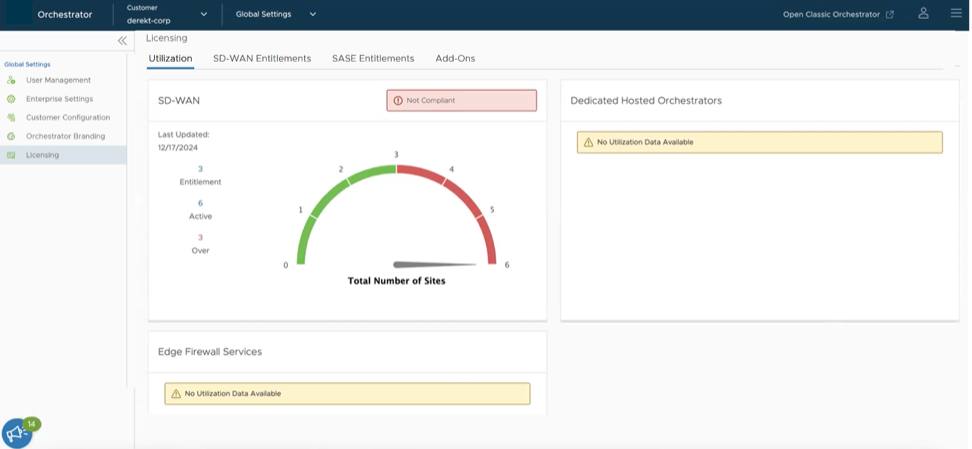
Utilization
- Active Entitlements- Displays the amount of licenses that account have purchased through orders.
- Active Sites- Displays the number of active Edges that are under the account.
- Over Utilization Sites- Displays the number of over utilized sites. If an account has more Edges than licenses, that means it is over using.
Select Download Report to download an Excel file with the License utilization information.
SD-WAN Entitlements
- Expired Entitlements- Displays the count of all your SD-WAN subscriptions that are currently expired and assigned to an Edge. Ensure to resolve the compliance issue by renewing the expired subscription or assigning an available subscription to replace the expired subscription. Selecting View will display the detailed information about the entitlements in the Subscriptions table below.
- Entitlements Due For Renewal- Displays the count of all your SD-WAN subscriptions that are due expiring within the next 90 days. You must take action on these within the next 90 days. Renew the subscriptions or assign an available subscription to the expiring subscription’s Edge.
- Active Entitlements- Displays the count of all your SD-WAN subscriptions that are currently unexpired. These subscriptions also include subscriptions that are due for a renewal within the next 90 days.
- Total Entitlements- Displays the total count of all your purchased subscriptions. This includes all of the active subscriptions, expired subscriptions, and subscriptions that are due for renewals.
You can use the Search field to find the entitlements by SKU, Serial number, Customer name, and Contract number.
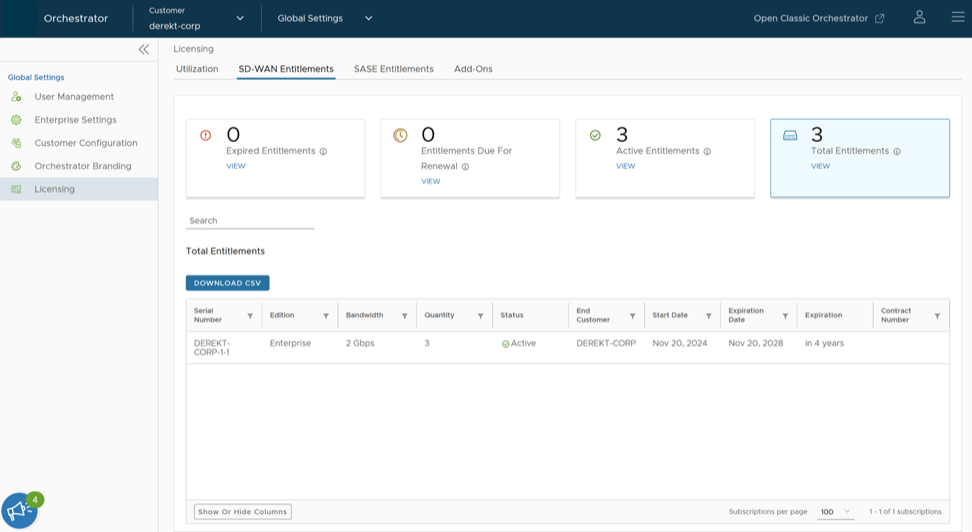
In the Entitlements table, you can find the following details:
| Column Names and Fields | Descriptions |
|---|---|
| Product | Displays the name of the product. Default is SD-WAN. |
| Serial Number | Displays the software subscription unique identifier. |
| Edition | Displays either Enterprise, Premium, or Standard |
| Bandwidth | Displays the license throughput or bandwidth. |
| Quantity | Displays the count of SD-WAN subscriptions. |
| Status | Displays the license status |
| End Customer | Displays the name of the End Customer who will utilize the license. |
| End Customer ERP Name | Displays the ERP name of the End Customer who will utilize the license. |
| End Customer ERP Number | Displays the ERP number of the End Customer who will utilize the license. |
| Partner | Displays the name of the Partner associated with the license. |
| Partner ERP Name | Displays the ERP name of the Partner associated with the license. |
| Partner ERP Number | Displays the ERP number of the Partner associated with the license. |
| Start Date | Displays the date the license begins. |
| Expiration Date | Displays the date the license expires. |
| Expiration | Displays the length of time remaining on the license. |
| SKU | Displays the SKU that is assigned to the license. |
| Contract Number | Displays the contract number, which is linked to the license. |
| Contract Line Number | Displays the contract line number, which is linked to the license. |
| Description | Displays a description of the SD-WAN subscription. |
| Download CSV button | Select to download an Excel file of details from the Subscriptions table. |
| Show or Hide Columns | Select and select the column fields to be displayed in the Subscriptions table. |
| Subscriptions per page | From the Subscriptions per page drop-down menu, choose the number of records to display (10-5000). |
- Download CSV- Select to download an Excel file of details from the Subscriptions table.
- Show or Hide Columns- Select and select the column fields to display in the Entitlements table.
- Subscriptions per page- Choose the number of records to display (10-5000) in the Entitlements table.
SASE Entitlements
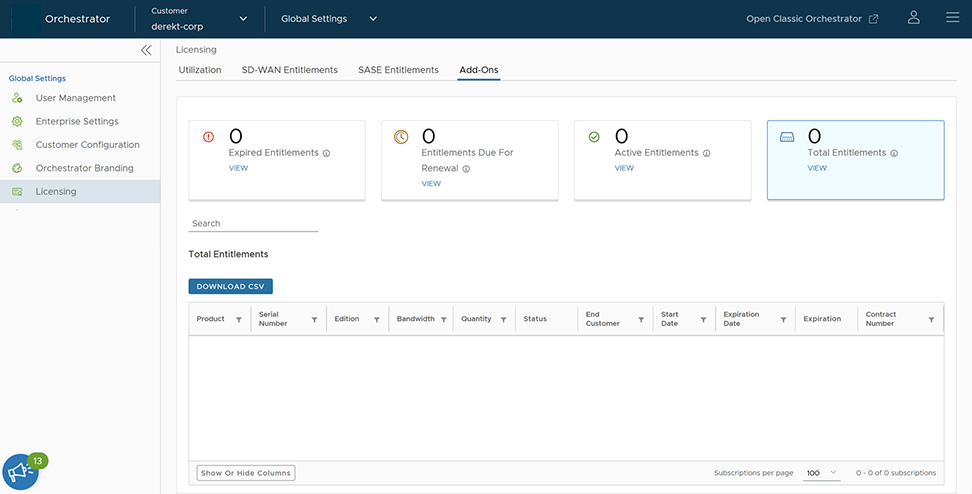
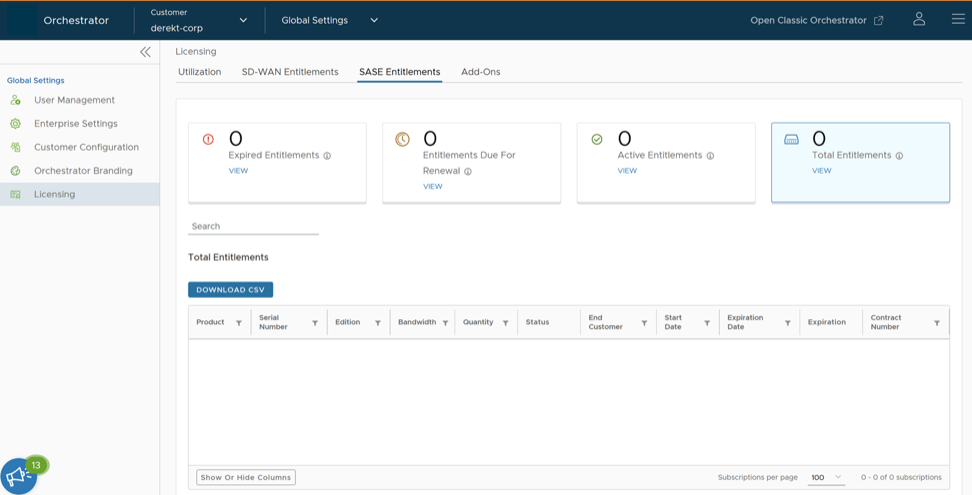
The SASE Entitlements tab provides detailed information about the SASE subscriptions purchased by the Enterprise customer. In this page, you can find details about expired entitlements, entitlements due for renewal, active entitlements, total entitlements and so on.
Add-Ons
The Add-Ons tab provides detailed information about subscription Add-On purchases. Examples include: dedicated hosted Orchestrator, dedicated hosted Gateway, Enhanced Firewall Services (EFS), and so on.