Configure Customers

After creating a Customer, configure the feature options and settings that the Customer can access. You can choose the settings the Customer can modify. Only an Operator user can configure Customer settings.

When you create a new Customer, you are redirected to the Customer Configuration page, where you can configure the Customer settings. You can also navigate to the Customer Configuration page by following the steps below:

  1. In the Enterprise portal, on the Global Navigation bar, expand the Enterprise Applications drop-down menu.
  2. Select Global Settings service.
  3. From the left menu,Customer Configuration. The following screen appears:
    Figure 1. Global Settings- Customer Configuration
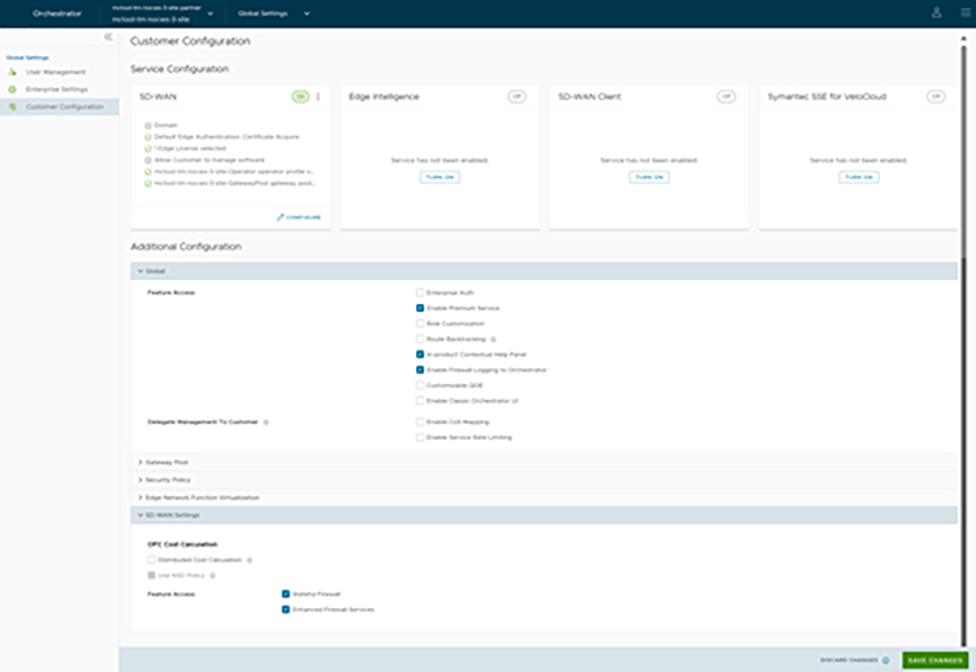
  4. The Service Configuration section includes the SD-WAN service. Select the Turn On button to activate the service.
  5. Select the vertical ellipsis present at the top right corner of the tile to turn off or configure the service.
  6. You can also use the Configure option present at the bottom right corner of the tile to configure the respective service. The tile displays the configuration summary.
    Note: When you select Turn off option, a pop-up window appears asking for your confirmation. Select the check box andTurn Off Service.
    1. Selecting the Configure option displays the following pop-up window.
      Figure 2. SD-WAN Configuration
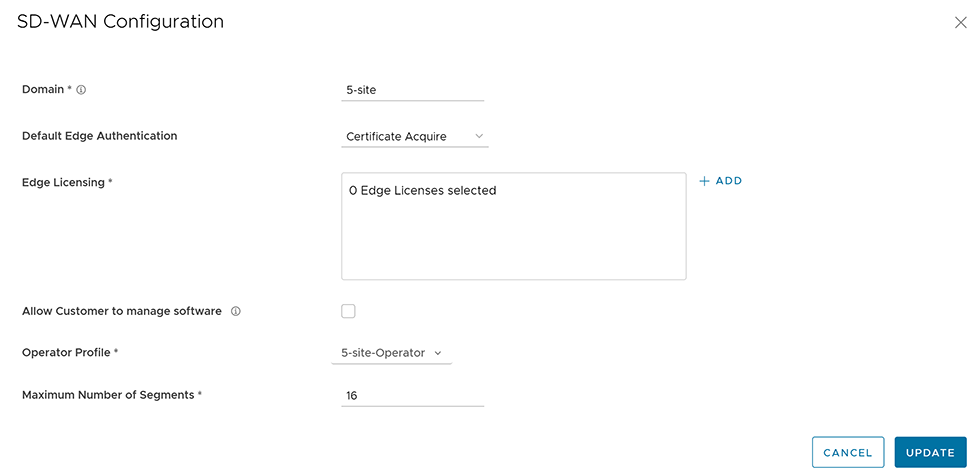
    2. Configure the following settings, and then Update.
      Table 1. SD-WAN Option Descriptions
      Option Description
      Domain Enter the domain name to be used to activate Single Sign On (SSO) authentication for the Orchestrator.
      Default Edge Authentication Choose the default option to authenticate the Edges associated to the Customer, from the drop-down menu.
      • Certificate Deactivated: Edge uses a pre-shared key mode of authentication.
      • Certificate Acquire: This option is selected by default and instructs the Edge to acquire a certificate from the certificate authority of the Orchestrator, by generating a key pair and sending a certificate signing request to the Orchestrator. Once acquired, the Edge uses the certificate for authentication to the Orchestrator and for establishment of VCMP tunnels.
        Note: After acquiring the certificate, the option can be updated to Certificate Required.
      • Certificate Required: Edge uses the PKI certificate. Operators can change the certificate renewal time window for Edges using the system property edge.certificate.renewal.window.
      Edge Licensing The existing Edge Licenses are displayed. Select Add to add or remove the licenses.
      Note: The license types can be used on multiple Edges. It is recommended to provide your Customers with access to all types of licenses to match their edition and region. For more information, see the topic Edge Licensing in the Arista VeloCloud SD-WAN Administration Guide.
      Allow Customer to Manage Software Select the check box if you want to allow an Enterprise Super User to manage the software images available for the Enterprise. For more information, see the topic Edge Image Management in the Arista VeloCloud SD-WAN Administration Guide.
      Operator Profile Select an Operator profile to be associated with the Customer from the available drop-down menu. This field is not available if Allow Customer to Manage Software is selected. For more information on Operator profiles, see the topic Manage Operator Profiles in the Arista VeloCloud SD-WAN Operator Guide.
      Maximum Number of Segments Enter the maximum number of segments that can be configured. The valid range is 1 to 16.The default value is 16.
  7. You can configure the following additional settings on the Customer Configuration page:
    Table 2. Customer Configuration Option Descriptions
    Option Description
    Global
    User Agreement Display Select either of the following from the drop-down menu:
    • Inherit
    • Override to Hide
    • Override to Show
    Note: This field is available only when the system property session.options.enableUserAgreements is set to True.
    Feature Access Provides access to the selected features. Select one or more check boxes from the below list to activate these features for the Customer:
    • Enterprise Auth: By default, only the Operator can activate or deactivate two-factor authentication for an Enterprise. When you select this check box, the Enterprise Admins can configure the two-factor authentication on their own. This option also controls the activation and deactivation of Single Sign On (SSO).
    • Enable Premium Service: This option is selected by default. Premium Service refers to the On-Demand Remediation feature that is a core part of SD-WAN's Dynamic Multipath Optimization (DMPO). DMPO is used for all traffic that traverses a VeloCloud Gateway. When Premium Service is selected, the Gateway uses Forward Error Correction (FEC) for customer traffic impacted by high levels of WAN link jitter or loss, and which cannot be steered to a better quality WAN link. When Premium Service is not selected, traffic still traverses the VeloCloud Gateway and benefits from other components of DMPO like Continuous Monitoring, Dynamic Application Steering, and Secure Traffic Transmission. However, traffic impacted by high levels of WAN link jitter or loss does not benefit from error correction by the Gateway. For more information, see the topic Dynamic Multipath Optimization (DMPO) in the Arista VeloCloud SD-WAN Administration Guide.
    • Role Customization: Allows an Enterprise Super user to customize the role privileges for other Enterprise users.
    • Route Backtracking: Allows the device to choose the best route in the order of prefix length.
    • In-product Contextual Help Panel: Provides access to the 'In Product Help' panel integrated within the Orchestrator. This feature is deactivated by default. An Operator must activate this option for the Enterprise Customers.
    • Enable Firewall Logging to Orchestrator: By default, Edges cannot send their Firewall logs to the Orchestrator. Select this check box to allow an Edge to send the Firewall logs to the Orchestrator.
    • Customizable QoE: Allows the Customer to configure the minimum and maximum latency threshold values for Voice, Video, and Transactional application categories of an Edge.
    • Enable Classic Orchestrator UI: Allows the Customer to switch from the Angular Orchestrator UI to the Classic Orchestrator UI. This option is available only when the system property session.options.enableClassicOrchestrator is set to True.
    Delegate Management To Customer Allows the Customer to modify the settings of the selected property. Following two properties are always visible to the Customers:
    • Enable CoS Mapping: Allows to configure CoS mapping while configuring a business policy.
    • Enable Service Rate Limiting: Allows to rate limit services in a business policy.
    Gateway Pool
    Current Gateway Pool Displays the current Gateway pool associated with the selected Customer. If required, you can choose a different Gateway pool available in the drop-down menu andSave Changes.
    Gateways in this Pool Displays the Gateway details in the current pool.
    Partner Hand Off Activating the Gateway Pool option displays the Configure Hand Off section. If the Gateways available in the Gateway pool have been assigned with Partner Gateway role, you can handoff the Gateways to Partners. For more information, see Configure Partner Handoff.
    Security Policy
    Hash By default, there is no authentication algorithm configured for the VPN header as AES-GCM is an authenticated encryption algorithm. When you select the Turn off GCM check box, you can select one of the following as the authentication algorithm for the VPN header, from the drop-down menu:
    • SHA 1
    • SHA 256
    • SHA 384
    • SHA 512
    Note: Starting from the 6.4.0 release, Edges support SHA-256 only for IKEv2 Parent SA creation for VCMP tunnels. However, responders continue to support SHA-1 and SHA-2 algorithms for backward compatibility with old Edges.
    Encryption Select either AES 128 or AES 256 as the AES algorithm's key size to encrypt data. The default encryption algorithm mode is AES 128.
    DH Group Select the Diffie-Hellman (DH) Group algorithm to be used when exchanging a pre-shared key. The DH Group sets the strength of the algorithm in bits. The supported DH Groups are 2, 5, 14, 15, 16, 19, 20, and 21. DH Groups 19, 20, and 21 are available starting in Release 5.2.0.
    Note: It is recommended to use DH Group 14, which is the default value.
    PFS Select the Perfect Forward Secrecy (PFS) level for additional security. The supported PFS Groups are 2, 5, 14, 15, 16, 19, 20, and 21. PFS Groups 19, 20, and 21 are available starting in Resale 5.2.0. By default, PFS is deactivated.
    Turn off GCM Select this check box to activate Hash and select an authentication algorithm for the VPN header.
    IPSec SA Lifetime Time(min) Time when Internet Security Protocol (IPSec) rekeying is initiated for Edges. The minimum IPsec lifetime is 3 minutes and maximum IPsec lifetime is 480 minutes. The default value is 480 minutes.
    Note: It is not recommended to configure low lifetime value for IPsec (less than 10 minutes), as it can cause traffic interruption in some deployments due to rekeys. The low lifetime values are for debugging purposes only.
    IKE SA Lifetime(min) Time when Internet Key Exchange (IKE) rekeying is initiated for Edges. The minimum IKE lifetime is 10 minutes and maximum IKE lifetime is 1440 minutes. The default value is 1440 minutes.
    Note: It is not recommended to configure low lifetime values IKE (less than 30 minutes), as it can cause traffic interruption in some deployments due to rekeys. The low lifetime values are for debugging purposes only.
    Secure Default Route Override Select the check box so that the destination of traffic matching a secure default route (either Static Route or BGP Route) from a Partner Gateway can be overridden using Business Policy.
    Edge Network Function Virtualization: Allows to activate NFV on the Edges and allows Customers to deploy third party VNFs on service ready Edge platforms. Currently, the service ready Edge platform models are 520v and 840. As an Operator User, when you activate the Edge NFV, the Customers can configure and deploy VNFs and VNF licenses from their network services.
    Edge NFV Select this option to activate the ability to deploy VNFs on Edges. After deploying one or more VNFs on Edges, you cannot deactivate this option.
    Security VNFs Select the relevant check boxes, to deploy the corresponding security VNFs on Edges. For more information, see the topic Security VNFs in the Arista VeloCloud SD-WAN Administration Guide.
    SD-WAN Settings
    OFC Cost Calculation Select the required check box:
    • Distributed Cost Calculation: Select this check box to delegate route cost calculation to Edges/Gateways.
      Note: This option is available only for the Edges/Gateways with version 3.4.0 and later. After activating Distributed Cost Calculation, it is recommended to refresh the routes by navigating to Configure > Overlay Flow Control in the SD-WAN service of the Enterprise portal. For more information, see Configure Distributed Cost Calculation.
    • Use NSD Policy: Select this check box to use NSD policy for route cost calculation to Edges/Gateways.
      Note: This option is available only for the Edges/Gateways with version 4.2.0 and later.
    Multiple-DSCP tags per Flow Path Calculation This feature is used when the original user traffic is encapsulated in another tunnel (GRE/IPsec) and the DSCP labels are saved in the new IP header. The feature activates path calculation for a single flow (same source/destination) with multiple DSCP tags and offers path differentiations based on the DSCP values in the flow.

    Select the Include DSCP value as part of flow lookup check box to include DSCP values as part of flow look-up and path calculation..

    Note: This field is available only when the system property session.options.enableFlowParametersConfig is set to True.
    Feature Access
    Stateful Firewall Select the Stateful Firewall check box to override the Stateful Firewall settings activated on the Enterprise Edge.
    Enhanced Firewall Services Select the Enhanced Firewall Services check box to activate the Enhanced Firewall Services using the Firewall functionality in Edge Cloud Orchestrator.
    Note: For Enhanced Firewall Services (EFS) to work, ensure the Edge version is upgraded to 5.2.0.0.
    Note: Unselecting this option will only deactivate the EFS feature in the UI. To deactivate the EFS feature for an existing customer, you must first deactivate the EFS feature in the SD-WAN service of the Enterprise portal by navigating to Configure > Profiles/Edges > Firewall > Enhanced Firewall Services and then by unselecting this check box in Global Settings.
    For more information about configuring Enhanced Firewall Services Policy rule, see the topic Configure Enhanced Firewall Services in the Arista VeloCloud SD-WAN Administration Guide.
  8. Select Save Changes.
    Note: When you modify the Security Policy settings, the changes may cause interruptions to the current services. In addition, these settings may reduce overall throughput and increase the time required for VCMP tunnel setup, which may impact branch to branch dynamic tunnel setup times and recovery from Edge failure in a cluster.

Configure Partner Handoff

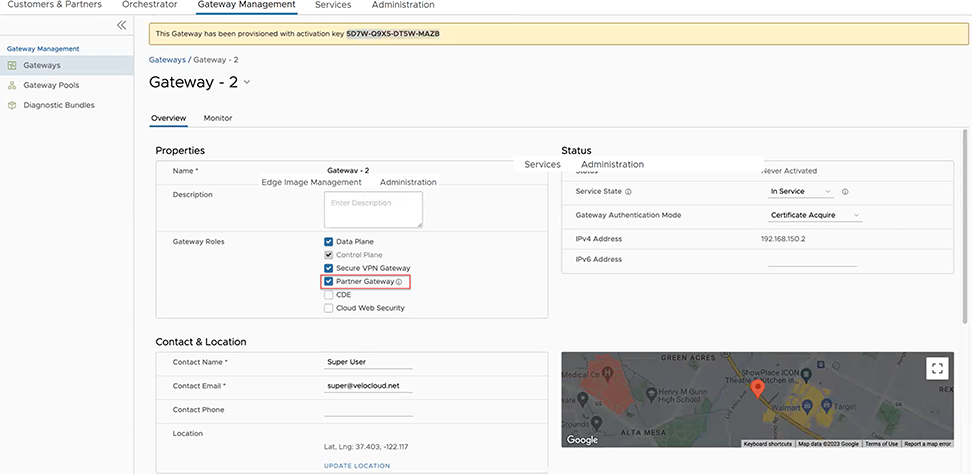
Ensure that the Gateway to be handed off is assigned with Partner Gateway role. In the Orchestrator portal (Operator or Partner), select Gateways and select the link to an existing Gateway. In the Properties section of the selected Gateway's Overview page, you can enable the Partner Gateway role as shown in the following screenshot:
Figure 3. Gateway Management

You can configure a Gateway to hand off to Partners. The Gateway acts as a Partner Gateway that enables you to configure the Hand off Interface, Static Routes, BGP, and other settings.

To configure the Handoff settings, perform the following steps:

  1. In the Enterprise portal, on the Global Navigation bar, expand the Enterprise Applications drop-down menu.
  2. Select Global Settings service, and then from the left menu, select Customer Configuration.
  3. In the Customer Configuration window, scroll down to Additional Configuration and expand the Gateway Pool area.
  4. Turn on the Partner Hand Off toggle button.
  5. In the Configure Hand Off area, configure the following options:
    Figure 4. Configure Partner Hand Off
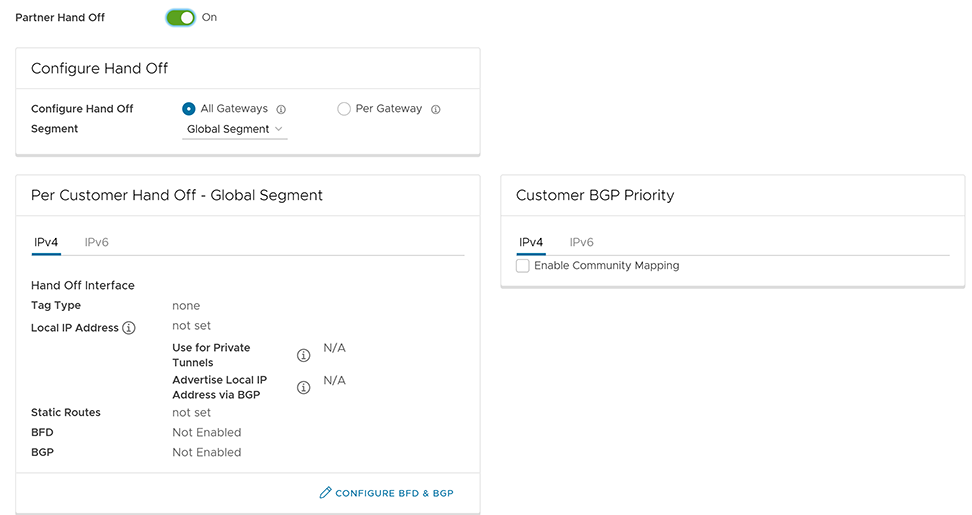
    Table 3. Partner Handoff Option Descriptions
    Option Description
    Configure Hand Off By default, the hand off configuration is applied to all the Gateways. If you want to configure a specific Gateway, choose Per Gateway, and then select the Gateway from the drop-down list.
    Segment By default, Global Segment is selected, which means that the hand off configuration is applied to all the segments. If you want to configure a specific segment, select the segment from the drop-down menu.
    Hand Off Interface This section displays the values that are configured on the Configure BGP and BFD page.
    Customer BGP Priority Select the check box and configure the Community Mapping details.
  6. At the bottom of the Per Customer Hand Off – Global Segment area, select the Configure BFD & BGP link, as shown in the image below:
    Figure 5. Per Customer Hand Off – Global Segment
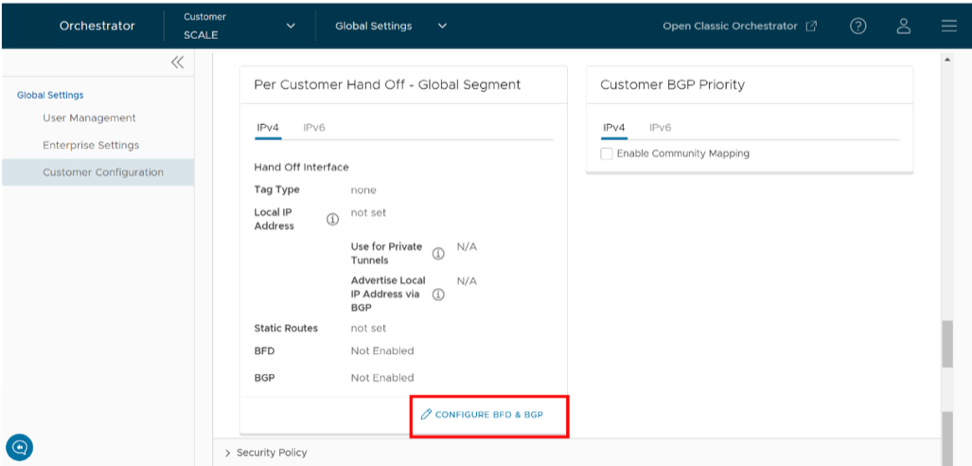
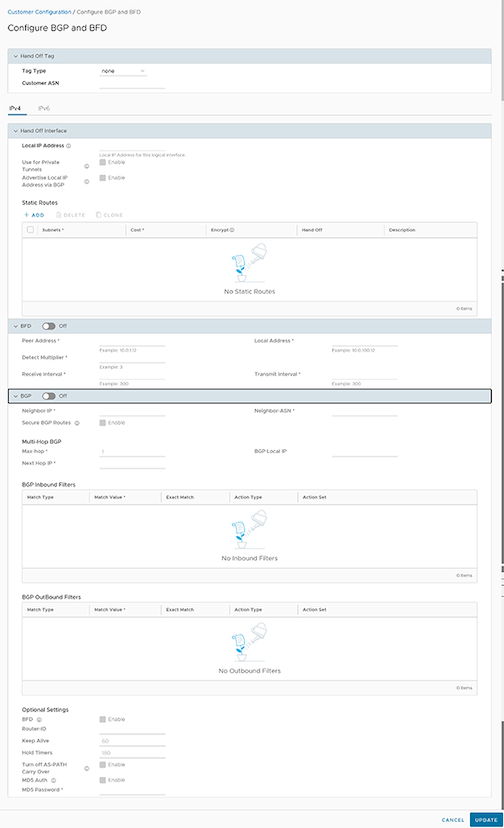
    The Configure BGP and BFD screen appears:
    Figure 6. Configure BFD and BGP
  7. Expand the General & Hand Off Tag section and turn the BGP option to the On position.
    Figure 7. General & Hand Off Tag
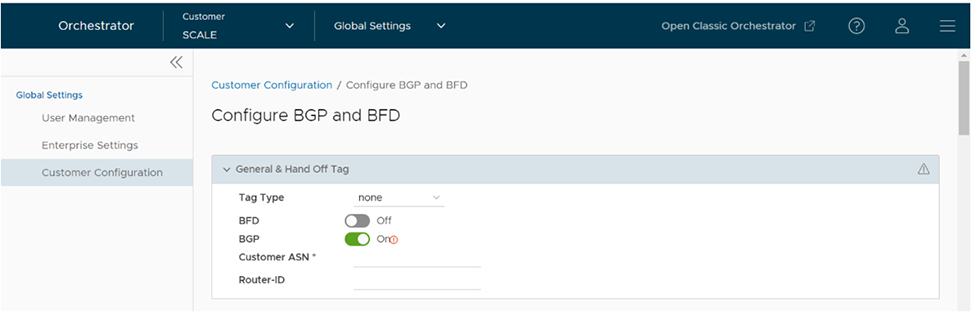
  8. Scroll down to the BGP section and expand the BGP section.
  9. Configure the following options:
    Table 4. General & Hand Off Tag Option Descriptions
    Option Description
    Hand Off Tag
    Tag Type Choose the tag type, which is the encapsulation, in which the Gateway hands off customer traffic to the Router. The following are the types of tags available:
    • None: Untagged. Choose this during single tenant hand off or a hand off towards shared services VRF.
    • 802.1Q: Single VLAN tag
    • 802.1ad / QinQ(0x8100) / QinQ(0x9100): Dual VLAN tag
    Customer ASN Enter the Customer Autonomous System Number.
    Hand Off Interface: You can configure the following settings for IPv4 and IPv6.
    Local IP Address Enter the Local IP address for the logical Hand Off interface.
    Use for Private Tunnels Select the check box so that private WAN links connect to the private IP address of the Partner Gateway. If private WAN connectivity is activated on a Gateway, the Orchestrator audits to ensure that the local IP address is unique for each Gateway within an Enterprise.
    Advertise Local IP Address via BGP Select the check box to automatically advertise the private WAN IP of the Partner Gateway through BGP. The connectivity is provided using the existing Local IP address.
    Static Routes: You can add, delete, or clone a static route.
    Subnets Enter the IP address of the Static Route Subnet that the Gateway should advertise to the Edge.
    Cost Enter the cost to apply weightage on the routes. The range is from 0 to 255.
    Encrypt Select the check box to encrypt the traffic between Edge and Gateway.
    Hand off Select the hand off type as either VLAN or NAT.
    Description Enter a descriptive text for the static route. This field is optional.
    BFD: Turn the toggle button to On to activate this section.
    Peer Address Enter the IP address of the remote peer to initiate a BFD session.
    Detect Multiplier Enter the detection time multiplier. The remote transmission interval is multiplied by this value to determine the detection timer for connection loss. The range is from 3 to 50.
    Receive Interval Enter the minimum time interval, in milliseconds, at which the system can receive the control packets from the BFD peer. The range is from 300 to 60000 milliseconds.
    Local Address Enter a locally configured IP address for the peer listener. This address is used to send the packets.
    Transmit Interval Enter the minimum time interval, in milliseconds, at which the system can send the control packets from the BFD peer. The range is from 300 to 60000 milliseconds.
    BGP: Turn the toggle button to On to activate this section.
    Neighbor IP Enter the IP address of the configured BGP neighbor network.
    Secure BGP Routes Select the check box to allow encryption for data-forwarding over BGP routes.
    Max-hop Enter the number of maximum hops to allow multi-hop for the BGP peers. The range for Max-hop is from 1 to 255, and the default value is 1.
    Note: This field is available only for eBGP neighbors, when the local ASN and the neighboring ASN are different.
    Next Hop IP Enter the next-hop IP address to be used by BGP to reach the multi-hop BGP peer.
    Note: This option is available only for multi-hop eBGP with Max-hop count greater than 1.
    Neighbor-ASN Enter the Autonomous System Number of the Neighbor network.
    BGP Local IP Local IP address is the equivalent of a loopback IP address. Enter an IP address that the BGP neighborships can use as the source IP address for the outgoing BGP packets. If you do not enter any value, the IP address of the Hand Off Interface is used as the source IP address.
    BGP Inbound Filters Displays the BGP inbound filters.
    BGP Outbound Filters Displays the BGP outbound filters.
    BGP Optional Settings
    BFD Select the check box to subscribe to the BFD session.
    Router-ID Enter the Router ID to identify the BGP Router.
    Keep Alive Enter the BGP Keep Alive time in seconds. The default timer is 60 seconds.
    Hold Timers Enter the BGP Hold time in seconds. The default timer is 180 seconds.
    Turn off AS-PATH Carry Over Select the check box to turn off AS-PATH carry over, which influences the outbound AS-PATH to make the L3-routers prefer a path towards a PE. If you select this option, ensure to tune your network to avoid routing loops. It is recommended not to select this check box.
    MD5 Auth Select the check box to activate BGP MD5 authentication. This option is used in a legacy network or federal network, and is used as a security guard for BGP peering.
    MD5 Password Enter a password for MD5 authentication.
    Note: Starting from the 4.5 release, the use of the special character "<" in the password is no longer supported. In cases where users have already used "<" in their passwords in previous releases, they must remove it to save any changes on the page.

Route Summarization

Route Summarization is introduced in the 5.2 release. For an overview, use case, and black hole routing details for Route Summarization, see the section Route Summarization in the Arista SD-WAN Administration Guide. For Route Summarization configuration details, follow the steps below:

  1. Scroll down to the Route Summarization area in the BGP section.
    Figure 8. Route Summarization
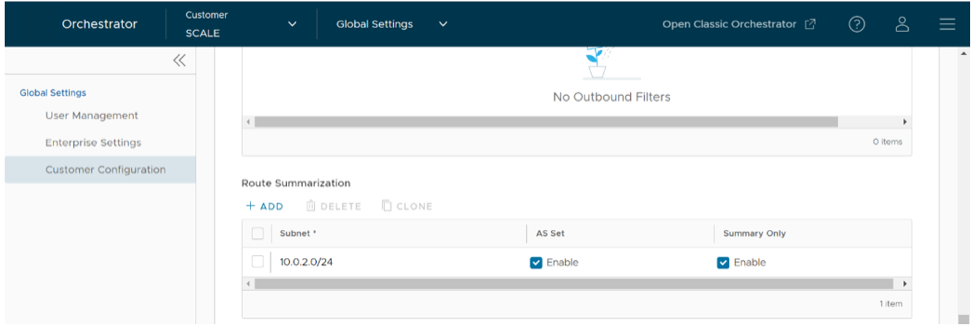
  2. Configure the following options:
    Table 5. Route Summarization Option Descriptions
    Option Description
    +Add Select +Add to add a new row in the Route Summarization area.
    Note: To Clone or Delete a route summarization, use the appropriate buttons, located next to +Add.
    Subnet Enter the IP subnet.
    AS Set Generate AS set path information from the summarized routes (while advertising the summarized route to the peer). Select the Enable check box if applicable.
    Summary Only Selectthe Enable check box to allow only the summarized route to be sent.
  3. Select Update to save the settings.

Configure Distributed Cost Calculation

Ensure the following before you activate the Distributed Cost Calculation feature.
  • All the Edges and Gateways must use software version 3.4.0 or later.
  • The software image associated with the Operator Profile must use version 3.4.0 or later.

By default, the Orchestrator is actively involved in learning the dynamic routes. VeloCloud SD-WAN Edges and Gateways rely on the Orchestrator to calculate initial route preferences and return them to the Edge and Gateway. The Distributed Cost Calculation feature enables you to distribute the route cost calculation to the Edges and Gateways. Only an Operator user can configure Customer settings, including Distributed Cost Calculation.

Note:

Anybody experiencing an issue with Orchestrator based route calculation must enable Distributed Cost Calculation.

This default method of involving the Orchestrator in both dynamic route calculation and the distribution of those routes to Edges and Gateways has the following drawbacks:
  • If the Orchestrator is under a high load, the route convergence time is significantly high (for example, as much as 40 seconds for 2000+ routes), as the Orchestrator takes that time to calculate the preference for all the synchronized routes and returns those preferences to the Edges and Gateways.
  • Using the Orchestrator for route calculation means that new dynamic routes learned while the Orchestrator was unreachable are not advertised until the Orchestrator becomes reachable again.

When a customer enterprise uses Distributed Cost Calculation, the Orchestrator is no longer actively involved in the route preference calculation and instead routes are properly inserted in order by the Edge and Gateway instantly upon learning them and then convey these preferences to the Orchestrator.

When you choose to enable Distributed Cost Calculation for the Edges and Gateways, the feature provides the following benefits:
  • Minimizes the impact on route learning when an Orchestrator is unreachable.
  • Route convergence time is reduced from minutes to seconds in large networks with thousands of dynamic routes.
  • Network delays are significantly reduced.
  • Provides instantaneous Data Plane convergence.
  • Supports enhanced re-ordering and pinning of routes on the Overlay Flow Control.
  • Provides an option to refresh routes in the Overlay Flow Control page. Whenever there is a change in the Overlay Flow Control policy, the Refresh Routes option applies the changes to the existing routes immediately, without the need to restart the Edge or Gateway.
Enabling Distributed Cost Calculation has the following impacts on the Customer Enterprise network:
  • All the local dynamic routes are refreshed, and the preference and advertise action of these routes are updated. This updated information is advertised to the Gateway, Orchestrator, and eventually across the Enterprise. The customer's network needs to completely rebuild the route table, which for most customer deployments will take less than 5 seconds. A large scale customer deployment (like 100,000+ routes) may take up to 2 minutes. During the time the route table is being rebuilt, customer traffic for all sites is impacted.
  • Any existing flow using these routes can potentially be affected due to the change in the routing entries.
Note: It is recommended to enable Distributed Cost Calculation in a maintenance window to minimize the impact on the Customer Enterprise.

To configure Distributed Cost Calculation for a customer:

  1. In the Enterprise portal, go to Global Settings > Customer Configuration .
    Figure 9. Distributed Cost Calculation
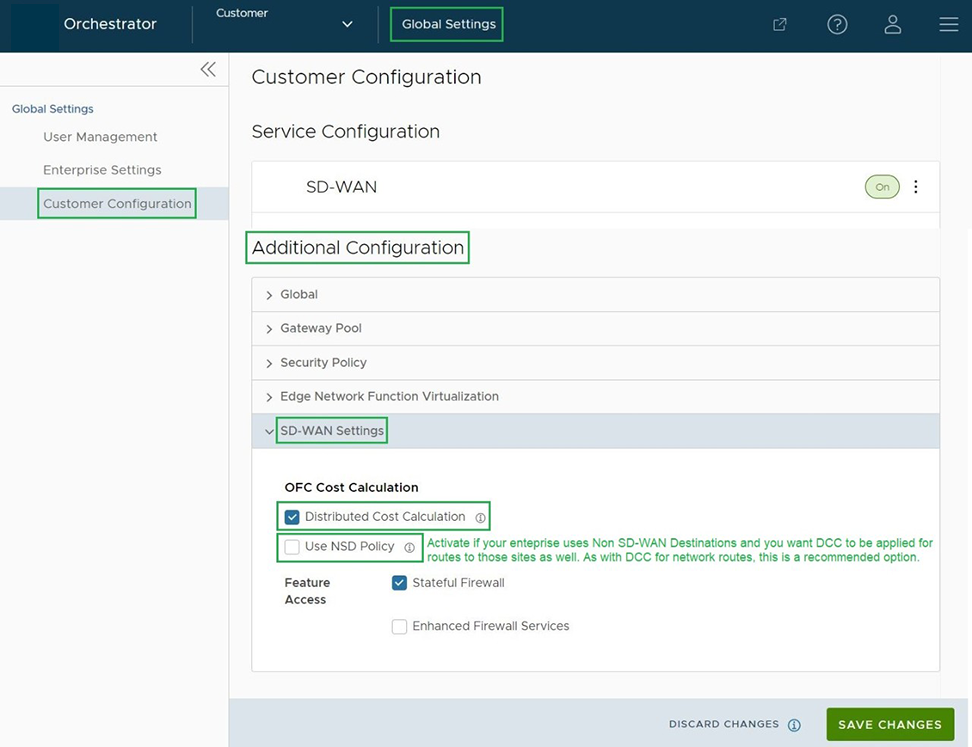
  2. On the Customer Configuration page, navigate to the Additional Configuration > SD-WAN Settings > OFC Cost Calculation section and configure the following:
    • Select the Distributed Cost Calculation checkbox to delegate the cost calculation of routes to Edges and Gateways.
    • Select the Use NSD Policy checkbox to use the Non SD-WAN Destination policy for route cost calculation of Edges and Gateways. This option is available only for Edges and Gateways that are running Software version 4.3.0 or later.
  3. Select Save Changes.
    Note:
    • After enabling Distributed Cost Calculation, it is recommended to refresh the routes on the Overlay Flow Control page in the SD-WAN service of the Enterprise portal.
    • When an Enterprise has Distributed Cost Calculation activated and a user tries to deactivate the software update in the Operator Profile page, then the user must ensure that, in future, no Edges in the Enterprise are downgraded to software image versions lower than 3.4.0. If one or more Edges in the Enterprise is using software image version below 3.4.0, the Enterprise traffic may take a sub-optimal path. The sub-optimal path will be corrected only when the Edge is upgraded to 3.4.0 or later versions.
      The following are some of the scenarios in which the software versions can change and the user must make sure the Edges are using the software image version 3.4.0 or later:
      • Factory Reset- When an Edge is reset to factory settings, it restores the software version of the Edge to factory image version which can be below 3.4.0.
      • Edge Activation- When an Edge is activated, it may come up with software versions below 3.4.0.

Once Distributed Cost Calculation is activated, all the dynamic routes are assigned with new preferences and advertise action based on the Distributed Cost Calculation and the new information is propagated across the Enterprise Network.

The Orchestrator is no longer actively involved in the route preference calculation and instead the routes are properly inserted in order by the Edge and Gateway instantly upon learning them and then these preferences are conveyed to the Orchestrator.

The Overlay Flow Control policy is sent to Edges and Gateways in Control Plane Configuration updates. Edges and Gateways send the routes with computed cost and advertise action to the Orchestrator. Edges and Gateways handle the order of the routes based on the cost and route attributes.

To view a summary of all the routes in your network, select Configure > Overlay Flow Control in the SD-WAN service of the Enterprise portal. You can view the routes and advertise action in the Overlay Flow Control page. For more information, see the topic Overlay Flow Control in the Arista VeloCloud SD-WAN Administration Guide.

Configure Path Calculation with Multiple DSCP Labels per Flow

An Edge classifies a traffic flow based on the first packets in the flow. You can create business policies with application based on Differentiated Service Code Point (DSCP) and with different DSCP markings to determine the flow treatment.

Business Policy and QoS marking determine the flow treatment. Once the flow is classified, an entry with five tuple information of the flow is created in the flow cache table. Subsequent packets in the flow will use the five-tuple lookup against the flow cache table.
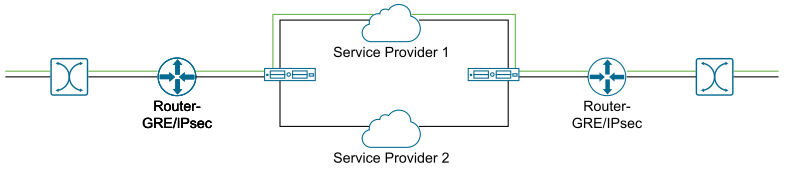
For network topologies with Layer 3 network devices doing encapsulation and/or encryption before the traffic arrives at the Edge, this creates a challenge for the Edge to forward traffic based on the Business Policy. The traffic from the end users is multiplexed into single flow with the same source and destination IP addresses, and protocols by the Layer 3 encapsulation/encryption device, as illustrated in the following image:
Figure 10. Single Flow Traffic Network Topology

The impact of multiplexing end user flows into a single tunnel creates polarization of flow forwarding using the five tuples of flow cache table, which results in WAN links not being utilized.

The Path Calculation with Multiple DSCP Labels per Flow allows the DSCP value to be included, in addition to the five tuples, as part of the flow cache table lookup. Use the path calculation with multiple DSCP tags when the original user traffic is encapsulated in another tunnel like GRE or IPsec, and DSCP labels are preserved in the new IP header. This option enables path calculation for a single flow with multiple DSCP labels, which consists of same source and destination IP addresses, and offers path differentiations based on the DSCP labels in the flow.

When you enable the Multiple-DSCP tags per Flow Path Calculation, the Edges can differentiate the traffic flows based on the DSCP marked labels.

To enable Multiple-DSCP tags per Flow Path Calculation, perform the following steps:

  1. Create a new system property.
    1. In the Operator portal, select Orchestrator > System Properties .
    2. Select New.
    3. In the New System Property window, create a system property with the following parameters:
      • Name: session.options.enableFlowParametersConfig
      • Data Type: Boolean
      • Value: True
    4. Select Save Changes.
  2. In the Enterprise portal, navigate to Global Settings > Customer Configuration .
  3. In the Customer Configuration page, go to the additional configuration settings section, and then under SD-WAN settings, select the Include DSCP value as part of flow lookup check box for Multiple-DSCP tags per Flow Path Calculation.
    Note: This option is available only when the system property session.options.enableFlowParametersConfig is set to True.
  4. Select Save Changes.
In the Edges, different flows are created based on different DSCP labels.
Note: When you select Include DSCP value as part of flow lookup, the inter-operability with previous versions is undefined.

While configuring the business policy for an Edge, you can choose to match a DSCP label for an application. For more information, see the topic Configure Business Policy Rule in the Arista VeloCloud SD-WAN Administration Guide.

When traffic arrives at the Edge, if the traffic flow matches with the selected application and DSCP tag, then the corresponding action is performed.

You can create more business policies with different DSCP labels to match with different traffic flows and apply different treatments for those flows.

Limitations:
  • The path calculation with multiple DSCP labels per Flow is not applicable for the Gateways. You can enable this option only for Edge-to-Edge tunnels, where Edge-to-Edge can be any of the following:
    • Edge-to-Edge through Hub
    • Spoke-to-Hub
    • Dynamic Branch-to-Branch
    You can use this option for On-Premise deployment where Gateway is used only for control plane functionality and not for data plane traffic.
  • The path calculation with multiple DSCP labels per Flow is intended only for GRE or IPSec traffic. The direct Internet traffic does not carry multiple DSCP labels within a single flow.
  • After you enable the path calculation option, when the traffic flow consists of packets with same five-tuple information but different DSCP markings, LAN side NAT might not work as expected.