
Diagnostic Bundles for Gateways
Run diagnostics for Gateways to collect diagnostic bundles and packet capture files for troubleshooting purpose. See the following topics:
Request Packet Capture Bundle for Gateways
To generate a PCAP bundle:
- In the Request PCAP Bundle dialog, configure the following details, andthen select Generate.
Figure 1. Request PCAP Bundle 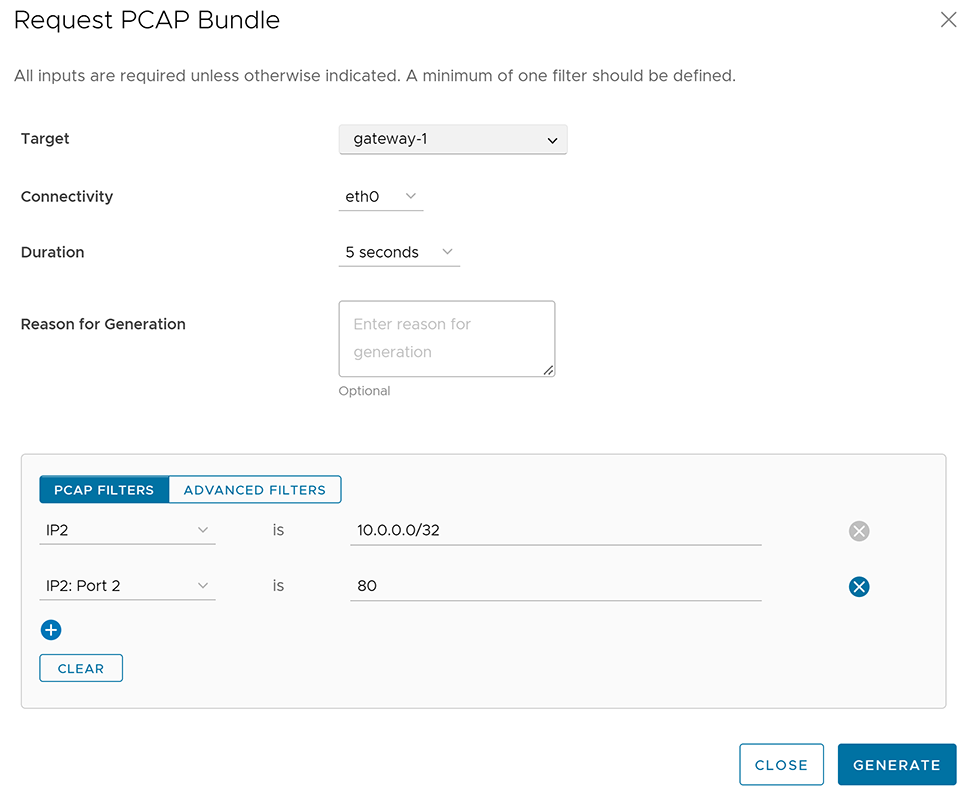
Table 1. Request PCAP Bundle - Options and Descriptions Option Description Target Choose the target Gateway from the drop-down menu. The Orchestrator collects packets from the selected Gateway. Connectivity Choose an Interface or an Edge ID from the drop-down menu. The Orchestrator collects packets from the selected Interface or Edge associated with the Gateway. Duration Choose the time in seconds. The Orchestrator collects packets for the selected duration. The default value is 5 seconds. Reason for Generation Enter a reason for generating the bundle. This field is optional. PCAP Filters Define PCAP filters to control the generated packet data by selecting the following options: - IP1 - Enter an IPv4 address, IPv6 address, or Subnet mask.
- IP2 - Enter an IPv4 address, IPv6 address, or Subnet mask.
- IP1:Port1 - Enter a Port ID associated with IP1.
- IP2:Port2 - Enter a Port ID associated with IP2.
- Protocol - Select a protocol from the list.
This field is optional.
Note: To use the PCAP filtering capability, define at least one filter.Advanced Filters Define free form filters to control the generated packet data. This field is optional. The Diagnostic Bundles window displays the details of the generated bundle, including its status.
Request Diagnostic Bundle for Gateways
An Operator Superuser and Operator Admin user can create, manage, download, and delete diagnostic bundles for Gateways created by both Operator and Partner users.
Note: Operator Business Specialist user and Operator IT support users can only view the generated Diagnostic bundles and download the CSV file.
Partner Superuser and Admin with an activated Gateway management access can create, manage, and delete diagnostic bundles only for Gateways created by a Partner or a Partner-managed Gateway created by the Operator. The Partner IT support users can only view the generated Diagnostic bundles and download the CSV file.
Note:
- The Partner Business Specialist role lacks the permissions required to use the Diagnostic Bundles feature.
- The Request Diagnostic Bundle and Download Bundle options are available only for Partners with an activated Gateway management access. Deactivating Gateway management access limits Partners to viewing generated bundles and downloading the CSV file. To request Gateway Management access, Partners must contact the Operator Superuser.
To generate a new Diagnostic bundle:
- In the Request Diagnostic Bundle dialog, configure the following details, and then select Submit.
Figure 2. Request Diagnostic Bundle for Gateways 
Table 2. Request Diagnostic Bundle - Options and Descriptions Option Description Target Select the target Gateway from the drop-down menu. The Orchestrator collects data from the selected Gateway. Reason for Generation Enter a reason for generating the bundle. This field is optional. Core Limit Select a value from the drop-down menu to reduce the size of the uploaded bundle when Internet connectivity is experiencing issues. The Diagnostic Bundles window displays the details of the generated bundle, including its status.
- Download Diagnostic Bundle: Download the generated Diagnostic bundles to troubleshoot an Edge. To download a generated bundle, select the link next to Complete in the Request Status column or select the bundle, and then select Download Bundle. The Orchestrator downloads the bundle as a ZIP file. Send the downloaded bundle to a Support representative for debugging the data.
- Delete Diagnostic Bundle:The Orchestrator automatically deletes the completed bundles on the date displayed in the Cleanup Date column.
- To modify the date, select the Cleanup Date link or choose the bundle, and then select .
Figure 3. Update Cleanup Date 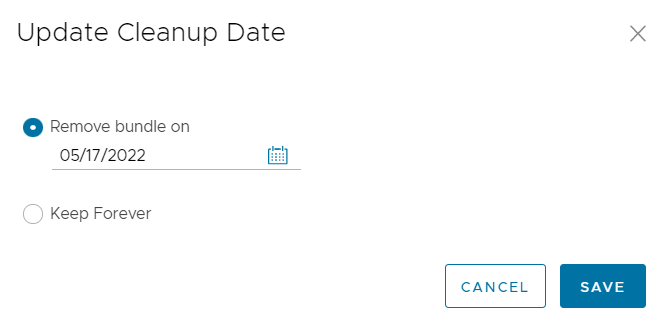
- In the Update Cleanup Date dialog, choose the date to schedule the automatic deletion of the selected bundle.
- Select Keep Forever to prevent the system from automatically deleting the bundle.
- To delete a bundle manually, select the bundle, and then select Delete.
- To modify the date, select the Cleanup Date link or choose the bundle, and then select .