
Remote Diagnostic Tests on Edges
VeloCloud Orchestrator allows running various remote diagnostics tests on a selected Edge. The remote diagnostic information contains Edge-specific logs for analysis.
This topic contains the following sections:
- ARP Table Dump
- Clear ARP Cache
- Ping IPv6 Test
- Ping Test
- Traceroute
- DNS Test
- DNS/DHCP Service Restart
- EVDSL Modem Status
- Get IP Threat Reputation Test
- Get URL Category and Reputation Test
- Interface Status
- LTE Modem Information
- Flush Firewall Sessions
- List Active Firewall Sessions
- IPv6 Clear ND Cache
- IPv6 ND Table Dump
- IPv6 Route Table Dump
- Flush DNS Cache
- Flush Flows
- Flush NAT
- MY Traceroute
- NAT Table Dump
- List Active Flows
- Show BFD/BFDv6 Peer Status
- Show BFD/BFDv6 Peer Counters
- Show BFD Settings
- Show BFDv6 Settings
- List BGP Redistributed Routes
- List BGP Routes
- List Routes per Prefix
- Show BGP Neighbor Advertised Routes
- Show BGP Neighbor Learned Routes
- Show BGP Neighbor Received Routes
- Show BGP Neighbor Details
- Show BGP Routes per Prefix
- Show BGP Summary
- Show BGP Table
- Show BGPv6 Neighbor Advertised Routes
- Show BGPv6 Neighbor Learned Routes
- Show BGPv6 Neighbor Received Routes
- Show BGPv6 Neighbor Details
- Show BGPv6 Routes per Prefix
- Show BGPv6 Summary
- Show BGPv6 Table
- List OSPF Redistributed Routes
- List OSPF Routes
- Show OSPF Database
- Show OSPF Database for E1 Self-Originate Routes
- Show OSPF Neighbors
- Show OSPF Route Table
- Show OSPF Setting
- List OSPFv3 Redistributed Routes
- List OSPFv3 Routes
- Show OSPFv3 Database
- Show OSPFv3 Database for E1 Self-Originate Routes
- Show OSPFv3 Neighbors
- Show OSPFv3 Route Table
- Show OSPFv3 Setting
- Dump Context Logging Information
- Enable or Disable Context Logging
- Gateway
- HA Info
- List Clients
- List Paths
- MIBs for Edge
- NTP Dump
- Reset USB Modem
- System Information
- Route Table Dump
- VPN Test
- WAN Link Bandwidth Test
ARP Table Dump
What is the purpose of this test?
- Verify the IP address to MAC address binding on the LAN/WAN interfaces that are connected to the Edge on which the test is run.
- View the status of the ARP cache.
When can a user run this test?
- Clients in the same broadcast domain are not reachable.
- Interface device not reachable.
- Next hop is not reachable.
What to check in the test output.
Run the ARP Table Dump test on the required Edge. For instructions, see Run Remote Diagnostic Tests on Edges.
Following is an example of the test output:
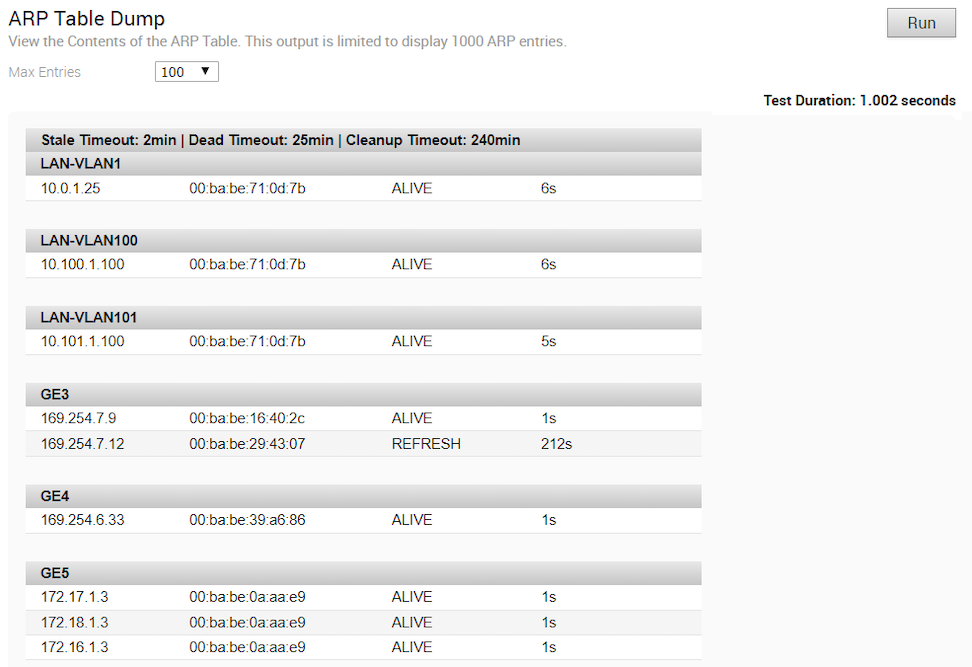
- Alive- Interface is reachable.
- Dead- Interface is not reachable.
- Refresh- Interface is trying to relearn the ARP.
To identify the cause for the device reachability issue:
Clear ARP Cache
What is the purpose of this test?
Clears specific interface-learned ARP entries from the ARP table.
When can the user run this test?
This test is run when there are stale entries in the ARP table dump test. For instructions, see Run Remote Diagnostic Tests on Edges.
What to check in the test output.

Ping IPv6 Test
What is the purpose of this test?
Verifies if the next hop or an IPv6 address is reachable from the interface.
When can a user run this test?
- IPv6 reachability
- Packet Loss
- RTT
For instructions, see Run Remote Diagnostic Tests on Edges.
What to check in the test output.
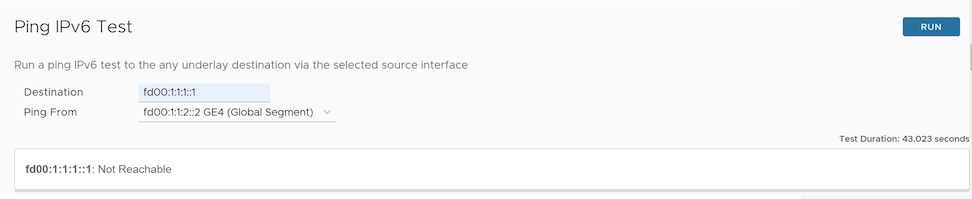
Run the Ping IPv6 test on the required Edge. Check if the output displays Reachable. For a successful PING test, the number of packets transmitted must equal the number received. If not, capture the Interface and Destination IP addresses to see where the packet is getting dropped. Following is an example of the test output:
Ping Test
What is the purpose of this test?
Run this test to check if the next hop or a destination IPv4 address is reachable from the source interface.
When can the user run this test?
- IPv4 reachability
- Packet Loss
- RTT
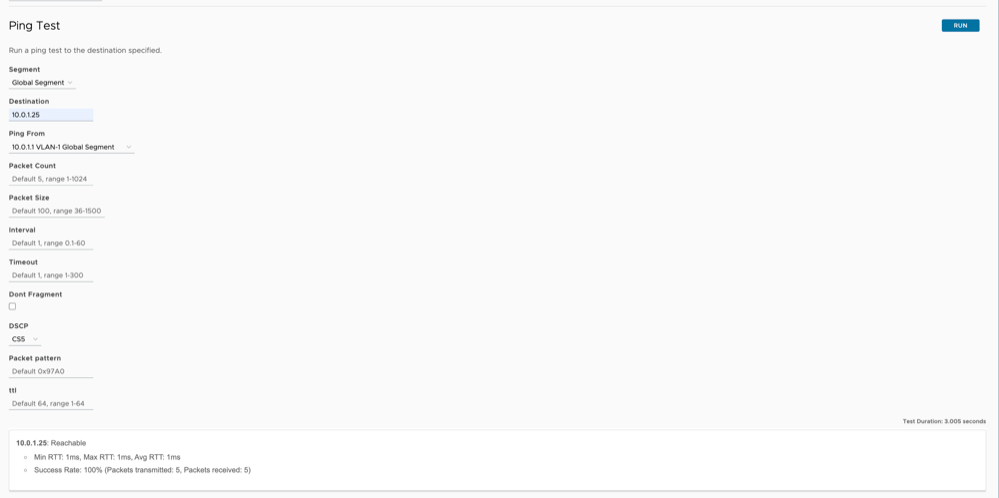
- Segment - Select the specific segment to run the Ping test.
- Destination - Specify the destination IP address or hostname to check network reachability.
- Ping From - Select a WAN/VLAN interface as the source interface for the selected segment.
- Packet Size - Specify a ping packet size in bytes. The supported range is between 36 and 1500, with the default value of 100.
- Packet Count - Specify the number of ping packets to send to the destination. The supported range is between 1 and 1024, with the default value of 5.
- Interval - Specify the ping interval in seconds. The interval determines how frequently ping packets are sent to the destination. The supported range is between 0.1 and 60, with the default value of 1 second.
- Timeout - Specify the time-out interval in seconds for Ping Reply. The supported range is between 1 and 300, with the default value of 1 second.
- Don't Fragment - Select this checkbox to prevent ping traffic fragmentation. By default, this option is disabled.
- DSCP - Select the Differentiated Services Code Point (DSCP) value for the ping packet from the list of supported values. The default value is 0.
- Packet Pattern - Specify the ping packet data pattern in hexadecimal format. The default value is 0x97A0.
- TTL - Specify the Time to Live (TTL) value of a ping packet. The supported value is between 1 and 64, with the default value of 64.
For instructions, see Run Remote Diagnostic Tests on Edges.
What to check in the test output.
Verify if the output displays Reachable. For a successful PING test, the number of packets transmitted must be equal to the number of packets received. If not, capture the Interface and Destination IP addresses to see where the packet is getting dropped. Following is an example of the test output:
Traceroute
- Displays the path and nodes to the destination from the Edge interface.
- Measures transit delays of packets at each hop across an Internet Protocol (IP) network.
When can the user run this test?
Run the Traceroute test via a Gateway or directly from any Wide Area Network (WAN) interface to the specified destination to understand routing or network reachability issues. For instructions, see Run Remote Diagnostic Tests on Edges.
What to check in the test output.
- Segment - Select the specific segment to run the Traceroute test.
- Destination - Specify the destination IP address or hostname to check network reachability.
- Ping From - Select a WAN/VLAN/LAG/Gateway interface as the source interface for the selected segment.
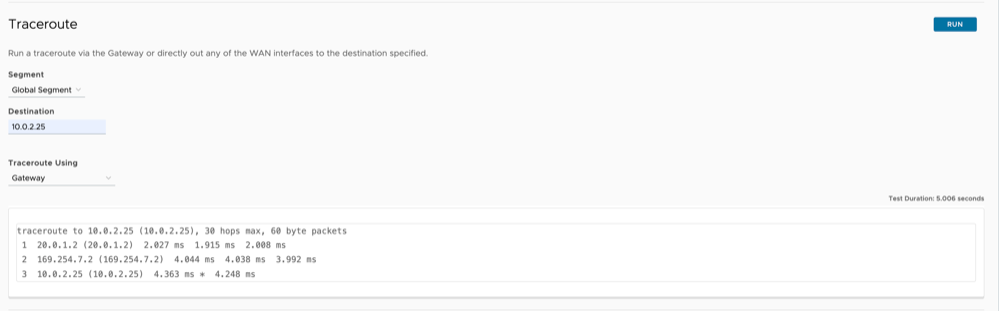
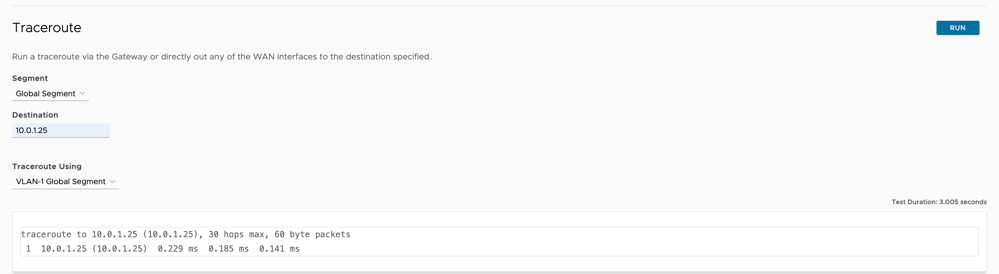
- Verify whether the Destination IP address is seen as the last hop.
- To measure transit delay, check the time (ms) displayed next to the IP address.
- If the Destination IP address does not appear, check the last hop seen for route reachability to both the source and the destination to resolve the routing issue.
DNS Test
What is the purpose of this test?
Run this test to confirm whether the Edge can resolve the Domain name to IP address.
When can a user run this test?
- Domain name does not resolve.
- Name lookup error occurs.
- Name lookup error logs are seen.
For instructions, see Run Remote Diagnostic Tests on Edges.
What to check in the test output?

Verify that the provided name resolves to an IP address. If the issue persists, check the DNS settings under the Device tab of the Edge configuration, and then try restarting the DNS server or check if the DNS Server is reachable.
DNS/DHCP Service Restart
What is the purpose of this test?
Run this test to restart both DNS and DHCP processes in the Edge.
- The Edge is acting as a DHCP and DNS server for the LAN network devices.
- The DNS and DHCP servers fail.
- DNS and DHCP processes get stalled.
For instructions, see Run Remote Diagnostic Tests on Edges.
What to check in the test output?
Run the DNS/DHCP Service Restart test on the required Edge. The following is an example of the test output:

EVDSL Modem Status
What is the purpose of this test?
Run this test to check the status of the Asymmetric Digital Subscriber Line (ADSL) or Very-high-bit-rate Digital Subscriber Line (VDSL) link.
When can you run this test?
- Mode
- Uptime
- Peer MAC Address
- Status
- Link rate
For instructions, see Run Remote Diagnostic Tests on Edges.
What to check in the test output?

| Field | Description |
|---|---|
| Name | The Small Form-Factor Pluggable (SFP) interface name where the link is connected. |
| Mode | The operational mode for each interface. If users use the interface for a DSL connection, the status lists the mode as DSL. |
| Vendor MAC | The MAC address of the DSL peer device. |
| xDSL Mode | VDSL or ADSL. |
| Link Time | Uptime of the link. |
| Status | Showtime indicates that the line is in sync. |
Get IP Threat Reputation Test
What is the purpose of this test?
Run this test on the required Edge, providing the IP address to view the threat category for that IP.When can you run this test?
Users can run this test when IP Threats are detected and obtain the threat category of the given IP.
For instructions, see Run Remote Diagnostic Tests on Edges.
What to check in the test output?

Get URL Category and Reputation Test
What is the purpose of this test?
Run this test on the required Edge by providing the URL to view the category and reputation score of a given URL.
When can you run this test?
Users can run this test to check the category and reputation score of a threat URL.
For instructions, see Run Remote Diagnostic Tests on Edges.
What to check in the test output?

Interface Status
What is the purpose of this test?
- Verify the interface's configuration and status.
- Check the packet loss situation.
When can you run this test?
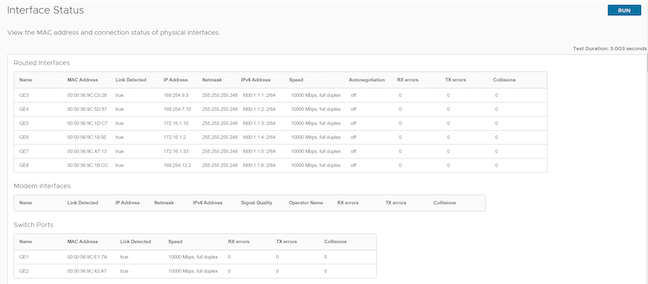
- The link detected must be true. If it is false, then users must check the physical cabling and peer-end configuration.
- Ideally, RX and TX should be "0". If the RX and TX errors are incrementing, then try replacing the cables/SFPs. The values do not increase when users run this test twice.
- Negotiation parameter for the interface issue.
- For the Modem interface, verify if the signal quality strength is above 80% for a good wireless WAN link.
For instructions, see Run Remote Diagnostic Tests on Edges.
What to check in the test output?
LTE Modem Information
What is the purpose of this test?
- Modem
- Connection
- Location
- Signal Strength
- Status of the LTE
When can you run this test?
- Issues with LTE disconnections.
- Failure to understand the current state of LTE.
For instructions, see Run Remote Diagnostic Tests on Edges.
What to check in the test output?
-
Figure 13. Modem Information 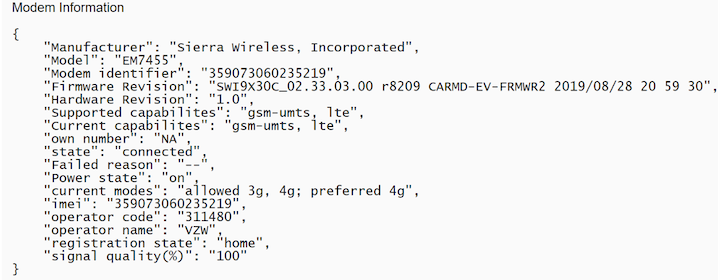 Verify the following in the output:
- The Operator name must be correct.
- The signal quality must be above 70 % for better reception.
- The registration state must display the home for better speed.
- The LTE connection is active (connected state). If the system reports a disconnected status, users must investigate the failure reason immediately.
-
Figure 14. Connection Information 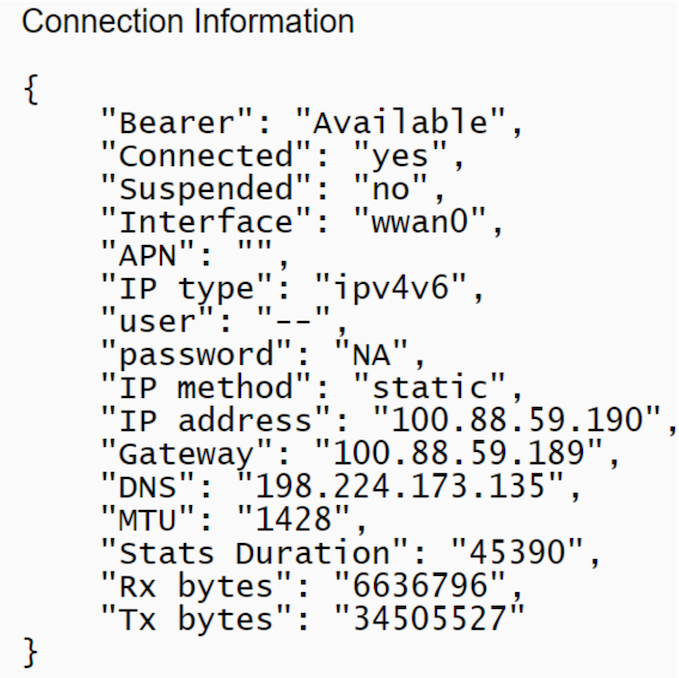 Verify the following in the output:
- Rx and Tx increment as expected.
- Assign IPv4 and IPv6 addresses to interfaces along with the necessary WAN information.
- The connected state must be "yes".
- If the suspended state is "yes", try resetting the LTE Modem.
-
Figure 15. Location Information 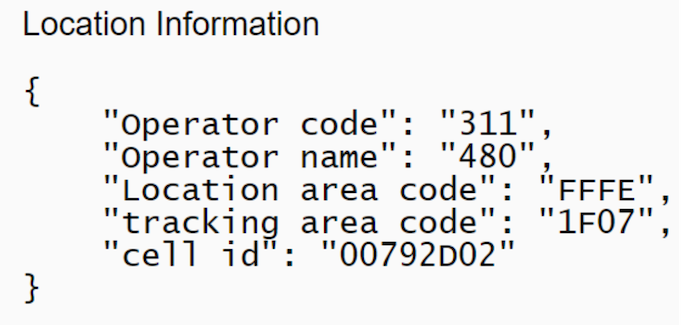
Figure 16. Signal Information 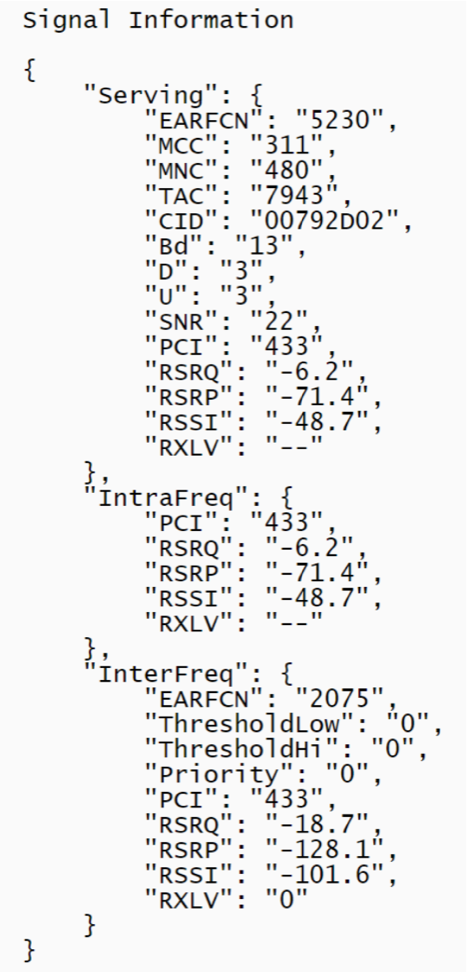
Verify whether the mode is online, and then check the "last error code" to see if the LTE is in a failed state.
-
Figure 17. Status Information 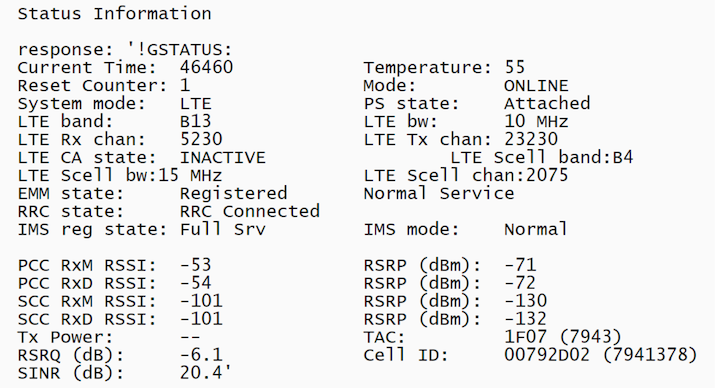
-
Figure 18. Debug Information 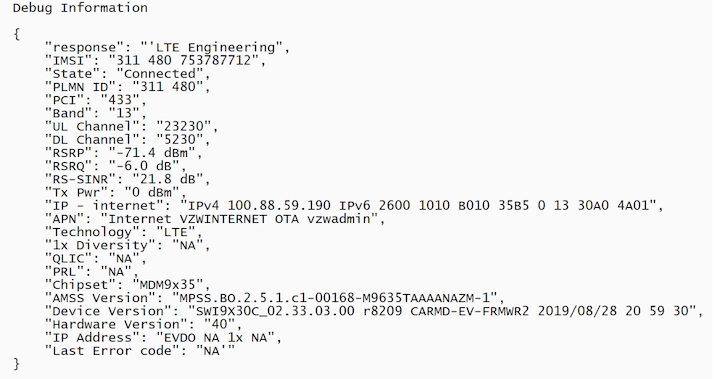
Flush Firewall Sessions
What is the purpose of this test?
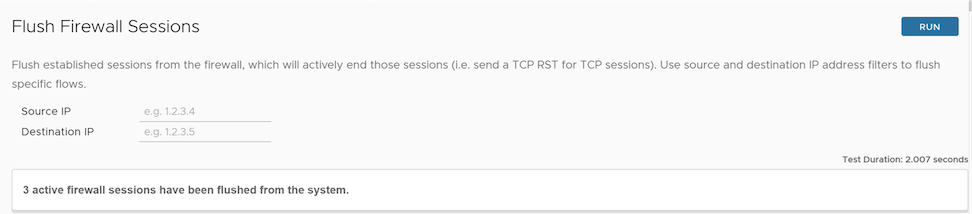
This is similar to the Flush Flows options, but is specifically for the Stateful Firewall. This causes the Edge to not only flush the sessions but also actively send a TCP RST for TCP-based sessions.
When can you run this test?
To reset specific traffic flows, users can run the Flush Firewall Sessions test on the target Edge by entering the Source and Destination IP addresses. For instructions on how to run a remote diagnostic test on Edges, see Run Remote Diagnostic Tests on Edges.
What to check in the test output?
The following is an example of the test output:
List Active Firewall Sessions
What is the purpose of this test?
When can you run this test?
To verify if the session is allowed or blocked. If allowed, it displays in the output. Users can also see the current state of the session.
For instructions on how to run a remote diagnostic test on Edges, see Run Remote Diagnostic Tests on Edges.
What to check in the test output?
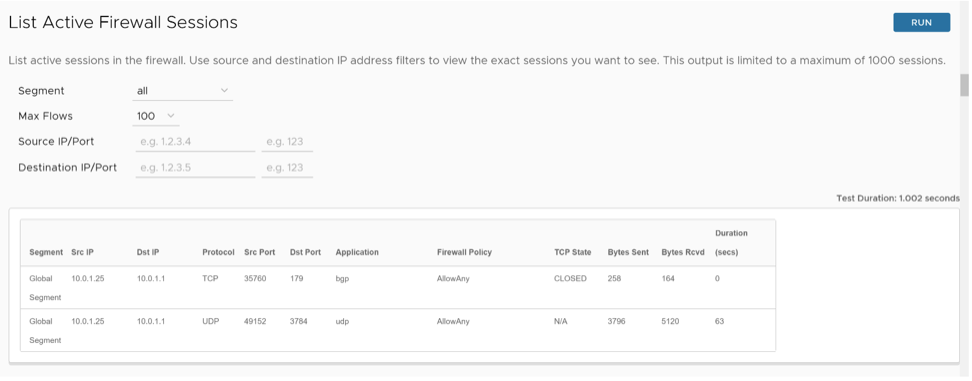
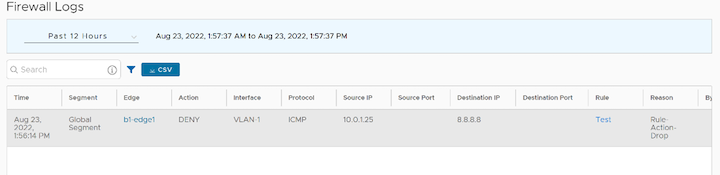
| Field | Description |
|---|---|
| Segment | Specifies the segment in which the Edge processes the firewall session. Users can also filter the output based on a specific segment. |
| Src IP | Specifies the source IP that initiated the firewall session. |
| Dst IP | Specifies the destination IP of the firewall session. |
| Protocol | Specifies the protocol used by the firewall session traffic. |
| Src Port | Specifies the source port of the firewall session traffic. |
| Dst Port | Specifies the destination port of the firewall session traffic. |
| Application | Specifies the application that the Application engine/Deep Packet Inspection (DPI) engine identifies. |
| Firewall Policy | Specifies the firewall rule that the session matches among the configured firewall rules. |
| TCP State | Specifies the current Transmission Control Protocol (TCP) state of the session. In the output, users will see the current TCP state for each flow. There are 11 distinct TCP states as defined in RFC 793:
|
| Bytes Sent | Specifies the firewall session traffic from source IP to destination IP in Bytes. |
| Bytes Received | Specifies the firewall session traffic from the destination IP to the source IP in Bytes. |
| Duration | Specifies the age of the firewall session in seconds. |
IPv6 Clear ND Cache
What is the purpose of this test?
To clear specific interface learned neighbor entries and their associated Layer 2 information, run the IPv6 Clear Neighbor Discovery (ND) cache command.
When can you run this test?
Run this test if there is a change of neighbor IP addressing or Layer 2 information. Select the interface for which the change has taken place.
For instructions on how to run a remote diagnostic test on Edges, see Run Remote Diagnostic Tests on Edges.
What to check in the test output?
The ND cache has been cleared for the selected interface
If you see any other result, for example, Timed out, check the Edge status.
The following is an example of the test output:

IPv6 ND Table Dump
What is the purpose of this test?
The IPv6 Neighbor Discovery (ND) Table Dump command shows IPv6 neighbor entries and their corresponding Layer 2 information for each interface.
When can you run this test?
Run this test if you want to verify IPv6 neighbors and the corresponding Layer 2 MAC mapping information.
For instructions on how to run a remote diagnostic test on Edges, see Run Remote Diagnostic Tests on Edges.
What to check in the test output?
Following is an example of the test output:
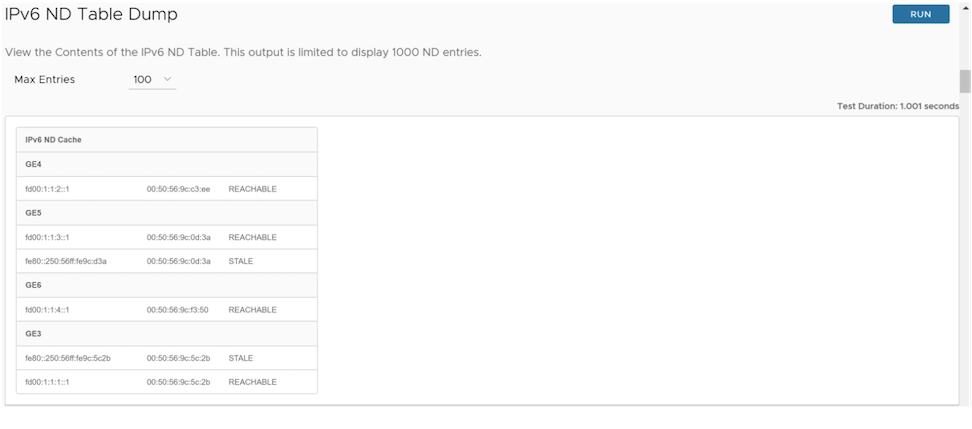
- IPv6 address of the neighbor
- Corresponding Layer 2 MAC address
- Status of neighbor. The status can be any one of the following:
- Reachable - This status indicates that the system recently updated the neighbor information and is currently using it for active communication.
- Stale - This status indicates that the system collected neighbor information in the past but is not currently utilizing it for active traffic.
IPv6 Route Table Dump
What is the purpose of this test?
The IPv6 Route Table Dump command lists the entire IPv6 routing table.
When can you run this test?
- Segment- Select the specific segment for which the user wants the system to display routes. Select "all" for all segments.
- Prefix- Specify the exact prefix for which the user wants the system to display routes.
- Routes- Select any of the following options from the drop-down menu:
- all- Display all the routes for every prefix.
- preferred- Display the preferred route alone for each prefix (the route used for data forwarding).
What to check in the test output?
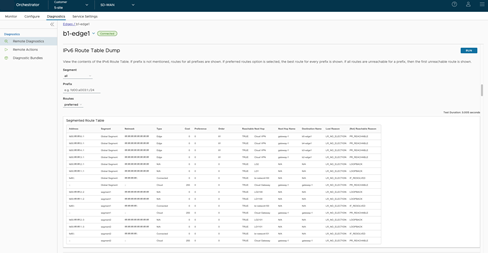
| Field | Description |
|---|---|
| Address | Specifies the IPv6 routes available in the table. |
| Segment | Specifies the segment in which the routes are available and handled by the Edge. |
| Netmask | Specifies the range of IPv6 addresses. |
| Type | Specifies the route type, such as Cloud, Edge2Edge, any (Underlay or Connected), and so on. |
| Cost | Specifies the route cost or metric used in the selection of route criteria. |
| Preference | Specifies the route preference. |
| Order | Specifies the order of the route. |
| Reachable | Specifies the status of the route:
|
| Next Hop | Indicates the local exit interface for local routes. For overlay/remote routes, it indicates the type of next hop. For example, "Cloud gateway" for cloud routes, "Cloud VPN" for data center routes, or "edge to edge" routes, etc. |
| Next Hop Name | Specifies the name of the next hop device. |
| Destination Name | Specifies the name of the destination device. |
| Lost Reason | Specifies the codes for different reasons the route is lost to the next preferred route on the Edge. |
| (Not) Reachable Reason | Specifies the reason for the route being reachable or not reachable. |
| Reason Code | Description |
|---|---|
| PR_UNREACHABLE | For overlay routes, the remote peer, whether Gateway or Edge, is unreachable. |
| IF_DOWN | The egress interface is down. |
| INVALID_IFIDX | The egress interface if-index for this route is invalid. |
| SLA_STATE_DOWN | The state given by IP SLA tracking is down. |
| HA_STANDBY | While the local Edge acts as a Standby, it marks all routes synced from the Active node as reachable to provide operational convenience. |
| LOCAL_MGMT | Management routes are always reachable. |
| LOOPBACK | The Loopback IP address is always reachable. |
| SELF_ROUTE | Self IP routes are always reachable. |
| RECUR_UNRES | The system marks recursive routes as reachable to enable recursive resolution, which provides greater operational convenience. |
| VPN_VIA_NAT | vpnViaNat routes are always reachable. |
| SLA_STATE_UP | State given by IP SLA tracking is up. |
| IF_RESOLVED | Egress interface is up and resolved. |
| PR_REACHABLE | For overlay routes, the remote peer, whether Gateway or Edge, is reachable. |
Flush DNS Cache
What is the purpose of this test?
Although the system triggers a DNS cache cleanup every 10 minutes, it only removes entries with a Time-to-Live (TTL) of zero or less. The DPI-based entries are initially cached with a TTL of 24 hours and remain in the cache for at least that long, preventing new entries from being learnt. This prevents reliable DNS lookups to support domain-based business policies. The Flush DNS Cache test clears the cache, freeing space for new entries and ensuring domain-based business policies remain reliable.
When can you run this test?
To clear all DNS cache entries from a specific Edge, run the Flush DNS Cache test on that Edge. For instructions, see Run Remote Diagnostic Tests on Edges.
What to check in the test output?
To confirm that the Edge has successfully cleared all DNS cache entries, users should run the Flush DNS Cache diagnostic test and then review the DNS table.

Flush Flows
What is the purpose of this test?
To flush all current active sessions/specific flows in the device.
When can you run this test?
When specific traffic is not hitting the correct business policy or is having issues with the specific flow.
Run the Flush Firewall Sessions test on the required Edge, specifying the Source or Destination IP address or both. For instructions, see Run Remote Diagnostic Tests on Edges.
What to check in the test output?
Verify that the flows flushed match the flows seen. This would create a minor and temporary blip in the network.The following is an example of the test output:

Flush NAT
What is the purpose of this test?
To remove all the existing Network Address Translation (NAT) entries from the device.
When can you run this test?
Run this test if the NAT table contains an improper NAT entry or if users have NAT-related issues. For instructions, see Run Remote Diagnostic Tests on Edges.
What to check in the test output?
When users flush the NAT table, the system immediately clears all active translation entries, which disrupts current traffic flows.
The following is an example of the test output:

MY Traceroute
What is the purpose of this test?
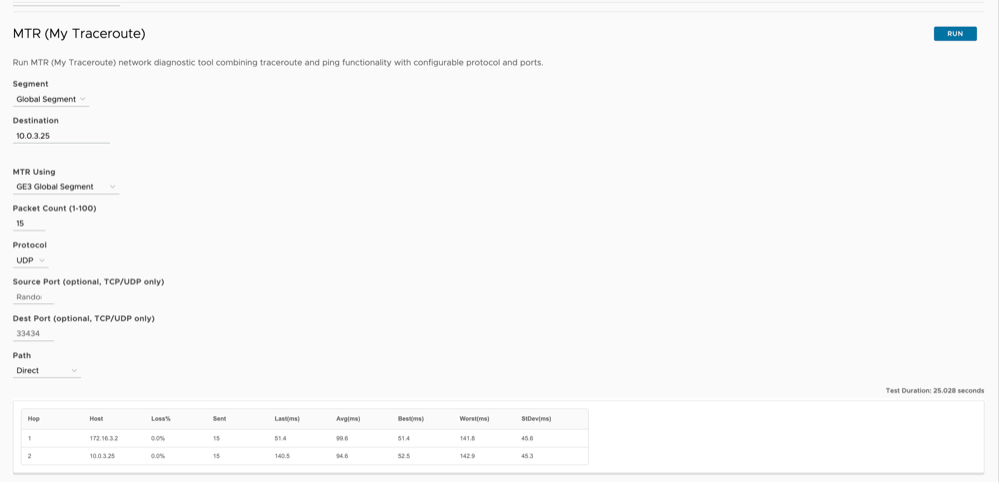
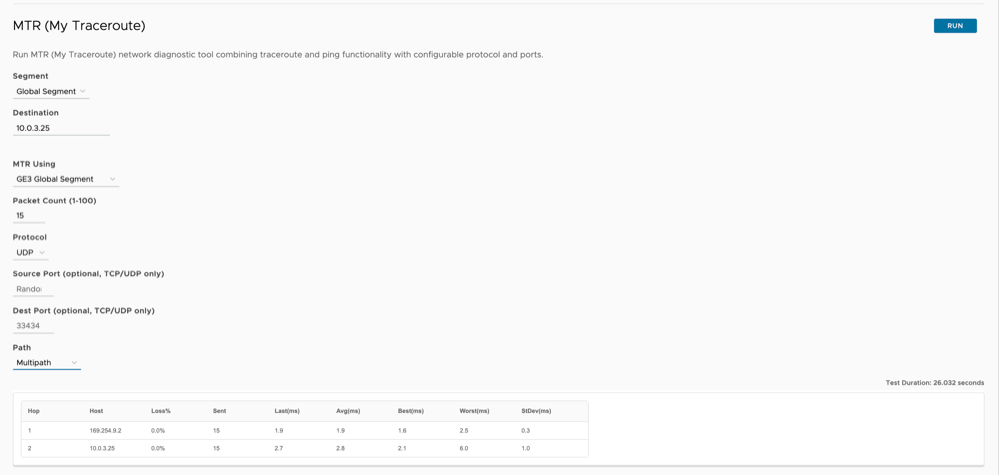
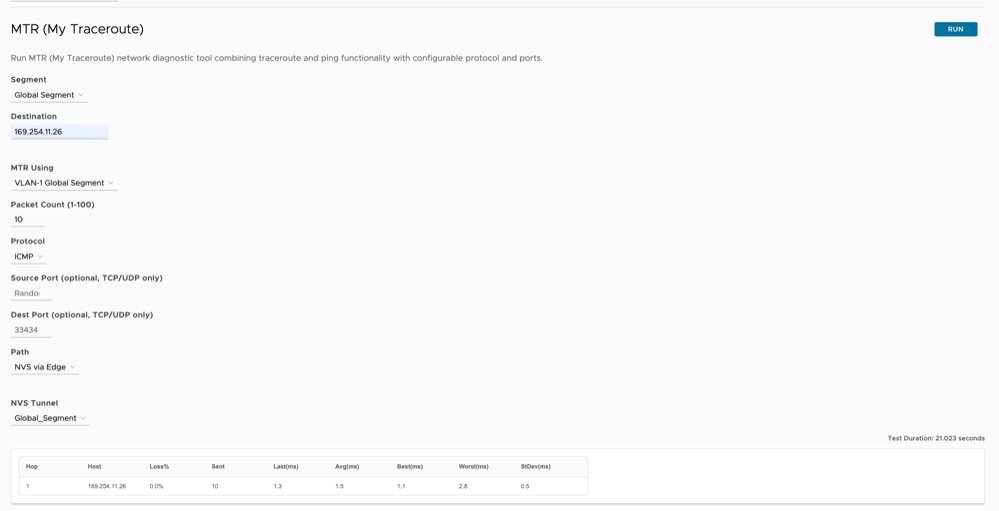
MTR (My Traceroute) is a diagnostic tool that combines Ping and Traceroute. Like Traceroute, it discovers the path to the destination and also sends packets continuously and measures latency and packet loss, similar to ping.
This tool helps to diagnose the network problem by highlighting packet drop, latency, and it also helps to identify the problem location (destination or intermediate hops issue).
When can the user run this test?
Run the MTR (My Traceroute) test to the specified destination with configurable ports and protocols for understanding routing or network reachability issues. For instructions, see Run Remote Diagnostic Tests on Edges.
What to check in the test output.
- Segment - Select the specific segment to run the MTR (My Traceroute) test.
- Destination - Specify the destination IP address or hostname to check network reachability.
- MTR Using - Select a WAN/VLAN/LAG interface as source interface for the selected segment. The drop-down list filters and displays interfaces bounded to the selected segment.
- Packet Count - Specify the count of MTR packets to be sent to the destination. The supported range is between 1 to 100, with the default value of 10.
- Protocol - Select the protocol (ICMP/TCP/UDP) for sending the MTR packet. The default is ICMP.
- Source Port - Specify the Source port for the MTR packet. This is optional for ICMP protocol.
- Dest Port - Specify the Destination port for the MTR packet. This is optional for ICMP protocol. The default Traceroute Destination port is 33434.
- Path - Select the path for the MTR traffic. The supported options are Direct, Multipath, NVS via Edge or NVS via Gateway, if configured. The default value is Direct. For NVS via Edge or NVS via Gateway, select the NVS tunnel.
Following are the examples of the test output:
NAT Table Dump
What is the purpose of this test?
To verify that proper Network Address Translation (NAT) is occurring on the device.
When can you run this test?
Run this test if there are NATing issues. For instructions on how to run a remote diagnostic test on Edges, see Run Remote Diagnostic Tests on Edges.
What to check in the test output?
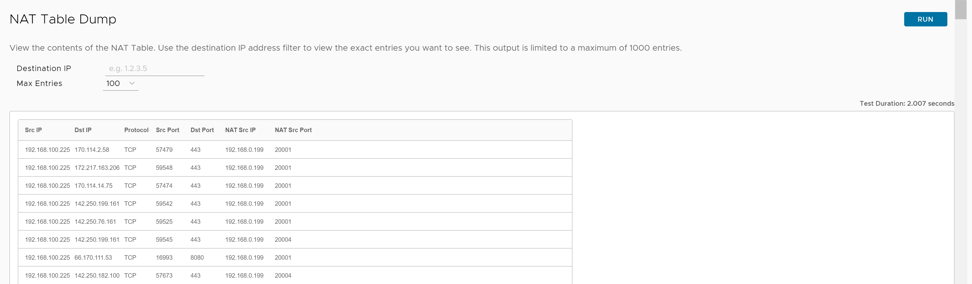
Use the Destination filter to view the exact entries in the NAT table. The output is limited to 1000 entries.
The following is an example of the test output:
List Active Flows
What is the purpose of this test?
Run this test to understand the behavior of current flows.
When can you run this test?
Run this command to analyze how the VeloCloud SD-WAN routes and egresses an incoming traffic flow. For specific flow issues, users could select Source IP/Port or Destination IP/Port as filters to view that specific traffic flow. For instructions on how to run a remote diagnostic test on Edges, see Run Remote Diagnostic Tests on Edges.
What to check in the test output?
The following is an example of the test output:

- Verify if the traffic is hitting the correct business policy.
-
Verify whether the traffic LINK policy and Route are applied as configured in the business policy.
-
Verify whether the application map can identify traffic with the correct application signature.
-
If users have recently updated their Business Policy configurations, users should execute the Flush Flows command to ensure those changes take effect immediately.
Show BFD/BFDv6 Peer Status
What is the purpose of this test?
Run this test to determine BFDv6 status with BFD peer. The status can be "UP" or "Down" or "Init".
- If BFD is failing to come up (or) is down.
- To check the "Local and Remote" timers.
- To check the "Diagnostics" code if BFD is down.
For instructions on how to run a remote diagnostic test on Edges, see Run Remote Diagnostic Tests on Edges.
What to check in the test output?
The following is an example of the test output:
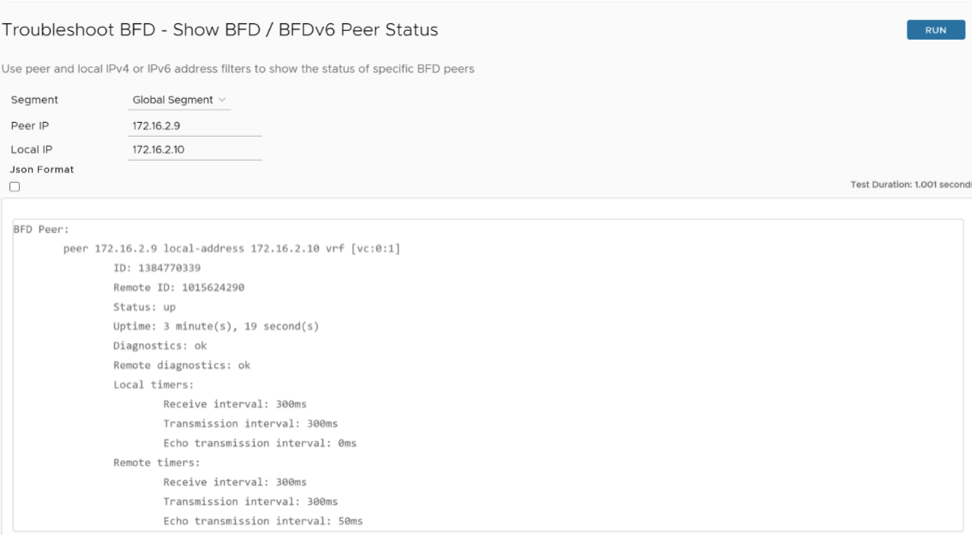
Select the Json Format check box if you want the test output in JSON format for automation validation.
| Field | Description |
|---|---|
| Peer | Specifies the IP address of BFD peer. |
| local-address | Specifies the local IPv4 or IPv6 address of the Edge interface in BFD. |
| ID | Specifies the ID of the BFD peer. |
| Remote ID | Specifies the remote ID of the BFD peer. |
| Status | Specifies the status of BFD peer. The status can be "UP" or "Down" or "Init". |
| Uptime | Specifies the time, in seconds, for how long the BFD is UP or Down. |
| Diagnostics/Remote Diagnostics | Specifies a reason if BFD is down. |
| Local timers/Remote timers | Indicates the configured Receive and Transmission interval values in milliseconds (ms). Also displays the Echo transmission interval in milliseconds (ms) if the Echo Transmission mode is activated on the peer.
Note: The Echo Transmission mode is not supported on Edge.
|
Show BFD/BFDv6 Peer Counters
What is the purpose of this test?
Run this test to determine the BFD packet counters (Sent/Received).
When can you run this test?
Run this test if BFD is failing to come Up (or) is Down. For instructions on how to run a remote diagnostic test on Edges, see Run Remote Diagnostic Tests on Edges.
What to check in the test output?
The following is an example of the test output:
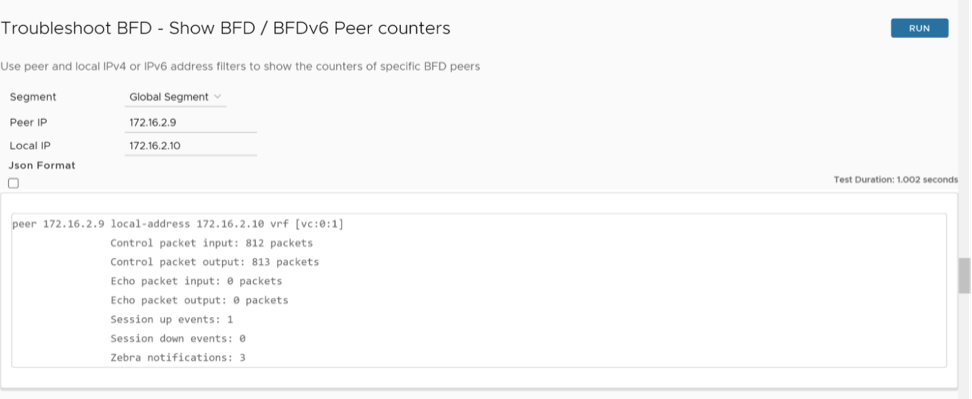
Select the Json Format checkbox if you want the test output in JSON format for automation validation.
- Count of BFD control Packets Sent/Received: if either the sent or received counter is incrementing, it indicates a problem on the non-incrementing side.
- Count of Echo packets Sent/Received. The Echo mode is not supported, so it should ideally be deactivated on the peer too.
- Count of Session Up/Down events, confirming the number of UP/Down events observed.
- Count of Zebra notifications.
Show BFD Settings
What is the purpose of this test?
To determine the BFD IPv4 settings and neighbor status.
When can you run this test?
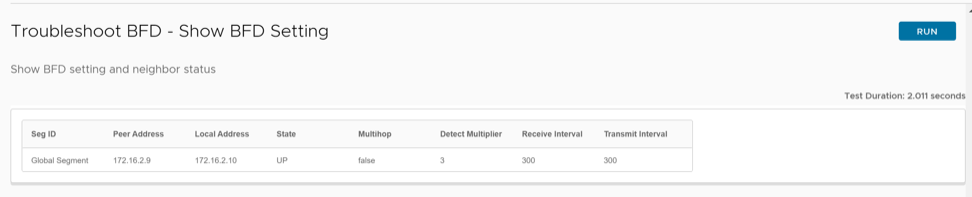
Run this test to determine the State of the BFD IPv4, along with interval values. For instructions on how to run a remote diagnostic test on Edges, see Run Remote Diagnostic Tests on Edges.
What to check in the test output?
The following is an example of the test output:
Show BFDv6 Settings
What is the Purpose of This Test
To determine the BFD IPv6 settings and neighbor status.
When Can You Run This Test
Run this test to determine the State of the BFD IPv6, along with interval values. For instructions on how to run a remote diagnostic test on Edges, see Run Remote Diagnostic Tests on Edges.
What to Check in the Test Output
The following is an example of the test output:

List BGP Redistributed Routes
What is the purpose of this test?
Run this test to list the IPv4 routes redistributed by the Edge to the BGP peers.
When can you run this test?
Run this test to check and confirm if a prefix is redistributed by the Edge to its BGP neighbors. For instructions, see Run Remote Diagnostic Tests on Edges.
What to check in the test output?

The redistributed route, Netmask must be present in the List BGP Redistributed table. The redistributed route must be tagged with the expected Metric Type, Next Hop IP address, exit Interface, Segment Name, and Community tag.
List BGP Routes
What is the purpose of this test?
Run this test to list the entire BGP routes. Use an IPv4 or IPv6 prefix to filter specific BGP routes, or leave the prefix empty to see all the routes.
When can you run this test?
- If a prefix is received in the BGP Table.
- If a BGP prefix is allowed to redistribute into the SD-WAN overlay route table.
For instructions, see Run Remote Diagnostic Tests on Edges.
What to check in the test output?
Run the List BGP Routes test on the required Edge. The following is an example of the test output:

- BGP routes received from BGP neighbors must be present in the table.
- The BGP route must have the advertise flag set to True and the reachable flag set to Yes to redistribute the received prefix into the overlay route table.
- The BGP route must be tagged with the expected Metric Type, Next Hop IP address, exit Interface, Segment Name, and Community Tag.
List Routes per Prefix
What is the purpose of this test?
Run this test to list all the possible routes (Overlay and Underlay routes) available in the Edge for the specific destination prefix.
When can you run this test?
- If the Edge has received both Overlay and Underlay routes (if available) for the specific destination prefix.
- The availability of the primary and secondary route paths (if available) for the specific destination prefix.
For instructions, see Run Remote Diagnostic Tests on Edges.
What to check in the test output?
Run the List Routes per Prefix test on the required Edge. The following is an example of the test output.

The List Routes per Prefix command displays all possible route entries for the specified destination prefix, along with their associated local or overlay preferences and community tags.
Based on the route order displayed in the Orchestrator UI, you could check the availability of the primary and backup route paths for the specific destination prefix in each segment. i.e., 1st Route Entry = Best path (Primary path), 2nd Route Entry = Second Best Path, 3rd Route Entry = Third Best Path, and so on.
The Route Type identifies the origin of the route entry (Overlay or Underlay).
The Next Hop IP and Dest Name identify the next-hop device IP (for Underlay route types) or the Edge name (for Overlay route types), which advertised the specific route entry.
Show BGP Neighbor Advertised Routes
What is the purpose of this test?
Run this test to list the IPv4 routes the Edge advertises to the specified BGP peer.
When can you run this test?
- To check and confirm whether the Edge advertises the IPv4 prefixes to the specific BGP peer.
- If a prefix is denied by the BGP neighbor outbound filter configuration in Orchestrator, the Edge does not advertise it to that BGP neighbor.
For instructions, see Run Remote Diagnostic Tests on Edges.
What to check in the test output?

Select the Json Format check box if you want the test output in JSON format for automation validation.
- The Edge must list all the advertised prefixes in the table. If a prefix is missed, verify the BGP neighbor status and the outbound filter configuration in the Orchestrator.
- A valid route is marked with the sign "*" and the best route is marked with the sign ">".
- All the prefixes must be tagged respectively with Metric (only for self-originated routes), Local Preference, Weight, Next Hop IP Address, AS-Path, and Route Origin code attributes.
Show BGP Neighbor Learned Routes
What is the purpose of this test?
Run this test to list the IPv4 prefixes accepted by the Edge from the BGP peer after applying the BGP neighbor inbound filters configured in the Orchestrator.
When can you run this test?
- To check and confirm if the Edge has accepted BGP routes learned from a neighbor.
- If a specific route is not present in the Show BGP Neighbor Learned Routes table, then we must verify the BGP neighbor inbound filter in the Orchestrator and run the diagnostic command show bgp neighbor received routes to list all the BGP routes advertised by the BGP Neighbor before applying the BGP inbound filters.
What to check in the test output?
Run the Show BGP Neighbor Learned Routes test on the required Edge. For instructions, see Run Remote Diagnostic Tests on Edges.

Select the Json Format check box if you want the test output in JSON format for automation validation.
- The prefix learned and accepted by the Edge from its BGP neighbor must be present.
- A valid BGP route is marked with the sign "*" and the best route is marked with the sign ">".
- The output must display the total number of prefixes received and accepted by the Edge after applying the inbound filters.
Show BGP Neighbor Received Routes
What is the purpose of this test?
Run this test to list the IPv4 prefixes accepted by the Edge from the BGP peer before applying the BGP neighbor inbound filters configured in the Orchestrator.
When can you run this test?
Run this test to check and confirm that the Edge receives all the prefixes from a BGP neighbor. For instructions, see Run Remote Diagnostic Tests on Edges.
What to check in the test output?

Select the Json Format check box if you want the test output in JSON format for automation validation.
- The output must display the total number of prefixes received by the Edge.
- The output must list the number of BGP prefixes filtered by the inbound filters.
- The Edge must list all the received prefixes.
- If a BGP prefix is not present in the table, check the BGP neighborship status and the list of BGP prefixes advertised by the BGP neighbor device to the Edge.
Show BGP Neighbor Details
What is the purpose of this test?
Run this test to check the BGP neighbor status and the BGP neighborship uptime.
When can you run this test?
Run this test to check the details about a neighbor. For instructions, see Run Remote Diagnostic Tests on Edges.
What to check in the test output.

Select the Json Format check box if you want the test output in JSON format for automation validation.
- BGP neighborship status
- BGP neighborship uptime
- Local AS
- Remote AS
- Edge BGP Router ID
- Peer device BGP Router ID
- BGP Hold and Keep-alive Timers
- Neighbor capabilities
- Message statistics should display the number of BGP packets sent and received by the Edge.
- Check and confirm if any inbound/outbound filters are attached to the specific BGP neighbor, and the list of prefixes accepted by the Edge from the BGP neighbor after applying the inbound filters.
- Verify the source IP address/port number and the destination IP address/port number used by the Edge to establish BGP neighborship. This can be done by looking into the local host/port and foreign host/port details.
Show BGP Routes per Prefix
What is the purpose of this test?
Run this test to verify a particular route detail in BGP.
When can you run this test?
Run this test to verify how the best path route is selected using BGP attributes. For instructions, see Run Remote Diagnostic Tests on Edges.
What to check in the test output.
Run the Show BGP Routes per Prefix test on the required Edge. The following is an example of the test output:

- Best path to the routes along with all other paths.
- BGP attributes are used compare and check how the best path is chosen.
Select the Json Format check box if you want the test output in JSON format for automation validation.
Show BGP Summary
What is the purpose of this test?
This test displays the BGP neighbors associated with the device.
When can you run this test?
Run this test to determine whether the BGP neighbor is up, or include neighbor details. For instructions, see Run Remote Diagnostic Tests on Edges.
What to check in the test output.
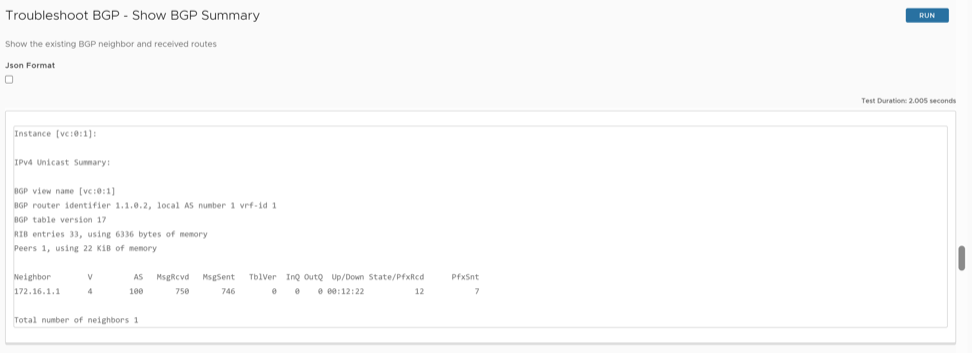

- Neighbor: Provides the IP of the peer that we used to peer in the configuration
- V: Indicates the version of BGP running in the device
- AS: Provides the remote peer AS path
- MsgRcvd: Number of packets BGP has received from its peer
- MsgSent: Number of packets BGP has sent to its peer
- TblVer: Provides the details of current BGP table version changes, if any
- Inq: Number of packets in the queue to be received from its peer
- Outq: Number of packets in the out queue to be sent to its peer
- State/PfxRcd: Indicates the state and prefix count of the BGP peers.
Table 6. State Descriptions State Description Idle BGP resources are initialized by the router. BGP inbound connection attempts are refused. BGP initiates a TCP connection to the peer. Connect BGP waits for the 3WHS to complete. If successful, the OPEN message is sent to the peer, and BGP moves to the OpenSent state. If unsuccessful, BGP continues to the Active state. However, if the ConnectRetry expires, BGP remains in this state, with the timer being reset and a new 3WHS being initiated. Active The ConnectRetry timer is reset, and BGP returns to the Connect state. OpenSent BGP waits for an OPEN message from its peer. Once received, BGP moves to the OpenConfirm state. OpenConfirm BGP waits for a keepalive message from its peer. If the message is received before the timeout expires, BGP moves to the Established state. Otherwise, BGP transitions to Idle. Established Both peers exchange UPDATE messages. If there is an error within any of the UPDATE messages, the BGP peer sends a NOTIFICATION message and enters the Idle state. Note: Any other state with a number represents the number of subnets received by the BGP from its peer.
Show BGP Table
What is the purpose of this test?
To view the complete BGP table.
When can you run this test?
To verify whether the list of subnets and the next hop are as expected. For instructions, see Run Remote Diagnostic Tests on Edges.
What to check in the test output.
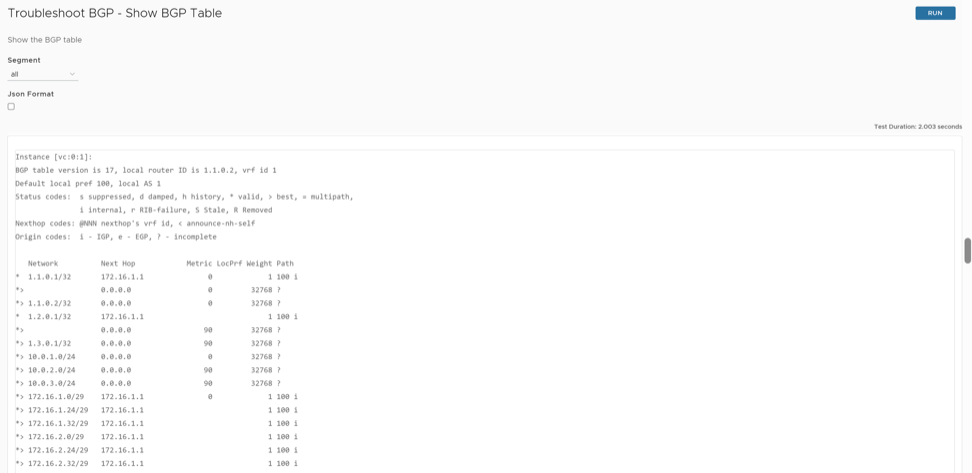
Select the Json Format check box if you want the test output in JSON format for automation validation.
- Network: *> is the best path to the IP prefix. If there is no ">" before the prefix, then it is not injected into the forwarding table.
- Nexthop: Provide the next hop IP to which the IP subnet must be sent.
- Metric: BGP metric is displayed.
- Local pref: BGP local preference, if present for a route, is displayed.
- Weight: The route's BGP weight is displayed.
- Path: BGP AS path of the route is displayed.
Show BGPv6 Neighbor Advertised Routes
What is the purpose of this test?
Run this test to list the IPv6 routes the Edge advertises to the specified BGPv6 neighbor.When can you run this test?
- To check and confirm whether the Edge advertises the IPv6 prefixes to the specific BGPv6 neighbor.
- If a prefix is denied by the BGPv6 neighbor outbound filter configuration in the Orchestrator, the edge does not advertise it to the specific BGPv6 neighbor.
For instructions, see Run Remote Diagnostic Tests on Edges.
What to check in the test output.
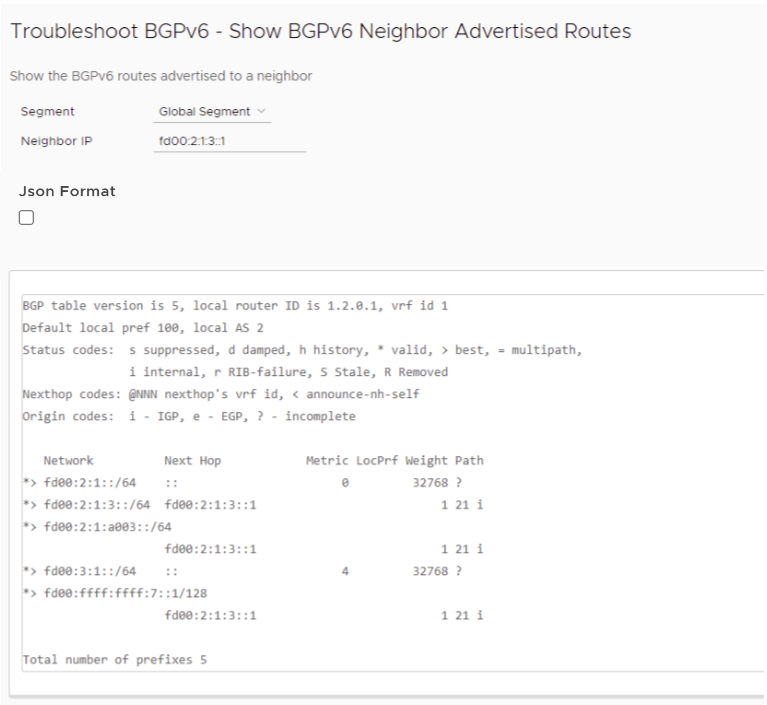
Select the Json Format check box if you want the test output in JSON format for automation validation.
- The Edge must list all the advertised prefixes in the table. If a prefix is missed, verify the BGPv6 neighbor status and the outbound filter configuration in the Orchestrator.
- A valid route is marked with the sign "*" and the best route is marked with the sign ">".
- All the prefixes must be tagged with(only for self-originated routes), Local Preference, Weight, Next Hop IP Address , AS-Path, and Route Origin code attributes.
Show BGPv6 Neighbor Learned Routes
What is the purpose of this test?
Run this test to list the IPv6 prefixes accepted by the Edge from the BGP neighbor after applying the BGP neighbor inbound filters configured in the Orchestrator.
When can you run this test?
- To check and confirm if the Edge has accepted BGP routes learned from a neighbor.
- If a specific route is not present in the Show BGPv6 Neighbor Learned Routes table, then we must verify the BGPv6 neighbor inbound filter in the Orchestrator and run the diagnostic command Show BGPv6 Neighbor Received Routes to list all the BGP routes advertised by the BGP Neighbor before applying the BGP inbound filters.
For instructions, see Run Remote Diagnostic Tests on Edges.
What to check in the test output.

Select the Json Format check box if you want the test output in JSON format for automation validation.
- The prefix learned and accepted by the Edge from its BGP neighbor must be present.
- A valid BGP route is marked with the sign "*" and the best route is marked with the sign ">".
- The prefix accepted by the Edge must hold the correct next-hop IP address, Metric, Local preference, Weight, and AS-path.
- The output must display the total number of prefixes received and accepted by the Edge after applying the inbound filters.
Show BGPv6 Neighbor Received Routes
What is the purpose of this test?
Run this test to list the IPv6 prefixes received by the Edge from the BGPv6 neighbor before applying the BGPv6 neighbor inbound filters configured in the Orchestrator.
When can you run this test?
Run this test to check and confirm that the Edge receives all the prefixes from a BGPv6 neighbor.For instructions, see Run Remote Diagnostic Tests on Edges.
What to check in the test output.
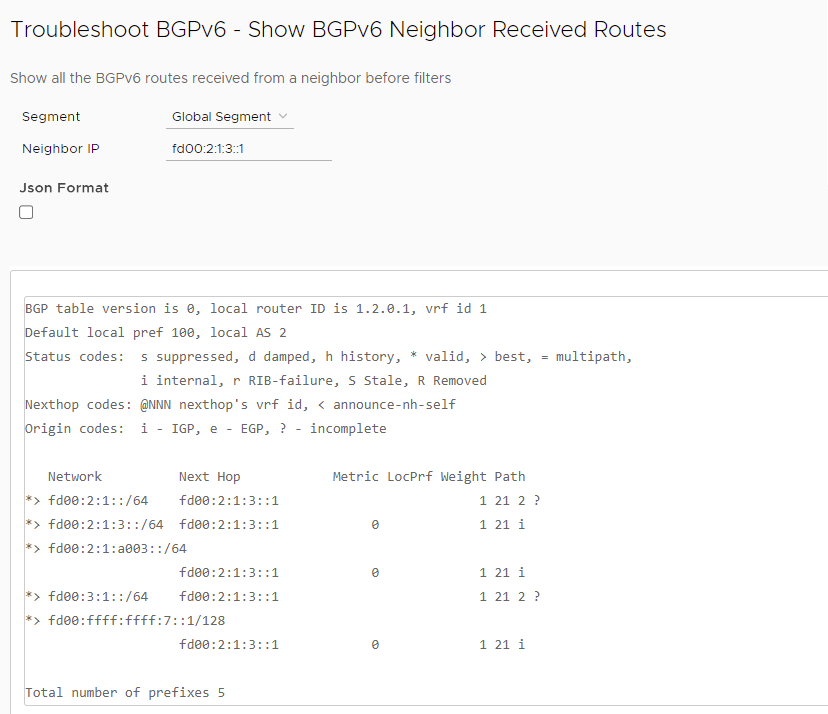
Select the Json Format check box if you want the test output in JSON format for automation validation.
- The output must display the total number of prefixes received by the Edge.
- The output must list the number of BGPv6 prefixes filtered by the inbound filters.
- The Edge must list all the received prefixes.
- If a BGPv6 prefix is not present in the table, check the BGPv6 neighborship status and also check the list of BGPv6 prefixes advertised by the peer BGP on the neighbor device.
Show BGPv6 Neighbor Details
What is the purpose of this test?
Run this test to check the BGPv6 neighbor status and the BGPv6 neighborship uptime.
When can you run this test?
To confirm the current status of the BGPv6 neighborship and list the BGPv6 neighborship attributes. For instructions, see Run Remote Diagnostic Tests on Edges.
What to check in the test output.
Run the Show BGPv6 Neighbor Details test on the required Edge. The following is an example of the test output:

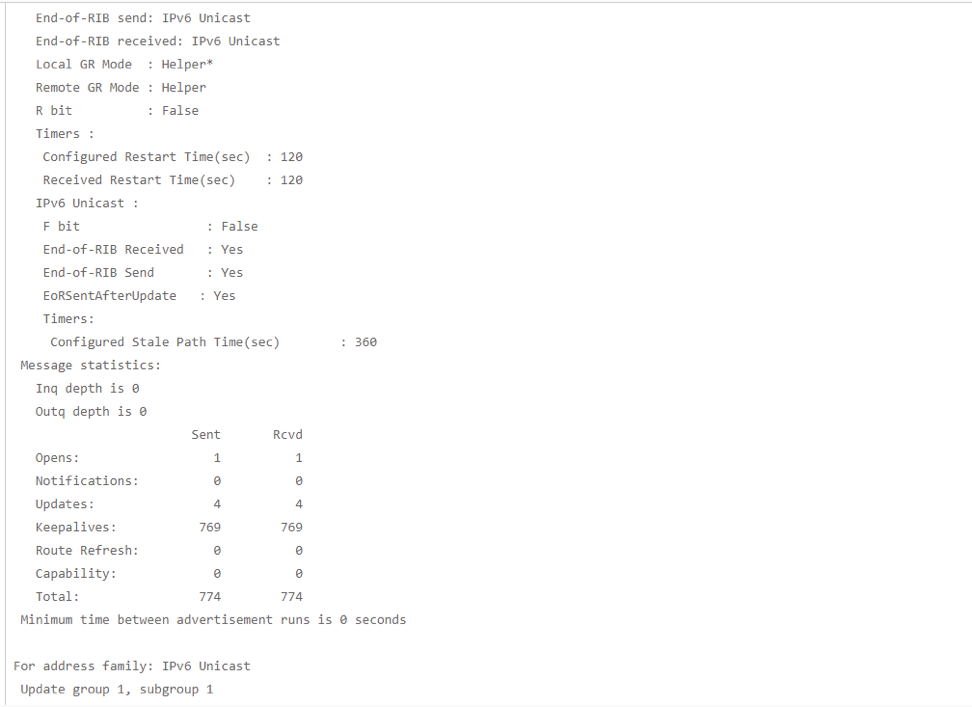

- Check the following parameters in the "BGPv6 neighbor table":
- BGPv6 neighborship status
- BGPv6 neighborship uptime
- Local AS
- Remote AS
- Edge BGP Router ID
- Peer device BGP Router ID
- BGP Hold and Keep-alive Timers
- Neighbor capabilities
- The number of BGP packets (such as Open, Notifications, Updates, Keepalives, Route Refresh, and Capability) sent and received by the Edge.
- Any inbound or outbound filters attached to the specific BGP neighbor.
- List of prefixes accepted by the Edge from the BGP neighbor after applying the inbound filters.
- The source IP address and port number, and the destination IP address/port number used by the Edge to establish BGPv6 neighborship.
Show BGPv6 Routes per Prefix
What is the purpose of this test?
Run this test to list all the possible Overlay and Underlay routes available in the Edge for the specific destination prefix.
When can you run this test?
- To check and confirm if the Edge is received for both Overlay and Underlay routes (if available) for the specific destination prefix.
- To check and confirm the availability of the primary and secondary route paths (if available) for the specific destination prefix.
For instructions, see Run Remote Diagnostic Tests on Edges.
What to check in the test output?
Run the Show BGPv6 Routes per Prefix test on the required Edge. The following is an example of the test output:
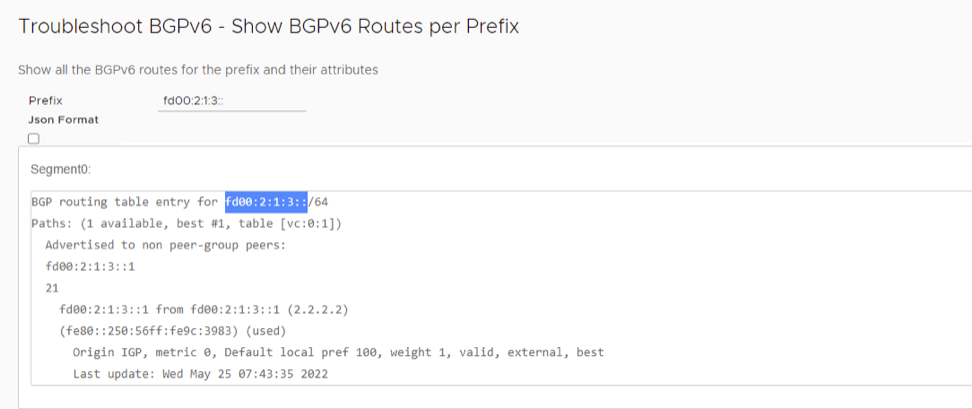
Select the Json Format check box if you want the test output in JSON format for automation validation.
- The output must display all the possible route entries for the specific destination prefix with the associated local or overlay preferences and community tags.
- Based on the route order displayed in the Orchestrator, check the availability of the primary and backup route paths for the specific destination prefix in each segment.
- The Route Type flag must help us to identify the origin of the specific route entry (i.e., Overlay or Underlay route).
- The Next Hop IP and Dest Name flags must help us identify the next-hop device IP (for Underlay route types) or the Edge name (for Overlay route types), which advertised the specific route entry.
Show BGPv6 Summary
What is the purpose of this test?
Run this test to view the BGPv6 neighbors associated with the device.
When can you run this test?
Run this test to determine whether the BGPv6 neighbor is up, or include neighbor details. For instructions, see Run Remote Diagnostic Tests on Edges.
Select the Json Format check box if you want the test output in JSON format for automation validation.
What to check in the test output?
Run the Show BGPv6 Summary test on the required Edge. The following is an example of the test output:
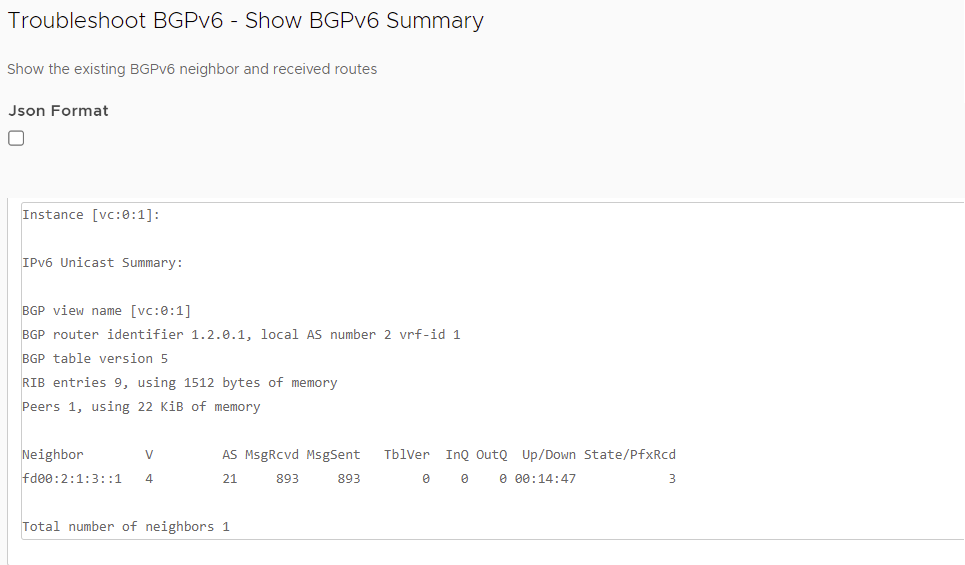
Show BGPv6 Table
What is the purpose of this test?
Run this test to view the completed BGPv6 table.
When can you run this test?
Run this test to verify the list of subnets and the next hop. For instructions, see Run Remote Diagnostic Tests on Edges.
Select the Json Format check box if you want the test output in JSON format for automation validation.
What to check in the test output?
Run the Show BGPv6 Table test on the required Edge. The following is an example of the test output:
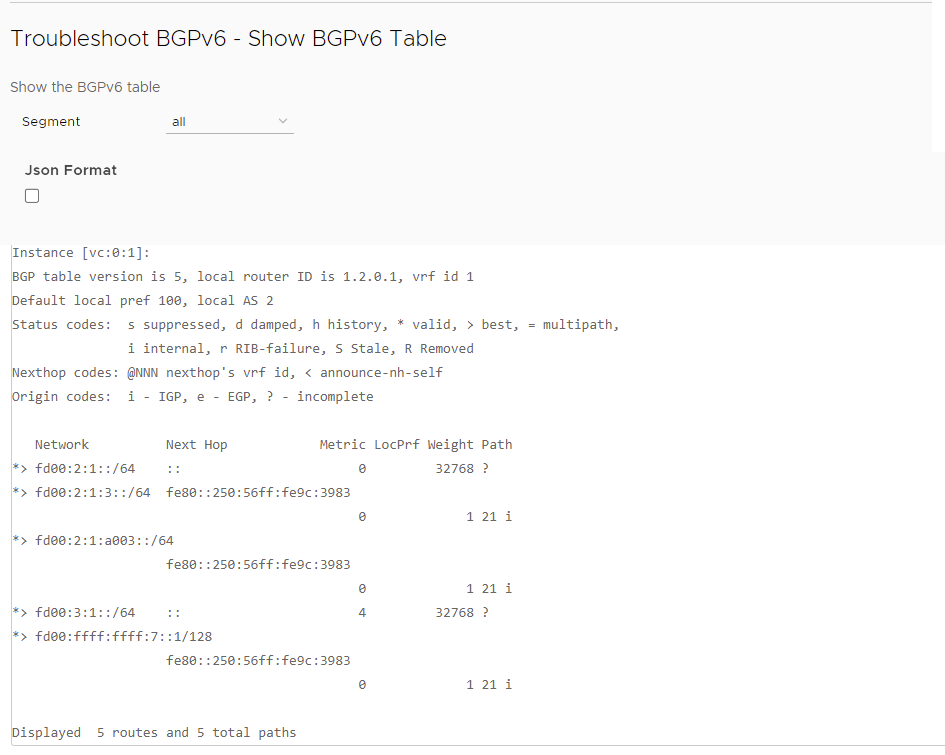
List OSPF Redistributed Routes
What is the purpose of this test?
Run this test on all or selected segments to confirm if the Overlay routes and Underlay routes (Dynamic/Static/Connected) are redistributed to the Edge with the correct route metric.
When can you run this test?
- There is an issue with route redistribution.
- LAN is unable to communicate with specific subnets over the overlay VPN.
- OSPF is configured.
- LAN router is not able to see the routes in its routing table that are received from overlay.
For instructions, see Run Remote Diagnostic Tests on Edges.
What to check in the test output?
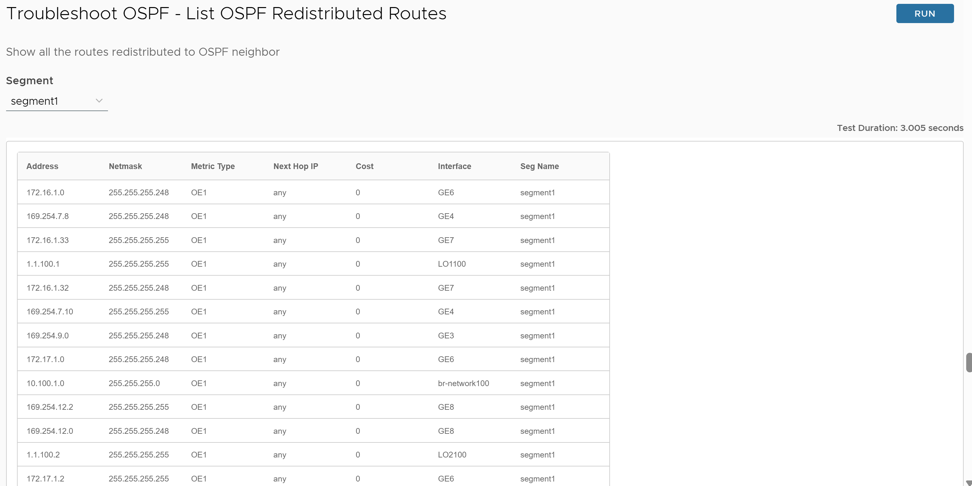
- The route must be present in the OSPF redistribute table.
- The lowest cost is preferred if there are multiple routes. If the same route with cost 0 and 1 is learned, then the route with cost 0 is preferred.
- Verify the route metric. The following is the order of route type preference:
- External routes type 1, O E1
- External routes type 2, O E2
List OSPF Routes
What is the purpose of this test?
Run this test on all or selected segments to show the routes received from the peer LAN router.
When can you run this test?
You can run this test if the peer Edges are not able to receive OSR or DOSR routes from this Edge. For instructions, see Run Remote Diagnostic Tests on Edges.
What to check in the test output?
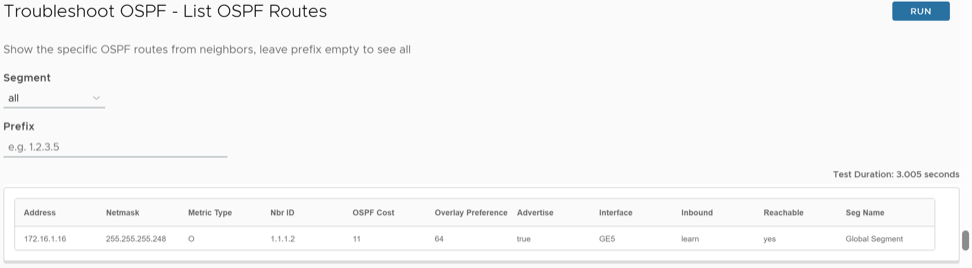
- Verify the list of routes received from OSPF neighbors.
- Verify the cost attached to it. The lowest cost is preferred if there are multiple routes, and the same would be advertised to neighboring Edges.
- Verify the route metric. The following is the order of route type preference:
- intra-area routes, O
- inter-area routes, O IA
- external routes type 1, O E1
- external routes type 2, O E2
Show OSPF Database
What is the purpose of this test?
Run this test on all or selected segments to verify if the OSPF database is equivalent to show ip ospf database.
When can you run this test?
You can run this test when the OSPF database contains all LSAs that describe the network topology. The OSPF database output displays the content of the LSDB and verifies information about specific LSAs. For instructions, see Run Remote Diagnostic Tests on Edges.
What to check in the test output?
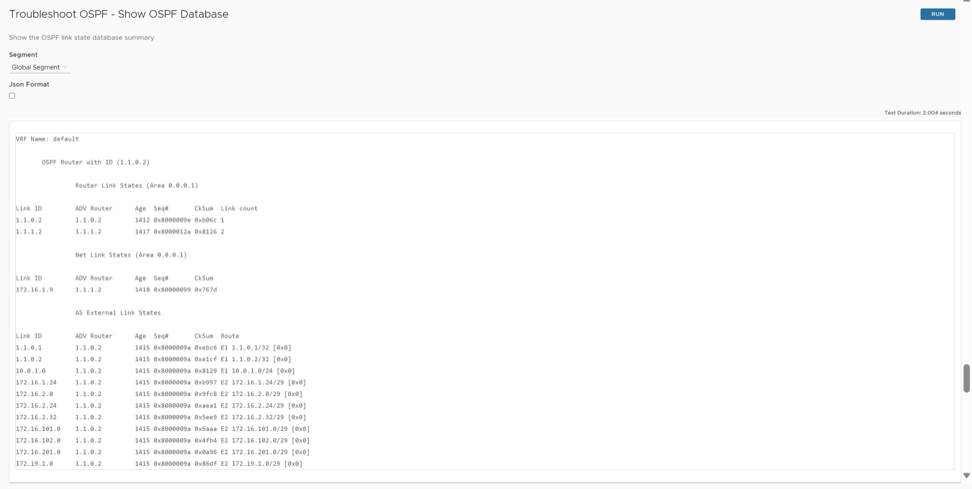
Select the Json Format check box if you want the test output in JSON format for automation validation.
- Verify the subnet and its advertising router if there is any asymmetric routing issue or if a different path is taken than expected.
- Verify age if there are route flaps.
- Verify that the Peer database and Edge database match; if there are any issues with the DB, the OSPF.
Show OSPF Database for E1 Self-Originate Routes
What is the purpose of this test?
This test provides the list of E1 self-originated routes.
When can you run this test?
Run this test on all or selected segments to troubleshoot routing issues with E1 type self-originated routes. For instructions, see Run Remote Diagnostic Tests on Edges.
What to check in the test output?
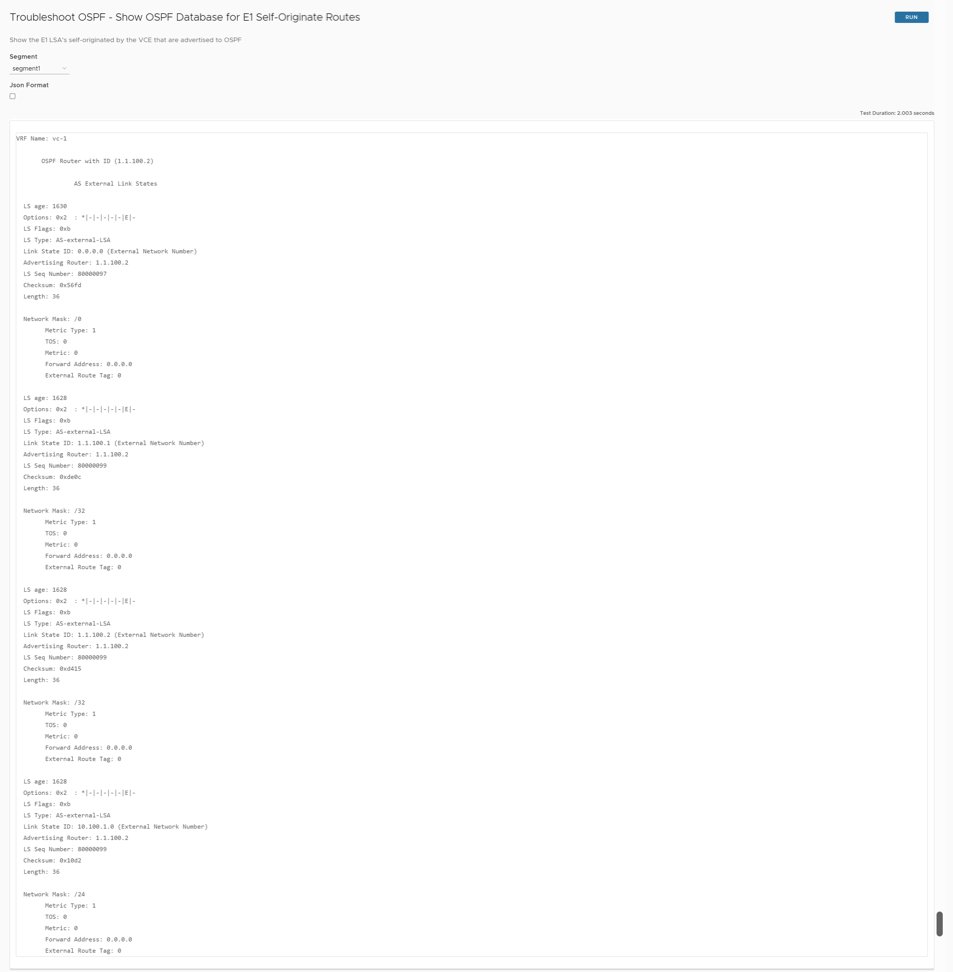
Select the Json Format check box if you want the test output in JSON format for automation validation.
- The LSA type is set to external LSA.
- The Advertising router should be the router that originates this route.
- For the LS age, check for any advertising issues.
Show OSPF Neighbors
What is the purpose of this test?
This test indicates if there are issues with OSPF neighbors.
When can you run this test?
Run this test on all or selected segments when there is an OSPF neighborship formation issue. For instructions, see Run Remote Diagnostic Tests on Edges.
What to check in the test output?
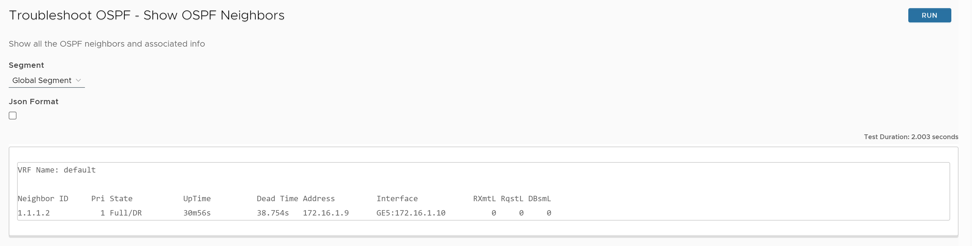
Select the Json Format check box if you want the test output in JSON format for automation validation.
- Verify if the state of the neighbor is Full/(DR or BDR). If this state is not seen, then there is an issue with OSPF neighbors' convergence.
- Down state, Attempt/Init state would be seen if you have sent/received an OSPF hello packet. If the neighbor is in this state for too long, verify the Area ID, Neighbor ID, Router ID, and OSPF configuration.
- If it is stuck between a 2-way state or an Ext start state, verify the MTU issues.
- RxmtL is the LSA retransmission list. This value is used when retransmitting Database Description and Link State Request packets. The default value is 5 seconds. If you see any values, then there is a DBD packet exchange issue in transit. Ideally, it should not be too high.Verify transit path.
- DBsmL is a database summary list for the neighbor.
- Rqstl is Link State Request List.
Show OSPF Route Table
What is the purpose of this test?
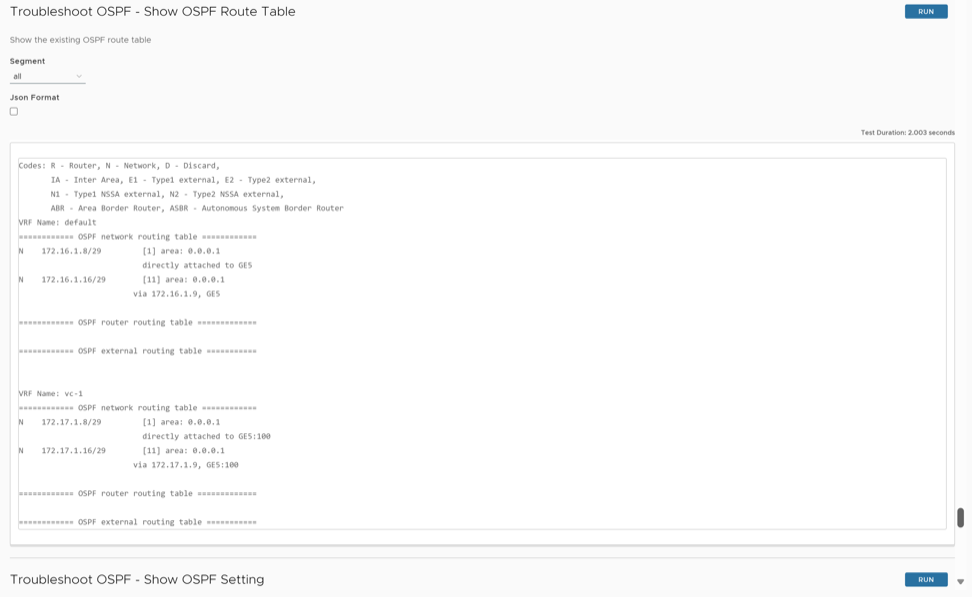
Run this test on all or selected segments to verify routes and their views of the OSPF protocol.When can you run this test?
Run this test to verify how routes are learnt on the OSPF table. For instructions, see Run Remote Diagnostic Tests on Edges.
What to check in the test output?
Run the Show OSPF Route Table test on the required Edge.
Select the Json Format check box if you want the test output in JSON format for automation validation.
Show OSPF Setting
What is the purpose of this test?
Run this test to verify if the OSPF configuration is pushed properly from Edge to Orchestrator.
When can you run this test?
Run this test to verify the Edge OSPF configuration. For instructions, see Run Remote Diagnostic Tests on Edges .
What to check in the test output?

- Verify if the Edge has the configuration like area ID, network, authentication cost, and hello timer pushed from the Orchestrator if you have customer OSPF settings.
List OSPFv3 Redistributed Routes
What is the purpose of this test?
Run this test on all or selected segments to view all the routes redistributed to the OSPFv3 neighbor.
When can you run this test?
Run this test to verify OSPFv3 redistributed routes. For instructions, see Run Remote Diagnostic Tests on Edges.
What to check in the test output?
Run the List OSPFv3 Redistributed Routes on the required Edge. The following is an example of the test output:

List OSPFv3 Routes
What is the purpose of this test?
Run this test on all or selected segments to view the OSPFv3 routes learned from OSPFv3 neighbors for the specified Prefix. Displays all the OSPFv3 routes from the neighbors if the Prefix is not specified. This test displays OSPFv3 routes with actions such as an inbound filter with Overlay Flow Control from Orchestrator applied.
When can you run this test?
Run this test to verify OSPFv3 Routes. For instructions, see Run Remote Diagnostic Tests on Edges.
What to check in the test output?
Run the OSPFv3 Routes on the required Edge. The following is an example of the test output:

Show OSPFv3 Database
What is the purpose of this test?
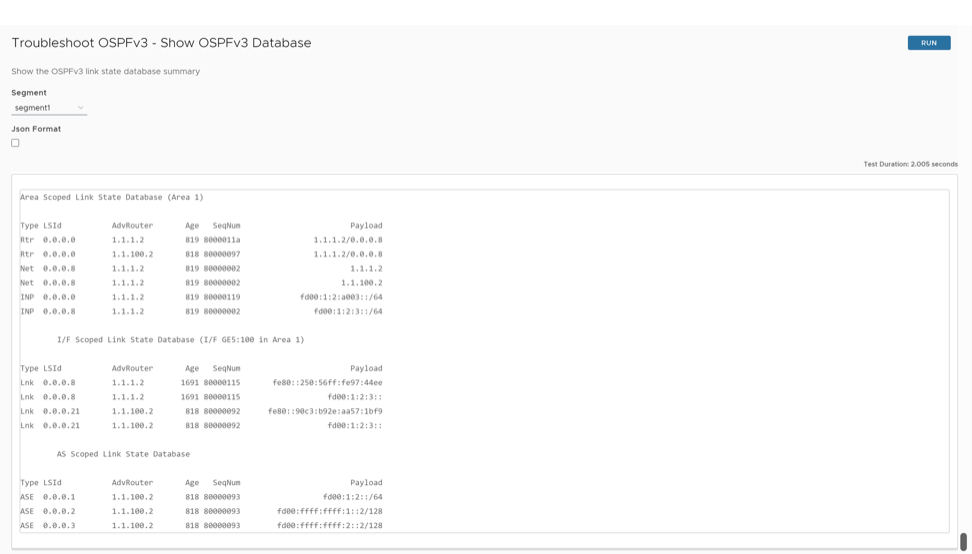
Run this test on all or selected segments to view the OSPFv3 link state database summary.
When can you run this test?
Run this test to verify the OSPFv3 link state database. For instructions, see Run Remote Diagnostic Tests on Edges.
What to check in the test output?
Run the OSPFv3 link state database on the required Edge.
Select the JSON Format checkbox if users want the test output in JSON format for automated validation.
The following is an example of the test output:
Show OSPFv3 Database for E1 Self-Originate Routes
What is the purpose of this test?
Run this test on all or selected segments to view the E1 LSA's self-originated routes that are advertised to OSPFv3 router by the Edge.
When can you run this test?
For instructions, see Run Remote Diagnostic Tests on Edges.
What to check in the test output?
Run the E1 LSA's self-originated routes that are advertised to the OSPFv3 router by the Edge.Select the JSON Format checkbox if the user wants the test output in JSON format for automation validation.
The following is an example of the test output:

Show OSPFv3 Neighbors
What is the purpose of this test?
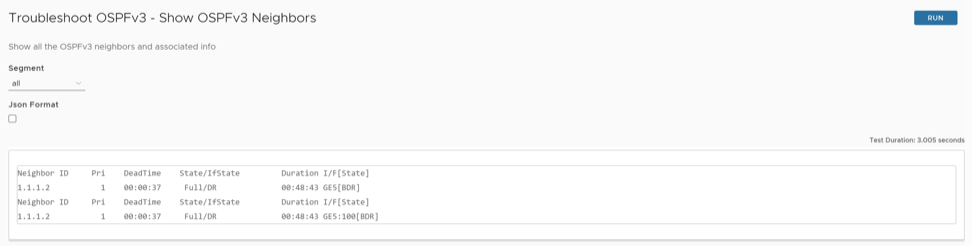
Run this test on all or selected segments to view all the OSPFv3 neighbors and associated information.
For instructions on how to run a remote diagnostic test on Edges, see Run Remote Diagnostic Tests on Edges.
What to check in the test output?
Run OSPFv3 neighbors on the required Edge. Select the JSON Format checkbox to receive the test output in JSON format for automation validation.
The following is an example of the test output:
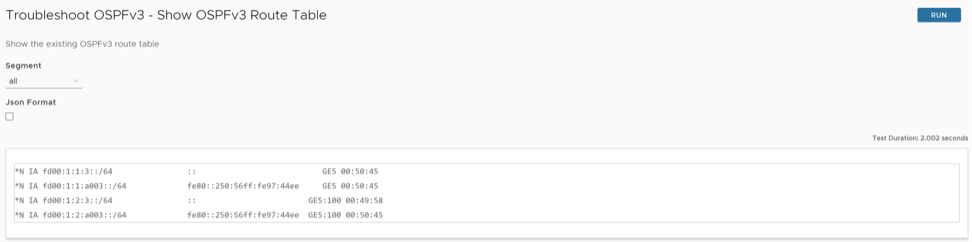
Show OSPFv3 Route Table
What is the purpose of this test?
Run this test on all or selected segments to view the existing OSPFv3 route table, which displays OSPFv3 information from both learned and redistributed routes.
When can you run this test?
Run this test to view the existing OSPFv3 route table.
For instructions on how to run a remote diagnostic test on Edges, see Run Remote Diagnostic Tests on Edges.
What to check in the test output?
Run the OSPFv3 route table on the required Edge. Select the JSON Format checkbox to receive the test output in JSON format for automation validation.
The following is an example of the test output:
Show OSPFv3 Setting
What is the purpose of this test?
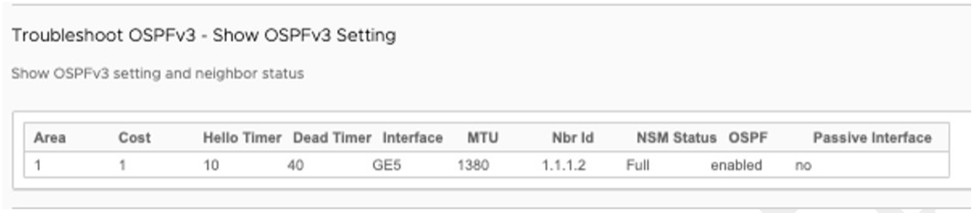
Run this test to view the OSPFv3 setting and neighbor status.
When can you run this test?
Run this test to verify the Edge OSPFv3 configuration.
For instructions, see Run Remote Diagnostic Tests on Edges.
What to check in the test output?
The following is an example of the test output:
Dump Context Logging Information
What is the purpose of this test?
When can you run this test?
Run this test to dump the threads that utilize context logging.
For instructions on how to run a remote diagnostic test on Edges, see Run Remote Diagnostic Tests on Edges.
What to check in the test output?
- Context Log Status 'On' indicates that the system has activated context logging for the specified thread.
- Context Log Status 'Off' indicates that the system has deactivated context logging for the specified thread.
The following is an example of the test output:

Enable or Disable Context Logging
What is the purpose of this test?
When can you run this test?
Run this test to activate or deactivate context logging for a specific thread or all threads.
For instructions on how to run a remote diagnostic test on Edges, see Run Remote Diagnostic Tests on Edges.
What to check in the test output?
Specify a thread ID to activate or deactivate context logging for that thread, or use the All option. The action applies after running the test. Validate the changes using the Dump Context Logging Information test command.

Gateway
What is the purpose of this test?
To change the traffic path of cloud (Internet) traffic.
When can you run this test?
Run this test to change the path for data traffic to use Business policy, or to use Gateway Path (Multi-Path), or to go directly on the WAN Interface.
For instructions on how to run a remote diagnostic test on Edges, see Run Remote Diagnostic Tests on Edges.
What to check in the test output?

HA Info
What is the purpose of this test?
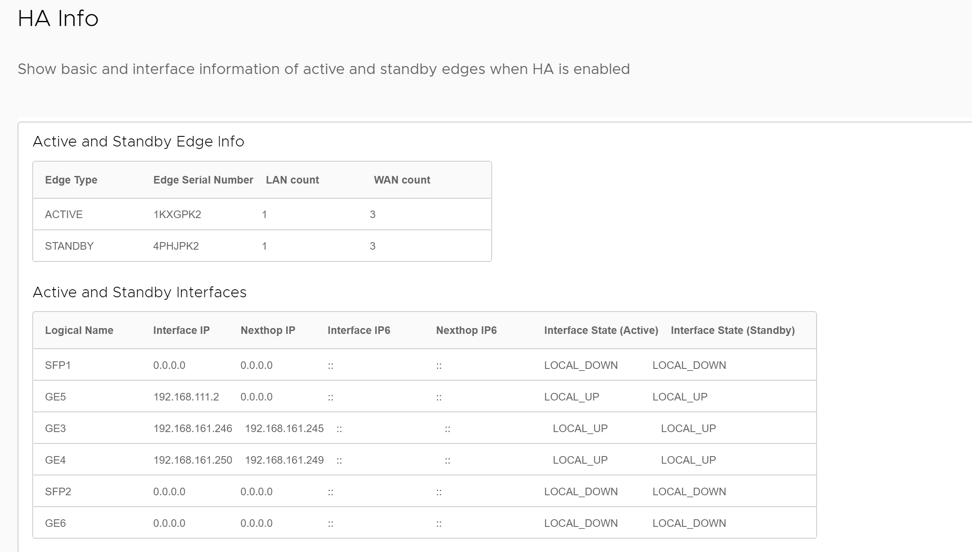
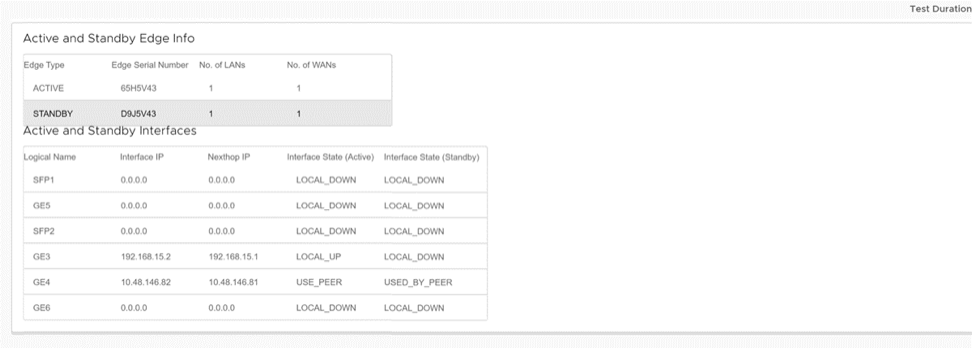
To know more about the HA device, IP, Link, Status, and connection information.
When can you run this test?
Run this test to view the basic and interface information of Active and Standby Edges in a High Availability setup.
For instructions on how to run a remote diagnostic test on Edges, see Run Remote Diagnostic Tests on Edges.
What to check in the test output?
List Clients
What is the purpose of this test?
To display the DHCP lease expiry and the interfaces connecting the client to the Edge.
When can you run this test?
Run this test to verify if the clients are receiving the correct DHCP address.
For instructions on how to run a remote diagnostic test on Edges, see Run Remote Diagnostic Tests on Edges.
What to check in the test output?
The following is an example of the test output:
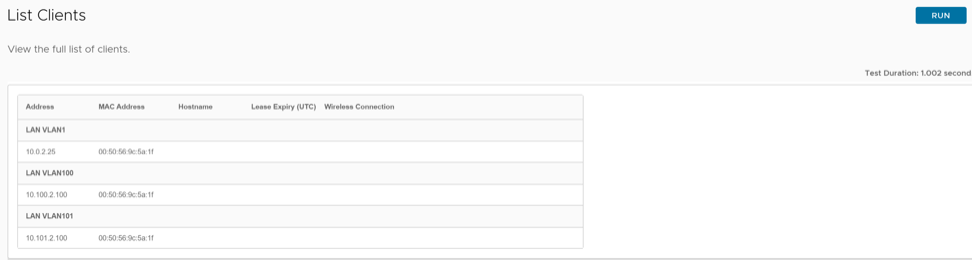
- The diagnostic output displays the LAN client IP and MAC addresses during the DHCP process. If the list omits these details, restart the DHCP service and re-run the test.
- Run this test to verify bogus devices in the LAN device.
List Paths
What is the purpose of this test?
To check the active tunnel paths between local WAN links and each peer, and the Gateway status.
When can you run this test?
Run this test when experiencing site-to-site communication or Gateway traffic issues to check if the tunnel is UP to the destination.
For instructions on how to run a remote diagnostic test on Edges, see Run Remote Diagnostic Tests on Edges.
What to check in the test output?
The following is an example of the test output:
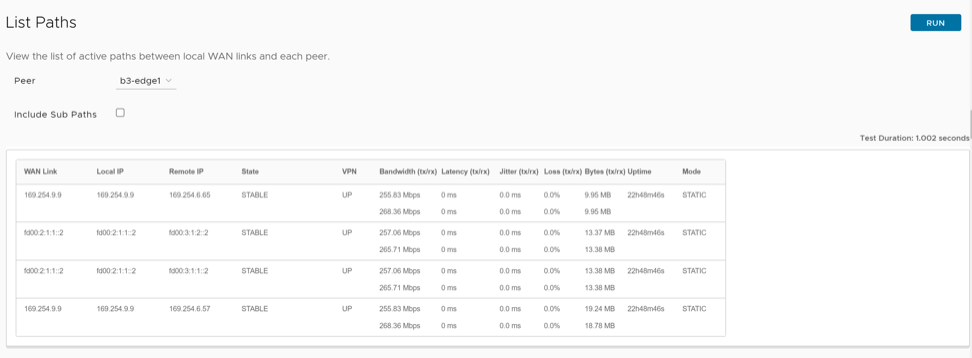
| Option | Description |
|---|---|
| WAN Link | Specifies the WAN link IP that establishes the tunnel. |
| Local IP | Specifies the Physical Interface IP for the WAN link. |
| Remote IP | Specifies the Peer IP that anchors the tunnel. |
| State | Specifies the tunnel state. The state can be any of the following:
|
| VPN | Specifies the VPN state, and it should be UP for a good tunnel. |
| Bandwidth (tx/rx) | Indicates the bandwidth of the tunnel. |
| Latency (tx/rx) | Indicates the latency of the tunnel. |
| Jitter (tx/rx) | Indicates the jitteriness of the tunnel. |
| Loss (tx/rx) | Indicates the packet loss of the tunnel. |
| Bytes (tx/rx) | Indicates the bytes of the tunnel in MB. |
| Uptime | Indicates the duration of tunnel uptime. |
| Mode | Specifies the mode of the tunnel:
|
MIBs for Edge
What is the purpose of this test?
To retrieve the VeloCloud SD-WAN and Edge MIBs that the specific Edge supports.
When can you run this test?
Run this test to download MIB dump file by selecting the MIBs for Edge button.
For instructions on how to run a remote diagnostic test on Edges, see Run Remote Diagnostic Tests on Edges.
What to check in the test output?
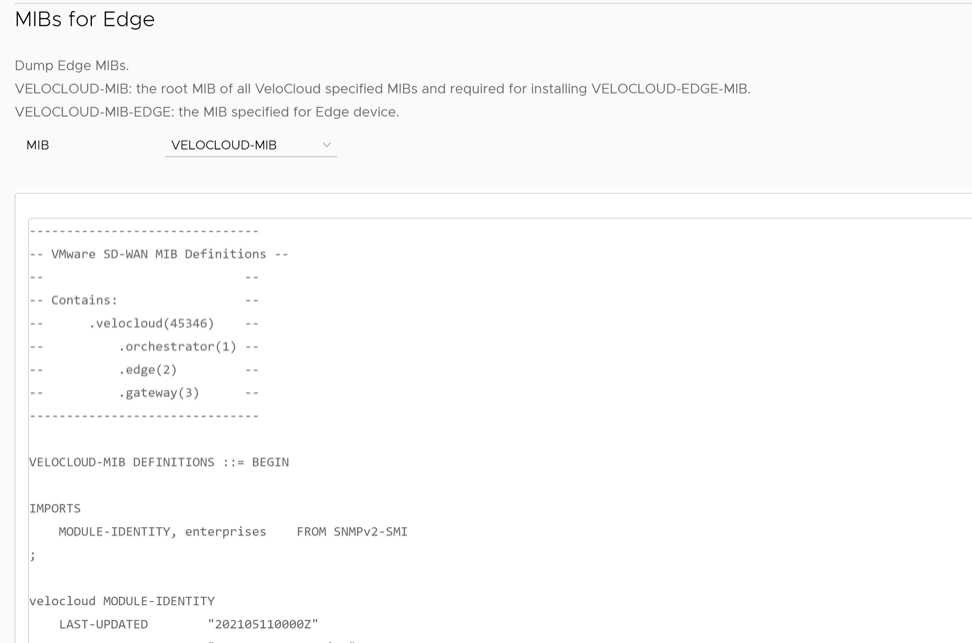
Copy and save the output in .mib format so an SNMP server can poll the Edge for data.
NTP Dump
What is the purpose of this test?
Run this test to verify the date, time, and NTP server details used by the Edge.
When can you run this test?
Run this test if users have issues with the date and time in logs and the system time. The system uses UTC timestamps to maintain a consistent reference point across globally distributed networks. For instructions on how to run a remote diagnostic test on Edges, see Run Remote Diagnostic Tests on Edges.
What to check in the test output?
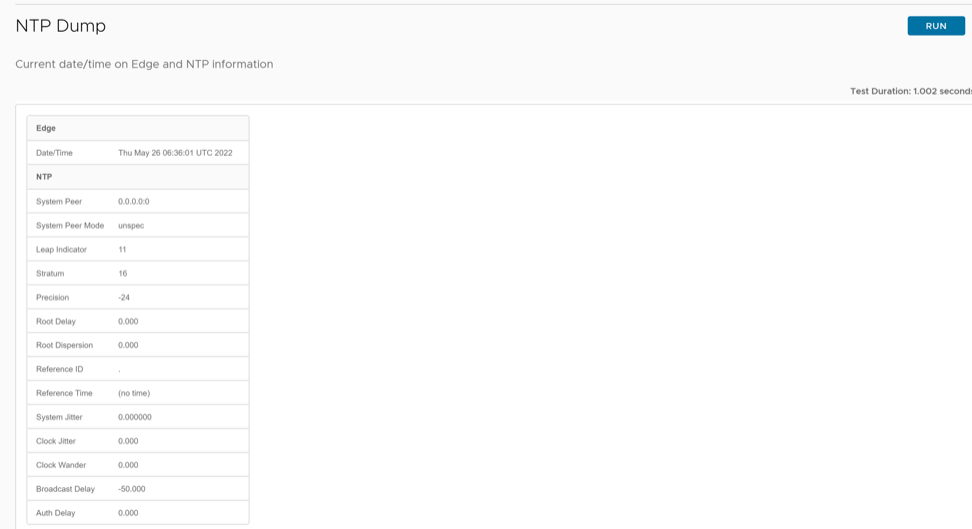
In the output, check the following:
-
Verify that the date and time are correct in UTC format.
- Verify that the system peer matches the one mentioned in the NTP configuration.
- The Leap Indicator indicates if an impending leap second is to be inserted or deleted in the last minute of the current day. Therefore, if the leap second occurs, the NTP client running is one second ahead or the seconds mentioned in the leap indicator than the actual time.
- Stratum is the distance between Edge and NTP server. Lesser the Stratum number closer the server is. If the Stratum number is above 16 then it is considered to be unsynchronized.
- If the clock is unsynchronized, change the NTP server or PCAPs to determine whether the Edge receives the NTP sync request.
Reset USB Modem
What is the purpose of this test?
Run this test to reset the USB and CELL interface.
When can you run this test?
Run this test when the device does not detect USB or when USB cannot form tunnels. For instructions on how to run a remote diagnostic test on Edges, see Run Remote Diagnostic Tests on Edges.
What to check in the test output?

Verify the following:
- Check if a Restart command has been issued.
- Navigate to configuration page for checking USB carrier and tunnel information for the respective port.
System Information
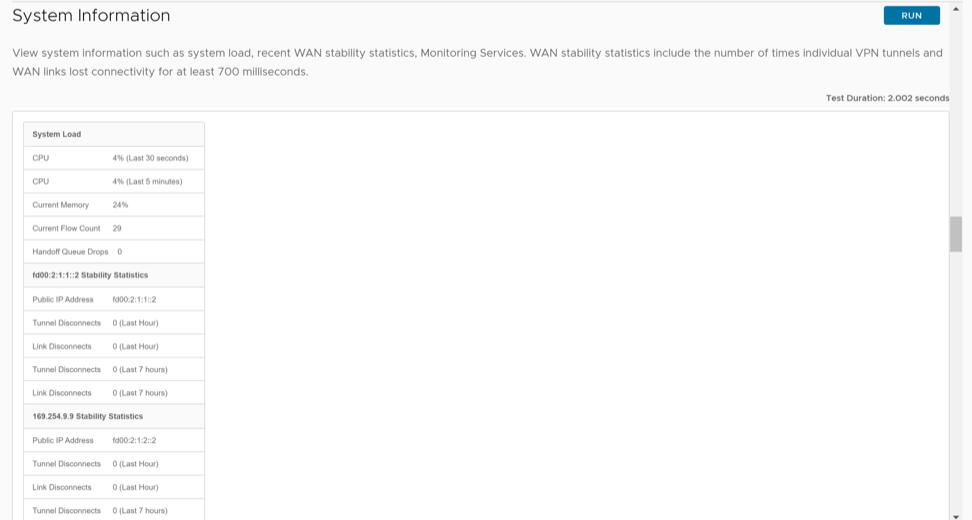
What is the purpose of this test?
The System Information command allows users to view the Edge's system load and Wide Area Network (WAN) stability statistics.When can you run this test?
Run this test to view system information such as system load, recent WAN stability statistics, monitoring services details, and so on. The tunnel disconnects do not include the count of direct Internet Protocol Security (IPsec) connections. WAN stability statistics include the number of times individual Virtual Private Network (VPN) tunnels and WAN links lost connectivity for at least 700 milliseconds.
For instructions on how to run a remote diagnostic test on Edges, see Run Remote Diagnostic Tests on Edges.
What to check in the test output?
Route Table Dump
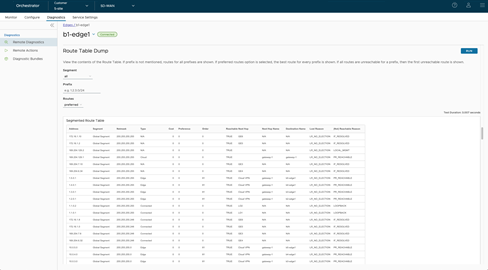
What is the purpose of this test?
The Route Table Dump command lists the complete IPv4 routing table.
When can you run this test?
- Segment- Select the specific segment for which the user wants the system to display routes. Select "all" for all segments.
- Prefix- Specify the exact prefix for which the user wants the system to display routes.
- Routes- Select any of the following options from the drop-down menu:
- all- Display all the routes for every prefix.
- preferred- Display the preferred route alone for each prefix (the route used for data forwarding).
What to check in the test output?
| Field | Description |
|---|---|
| Address | Specifies the IPv4 routes available in the table. |
| Segment | Specifies the segment in which the routes are available and handled by the Edge. |
| Netmask | Specifies the range of IPv4 addresses . |
| Type | Specifies the route type, such as Cloud, Edge2Edge, any (Underlay or Connected), and so on. |
| Cost | Specifies the route cost or metric used in the selection of route criteria. |
| Preference | Specifies the route preference. |
| Order | Specifies the order of the route. |
| Reachable | Specifies whether the route is Reachable (True) or Not Reachable (False). |
| Next Hop | Indicates the local exit interface for local routes. For overlay/remote routes, it indicates the type of next hop. For example, "Cloud gateway" for cloud routes, "Cloud VPN" for data center routes, or "edge to edge" routes, etc. |
| Next Hop Name | Specifies the name of the next hop device. |
| Destination Name | Specifies the name of the destination device. |
| Lost Reason | Specifies the code for the reason why a route loses the routing preference calculation logic to the next preferred route, on both Edges and Gateways. |
| (Not) Reachable Reason | Specifies the reason for the route being reachable or not reachable. |
| Reason Code | Description |
|---|---|
| PR_UNREACHABLE | For overlay routes, the remote peer, whether Gateway or Edge, is unreachable. |
| IF_DOWN | The egress interface is down. |
| INVALID_IFIDX | The egress interface if-index for this route is invalid. |
| SLA_STATE_DOWN | The state given by IP SLA tracking is down. |
| HA_STANDBY | When the local Edge is a Standby, the system marks all routes synced from the active as reachable for operational convenience. |
| LOCAL_MGMT | Management routes are always reachable. |
| LOOPBACK | Loopback IP address is always reachable. |
| SELF_ROUTE | Self IP routes are always reachable. |
| RECUR_UNRES | The system marks recursive routes as reachable to enable recursive resolution, which provides greater operational convenience. |
| VPN_VIA_NAT | VPN via NAT routes are always reachable. |
| SLA_STATE_UP | The state given by IP SLA tracking is up. |
| IF_RESOLVED | The egress interface is up and resolved. |
| PR_REACHABLE | For overlay routes, the remote peer, whether Gateway or Edge, is reachable. |
| LR_NO_ELECTION | Best route. |
| LR_NP_SWAN_VS_VELO | The predecessor is selected because it is a non-preferred static WAN route (configured with the preferred flag set to false), whereas the current route is a via VeloCloud route. |
| LR_NP_SWAN_VS_DEFRT | The predecessor is selected because it is a non-preferred static WAN route compared to the current default route. |
| LR_NP_ROUTE_TYPE | The predecessor is selected because its route type is better than the current route. Also, one of the compared routes is a non-preferred route. |
| LR_BGP_LOCAL_PREF | Both routes are learnt using BGP. The predecessor is selected because it has a higher local preference than the current route. |
| LR_BGP_ASPATH_LEN | Both routes are learnt using BGP. The predecessor is selected because its Authentication Server (AS) path value is lower than the current route's. |
| LR_BGP_METRIC | Both routes are learnt using BGP. The predecessor is selected because it has a lower metric value than the current route. |
| LR_EXT_OSPF_INTER | The predecessor is selected because it is a route learnt via Open Shortest Path First (OSPF) with an intra- or inter-area metric, whereas the system learns the current route via BGP. |
| LR_EXT_BGP_RT | The predecessor is selected because it is a BGP-learned route, whereas the current route is an OSPF-learned route with metric type OE1 or OE2. |
| LR_EXT_METRIC_TYPE | Both routes are OSPF routes. The predecessor is selected because its metric type is better than the current route's.
Order of preference for OSPF metric types: OSPF_TYPE_INTRA, OSPF_TYPE_INTER, OSPF_TYPE_OE1, OSPF_TYPE_OE2. |
| LR_EXT_METRIC_VAL | Both routes are OSPF routes. The predecessor is selected because it has a lower metric than the current route. |
| LR_EXT_NH_IP | Both routes are OSPF Equal Cost Multipath (ECMP) routes. The current route is lost to the predecessor since it was learnt later. |
| LR_PG_BGP_ORDER | Both are remote BGP routes with the same BGP parameters. The current route is selected because it is a Partner Gateway (PG) route and has a lower "order" value than the current route. |
| LR_NON_PG_BGP_ORDER | Both are remote BGP routes with same BGP parameters. The current route is selected because it is a non-PG route and has a lower "order" value than the current route. |
| LR_EXT_ORDER | Both are remote OSPF routes with same metric. The predecessor is selected because it has a lesser order value than the current route. |
| LR_PREFERENCE | Both are either BGP or OSPF routes. The predecessor is selected because it has a lesser preference value than the current route. |
| LR_DCE_NSD_STATIC_PREF
DCE-Data center, NSD-Non-SDWAN site |
Both are local NSD static routes. The predecessor is selected because it is the preferred route (the preferred flag is set to true), whereas the current route is non-preferred. |
| LR_DCE_NSD_STATIC_METRIC | Both are NSD static routes. The predecessor is selected because it has a lesser metric value than the current route. |
| LR_DCE_NON_REMOTE | Both are NSD static routes. The predecessor is selected because it is a local route (non-remote), and the current route is remote. |
| LR_DCE_NSD_STATIC_REMOTE_ORDER | Both are remote NSD static routes. The predecessor is selected because it has a lower order value than the current route. |
| LR_DCE_DC_DIRECT | Both are NSD static routes. The predecessor is selected because its DC_DIRECT flag is set, and the current route does not have this flag set. This is the route with "n-nonVeloCloud" flag set in the debug.py--routes output. These are routes learnt from an NVS from Edge. |
| LR_DCE_LOGICAL_ID | Both are NSD static routes. The predecessor is selected because its logical ID is better than the current route's. |
| LR_NETMASK | The predecessor is selected because it has a higher netmask than the current one.
This will not hit, since the netmask is different; it is a separate network/route entry. |
| LR_NETADDR | The predecessor is selected because its network address is higher than the current one.
This will not hit, since the network address is different; it is a separate network/route entry. |
| LR_CONN_FLAG | The predecessor is selected because it is a connected route, and the current route is not a connected route. |
| LR_SELF_FLAG | The predecessor is selected because it is a self-route, and the current route is not a self-route. |
| LR_SLAN_FLAG | The predecessor is selected because it is a static LAN route, and the current route is not a static LAN route. |
| LR_SWAN_FLAG | The predecessor is selected because it is a static WAN route, and the current route is not a static WAN route. |
| LR_NSD_STATIC_LOCAL | The predecessor is selected because it is a local NSD static route, and the current route is an NSD BGP route. |
| LR_NSD_BGP_VS_NON_PREF_STATIC | The predecessor is selected because it is an NDS BGP route, and the current route is a local NSD static non-preferred route. |
| LR_NSD_STATIC_PREF_VS_NSD_STATIC | The predecessor is selected because it is an NSD static preferred route, and the current route is not an NSD static route. |
| LR_CONN_STATIC_VS_NSD_BGP | The predecessor is selected because it is a remote connected/static route, and the current route is an NSD BGP route. |
| LR_OPG_SECURE_STATIC | The predecessor is selected because it is a PG secure static route, and the current is not. |
| LR_ROUTED_VS_VELO | The predecessor is selected because it is a route learnt from routing protocols, unlike the current route, which is a "v- ViaVeloCloud" route. |
| LR_INTF_DEF_VS_ROUTED | The predecessor is selected because it is the default cloud route when compared to the current route, which is a route learnt using routing protocols (local or remote). |
| LR_ROUTE_TYPE | The predecessor is selected because its route is better than the current one. |
| LR_E2DC_REMOTE | The predecessor is selected because it is an Edge2DC route, and it is a local route, and the current route is remote. |
| LR_CONNECTED_LAN | Both are connected routes. The predecessor is selected because it is a connected LAN route, and the current route is not a connected LAN route. |
| LR_VELO_REMOTE_FLAG | Both are cloud routes. The predecessor is selected because it is a remote route when compared to the current, which is a local cloud route. |
| LR_VELO_EdgeD_ROUTED | Both are cloud routes. The predecessor is selected because it is a route learnt via a routing protocol, and the current route is not learnt via a routing protocol. |
| LR_VELO_PG_ROUTE | Both are cloud routes. The predecessor is selected because it is a PG route, and the current route is not a PG route. |
| LR_VIA_VELO_ROUTE | Both are cloud routes. The predecessor is selected because it is a via VeloCloud route, and the current is not a via VeloCloud route. |
| LR_REMOTE_NON_ROUTED | Both are remote (overlay) routes. The predecessor is selected because it is a route not learnt via a routing protocol (static/connected), and the current route is a route learnt via a routing protocol. |
| LR_REMOTE_DCE_FLAG | Both are remote (overlay) routes. The predecessor is selected because it is a data center Edge route ("D- DCE" is set in the debug.py--routes output), and the current is not a data center Edge route. |
| LR_METRIC | The predecessor is selected because its metric is lower than the current route's. |
| LR_ORDER | The predecessor is selected because it has a lower order than the current route. |
| LR_LOGICAL_ID | The predecessor is selected because its logical ID is better than the current route's. |
| LR_EXT_BGP_VIA_PRIMGW | Both are BGP routes. The predecessor is selected because it is an NSD BGP route learnt from the primary NSD Gateway. The system learned the current route from a redundant NDS Gateway, |
| Reason Code | Description |
|---|---|
| LR_NO_ELECTION | Best route. |
| LR_NVS_STATIC_PREF | The predecessor is selected because it is an NVS static route, and the current route is not. |
| LR_EXT_BGP_VS_OSPF | The predecessor is selected because it is a BGP route, and the current route is an OSPF route with metric type OE1/OE2. |
| LR_EXT_BGP_ROUTE | Both are cloud routes. The predecessor is selected because it is a BGP learnt cloud route, and the current route is not (it is static). |
| LR_CLOUD_ROUTE_VS_ANY | The predecessor is selected because it is an Edge2Edge or Edge2Datacenter route, and the current route is a cloud static route.
. |
| LR_BGP_LOCAL_PREF | Both are either Edge2Edge or Edge2Datacenter routes learnt via BGP. The predecessor is selected because it has a higher local preference value than the current route. |
| LR_BGP_ASPATH_LEN | Both are either Edge2Edge or Edge2Datacenter routes learnt via BGP. The predecessor is selected because its AS path value is lower than the current route's. |
| LR_BGP_METRIC | Both are either Edge2Edge or Edge2Datacenter routes learnt via BGP. The predecessor is selected because it has a lower metric value than the current route. |
| LR_DCE_NSD_STATIC_PREF | Both are Edge2Datacenter routes. The predecessor is selected because it is an NSD static route, and the current route is not. |
| LR_DCE_NSD_STATIC_METRIC | Both are Edge2Datacenter static routes. The predecessor is selected because its metric value is less than that of the current route. |
| LR_DCE_NSD_STATIC_GW_NON_REMOTE | Both are Edge2Datacenter static routes. The predecessor is selected because it is a local route, and the current is a remote route. |
| LR_DCE_LOGICAL_ID | Both are Edge2Datacenter static routes. The predecessor is selected because it is a local route, and the current is a remote route. |
| LR_E2DC_METRIC | Both are Edge2Datacenter routes. The predecessor is selected because its metric is less than that of the current route. |
| LR_DC_IPADDR | Both are Edge2Datacenter routes. The predecessor is selected because its data center IP address is lower than the current route's. |
| LR_E2DC_NETADDR | Both are Edge2Datacenter routes. The predecessor is selected because its network address is lower than that of the current route. |
| LR_E2E_PREFERENCE | Both are Edge2Edge routes. The predecessor is selected because its preference value is lower than the current route's. |
| LR_E2E_METRIC | Both are Edge2Edge routes. The predecessor is selected because its metric value is less than the current route. |
| LR_E2E_LOGICAL_ID | Both are Edge2Edge routes. The predecessor is selected because its logical ID is better than the current route's. |
| LR_E2E_NETADDR | Both are Edge2Edge routes. The predecessor is selected because its network address is lower than the current route's. |
| LR_OPG_SECURE_STATIC | The predecessor is selected because it is a PG secure static route, and the current route is not a PG secure static route. |
| LR_ROUTE_TYPE | The predecessor is selected because its route type is better than the current route's. |
| LR_NETMASK | The predecessor is selected because it has a higher netmask than the current route. |
| LR_METRIC | The predecessor is selected because it has a lower metric value than the current route. |
| LR_PREFERENCE | Both are routes learnt from routing protocols. The predecessor is selected because it has a lesser preference value than the current route. |
| LR_NETADDR | The predecessor is selected because its network address is lower than the current route's. |
| LR_LOGICAL_ID | The predecessor is selected because its logical ID is better than the current route. |
VPN Test
What is the purpose of this test?
The VPN Test command allows users to view the Virtual Private Network (VPN) Branch-to-Branch Connectivity between the Edges.
When can you run this test?
Run this test if the data traffic between the Branches or between the Hub and Spoke is not bi-directional.For instructions on how to run a remote diagnostic test on Edges, see Run Remote Diagnostic Tests on Edges.
What to check in the test output?
The following is an example of the test output:
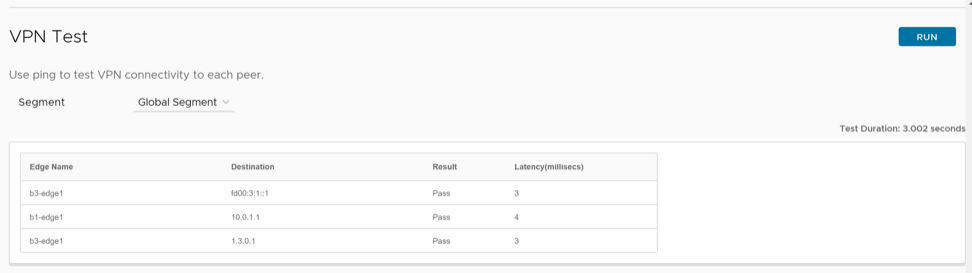
| Field | Description |
|---|---|
| Edge Name | Specifies the name of the peer Edge. |
| Destination | Specifies the logical ID of the destination device. |
| Result | The result displays one of the following:
|
| Latency (milliseconds) | Specifies the latency in milliseconds. |
WAN Link Bandwidth Test
What is the purpose of this test?
The WAN Link Bandwidth Test command measures the Bandwidth on a specific link.When can you run this test?
Run this test if you want to verify the bandwidth of the WAN Link. If the link measured the wrong or inaccurate bandwidth incorrectly, you can run this test to measure it again.
For instructions on how to run a remote diagnostic test on Edges, see Run Remote Diagnostic Tests on Edges.
What to check in the test output?
The following is an example of the test output:
