
Activate Edges Using Email

In this method, the Edge ships to the Customer site with a factory-default configuration. Prior to activation, the Edge contains no configuration or credentials to connect to the Enterprise network.

To activate Edges using the Email method, perform the following tasks:

  1. Send an Activation Email. The administrator initiates the activation process by sending an activation procedure email to the person installing the Edge, typically a Site Contact. For additional information, see Send Edge Activation Email.
  2. Activate the Edge Device. The instructions in the activation procedure email activates the Edge device. For additional information, refer to Activate an Edge Device.

Send Edge Activation Email

The administrator initiates the activation process of an Edge by sending an activation procedure Email to the person installing the Edge, typically a Site Contact.

To send the Edge Activation Email, perform the following tasks:

  1. In the SD-WAN service of the Enterprise portal, go to Configure > Edges .
    The Edges page displays the existing Profiles.
  2. Select the link to the Edge to activate or select the View link in the Device column of the Edge.
  3. Select the Overview tab. For an unactivated Edge, the Edge Status section displays the option to send an activation Email:
    Figure 1. Edge Status
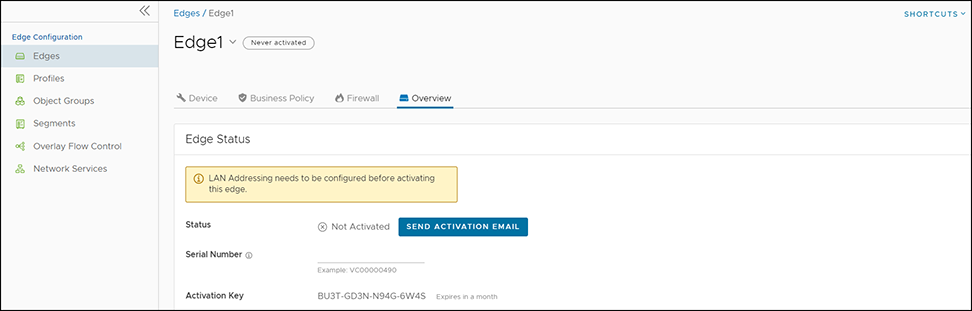
  4. Select Send Activation Email.
    Figure 2. Send Activation Email
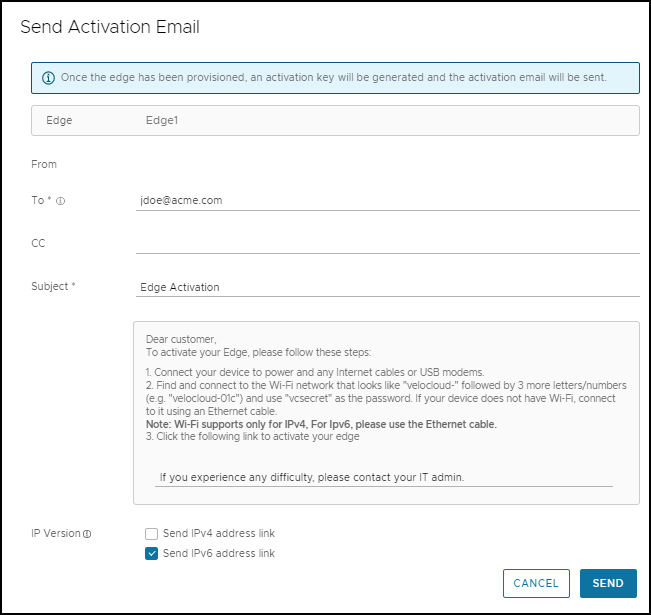
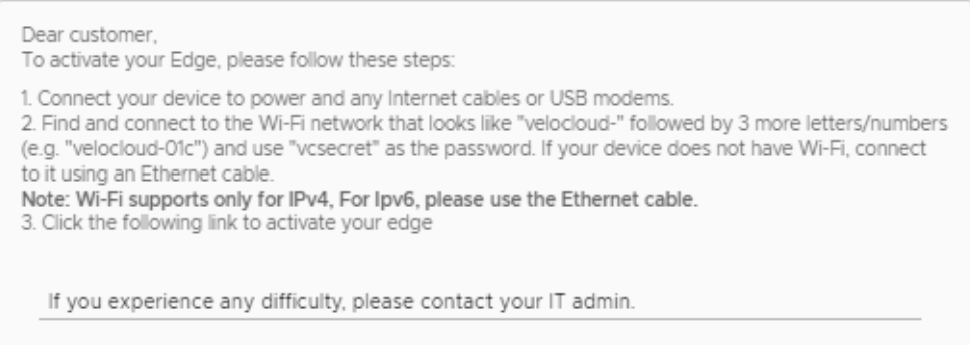
  5. Enter the details like Email address of the recipient, the Site contact, and Subject line. A default Email message displays. If required, you can add the contact details of IT admin in the message. Select the IP version of the activation link to send. You can select the link to contain either IPv4 address or IPv6 address, or both.
  6. Select Send and send the activation Email to the Site contact.
    Once the Site contact receives the activation Email, the person can activate the Edge. For additional information, see Activate an Edge Device
    Note:
    • For the Edge 510 LTE device, the Activation Email consists of Cellular Settings like SIM PIN, Network, APN, and Username. Requires a supported factory default image.
    • For the 610, 620, 640, 680, and 610 LTE devices with SFP configured with ADSL2/VDSL2, the activation email consists of configuration settings such as Profile, PVC, VPC, and so on. Requires a supported factory default image.
    Remote Diagnostics for 510 LTE, 6x0, and 7x0 Devices:
    • If you configure the SD-WAN Edge 510 LTE device, you can run the LTE Modem Information diagnostic test for troubleshooting purposes. The LTE Modem Information diagnostic test retrieves diagnostic information, such as signal strength, connection information, and other information.
    • The DSL Status diagnostic test displays only for the 610, 620, 640, and 680 devices. Running this test shows the DSL status which includes information such as Mode (Standard or DSL), Profile, xDSL Mode, and other information.

Activate an Edge Device

The Site Contact performs the steps outlined in the Edge activation procedure email.

In general, the Site Contact completes the following steps:

  1. Connect the Edge to a power source and insert any WAN link cables or USB modems for Internet connectivity.
  2. Connect a personal computer or mobile device, with access to the activation email, to your Edge by one of two methods:
    Note: The connected personal computer or mobile device cannot directly access the public Internet through the Edge device until activated.
    1. Find and connect to the Wi-Fi network with the format VeloCloud- followed by three or more letters and numbers, for example, velocloud-01c) with the password vcsecret.
      Note: Refer to the Wi-Fi SSID from the Edge device. The default Wi-Fi uses vc-wifi. The Edge activation email provides instructions for using one or more Wi-Fi connections.
    2. If the Edge does not have Wi-Fi, for example, a 6x0N model or a 3x00 model, use an Ethernet cable to connect to either an Ethernet-equipped computer or a mobile device with an Ethernet adapter to one of the Edge LAN ports.
      Note: For additional information about using either an iOS or Android mobile device with an Ethernet adapter to activate an Edge, refer to the below sections:
  3. Select the hyperlink in the email to activate the Edge.

    During the Edge activation, the activation status screen appears on your connected device.

    The Edge downloads the configuration and software from the Orchestrator and reboots multiple times to apply the software update. If the Edge has a front LED status light, it blinks and changes colors multiple times during the activation process.

    Once the Edge activation process successfully completes, the Edge is ready for service (if the Edge has a front LED status light, the light would show as solid green). Once an Edge is activated, it is “useable” for routing network traffic. In addition, more advanced functions such as monitoring, testing, and troubleshooting are also available.

Edge Activation using an iOS Device and an Ethernet Cable

Activate a VeloCloud SD-WAN Edge using multiple methods. Arista recommends to using the Edge Auto-activation push activation whenever possible. Alternatively, you can use the email activation, pull activation, method using an iOS device and an Ethernet cable. The process requires the following components for this procedure:
  • An iPhone or iPad with email access
  • An Ethernet adapter suitable for phone or tablet
Note: This example uses an Edge 540 and an iPhone 12 Pro Max. You can use other Edge and iPhone or iPad models.
  1. Complete the Edge configuration on the Orchestrator software. For details, refer to the Configure Edge Device section in the VeloCloud SD-WAN Administration Guide.
  2. Navigate to Configure > Edges > Edge Overview tab , and then select Send Activation Email.
  3. Enter the email address of the person activating the Edge, and then select Send.
  4. Power up the Edge, and then connect it to an available Internet connection using an Ethernet cable.
    Note: Refer to Edge Activation Guide to check details of the model to determine the correct port.
  5. Connect an Ethernet adapter to your phone, and then connect the Edge LAN port to the Ethernet adapter.
    Note: The Edge is configured by default to acquire a DHCP IP address from the ISP on the WAN (uplink). The Edge also assigns a DHCP address to the phone connected to the LAN port. When the WAN connection becomes fully operational, the cloud LED on the front of the Edge turns green.
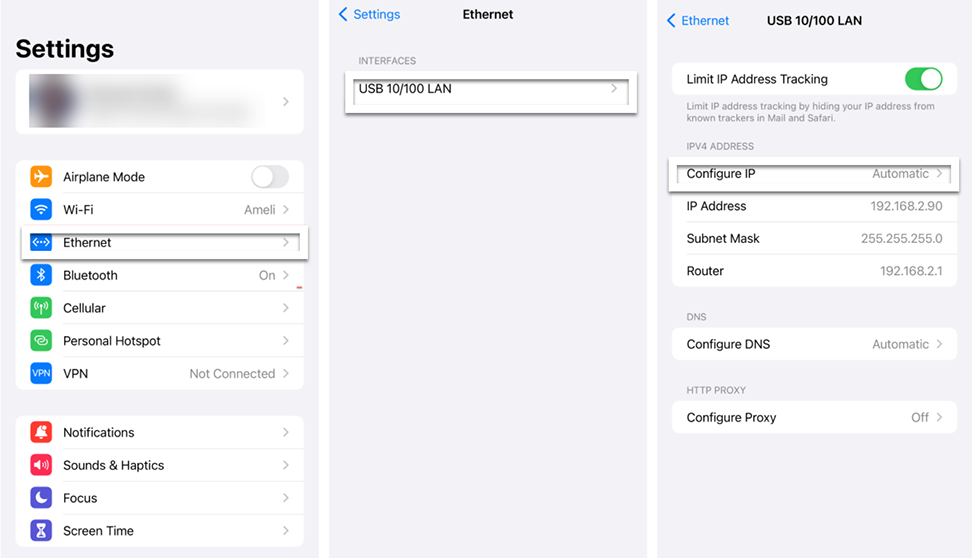
  6. On your iOS device, go to Settings > Ethernet . Select the appropriate interface. Under the IPv4 Address, select Configure IP as Automatic.
    Figure 3. Ethernet Settings
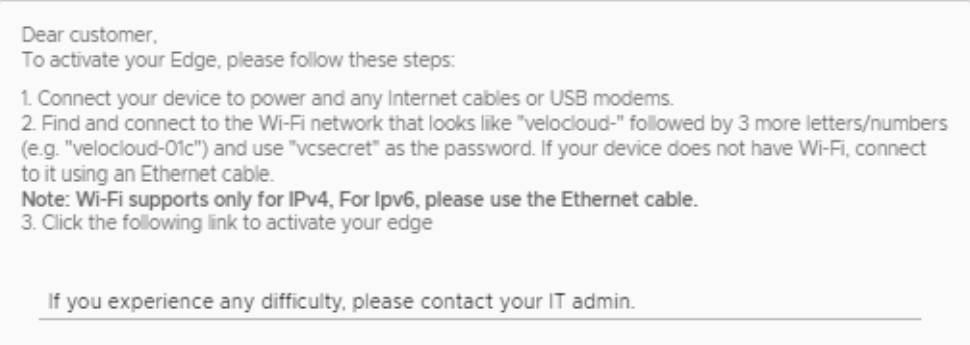
  7. Open the activation email from your phone, and then select the activation link to activate your Edge.
    Figure 4. Activation Email for iOS Device
  8. You can see the activation progress on your phone screen. Once complete, Activation successful message displays and activates your Edge device.

Edge Activation using an Android Device and an Ethernet Cable

The procedure below describes the Edge email activation (pull activation) using an Android device and an Ethernet cable.
The procedure requires the following components:
  • Android phone with email access
  • Ethernet adapter suitable for the phone
Note: This example uses an Edge 610 and a Samsung Galaxy S10+ smart phone. You can use other Edge and Android phone models.
  1. Complete the Edge configuration on the Orchestrator software. For details, refer to the Configure Edge Device section in the VeloCloud SD-WAN Administration Guide.
  2. Navigate to Configure > Edges > Edge Overview tab , and then select Send Activation Email.
  3. Enter the email address of the person activating the Edge, and then select Send.
  4. Power up the Edge, and then connect it to an available Internet connection using an Ethernet cable.
    Note: Refer to Edge Activation Guides to check details of the model to determine the correct port.
  5. Connect an Ethernet adapter to your phone, and then connect the Edge LAN port to the Ethernet adapter.
    Note: By default, the Edge acquires a DHCP IP address from the ISP on the WAN (uplink). The Edge also assigns a DHCP address to the phone connected to the LAN port. When the WAN connection becomes fully operational, the cloud LED on the front of the Edge turns green.
  6. Open the activation email from your phone, and then select the activation link to activate your Edge.
    Figure 5. Activation Email for Android Device
  7. You can see the activation progress on your phone screen. Once complete, Activation successful message displays and activates the Edge device.