
User Management - Partner
The User Management feature allows you to manage users, their roles, service permissions, and authentication.
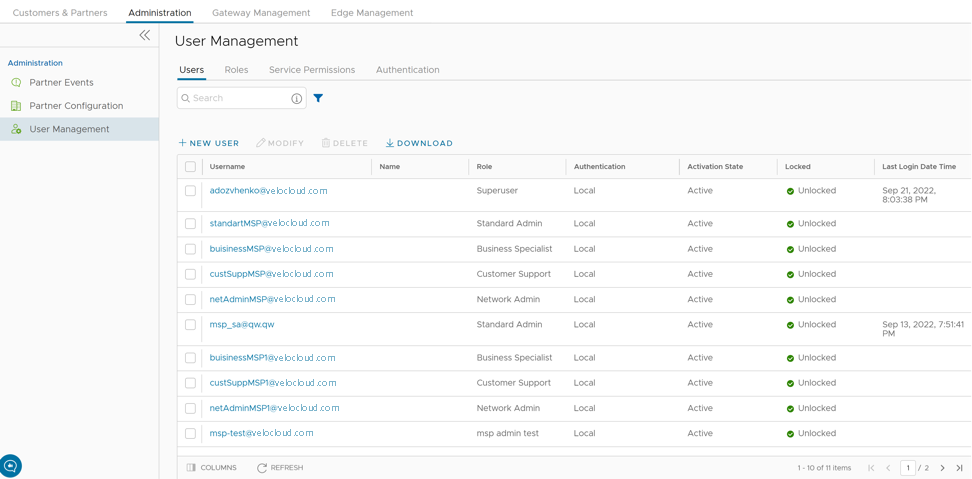
Users
To access the Users tab, use the following steps:
- Select User Management to display the Users tab.
Figure 2. Users Tab - Partner 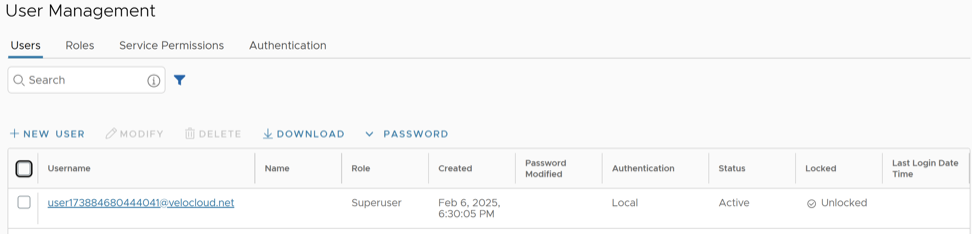
Add New User
In the Partner portal of the Orchestrator, you can add new users and configure the User settings. To add a new user, perform the following steps:
- Select New User.
Figure 3. New User 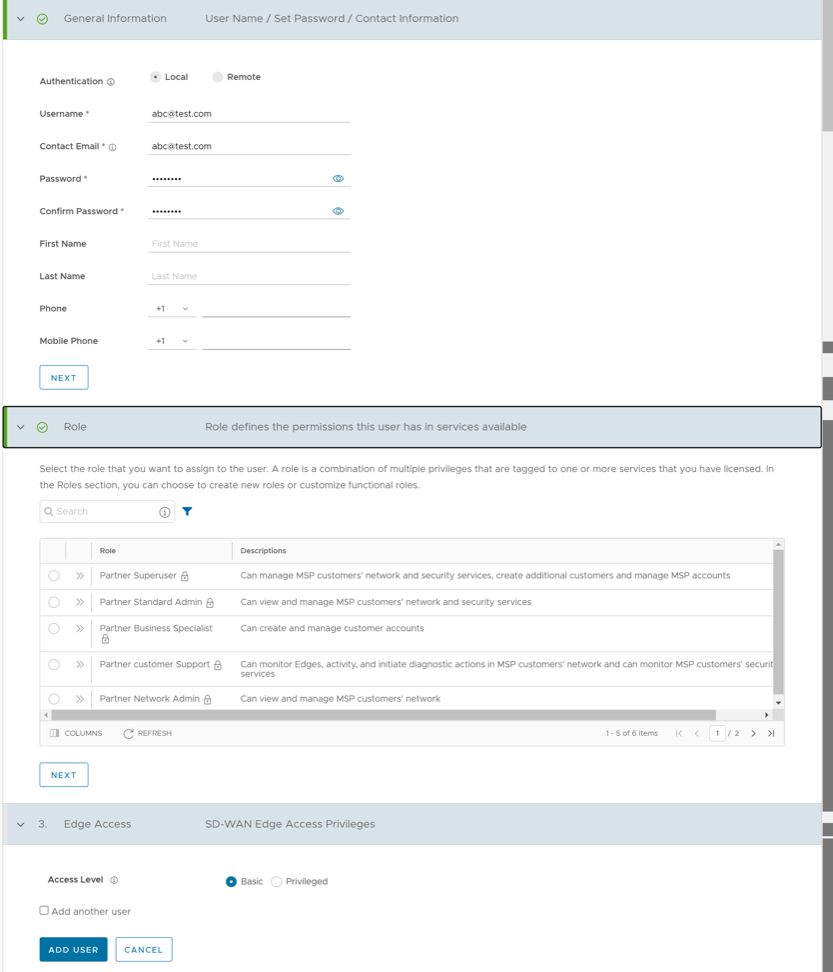
API Tokens
Any user can create tokens based on the privileges assigned to their user roles, except the Business Specialist users.
- Enterprise users can Create, Download, and Revoke tokens for them.
- Partner Super users can manage tokens of Enterprise users, if the Enterprise user has delegated user permissions to the Partner.
- Partner Super users can only create and revoke the tokens for other users.
- Users can download only their tokens and cannot download other users' tokens.
To manage the API tokens:
- Select a user and select Modify or select the link to the username. Go to the API Tokens section.
Figure 4. API Tokens 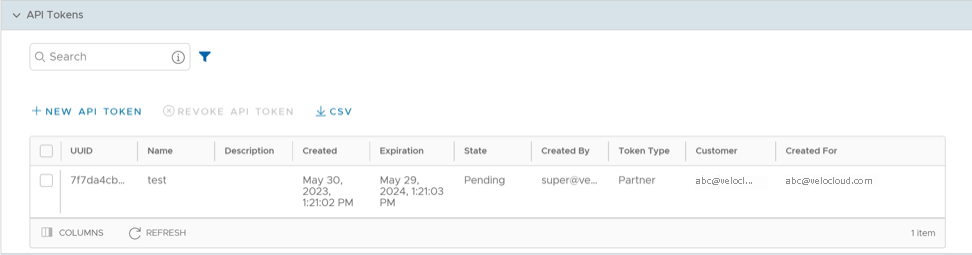
- Select New API Token.
Figure 5. New Token 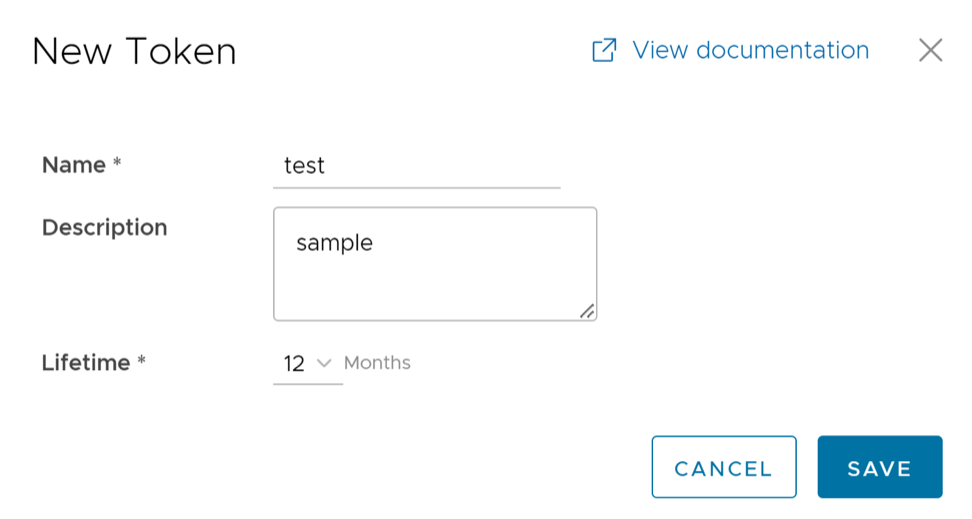
Roles
- Privileges – Privileges have a set of roles relevant to a service. A privilege can be tagged to one or more services. Users require privileges to carry out business processes. For example, a Customer support role in SD-WAN is a privilege required by an SD-WAN user to carry out various support activities. Every service defines such privileges based on its supported business functionality.
- Roles – The privileges from various categories can be grouped to form a role. By default, Orchestrator has the following roles for a Partner administrator:
Table 5. Roles Role SD-WAN Service Global Settings Service Partner Standard Admin SD-WAN Partner Admin Global Settings Partner Admin Partner Security Admin SD-WAN Security Partner Admin Global Settings Partner Admin Partner Network Admin SD-WAN Partner Admin Global Settings Partner Admin Partner Superuser Full Access Full Access Partner Business Specialist SD-WAN Partner Business Global Settings Partner Business Partner Customer Support SD-WAN Partner Support Global Settings Partner Support If required, you can customize the privileges of these roles. For additional information, see Service Permissions.
As a Partner, you can view the list of existing roles and the corresponding descriptions. You can add a new role, clone an existing role, edit or delete a custom role. You cannot edit or delete a default role.
To access the Roles tab:
- Select User Management, and then select Roles. The following screen displays:
Figure 6. Roles Tab - Partner 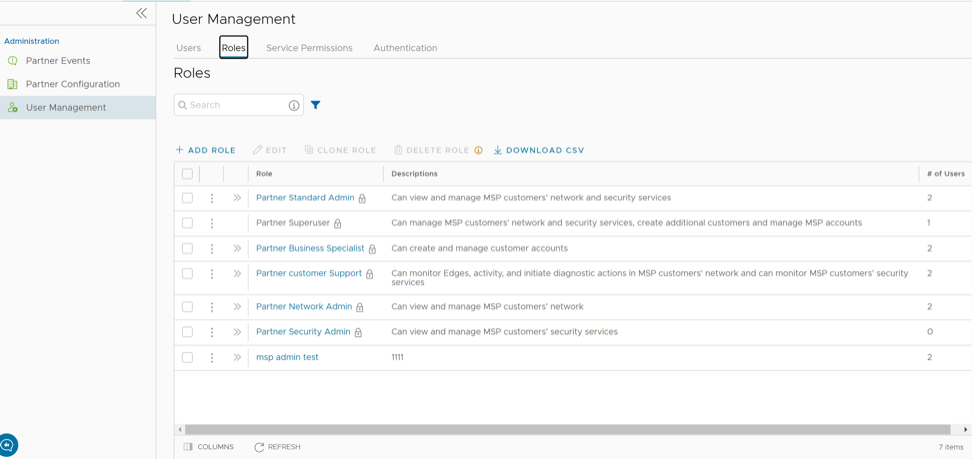
- Select the >> displayed before the Role link, to view additional details about the selected Role, as shown below:
Figure 7. Role Details 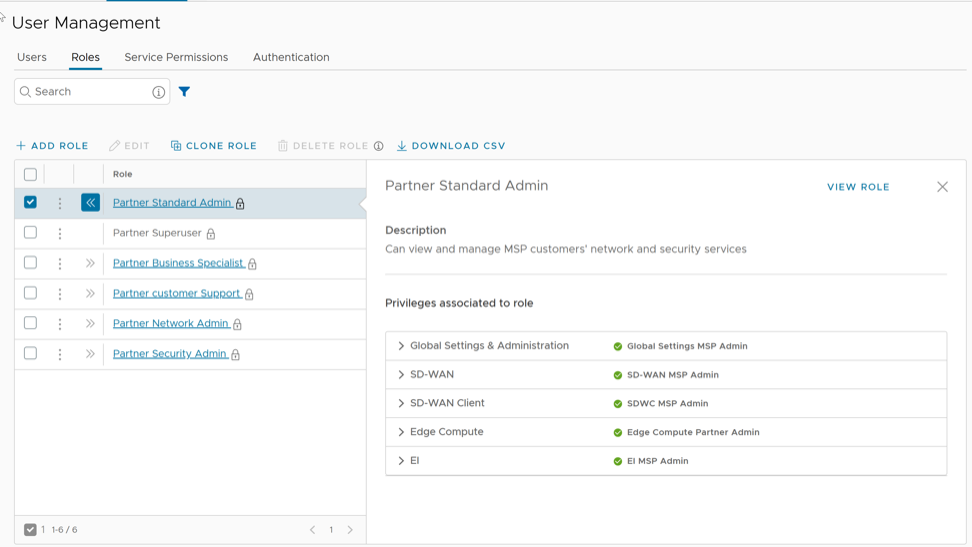
Add Role
- Select Add Role.
Figure 8. Add Role 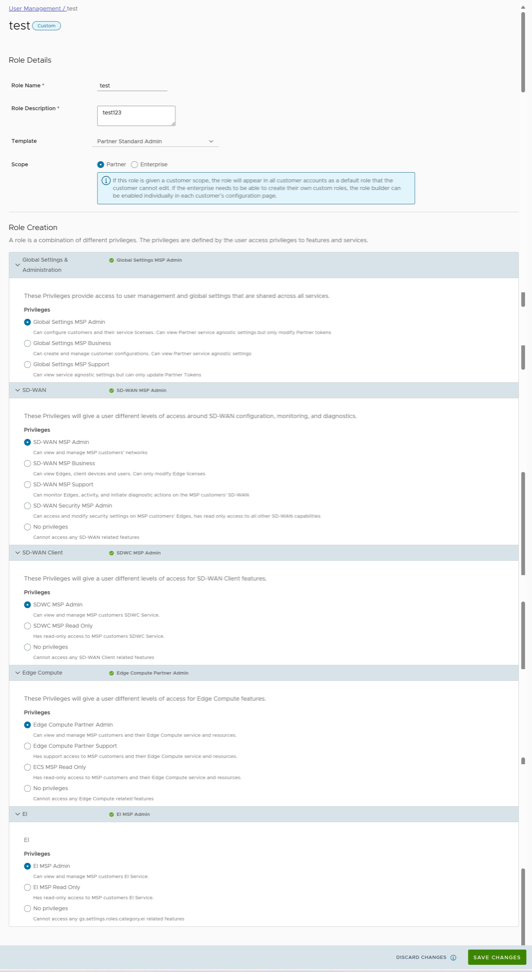
Service Permissions
- Starting from the 5.1.0 release, Role Customization is renamed as Service Permissions.
- Only an Operator Superuser can activate Service Permissions for a Partner Superuser. If you cannot view the Service Permissions option, contact your Operator.
Roles can be customized by changing the service permissions held by each role. You can customize both, default roles and new roles. Create Roles based on the selected default role. Define Operator, Partner, and Enterprise roles separately.
When customizing a role, you must select the user level and the role. Typically, Operator roles have more privileges by default, than Partners or Enterprise Customers. When creating a user, you must assign a role to the user. Any change to that specific role privileges immediately applies to all users assigned to that role. Role customizations only apply to one role at a time. For example, changes to Operator Standard Admin roles do not apply to Enterprise Standard Admin roles.
For additional information, see the topic Roles.
- The customizations performed at the Enterprise level override the Partner or Operator level customizations.
- The customizations performed at the Partner level override the Operator level customizations.
- Only when no customizations performed at the Partner level or Enterprise level, the customizations made by the Operator apply globally across all users in the Orchestrator.
To access the Service Permissions tab, use the following steps:
- Select User Management, then select Service Permissions. The following screen displays:
Figure 9. Service Permissions Tab - Partner 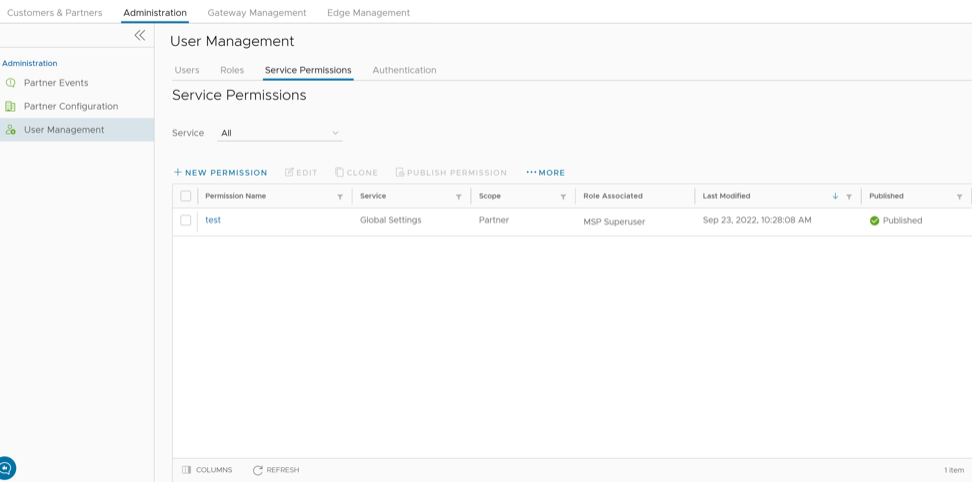
New Permission
To add a new permission, perform the following steps:
- Select New Permission. The following screen appears:
Figure 10. New Permission 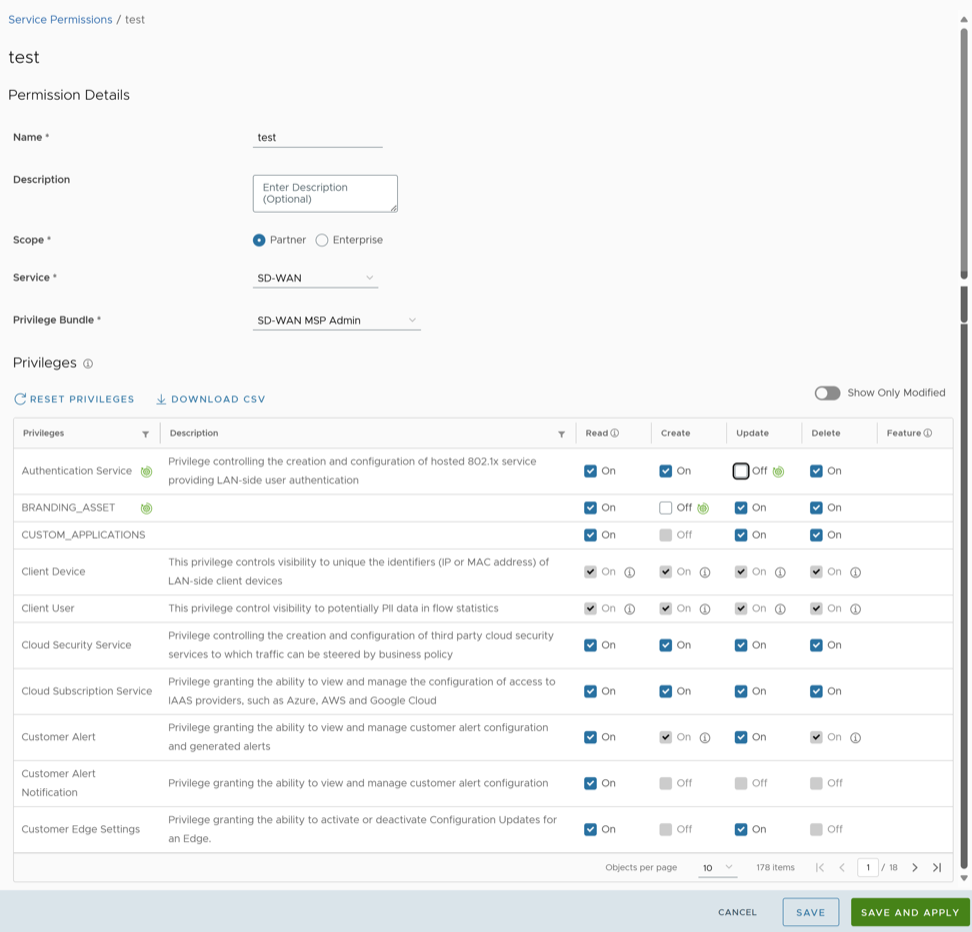
Authentication
To set the authentication mode, use the following steps:
- Select User Management, and then select Authentication.
The following screen displays:
Figure 11. Authentication Tab - Partner 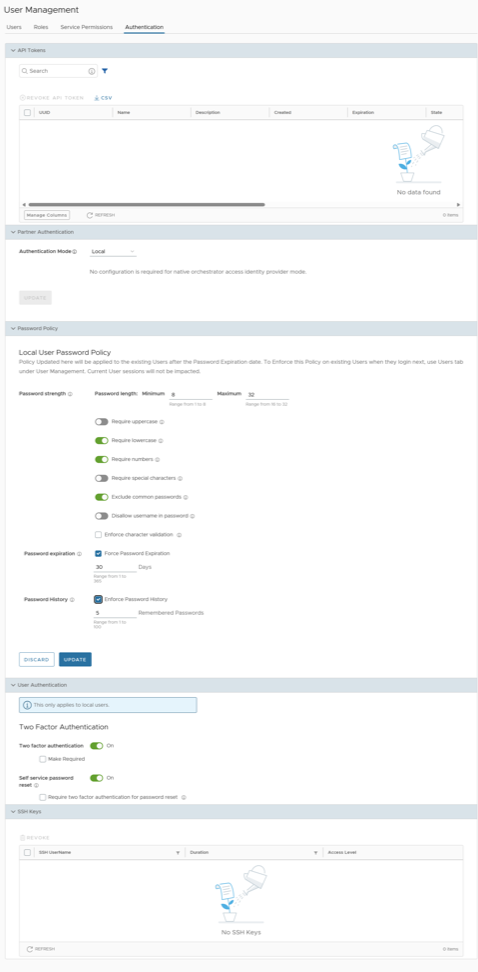
- Select the authentication mode:
- Local - Enabled by default and does not require any additional configuration.
- Single Sign-On - Single Sign-On (SSO) provides a session- and user-authentication service that allows users to log into multiple applications and websites with one set of credentials. Integrating an SSO service with Orchestrator enables Orchestrator to authenticate users from OpenID Connect (OIDC)-based Identity Providers (IdPs).
- Users can configure the following options on selecting the Authentication Mode as Single Sign-on:
Figure 12. Single Sign-on Authentication Options 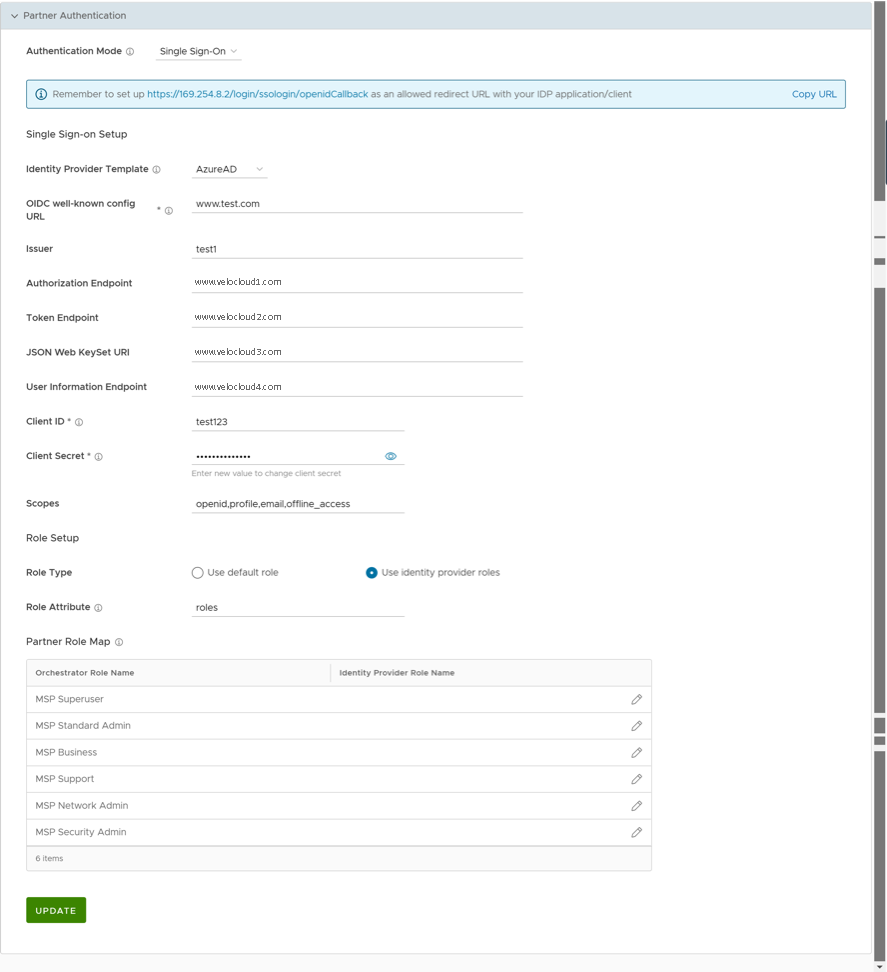
Table 14. Single Sign-on Authentication - Options and Descriptions Option Description Identity Provider Template From the menu, select your preferred Identity Provider (IdP) configured for Single Sign On. This pre-populates fields specific to your IdP. Note: Users can also manually configure IdPs by selecting Others from the menu.OIDC well-known config URL Enter the OpenID Connect (OIDC) configuration URL for your IdP. For example, the URL format for Okta will be: https://{oauth-provider-url}/.well-known/openid-configuration.Issuer This field auto-populates based on your selected IdP. Authorization Endpoint This field auto-populates based on your selected IdP. Token Endpoint This field auto-populates based on your selected IdP. JSON Web KeySet URI This field auto-populates based on your selected IdP. User Information Endpoint This field auto-populates based on your selected IdP. Client ID Enter the client identifier provided by your IdP. Client Secret Enter the client secret code provided by your IdP, and used by the client to exchange an authorization code for a token. Scopes This field auto-populates based on your selected IdP. Role Type Select one of the following two options: - Use default role
- Use identity provider roles
Role Attribute Enter the name of the attribute set in the IdP to return roles. Partner Role Map Map the IdP-provided roles to each of the Partner user roles.
- Configure two-factor authentication and self-service password reset in the User Authentication section.
Figure 13. User Authentication 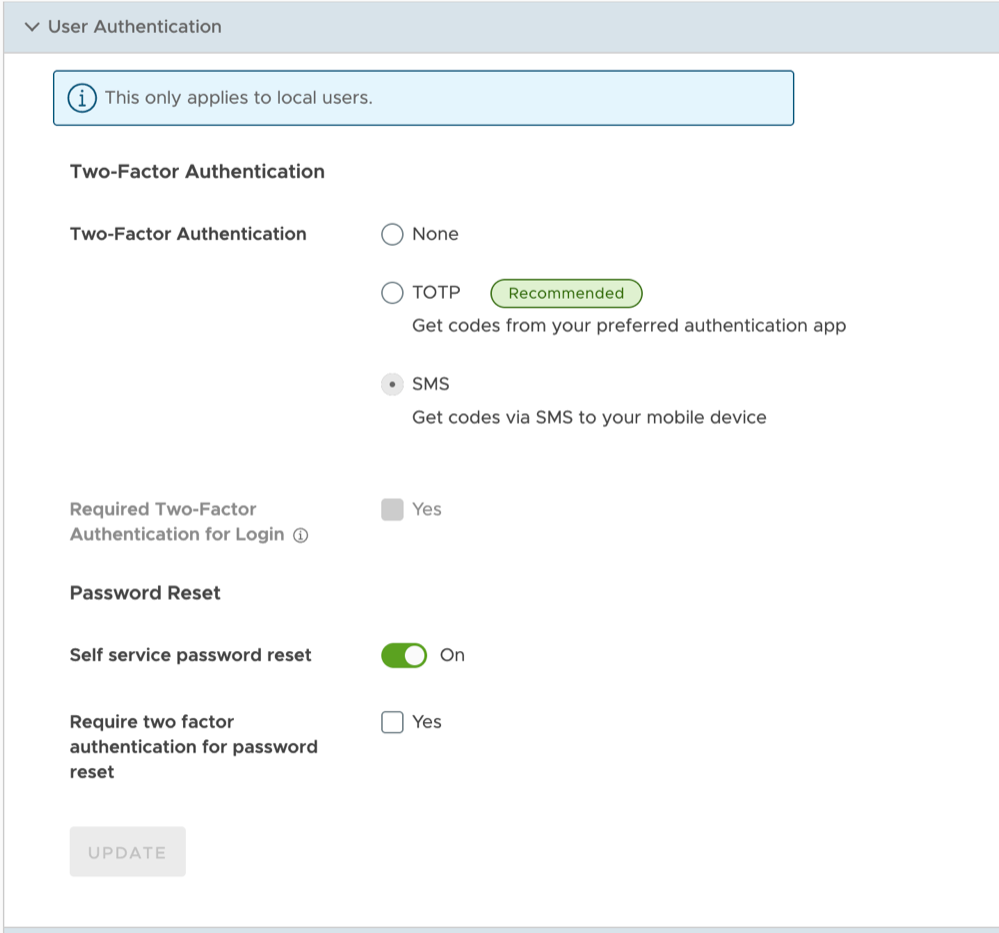
Table 15. User Authentication - Options and Descriptions Option Description Two factor authentication Choose from the following options: - None: Select this option to disable the two-factor authentication.
- TOTP: Select this option to activate the two-factor authentication via TOTP. The TOTP (Time-based One Time Passcode) authentication is more secure than the SMS-based authentication. After a user selects this option, a confirmation dialog appears. Activating TOTP prevents users from switching back to the SMS option. For more information, refer to Time-Based One Time Passcode (TOTP).
- SMS: Select this option to activate the two-factor authentication via SMS. Only users with mobile phone numbers associated with their user accounts can activate this feature. This option appears only when a user has previously selected SMS. After the user selects TOTP and saves the selection, the SMS option disappears from the screen, preventing the user from switching back to it.
Require two factor authentication for Login Selecting the TOTP option enables this checkbox. Select the Yes checkbox to make two-factor authentication mandatory for user logins, preventing users from skipping TOTP enrollment before proceeding with authentication. If the checkbox remains unselected, then users can skip the enrollment and immediately complete authentication. However, the Orchestrator continues to prompt users to enroll on every login until they complete enrollment. Self service password reset Enable this feature to allow users to change their passwords using the link on the Login screen. Require two factor authentication for password reset Select the Yes checkbox to make two-factor authentication mandatory during password resets. - Configure password policy for local users.
Starting from the release 6.4.0, Partner Superusers can set the password policies directly from the Authentication screen. The Local User Password Policy section appears when the Authentication Mode is set to Local.
Figure 14. Password Policy 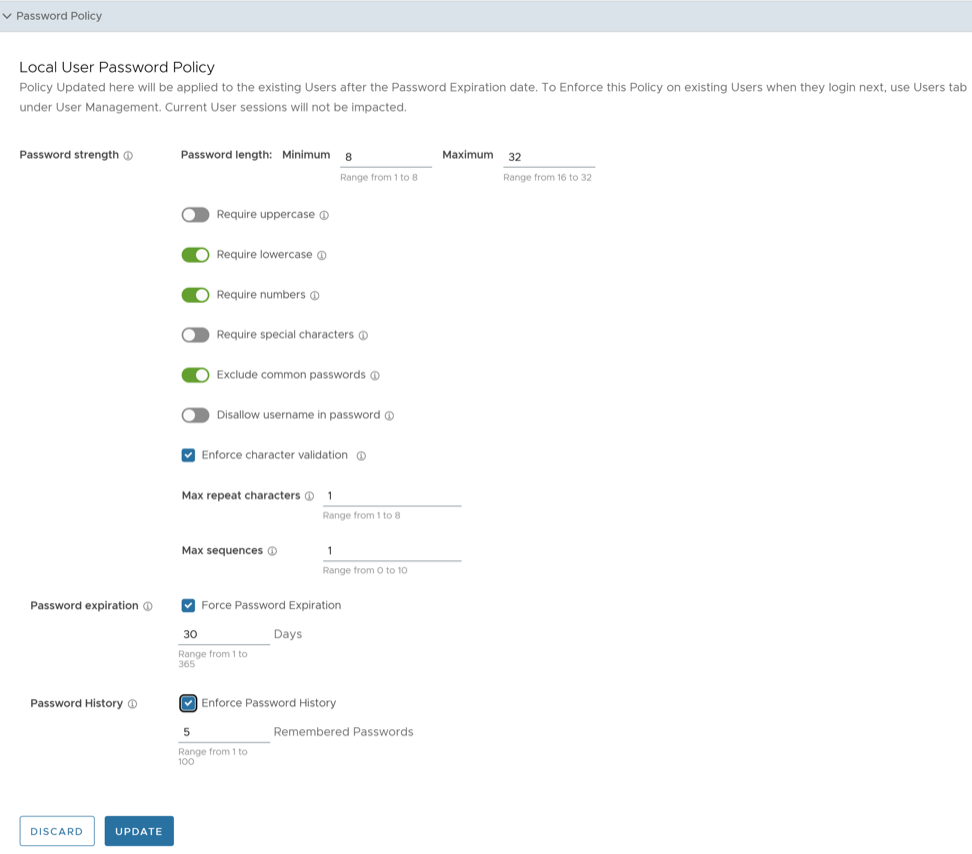
Table 16. Password Policy - Options and Descriptions Option Description Password Strength Password length Specify the minimum and maximum length of the password. The minimum length value must be in the range from 1 to 8, whereas the maximum length value must be in the range from 16 to 32. The default values are 8 and 32 respectively. Require uppercase Enable this parameter. If activated, the password must contain at least one uppercase letter. Require lowercase Enable to activate this parameter. If activated, the password must contain at least one lowercase letter. Require numbers Enable to activate this parameter. If activated, the password must contain at least one number. Require special characters Enable to activate this parameter. If activated, the password must contain at least one special character. Hover the mouse on the information icon to view the valid special characters. Exclude common passwords Enable to activate this parameter. If activated, users are not allowed to use the most commonly used passwords. Disallow username in password Enable to activate this parameter. If activated, username cannot be set as the password. Enforce character validation Select to ensure that the password meets the following criteria for strength and security: - Max repeat characters: Enter the maximum number of characters repeated in the password. The accepted range is from 1 to 8. The default value is 1.
- Max sequences: Enter the maximum number of consecutive characters or sequences allowed in the password. The accepted range is from 0 to 10. The default value is 1.
Password Expiration Select Force Password Expiration and set the duration after which users must change their passwords. The accepted range is from 1 to 365. The default value is 30. Password History Select Enforce Password History and enter a value that specifies the number of previously created passwords that cannot be reused as the new password. This enhances the overall security. The accepted range is from 1 to 100. The default value is 5. After making changes to policy settings, select Update to save updated policy settings or select Discard to leave the settings unchanged. Users already logged in are not affected by this update.
To enforce the new password policy, an Enterprise Superuser must perform the following steps:
Time-Based One Time Passcode (TOTP)
Release 7.0.0 introduces a new feature, the Time-based One-Time Passcode (TOTP) mechanism, for Two Factor Authentication (2FA). This feature replaces the current text-based 2FA mechanism (SMS) and mandates all future 2FA to use TOTP. Arista recommends selecting the TOTP authentication because it is more secure than the SMS-based authentication.
When a user enables TOTP under , the Orchestrator prompts all users who log in to either enroll (if not already enrolled) or provide the TOTP to complete authentication.
The procedure below explains the enrollment flow.
- After enabling the TOTP, re-login to the VeloCloud Orchestrator.
The following screen appears if the user has not completed the TOTP enrollment.
Figure 15. TOTP Enrollment 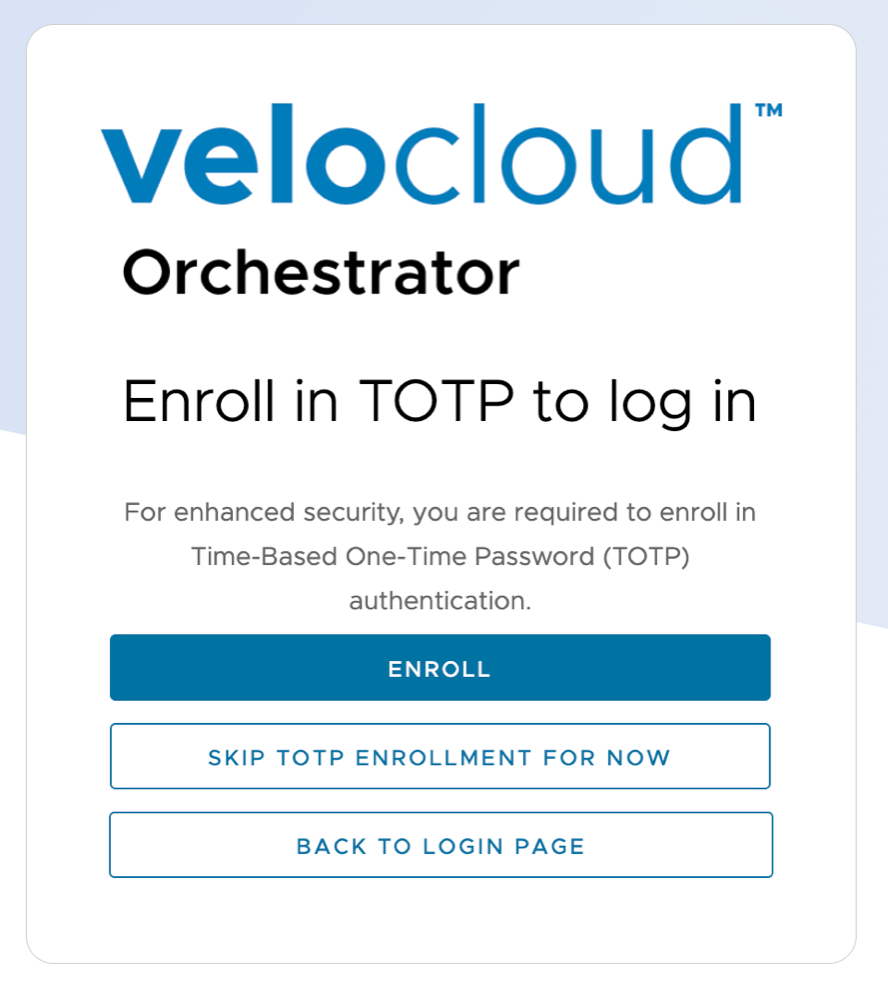
- Enroll: Perform the below steps.
- Select Verify.
Figure 16. Setup the Authenticator App 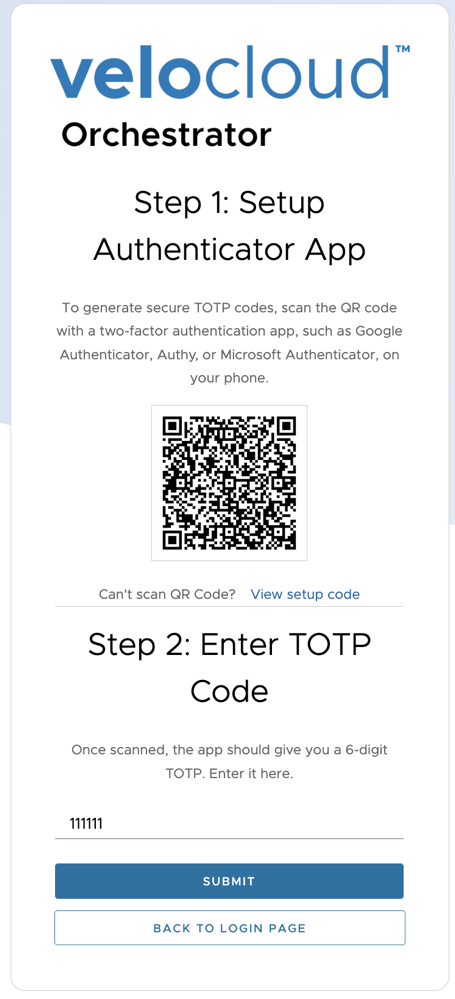
- Enter the new TOTP generated on the authenticator application, and then select Submit.
Figure 17. Enter TOTP 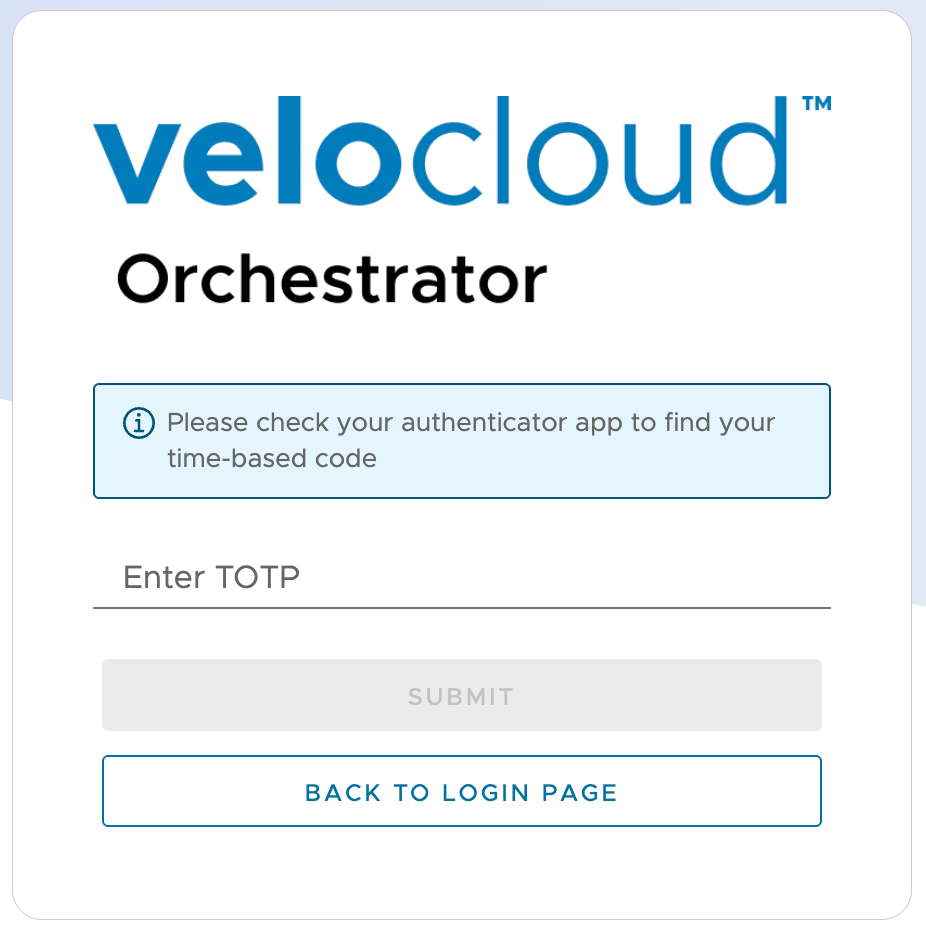 Note: The Authenticator application generates a new TOTP every 30 seconds.
- Select Verify.