
Monitor Enterprise
VeloCloud SD-WAN allows an Enterprise user to monitor the events and services using a redesigned portal.
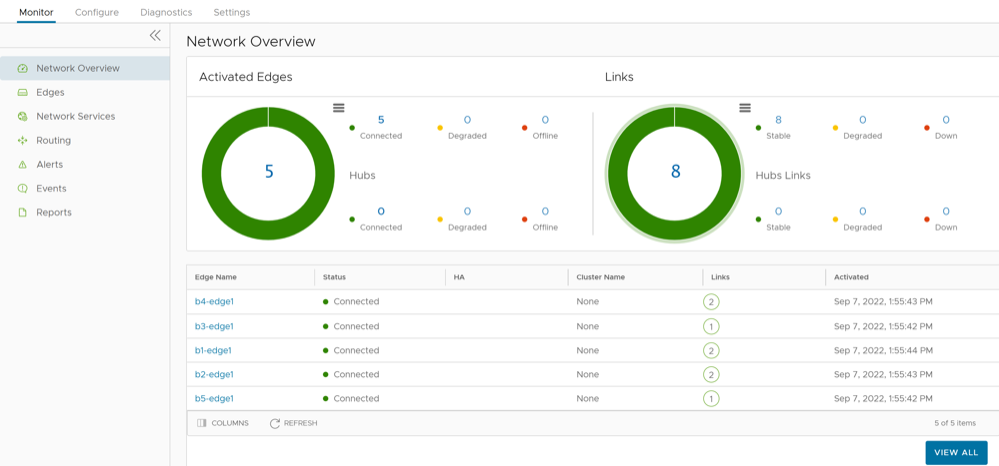
You can explore each monitoring option and select the graphs to view more detailed drill-down reports.
- Search – Enter a term to search for specific details. Select the Filter icon to filter the view by a specific criterion.
- Column – Select and select the columns to be shown or hidden in the view.
- Refresh – Select to refresh the details displayed with the most current data.
Monitor Network Overview
The Network Overview page displays the overall summary of the network, like activated Edges, links, top applications, and other configured data.
In the SD-WAN service of the Enterprise portal, select .
The Network Overview page displays the summary of the network in a graphical representation. In this page, you can find details about Activated Edges, Links, Top performing Applications and Edges by data volume, Profiles used by the Edges, Activated Segments, Software version of the Edges, and so on.
Also, the Network Overview page displays additional information about the Edges that are connected, degraded, and down in a table format as shown in the screenshot below. For a provisioned and activated Edge, you can find additional details such as name and status of Edge, number of links and hub links that are stable, name of Cluster to which the Edge is assigned, High Availability (HA) mode if the Edge is running 5.2.0.0 and above versions, Bastion state if Bastion Orchestrator is configured, secrets encryption, and date/time when the Edge is activated.
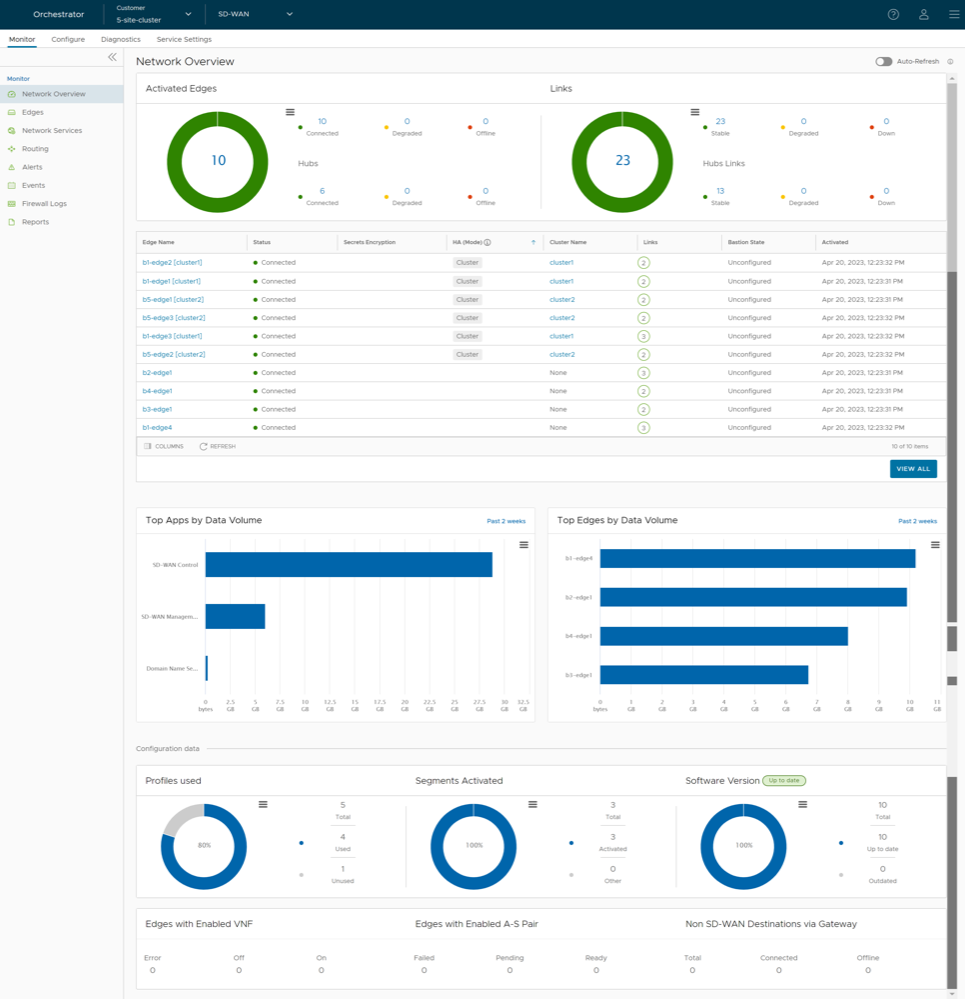
The following details are displayed:
| Option | Description |
|---|---|
| Activated Edges | Displays the number of Edges and Hubs that are connected, degraded, and down, along with a graphical representation. Select the link to a number and details of the corresponding Edges or Hubs are displayed in the bottom panel.
In the following table, select the link to the Edge or the cluster name to navigate to the corresponding tabs. |
| Links | Displays the number of links and hub links that are stable, degraded, and down, along with a graphical representation. Select the link to a number and details of the corresponding links or Hub links are displayed in the bottom panel.
In the following table, select the link to the Hub name to navigate to the corresponding tab. |
| Top Apps by Data Volume | Displays the top 10 applications sorted by volume of data. |
| Top Edges by Data Volume | Displays the top 10 Edges sorted by volume of data. |
| Profiles Used | Displays the details of used and unused profiles. |
| Segments Activated | Displays the details of activated and other segments. |
| Software Version | Displays the details of software versions of the Edges, that are up to date and outdated. |
| Edges with Enabled VNF | Displays the number of Edges activated with VNF, that are with status Error, Off, and On. |
| Edges with Enabled A-S Pair | Displays the number of Edges activated as Active-Standby pair, that are with status Failed, Pending, and Ready. |
| Non SD-WAN Destinations via Gateway | Displays the number of non SD-WAN destinations that are connected and offline. |
Hover the mouse on the graphs to view additional details.
Monitor Edges
You can monitor the status of Edges and view the details of each Edge, like the WAN links, top applications used by the Edges, usage data through the network sources and traffic destinations, business priority of network traffic, system information, details of Gateways connected to the Edge, and so on.
To monitor the Edge details:
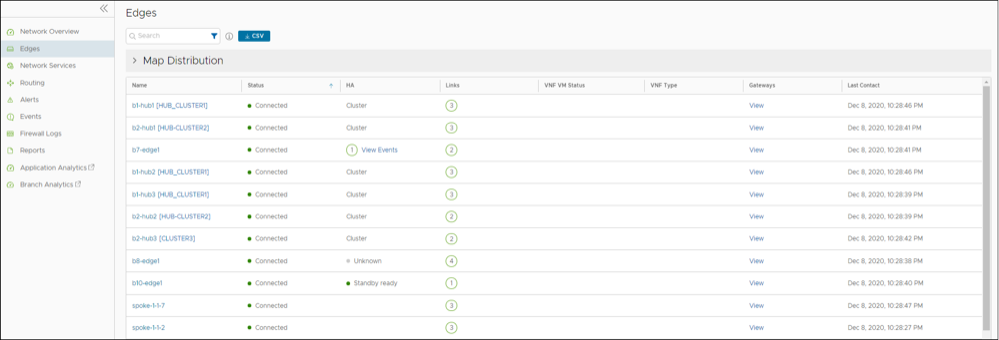
Select CSV to download a report of the Edges in CSV format.
Select View in the Gateways column to view the details of the Gateways connected to the corresponding Edge.
Select an Edge name in the Name column to view the details of the selected Edge. Select the relevant tabs to view the corresponding information. Each tab displays a drop-down list at the top which allows you to select a specific time period. The tab displays the details for the selected duration.
Some of the tabs provide drop-down menu of metrics parameters. You can choose the metrics from the list to view the corresponding data. The following table lists the available metrics:
The following table discusses each drop-down menu that are available in the Links, Applications, Sources, Destinations, and Business Priority tabs.
| Metrics Option | Description |
|---|---|
| Average Throughput | Total bytes in a given direction divided by the total time. The total time is the periodicity of statistics uploaded from the Edge. By default, the periodicity in SASE Orchestrator is 5 minutes. |
| Total Bytes | Total number of bytes sent and received during a network session. |
| Bytes Received/Sent | Split up details of number of bytes sent and received during a network session. |
| Total Packets | Total number of packets sent and received during a network session. |
| Packets Received/Sent | Split up details of number of packets sent and received during a network session. |
| Bandwidth | The maximum rate of data transfer across a given path. Displays both the upstream and downstream bandwidth details. |
| Latency | Time taken for a packet to get across the network, from source to destination. Displays both the upstream and downstream Latency details. |
| Jitter | Variation in the delay of received packets caused by network congestion or route changes. Displays both the upstream and downstream Jitter details. |
| Packet loss | Packet loss happens when one or more packets fail to reach the intended destination. A lost packet is calculated when a path sequence number is missed and does not arrive within the re-sequencing window. A “very late” packet is counted as a lost packet. |
| Auto Dual-Mode SIM | Status of the Edge with respect to the Automatic Switchover feature configured on that Edge, and is applicable only for a 610-LTE. For additional information on the Automatic Switchover feature, see Configure Automatic SIM Switchover. |
| Signal | Signal strength of the Edge indicated by the number of bars. |
- Configure – Navigates to the Configuration tab of the selected Edge. See Configure Edge Overrides.
- View Events – Displays the Events related to the selected Edge.
- Remote Diagnostics – Allows to run the Remote Diagnostics tests for the selected Edge. See Run Remote Diagnostics.
- Generate Diagnostic Bundle – Allows to generate Diagnostic Bundle for the selected Edge. See Diagnostic Bundles for Edges.
- Remote Actions – Allows to perform the Remote actions for the selected Edge. See Remote Actions.
- View Profile – Navigates to the Profile page, that is associated with the selected Edge.
- View Gateways – Displays the Gateways connected to the selected Edge.
| Option | Description |
|---|---|
| Search | Enter a search term to search for the matching text across the page. Use the advanced search option to narrow down the search results. |
| Columns | Select the columns to be displayed or hidden on the page. |
| Refresh | Select to refresh the page to display the most current data. |
Monitor Edge Overview
The Overview tab of an Edge in the monitoring dashboard displays the details of WAN links along with bandwidth consumption and network usage.
- In the SD-WAN service of the Enterprise portal, select to view the Edges associated with the Enterprise.
- Select the link to an Edge and the Overview tab is displayed by default.
The Overview tab displays the details of links with status and the bandwidth consumption.
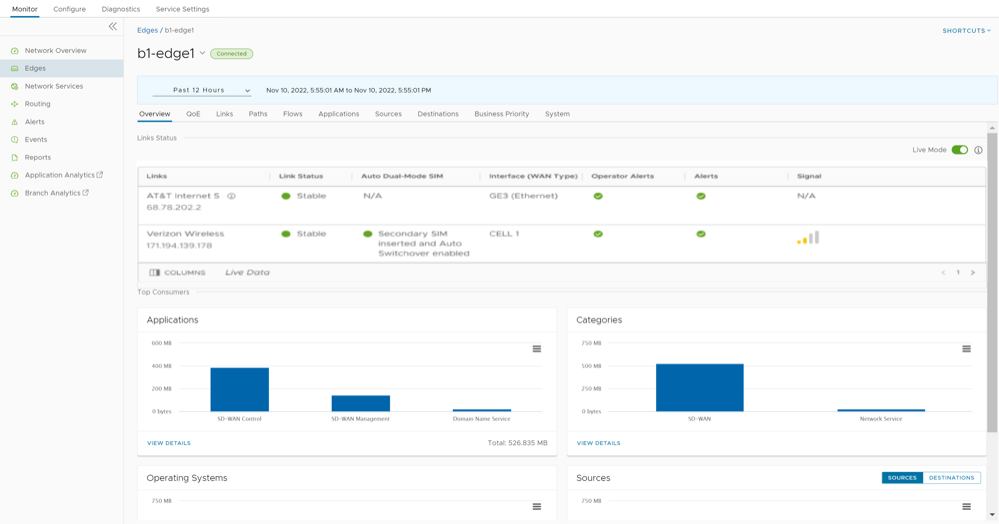
You can choose whether to view the Edge information live using the Live Mode option. When this mode is ON, live monitoring of the Edge happens and the data in the page is updated whenever there is a change. The live mode is automatically moved to offline mode after a period of time to reduce the network load.
The Links Status section displays the details of Links, Link Status, Auto Dual-Mode SIM, WAN Interface, Throughput, Bandwidth, Signal, Latency, Jitter, and Packet Loss. For additional information on these parameters, see Monitor Edges.
The Top Consumers section displays graphical representation of bandwidth and network usage of the following: Applications, Categories, Operating Systems, Sources, and Destinations of the Edges. Select View Details in each panel to navigate to the corresponding tab and view additional details.
Hover the mouse on the graphs to view additional details.
Monitor QoE
The Arista Quality of Experience (QoE) tab shows the Quality Score for different applications. The Quality score rates an application's quality of experience that a network can deliver for a period of time. The QoE is calculated based on the best score comparing all the Static tunnels (Edge to Gateways and Edge to Hubs) and then displays the best performing tunnel.
- In the SD-WAN service of the Enterprise portal, select to view the Edges associated with the Enterprise.
- Select the link to an Edge, and then select the QoE tab.
The QoE tab displays the quality score of applications for different traffic types.
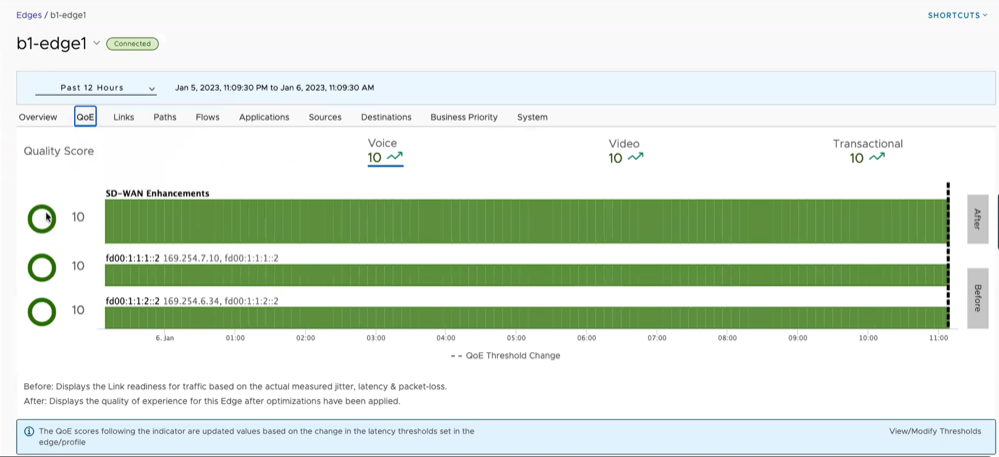
The following traffic types are supported: Voice, Video, and Transactional. Select the link to a traffic type displayed at the top, to view the corresponding data. You can hover the mouse on a WAN network link or an aggregate link to display a summary of Latency, Jitter, and Packet Loss.
| Color | Rating Color | Rating Option |
|---|---|---|
| Green | Good | All metrics are better than the objective thresholds. Application SLA is met/exceeded. |
| Yellow | Fair | Some or all metrics are between the objective and maximum values. Application SLA is partially met. |
| Red | Poor | Some or all metrics have reached or exceeded the maximum value. Application SLA is not met. |
To modify the threshold values, select the View/Modify Thresholds link located at the bottom of the screen, which directly takes you to the page.
Monitor Links of an Edge
You can monitor the WAN links connected to a specific Edge along with the status, interface details, and other metrics.
- In the SD-WAN service of the Enterprise portal, select to view the Edges associated with the Enterprise.
- Select the link to an Edge, and then select the Links tab.
The Links tab displays the details of WAN links connected to the selected Edge.
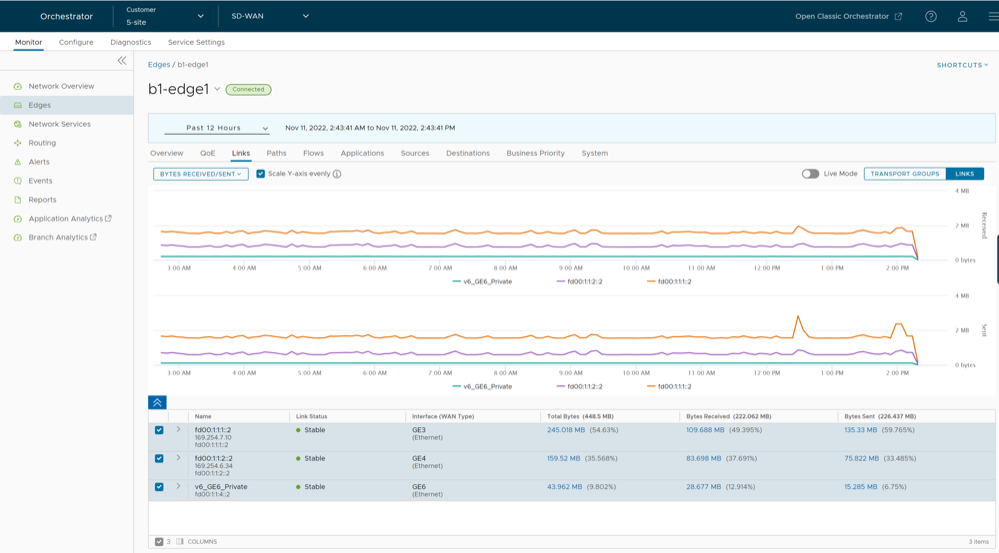
At the top of the page, you can choose a specific time period to view the details of the priorities for the selected duration.
By default, the Scale Y-axis evenly check box is selected. This option synchronizes the Y-axis between the charts. If required, you can turn off this option.
Hover the mouse on the graphs to view additional details.
Select Transport Groups to view the links grouped into one of the following categories: Public Wired, Public Wireless, or Private Wired.
You can choose whether to view the information live using the Live Mode option. When this mode is ON, you can view live monitoring of the links and the transport groups.
Choose the metrics from the drop-down to view the details related to the selected parameter.
The bottom panel displays the details of the selected metrics for the links or the transport groups. You can view the details of a maximum of four links at a time.
Select the arrow prior to the link name or the transport group to view the break-up details. To view drill-down reports with additional details, select the links displayed in the metrics column.
The following image shows a detailed report of transport groups with top applications and links.
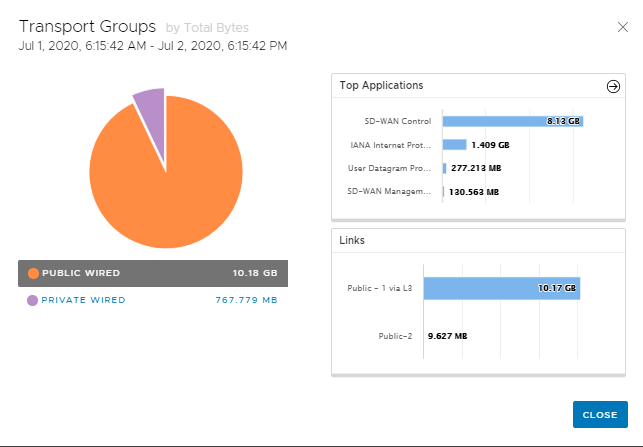
Select the arrow next to Top Applications to navigate to the Applications tab.
Monitor Path Visibility
Path is a tunnel between two endpoints. Path visibility is a report on utilization and quality of the paths between an Edge and its Arista SD-WAN peers. SASE Orchestrator allows an Enterprise user to monitor the Path visibility using the monitoring dashboard.
- In the SD-WAN service of the Enterprise portal, select to view the Edges associated with the Enterprise.
- Select the link to an Edge, and then select the Paths tab.
For the selected Edge, the Paths tab displays the details of Arista SD-WAN peers with traffic flow observed for specified period.
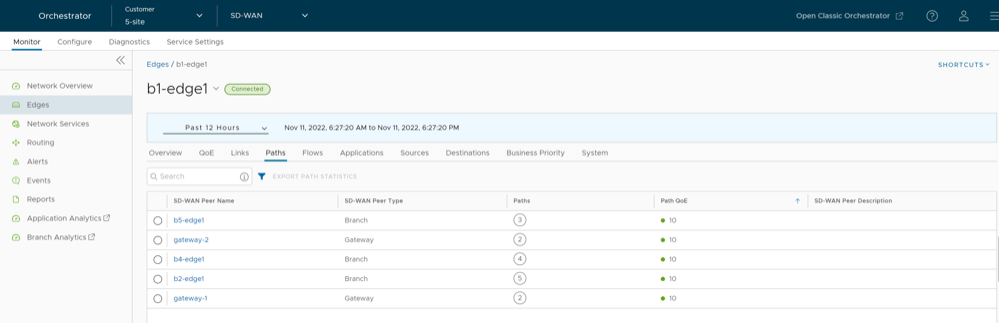
At the top of the page, you can choose a specific time period to view the details of the priorities for the selected duration.
To get a report of a Arista SD-WAN peer in CSV format, select the peer and select Export Path Statistics.
- All the Arista SD-WAN peers that have traffic observed during the selected time period.
- The status of the paths available for a selected peer.
- Overall quality score of the paths for a selected peer for voice, video, and transactional traffic.
- Time series data for each path by metrics like: Throughput, Latency, Packet loss, Jitter, and so on. For additional information on the parameters, see Monitor Edges.
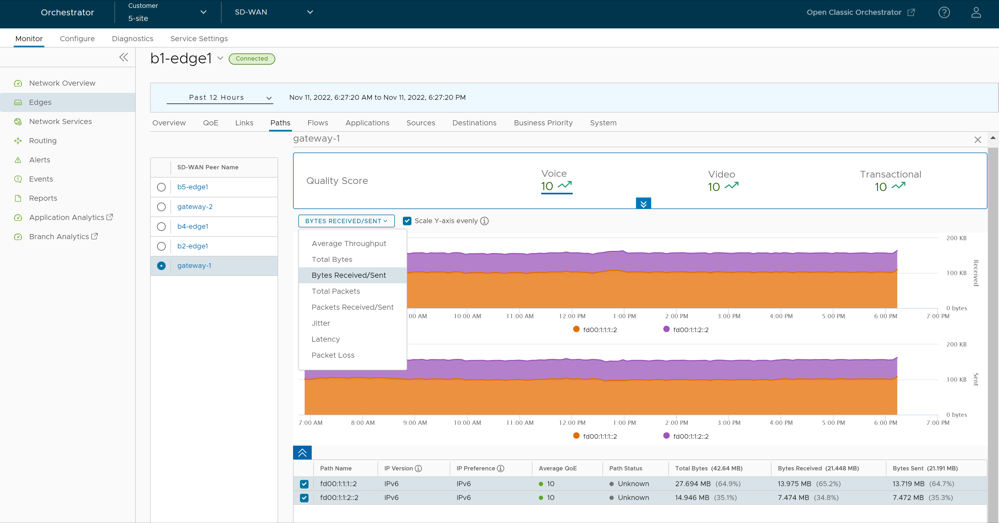
The metrics time-series data is displayed in a graphical format. You can select and view the details of a maximum of four paths at a time.
By default, the Scale Y-axis evenly check box is selected. This option synchronizes the Y-axis between the charts. If required, you can turn off this option.
Hover the mouse on the graphs to view additional details.
Expand the Quality Score pane at the top, to view the Path score by the traffic types.
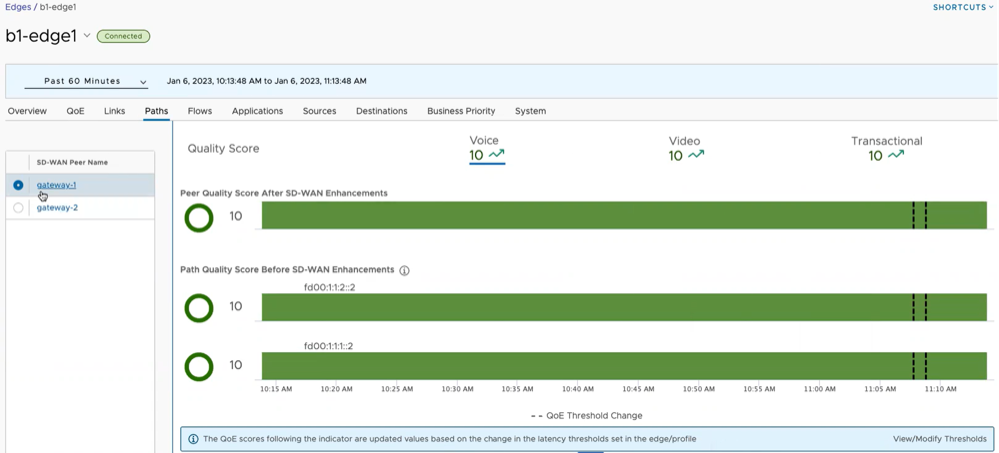
You can select a Arista SD-WAN peer displayed in the left pane, to view the corresponding Path details.
A black vertical dotted line indicating an anchor, appears on the graph, whenever there is a threshold value change in a Profile or an Edge. You can hover the mouse on the anchor to see the modified latency threshold values for Voice, Video, and Transactional. To modify the threshold values, select the View/Modify Thresholds link located at the bottom of the screen, which directly takes you to the page.
Monitor Flow Visibility
The Flow Visibility feature introduces a new Flows tab under Monitor > Edges, which provides detailed flow data on each traffic flow for each Edge. The comprehensive end-to-end flow (non-live flow) is built based on certain flow parameters, such as Source IP, Destination IP, Destination Port, Protocol, and Link ID. These parameters are displayed in a single-view table format, which can assist with monitoring and troubleshooting non-live flows. Starting with the 6.1 release, the Live Mode monitoring feature is supported. The Live Mode monitoring gives visibility into Source Port on top of non-live flows. It allows you to select individual or multiple live flows (up to four flows) to monitor and compare their metrics as live time series graphs.
Monitor Non-Live Flows
- In the SD-WAN service of the Enterprise portal, select to view the Edges associated with the Enterprise.
- Select the link of an Edge, and then select the Flows tab.
- At the top of the page, from the time duration drop-down menu, choose a specific time or create a custom time filter to view the flow information. By default, Past 12 Hours is selected. Filter capabilities from the past 60 minutes to 1 year is supported. The current data retention policy allows for high-resolution (per 5 minutes) flows to be retained for 4 weeks and low-resolution (per day) flows to be retained for up to a year.
High-resolution tables provide detailed insights into individual flows and short-term trends. They are useful for in-depth analysis and troubleshooting. Low-resolution tables offer a broader perspective on network traffic over longer periods. They are useful for capacity planning, trend identification, and reporting.
For the selected Edge, the Flows tab displays the detailed flow information about the selected Edge for a specified period.
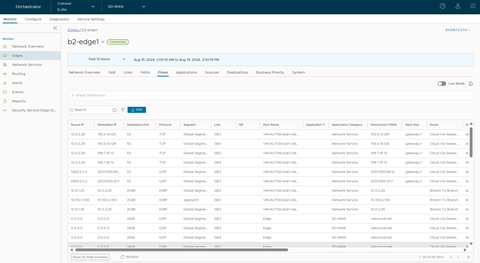
The Search field provides search capabilities to find a specific flow. Enter a search string to find text that matches the Source IP, Destination IP, Destination FQDN, and Destination Domain fields. Use the Advanced Search feature for more advanced filtering criteria.
filter/quickSearch/sortBy/startTime/endTime criteria when the metrics/getEdgeFlowVisibilityMetrics request was made.Monitor Live Flows
edge.liveData.enterFlowLiveMode.delay.seconds and
edge.liveData.enterFlowLiveMode.flow.count System Properties. See section List of System Properties in the Operator Guide for a description of these properties and information on how to configure them.
To activate Live Mode flow monitoring, perform the following steps:
- In the SD-WAN service of the Enterprise portal, select to view the Edges associated with the Enterprise.
- Select the link of an Edge, and then select the Flows tab.
- In the Flows tab area of the Orchestrator, at the top, right-hand corner, switch the Live Mode toggle button to the right to activate the live monitoring of flow data.
The Time Remaining countdown of five minutes begins.
Figure 12. Time Remaining 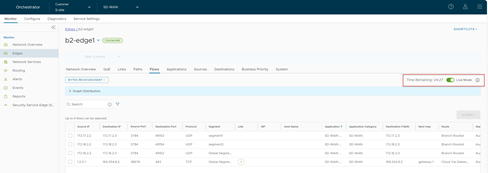
- In the Flows table, select up to four flows for which you want to monitor and compare the flow metrics. The selected flows move to the top of the table for better visibility. Then select any of the graph plots criteria (Bytes Received/Sent, Total Bytes, Packets Received/Sent, Total Packets, and Average Throughput), then select Submit.
Figure 13. Flows Tab 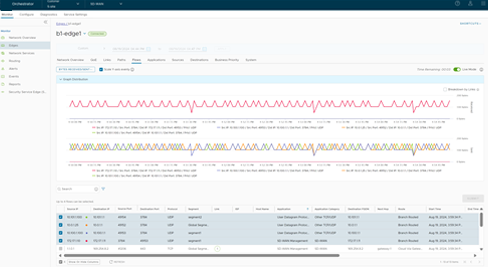
For the selected Edge with Live Mode activated, the Flows tab displays time series graphs of the selected flows, plotted at a rate of two seconds for a period of five minutes based on the selected graph plots criteria.
The Time Remaining countdown resets after the flows are selected and submitted. The timer will begin counting down from five minutes. After five minutes, a Mode Selection pop-up dialog displays.Figure 14. Confirm Mode Selection 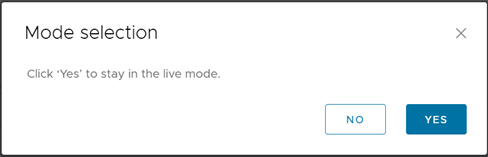
- Select Yes to stay in live mode, which resets the mode to live, and the countdown of five minutes begins.
- Select No to exit the live mode. The Flows tab goes back to the non-live mode view.
Note: At any given time, only one user is permitted to initiate live flows on a specific edge. The Mode selection dialog is displayed for 30 seconds. If no action is taken, the user is automatically exited from the live mode.Note: A maximum of 100 concurrent Edges can be monitored by default.
By default, the Scale Y-axis evenly check box is selected. This option synchronizes the Y-axis scale between the two charts. If required, you can turn off this option.
- Select the Breakdown by Links check box if you want to view the breakdown of flows by link. The link-level breakdown provides a detailed analysis of the graph flows, showing the data flow through each link since the flow was started.
The breakdown of flows by link is calculated by using the flow tuple and link headers. This is in contrast with using the flow tuple with no added headers as in non-breakdown by link.
Figure 15. Breakdown by Links 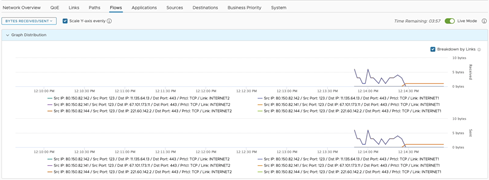 Note: When breaking down network flows by link, if the flow is a local network flow (i.e., no Wide Area Network (WAN) link), then there would not be any WAN link information displayed.
 - Selecting Refresh at the bottom-left side of the Orchestrator UI to fetches active flows in a batch of 1000- 4999 (as configured) flows from the Edge and updates existing flows displayed in the table.
If a customer is actively monitoring flows and refreshes the table, the active live flows displayed on the graph will no longer display, and the graph will be empty.Note: When the live mode is activated, if you select Refreshthe Time Remaining counter does not refresh.
Functionality Deviations from the Non-Live Mode
| Deviation | Behavior |
|---|---|
| Deviation of Filter functionality from non-live mode | In live mode, users must provide a CIDR-formatted IPv4 or IPv6 address to apply filters based on Source/Destination IP addresses of current flows on the Edge. The user cannot filter flows based on Link or Destination Domain. |
| Deviation of Search functionality from non-live mode | In live mode, the search is performed locally and does not require a server-side search. Consequently, it filters data that has already been provided to the Orchestrator and not active flows on the Edge. |
| Deviation of Flow fields from non-live mode |
|
| Field Item | Description |
|---|---|
| Source IP | Displays the IP address that owns the flow item. This information is also available on the Source tab and can be mapped to the name of the client device/operating system.
Note: When using the search features, IP filters do not support contains, startsWith or endsWith. Use CIDR format for similar results.
Note: When using the filter in the live mode, provide a CIDR formatted IPv4 or IPv6.
|
| Destination IP | Displays flow data of the Destination (Domain, FQDN, and IP). This information can also be found in the Destination tab.
Note: When using the search features, IP filters do not support contains, startsWith or endsWith. Use CIDR format for similar results.
Note: When using the filter in live mode, provide a CIDR formatted IPv4 or IPv6.
|
| Source Port | Displays the source port number of the flow.
Note: Source port is not available in the non-live mode.
|
| Destination Port | Displays the destination port number of the flow, which identifies the process that is to receive the data. |
| Protocol | Displays Protocols (e.g. UDP, TCP) associated with the flow. |
| Segment | Routing domain. Each segment has a unique routing table. |
| Link | Underlying link through which the flow stats are reported. |
| ISP | Displays the Internet Service Provider associated with the flow. |
| Host Name | The hostname associated with the source device of the flow. |
| Application | Column that displays the application. This information can also be found in the Application tab. |
| Application Category | Similar applications that are used by a specific Edge can be grouped into a category. |
| Destination FQDN | The Fully Qualified Domain Name (FQDN) of the Destination to which the traffic flow was directed. |
| Next Hop | The name of next-hop device for the flow (for example, the name of the Gateway if the route is Cloud via Gateway). See the Route to Nexthop Mapping Table for additional details. |
| Route | The path taken to the next hop across one or more networks. |
| Start Time | The timestamp of when the Edge started the flow stats aggregation period. |
| End Time | The timestamp of when the Edge ended the flow stats aggregation period. The difference between start and end times equals the amount of time a flow stat record was aggregated for. |
| Average Throughput | Displays the average throughput. |
| Total Bytes | Displays the total number of bytes sent and received during a flow. |
| Bytes Received | Displays details of the number of bytes received during a flow. |
| Bytes Sent | Displays details of the number of bytes sent during a flow. |
| Total Packets | Total number of packets sent and received during a flow. |
| Packets Received | Displays details of the number of packets received during a flow. |
| Packets Sent | Displays details of the number of packets sent during a flow. |
| Destination Domain | This field is grayed out for the live mode. Ensure to use destination FQDN or destination IP for the same filter outcomes. |
| Business Policy | Displays the name of the business policy rule associated with the flow. |
| Firewall Rule | Displays the name of the firewall rule associated with the flow. |
| Route Name | Nexthop |
|---|---|
| cloudViaGateway | The name of the Gateway that routes traffic to the cloud. |
| internetViaDirectBreakout | Nexthop has no name. The traffic is coming from the Internet directly. |
| branchToBranch (Gateway) | The name of the Gateway responsible for routing traffic to the other branch. |
| branchToBranch (Edge) | The name of the Edge that was used to route traffic to the other branch. |
| branchToNVSDirect | The name of the HUB device serving as the nexthop Edge. |
| branchToNVSViaGateway | The name of the Gateway that routes traffic to NVS. |
| branchToBackhaul | The name of the Edge or enterprise object that is used to route traffic to a non-velocloud site. |
| cloudViaGateway (Edge – to Partner Gateway) | The nexthop is the name of the Partner Gateway that will route the traffic. |
| branchRouted | Nexthop has no name. For basic routed traffic, there is no destination object, specifically, via an Edge router. |
| internetViaBranchCSS | Name of enterprise object used to route traffic to a non-velocloud branch. |
Monitor Edge Applications
You can monitor the network usage of applications or application categories used by a specific Edge.
- In the SD-WAN service of the Enterprise portal, select to view the Edges associated with the Enterprise.
- Select the link to an Edge, and then select the Applications tab.
The Applications tab displays the details of the applications used by the selected Edge.
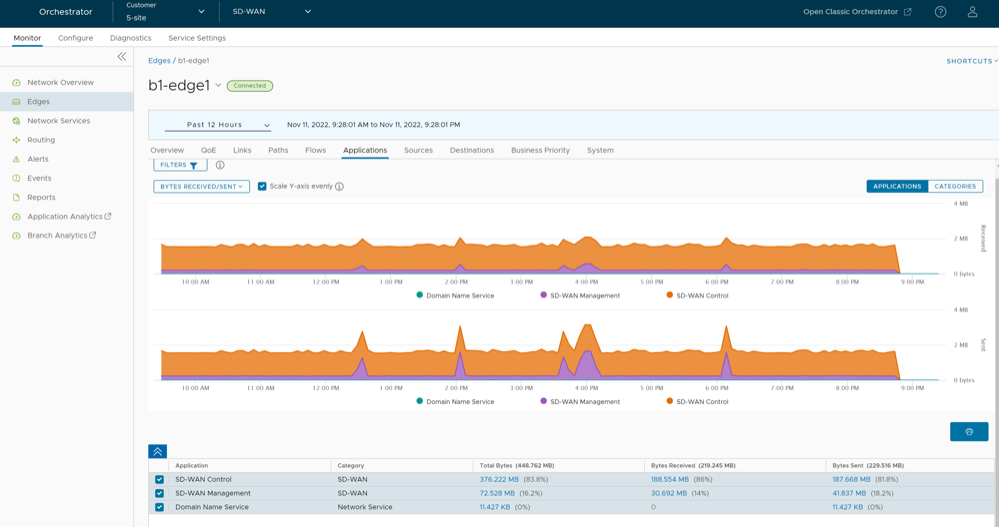
At the top of the page, you can choose a specific time period to view the details of the priorities for the selected duration.
Select Filter to define a criterion and view the application details filtered by the specified criteria.
By default, the Scale Y-axis evenly check box is selected. This option synchronizes the Y-axis between the charts. If required, you can turn off this option.
Select Categories to view similar applications grouped into categories.
Hover the mouse on the graphs to view additional details.
Choose the metrics from the drop-down to view the details related to the selected parameter.
The bottom panel displays the details of the selected metrics for the applications or categories. You can select and view the details of a maximum of 4 applications at a time. Select Columns to select the columns to be shown or hidden in the view.
To view drill-down reports with additional details, select the links displayed in the metrics column.
The following image shows a detailed report of top applications.
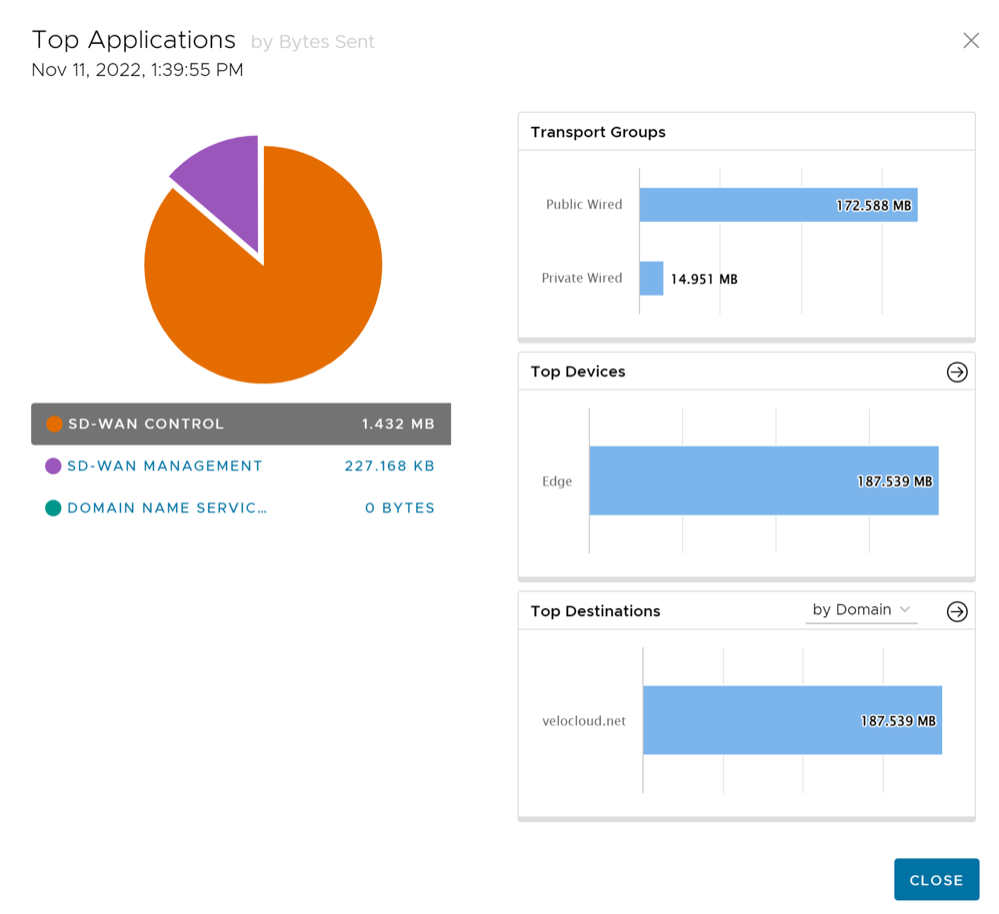
Select the arrows displayed next to Transport Groups, Top Devices, or Top Destinations to navigate to the corresponding tabs.
Monitor Edge Sources
You can monitor the network usage of devices and operating systems for a specific Edge.
- In the SD-WAN service of the Enterprise portal, select to view the Edges associated with the Enterprise.
- Select the link to an Edge, and then select the Sources tab.
The Sources tab displays the details of the client devices used by the selected Edge.
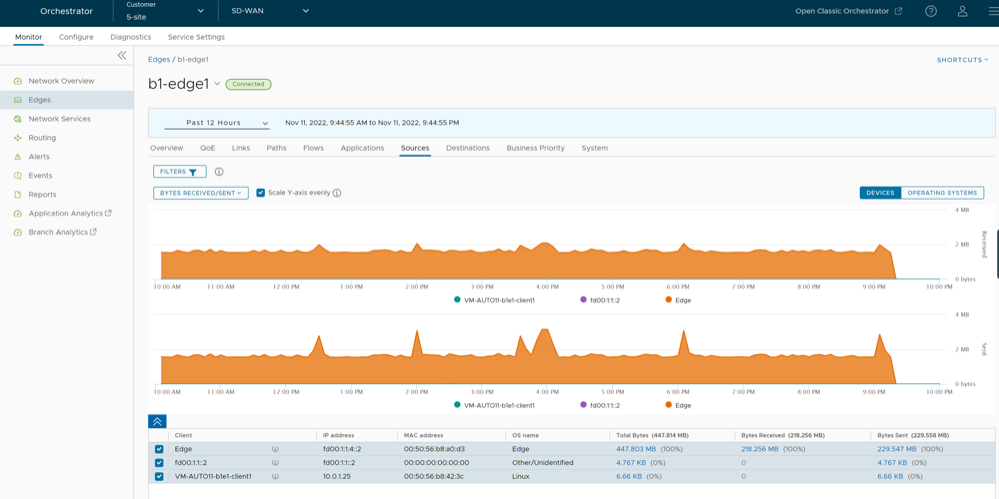
At the top of the page, you can choose a specific time period to view the details of the priorities for the selected duration.
By default, the Scale Y-axis evenly check box is selected. This option synchronizes the Y-axis between the charts. If required, you can turn off this option.
Hover the mouse on the graphs to view additional details.
Select Filter to define a criterion and view the application details filtered by the specified criteria.
Select Operating Systems to view the report based on the Operating Systems used in the devices.
Choose the metrics from the drop-down to view the details related to the selected parameter.
The bottom panel displays the details of the selected metrics for the devices or operating systems. You can select and view the details of a maximum of 4 client devices at a time. Select Columns to select the columns to be shown or hidden in the view.
To view drill-down reports with additional details, select the links displayed in the metrics column.
The following image shows a detailed report of top clients.
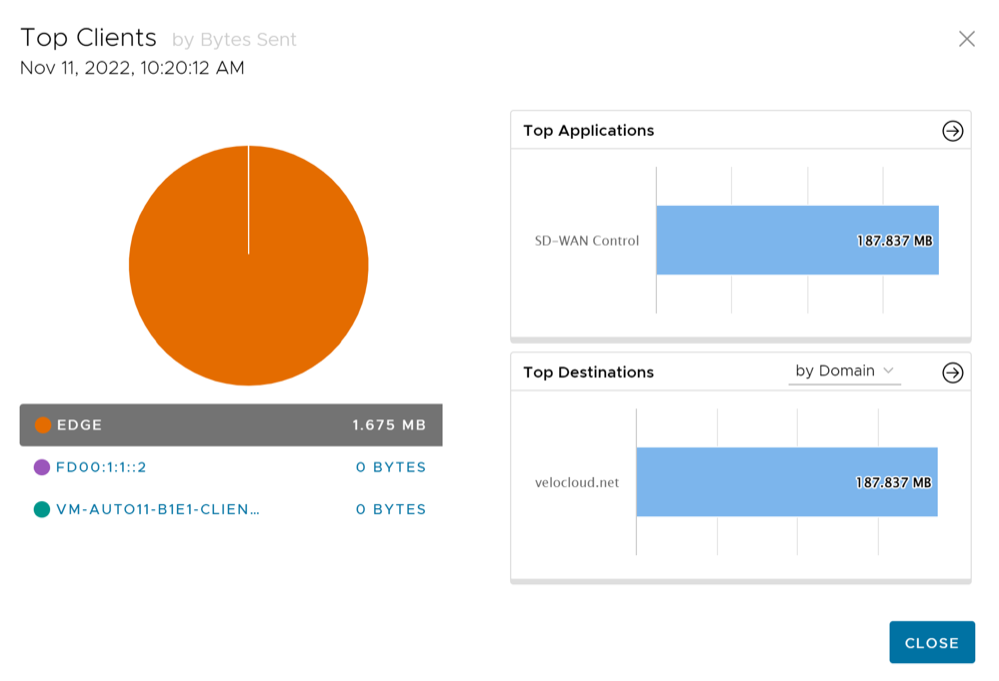
Select the arrows displayed next to Top Applications or Top Destinations to navigate to the corresponding tabs.
Monitor Edge Destinations
You can monitor the network usage data of the destinations of the network traffic.
- In the SD-WAN service of the Enterprise portal, select to view the Edges associated with the Enterprise.
- Select the link to an Edge, and then select the Destinations tab.
The Destinations tab displays the details of the destinations of the network traffic for the selected Edge.
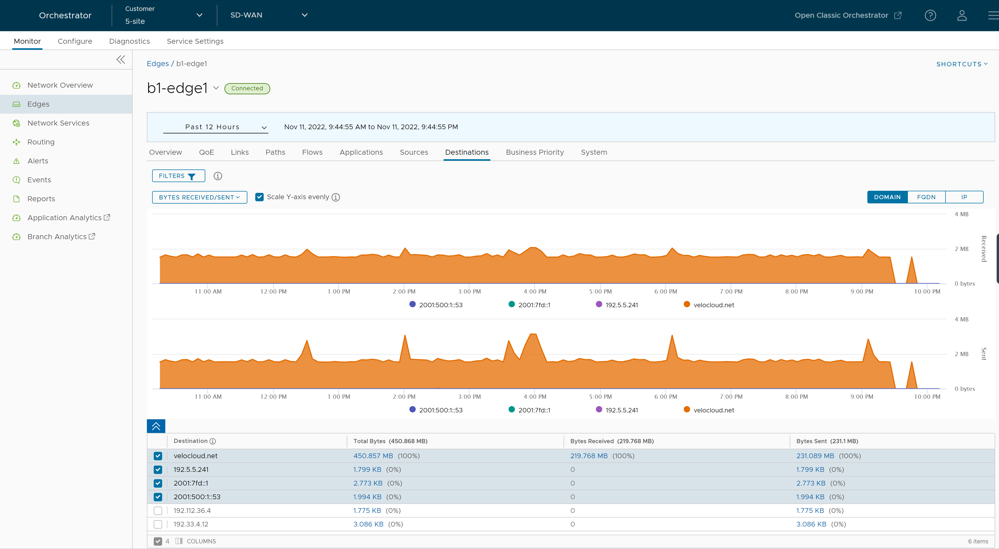
At the top of the page, you can choose a specific time period to view the details of the priorities for the selected duration.
Select Filter to define a criterion and view the application details filtered by the specified criteria.
By default, the Scale Y-axis evenly check box is selected. This option synchronizes the Y-axis between the charts. If required, you can turn off this option.
You can view the report of Destinations by Domain, FQDN, or IP address. Select the relevant type to view the corresponding information.
Hover the mouse on the graphs to view additional details.
Choose the metrics from the drop-down to view the details related to the selected parameter.
The bottom panel displays the details of the selected metrics for the destinations by the selected type. You can select and view the details of a maximum of four destinations at a time. Select Columns to select the columns to be shown or hidden in the view.
To view drill-down reports with additional details, select the links displayed in the metrics column.
The following image shows a detailed report of top destinations.
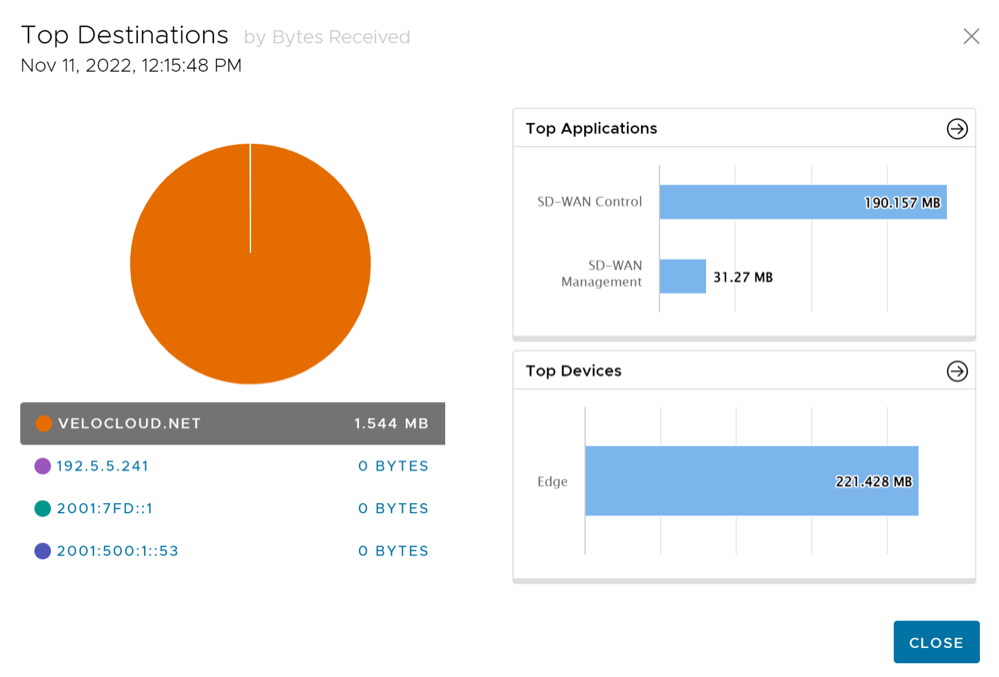
Select the arrows displayed next to Top Applications or Top Devices to navigate to the corresponding tabs.
Monitor Business Priorities of an Edge
You can monitor the Business policy characteristics according to the priority and the associated network usage data for a specific Edge.
- In the SD-WAN service of the Enterprise portal, select to view the Edges associated with the Enterprise.
- Select the link to an Edge, and then select the Business Priority tab.
The Business Priority tab displays the details of the priorities of the network traffic for the selected Edge.
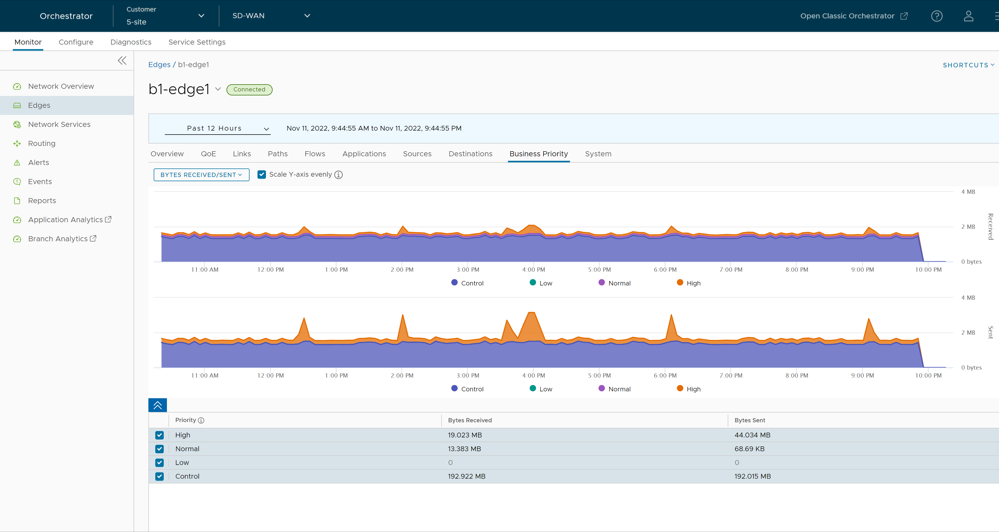
At the top of the page, you can choose a specific time period to view the details of the priorities for the selected duration.
Choose the metrics from the drop-down to view the details related to the selected parameter.
By default, the Scale Y-axis evenly check box is selected. This option synchronizes the Y-axis between the charts. If required, you can turn off this option.
Hover the mouse on the graphs to view additional details.
The bottom panel displays the details of the selected metrics for the business priorities.
Monitor System Information of an Edge
You can view the detailed network usage by the system for a specific Edge.
- In the SD-WAN service of the Enterprise portal, select to view the Edges associated with the Enterprise.
- Select the link to an Edge and select the System tab.
The System tab displays the details of network usage by the system for the selected Edge.
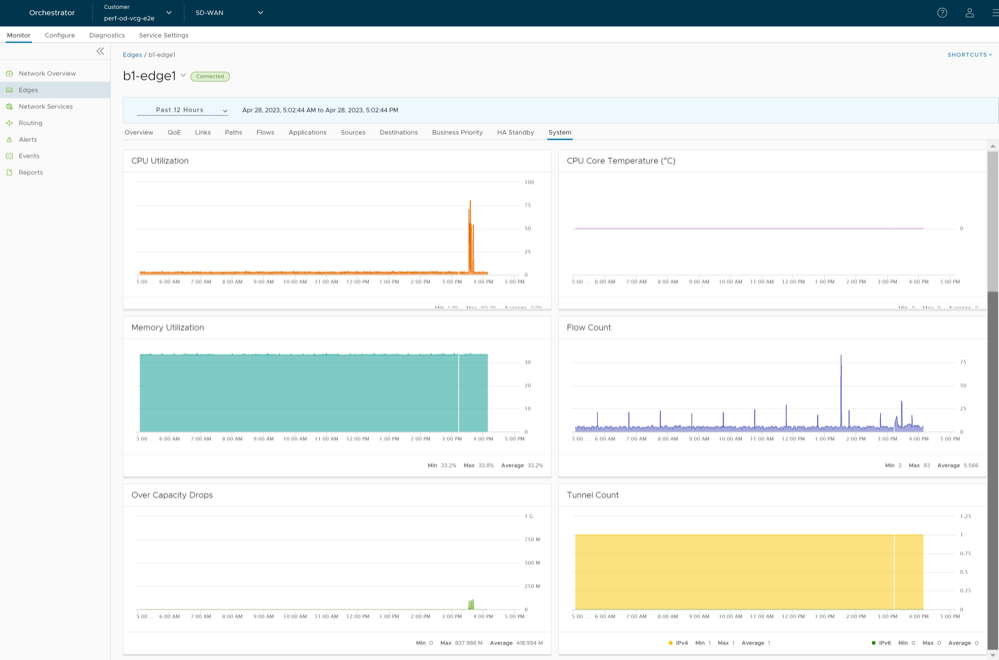
- CPU Utilization – Percentage of usage of CPU.
- CPU Core Temperature – The core temperature of the Edge CPU.
Note: The "CPU Core Temperature" feature is supported only for Edges running 5.1 and later versions.
- Memory Utilization– Percentage of usage of memory.
- Flow Count – Count of traffic flow.
- Over Capacity Drops – Total number of packets dropped due to over capacity since the last sync interval. Occasional drops are expected, usually caused by a large burst of traffic. However, a consistent increase in drops usually indicates an Edge capacity issue.
- Tunnel Count – Count of tunnel sessions.
Hover the mouse on the graphs to view additional details.
Monitoring High Availability Edges
The Orchestrator includes special monitoring for a site deployed with a High Availability topology which are outlined in this section.
Overview
- In the SD-WAN service of the Enterprise portal, the tab now includes two HA specific improvements:
- WAN link information includes which HA Edge the link is associated with by serial number, which is especially important with Enhanced HA deployments.
- HA Interface Status.
- HA specific failover bars on the tab denoting where an HA Edge site failed over.
- A new tab for Standby Edge monitoring information.
High Availability Specific Information on the Monitor > Edge > Overview Tab
In the SD-WAN service of the Enterprise portal, when you navigate to the tab, a site deployed in High Availability has added information specific to an HA deployment:
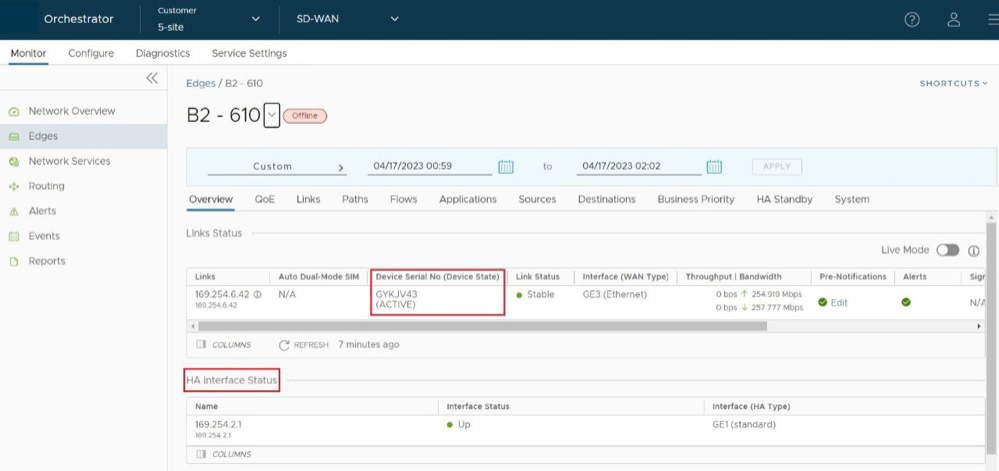
- In the Link Status section, each connected WAN link includes a column Device Serial No (Device State) that includes the Edge serial number associated with that WAN link and the HA status of that Edge (Active or Standby). This information is valuable in Enhanced HA deployments where WAN links are uniquely associated to different HA Edges and allows you to see the status of WAN links on the Standby Edge just as you see them on the Active Edge.
- The Overview tab adds an HA Interface Status section which includes the IP Address, Interface Status (Up or Down), and Interface (HA Type).
High Availability Failover Bars on the System Tab
In the SD-WAN service of the Enterprise portal, when you navigate to the tab, a site deployed in High Availability has additional functionality which is best seen when a HA failover has occurred. When an HA failover occurs, the Orchestrator renders a vertical bar marking the point of the failover.
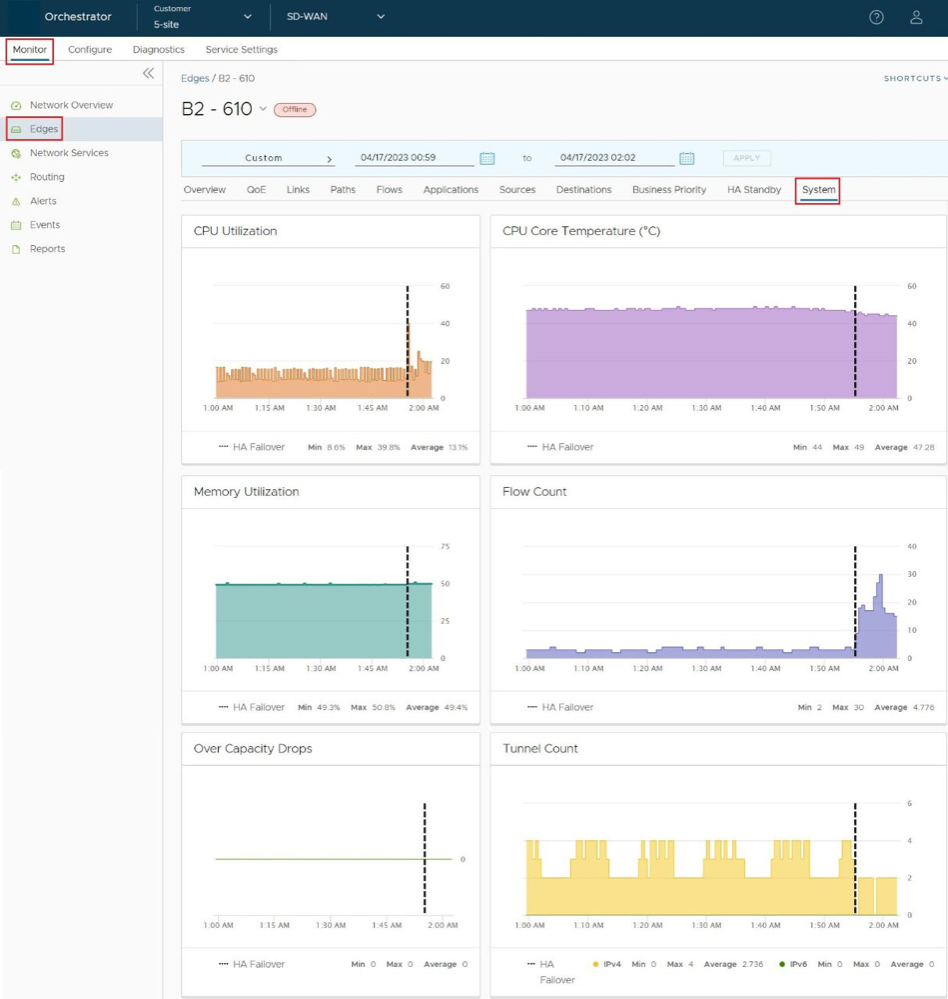
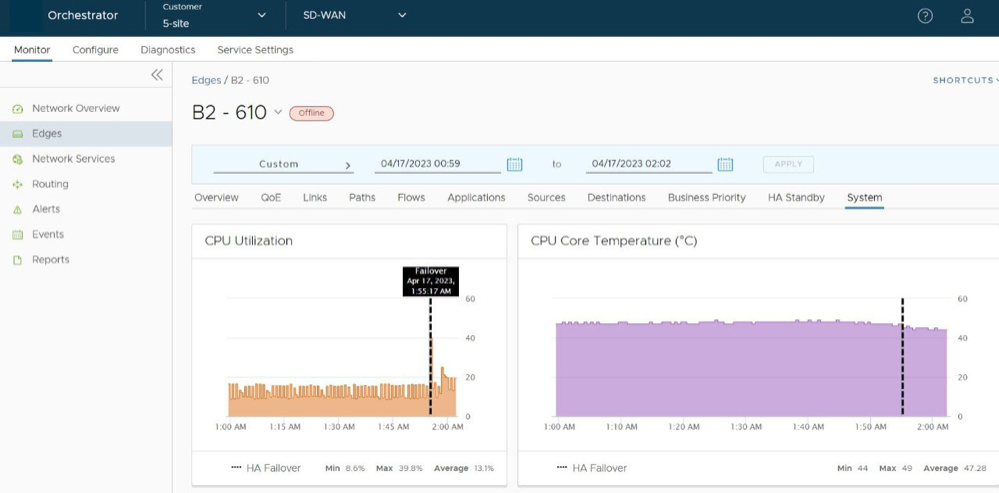
Focusing on the CPU Utilization graph, if a user hovers their mouse on the bar, the bar indicates when the failover occurred. This failover bar represents a boundary marking how the System statistics apply to each respective HA Edge when they serve as the Active Edge.
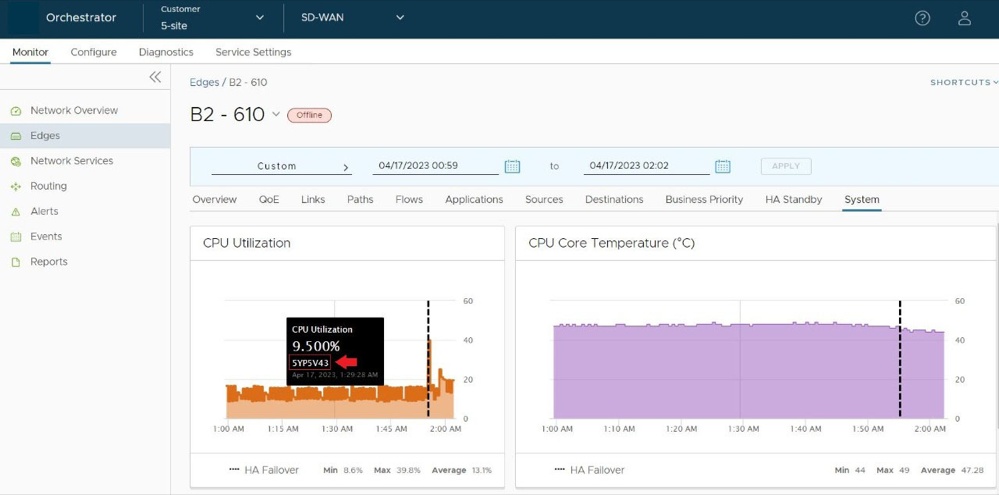
If you select the graph to the left (earlier) side of the failover bar, the Orchestrator will indicate which Edge was Active at the time of those statistics. In this example, the Active Edge prior to the failover was Edge serial # SYP5V43.
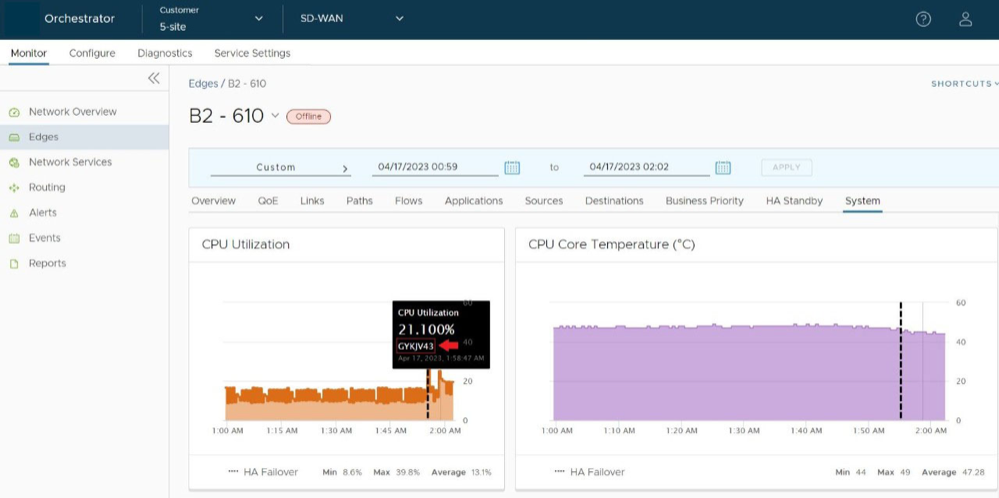
If you select the graph to the right (later) side of the failover bar, the Orchestrator indicates that the Active Edge for the post-failover statistics is Edge serial # GYKJV43. In this way you can always know which Edge applies to which System values.
The Monitor > Edge > HA Standby Tab
You can now view the System Health statistics for the HA Edge when it is serving a standby role by selecting the tab. This page also includes a failover bar indicating when an HA site has triggered a failover and there is now a different Edge in the role of Standby.
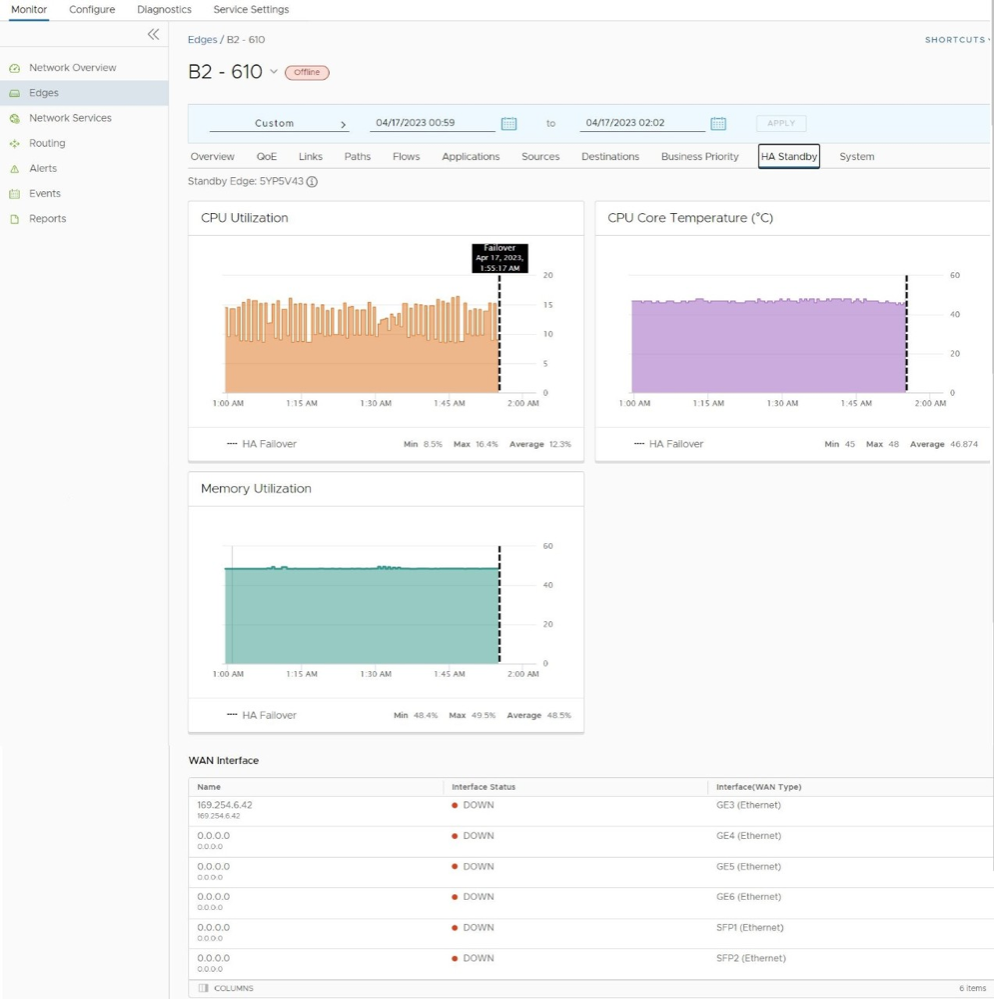
The HA Standby tab also provides live WAN Interface information which is especially helpful in Enhanced HA deployments where the Standby Edge is using unique WAN links.
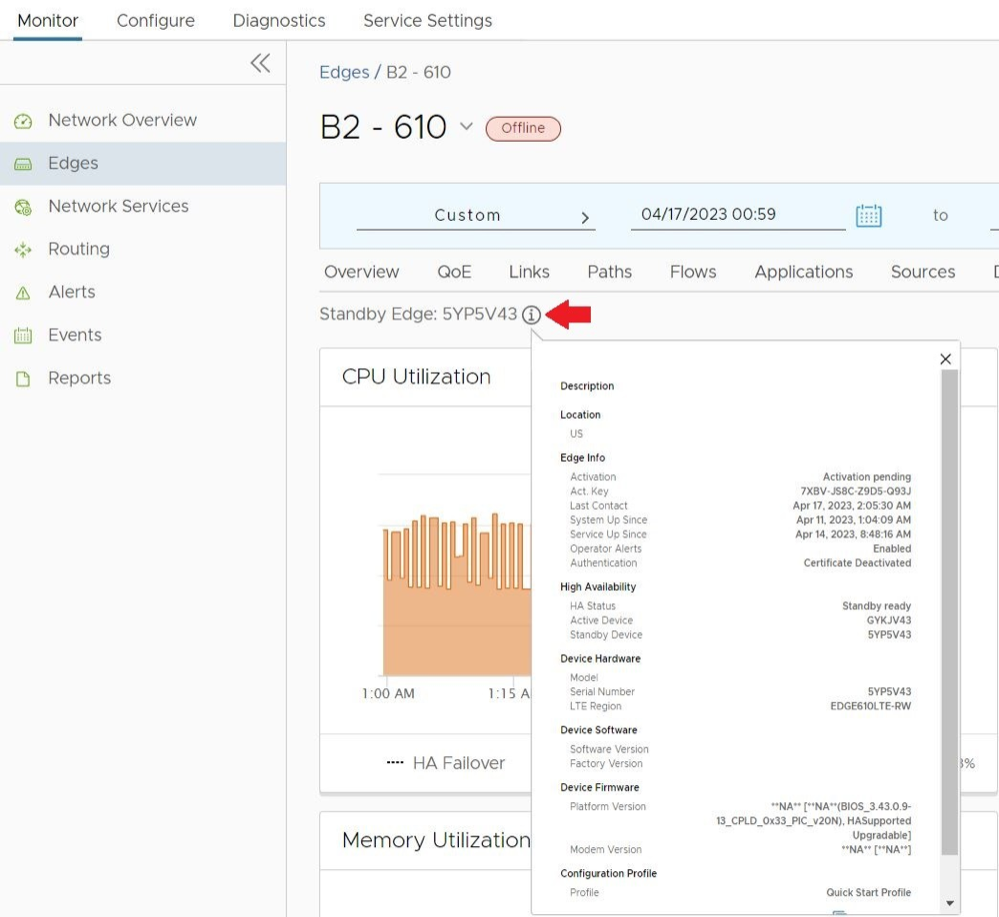
Select on the information button to get Standby Edge information at the same level as what a user sees on the tab for the Active Edge.
Monitor Network Services
You can view the details of configured network services for an Enterprise.
Monitor Non SD-WAN Destinations through Gateway
You can view the configured Non SD-WAN Destinations along with the VPN Gateways, Site Subnets, and other configuration details.
To view the configured Non SD-WAN Destinations:
In the SD-WAN service of the Enterprise portal, select . The Non SD-WAN Destinations via Gateway tab is displayed.
The Non SD-WAN Destinations via Gateway tab displays the details of already configured Non SD-WAN Destinations. To configure the Non SD-WAN Destinations via Gateway, see Configure Non SD-WAN Destinations via Gateway.
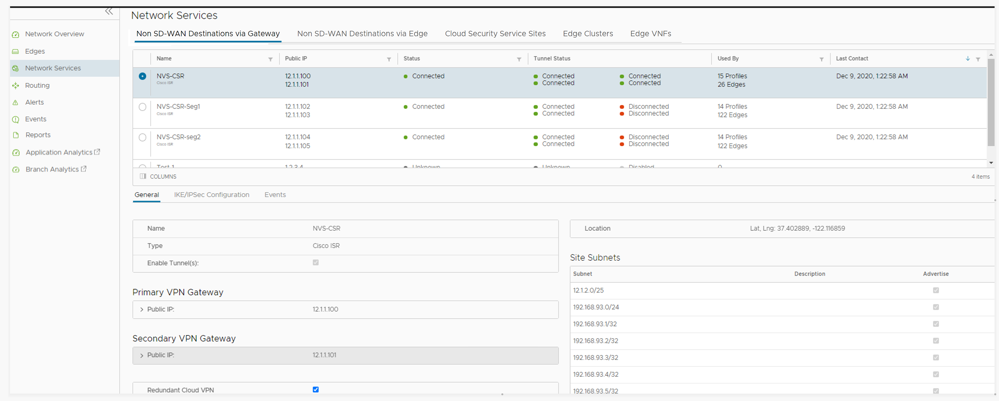
The page displays the following details: Name of the Non SD-WAN Destination, Public IP Address, Status of the Non SD-WAN Destination, Status of the tunnel, Number of profiles and Edges that use the Non SD-WAN Destination, and last contacted date and time.
You can also sort the report by selecting the header of each column. You can use the Filter icon displayed next to the header to filter the details by specific Name, IP address, or Status.
- General – Displays the Name, Type, IP address and tunnel settings of Primary and Secondary VPN Gateways, location details, and Site subnet details.
- IKE/IPSec Configuration – Select the tab to view sample configuration template for Primary and Secondary VPN Gateways. You can copy the template and customize the settings as per your requirements.
- Events – Select the tab to view the events related to the selected Non SD-WAN Destination. Select the arrow displayed in the first column to view additional details of an event.
Monitor Non SD-WAN Destinations through Edge
You can view the configured Non SD-WAN Destinations along with the VPN Gateways, Site Subnets, and other configuration details.
To view the configured Non SD-WAN Destinations through Edge:
In the SD-WAN service of the Enterprise portal, select . The Non SD-WAN Destinations via Edge tab appears.
The Non SD-WAN Destinations via Edge tab displays the details of already configured Non SD-WAN Destinations. To configure the Non SD-WAN Destinations via Edge, see the topic Configure Non SD-WAN Destinations via Edge.
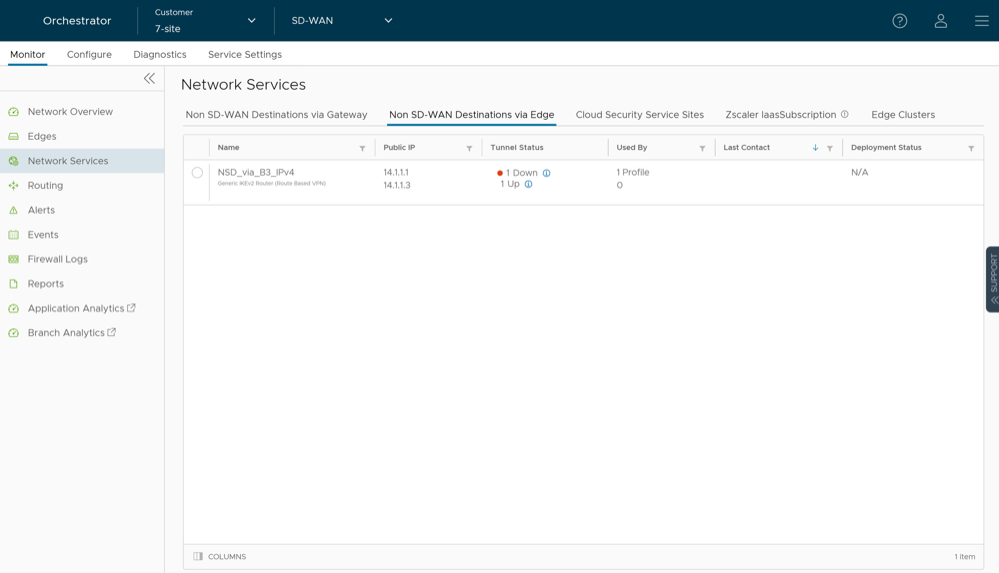
The page displays the following details: Name of the Non SD-WAN Destination, Public IP Address, Status of the tunnel, Number of Profiles and Edges that use the Non SD-WAN Destination, last contacted date and time, and deployment status of Edge.
You can also sort the report by selecting the header of each column. You can use the Filter icon displayed next to the header to filter the details by specific Name, IP address, or Status.
Selecting a Non SD-WAN Destination displays Name, Type, IP address and tunnel settings of Primary and Secondary VPN Gateways, location details, and Site subnet details under the General tab.
Monitor Cloud Security Service Sites
You can view the details of Cloud Security Services configured for the Enterprise.
To monitor the Cloud Security Services:
In the SD-WAN service of the Enterprise portal, select .
The Cloud Security Service Sites tab displays the already configured Cloud Security Services. To configure a Cloud Security Service, see Cloud Security Services.
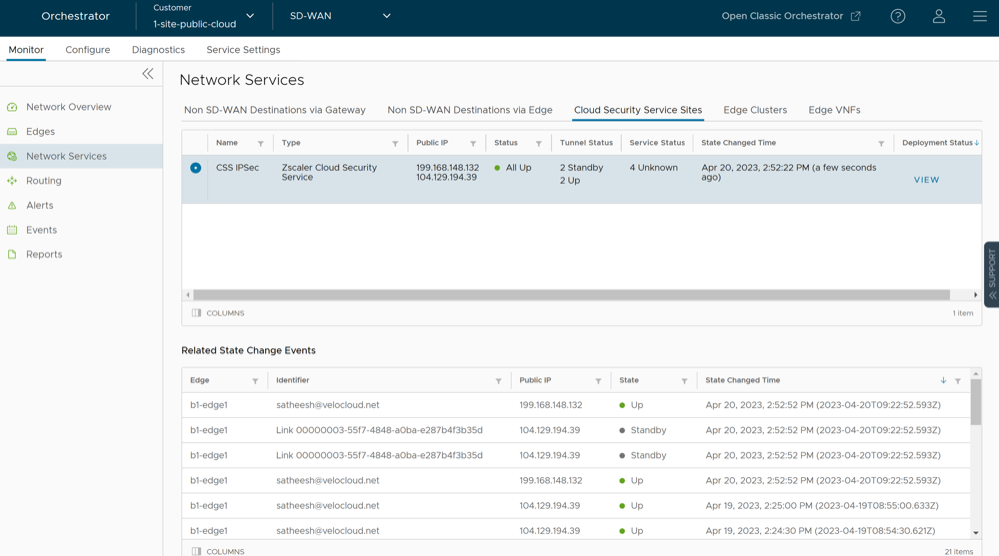
The page displays the following details: Name, Type, IP address of the CSS provider, overall status of the CSS provider, status of tunnels created from the CSS provider from different Edges, status of the external service as recorded by each Edge, date and time by when the state change occurred, and the deployment status of the CSS provider.
You can also sort the report by selecting the header of each column. You can use the Filter icon displayed next to the header to filter the details by specific Name, Type, IP address, or Status.
Select a Cloud Security Service to view the related state change events along with the IP address and State, in the bottom panel.
Select the View link in the Deployment Status column to view the deployment status of the CSS provider.
Monitor Zscaler laasSubscription
You can view the configured Zscaler laasSubscription from the Monitor > Network Services page.
To view the Zscaler laasSubscription:
In the SD-WAN service of the Enterprise portal, select .
The Zscaler laasSubscription tab displays the details of already configured Zscaler laas subscriptions. To configure a new Iaas subscription, see Configure API Credentials.
The page displays the name of the service along with the deployment status.
Monitor Edge Clusters
You can view the details of the configured Edge Clusters and the usage data.
To view the details of Edge clusters:
In the SD-WAN service of the Enterprise portal, select .
The Edge Clusters tab displays the details of already configured Edge clusters. To configure the clusters, see Configure Clusters and Hubs.

| Option | Description |
|---|---|
| Cluster Name | Name of the Cluster as configured under . |
| Edges | Name of the Hub Edges that are a part of this Cluster. |
| CPU Utilization | Percentage value of CPU utilization of the corresponding Edge. |
| Memory Utilization | Percentage value of memory utilization of the corresponding Edge. |
| # Tunnels | Number of tunnels associated with the Hub Edge that is a part of the Cluster. |
| Flow Count | Number of flows associated with the Hub Edge that is a part of the Cluster. |
| # Over Capacity Drops | Number of packets that are dropped when they exceed over capacity of Hub Edge in the Cluster. |
Monitor Edge VNFs
You can view the details of the configured Edge VNFs and the VM status.
To view the Edge VNFs:
In the SD-WAN service of the Enterprise portal, select .
The Edge VNFs tab displays the details of already configured VNFs. To configure VNF on an Edge, see Configure Edge Services.
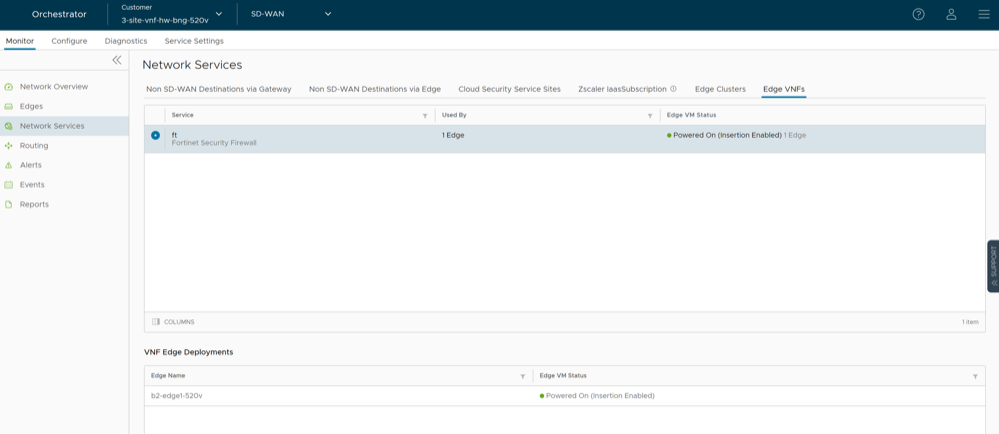
The page displays the following details: Name of the VNF Service, Number of Edges that use the VNF, and VM status.
Select a VNF to view the corresponding VNF Edge deployment details.
Monitor Routing Details
You can view the routing services configured in the Enterprise.
Monitor Multicast Groups
You can view the multicast groups configured for the Enterprise.
To view the multicast groups:
In the SD-WAN service of the Enterprise portal, select . The Multicast Groups tab is displayed.
The Multicast Groups displays the details of already configured multicast group settings. To configure multicast groups, see Configure Multicast Settings for Profiles.
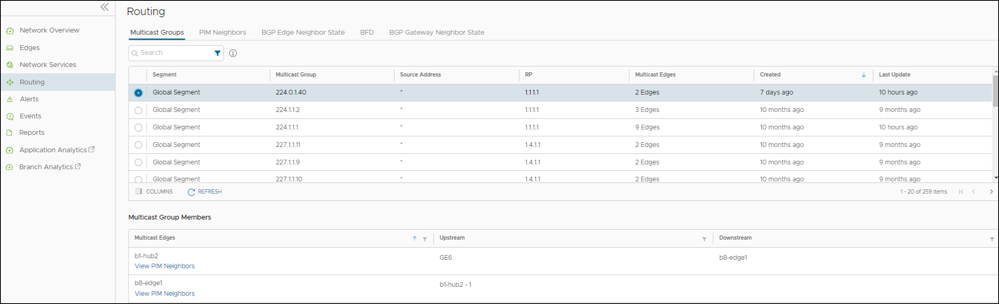
The page displays the following details: multicast group address, segment that consist of the multicast group, Source IP address, RP address, number of Edges in the multicast group, created time period, and the last updated time period.
Select a multicast group to view the details of the Edges in the group, along with the upstream and downstream information. Select View PIM Neighbors to view the detail of the PIM neighbors connected to a specific Edge.
Monitor PIM Neighbors
You can view the details of Edges and the PIM neighbors available in the multicast groups.
To view the PIM neighbors:
In the SD-WAN service of the Enterprise portal, select .
The PIM Neighbors tab displays the Edges available in the multicast groups.
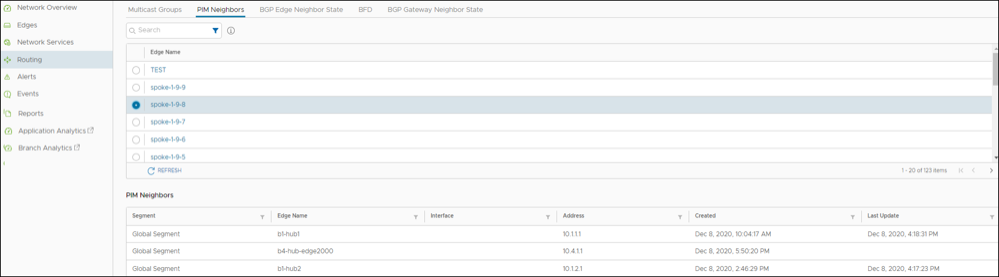
Select an Edge to view the PIM neighbors connected to the Edge. The PIM Neighbors section displays the following details: Segment of the multicast group, Edge name, Interface details, IP address of the neighbor, created and last updated date with time.
Monitor BGP Edge Neighbor State
You can view the details BGP neighbors connected to Edges.
To view the BGP neighbors connected to Edges:
In the SD-WAN service of the Enterprise portal, select .
The BGP Edge Neighbor State tab displays the Edges connected as BGP neighbors, when you have configured BGP settings on the Edges.
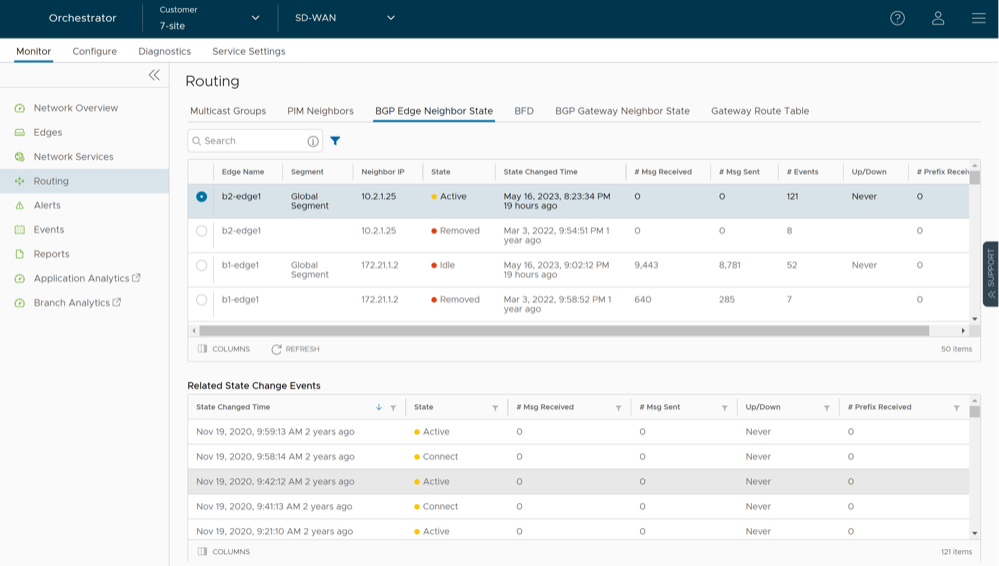
The page displays the following details: Edge name, IPv4 and IPv6 address of the neighbor, State of the neighbor, Date and time of the state change, number of messages received and sent, number of Events, duration for which the BGP neighbor is Up/Down, and number of prefixes received.
Select an Edge name to view the corresponding event details. The Related State Change Events section displays the change in the state and other details for the selected Edge.
- You can select the Filter icon next to the Search option to filter the details by Edge Name, Neighbor IP, Neighbor IP Type, and Status.
- BGP Edge Neighbor State (API:
monitoring/getEnterpriseEdgeBgpPeerStatus): At the time of calling the API, if the Edge state is "OFFLINE", then the user interface displays the neighbor state as "Unavailable" with appropriate tooltip showing the current Edge state to the user.
Monitor BFD
You can view the BFD sessions on Edges and Gateways.
To view the BFD sessions:
In the SD-WAN service of the Enterprise portal, select .
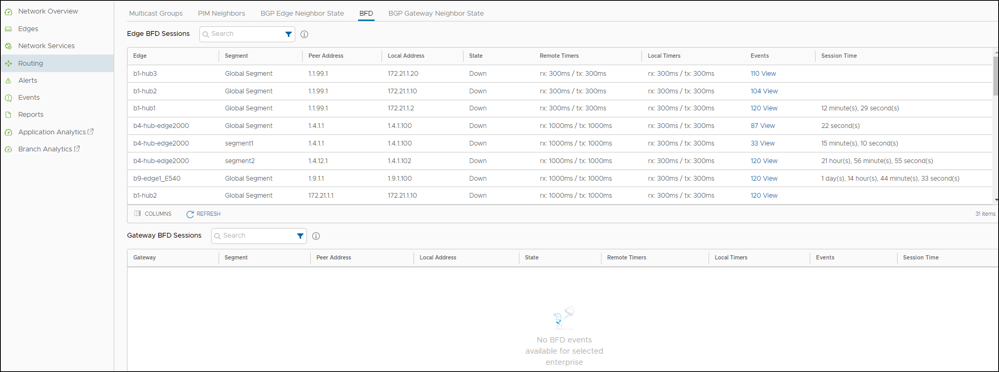
The page displays the following details for the Edges and Gateways: Name of the Edge or Gateway, Segment name, Peer IP address, Local IP address, State of the BFD session, Remote and Local timers, number of Events, and duration of the BFD session.
Select the link to an event number to view the break-up details of the events.
Monitor BGP Gateway Neighbor State
You can view the details of the BGP neighbors connected to Gateways.
To view the BGP neighbors connected to Gateways, follow the steps below.
- In the SD-WAN service of the Enterprise portal, select .
- Select a Gateway name to view the corresponding event details.
The Related State Change Events section displays the change in the state and other details for the selected Gateway.
The BGP Gateway Neighbor State tab displays the details of Gateways connected to BGP neighbors.
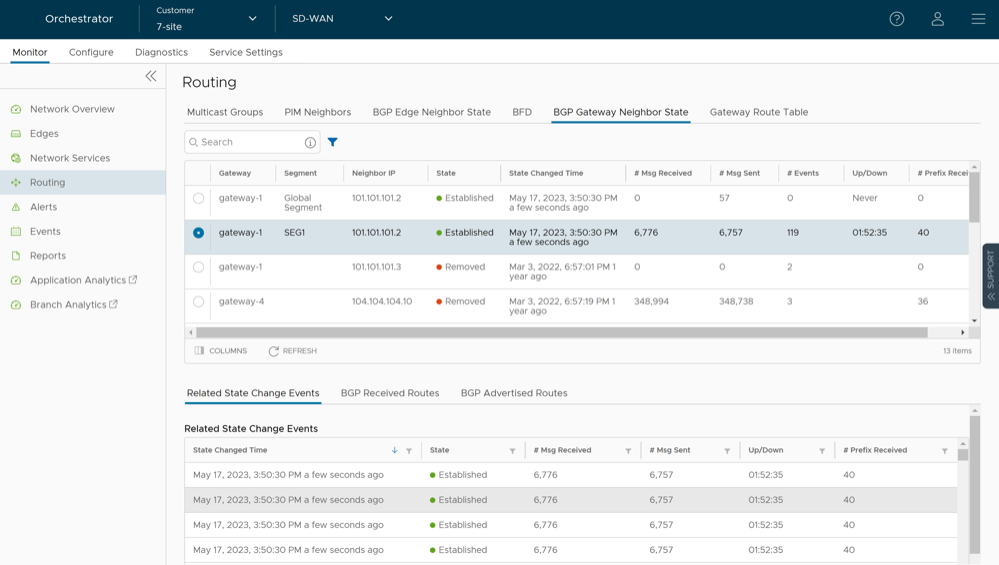
monitoring/getEnterpriseBgpPeerStatus): At the time of calling the API, if the Gateway state is one out of "QUIESCED", "OUT_OF_SERVICE" or "OFFLINE", then the user interface displays the Neighbor state as "Unavailable" with appropriate tooltip showing the current Gateway state to the user.
BGP Received Routes and BGP Advertised Routes
For the 5.2 release, the BGP Gateway Neighbor State feature is enhanced with the BGP Received Routes and BGP Advertised Routes.
The BGP Received Routes displays routes (up to 16K) that have been received from the selected BGP neighbor at the Gateway, providing valuable insight into the routing information that is available in the network. This information can be used to troubleshoot connectivity issues in Customer deployments. The BGP Advertised Routes displays all routes that are being advertised to a selected BGP neighbor, providing visibility into the routes that are being used to reach destinations in the network (as shown in the image above the previous paragraphs).
See the table below for a detailed description of the fields in the BGP Received and Advertise Routes table.
| Field | Description |
|---|---|
| Status Code | Displays the status code of the BGP route, as follows:
|
| Network Prefix/Mask | Displays the prefix carried by the BGP route. |
| Next Hop | Displays the Next-hop IP address that is used by BGP to reach the BGP prefix. |
| Metric | Displays the MED (multi-exit discriminator) value associated with a route. |
| Local Preference | Displays the local preference value assigned by a BGP router to a route. |
| Weight | Displays the weight value assigned by the BGP router to a route. |
| AS Path | Displays the list of AS Path numbers that are carried by the BGP route. |
| Community | Displays the community attribute carried by the BGP route. |
| CSV | Select the CSV button to export the data to an Excel sheet. |
Gateway Route Table
The Gateway Route Table is a new feature for the 5.2 release that provides a comprehensive view of the routing information on an SD-WAN Gateway, displaying the routes (up to 16k) that are known to a Gateway, including both learned routes and statically configured routes.
The 5.2 release introduces the Gateway Route Table, which displays important information about each route, such as the Network Prefix and Mask Preference, Flags, and Metric, to name a few. The Gateway Route Table is updated in real-time, providing an up-to-date view of the routing information on a Gateway. It can be used to diagnose routing issues and to optimize routing policies.
To access the Gateway Route Table:
In the SD-WAN service of the Enterprise portal, select , as shown in the image below.
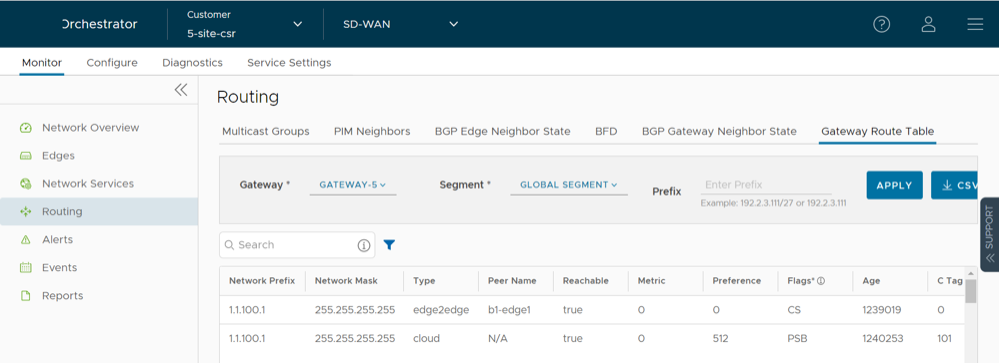
| Field | Description |
|---|---|
| Network Prefix | The destination address of the route. It specifies the network to which the route applies. |
| Network Mask | Displays the prefix carried by the BGP route. |
| Type | Indicates the type of routes:
|
| Peer Name | Indicates the name of the BGP peer that learned the route. |
| Reachable | Indicates whether the route is reachable or not. If the route is reachable, it can be used for forwarding packets. |
| Metric | A value that represents the cost of using a particular route. Lower values indicate a lower cost. |
| Preference | A value that is used to influence the preferred path for outbound traffic. A lower value indicates a more preferred route. |
| Flags | Flags are listed below:
|
| Age | Indicates the amount of time that has elapsed since the route was last updated. |
| C Tag | Used to identify the customer that the route belongs to in a multi-tenant environment. |
| CSV | Select the CSV button to export the data to an Excel sheet. |
Monitor Alerts
SASE Orchestrator allows to configure alerts that notify the Enterprise Administrators or other support users, whenever an event occurs.
Ensure that you have configured the relevant alerts, along with the notification delay, in . See Configure Alerts and Notifications.
In the SD-WAN service of the Enterprise portal, select .
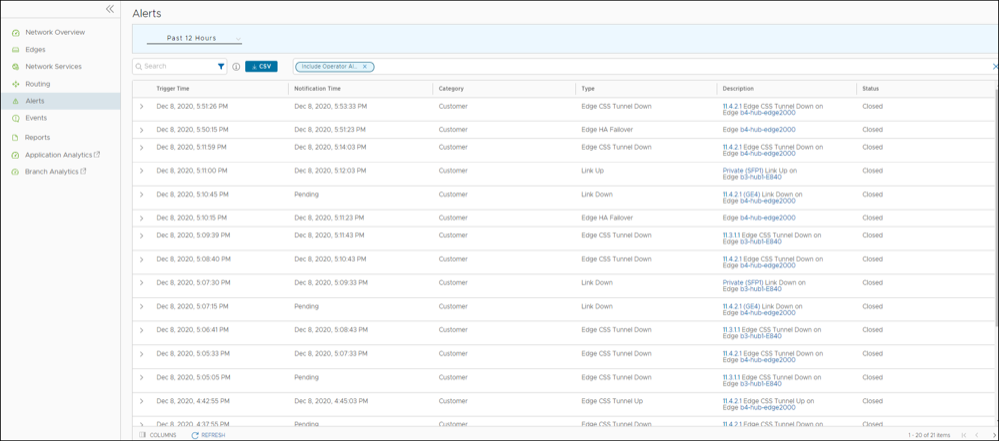
You can choose a specific time period from the drop-down menu, to view the alerts for the selected duration.
To view details of specific alerts, you can use the filter option. Select the Filter icon in the Search option to define the criteria.
Select the CSV option to download a report of the Alerts in CSV format. You can also choose to include the Operator alerts.
The Alerts window displays the following details:
| Option | Description |
|---|---|
| Trigger Time | Time at which the alert got triggered. |
| Notification Time | Time at which the operator or customer received the alert. The notification time depends on the delay time configured in the Alerts & Notifications page. |
| Category | Indicates whether the alert is received by the Operator or the Customer. |
| Type | Displays the alert type. |
| Description | Displays the details of Edge or link related to the alert. Select the link displayed in this column to view the details of the Edge or link. |
| Status | Status of the alert as Active, Closed, or Pending. |
Monitor Events
The Events page displays the events generated by the VeloCloud Orchestrator. These events help to determine the operational status of the system.
To view the Events page:
- In the SD-WAN service of the Enterprise portal, select .
The Events page displays the list of events.
Figure 44. Events Screen 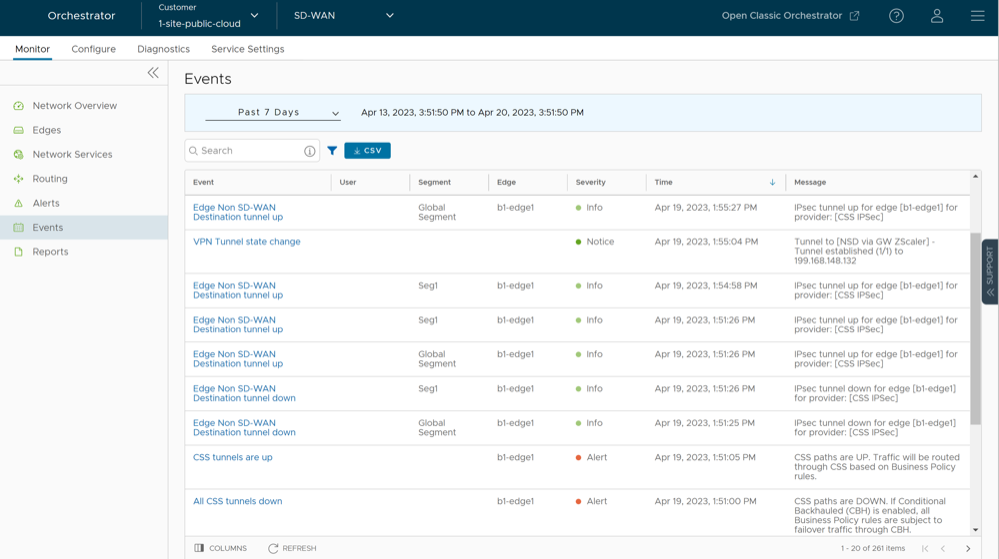
You can choose a specific time period from the drop-down list, to view the events for the selected duration. Select the link to an event name to view additional details.
Auto Rollback to the Last Known Good Configuration
If an Administrator changes device configuration that cause the Edge to disconnect from the Orchestrator, the Administrator will get an Edge Down alert. Once the Edge detects that it cannot reach the VeloCloud Orchestrator, it will rollback to the last known configuration and generate an event on the Orchestrator titled, “bad configuration.”
The rollback time, which is the time necessary to detect a bad configuration and apply the previous known “good” configuration for a standalone Edge, is between 5-6 minutes. For HA Edges, the rollback time is between 10-12 minutes.
Platform Firmware Upgrade Progress
You can view the progress of the Platform Firmware upgrade on the VeloCloud Orchestrator UI, as described in the sections below.
To view the progress for the Platform Firmware upgrade on the Orchestrator UI, go to . The Events page displays a list of events and shows the status of the Platform Firmware upgrade (In Progress or Installed).
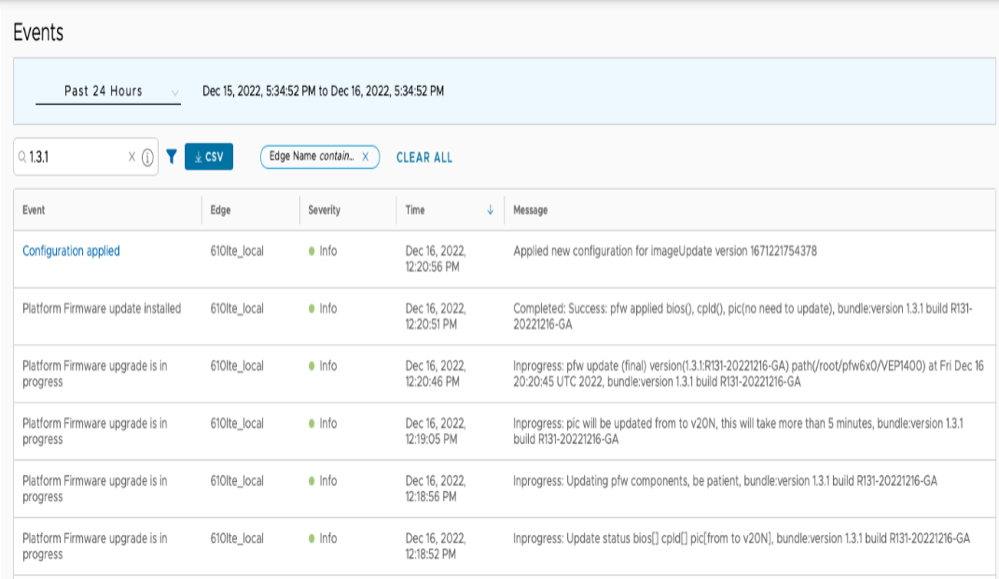
Monitor Firewall Logs
The Firewall Logs page displays the details of firewall log originating from VeloCloud SD-WAN Edges. By default, Edges cannot send their Firewalls logs to Orchestrator. For an Edge to send the Firewall logs to Orchestrator, ensure that the Enable Firewall Logging to Orchestrator customer capability is activated at the Customer level under the Global Settings UI page. Customers must contact their Operator if they want to activate the Firewall Logging feature. By default, Orchestrator retains the Firewall logs until it reaches the maximum retention time of 7 days or maximum log size of 15 GB on a rotation basis.
- In the SD-WAN service of the Enterprise portal, navigate to . The Firewall Logs page appears.
Figure 46. Monitor Firewall Logs 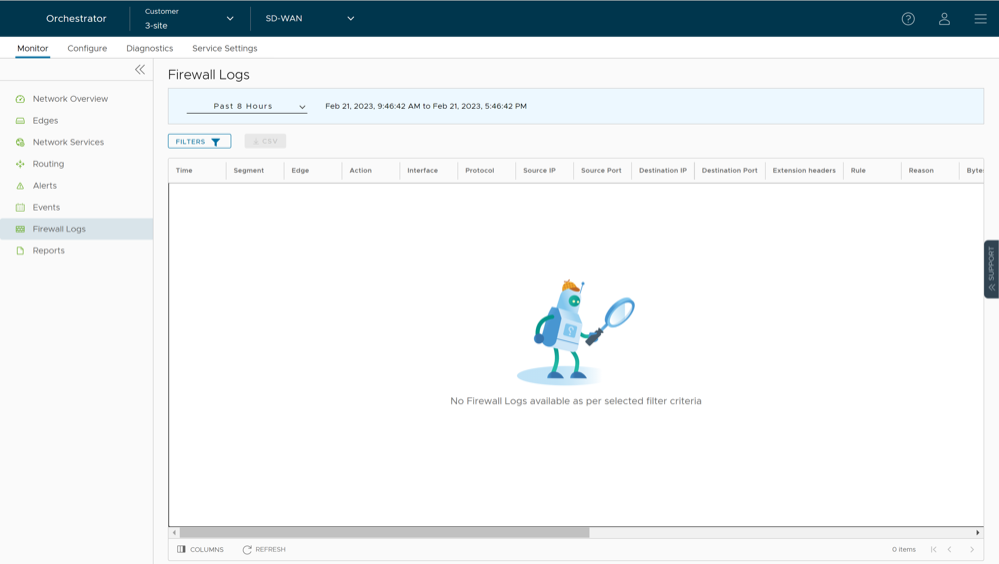
The page displays the following Edge Firewall Log details: Time, Segment, Edge, Action, Interface, Protocol, Source IP, Source Port, Destination IP, Destination Port, Extension Headers, Rule, Reason, Bytes Received, Bytes Sent, Duration, Application, Destination Domain, Destination Name, Session ID, Signature, IPS Alert, IDS Alert, Signature ID, Category, Attack Source, Attack Target, and Severity.
Note: Not all fields will be populated for all firewall logs. For example, Reason, Bytes Received/Sent and Duration are fields included in logs when sessions are closed. Signature, IPS Alert, IDS Alert, Signature ID, Category, Attack Source, Attach Target, and Severity are populated only for Enhanced Firewall Services (EFS) alerts, not for firewall logs.Firewall Logs are generated:- When a flow is created (on the condition that the flow is accepted)
- When the flow is closed
- When a new flow is denied
- When an existing flow is updated (due to a firewall configuration change)
EFS Alerts are generated:- Whenever the flow traffic matches any suricata signatures configured in the EFS engine.
- If firewall rule has only Intrusion Detection System (IDS) activated, the Edges detect if the traffic flow is malicious or not based on certain signatures configured in the engine. If attack is detected, the EFS engine generates an alert and sends the alert message to VeloCloud Orchestrator/Syslog Server if Firewall logging is activated in Orchestrator, and will not drop any packets.
- If firewall rule has Intrusion Prevention System (IPS) activated, the Edges detect if the traffic flow is malicious or not based on certain signatures configured in the engine. If attack is detected, the EFS engine generates an alert and blocks the traffic flow to the client only if the signature rule has action as "Reject", matched by the malicious traffic. If the action in the signature rule is "Alert", the traffic will be allowed without dropping any packets even if you configure IPS.
- You can use the Filter options and select a filter from the drop-down menu to query the Firewall logs.
- Select the CSV option to download a report of the Edge Firewall Logs in CSV format.
Enterprise Reports
Arista VeloCloud SD-WAN allows you to generate Enterprise reports for the analysis of your network.
You can generate reports including all the data or configure them to include customized data. You can also create a recurring schedule to generate the reports during specified time period.
vco.reporting.maxReportsPerEnterprise.
A report has 60 days of age out period after which it will be deleted automatically. When a customer exceeds the maximum report value (i.e., default is 50), the oldest report will be deleted first.
To access the Enterprise reports:
- In the Reports page, you can create a new quick report (a consolidated Enterprise report with default selection of the data for all Edges over the last month), customize the report, and schedule report generation for a recurring period.
Figure 47. Reports 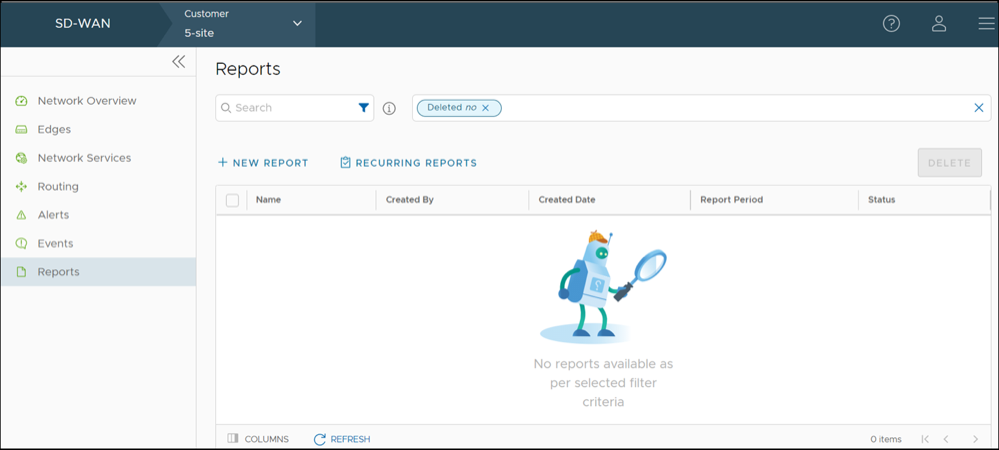
For additional information, see Create a New Enterprise Report.
Create a New Enterprise Report
You can either generate a consolidated Enterprise report or configure the settings to generate a customized Enterprise report.
- On the New Report page, you can configure to generate a consolidated report (quick report) or a customized report.
Figure 48. Create New Report 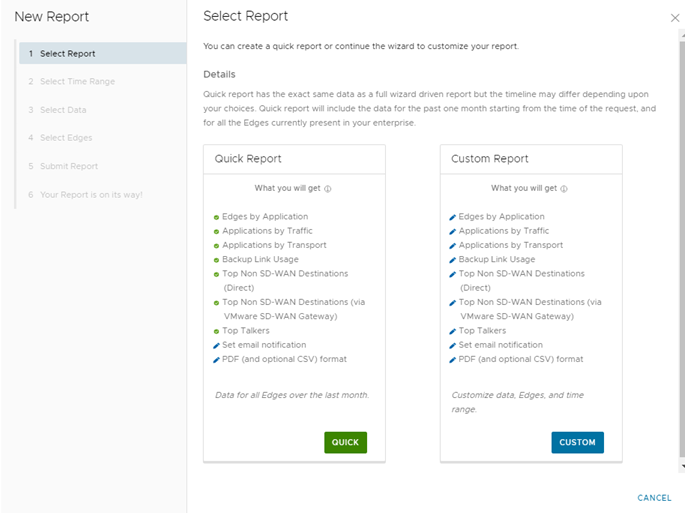
- In the window Your Report is on its way that appears, select Done.
Once you submit the report, the Report details are displayed with the status in the Reports window.
Figure 49. Manage Reports 
Your report is generated and is displayed in the Reports page. See Monitor Enterprise Reports.
To generate a customized report with specific values, see Create Customized Report.
Create Customized Report
You can create an Enterprise report with customized settings by specifying the time range, required data, and Edges.
- In the SD-WAN service of the Enterprise portal, select .
- Select New Report.
- On the New Report page, select Custom.
Follow the instructions on the screen to select the configuration settings for the custom report. See Select Time Range.
Select Time Range
You can customize a report for a selected time period. In addition, you can schedule a report to run on recurring basis.
- When you choose to customize the Enterprise report and select Custom in Create Customized Report, the Select Time Range window appears.
Figure 50. Select Time Range 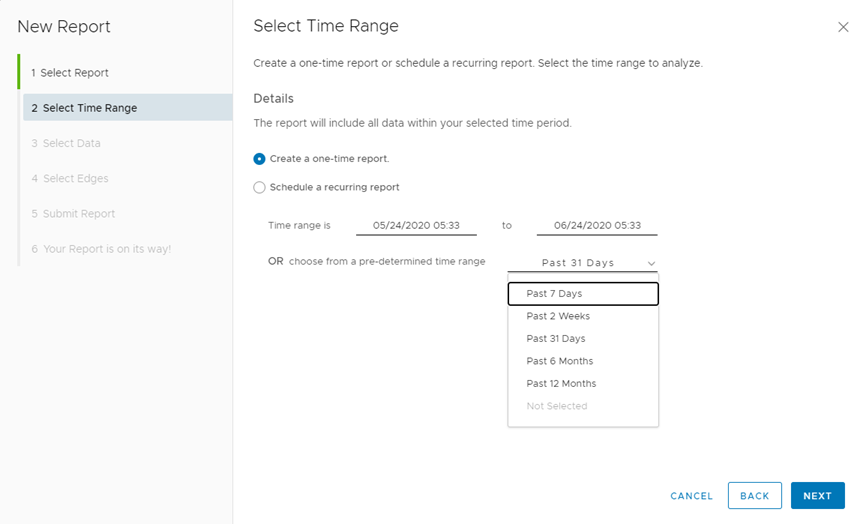
- To configure a scheduled report, choose Schedule a recurring report and select the schedule period and time from the list.
Figure 51. Schedule a Recurring Report 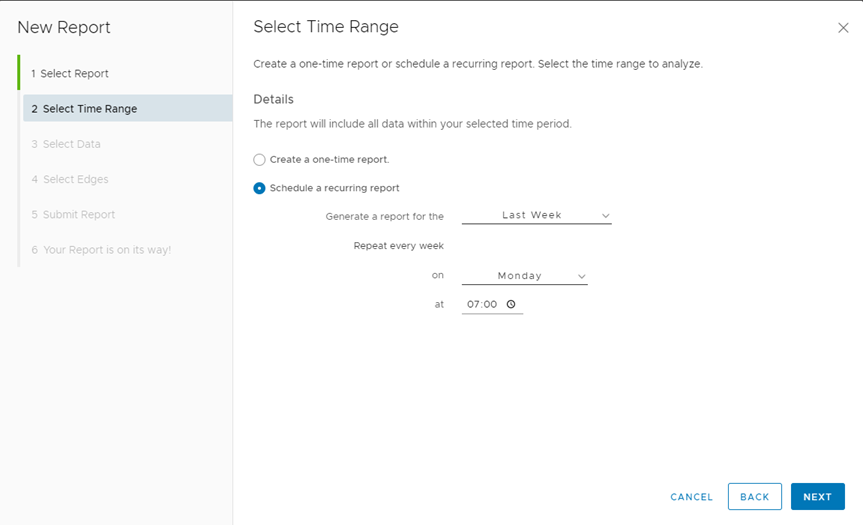
See Select Data.
Select Data
You can select the data to be included in a custom report.
- When you select Next after selecting the time range in Select Time Range, the Select Data window appears.
Figure 52. Select Data 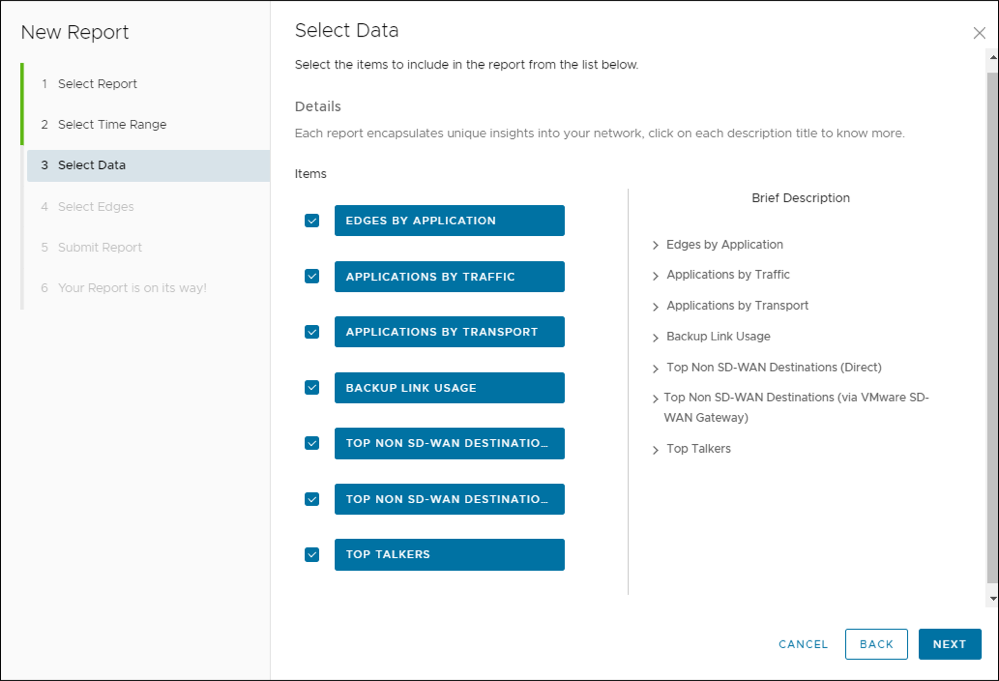
See Select Edges.
Select Edges
You can select to generate an Enterprise report including all the Edges or choose to include specific Edges.
- When you select Next after selecting the data to be included in the report in Select Data, the Select Edges window appears.
Figure 53. Select Edges 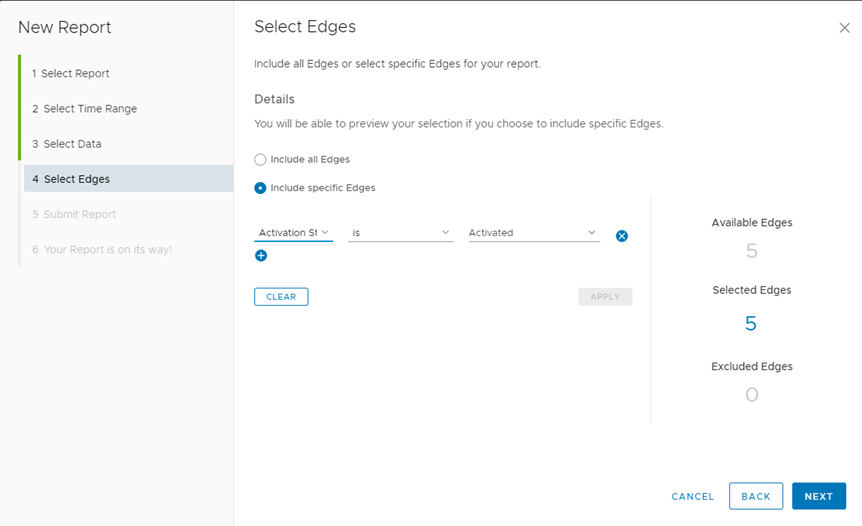
See Submit Report.
Submit Report
- When you select Quick to create a Quick Report in Create a New Enterprise Report, or select Next after selecting the Edges in Select Edges, the Submit Report window appears.
Figure 54. Submit Report 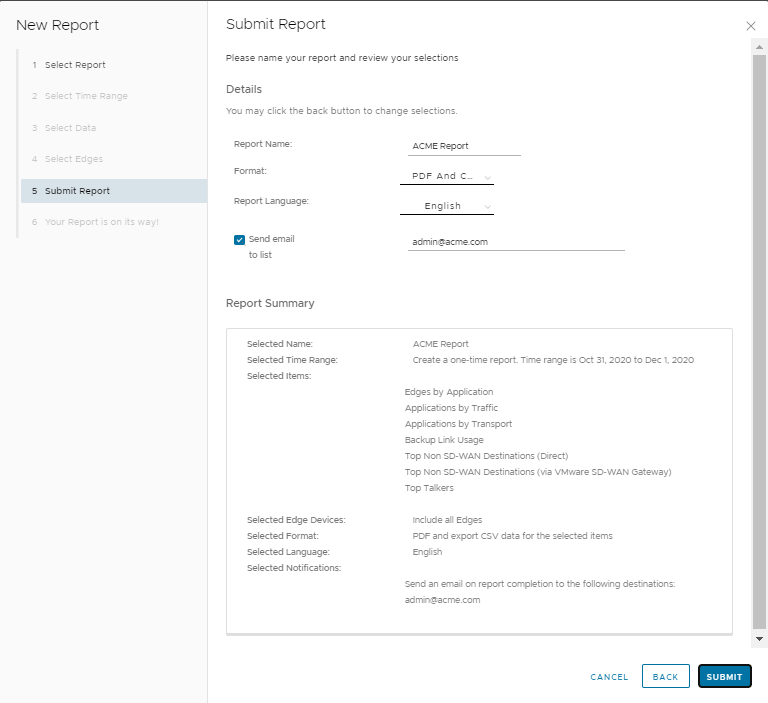
Your report is generated and is displayed in the Reports page. See Monitor Enterprise Reports.
Monitor Enterprise Reports
You can generate a Quick report using the default values or a custom report with specified values. You can also schedule a custom report to run on a recurring basis. All the reports are displayed in the Reports page, where you can download and view the report data. You can also view the scheduled reports in this page.
In the SD-WAN service of the Enterprise portal, select . The page displays all the generated reports.

To download a report, select the Completed link of the report. The report downloads as a ZIP file, which consists of the PDF format of the report. If you have configured to export the report to CSV format, the ZIP file consists of both the PDF and CSV files.
- PDF:
- Graphical representation of distribution of Enterprise Traffic, Transport, and top Applications.
- Top 10 Applications by Traffic and Transport types.
- Top 10 Edges by Applications.
- Top Backup links with top Applications.
- Top Talkers with top Applications.
- Top Edges in top Non SD-WAN Destinations from Edge.
- Top Sites in top Non SD-WAN Destinations via Gateway.
The following image shows an example snippet of a PDF report:
Figure 56. Sample PDF Report 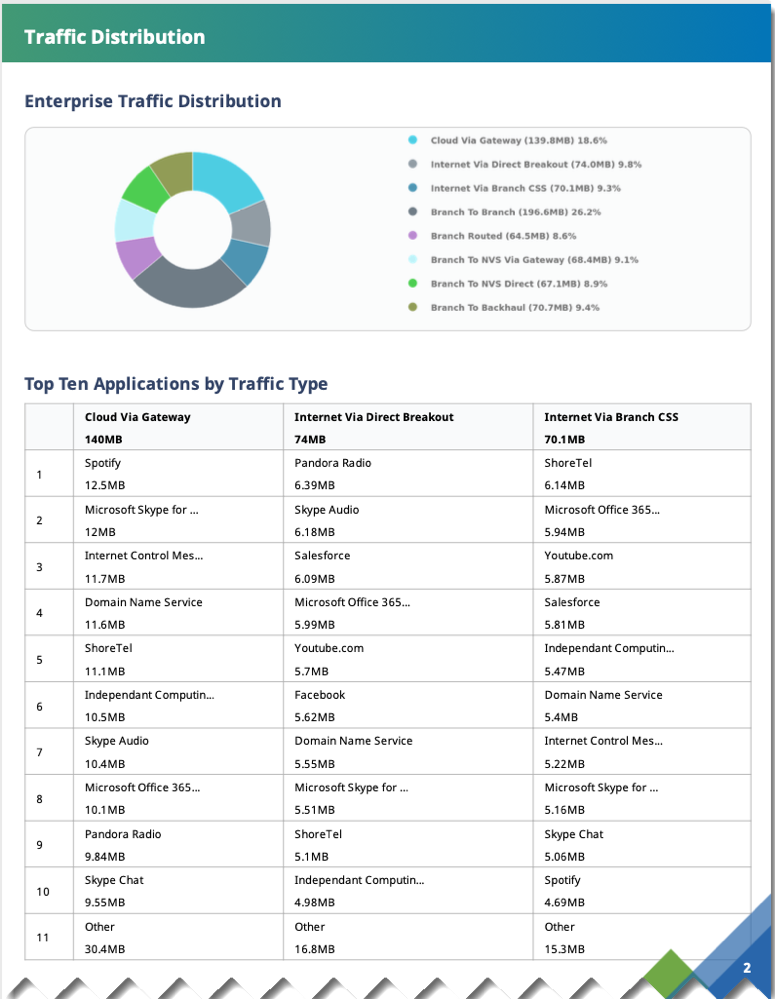 The Enterprise Traffic distribution lists the following data:
- Cloud Via Gateway: Internet bound traffic that goes through the SD-WAN Gateway.
- Internet Via Direct Breakout: Internet bound traffic that breaks out directly from branch and does not go through VeloCloud Tunnels.
- Internet Via Branch CSS: Traffic bound to Cloud Security Services directly from VeloCloud branch.
- Branch To Branch: Traffic going through SD-WAN Gateway / SD-WAN Hub / dynamic SD-WAN Tunnels, directly between two VeloCloud branches.
- Branch Routed: Traffic bound to local connected / static / routed (underlay) destinations.
- Branch To NVS Via Gateway: Traffic bound from branch to Non SD-WAN Destination through SD-WAN Gateway.
- Branch To NVS Direct: Traffic bound from branch to Non SD-WAN Destination over direct IPsec tunnels.
- Branch To Backhaul: Internet bound traffic being backhauled from branch to VeloCloud SD-WAN Hubs.
- CSV: The following CSV files are downloaded.
- Top Sites by Applications: Lists all the applications, Edge name, Edge description, Bytes transmitted, and Bytes received.
- Traffic Type: Lists all the flow paths, applications, Edge name, Edge description, Bytes transmitted, and Bytes received.
- Transport Type: Lists all the Transport types, applications, Edge name, Edge description, Bytes transmitted, and Bytes received.
- Backup Link Usage: Lists the names of all the Backup links, total bytes and applications used by the links, Bytes transmitted, and Bytes received.
- Non SD-WAN Destinations from Edge: Lists all the Non SD-WAN Destinations connected directly from the Edges, name and description of the connected Edges, Bytes transmitted, and Bytes received.
- Non SD-WAN Destinations via Gateway: Lists all the Non SD-WAN Destinations connected through SD-WAN Gateways, name of the Gateway, Bytes transmitted, and Bytes received. This report also lists the name and description of the Edges connected to each destination along with the Bytes transmitted, and Bytes received.
- Top Talkers: Lists the names of clients, source IP address, source MAC address, name and description of the Edges connected to each client, total bytes used by the client, applications, Bytes transmitted, and Bytes received.
The following image shows an example snippet of a CSV report for Top Sites by Applications:
Figure 57. Top Sites by Applications 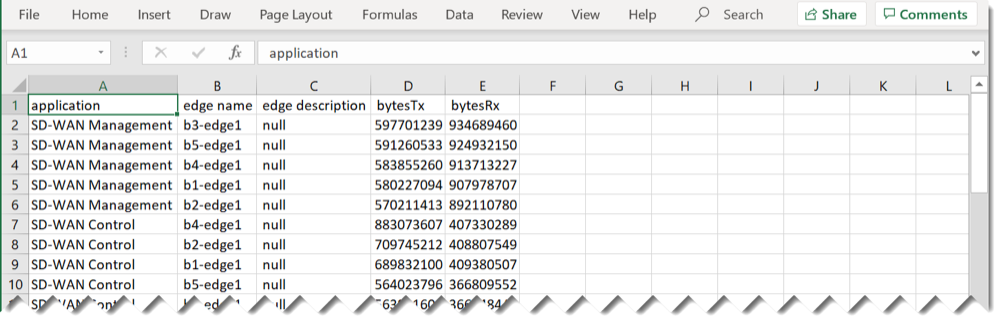
To delete a report, select the report and select DELETE.
To view the scheduled reports, select RECURRING REPORTS.
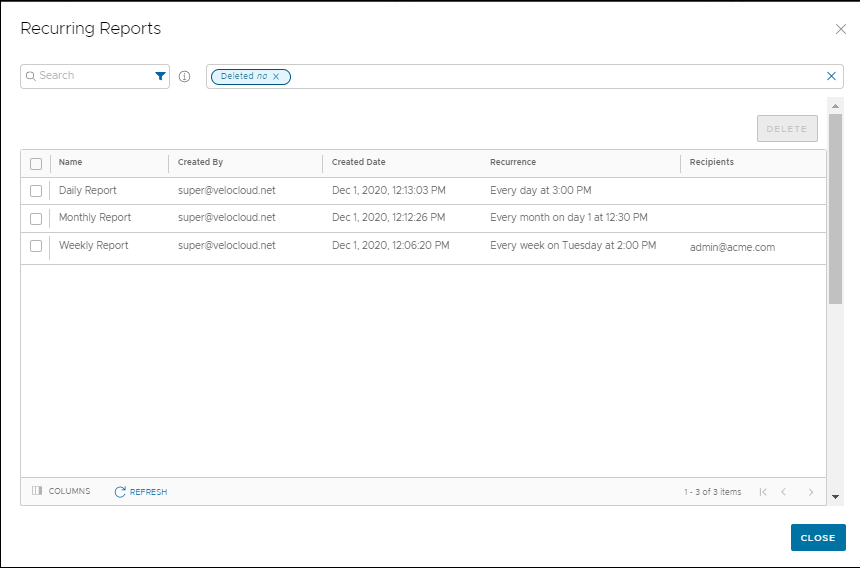
The Recurring Reports window displays the details of reports and the recurrence schedule.
To remove a report from the scheduled list, select the report and select DELETE.