Enterprise-level UI Changes in the New VeloCloud Orchestrator
The Arista VeloCloud Orchestrator has moved and redesigned some features to fit the wider scope of the product and user interface (UI). The new UI has changed from a single product portal (only for SD-WAN) to a common management system that lets customers access multiple services in one place. The new UI navigation has adapted to allow access to multiple services within one shared header. The primary global header now has an Enterprise Applications (Services) drop-down menu that lists the various supported services. You can select and navigate to each service from this menu. Enterprise Global Settings is now located in the Enterprise Applications (Services) drop-down because it has features that are shared across services. These features include User Management, Authentication, Role Customization (now Roles and Service Permissions), Customer Configuration, and more.
This document explains the changes in the Enterprise UI for some features. It also gives the reasons for these changes.
SD-WAN Administration: Global Settings and SD-WAN Settings
Now that SD-WAN is one of the many services available in the Orchestrator, the original Administration section is split and moved under Global Settings and SD-WAN Settings. All Edge or SD-WAN specific settings are moved to Service Settings within the SD-WAN service, and all Administration related or shared settings across services are moved to the Global Settings service.
Table 1. Global Settings and SD-WAN Settings
Classic Orchestrator Location
New Orchestrator Location
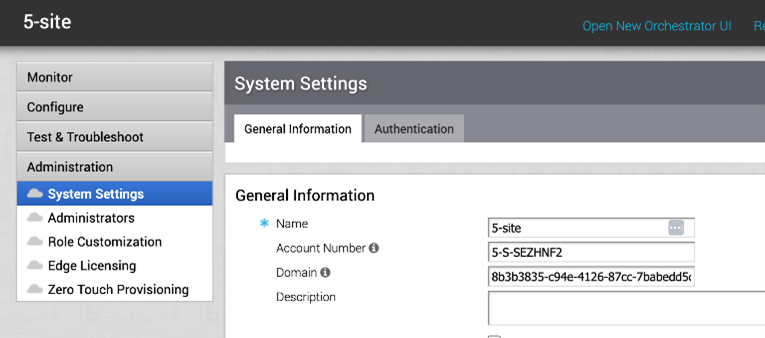
Enterprise > AdministrationFigure 1. System Settings
Enterprise > Global SettingsFigure 2. Global Settings
Enterprise > SD-WAN > Service SettingsFigure 3. Service Settings
Alert Configuration
Alert Configuration is moved under Service Settings because these settings affect the operations of the SD-WAN service and are not related to the SD-WAN network configuration.
Table 2. Alert Configuration
Classic Orchestrator Location
New Orchestrator Location
Enterprise > Configure > Alerts & Notifications
Enterprise > SD-WAN > Service Settings > Alerts & Notifications
Figure 4. Alert Configuration
Figure 5. Alert Configuration
Customer Configuration
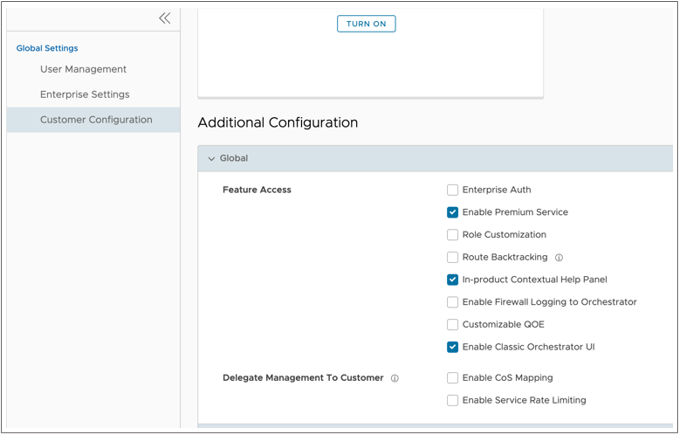
Customer Configuration is moved under Enterprise Global Settings because this page is shared across various Orchestrator services in addition to the core SD-WAN service. The Customer Configuration page is reorganized with a section to add and modify services for the customer account, group feature access within services, and additional global settings at a high level for each service and across multiple services.
Table 3. Customer Configuration
Classic Orchestrator Location
New Orchestrator Location
Enterprise > Configure > Customer
Enterprise > Global Settings > Customer Configuration
Figure 6. Customer Configuration
Figure 7. Customer Configuration
Test & Troubleshoot
Test & Troubleshoot is renamed to Diagnostics to better align with the features nested inside it.
Table 4. Test & Troubleshoot
Classic Orchestrator Location
New Orchestrator Location
Enterprise > Test & Troubleshoot
Enterprise > SD-WAN > Diagnostics
Figure 8. Remote Diagnostics
Figure 9. Remote Diagnostics
System Settings > General Information > General Information Section
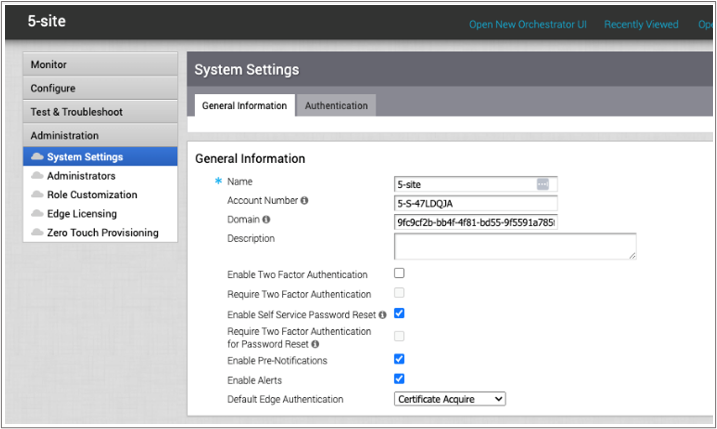
Most sections of System Settings are moved within Global Settings because the Global Settings menu provides a single location for shared settings across various Orchestrator services. The System Settings is renamed to Enterprise Settings because this page is focused on Enterprise-specific configuration settings.
Table 5. General Information Section
Classic Orchestrator Location
New Orchestrator Location
Enterprise > Administration > System Settings > General Information
Enterprise > Global Settings > Enterprise Settings
Figure 10. System Settings
Figure 11. Enterprise Settings
System Settings > General Information > Pre-Notifications and Alerts
Alert Notification settings are moved under Alerts & Notifications section in the SD-WAN > Service Settings page. This helps in better understanding of the alerts and their corresponding services.
Also, Enable Pre-Notifications is renamed to Enable Operator Alerts, and Enable Alerts is renamed to Enable Enterprise Alerts.
Table 6. Pre-Notifications and Alerts
Classic Orchestrator Location
New Orchestrator Location
Enterprise > Administration > System Settings > General Information
System Settings > General Information > Default Edge Authentication
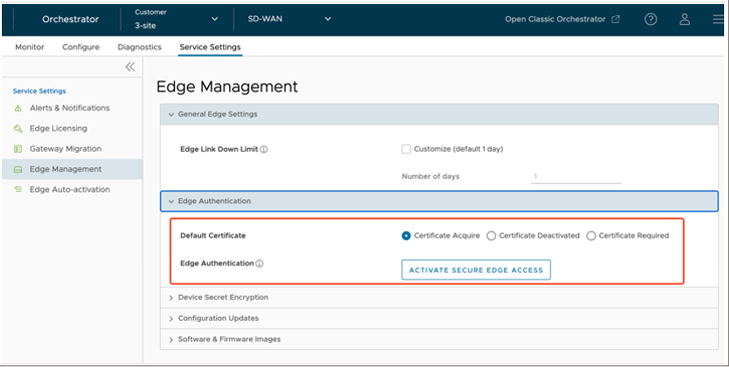
Default Edge Authenticationis renamed to Default Certificate, and is moved under Edge Management in the SD-WAN > Service Settings page. These settings are now redesigned as radio buttons.
Table 7. Default Edge Authentication
Classic Orchestrator Location
New Orchestrator Location
Enterprise > Administration > System Settings > General Information
UI label was originally Default Edge Authentication.
System Settings > General Information > Edge Configuration Updates
Edge Configuration is moved into the SD-WAN Edge Management page for better organization. The controls for updates are renamed to provide more clarity on the Edge action and result.
Table 8. Edge Configuration Updates
Classic Orchestrator Location
New Orchestrator Location
Enterprise > Administration > System Settings > General Information > Edge Configuration UI labels were originally:
UI label Updates- Enabledis renamed to Enable Edge Configuration Updates.
Updates- Enabled on Orchestrator Upgrade is renamed to Enable Configuration Updates Post-Upgrade.
Figure 16. Edge Configuration
Figure 17. Configuration Updates
System Settings > General Information > Privacy Settings
We have relocated the Privacy Settings feature to the Global Settings page. This is because the Privacy Settings feature affects various Orchestrator services, not just SD-WAN.
Table 9. Privacy Settings
Classic Orchestrator Location
New Orchestrator Location
Enterprise > Administration > System Settings > General Information > Edge Configuration
Enterprise > Global Settings > Enterprise Settings > Information Privacy Settings
Figure 18. Privacy Settings
Figure 19. Information Privacy Settings
System Settings > General Information > Contact Information
We have moved the Contact Information for the Enterprise feature to the Global Settings page. We also renamed Contact Information to Customer Business Contact Information, and together these changes make it easier to understand and use the customer information across various Orchestrator services.
Table 10. Contact Information
Classic Orchestrator Location
New Orchestrator Location
Enterprise > Administration > System Settings > General Information > Contact Information
Enterprise > Global Settings > Enterprise Settings > Customer Business Contact Information
Figure 20. Contact Information
Figure 21. Customer Business Contact Information
System Settings > General Information > Zero Touch Provisioning Sign Up
We have moved all the Zero Touch Provisioning related UI sections to the new Edge Auto-activation section within the SD-WAN > Service Settings page for better clarity and organization.
Table 11. Zero Touch Provisioning Sign Up
Classic Orchestrator Location
New Orchestrator Location
Enterprise > Administration > System Settings > General Information > Zero Touch Provisioning Sign Up
We have moved the Enterprise Authentication related settings from the System Settings > Authentication tab to the Global Settings page. This is because the Global Settings page is a single location for settings that apply to various Orchestrator services. Authentication is one of these settings, as it affects multiple services and the whole Orchestrator. The new location for the Authentication settings is under the User Management > Authentication page within Global Settings. This groups the user management related features together and makes them consistent with how other Arista products handle their user authentication organization.
Table 12. Authentication Tab
Classic Orchestrator Location
New Orchestrator Location
Enterprise > Administration > System Settings > Authentication
Enterprise > Global Settings > User Management > Authentication
Figure 25. Authentication
Figure 26. Authentication
System Settings > Authentication Tab > Enterprise Authentication
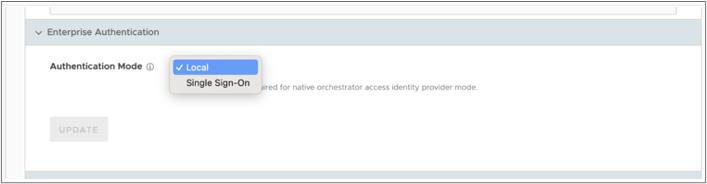
We moved Enterprise Authentication settings to Global Settings because this setting affects various Orchestrator services, not just SD-WAN. We have also changed the name of the Native authentication option to Local, with the Single Sign-On authentication option remaining unchanged.
Enterprise > Global Settings > User Management > Authentication
Figure 27. Authentication Mode
Figure 28. Authentication Mode
Administrators
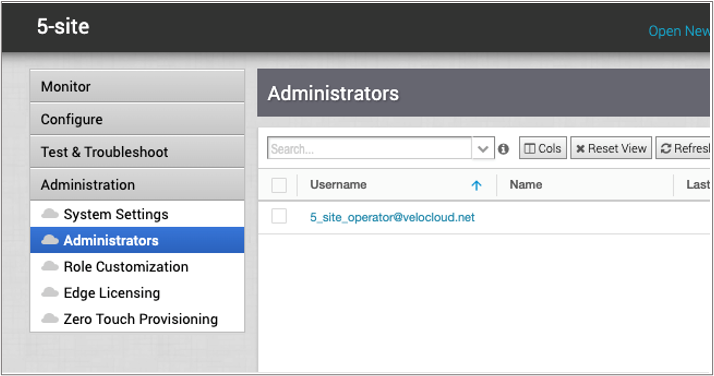
We have moved the Administrators feature from the System Settings tab to the Global Settings page. This is because the Global Settings page is a single location for settings that apply to various Orchestrator services. Administrators is one of these settings, as it allows you to manage and create users and roles for multiple services and the whole Orchestrator. We have also changed the name of the Administrators feature to Users. This is to make it consistent with other Arista product terminology and to avoid confusion with the admin role.
Table 14. Administrators
Classic Orchestrator Location
New Orchestrator Location
Enterprise > Administration > Administrators
Enterprise > Global Settings > User Management > Users
Figure 29. Administrators
Figure 30. Users
Role Customization
We have changed the name of the Role Customization feature to Service Permissions. This is to make room for the new Role Builder feature that lets you create custom roles by combining different service permissions. Service Permissions is a more accurate name for the feature, as it allows you to adjust the access levels for each service.
Table 15. Role Customization
Classic Orchestrator Location
New Orchestrator Location
Enterprise > Administration > Role Customization
Enterprise > Global Settings > User Management > Service Permissions
Figure 31. Role Customization
Figure 32. Service Permissions
Edge Licensing
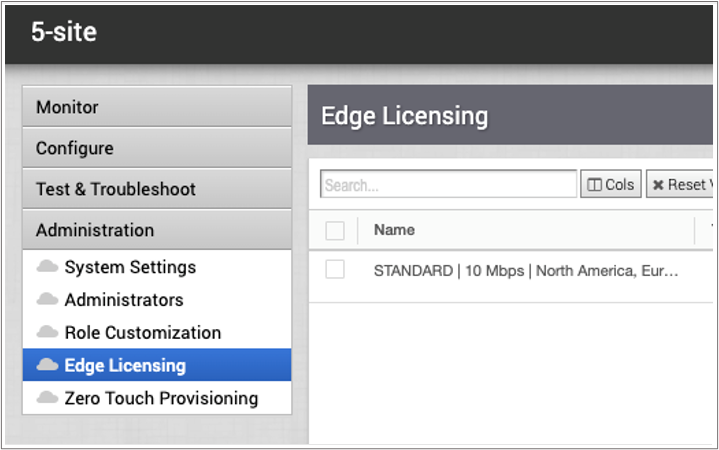
We have relocated the Edge Licensing feature because the Classic Orchestrator UI could not handle multiple services that need configuration at the Enterprise level. The New Orchestrator UI is a portal for many services, not just SD-WAN. Edge Licensing is a feature that only applies to SD-WAN, so we have moved it to the new Service Settings tab within the SD-WAN service.
Table 16. Edge Licensing
Classic Orchestrator Location
New Orchestrator Location
Enterprise > Administration > Edge Licensing
Enterprise > SD-WAN > Service Settings > Edge Licensing
Figure 33. Edge Licensing
Figure 34. Edge Licensing
Zero Touch Provisioning (ZTP)
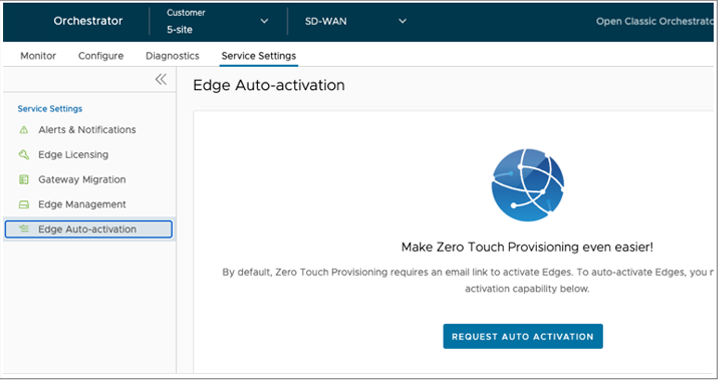
We have changed the way you activate your Edges in the New Orchestrator UI. You no longer need to enable Zero Touch Provisioning (ZTP) in the System Settings. You can access the ZTP feature directly from the Edge Auto-Activation page. We have also renamed the ZTP feature to Edge Auto-Activation, because it includes both the new automatic activation method and the original email activation method. You can choose either method from the Edge Configuration page. The Edge Auto-Activation feature is specific to SD-WAN, so we have moved it to the new Service Settings tab within the SD-WAN service. The Service Settings tab is part of the Global Settings page, which is a single location for settings that apply to various Orchestrator services.
Table 17. Zero Touch Provisioning (ZTP)
Classic Orchestrator Location
New Orchestrator Location
Enterprise > Administration > Zero Touch Provisioning
Enterprise > SD-WAN > Service Settings > Edge Auto-Activation
Figure 35. Zero Touch Provisioning
Figure 36. Edge Auto-Activation
Two Factor Authentication
We have relocated the Two Factor Authentication feature from the System Settings tab to the Global Settings page. This is because the Two Factor Authentication feature affects users across various Orchestrator services. The new location for the feature is under the User Management section within the Global Settings page. This makes it more consistent with other Arista products.
Table 18. Two Factor Authentication
Classic Orchestrator Location
New Orchestrator Location
Enterprise > Administration > System Settings > General Information > Enable Two Factor Authentication
Enterprise > Global Settings > User Management > Authentication > User Authentication > Two Factor Authentication
Figure 37. Enable Two Factor Authentication
Figure 38. Two Factor Authentication
Self-Service Password Reset
We have moved Password Reset to the Authentication tab within Global Settings because this setting affects the Enterprise Orchestrator as a whole and not just SD-WAN.
Table 19. Self-Service Password Reset
Classic Orchestrator Location
New Orchestrator Location
Enterprise > Administration > System Settings > General Information > Enable Self Service Password Reset
Enterprise > Global Settings > User Management > Authentication > User Authentication > Self Service Password Reset
Figure 39. Enable Self Service Password Reset
Figure 40. Self Service Password Reset
Enterprise > Configure > Alerts & Notifications
We have moved the Alerts & Notifications feature from the Configure tab to the SD-WAN > Service Settings page. This is because the Configure tab is for Network Configurations, such as Profiles, Business Policies, and Firewall Rules. The Service Settings page is for SD-WAN Orchestrator settings, such as Edge Licensing, Edge Auto-Activation, and Alerts & Notifications.
The Alert Configuration page is organized into three tabs:
Alerts
SNMP Traps
Webhooks
Figure 41. Alerts
Figure 42. Alerts
Customer Configuration > Customer Capabilities
We have relocated the Customer Capabilities feature from the System Settings tab to the Global Settings page. This is because the Customer Capabilities feature affects the whole Enterprise Orchestrator, not just SD-WAN. We have also changed the name of the feature to Feature Access, because it allows you to activate or deactivate various features for your Enterprise. Some of these features are SD-WAN specific, such as Edge Licensing and Edge Auto-Activation. Others are common to all Orchestrator services, such as Alerts & Notifications and Privacy Settings.
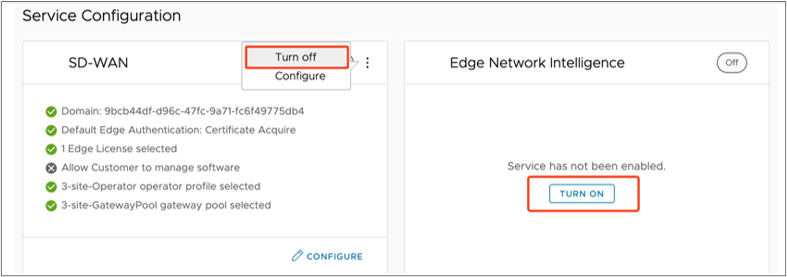
We have moved the Service Access feature from the System Settings tab to the Global Settings page. This is because the Service Access feature affects the whole Enterprise Orchestrator, not just SD-WAN. The Service Access feature allows you to manage the additional services that you can purchase, enable, and configure for your Enterprise. You can find these services under the Customer Configuration section in the Global Settings page. Each service is displayed as a Service Configuration card that shows its name, description, status, and settings. You can turn on or off each service and complete high-level configuration of each service from the card.
Enterprise > Global Settings > Customer Configuration > Gateway Pool
Figure 50. Gateway Pool
Figure 51. Gateway Pool
Customer Configuration > Maximum Segments
We have relocated the Maximum Segments feature from the Configure tab to the SD-WAN service card in the Global Settings page. This is because the Maximum Segments feature is a high-level service configuration that applies to the whole Enterprise Orchestrator. The service configuration cards are where you can find the required configurations to enable each service. You can access the SD-WAN service card from the Customer Configuration section in the Global Settings page.
We have moved the Operator Profile feature to the SD-WAN service card in the Global Settings page. This is because the Operator Profile feature is a high-level service configuration that applies to the whole Enterprise Orchestrator. The Service Configuration cards are where you can find the required configurations to enable each service.
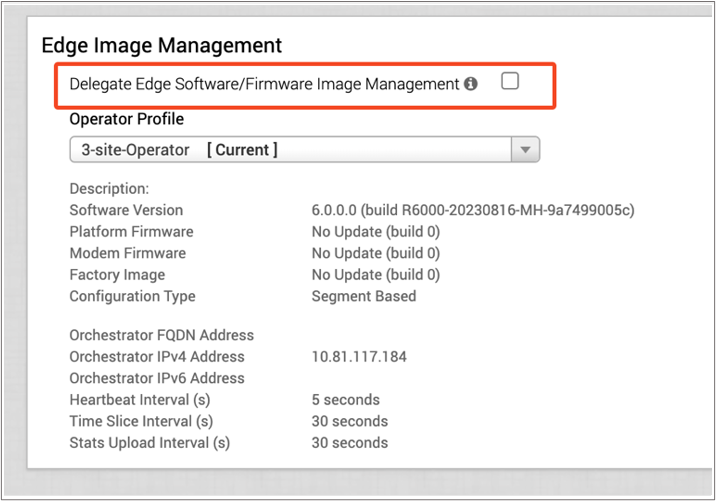
We have changed the name of the Delegate Edge Software/Firmware Image Management feature to Allow Customer to Manage Software. We have also moved this feature to the SD-WAN service configuration card in the Global Settings page. This is because the feature is a high-level service configuration that applies to the whole Enterprise Orchestrator. The service cards are where you can find the required configurations to enable each service.
We have improved the way you access the feature shortcuts in the New Orchestrator UI. You no longer need to look for them in the navigation menu, which was not very convenient. You can find the shortcuts in the upper right corner of the screen, next to the content of the page. This makes it easier to use the shortcuts that are relevant to the page you are viewing.
Table 31. Edge Shortcuts
Classic Orchestrator Location
New Orchestrator Location
Enterprise > Configure > Edges > Select an Edge > Feature Shortcut appear at the bottom of the left-side navigation pane
Enterprise > SD-WAN > > Configure > Edges > Select an Edge > Shortcuts drop-down menu appears at top right corner of each Edge page
Figure 67. Edge Shortcuts
Figure 68. Edge Shortcuts
Profile Used By
We have changed the location of the Profile information in the New Orchestrator UI. You no longer need to look for it in the navigation menu, which was not very convenient. You can find the Profile information next to the title of the Profile, on the same page. This makes it easier to see which Edges and Business Policies are using the Profile.
Table 32. Profile Used By
Classic Orchestrator Location
New Orchestrator Location
Enterprise > Configure > Profiles > Select a Profile > Profile information appears at the bottom of Left side navigation pane
Enterprise > SD-WAN > > Configure > Profiles > Select a Profile > Profile information is moved to the right of the Profile Name
Figure 69. Profile Used By
Figure 70. Profile Used By
Segment Selector
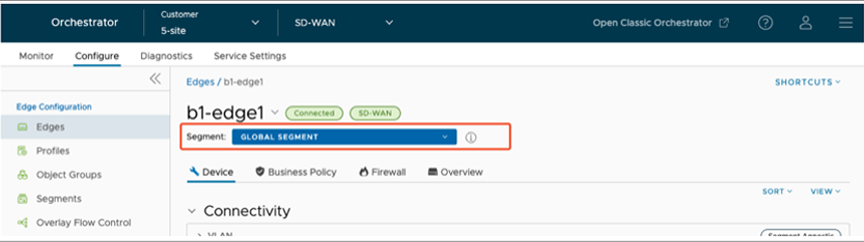
We have moved the Segment Selector to the top of the page in the New Orchestrator UI. This is to make it consistent with the Edge/Profiles tabs, so you can switch between them without changing the selected segment. Most of the Device settings depend on the segment, so having the Segment Selector at the top of the page is more efficient. The Segment Selector stays fixed as you scroll down the page, so you can easily see and change it.
Edge/Profile Configuration Tab Order (Overview, Device, Business Policy, and Firewall)
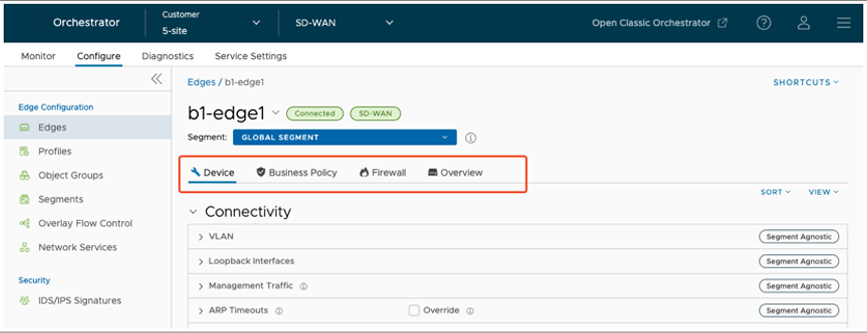
We have changed the default tab that appears when you select the Edge name in the New Orchestrator UI. It is now the Device tab, instead of the Overview tab. This is because most users want to see the Device settings first, such as Device Name, Model, Serial Number, and Firmware Version. If you want to see the Overview tab, you can still access it from the navigation menu. The Overview tab shows you the Edge status, statistics, and events. Please note that after you provision an Edge, you will automatically see the Overview tab first.
Table 34. Configure Edges
Classic Orchestrator Location
New Orchestrator Location
Enterprise > Configure > Edge/Profile > The Overview tab is first
Enterprise > SD-WAN > > Configure > Edge/Profile > The Device tab is now the first tab
The new tab order is: Device, Business Policy, Firewall, and Overview.
Figure 73. Configure Edges
Figure 74. Configure Edges
VRRP Settings
We have relocated the VRRP Settings data grid from the Device tab to the High Availability section in the New Orchestrator UI. This is to make it easier for you to select and configure the VRRP options for your Edges. This change was made based on the feedback from our users, who wanted the VRRP data grid to be more visible and in context with the VRRP HA selection.
Table 35. VRRP Settings
Classic Orchestrator Location
New Orchestrator Location
Enterprise > Configure > Edge/Profile > VRRP Settings > Located in its own section within Device Settings
VRRP Settings is now under High Availability. If the VRRP option is selected as the HA option, then the VRRP data grid appears in the High Availability section.
Figure 75. VRRP Settings
Figure 76. VRRP Settings
My Account
This change is made to be consistent with the navigation of other VeloCloud applications. All user account information is stored under the 'User' icon in the header navigation.
Table 36. My Account
Classic Orchestrator Location
New Orchestrator Location
Header Navigation > User Email address > Your Account
Header Navigation > User Icon > My Account
Figure 77. Your Account
Figure 78. My Account
Logout
This change is made to be consistent with the navigation of other VeloCloud applications. All user account information is stored under the 'User' icon in the header navigation.
Table 37. Logout
Classic Orchestrator Location
New Orchestrator Location
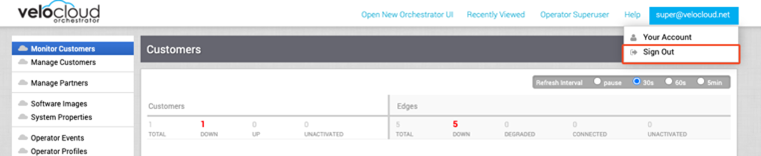
Header Navigation > User Email address > Sign Out
Header Navigation > User Icon > Log Out
Figure 79. Sign Out
Figure 80. Log Out
Quick Start Guide
This change is made to be consistent with the navigation of other VeloCloud applications. All help resources can be found under the 'Question Mark' icon in the header navigation.
Table 38. Quick Start Guide
Classic Orchestrator Location
New Orchestrator Location
Header Navigation > Help > Quick Start Guide
Header Navigation > Question Mark Icon > Quick Start Guide
Figure 81. Quick Start Guide
Figure 82. Quick Start Guide
Product Documentation
This change was made to be consistent with the navigation of other VeloCloud applications. All help resources can be found under the 'Question Mark' icon in the header navigation.
Table 39. Product Documentation
Classic Orchestrator Location
New Orchestrator Location
Header Navigation > Help > Product Documentation
Header Navigation > Question Mark Icon > Product Documentation
Figure 83. Product Documentation
Figure 84. Product Documentation
New Features that do not Exist in the Classic Orchestrator
Enterprise > SD-WAN > Service Settings
Service Settings is a new menu within SD-WAN that includes SD-WAN Orchestrator specific configurations. This provides us with a set of configurations that are separated from the SD-WAN Network configurations.
Table 40. Service Settings
New Orchestrator Location
Enterprise > SD-WAN > Service Settings
The following are the settings that are in this section:
Alerts & Notifications
Edge Licensing
Gateway Migration
Edge Management
Edge Auto-activation
Figure 85. Service Settings
Enterprise > Global Settings
Global Settings is a new section that allows global Orchestrator configurations and settings that span across more than one (or all) services.
Table 41. Global Settings
New Orchestrator Location
Enterprise > Global Settings
The following are the settings that are in this section:
User Management > Users
User Management > Roles
User Management > Service Permissions (Operator Only)
User Management > Authentication
Enterprise Settings
Customer Configuration
Figure 86. Global Settings
Gateway Migration
Gateway Migration is relocated because it contains quiesced Gateways that are used by the current Enterprise and are needed for migration. Users must perform the migration per Enterprise because this feature is not available for Partner Gateways yet.
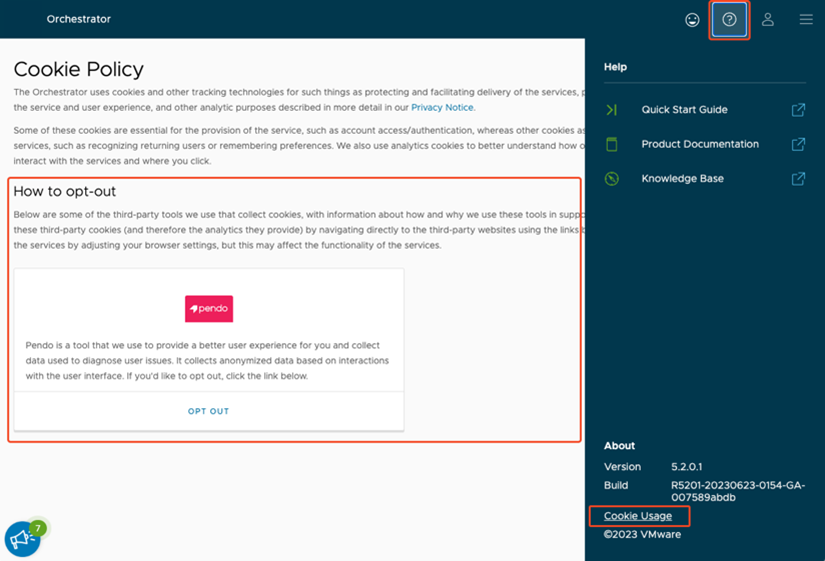
Selecting the Cookie Usage link allows the users to either opt out or opt into the Pendo analytics tracking tool.
Table 45. Pendo Opt Out/In
New Orchestrator Location
Header Navigation > Question Mark Icon > Cookie Usage Link > Opt Out or Opt In.This opens Cookie Policy page.
Figure 90. Pendo Opt Out/In
Cookie Usage
All help resources can be found under the Question Mark icon in the header navigation. This option is located here to be consistent with the navigation of other VeloCloud applications.
Table 46. Cookie Usage
New Orchestrator Location
Header Navigation > Question Mark Icon > Cookie Usage Link > Opt Out or Opt In. This opens Cookie Policy page.
Figure 91. Cookie Usage
Legal & Terms of Service
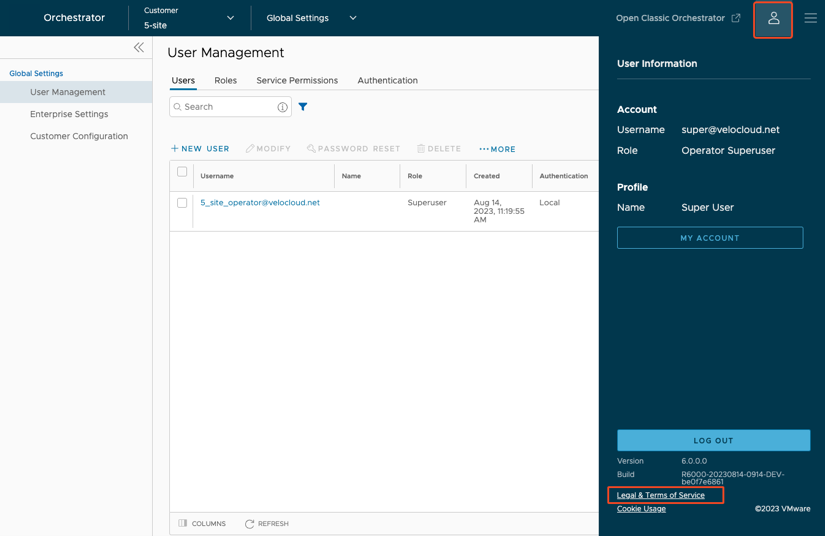
All information related to the user account is stored under the User icon in the header navigation. This option is located here to be consistent with the navigation of other VeloCloud applications.
Table 47. Legal & Terms of Service
New Orchestrator Location
Header Navigation > User Icon > Legal & Terms of Service Link > Opt Out or Opt In. This opens Arista VeloCloud site in a new tab.
Figure 92. Legal & Terms of Service
Knowledge Base
All help resources can be found under the Question Mark icon in the header navigation. This option is located here to be consistent with the navigation of other VeloCloud applications.
Table 48. Knowledge Base
New Orchestrator Location
Header Navigation > Question Mark Icon > Knowledge BaseFigure 93. Knowledge Base
This option is now a read only output of configured syslog within the Firewall > Syslog Forwarding section. This allows users to view the configured syslog settings without navigating to the Device tab.
SD-WAN > Configure > Edges > Firewall > New Rule > Read only views of selected Address Group and Service Group
This option is now a read only output of configured address groups and service groups within the Firewall > New Firewall Rule creation section. This allows the users to view the selected address groups and service groups configurations without navigating to the Object Groups section.
Table 50. Address Group
New Orchestrator Location
Enterprise > SD-WAN > Configure > Edges > Firewall > New Rule > Select Source as Object Group > Add an Address Group and a Service Group > View the Address Group and Service Group information