
Configure Amazon Web Services
Arista VeloCloud supports Amazon Web Services (AWS) configuration in Non SD-WAN Destination.
- Obtain Public IP, Inside IP, and PSK details from the Amazon Web Services website.
- Enter the details you obtained from the AWS website into the Non- SD-WAN Network Service in the Orchestrator.
Configure Edge for Amazon Web Services (AWS) Transit Gateway (TGW) Connect Service
VeloCloud Edges typically get deployed in a Transit VPC on Amazon Web Services (AWS). AWS introduced the support for AWS TGW (Transit Gateway) Connect Service for SD-WAN appliances to connect to the Transit Gateway. VeloCloud Edge now has a feature (BGP over GRE support on LAN), which enables support on the VeloCloud Edge to use the AWS TGW Connect Service for connectivity to the AWS Transit Gateway.
For the AWS TGW Connect Service, the Edge provisioned in the Transit VPC needs to use the LAN (routed, non-WAN) interface to set up the GRE tunnel. This effectively uses the Private IP configured on the Edge Intelligence (EI) to set up the GRE tunnel to the Transit Gateway.
To configure Amazon Web Services (AWS) Transit Gateway (TGW) Connect Service for Edges, perform the following steps:
Amazon Web Services (AWS) Configuration Procedure
- In the AWS portal, provision an AWS Transit Gateway in a particular region. This same region must have the Transit VPC, where the VeloCloud Edge is provisioned.
Figure 1. Provision an AWS Transit Gateway 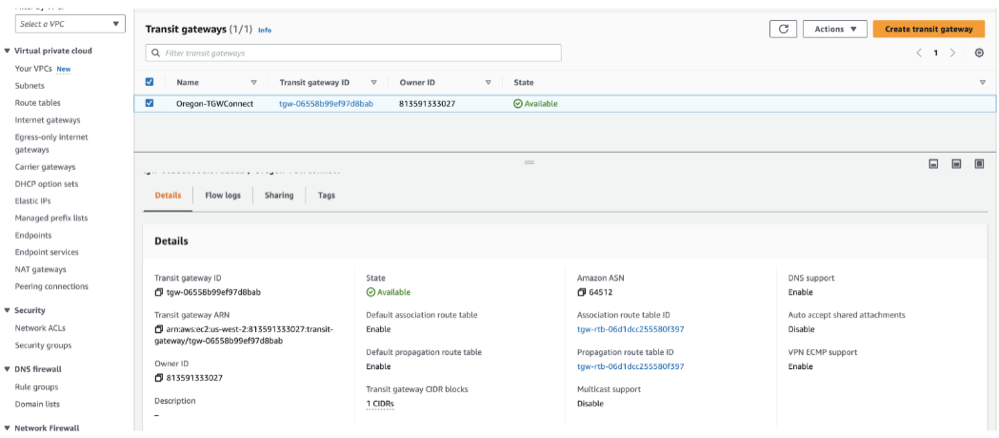 Check for the Transit Gateway CIDR block to be configured, as shown in the following image.Note: An IP from this block is used for the GRE endpoint on the AWS TGW. The Amazon ASN is used later in the BGP configuration on the VeloCloud Edge.
Figure 2. View Transit Gateway CIDR Block 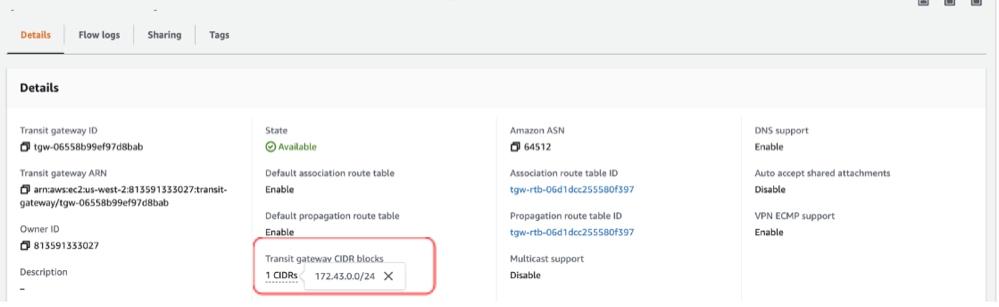
- Create a VPC Attachment for the Transit VPC specifying the Subnets where the LAN interface of the Edge or EI resides.
Figure 3. Create Transit Gateway Attachment 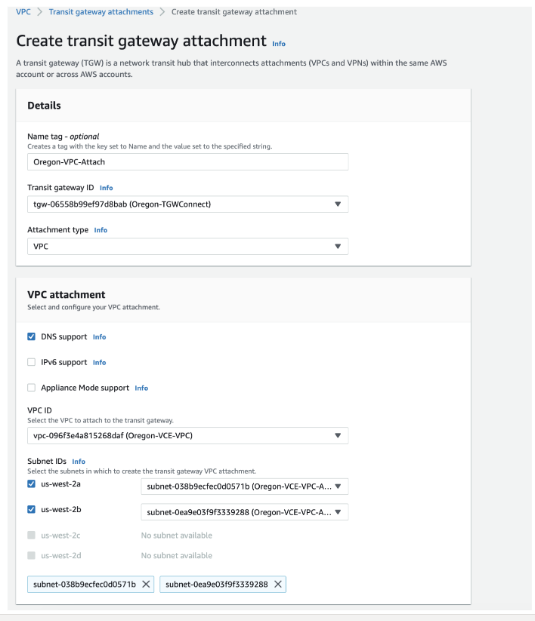
After the VPC Attachment is created successfully, you can see Available as the status of the attachment under the State column.
Figure 4. List of Transit Gateway Attachments 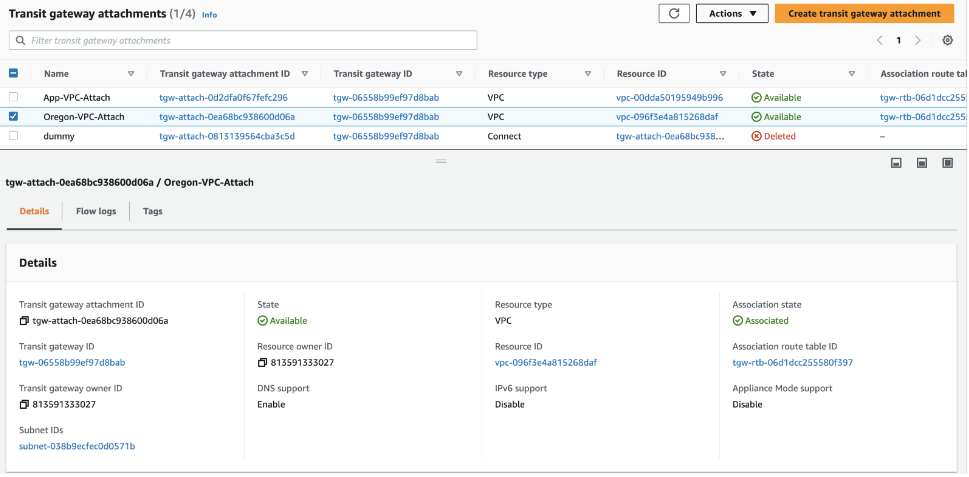
- Create a Connect Attachment using the VPC Attachment.
Figure 5. Create Connect Attachment 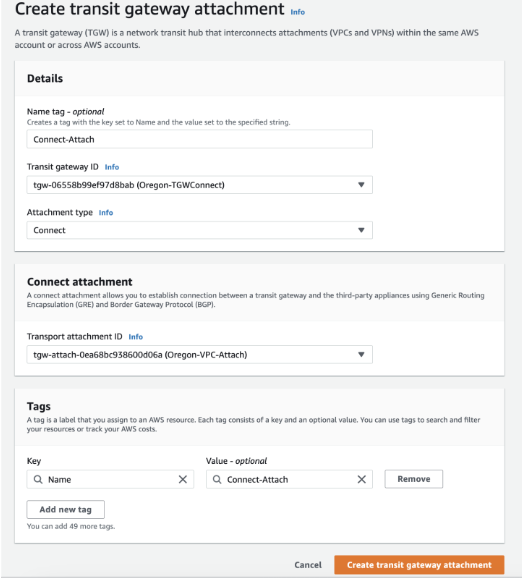
After the Connect Attachment is created successfully, you can see Available as the status of the attachment under the State column.
- Create a Connect peer, which will translate to a GRE Tunnel. Specify the following parameters: the Transit Gateway GRE Address, the Peer GRE Address, the BGP Inside CIDR block, and the Peer ASN.
Note: The BGP Inside CIDR block and the Peer ASN must match what is configured on the VeloCloud Edge.
Figure 6. Create Connect Peer 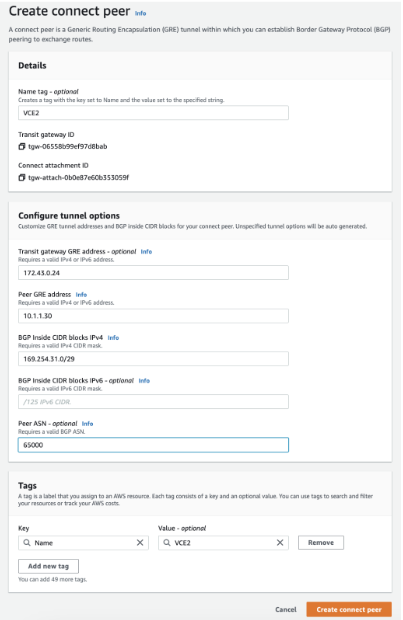 In the above example:
172.43.0.24is the GRE Outside IP address on the AWS TGW, this IP is allocated from the Transit Gateway CIDR block.10.1.1.30is the GRE Outside IP address on the VeloCloud Edge.169.254.31.0/29is the Inside CIDR Block. The addresses from this block are used for the BGP neighbor.169.254.31.1is the IP address on the VeloCloud Edge.169.254.31.2and169.254.31.3are addresses used for the BGP on the AWS TGW.64512is the BGP ASN configured on the AWS TGW.65000is the BGP ASN configured on the VeloCloud Edge.
After the Connect Peer is created successfully, you can see Available as the status of the connect peer under the State column.
Figure 7. List of Connect Peers 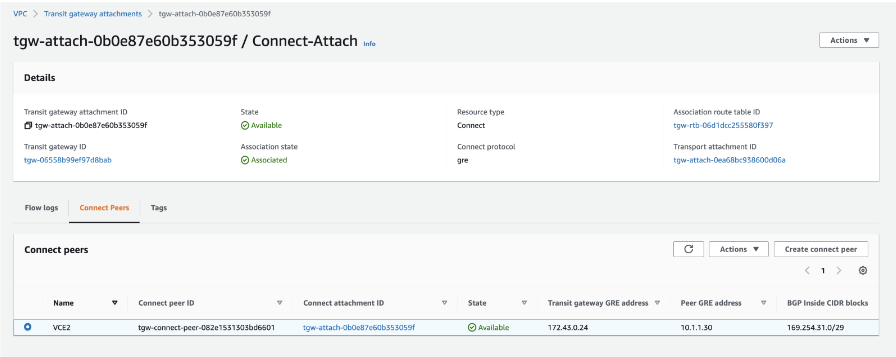
- The VPC Resource Map for the Transit VPC lists the LAN side subnet with the Route table, as shown in the following screenshot.
Figure 8. VPC Resource Map 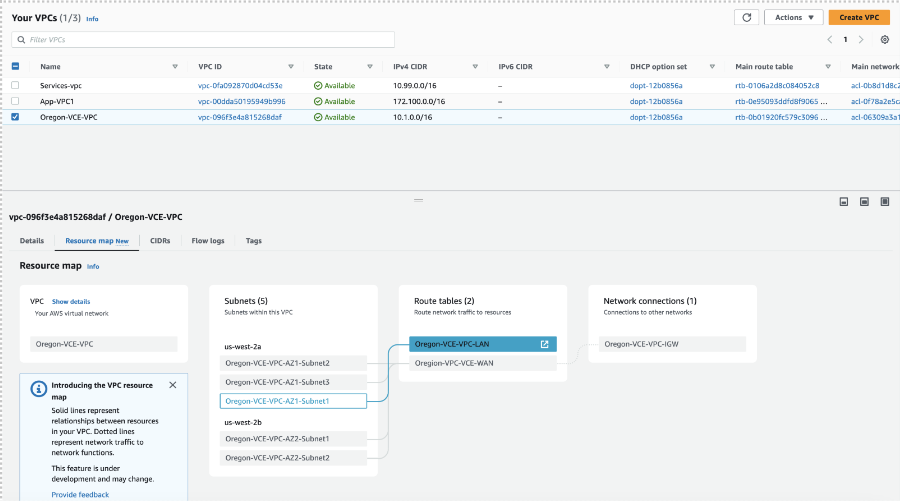
- In the Transit VPC route table, add a route for the TGW CIDR block with Target or Next Hop as the VPC Attachment.
Note: For example, 172.43.0.0/24 is the AWS TGW CIDR block.
Figure 9. Edit Routes 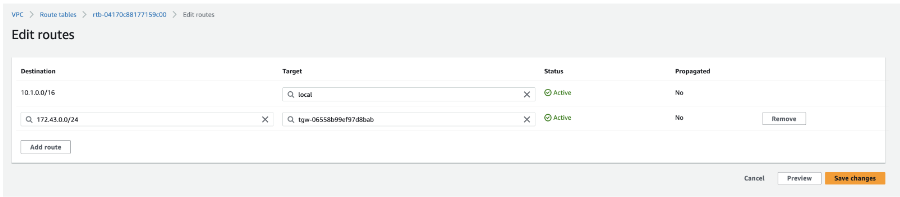
- In the same route table, verify that the LAN EI subnet has an explicit Subnet association.
Figure 10. Verify the LAN EI Subnet Association 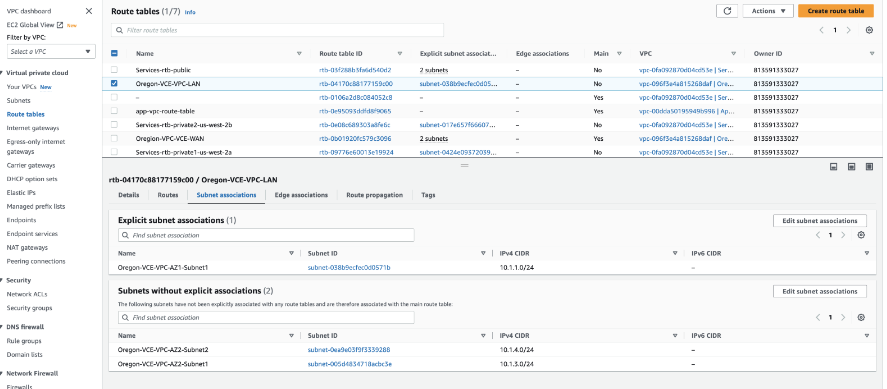
VeloCloud Orchestrator Configuration Procedure
- In the VeloCloud Orchestrator, go to and configure the GRE Tunnel with the AWS Transit Gateway Connect.
Figure 11. Configure NSD via Edge GRE Tunnel 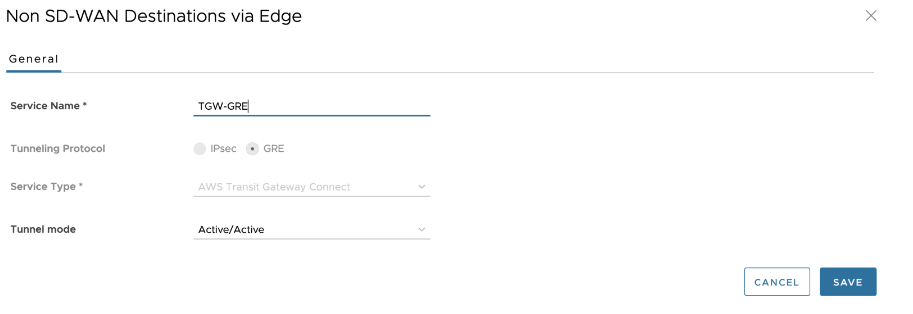 Note: When configuring the GRE Tunnel with the AWS Transit Gateway Connect service, see the following important notes:
- The only Tunnel Mode parameter that can be configured is Active/Active.
- There are no Keepalive mechanisms for the GRE tunnel with the AWS Transit Gateway Service.
- BGP will be configured by default for the GRE tunnels. BGP Keepalive(s) are used for the BGP neighbor status.
- The Edge does not support ECMP across multiple tunnels. Therefore, only one GRE Tunnel will be used for egress Traffic.
- The Tunnel Source interface must have a default gateway configured for the feature to work.
- Under Profile, enable CloudVPN and Non SD-WAN Destination via Edge, and choose the configured NSD via Edge GRE Tunnel to associate with the profile.
Figure 12. Associate NSD via Edge GRE Tunnel with the Profile 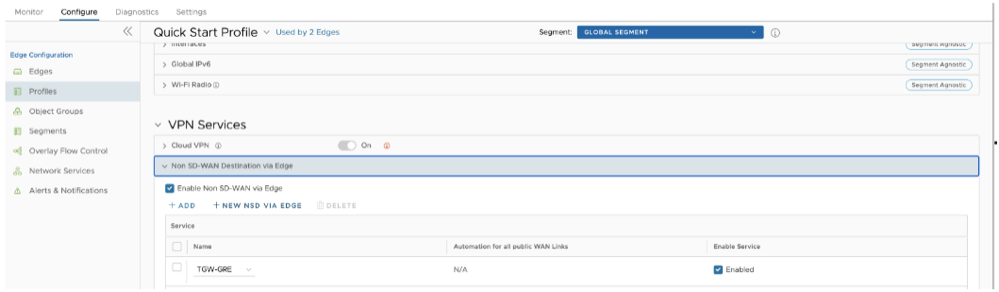
- Under the Edge configuration in the Non SD-WAN Destinations via Edge, you can select the configured NSD and override the settings as needed.
Figure 13. Override NSD via Edge GRE Tunnel Settings 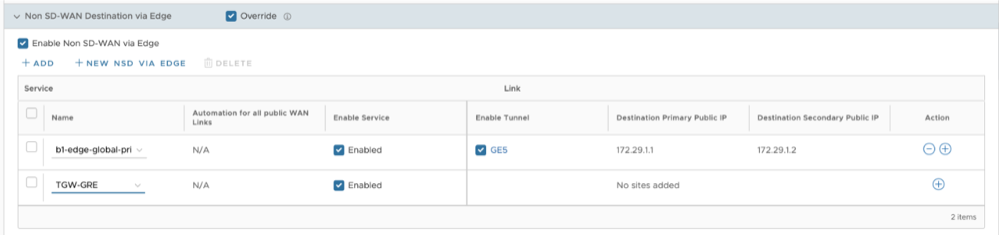
- For the specific NSD, configure the following GRE tunnel parameters by selecting the + sign.
- Tunnel Source as the LAN interface
- Tunnel Source IP as the IP address configured on the LAN interface, if specified dynamically use to obtain the IP address
- TGW ASN
- The Primary Tunnel parameters can be configured by providing, Destination IP, the IP address provided on the TGW Connect Peer
- The Internal Network/Mask must be the same as specified in the TGW Connect Peer Inside configuration.
- The Secondary Tunnel parameters can be configured for the Destination IP and Internal Network/Mask.
Figure 14. Configure GRE Tunnel Parameters 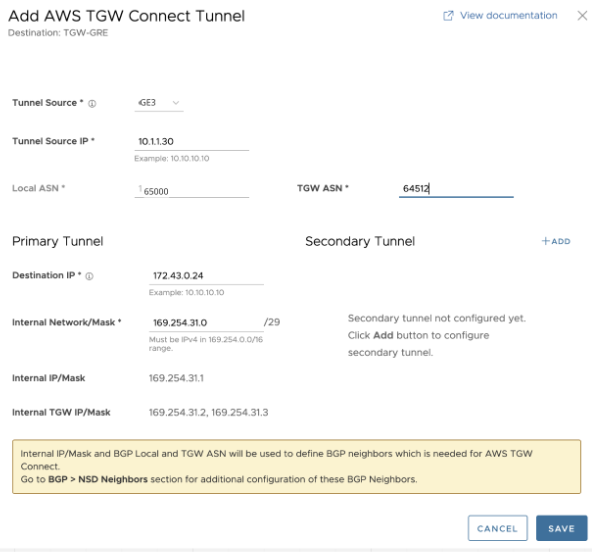 Note: BGP will be enabled by default for this feature. Local ASN field will be pre-populated.
The configured Non SD-WAN via Edge is displayed, as shown in the following image.
Figure 15. List of NSDs via Edge 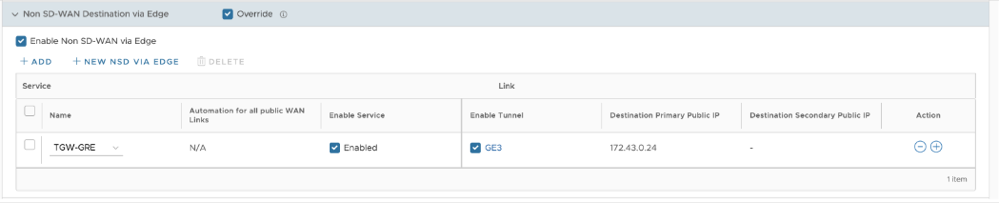
- The above configuration will automatically create the BGP configuration for the Neighbors. Each GRE Tunnel configuration towards the AWS Transit Gateway will automatically be created for two BGP Neighbors with information regarding the Link Name, Neighbor IP, Tunnel Type, and ASN.
Figure 16. BGP Neighbors  In Additional Options, the eBGP Max Hop is configured as 2, as this is a requirement for the TGW Connect Service. The additional parameters that are populated are Keepalive and Hold Timer based off the recommendation provided by AWS. The BGP Local IP is also pre-populated. These parameters cannot be modified.
Figure 17. Additional Options Window 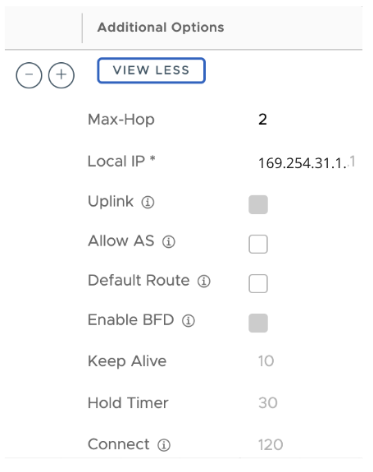 Note:
Note:- Two NSD BGP Neighbors will be automatically added.
- The Additional Options field will be modified for Max-Hop, Local IP, Keep Alive, and Hold Timer values.
- For the GRE tunnel endpoint, configure a static route on the VeloCloud Edge which specifies the Next-Hop to specify the Subnet Default Gateway and Interface as the LAN interface.
Figure 18. Configure Static Route Settings 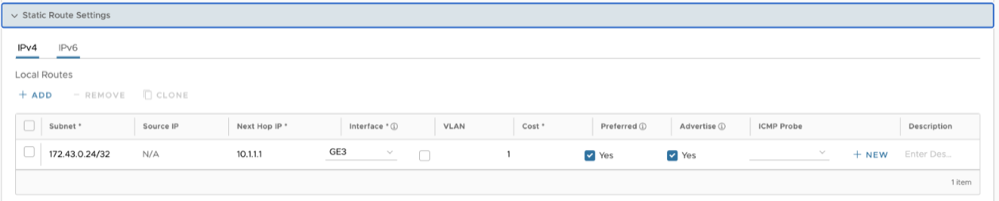
Obtain Amazon Web Services Configuration Details
Discusses how to obtain Amazon Web Services configuration details.
- From Amazon's Web Services, create VPC and VPN Connections. Refer to the instructions in Amazon's documentation: http://awsdocs.s3.amazonaws.com/VPC/latest/vpc-nag.pdf.
- Make note of the Gateways associated with the enterprise account in the Orchestrator that might be needed to create a virtual private gateway in the Amazon Web Services.
- Make a note of the Public IP, Inside IP and PSK details associated with the Virtual Private Gateway. You need to enter this information in the Orchestrator when you create a Non SD-WAN Destination.
Configure a Non SD-WAN Destination
After you obtain Public IP, Inside IP, and PSK information from the Amazon Web Services (AWS) website, you can configure a Non SD-WAN Destination.