SD-WAN Edge in a vNet Connecting to a vWAN Hub
This section outlines how to integrate an SD-WAN Edge in a traditional vNet with a vWAN Hub.
Integrate an SD-WAN Edge in a traditional vNet with a vWAN Hub is an alternative design to deploying Edges as a managed NVA inside of the vWAN Hub itself, resulting in a topology similar to the following image.
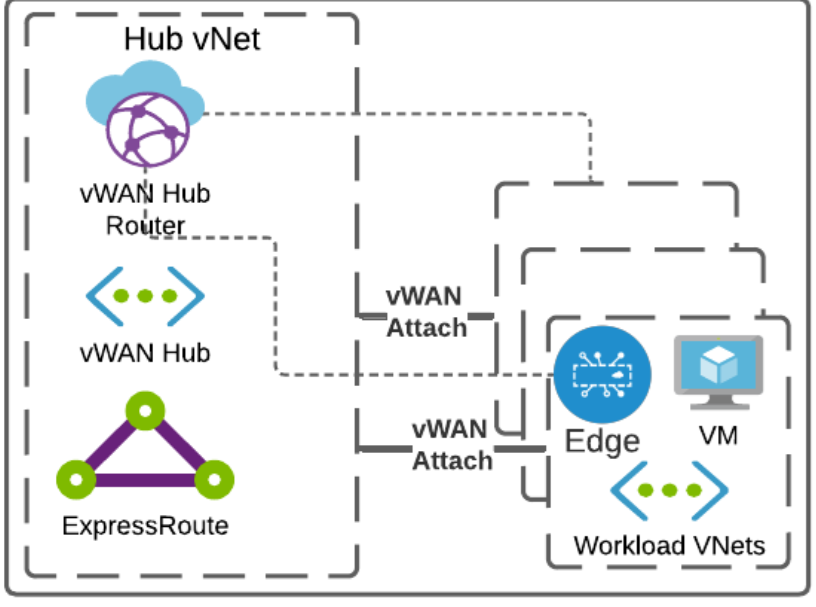
It is important to adhere to the following:
- You must deploy the Virtual Edge in a vNet.
- Azure Virtual WAN Hub must be deployed, i.e., the following must be created in the desired Azure region:
- A Resource Group must be created.
- A Virtual WAN (vWAN) must be created.
- A Virtual Hub (vHUB) must be created.
Note: This section assumes that Edges, vWAN, and applicable Hub(s) have already been deployed as documented in the Azure Virtual Edge Deployment Guide and the section titled "Deploy VeloCloud SD-WAN in Azure Virtual WAN Hub" in the Arista VeloCloud SD-WAN Administration Guide.
To integrate an SD-WAN Edge in a traditional vNet with a vWAN hub:
- The vNET in which the Edge(s) are deployed must be attached to the vWAN Hub by navigating to the vWAN by selecting Virtual network connections and then selecting Add connection.
Figure 2. Add Virtual Network connections 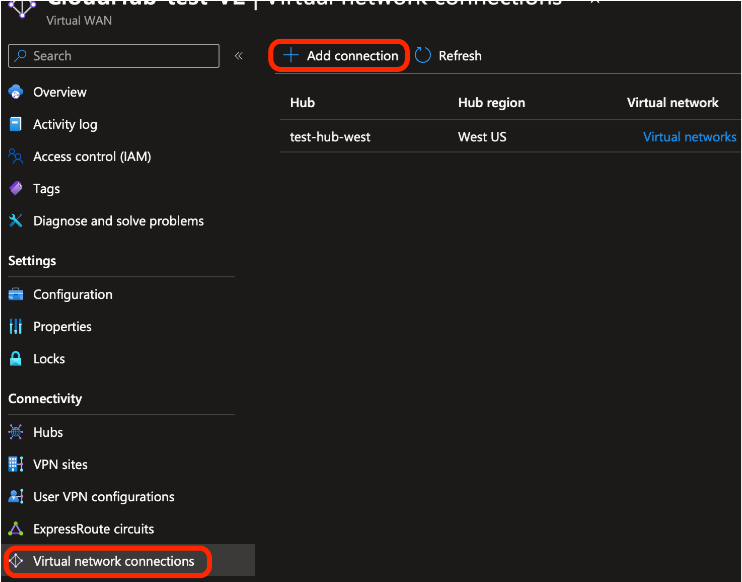
- When creating the connection, ensure that it is propagated to the default route table of the vWAN Hub you are connecting to; this ensures reachability for BGP peering.
Figure 3. Add Connection 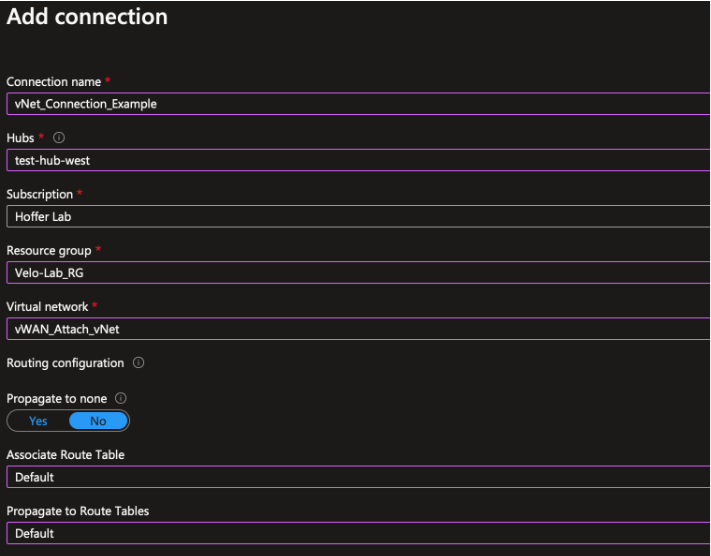
- After the vNet attachment is complete, navigate to the vWAN hub and select BGP Peers from the Routing menu. Make a note of the IPs listed, as they will be the addresses that the Edge will peer with.
Figure 4. View BGP Peer IPs 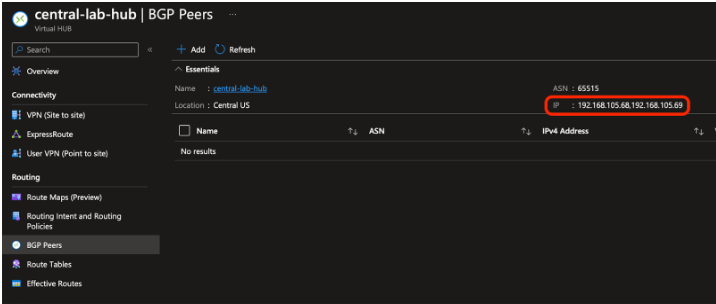
- Select Add and enter the ASN and LAN IP address of the SD-WAN Edge that the vWAN Hub router will peer with.
Figure 5. Add BGP Peers 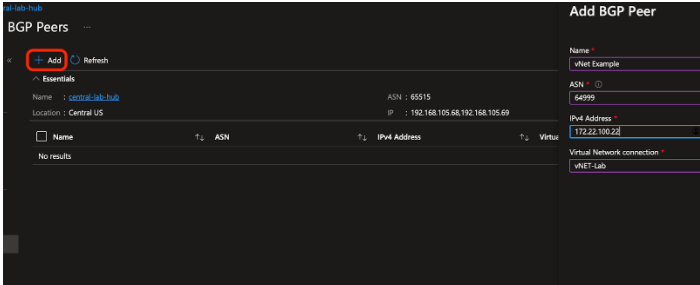
- The Hub router is not on the SD-WAN Edge’s local subnet; therefore, a static route must be configured for the IPs recorded in Step 3 and pointed to the Gateway IP of the LAN subnet.
Figure 6. Configure Static Route Settings 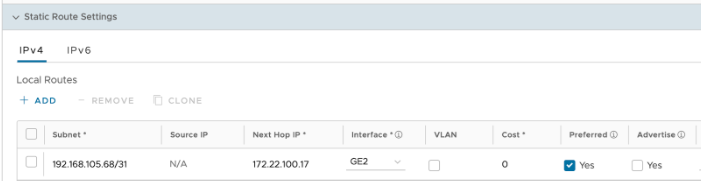
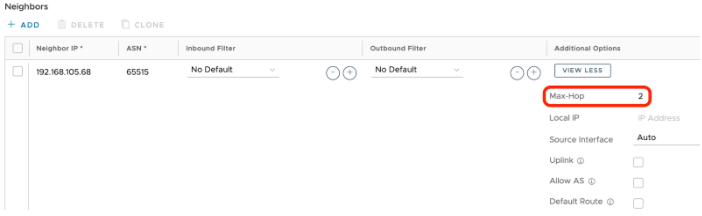
- Create BGP neighbors with each of the IP addresses recorded in Step 3 using Microsoft’s ASN of 65515. As BGP multi-hop is used, the Max-Hop option must be set to “2."
Figure 7. Create BGP Neighbors