
CloudHub Automated Deployment of NVA in Azure vWAN Hub
The VeloCloud SD-WAN and Azure virtual WAN (vWAN) NVA Automated Deployment guide describes the configurations that are required to automatically deploy a Virtual Edge as a Network Virtual Appliance (NVA) in Azure vWAN Hub network.
About CloudHub Automated Deployment of NVA in Azure Virtual WAN Hub
The VeloCloud SD-WAN and Azure virtual WAN (vWAN) NVA Automated Deployment guide describes the configurations that are required to automatically deploy a Virtual Edge as a Network Virtual Appliance (NVA) in Azure vWAN Hub network.
Overview
During cloud migration, there were lot of challenges on how to connect remote locations to Azure VNets in a simple, optimized, and secure way across myriad connectivity options. VeloCloud SD-WAN addresses these problems by leveraging Dynamic Multipath Optimization ™ (DMPO) technologies and distributed cloud gateway coverage across the globe. VeloCloud SD-WAN transforms the unpredictable broadband transport to Enterprise-class quality connections, ensuring the application performance from remote locations to Azure Cloud.
To meet different deployment scenarios for customers who deploy Azure Virtual WAN, VeloCloud SD-WAN have been progressively adding more capabilities to the solution via automation. With this new integration, customers can now deploy VeloCloud Edges directly inside Azure Virtual WAN hubs automatically, resulting in an offering that natively integrates Azure Virtual WAN’s customizable routing intelligence with VeloCloud SD-WAN’s optimized last-mile connectivity.

CloudHub Deployment Prerequisites
- Obtain Enterprise account access to VeloCloud Orchestrator.
- Obtain access to the Microsoft Azure portal with the appropriate IAM roles.
- Ensure you have already created Resource Group, vWAN and vHUB on the Azure side. For steps, see Virtual WAN Documentation.
- Software image requirements for this deployment are as follows:
- VeloCloud Orchestrator: 5.1.0.
- VeloCloud Gateway: 4.2.1 and above.
- VeloCloud Edges: 4.2.1 and above.
CloudHub Automated Deployment of Azure vWAN NVA via Arista Edge Cloud Orchestrator
To use Automated deployment of Azure vWAN NVA via Arista Edge Cloud Orchestrator, perform the following steps:
- In the Orchestrator, ensure the Multi-Cloud Service (MCS) account is activated. You can verify that by checking the following system properties:
session.options.enableMcsServiceAccountvco.system.configuration.data.mcsNginxRedirection
Note: Contact the EdgeOps team to activate the MCS account for your Orchestrator.Figure 2. Verify System Property Settings 
- For an Enterprise user, once the MCS account is activated, you can access the MCS service by selecting in the Orchestrator UI. The Cloud Hub page appears.
Figure 3. Configure Cloud Hub Screen 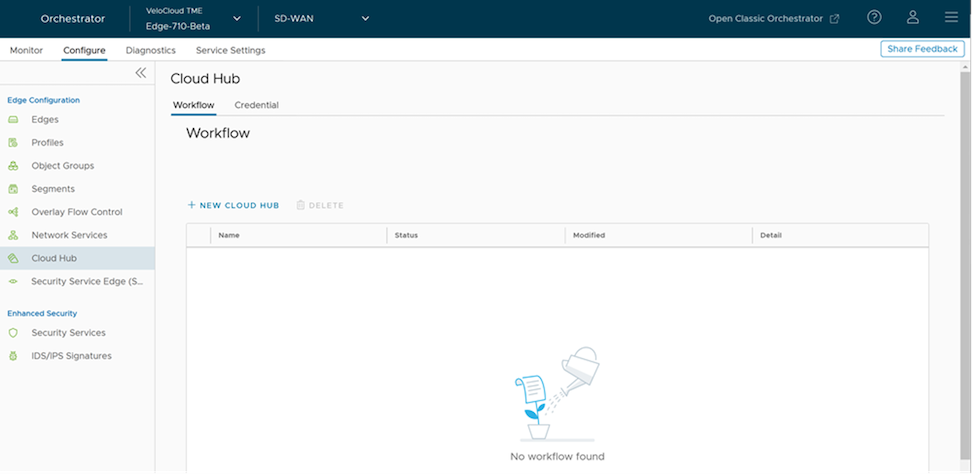
- To create new credential, select . Provide all the required details and select Create.
Figure 4. Add New Credential 
Table 1. Add Credentials Field Descriptions Field Description Name Enter a unique name for your Azure credential. Cloud Provider Select Azure as the Cloud Provider. Client ID Enter the Client ID of your Azure subscription. Tenant ID The ID for an Azure Active Directory (AD) tenant in the Azure portal. Enter the tenant ID to which your subscription belongs. Client Secret Enter the Client Secret of your Azure subscription. Subscription ID The ID for a subscription in the Azure portal. Enter the Azure Subscription ID which has the created Virtual WAN Hub to deploy Virtual Edges. For additional information on how to retrieve IDs for a subscription in Azure portal, see How to create a new Azure Active Directory (Azure AD) application and service principal.
It is recommended for customers to create a custom role with the below permissions (JSON) to provide access to only the necessary resources for the CloudHub function."permissions": [ { "actions": [ "Microsoft.Resources/subscriptions/resourceGroups/read", "Microsoft.Resources/subscriptions/resourcegroups/deployments/read", "Microsoft.Resources/subscriptions/resourcegroups/resources/read", "Microsoft.Resources/subscriptions/resourcegroups/deployments/operationstatuses/read", "Microsoft.Resources/subscriptions/resourcegroups/deployments/operations/read", "Microsoft.Network/virtualWans/read", "Microsoft.Network/virtualWans/join/action", "Microsoft.Network/virtualWans/virtualHubs/read", "Microsoft.Network/virtualHubs/read", "Microsoft.AzureStack/linkedSubscriptions/linkedResourceGroups/linkedProviders/virtualNetworks/read", "Microsoft.Network/networkVirtualAppliances/delete", "Microsoft.Network/networkVirtualAppliances/read", "Microsoft.Network/networkVirtualAppliances/write", "Microsoft.Network/networkVirtualAppliances/getDelegatedSubnets/action", "Microsoft.Network/virtualNetworks/read", "Microsoft.Network/virtualNetworks/join/action", "Microsoft.Network/virtualNetworks/peer/action", "Microsoft.Network/virtualNetworks/write", "Microsoft.Network/virtualNetworks/subnets/join/action", "Microsoft.Network/virtualNetworks/subnets/joinViaServiceEndpoint/action", "Microsoft.Network/virtualNetworks/subnets/read", "Microsoft.Network/virtualNetworks/subnets/prepareNetworkPolicies/action", "Microsoft.Network/virtualNetworks/subnets/unprepareNetworkPolicies/action" ], "notActions": [], "dataActions": [], "notDataActions": [] } ] - To create a New Cloud Hub, perform the following steps:
Note: The Cloud Hub Workflow is tested only for the new Profile. So, it is recommended to create a new Profile before proceeding with the deployment of NVA Edge in vWAN HUB network.
- Navigate to and select New Cloud Hub.
The Cloud Credentials page appears.
Figure 5. New Cloud Hub Screen 
- Provide all the required Cloud Credentials details and select Next.
The vWAN and vHUB Options page appears.
Figure 6. vWAN and vHUB Options Screen 
Table 2. vWAN and vHUB Configuration Options Field Description Cloud Provider Choose Azure as the Cloud Provider. Azure Connectivity Options Choose Deploy Virtual Edge as an NVA in Azure vWAN as the connectivity option between you Hub and vNet. Cloud Subscription You can use the existing cloud subscription or create a new subscription by selecting the Create New option.
- Navigate to and select New Cloud Hub.
- In the SD-WAN service portal, select to verify the Virtual Azure NVA Edge that you have provisioned/deployed with the Cloud Hub automation service are connected.
Figure 7. Monitor Edge Status 
- To verify if the BGP sessions are established for the deployed Virtual Azure NVA Edge, select .
Figure 8. Monitor Routing- BGP Edge Neighbor States  Important: Once the Virtual Edges are created, configure IP address for each of the Virtual Edges by navigating to and by adding the IP address "
168.63.129.16" under the Allow the following IPs field.Figure 9. Configure Edge Security  Note: You can perform this configuration on a Profile used by many or all of the Virtual Edges so you do not need to do it for each individual Virtual Edge.
For additional details regarding this IP configuration, see Azure IP address Overview.