
Azure Virtual WAN IPsec Tunnel Automation
VeloCloud Orchestrator supports integration and automation of Azure Virtual WAN from VeloCloud Gateway and VeloCloud Edge to enable Branch-to-Azure VPN Connectivity.
Azure Virtual WAN IPsec Tunnel Automation Overview
Azure Virtual WAN is a network service that facilitates optimized and automated Virtual Private Network (VPN) connectivity from enterprise branch locations to or through Microsoft Azure. Azure subscribers provision Virtual Hubs corresponding to Azure regions and connect branches (which may or may not be SD-WAN enabled) through IP Security (IPsec) VPN connections.
- IPsec from SD-WAN Gateway to Azure virtual WAN hub with automation.
- Direct IPsec from SD-WAN Edge to Azure virtual WAN hub with automation.
Azure Virtual WAN SD-WAN Gateway Automation
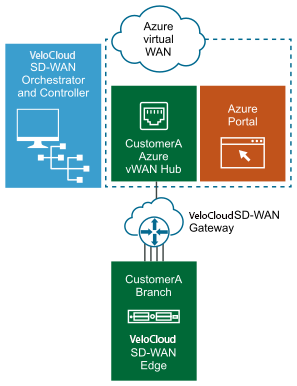
The following diagram illustrates the IPsec tunnel from SD-WAN Gateway to Azure virtual WAN hub.
Azure Virtual WAN SD-WAN Edge Automation
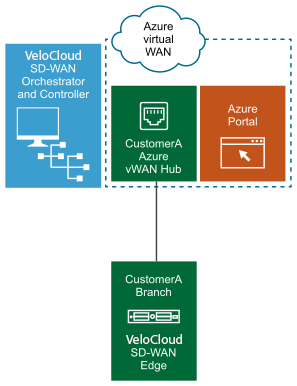
The following diagram illustrates the IPsec tunnel directly from SD-WAN Edge to Azure virtual WAN hub.
Prerequisite Azure Configuration
Register VeloCloud Orchestrator Application
- Ensure you have an Azure subscription. If not, create a free account.
Discusses how to register a new application in Azure Active Directory (AD).
To register a new application in Azure AD:
- Select Azure Active Directory and go to . The Register an application screen appears.
Figure 3. Register an Application 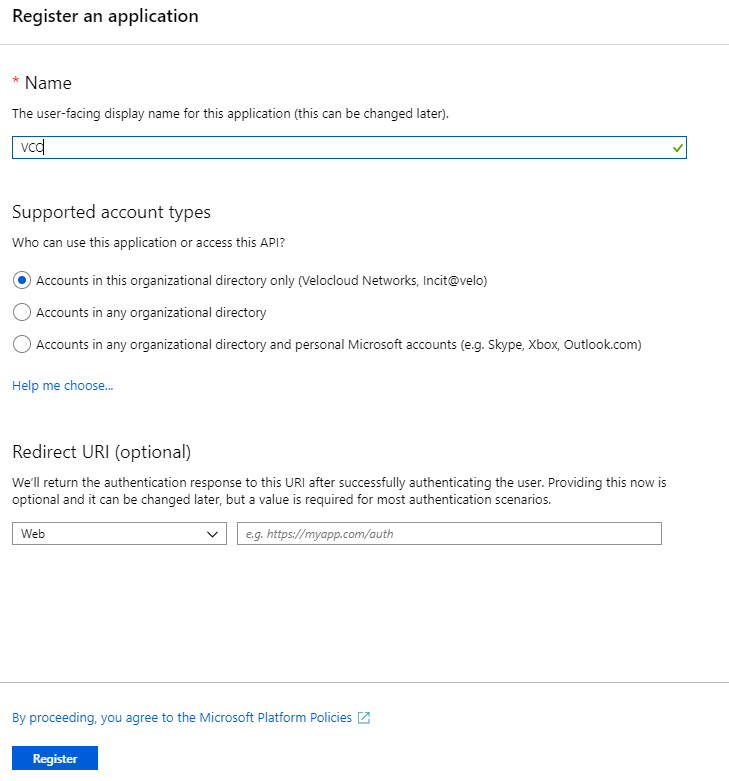
Assign the VeloCloud Orchestrator Application to Contributor Role
- Ensure you have an Azure subscription. If not, create a free account.
To access resources in your Azure subscription, you must assign the application to a role. You can set the scope at the level of the subscription, resource group, or resource. Permissions are inherited to lower levels of scope.
To assign a Contributor role at the subscription scope:
- Select . The Add role assignment dialog box appears.
Figure 4. Add Role Assignment 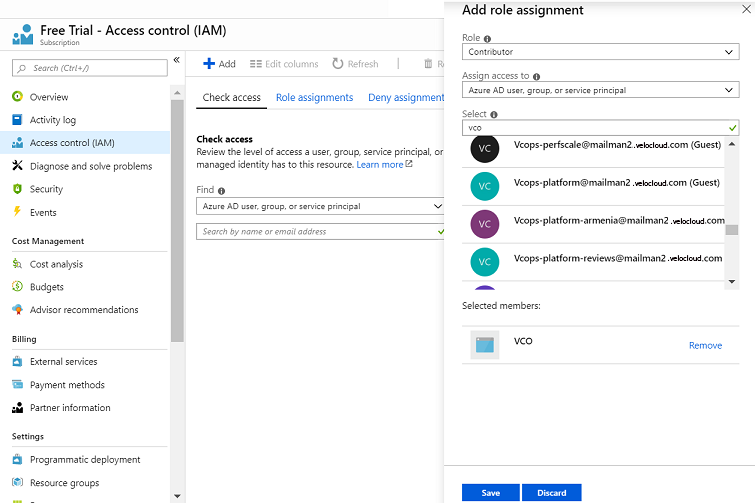
Register a Resource Provider
Microsoft.Storage resource provider on your Azure Subscription. By default, the Microsoft.Storage resource provider is not registered on Azure Subscriptions.
- Ensure you have an Azure subscription. If not, create a free account.
- Ensure you have the Contributor or Owner roles permission.
To register a resource provider for your subscription:
- Under the Settings tab, select Resource providers.
Figure 5. Register a Resource Provider 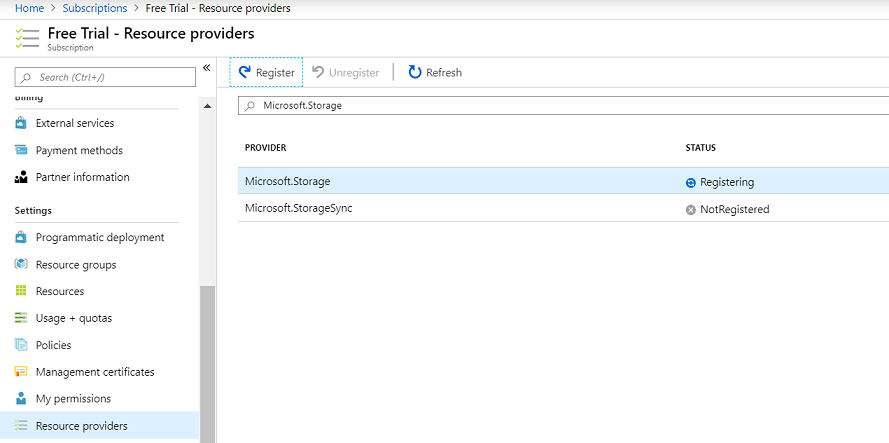
Create a Client Secret
- Ensure you have an Azure subscription. If not, create a free account.
Describes how to create a new client secret in Azure AD for the purpose of authentication.
To create a new client secret in Azure AD:
- Go to . The Add a client secret screen appears.
Figure 6. Create a Client Secret 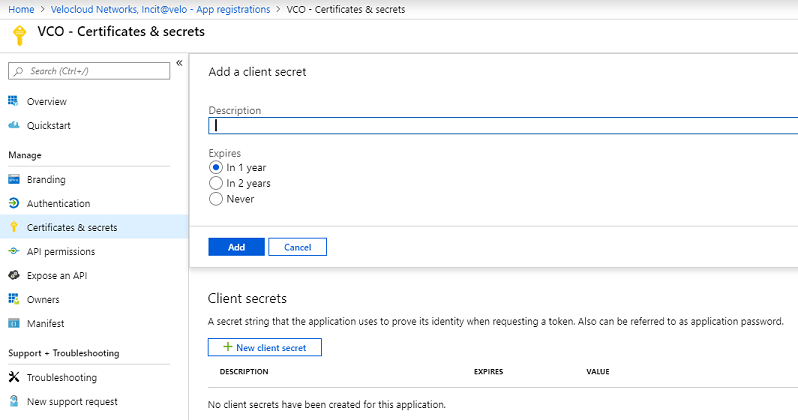
Configure Azure Virtual WAN for Branch-to-Azure VPN Connectivity
This section discusses the procedures to configure Azure for integrating Azure Virtual WAN and SD-WAN Gateway to enable the branch-to-Azure VPN connectivity.
- Verify that none of the subnets of your on-premises network overlap with the existing virtual networks that you want to connect to. Your virtual network does not require a gateway subnet and cannot have any virtual network gateways. For steps to create a virtual network, see Create a Virtual Network.
- Obtain an IP address range for your Hub region and ensure that the address range that you specify for the Hub region does not overlap with any of your existing virtual networks that you connect to.
- Ensure you have an Azure subscription. If not, create a free account.
Create a Resource Group
- Ensure you have an Azure subscription. If not, create a free account.
Discusses how to create a resource group in Azure.
To create a resource group in Azure:
- Select Resource groups, then select +Add. The Create a resource group screen appears.
Figure 7. Create a Resource Group 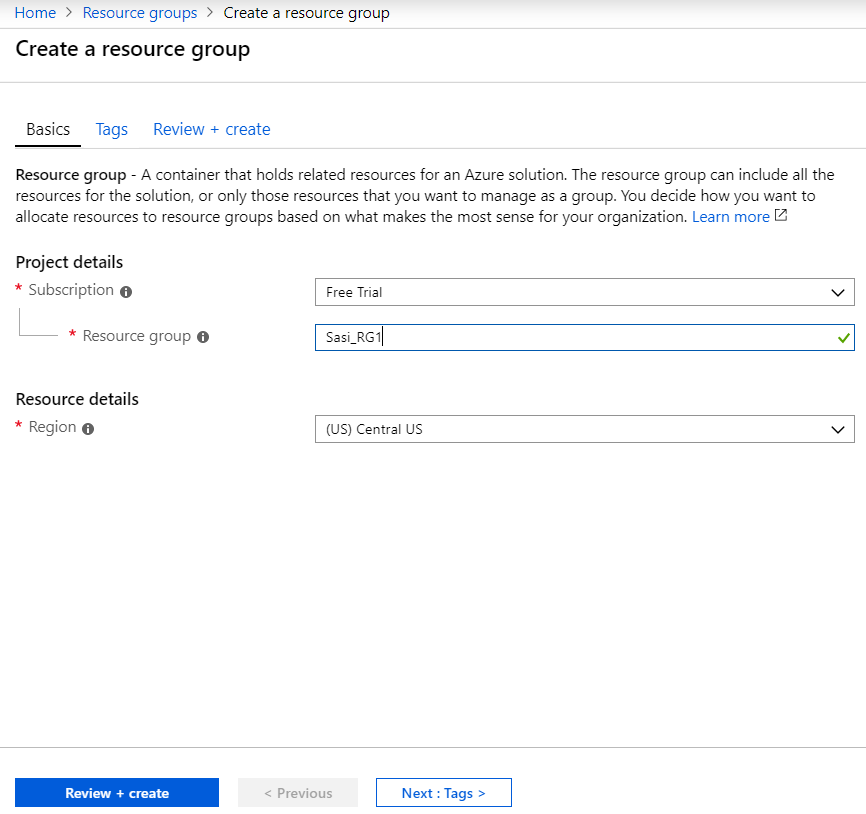
Create an Azure Virtual WAN. For steps, see Create a Virtual WAN.
Create a Virtual WAN
- Ensure you have an Azure subscription. If not, create a free account.
- Ensure you have a resource group created to add the Virtual WAN.
Discusses how to create a Virtual WAN in Azure.
To create a Virtual WAN in Azure:
- Select Virtual WANs, then select +Add. The Create WAN screen appears.
Figure 8. Create a Virtual WAN 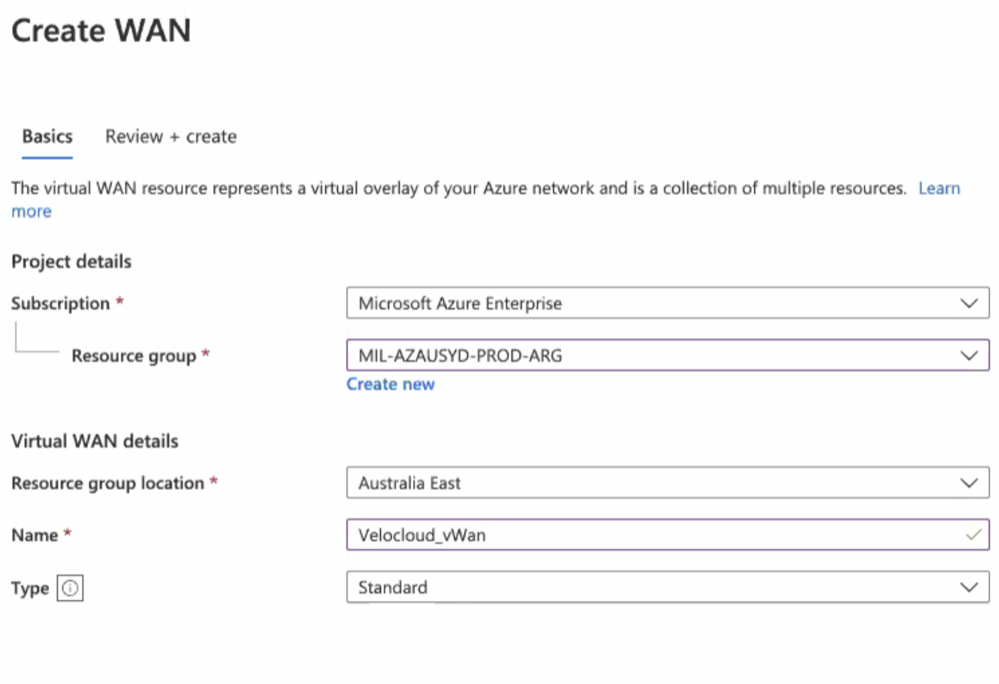
Create Virtual Hubs. For steps, see Create a Virtual Hub.
Create a Virtual Hub
- Ensure you have an Azure subscription. If not, create a free account.
- Ensure that you have a resource group created to add the Azure resources.
Describes how to create a Virtual Hub in Azure.
To create a Virtual Hub in Azure:
- Select +New Hub. The Create virtual hub screen appears.
Figure 9. Create a Virtual Hub Basics Tab 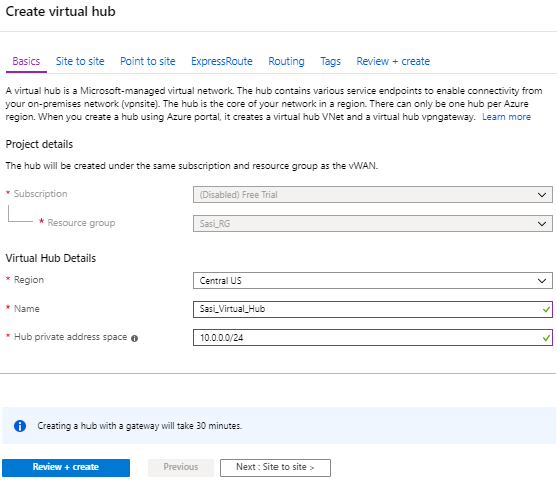
- Select Next: Site to site > and enable Site to site (VPN gateway) before connecting to VPN sites by selecting Yes.
Note: A VPN Gateway is required for tunnel automation to work, otherwise it is not possible to create VPN connections.
Figure 10. Create a Virtual Hub Site to Site Tab 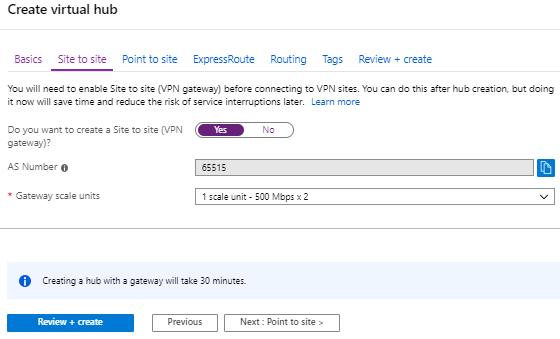
From the Gateway scale units drop-down menu, select a scaling value.
- Create Virtual Connection between Hubs and Virtual Networks (VNets). For steps, see Create a Virtual Connection between VNet and Hub.
- If you do not have an existing VNet, you can create one by following the steps in Create a Virtual Network.
Create a Virtual Network
- Ensure you have an Azure subscription. If not, create a free account.
Discusses how to create a Virtual Network in Azure.
To create a Virtual Network in Azure:
- Select Virtual networks, then select +Add. The Create virtual network screen appears.
Figure 11. Create a Virtual Network 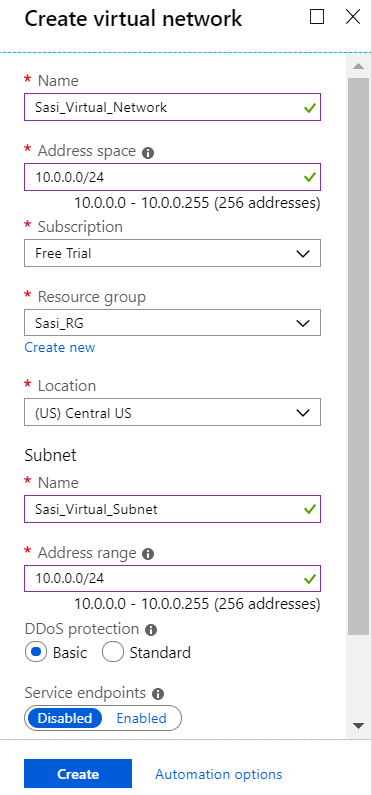
Create Virtual Connection between Hubs and Virtual Networks (VNets). For steps, see Create a Virtual Connection between VNet and Hub.
Create a Virtual Connection between VNet and Hub
- Ensure you have an Azure subscription. If not, create a free account.
- Ensure you have Virtual Hubs and Virtual Networks created.
Discusses how to create a virtual connection between Virtual Networks (VNets) and the Virtual Hub in a particular Azure region.
To create a virtual network connection between a VNet and a Virtual Hub in a particular Azure region:
- Select +Add connection. The Add connection screen appears.
Figure 12. Add connection 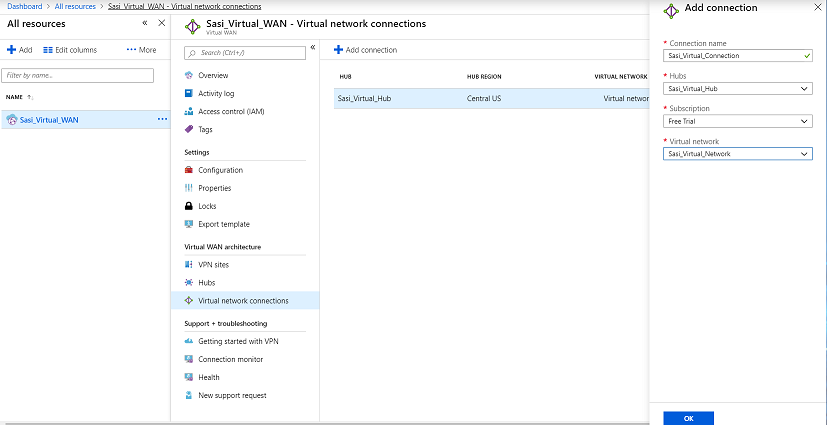
Configure VeloCloud Orchestrator for Azure Virtual WAN IPsec Automation from SD-WAN Gateway
You can configure VeloCloud Orchestrator for integrating Azure Virtual WAN and SD-WAN Gateway to enable the branch-to-Azure VPN connectivity.
session.options.enableAzureVirtualWAN system property to true.Before you begin the VeloCloud Orchestrator configuration for Azure Virtual WAN- SD-WAN Gateway automation, ensure you have completed all the steps explained in the Prerequisite Azure Configuration and Configure Azure Virtual WAN for Branch-to-Azure VPN Connectivity sections.
To view the details of Non SD-WAN Destinations network services configured for an enterprise, see Monitor Non SD-WAN Destinations.
Associate a Microsoft Azure Non SD-WAN Destination to an SD-WAN Profile
After configuring a Non SD-WAN Destination of type Microsoft Azure Virtual Hub in VeloCloud Orchestrator, you must associate the Non SD-WAN Destination to the desired Profile to establish the tunnels between SD-WAN Gateways and Microsoft Azure Virtual Hub.
To associate a Non SD-WAN Destination to a Profile, perform the following steps:
- In the Device settings page, under VPN services, activate Cloud VPN by turning on the toggle button.
Figure 13. Associate a Microsoft Azure Non SD-WAN Destination to an SD-WAN Profile 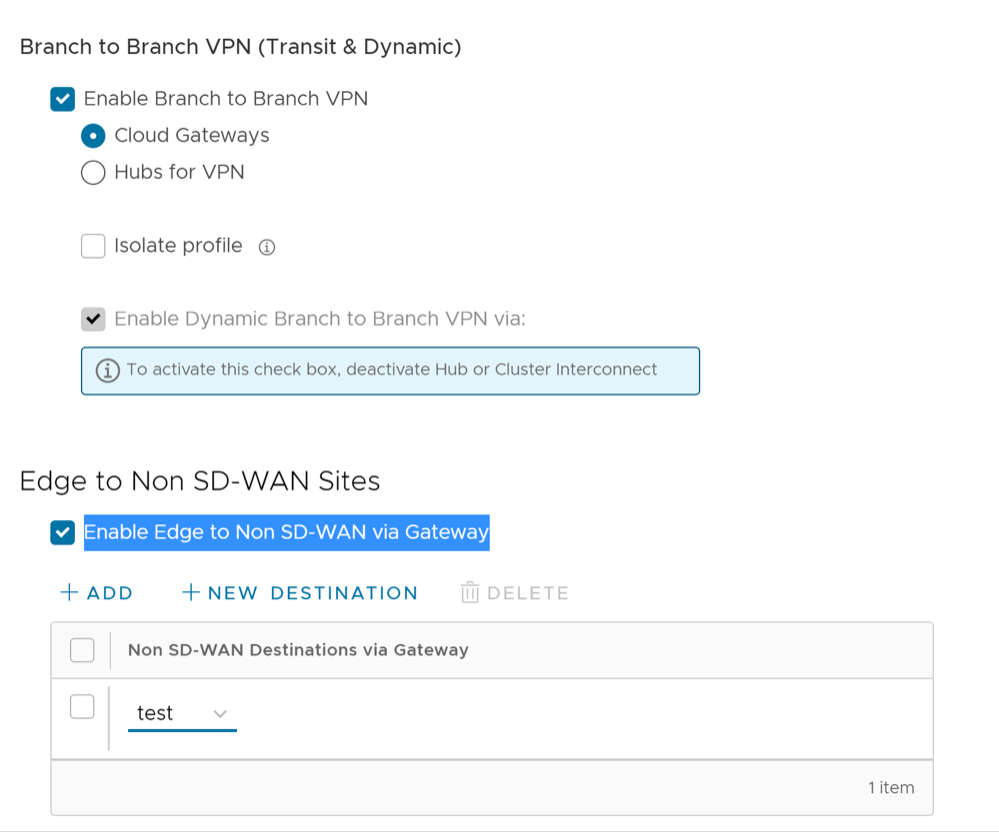
Edit a VPN Site
Discusses how to add SD-WAN routes into the Azure network manually.
Ensure you have completed provisioning the Azure VPN sites at the VeloCloud Orchestrator side.
To add SD-WAN routes manually into the Azure network:
- Select the name of the selected VPN site and from the top of the next screen, select Edit site.
Figure 14. Edit a VPN Site 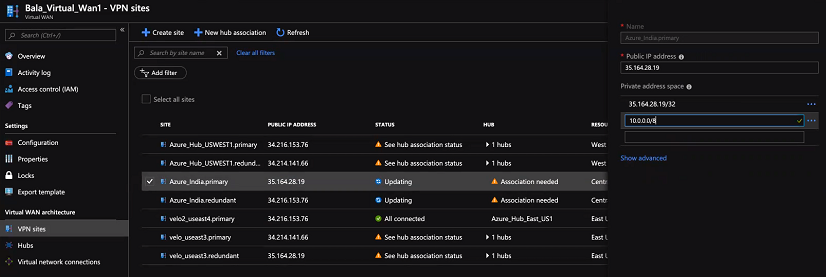
Synchronize VPN Configuration
After successful Non SD-WAN Destination provisioning, whenever there are changes in the endpoint IP address of the Azure Hub or static routes, you need to resynchronize Azure Virtual Hub and Non SD-WAN Destination configurations. Selecting the Resync configuration button in the Non-VeloCloud Sites area will automatically fetch the VPN configuration details from the Azure portal and will update the VeloCloud Orchestrator local configuration.
Configure VeloCloud Orchestrator for Azure Virtual WAN IPsec Automation from SD-WAN Edge
You can configure VeloCloud Orchestrator for integrating Azure Virtual WAN and SD-WAN Edge to enable the branch-to-Azure VPN connectivity directly from SD-WAN Edge.
Before you begin the VeloCloud Orchestrator configuration for Azure Virtual WAN- SD-WAN Edge automation, ensure you have completed all the steps explained in the Prerequisite Azure Configuration and Configure Azure Virtual WAN for Branch-to-Azure VPN Connectivity sections.
Associate a Microsoft Azure Non SD-WAN Destination to an SD-WAN Edge
After configuring a Non SD-WAN Destination of type Microsoft Azure Virtual Hub from SD-WAN Edge, you must associate the Non SD-WAN Destination to an Edge and configure tunnels to establish IPsec tunnels between the Edge and Microsoft Azure Virtual Hub.
At the Edge level, to associate a Non SD-WAN Destination to an SD-WAN Edge, perform the following steps:
- Select the Enable Non SD-WAN via Edge check box.
Figure 15. Associate a Microsoft Azure Non SD-WAN Destination to an SD-WAN Edge 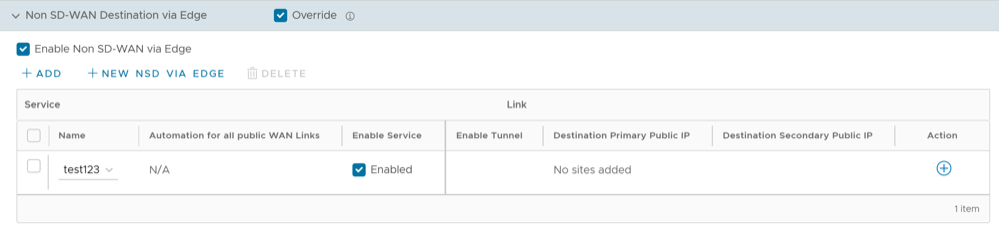
- To configure tunnels for the Edge, under Action, select the + link. The Add Tunnel dialog box appears.
Figure 16. Add Tunnel 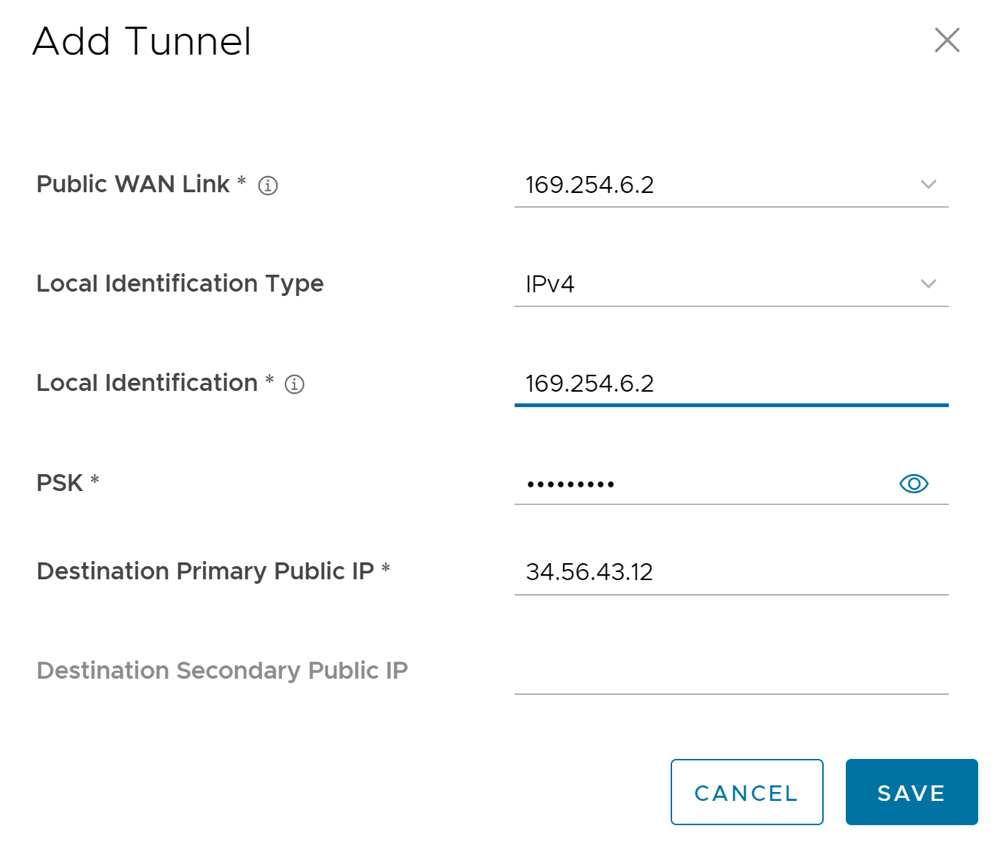
- From the Public WAN Link drop-down menu, select a WAN link to establish IPsec tunnel and select Save.
For the WAN links to appear in the drop-down menu, the customer needs to first configure the WAN links for the Edges from the
page, and wait for the Edge’s WAN links to come up with the valid public IPs. The link’s public IP is used as the Local Identification value of the tunnel. You can select only the WAN link with Public IP address. A tunnel is automatically established between the Edge and the Microsoft Azure Non SD-WAN Destination via Azure APIs. After that the Orchestrator sends the tunnel configuration to the Edge to establish tunnel to the Azure service. Note that the automation for each tunnel takes about 1 to 5 minutes to complete. Once the tunnel automation is complete, you are able to view the details of configured tunnel and Public WAN link. - Once tunnels are created, you can perform the following actions at the Edge level:
- Update a tunnel- When the Edge Public WAN link IP address of the tunnel changes, the Orchestrator automatically enqueues automation job to update the Azure VPN site link and the VPN tunnel configurations. Under Action, select the + link to view the tunnel settings such as PSK.
- Delete a network service- Select a network service and select Delete.
- Deactivate a network service- Under Enable Service column, deselect the check box to deactivate a specific network service.
- From the Public WAN Link drop-down menu, select a WAN link to establish IPsec tunnel and select Save.
Monitor Non SD-WAN Destinations
You can view the details of Non SD-WAN Destinations configured for the Enterprise from the page in the SD-WAN service of the Enterprise portal.
- Non SD-WAN Destinations via Gateway- Displays the configured Non SD-WAN Destinations along with the other configuration details such as Name of the Non SD-WAN Destination, Public IP Address, Status of the Non SD-WAN Destination, Status of the tunnel, Number of profiles and Edges that use the Non SD-WAN Destination, Last contacted date and time, and Number of related state change Events.
- Non SD-WAN Destinations via Edge- Displays the configured Non SD-WAN Destinations along with the other configuration details such as Name of the Non SD-WAN Destination, Public IP Address, Status of the tunnel, Number of profiles and Edges that use the Non SD-WAN Destination, Last contacted date and time, and Deployment status.
Note: Tunnel deployment status monitoring is only supported for Non SD-WAN Destinations via Edge network service.
To monitor the automation deployment status of Microsoft Azure Non SD-WAN Destinations via Edge:
- Under Non SD-WAN Destinations via Edge, select the link in the Deployment Status column to view the deployment status of the Non SD-WAN Destinations.
Figure 17. View Deployment Status of Non SD-WAN Destinations 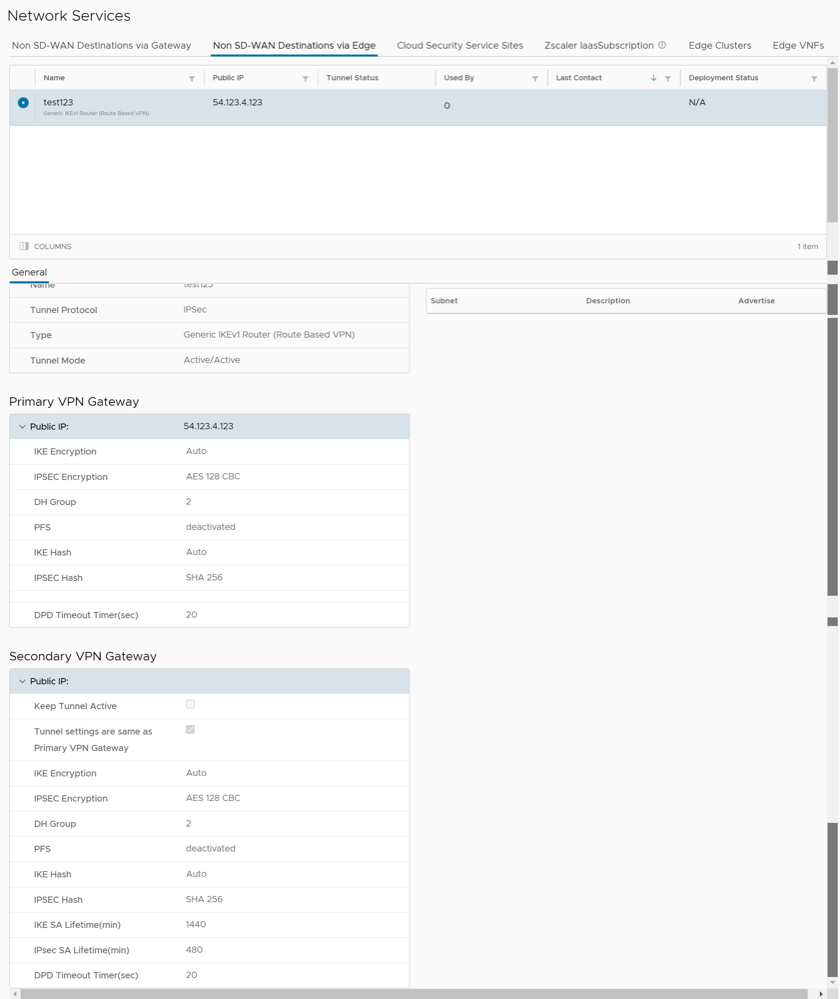 The following are the seven different states for an Edge action:
- Enqueued- The Edge action is enqueued.
- Pending- The Edge action is in this state as it waits for a backend worker process to pick it up and start working on it.
- Notified- The Edge action is in this state after a backend worker process picks up the Edge action and starts working on it.
- Completed- The Edge action is in this state if the Edge action task is successfully completed.
- Errored- The Edge action is in this state if an error has occurred.
- Timed Out- The Edge action is in this state if it takes more than the expected amount of time to complete the Edge action task.
- Pending Delete- The Edge action is in this state if it is pending deletion.