
Manage Customers
- In the Operator portal, navigate to .
Figure 1. Manage Customers 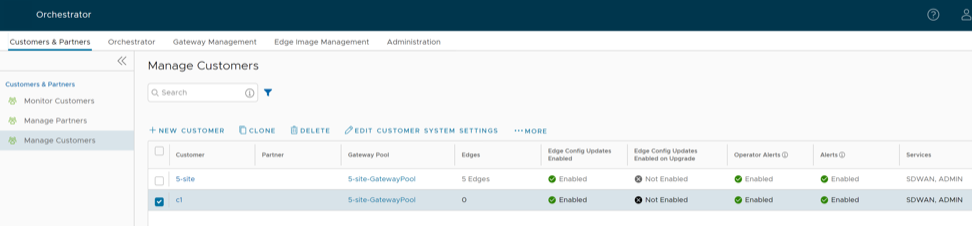
Create a New Customer
session.options.disableCreateEnterprise to True. The user can select this option when Orchestrator exceeds the usage capacity.- In the Operator portal, go to , and then select New Customer. The New Customer page displays:
Customer Information:
Figure 2. Configure Customer Information 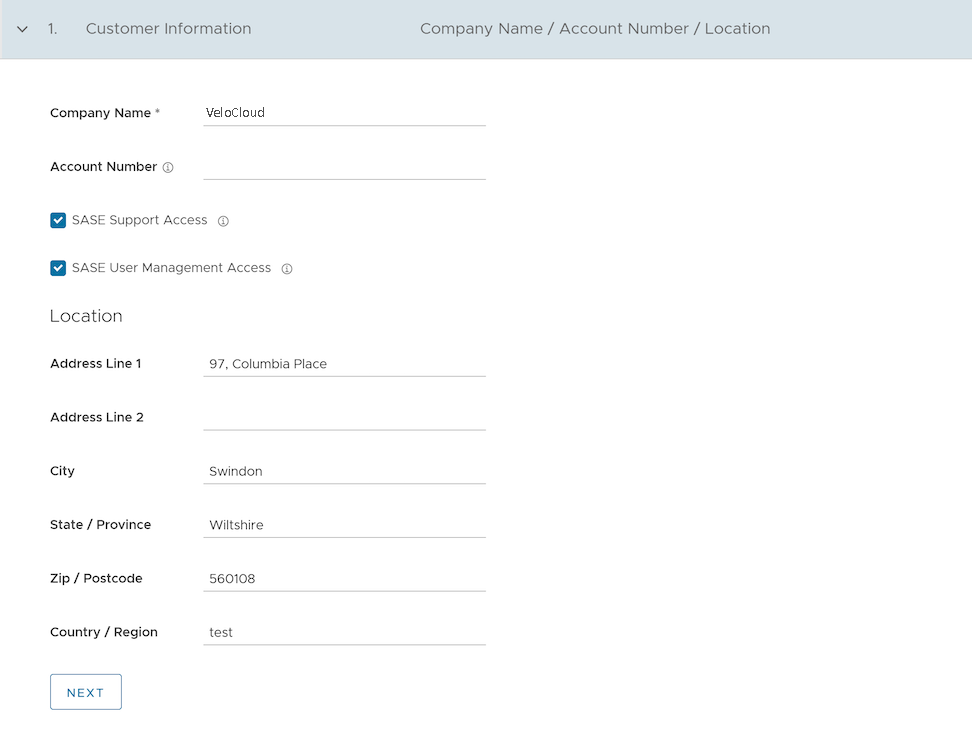
- The Administrative Account displays:
Figure 3. Configure an Administrative Account 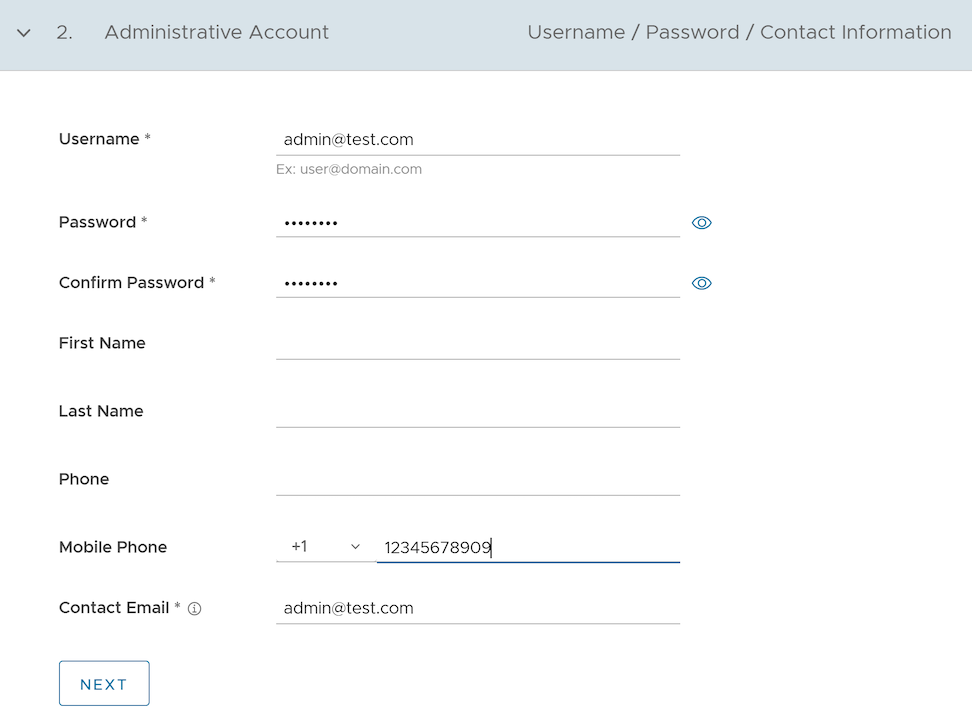
- Selecting Next displays the Services section:
Figure 4. Configure Services 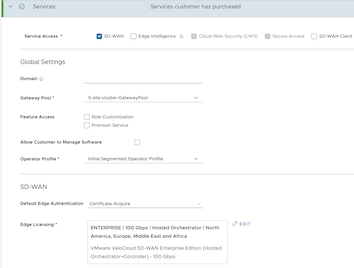
Clone a Customer
Only Operator Super users and MSP Super users can clone a customer.
- Enterprise configuration profiles
- Enterprise network services and objects like:
- DNS services
- Private network names
- Network Segments
- Customer capabilities
- Edge authentication scheme
- Address groups and Port groups
- Profile with Edge references, such as hubs and clusters.
- Profile containing Partner Gateway References
- Cloud Security Service enabled
- Non SD-WAN Destinations
- VNF or VNF licenses
- Authentication services
- NetFlow objects, like collectors or filters
Log in to the VeloCloud Edge Cloud Orchestrator as an Operator user. Navigate to .
- The Clone Customer page appears.
Figure 5. Clone a Customer 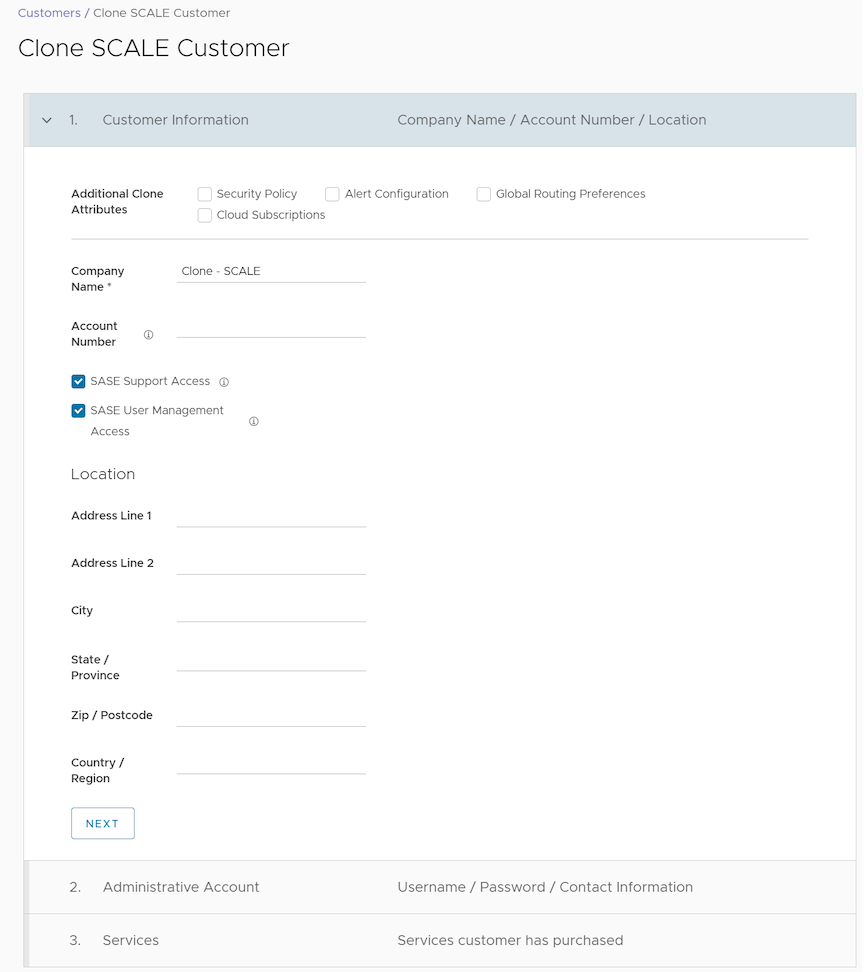
Configure Customers
When you create a new Customer, you are redirected to the Customer Configuration page, where you can configure the Customer settings. Users can also navigate to the Customer Configuration page directly from the Operator portal by following the below steps:
- From the left menu, select Customer Configuration to display the page:
Figure 6. Customer Configuration 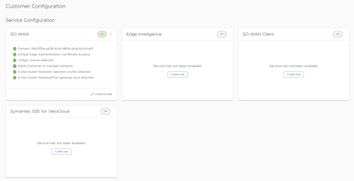
Configure SD-WAN
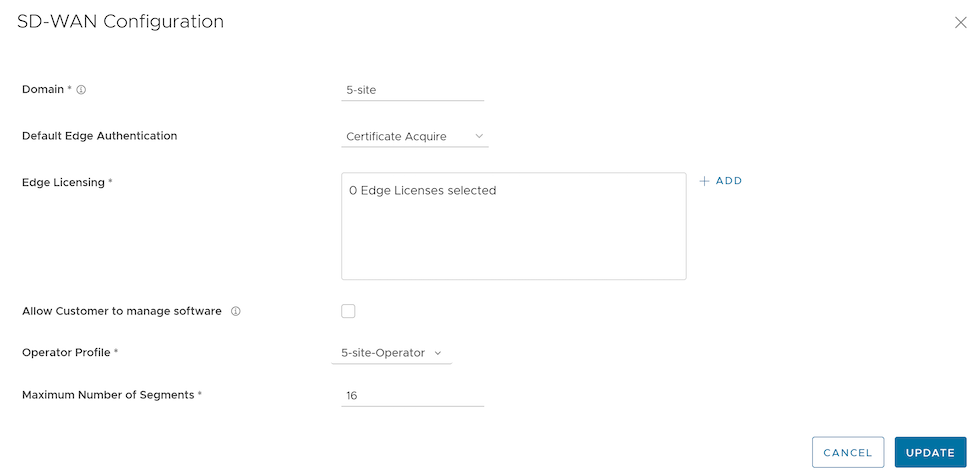
| Option | Description |
|---|---|
| Domain | Enter the domain name to be used to activate Single Sign On (SSO) authentication for the Orchestrator. |
| Default Edge Authentication | Choose the default option with authenticate the Edges associated to the Customer from the drop-down menu.
|
| Edge Licensing | The existing Edge Licenses are displayed. Select Add to add or remove the licenses.
Note: License types are used across multiple Edges. It is recommended to provide your Customers with access to all types of licenses to match their edition and region. For additional information, see Edge Licensing.
|
| Allow Customer to Manage Software | Select the checkbox if you want to allow an Enterprise Superuser to manage the software images available for the Enterprise. For additional information, see the topic Edge Image Management in the VeloCloud SD-WAN Administration Guide. |
| Operator Profile | Select an Operator profile to be associated with the Customer from the available drop-down menu. This field is not available if Allow Customer to Manage Software is selected. For additional information on Operator profiles, see Manage Operator Profiles. |
| Maximum Number of Segments | Enter the maximum number of segments that can be configured. The valid range is 1 to 16. The default value is 16. |
Configure Additional Settings
Configure a Handoff Operator
Ensure that the Gateway to hand off is assigned the Partner Gateway Role. In the Orchestrator portal, Operator or Partner, select Gateways and select the link to an existing Gateway. In the Properties section of the selected Gateway Overview page, you can enable the Partner Gateway role.
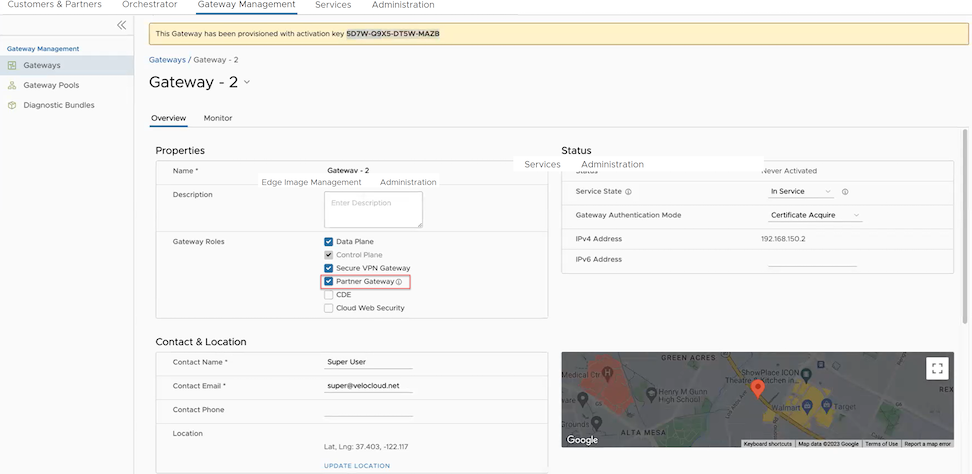
To configure the handoff settings, perform the following steps:
- In the Configure Hand Off area, configure the following fields:
Figure 9. Configure Hand Off 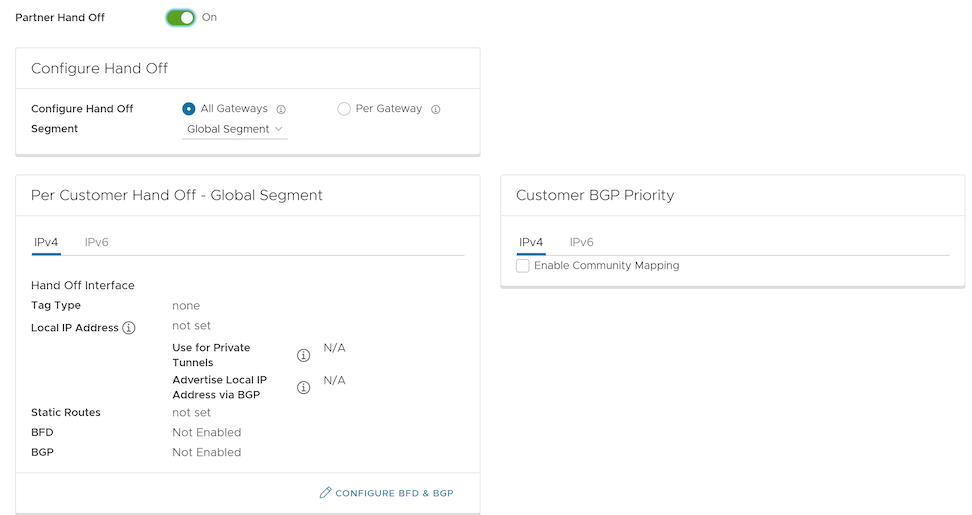
Table 10. Hands Off Option Descriptions Option Description Configure Hand Off By default, the hand off configuration is applied to all the Gateways. If you want to configure a specific Gateway, choose Per Gateway, and then select the Gateway from the drop-down list. Segment By default, the Global Segment is selected, which means that the hand off configuration is applied to all the segments. If you want to configure a specific segment, select the segment from the drop-down menu. Hand Off Interface This section displays the values that are configured on the Configure BGP and BFD page. Customer BGP Priority Select the check box and configure the Community Mapping details. - At the bottom of the Per Customer Hand Off – Global Segment area, select the Configure BFD and BGP link.
Figure 10. Per Customer Handoff with Global Segment 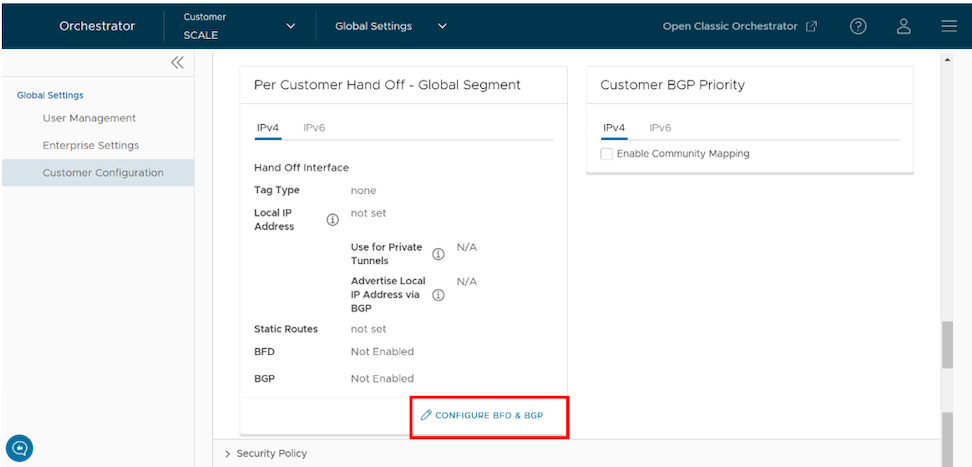
- The Configure BGP and BFD screen displays:
Figure 11. Configure BGP and BFD 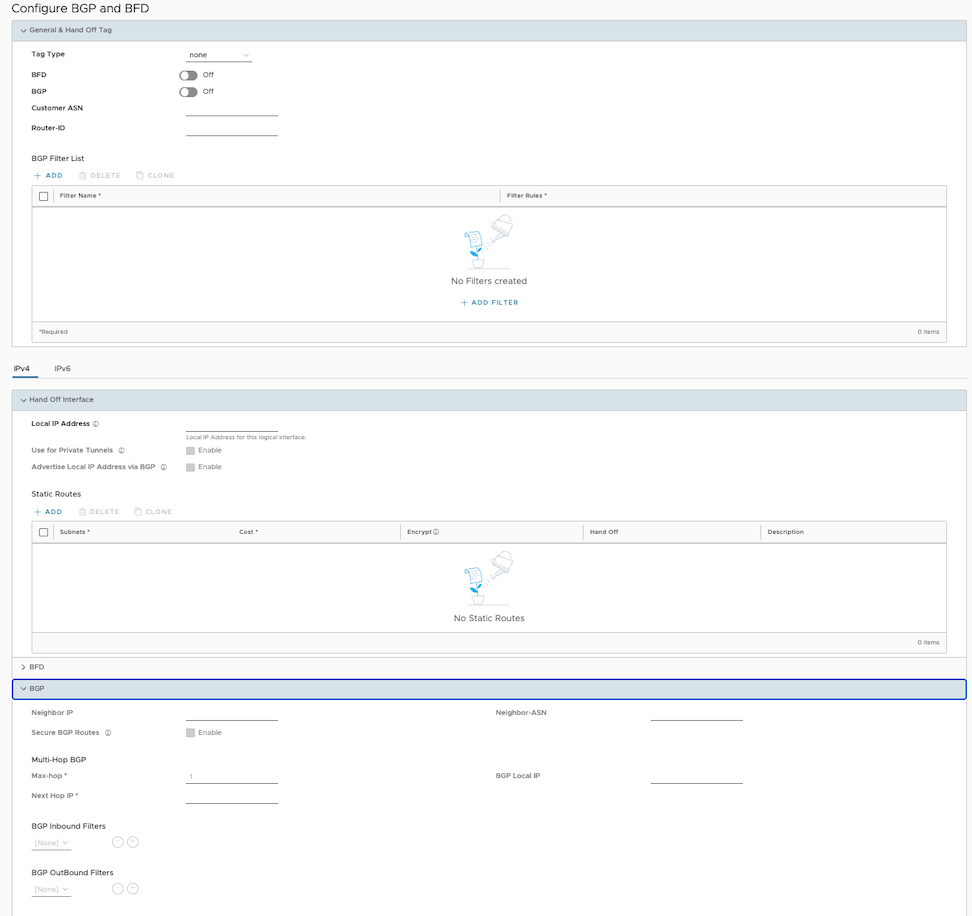
- Open the General & Hand Off Tag section and turn the BGP option to the On position.
Figure 12. Enable BGP 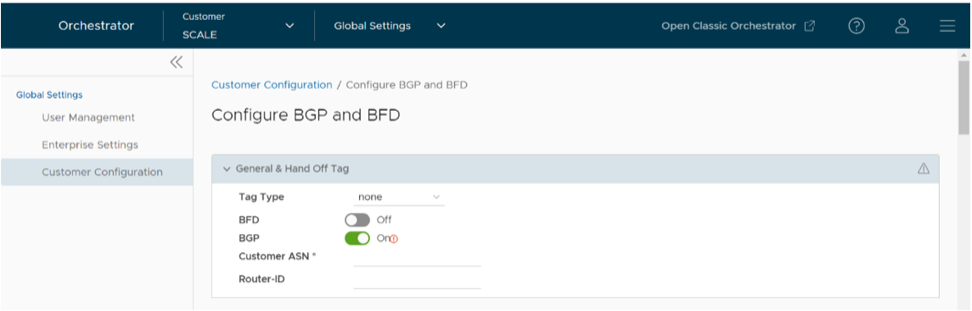
Configuring Route Summarization
- Navigate to the Route Summarization area in the BGP section.
Figure 13. Configure Route Summarization 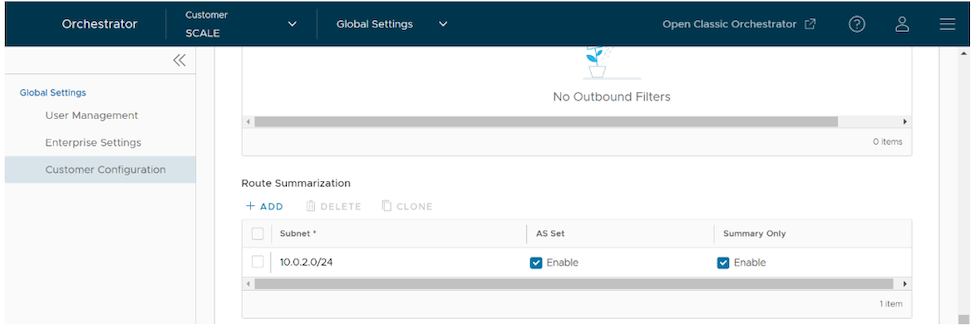
Configure Distributed Cost Calculation
- All the Edges and Gateways must use software version 3.4.0 or later.
- The software image associated with the Operator Profile must use version 3.4.0 or later.
- If the Orchestrator is under a high load, the route convergence time is significantly high, for example, as much as 40 seconds for 2000+ routes, as the Orchestrator takes that time to calculate the preference for all the synchronized routes and returns those preferences to the Edges and Gateways.
- Using the Orchestrator for route calculation means that new dynamic routes learned while the Orchestrator was unreachable do not advertise until the Orchestrator becomes reachable again.
When a customer enterprise uses Distributed Cost Calculation, the Orchestrator is no longer actively involved in the route preference calculation and instead routes are properly inserted in order by the Edge and Gateway instantly upon learning them and then convey these preferences to the Orchestrator.
- Minimizes the impact on route learning when an Orchestrator is unreachable.
- Route convergence time is reduced from minutes to seconds in large networks with thousands of dynamic routes.
- Network delays are significantly reduced.
- Provides instantaneous Data Plane convergence.
- Supports enhanced re-ordering and pinning of routes on the Overlay Flow Control.
- Provides an option to refresh routes on the Overlay Flow Control page. Whenever the Overlay Flow Control policy changes, the Refresh Routes option applies the changes to the existing routes immediately, without requiring a restart of the Edge or Gateway.
- All local dynamic routes are refreshed, and their preference and advertisement actions are updated. This updated information is advertised to the Gateway and Orchestrator, and eventually across the Enterprise. The customer's network needs to completely rebuild the route table, which for most customer deployments will take less than 5 seconds. A large scale customer deployment (like 100,000+ routes) may take up to 2 minutes. During the time the route table is being rebuilt, customer traffic for all sites is impacted.
- Any existing flows using these routes may be affected by the change in the routing entries.
To configure Distributed Cost Calculation for a customer:
- In the Enterprise portal, go to .
Figure 14. Configure Distributed Cost Calculation 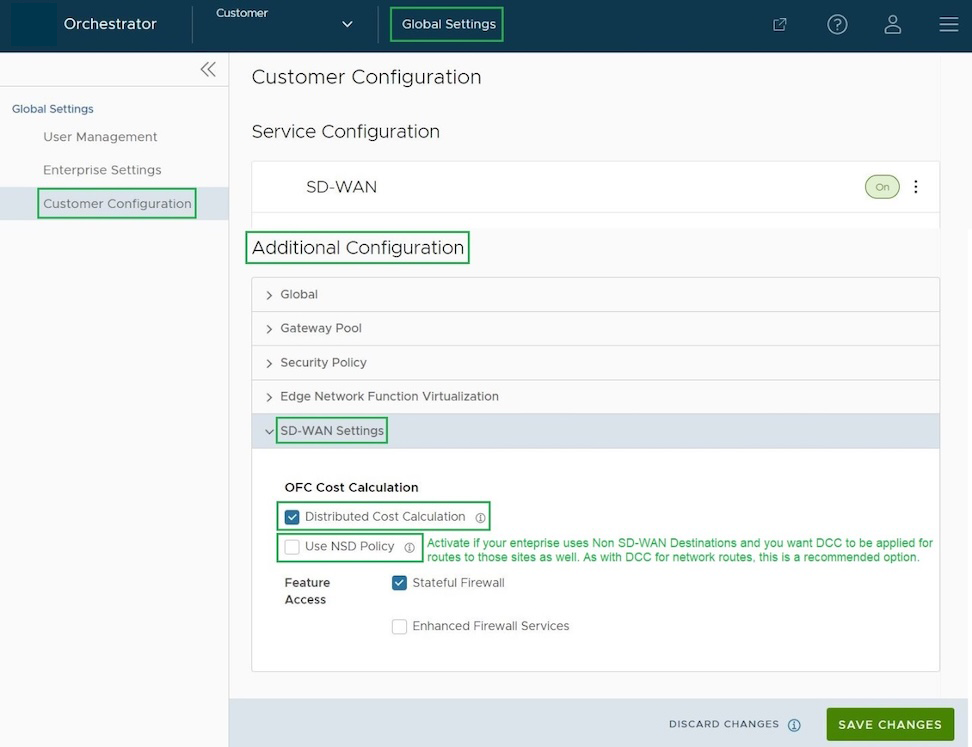
Configure Path Calculation with Multiple DSCP Labels per Flow
By default, an Edge classifies a flow based on the first few packets received in the flow. Business Policy and QoS marking determine the flow treatment. Once the flow is classified, an entry containing the flow's five-tuple information is created in the flow cache table.Subsequent packets in the flow will use the five-tuple lookup against the flow cache table.
For network topologies with Layer 3 network devices doing encapsulation or encryption before the traffic arrives at the Edge, this creates a challenge for the Edge to forward traffic based on the Business Policy. The traffic from end users is multiplexed into a single flow with the same source and destination IP addresses and protocols by the Layer 3 encapsulation/encryption device, as illustrated in the following image.
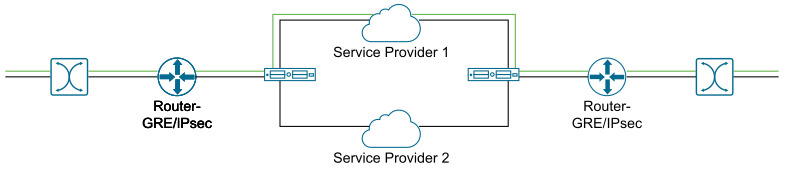
The impact of multiplexing end user flows into a single tunnel creates polarization of the flow forwarding using the five tuples of flow cache table, which results in WAN links not being utilized.
The Path Calculation with Multiple DSCP Labels per Flow allows the DSCP value to be included, along with the five tuples, in the flow cache table lookup. Use the path calculation with multiple DSCP tags when the original user traffic is encapsulated in another tunnel, like GRE or IPsec, and DSCP labels are preserved in the new IP header. This option enables path calculation for a single flow with multiple DSCP labels that share the same source and destination IP addresses. It provides path differentiation based on the DSCP labels in the flow.
When you enable the Multiple-DSCP tags per Flow Path Calculation, the Edges can differentiate the traffic flows based on the DSCP marked labels.
To enable Multiple-DSCP tags per Flow Path Calculation: