
User Management - Partner
The User Management feature allows you to manage users, their roles, service permissions (formerly known as Role Customization), and authentication.
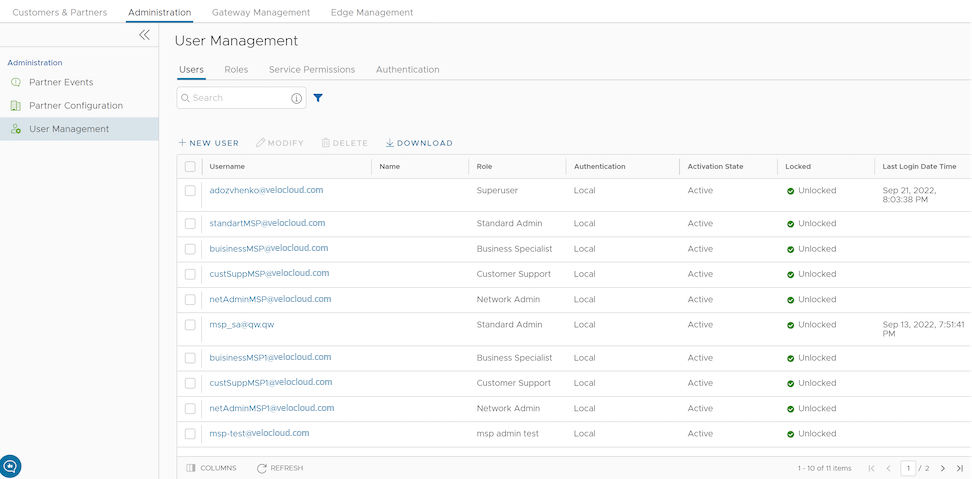
Users
As a Partner, you can view the list of existing users and their corresponding details. You can add, modify, or delete a user. However, you cannot delete a default user.
- Login to the SASE Orchestrator as a Partner.
- In the Partner portal, select Administration from the top menu.
- From the left menu, select User Management. The Users tab is displayed by default.
Figure 2. Displaying Users - On the Users screen, you can perform the following activities:
Table 1. User Parameters Option Description New User Creates a new user. For additional information, see Add New User. Modify Allows you to modify the properties of the selected Partner user. You can change the Activation State of the selected Partner user. You can also modify the user details by selecting the username link. Delete Deletes the selected user. You cannot delete the default users. Download Select this option to download the details of all the users into a file in CSV format. - The following are the other options available in the Users tab:
Table 2. Optional Parameters Option Description Search Enter a search term to search for the matching text across the table. Use the advanced search option to narrow down the search results. Columns Select the columns to be displayed or hidden on the page. Refresh Select to refresh the page to display the most current data.
Add New User
- Login to the SASE Orchestrator as a Partner.
- In the Partner portal, select Administration from the top menu.
- From the left menu, select User Management. The Users tab is displayed by default.
- Select New User.
Figure 3. Adding a New User 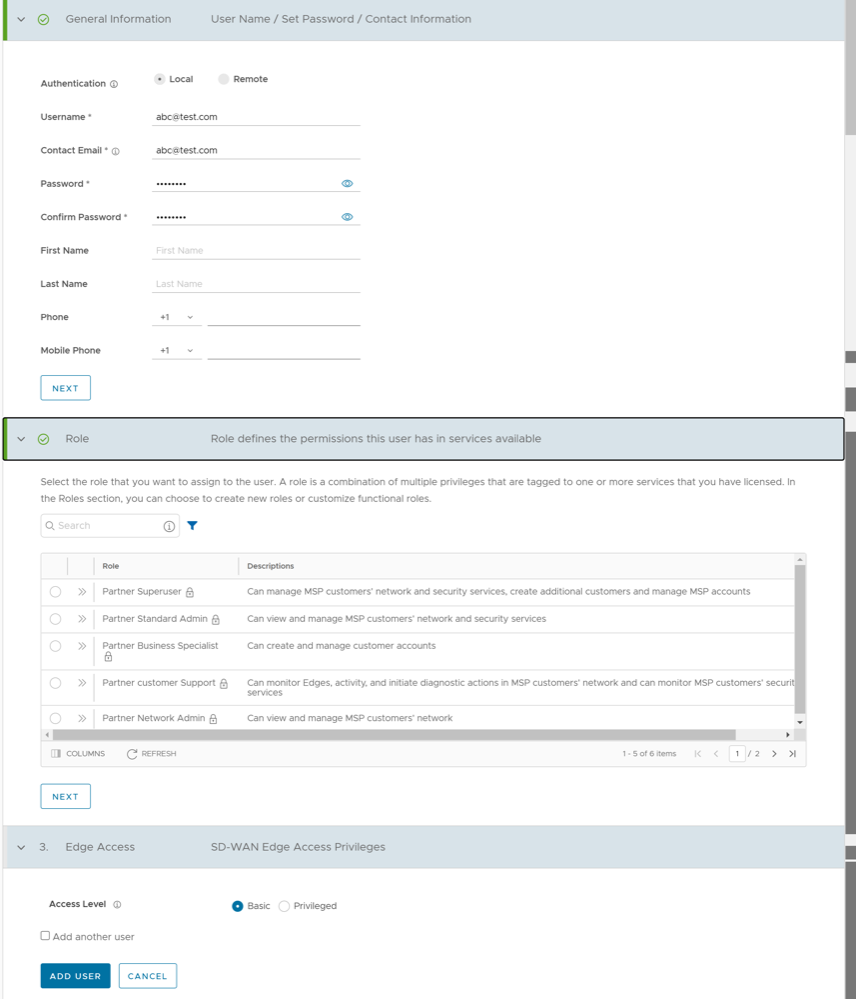
- Enter the following details for the new user:
Note: The Next button is activated only when you enter all the mandatory details in each section.
Table 3. User Parameters Option Description General information Enter the required personal details of the user. Role Select a role that you want to assign to the user. For information on roles, see Roles. Edge Access Choose one of the following options: - Basic: Allows you to perform certain basic debug operations such as ping, tcpdump, PCAP, remote diagnostics, and so on.
- Privileged: Grants you the root-level access to perform all basic debug operations along with Edge actions such as restart, deactivate, reboot, hard reset, and shutdown. In addition, you can access Linux shell.
- Select the Add another user check box if you wish to create another user, and then select Add User. The new user appears in the page. Select the link to the user to view or modify the details. As a Partner Administrator, you can manage the Roles, Service Permissions, and API Tokens for the Partner users. For additional information on API Tokens, see API Tokens.
Note: Partner Administrator should manually delete inactive Identity Provider (IdP) users from the Orchestrator to prevent unauthorized access via API Token.
API Tokens
The users can access the Orchestrator APIs using tokens instead of session-based authentication. As Partner Super User, you can manage the API tokens for your enterprise users. You can create multiple API tokens for a user.
Any user can create tokens based on the privileges they have been assigned to their user roles, except the Business Specialist users.
- Enterprise users can Create, Download, and Revoke tokens for them.
- Partner Super users can manage tokens of Enterprise users, if the Enterprise user has delegated user permissions to the Partner.
- Partner Super users can only create and revoke the tokens for other users.
- Users can download only their own tokens and cannot download other users' tokens.
- Login to the SASE Orchestrator as a Partner and navigate to .
- Select a user and select Modify or select the link to the username. Go to the API Tokens section.
Figure 4. Adding API Tokens 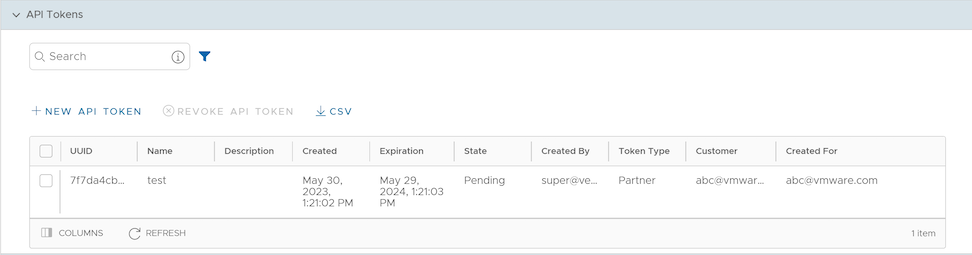
- Select New API Token.
Figure 5. Displaying API Token Details 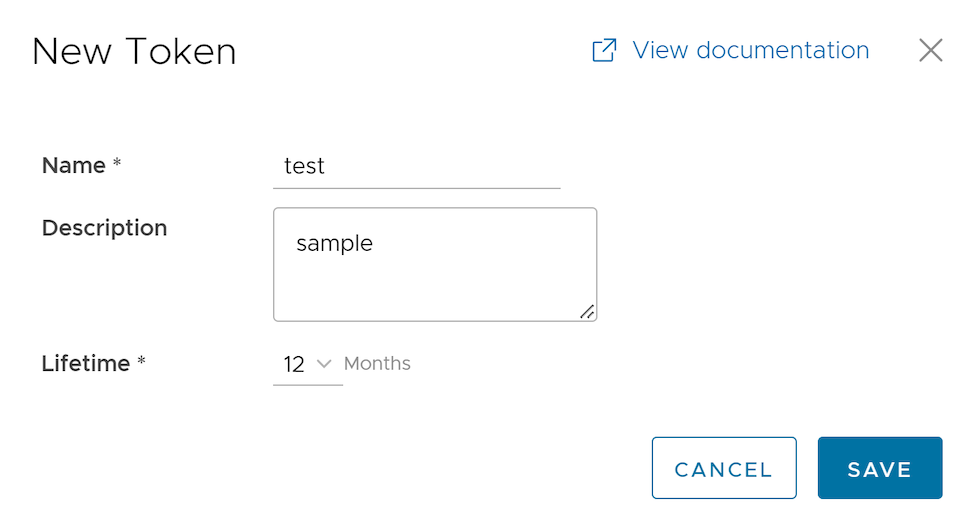
- In the New Token window, enter a Name and Description for the token, and then choose the Lifetime from the drop-down menu.
- Select Save. The new token is displayed in the API Tokens table. Initially, the status of the token is displayed as Pending. Once you download it, the status changes to Enabled.
- To deactivate a token, select the token, and then select Revoke API Token. The status of the token is displayed as Revoked.
- Select CSV to download the complete list of API tokens in a
.csvfile format. - When the Lifetime of the token is over, the status changes to Expired.
curl -k -H "Authorization: Token <Token>" -X POST https://vco/portal/ -d '{ "id": 1, "jsonrpc": "2.0", "method": "enterprise/getEnterpriseUsers", "params": { "enterpriseId": 1 }}'| Option | Description |
|---|---|
| Search | Enter a search term to search for the matching text across the table. Use the advanced search option to narrow down the search results. |
| Columns | Select the columns to be displayed or hidden on the page. |
| Refresh | Select to refresh the page to display the most current data. |
Roles
The Orchestrator consists of two types of roles.
- Privileges – Privileges are a set of roles relevant to a service. A privilege can be tagged to one or more of the following services: SD-WAN, Cloud Web Security, Secure Access, Global Settings, Multi Cloud, and App Catalog. Users require privileges to carry out business processes. For example, a Customer support role in SD-WAN is a privilege required by an SD-WAN user to carry out various support activities. Every service defines such privileges based on its supported business functionality.
- Roles – The privileges from various categories can be grouped to form a role. By default, the following roles are available for a Partner administrator:
Table 5. Available Roles Role SD-WAN Service Cloud Web Security Service Secure Access Service Global Settings Service Partner Standard Admin SD-WAN Partner Admin Cloud Web Security Partner Admin Secure Access Partner Admin Global Settings Partner Admin Partner Security Admin SD-WAN Security Partner Admin Cloud Web Security Partner Admin Secure Access Partner Admin Global Settings Partner Admin Partner Network Admin SD-WAN Partner Admin Cloud Web Security Partner Read Only Secure Access Partner Read Only Global Settings Partner Admin Partner Superuser Full Access Full Access Full Access Full Access Partner Business Specialist SD-WAN Partner Business - - Global Settings Partner Business Partner Customer Support SD-WAN Partner Support Cloud Web Security Partner Read Only Secure Access Partner Read Only Global Settings Partner Support If required, you can customize the privileges of these roles. For additional information, see Service Permissions.
As a Partner, you can view the list of existing roles and their corresponding descriptions. You can add a new role, clone an existing role, edit or delete a custom role. You cannot edit or delete a default role.
- Login to the SASE Orchestrator as a Partner.
- Select Administration from the top menu.
- From the left menu, select User Management, and then select the Roles tab. The following screen appears:
Figure 6. Displaying Roles 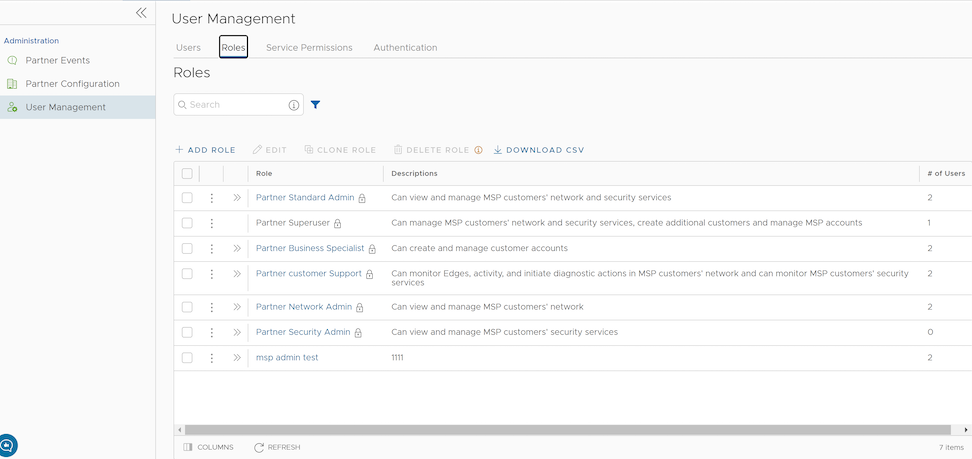
- On the Roles screen, you can perform the following activities:
Table 6. Additional Activities Option Description Add Role Creates a new custom role. For additional information, see Add Role. Edit Allows you to edit only the custom roles. You cannot edit the default roles. Also, you cannot edit or view the settings of a Superuser. Clone Role Creates a new custom role, by cloning the existing settings from the selected role. You cannot clone the settings of a Superuser. Delete Role Deletes the selected role. You cannot delete the default roles. You can delete only custom composite roles. Ensure that you have removed all the users associated with the selected role, before deleting the role. Download CSV Downloads the details of the user roles into a file in CSV format. Note: You can also access the Edit, Clone Role, and Delete Role options from the vertical ellipsis of the selected Role. - Select the Open icon >> displayed before the Role link, to view additional details about the selected Role:
Figure 7. Displaying Role Details 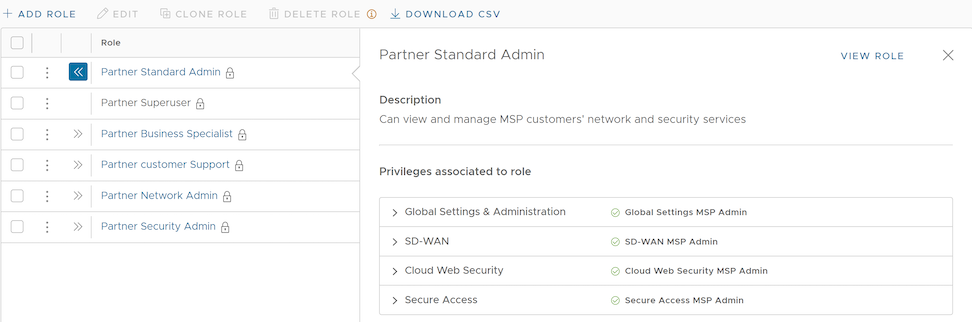
- Select the View Role link to view the privileges associated to the selected role for the following services:
- Global Settings & Administration
- SD-WAN
- Cloud Web Security
- Secure Access
- The following are the other options available in the Roles tab:
Table 7. Additional Options Option Description Search Enter a search term to search for the matching text across the table. Use the advanced search option to narrow down the search results. Columns Select the columns to be displayed or hidden on the page. Refresh Select to refresh the page to display the most current data.
Add Role
- Login to the SASE Orchestrator as a Partner.
- Select Administration from the top menu.
- From the left menu, select User Management, and then select the Roles tab.
- Select Add Role.
Figure 8. Adding a Role 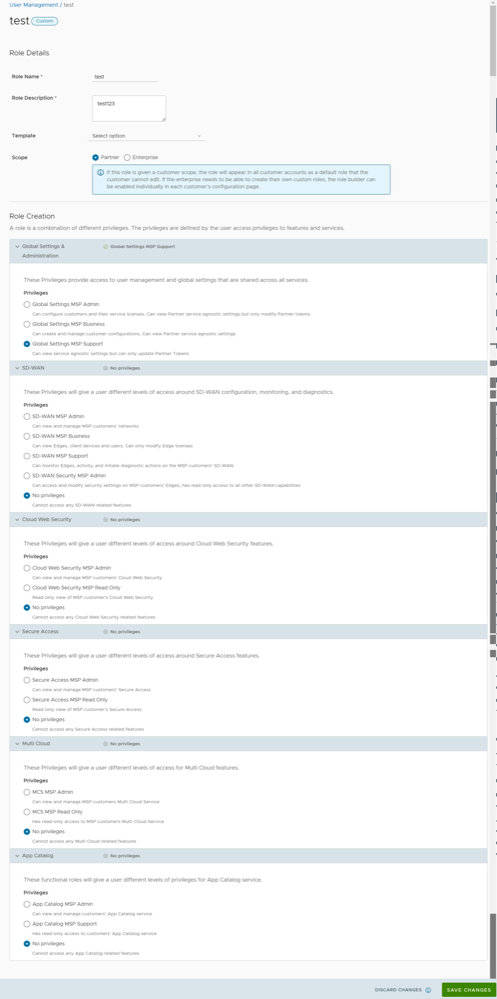
- Enter the following details for the new custom role:
Table 8. Role Details Option Description Role Details Role Name Enter a name for the new role. Role Description Enter a description for the role. Template Optionally, select an existing role as template from the drop-down list. The privileges of the selected template are assigned to the new role. Scope Select either Partner or Enterprise as the scope for the new role. A role with the Partner scope can be applied to Partner level Administrators for the current Partner. A role with the Enterprise scope appears in the role list for all of the Partner's Customers. Role Creation: The options in this section vary depending on the selected Scope. Global Settings & Administration These privileges provide access to user management and global settings that are shared across all services. Choosing one of the privileges is mandatory. By default, Global Settings MSP Support is selected for the Partner scope. For the Enterprise scope, Global Settings Enterprise Read Only is selected by default. SD-WAN These privileges provide the Partner or Enterprise Administrator with different levels of read and/or write access around SD-WAN configuration, monitoring, and diagnostics. You can optionally choose an SD-WAN privilege. The default value is No Privileges. Cloud Web Security These privileges provide the Partner or Enterprise Administrator with different levels of access around Cloud Web Security features. You can optionally choose a Cloud Web Security privilege. The default value is No Privileges. Secure Access These privileges provide the Partner or Enterprise Administrator with different levels of read and/or write access around Secure Access features. You can optionally choose a Secure Access function privilege. The default value is No Privileges. Multi Cloud These privileges provide the Partner or Enterprise Administrator with different levels of read and/or write access around Multi Cloud features. You can optionally choose a Multi Cloud function privilege. The default value is No Privileges. App Catalog These privileges provide the Partner or Enterprise Administrator with different levels of read and/or write access around App Catalog features. You can optionally choose an App Catalog function privilege. The default value is No Privileges. - Select Save Changes. The new custom role appears in the page of the user, depending on the selected Scope. Select the link to the custom role to view the settings.
Service Permissions
Service Permissions allow an Administrator to granularly define actions (Read, Create, Update, and Delete) assigned to each Privilege (such as Cloud Security Service and Customer Segment configuration) within a Privilege Bundle.
- Starting from the 5.1.0 release, Role Customization is renamed as Service Permissions.
- Only an Operator Superuser can activate Role Customization for a Partner Superuser. If the Role Customization option is not available for you, contact your Operator.
When you customize a Service Permission, the changes impact the roles associated with it. For additional information, see Roles.
- The customizations done at the Enterprise level override the Partner or Operator level customizations.
- The customizations done at the Partner level override the Operator level customizations.
- Only when there are no customizations done at the Partner level or Enterprise level, the customizations made by the Operator are applied globally across all users in the Orchestrator.
- Login to the SASE Orchestrator as a Partner.
- Select Administration from the top menu.
- From the left menu, select User Management, and then select the Service Permissions tab. The following screen appears:
Figure 9. Displaying Service Permissions 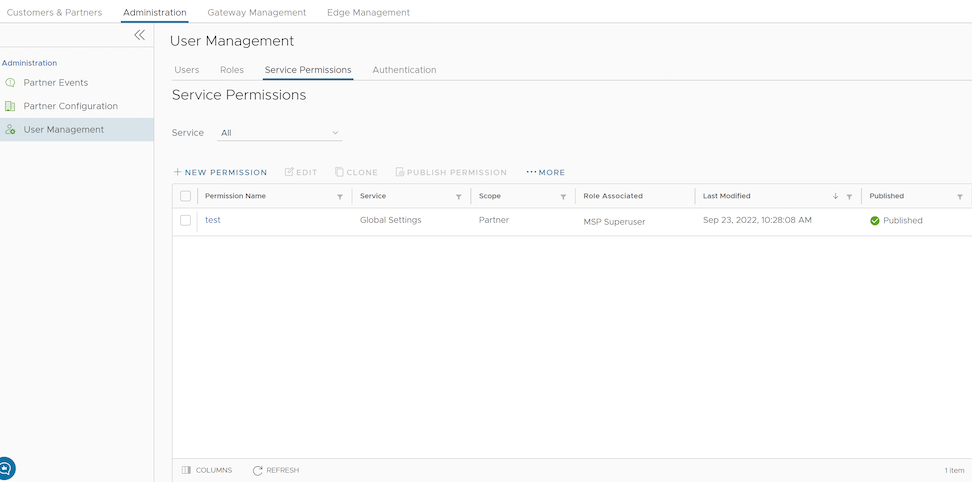
- On the Service Permissions screen, you can perform the following activities:
Table 9. Available Activities Option Description Service Select the service from the drop-down menu. The available services are: - All
- Global Settings
- SD-WAN
- Cloud Web Security
- Secure Access
- Edge Network Intelligence
- App Catalog
- MCS
- Private Mobile Network
Custom service permissions, if any, associated with the selected service are displayed. By default, all of the custom service permissions are displayed.
New Permission Allows you to create a new permission. For additional information, see New Permission. Edit Allows you to edit the settings of the selected permission. You can also select the link to the Permission Name to edit the settings. Clone Allows you to create a copy of the selected permission. Publish Permission Applies the customization available in the selected package to the existing permission. This option modifies the privileges only at the current level. If there are customizations available at the Operator level or a lower level for the same role, then the lower level takes precedence. More Allows you to select from the following additional options: - Delete: Deletes the selected permission. You cannot delete a permission if it is already in use.
Note: A permission can only be deleted if it is in a draft mode. The Delete option is deactivated for a published permission. If you want to delete a published permission, you must reset the permission to system default, which changes it to draft mode and activates the Delete option for the permission
- Download JSON: Downloads the list of permissions into a file in JSON format.
- Upload Permission: Allows you to upload a JSON file of a customized permission.
- Reset to System Default: Allows you to reset the current published permissions to default settings. Only the permissions applied to the privileges in the current level (Operator, Partner, or Enterprise) of the SASE Orchestrator are reset to the default settings. If Operators or Customers have customized their privileges in the Partner or Enterprise level in the Orchestrator, those settings remain the same.
- The following are the other options available on the Service Permissions tab:
Table 10. Additional Options Option Description Columns Select the columns to be displayed or hidden on the page. Note: The Role Associated column displays the Roles using the same Privilege Bundle.Refresh Select to refresh the page to display the most current data.
New Permission
You can customize the privileges and apply them to the existing permission in the SASE Orchestrator.
- Login to the SASE Orchestrator as a Partner.
- Select Administration from the top menu.
- From the left menu, select User Management, and then select the Service Permissions tab.
- Select New Permission. The following screen appears:
Figure 10. Displaying Service Permissions 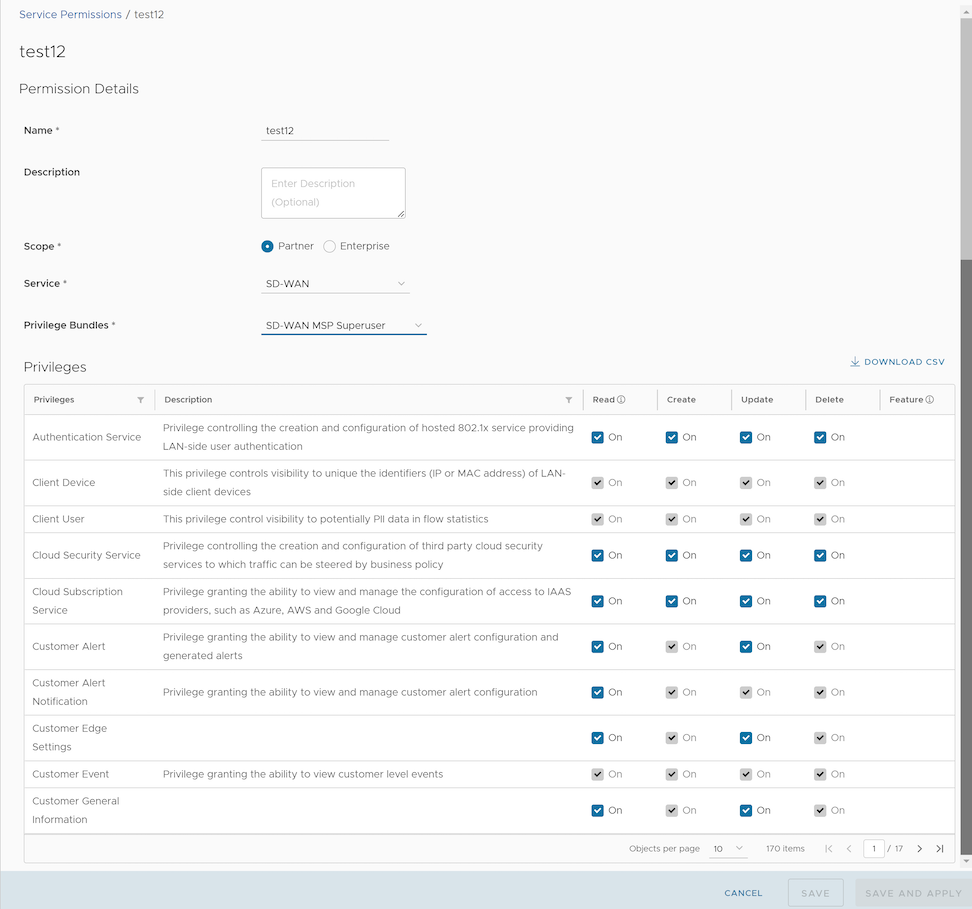
- Enter the following details to create a new permission:
Table 11. New Permission Option Descriptions Option Description Name Enter an appropriate name for the permission. Description Enter a description. This field is optional. Scope Select Partner or Enterprise as the scope. A Partner can customize the permissions for Partners and Customers. Service Select a service from the drop-down menu. The available services are: - Global Settings
- SD-WAN
- Cloud Web Security
- Secure Access
- Edge Network Intelligence
- App Catalog
- MCS
- Private Mobile Network
Privilege Bundle Select a privilege bundle from the drop-down menu. The privileges are populated depending on the selected Service. Privileges Displays the list of privileges based on the selected Privilege Bundle. You can edit only those privileges that are eligible for customization. - Select Download CSV to download the list of all privileges, descriptions, and associated actions, into a file in CSV format.
- Select Save to save the new permission. Select Save and Apply to save and publish the permission.
Note: The Save and Save and Apply buttons are activated only after you modify the permissions.The new permission is displayed on the Service Permissions page.
Authentication
The Authentication feature allows you to set the authentication mode for a Partner and an Enterprise user.
- Log in to the SASE Orchestrator as a Partner and from the top menu, select Administration from the top menu.
- From the left menu, select User Management, and then select the Authentication tab. The following screen appears:
Figure 11. Displaying Authentication 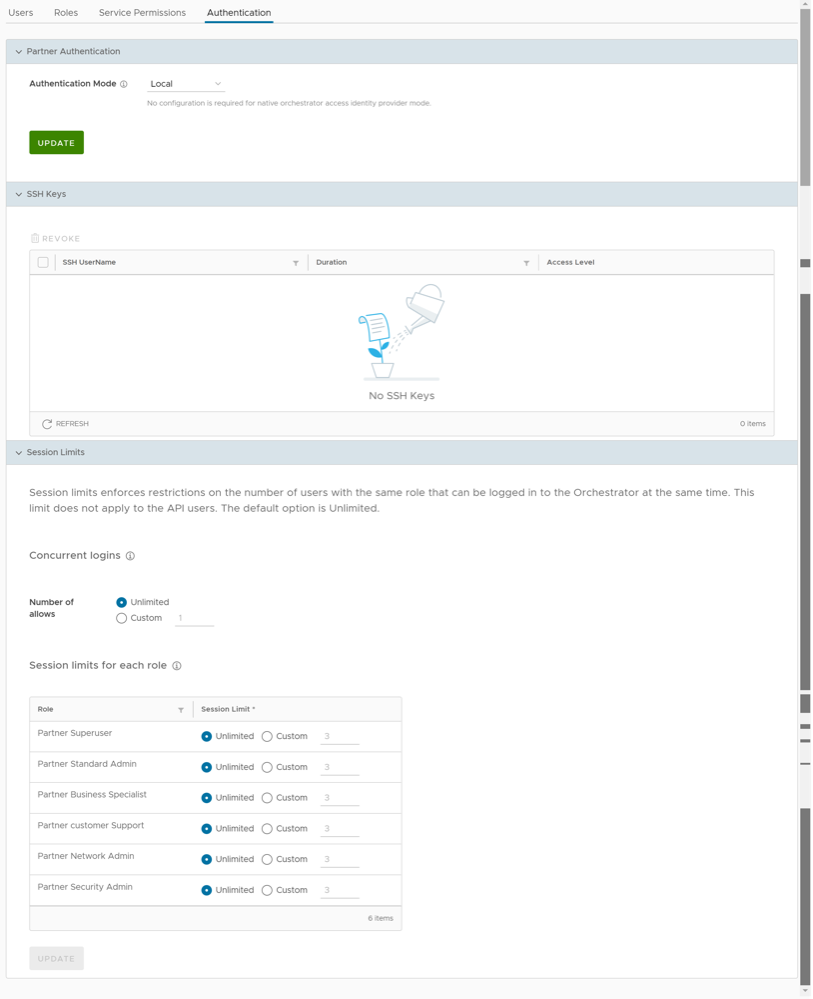
Partner Authentication
- Local: This is the default option and does not require any additional configuration.
- Single Sign-On: Single Sign-On (SSO) is a session and user authentication service that allows users to log in to multiple applications and websites with one set of credentials. Integrating an SSO service with SASE Orchestrator enables SASE Orchestrator to authenticate users from OpenID Connect (OIDC)-based Identity Providers (IdPs).
To enable Single Sign On (SSO) for SASE Orchestrator, you must enter the Orchestrator application details into the Identity Provider (IdP). Select each of the following links for step-by-step instructions to configure the following supported IdPs:You can configure the following options when you select the Authentication Mode as Single Sign-on.
Figure 12. Displaying Authentication Mode 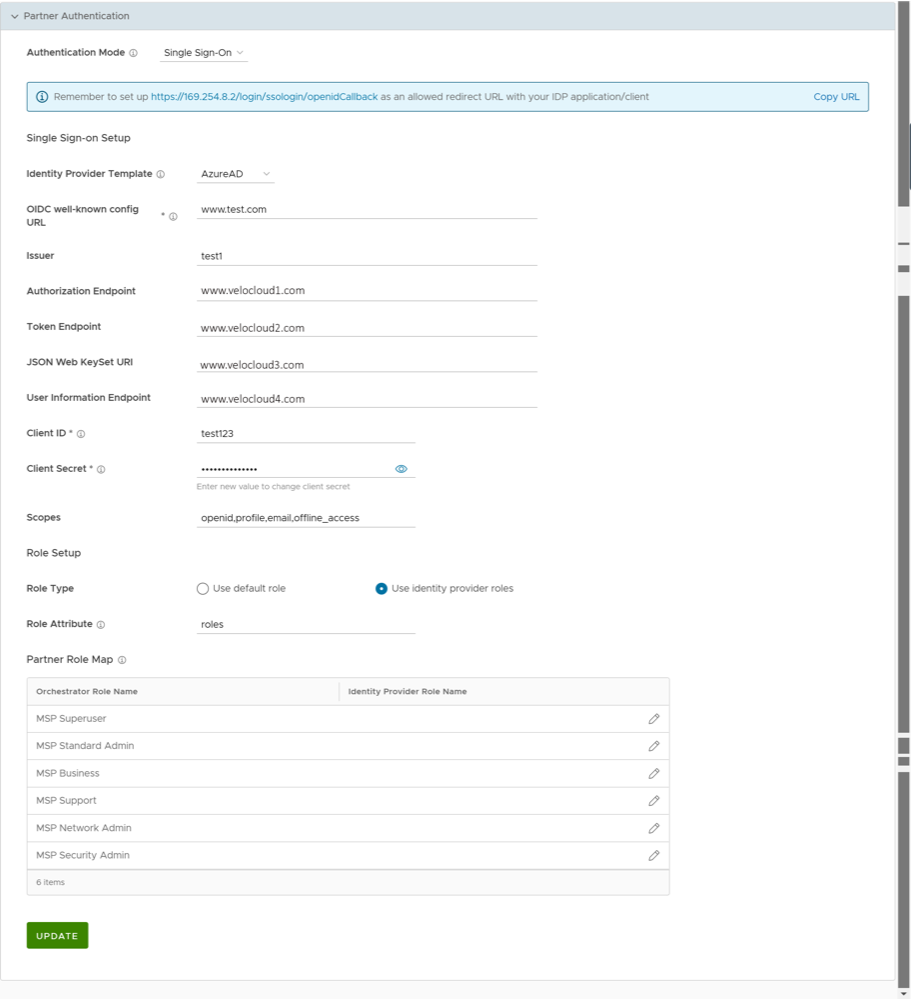
Table 12. Authentication Mode Parameters Option Description Identity Provider Template From the drop-down menu, select your preferred Identity Provider (IdP) that you have configured for Single Sign On. This pre-populates fields specific to your IdP. Note: You can also manually configure your own IdPs by selecting Others from the drop-down menu.OIDC well-known config URL Enter the OpenID Connect (OIDC) configuration URL for your IdP. For example, the URL format for Okta will be: https://{oauth-provider-url}/.well-known/openid-configuration.Issuer This field is auto-populated based on your selected IdP. Authorization Endpoint This field is auto-populated based on your selected IdP. Token Endpoint This field is auto-populated based on your selected IdP. JSON Web KeySet URI This field is auto-populated based on your selected IdP. User Information Endpoint This field is auto-populated based on your selected IdP. Client ID Enter the client identifier provided by your IdP. Client Secret Enter the client secret code provided by your IdP, that is used by the client to exchange an authorization code for a token. Scopes This field is auto-populated based on your selected IdP. Role Type Choose one of the following two options: - Use default role
- Use identity provider roles
Role Attribute Enter the name of the attribute set in the IdP to return roles. Partner Role Map Map the IdP-provided roles to each of the Partner user roles. Select Update to save the entered values. The SSO authentication setup is complete in the SASE Orchestrator.
SSH Keys
You can create only one SSH Key per user. Select the User Information icon located at the top right of the screen, and then select to create an SSH Key.
As a Partner, you can also revoke an SSH Key.
Select the Refresh option to refresh the section to display the most current data.
For additional information, see Configure User Account details.
Session Limits
session.options.enableSessionTracking to True.| Option | Description |
|---|---|
| Concurrent logins | Allows you to set a limit on concurrent logins per user. By default, Unlimited is selected, indicating that unlimited concurrent logins are allowed for the user. |
| Session limits for each role | Allows you to set a limit on the number of concurrent sessions based on user role. By default, Unlimited is selected, indicating that unlimited sessions are allowed for the role.
Note: The roles that are already created by the Partner in the Roles tab, are displayed in this section.
|
Select Update to save the selected values.
Configure Azure Active Directory for Single Sign On
To set up an OpenID Connect (OIDC)-based application in Microsoft Azure Active Directory (Azure AD) for Single Sign On (SSO), perform the following steps.
- Log in to your Microsoft Azure account as an Admin user. The Microsoft Azure home screen appears.
- To create a new application:
- Search and select the Azure Active Directory service.
Figure 13. Displaying Azure Active Directory 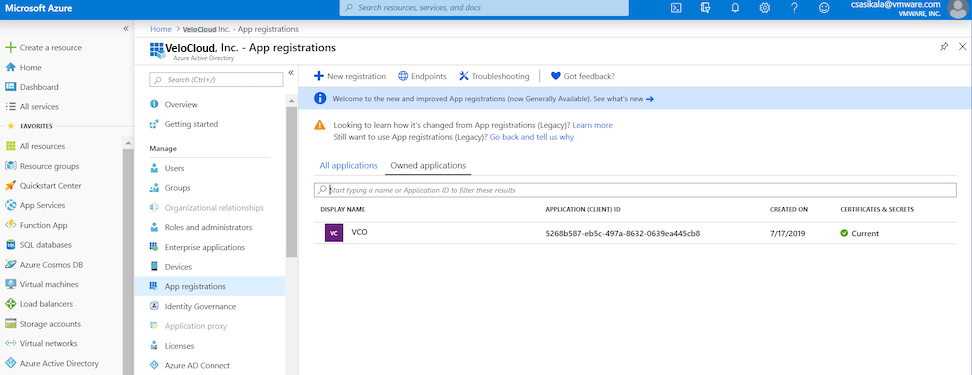
- Go to . The Register an application screen appears.
Figure 14. Registering an Application 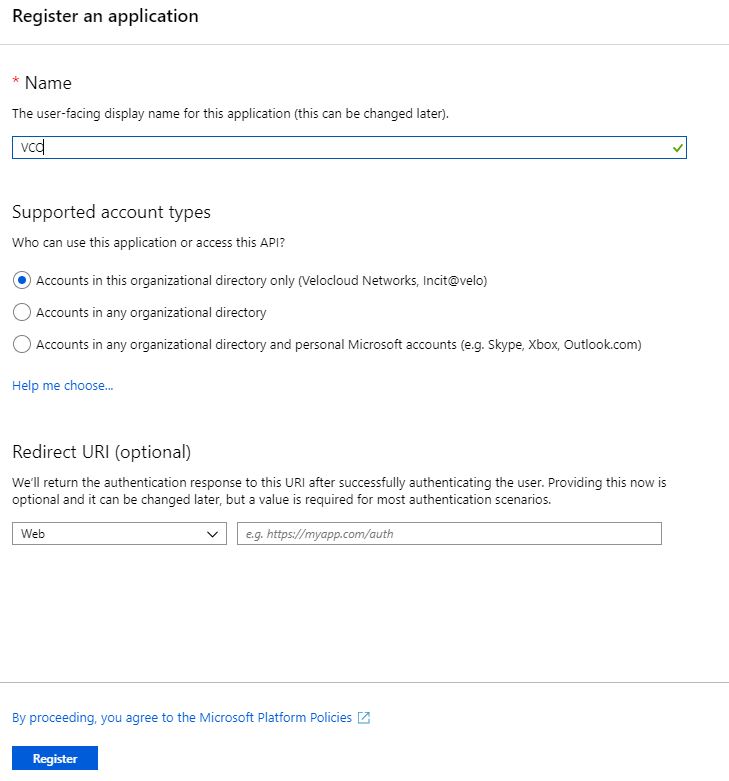
- In the Name field, enter the name for your SASE Orchestrator application.
- In the Redirect URL field, enter the redirect URL that your SASE Orchestrator application uses as the callback endpoint.
In the SASE Orchestrator application, at the bottom of the Configure Authentication screen, you can find the redirect URL link. Ideally, the SASE Orchestrator redirect URL will be in this format:
https://<Orchestrator
URL>/login/ssologin/openidCallback
. - Select Register. Your SASE Orchestrator application will be registered and displayed in the All applications and Owned applications tabs. Make sure to note down the Client ID/Application ID to be used during the SSO configuration in SASE Orchestrator.
- Select Endpoints and copy the well-known OIDC configuration URL to be used during the SSO configuration in SASE Orchestrator.
- To create a client secret for your SASE Orchestrator application, on the Owned applications tab, select your SASE Orchestrator application.
- Go to . The Add a client secret screen appears.
Figure 15. Displaying Certificates and Secrets 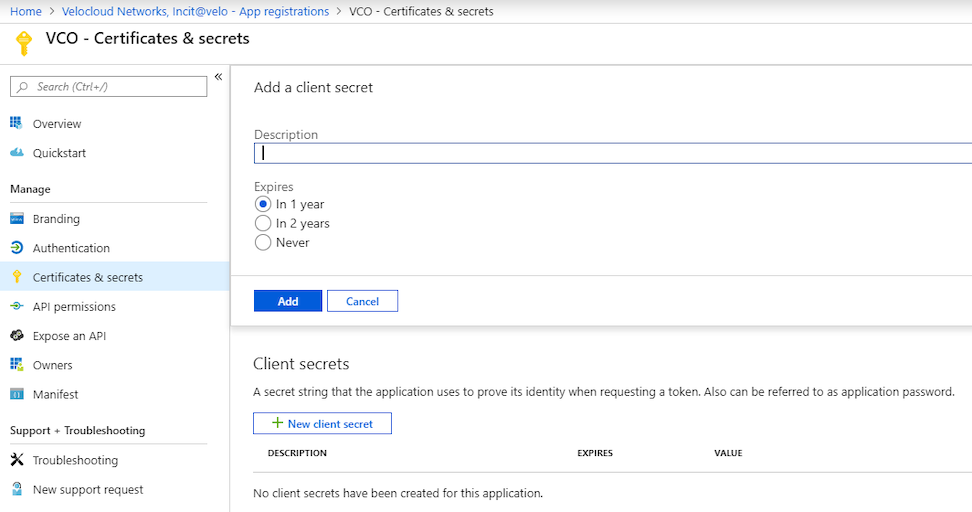
- Provide details such as description and expiry value for the secret and select Add.
The client secret is created for the application. Note down the new client secret value to be used during the SSO configuration in
SASE Orchestrator. - To configure permissions for your SASE Orchestrator application, select your SASE Orchestrator application and go to . The Request API permissions screen appears.
Figure 16. Displaying API Permissions 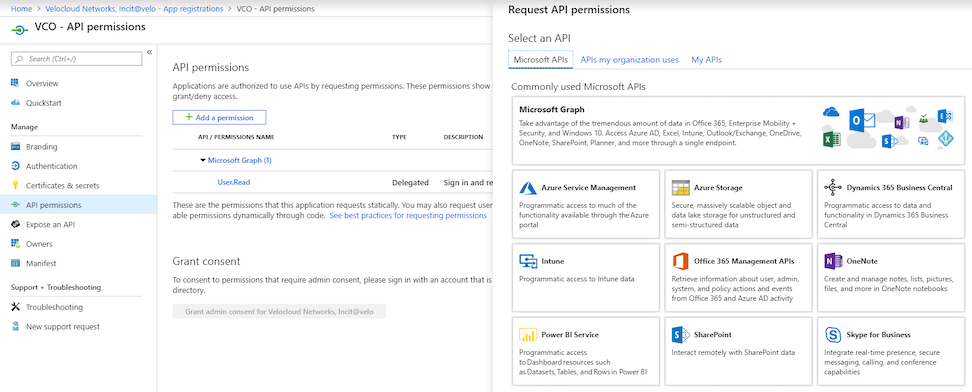
- Select Microsoft Graph and select Application permissions as the type of permission for your application.
- Under Select permissions, from the Directory drop-down menu, select Directory.Read.All and from the User drop-down menu, select User.Read.All.
- Select Add permissions.
- To add and save roles in the manifest, select your SASE Orchestrator application and from the application Overview screen, select Manifest. A web-based manifest editor opens, allowing you to edit the manifest within the portal. Optionally, you can select Download to edit the manifest locally, and then use Upload to reapply it to your application.
Figure 17. Displaying the Manifest 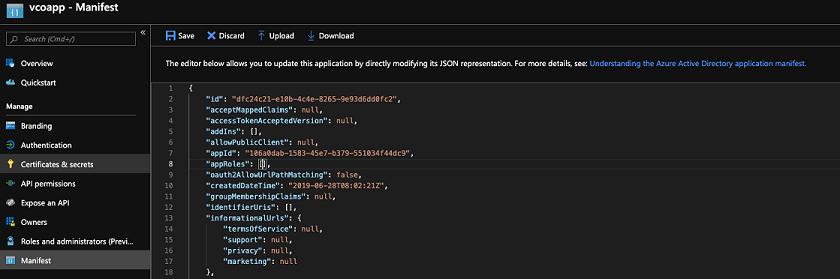
- In the manifest, search for the appRoles array and add one or more role objects as shown in the following example and select Save.
Note: The value property from appRoles must be added to the Identity Provider Role Name column of the Role Map table, located on the Authentication tab, in order to map the roles correctly.Sample role objects
{ "allowedMemberTypes": [ "User" ], "description": "Standard Administrator who will have sufficient privilege to manage resource", "displayName": "Standard Admin", "id": "18fcaa1a-853f-426d-9a25-ddd7ca7145c1", "isEnabled": true, "lang": null, "origin": "Application", "value": "standard" }, { "allowedMemberTypes": [ "User" ], "description": "Super Admin who will have the full privilege on SASE Orchestrator", "displayName": "Super Admin", "id": "cd1d0438-56c8-4c22-adc5-2dcfbf6dee75", "isEnabled": true, "lang": null, "origin": "Application", "value": "superuser" }Note: Make sure to set id to a newly generated Global Unique Identifier (GUID) value. You can generate GUIDs online using web-based tools (for example, https://www.guidgen.com/), or by running the following commands:- Linux/OSX- uuidgen
- Windows- powershell [guid]::NewGuid()
Figure 18. Displaying Additional Details 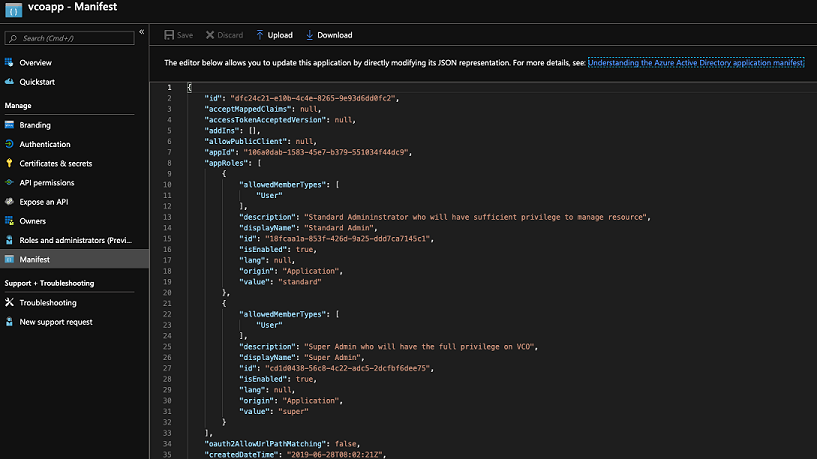
Roles are manually set up in the SASE Orchestrator, and must match the ones configured in the Microsoft Azure portal.
Figure 19. Displaying App Roles 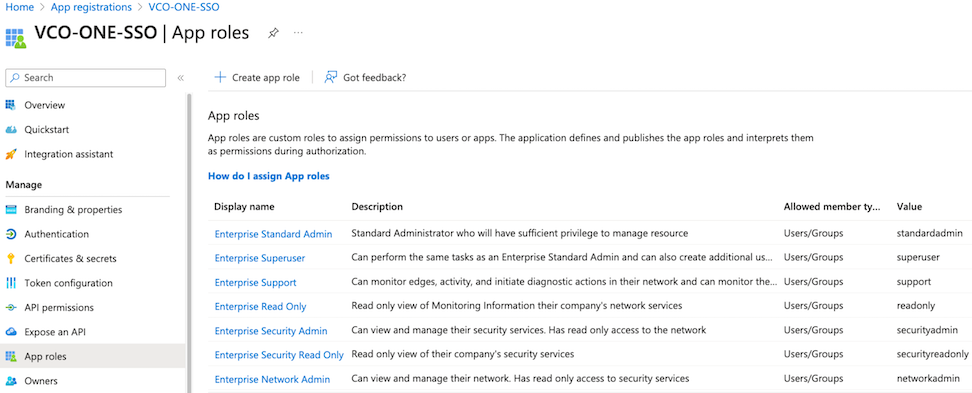
- Search and select the Azure Active Directory service.
- To assign groups and users to your SASE Orchestrator application:
- Go to .
- Search and select your SASE Orchestrator application.
- Select Users and groups and assign users and groups to the application.
- Select Submit.
You have completed setting up an OIDC-based application in Azure AD for SSO.
Configure Single Sign On in SASE Orchestrator.
Configure Okta for Single Sign On
To support OpenID Connect (OIDC)-based Single Sign On (SSO) from Okta, you must first set up an application in Okta. To set up an OIDC-based application in Okta for SSO, perform the steps on this procedure.
Ensure you have an Okta account to sign in.
- Log in to your Okta account as an Admin user. The Okta home screen appears.
Note: If you are in the Developer Console view, then you must switch to the Classic UI view by selecting Classic UI from the Developer Console drop-down list.
- To create a new application:
- In the upper navigation bar, select . The Add Application screen appears.
Figure 20. Adding an Application 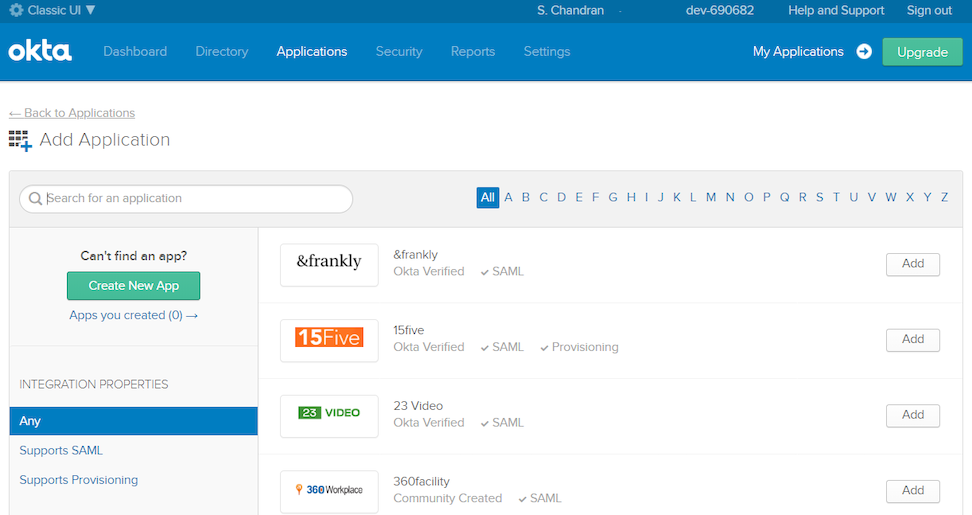
- Select Create New App. The Create a New Application Integration dialog box appears.
- From the Platform drop-drop menu, select Web.
- Select OpenID Connect as the Sign on method and select Create. The Create OpenID Connect Integration screen appears.
Figure 21. Creating an Integration 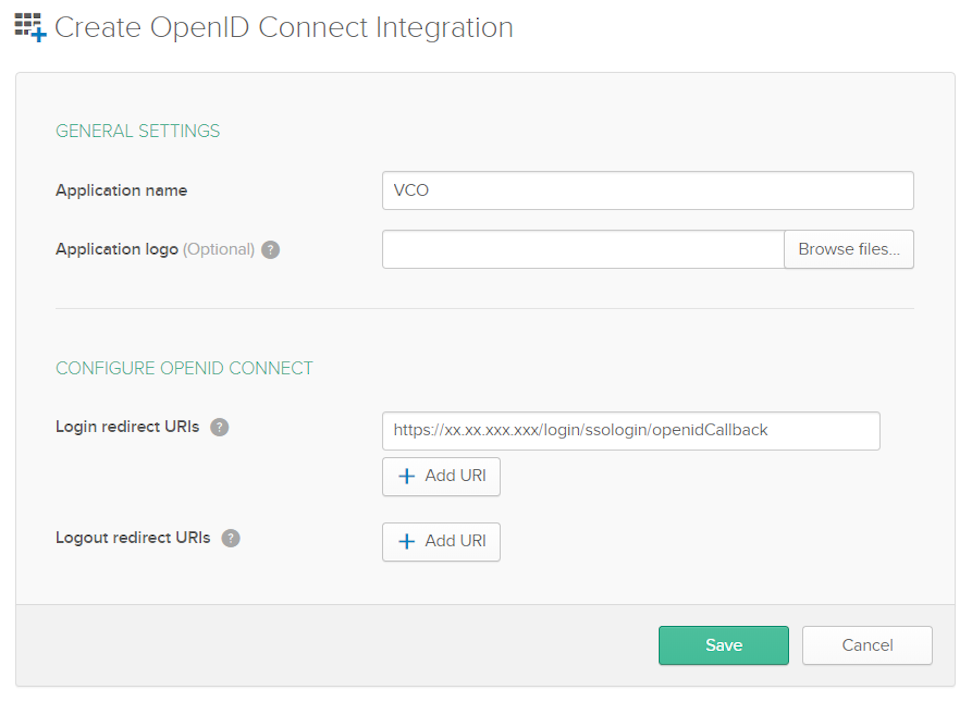
- Under the General Settings area, in the Application name text box, enter the name for your application.
- Under the CONFIGURE OPENID CONNECT area, in the Login redirect URIs text box, enter the redirect URL that your SASE Orchestrator application uses as the callback endpoint.
In the SASE Orchestrator application, at the bottom of the Configure Authentication screen, you can find the redirect URL link. Ideally, the SASE Orchestrator redirect URL will be in this format:
https://<Orchestrator
URL>/login/ssologin/openidCallback
. - Select Save. The newly created application page appears.
- On the General tab, select Edit and select Refresh Token for Allowed grant types, and select Save.
Note down the Client Credentials (Client ID and Client Secret) to be used during the SSO configuration in SASE Orchestrator.
Figure 22. General Settings 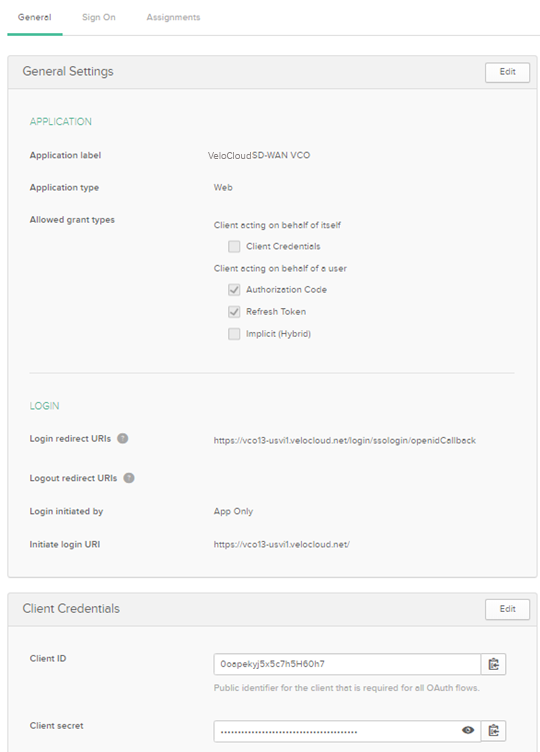
- Select the Sign On tab and under the OpenID Connect ID Token area, select Edit.
- From the Groups claim type drop-down menu, select Expression. By default, Groups claim type is set to Filter.
- In the Groups claim expression textbox, enter the claim name that will be used in the token, and an Okta input expression statement that evaluates the token.
- Select Save. The application is setup in IDP. You can assign user groups and users to your SASE Orchestrator application.
Figure 23. Configuring the Sign On Parameters 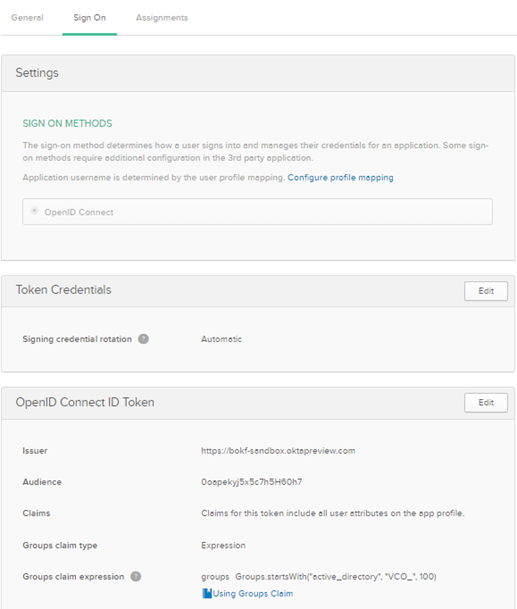
- In the upper navigation bar, select . The Add Application screen appears.
- To assign groups and users to your SASE Orchestrator application:
- Go to and select on your SASE Orchestrator application link.
- On the Assignments tab, from the Assign drop-down menu, select Assign to Groups or Assign to People. The Assign <Application Name> to Groups or Assign <Application Name> to People dialog box appears.
- Select Assign next to available user groups or users you want to assign the SASE Orchestrator application and select Done. The users or user groups assigned to the SASE Orchestrator application will be displayed.
Figure 24. Displaying Assignments 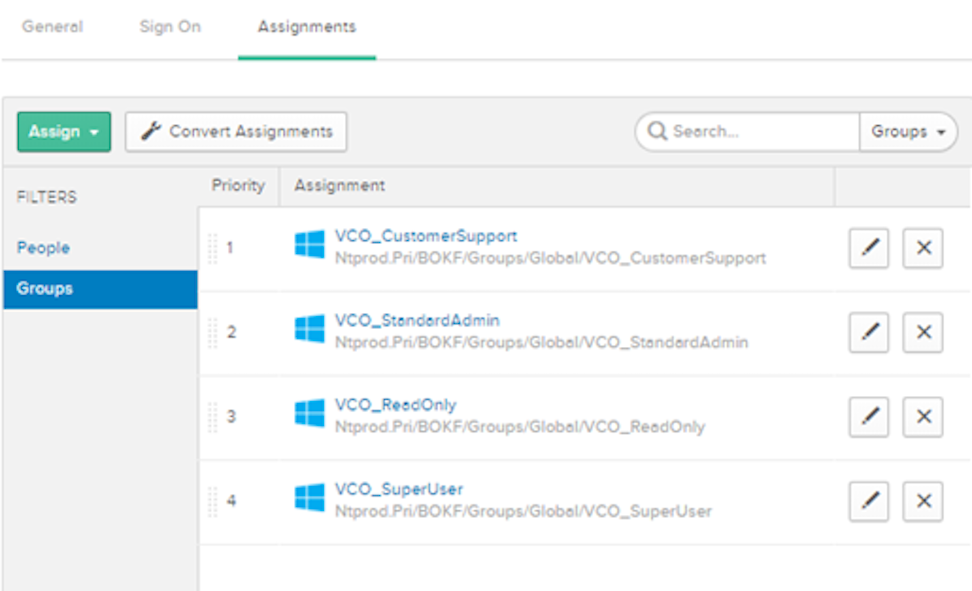
You have completed setting up an OIDC-based application in Okta for SSO.
Configure Single Sign On in SASE Orchestrator.
Configure OneLogin for Single Sign On
To set up an OpenID Connect (OIDC)-based application in OneLogin for Single Sign On (SSO), perform the steps below:
- Log in to your OneLogin account as an Admin user. The OneLogin home screen appears.
- To create a new application:
- In the upper navigation bar, select .
- In the Find Applications text box, search for “OpenId Connect” or “oidc” and then select the OpenId Connect (OIDC) app. The Add OpenId Connect (OIDC) screen appears.
Figure 25. Adding an OpenID Connection 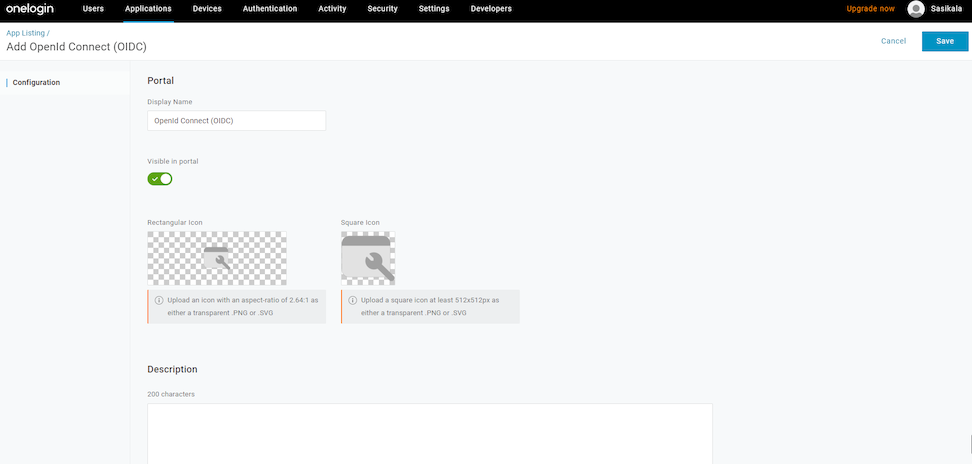
- In the Display Name text box, enter the name for your application and select Save.
- On the Configuration tab, enter the Login URL (auto-login URL for SSO) and the Redirect URI that SASE Orchestrator uses as the callback endpoint, and select Save.
- Login URL- The login URL will be in this format:
 https://<Orchestrator
URL>/<Domain>/ login/doEnterpriseSsoLogin
. Where, <Domain> is the domain name of your Enterprise that you must have already set up to enable SSO authentication for the SASE Orchestrator. You can get the Domain name from the page. - Redirect URI's- The SASE Orchestrator redirect URL will be in this format:
https://<Orchestrator
URL>/login/ssologin/openidCallback
. In the SASE Orchestrator application, at the bottom of the Authentication screen, you can find the redirect URL link.
Figure 26. Displaying the URL 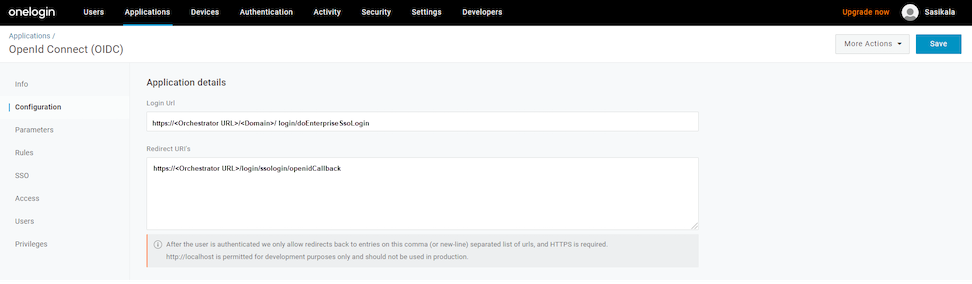
- Login URL- The login URL will be in this format:
- On the Parameters tab, under OpenId Connect (OIDC), double select Groups. The Edit Field Groups popup appears.
Figure 27. Editing Field Groups 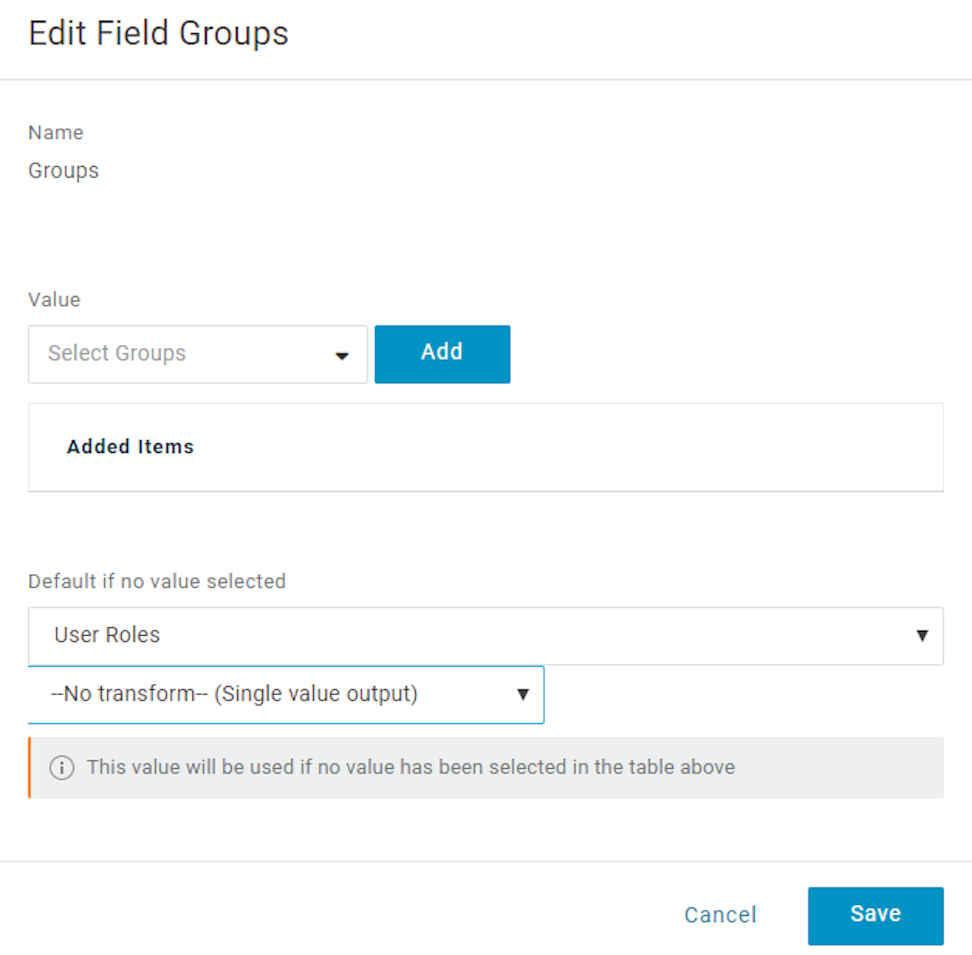
- Configure User Roles with value “--No transform--(Single value output)” to be sent in groups attribute and select Save.
- On the SSO tab, from the Application Type drop-down menu, select Web.
- From the Authentication Method drop-down menu, select POST as the Token Endpoint and select Save.
Also, note down the Client Credentials (Client ID and Client Secret) to be used during the SSO configuration in SASE Orchestrator.
Figure 28. Enabling the OpenId Connection 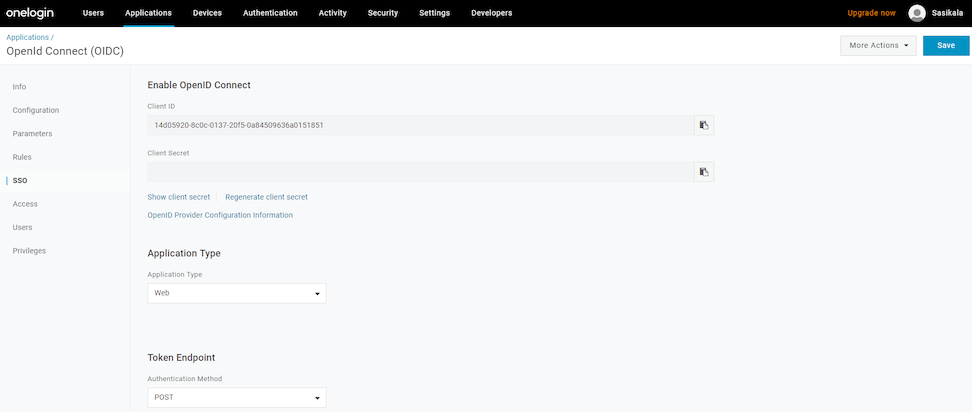
- On the Access tab, choose the roles allowed to login and select Save.
Figure 29. Configuring Access 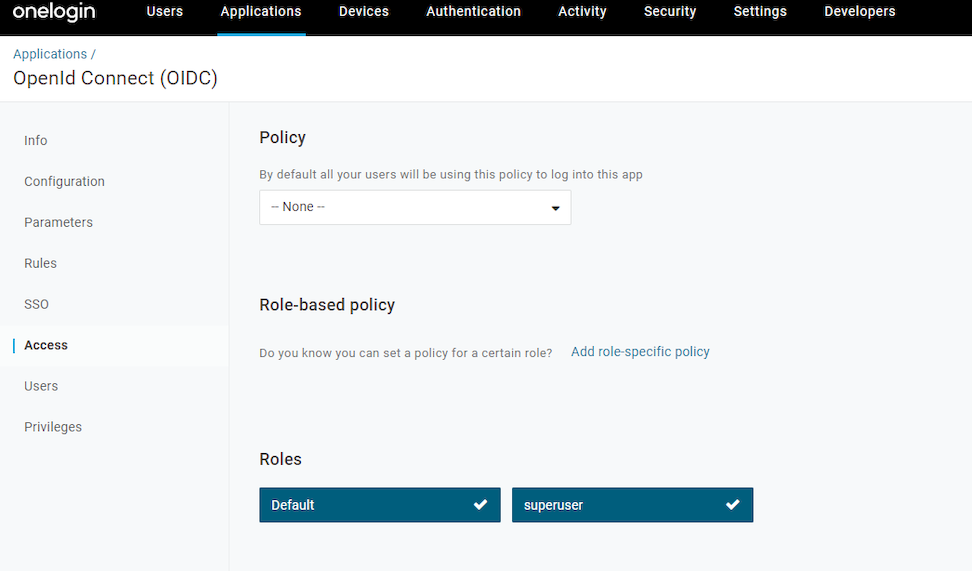
- To add roles and users to your SASE Orchestrator application:
- Select and select a user.
- On the Application tab, from the Roles drop-down menu, on the left, select a role to be mapped to the user.
- Select Save Users.
You have completed setting up an OIDC-based application in OneLogin for SSO.
Configure Single Sign On in SASE Orchestrator.
Configure PingIdentity for Single Sign On
To set up an OpenID Connect (OIDC)-based application in PingIdentity for Single Sign On (SSO), perform the steps on this procedure.
- Log in to your PingOne account as an Admin user. The PingOne home screen appears.
- To create a new application:
- In the upper navigation bar, select Applications.
Figure 30. Displaying Applications 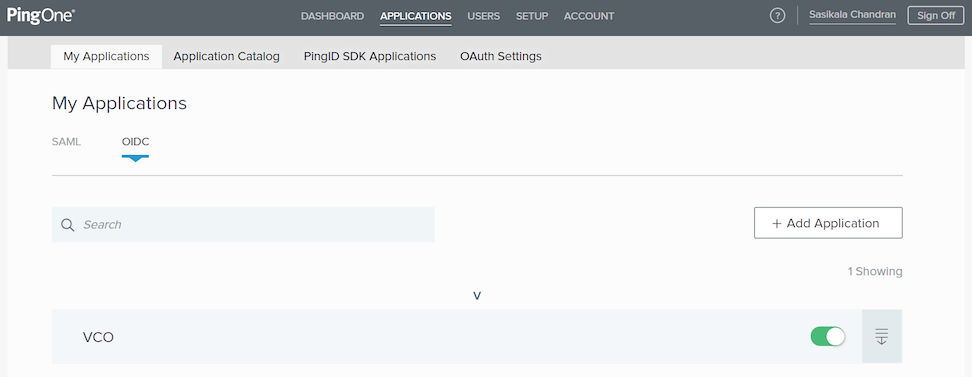
- On the My Applications tab, select OIDC and then select Add Application. The Add OIDC Application pop-up window appears.
Figure 31. Adding an Application 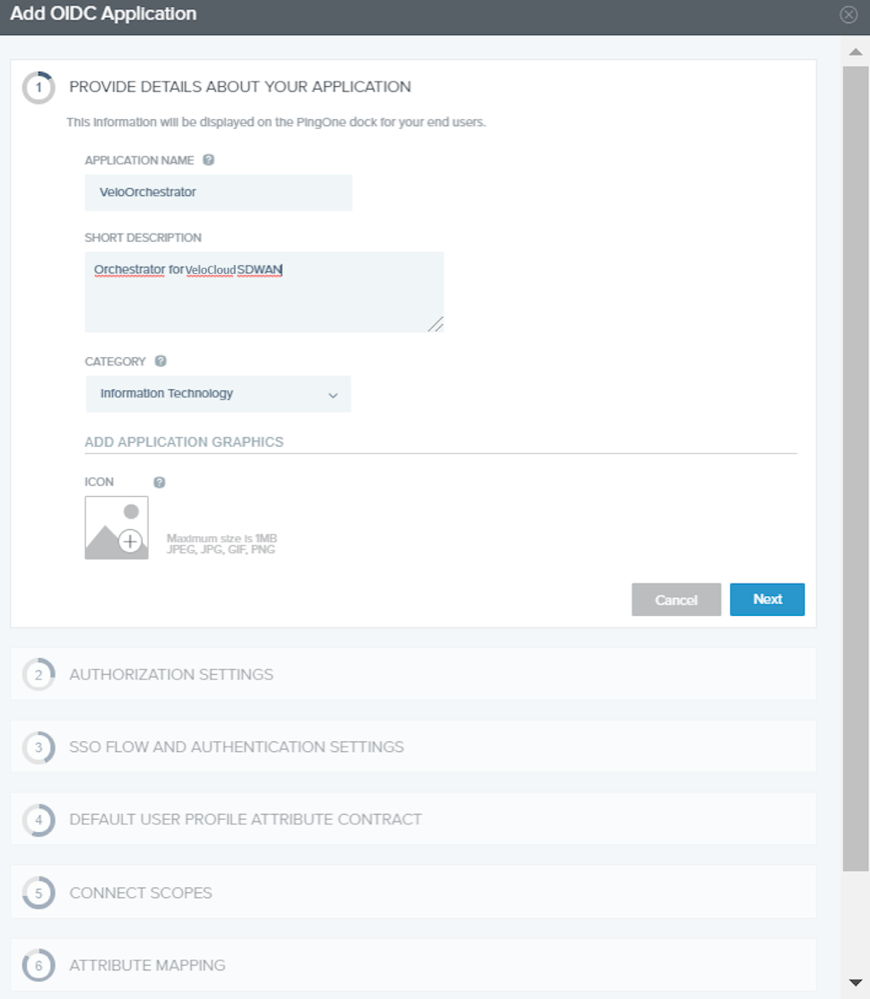
- Provide basic details such as name, short description, and category for the application and select Next.
- Under AUTHORIZATION SETTINGS, select Authorization Code as the allowed grant types and select Next.
Also, note down the Discovery URL and Client Credentials (Client ID and Client Secret) to be used during the SSO configuration in SASE Orchestrator.
- Under SSO FLOW AND AUTHENTICATION SETTINGS, provide valid values for Start SSO URL and Redirect URL and select Next.
In the SASE Orchestrator application, at the bottom of the Configure Authentication screen, you can find the redirect URL link. Ideally, the SASE Orchestrator redirect URL will be in this format:
https://<Orchestrator URL>/login/ssologin/openidCallback. The Start SSO URL will be in this format:https://<Orchestrator URL>/<domain name>/login/doEnterpriseSsoLogin. - Under DEFAULT USER PROFILE ATTRIBUTE CONTRACT, select Add Attribute to add additional user profile attributes.
- In the Attribute Name text box, enter group_membership and then select the Required checkbox, and select Next.
Note: The group_membership attribute is required to retrieve roles from PingOne.
- Under CONNECT SCOPES, select the scopes that can be requested for your SASE Orchestrator application during authentication and select Next.
- Under Attribute Mapping, map your identity repository attributes to the claims available to your SASE Orchestrator application.
Note: The minimum required mappings for the integration to work are email, given_name, family_name, phone_number, sub, and group_membership (mapped to memberOf).
- Under Group Access, select all user groups that should have access to your SASE Orchestrator application and select Done. The application will be added to your account and will be available in the My Application screen.
- In the upper navigation bar, select Applications.
You have completed setting up an OIDC-based application in PingOne for SSO.
Configure Single Sign On in SASE Orchestrator.