
Activate SD-WAN Edges using Edge Auto-activation
Edge Auto-activation allows you to activate Edges by powering on the Edges and connecting them to the Internet.
This method eliminates the need of an activation link. Using this feature, the Service Provider can preconfigure the Edges and have them shipped to the Customers. The Customers just need to power-on the Edges and connect the cables to the internet to activate the Edges.
This method of Edge activation is also useful when the person at the remote site is unable to connect a laptop/tablet/phone to the SD-WAN Edge, and therefore cannot use an email or cannot select an activation code/URL.
- Edge Auto-activation supports Edge models: 510, 510 LTE, 6x0, 7x0 and 3xx0.
- For Edge Auto-activation to work, use the Orchestrator software version 4.3.0 or later.
Sign-Up for Edge Auto-activation
- As a Partner user, ensure that you have a valid Partner Relationship Management Identifier (PRM ID), received at the time of registering with VeloCloud. If you do not have a valid PRM ID, contact VeloCloud Partner Connect.
- Outbound internet connectivity via DHCP is required to complete the push activation successfully.
- Log in to SASE Orchestrator, and then go to .
- On the Edge Auto-activation page, enter the PRM ID.
- Select Submit.
Note: You are required to enter the PRM ID only when you login for the first time. You can view the Edge inventory in the Available Inventory tab only after the successful validation of PRM ID. The validation process may take up to 3 to 5 days. If you enter an incorrect PRM ID, you must contact the Customer Support team to get it changed.
Only the Edges that were shipped to you after the successful completion of the sign-up process appear in the Available Inventory tab. Ensure that the PRM ID assigned to you is used in all your future orders so that the inventory is reflected correctly. You must assign the Edges to Customers, and then assign profile and license to Edges. For instructions, refer to Assign Edges to Customers.
Assign Edges to Customers
Ensure that you have signed-up for Edge Auto-activation so that you can view the list of Edges on the Available Inventory page. For instructions, refer to Sign-Up for Edge Auto-activation.
- Log in to SASE Orchestrator, and then go to . A list of Edge inventory with Serial number and Model appears.
- Select all the Edges that you want to assign to Customers, and then select Assign To Customer. The Edge Assignment window appears.
Figure 1. Displaying Edge Assignments 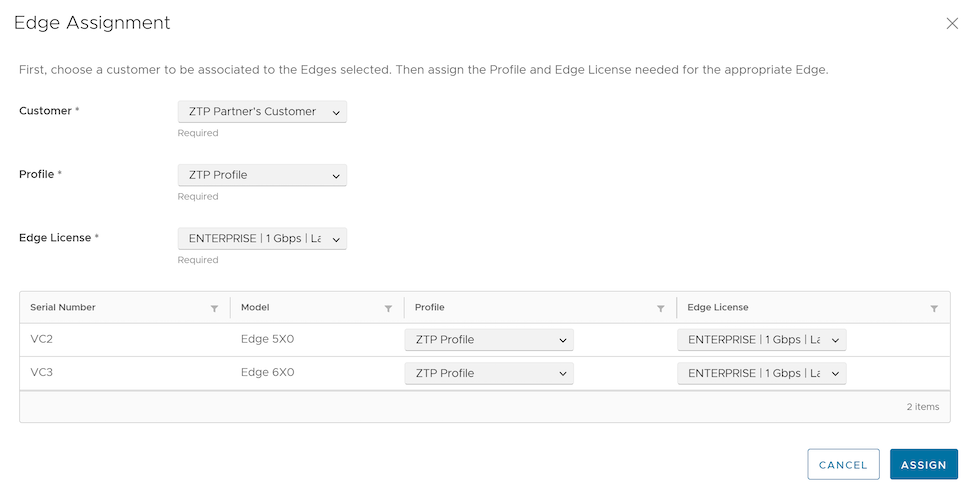
- From the Customer drop-down list, select the Customer to whom you want to assign the Edges.
- From the Profile and Edge License drop-down lists, select the required profile and license that you want to assign to all Edges in the inventory.
Note: You can choose to override these settings for a specific Edge by selecting the appropriate profile and license in the table.
- Select Assign. The Edges for which you have assigned a Customer, a profile and a license, appear in the Assigned Inventory tab. The Inventory State for the assigned Edges is displayed as Assigned to Customer and the Edge State is displayed as Pending.
- Following are the additional options available on the Edge Auto-activation page:
Table 1. Additional Options Option Description Search Enter a search term to be searched across the items in the table. Use the advanced search option for additional filters. Download CSV Select to download the list of Edges in an excel format. Columns Select the checkboxes to view the required columns. Refresh Select this option to refresh the table properties.
When your Customer powers-on the assigned physical Edges and connects them to the internet, the Edges are redirected to the SASE Orchestrator, where they are automatically activated. After an Edge is activated, the Edge State in the Assigned Inventory tab changes from Pending to Activated.
Reassign an Edge to Another Customer
You can reassign an Edge to another Customer before the Edge is activated.
If you choose to reassign an Edge that is already activated, you must deactivate the Edge, and then reassign the Edge to another Customer. Once you deactivate the Edge, the Edge state changes to Offline. You can now reassign the Edge to another Customer.
- Log in to SASE Orchestrator, and then go to . Select Assigned Inventory tab.
- Select the Edge that you want to reassign, and then select Reassign. The Edge Reassignment window appears.
- From the Customer drop-down list, select the Customer to whom you want to reassign the Edge.
- From the Profile and Edge License drop-down lists, select the required profile and license that you want to assign to the Edge.
- Select Reassign.
Though the Edge is reassigned to the new Customer, a corresponding entry would still be available in the page of the Customer to whom the Edge was originally assigned. Select the logical Edge entry, and then select Delete to manually delete the entry.