
Activate Edges
- Edge Auto-activation (formerly known as Zero Touch Provisioning) — In this method, you must power-on the Edges and connect them to the internet. This causes the Edges to automatically start working as configured. For additional information, refer to Activate SD-WAN Edges using Edge Auto-activation.
- Email — In this method, the Edges are shipped to the Customer site with a factory-default configuration. Prior to activation, the Edges contain no configuration or credentials to connect to the Enterprise network. The administrator initiates an email with instructions to activate the Edges to the person who will install the Edges at the site. The individual to whom the email is sent follows the instructions to activate the Edges. For additional information, refer to Activate Edges Using Email.
Following table shows a comparison of activities that are allowed in each of the activation methods:
| Activity | Edge Auto-activation (Central NOC Activates) | Email (Office Admin Activates) |
|---|---|---|
| No IT Visit Required |  |
|
| No Pre-staging Required | |
|
| No Security Risk if Box Is Lost | |
|
| No Site-by-site Link Profile Needed | |
|
| No Device Tracking Needed | |
|
| Requires Email to Office Admin | |
|
| Requires Knowledge of Device to Site | |
Activate SD-WAN Edges using Edge Auto-activation
Edge Auto-activation allows you to activate Edges by powering on the Edges and connecting them to the Internet.
This method of Edge activation is also useful when the person at the remote site is unable to connect a laptop/tablet/phone to the Edge, and therefore cannot use an email or cannot click an activation code/URL.
- Edge Auto-activation supports Edge models: 510, 510 LTE, 6x0, 7x0 and 3xx0.
- For Edge Auto-activation to work, use the Orchestrator software version 4.3.0 or later.
Sign-Up for Edge Auto-activation
- As an Enterprise Super User, ensure that you have a valid Subscription Identifier (SID) that was received on booking Secure Access Service Edge (SASE) orders. If you do not have a valid SID, contact https://www.arista.com/en/support/customer-support/velocloud.
- Outbound internet connectivity via DHCP is required to complete the push activation successfully.
Starting from the 5.1.0 release, the procedure to sign-up for Edge Auto-activation has completely changed. You need not activate it from System Settings anymore. To sign-up for Edge Auto-activation, follow the below steps:
- In the SD-WAN service of the Enterprise portal, select .
Figure 1. Edge Auto-activation 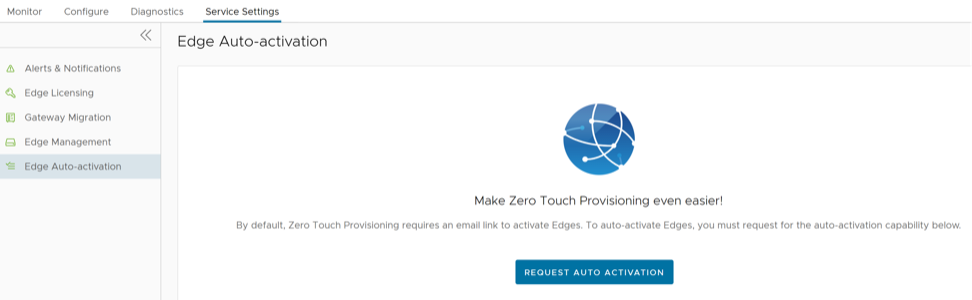
You must assign a profile and a license to the Edges. For instructions, see Assign Profile and License to Edges.
Assign Profile and License to Edges
Ensure that you have signed-up for Edge Auto-activation so that you can view the list of Edges in the Available Inventory page. For instructions, refer to Sign-Up for Edge Auto-activation.
To assign profile and license to the Edges:
- In the SD-WAN service of the Enterprise portal, select Settings, and then from the left menu, select Edge Auto-activation.
The Edge Auto-activation page is displayed.
Figure 2. Edge Auto-activation- Available Inventory 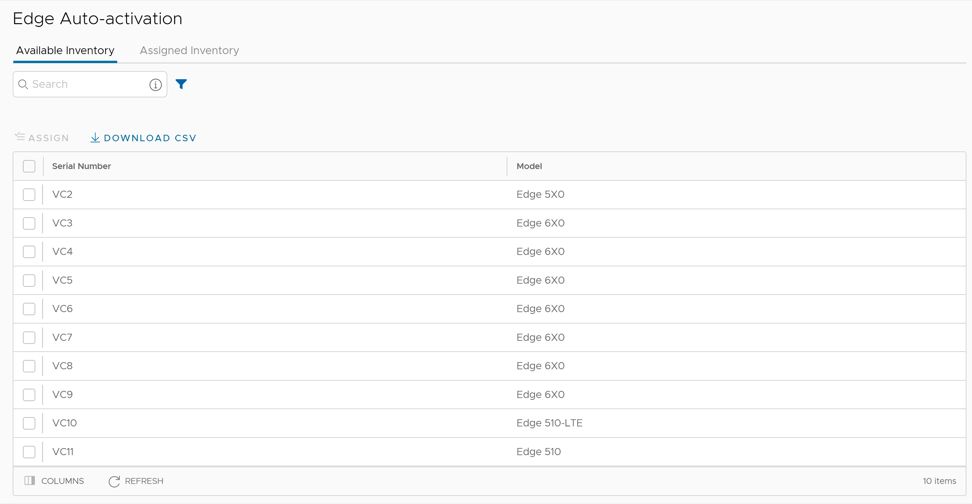
- Select the required Edges and select Assign.
The Edge Assignment window appears:
Figure 3. Edge Assignment 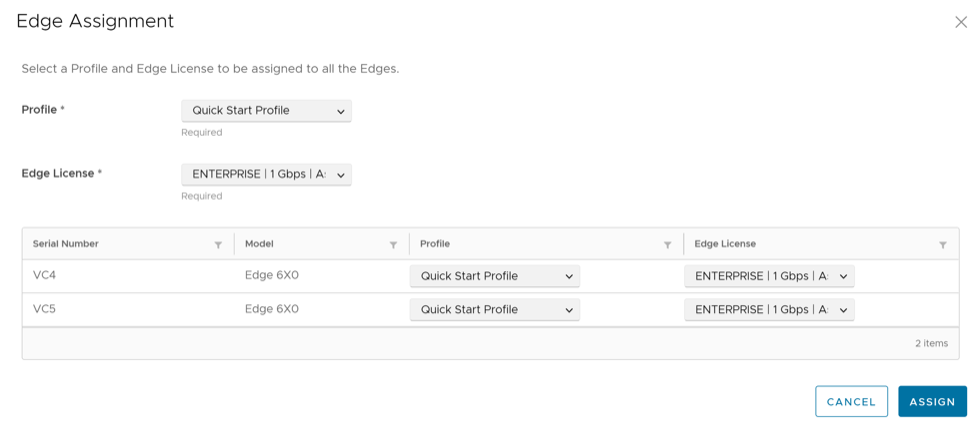
Power-on the assigned physical Edges and connect them to the internet so that they are redirected to the Orchestrator where they are automatically activated. After an Edge is activated, the Edge State in the Assigned Inventory tab changes from Pending to Activated.
Assign Inventory to an Edge
After you assign the profile and license to an Edge and till the time you power-on the Edge to activate it, Orchestrator allows you to delete the Edge. If you have accidentally deleted an Edge, you can choose to provision a new logical Edge and reassign the inventory to the logical Edge so that when you power-on the physical Edge, the Edge Auto-activation feature works and the physical Edge is activated.
To assign inventory to a logical Edge:
Activate Edges Using Email
In this method, the Edge is shipped to the Customer site with a factory-default configuration. Prior to activation, the Edge contains no configuration or credentials to connect to the Enterprise network.
Complete the following steps to activate Edges using the Email method:
Send Edge Activation Email
The administrator initiates the activation process of an Edge by sending an activation procedure Email to the person installing the Edge, typically a Site Contact.
To send the Edge Activation Email:
- Select the Overview tab. For an Edge that is not activated, the Edge Status section displays the option to send an activation Email:
Figure 4. Edge Status 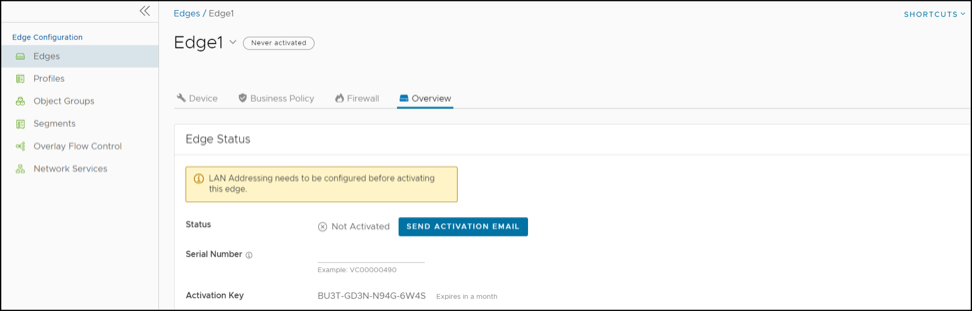
- Select Send Activation Email.
Figure 5. Send Activation Email 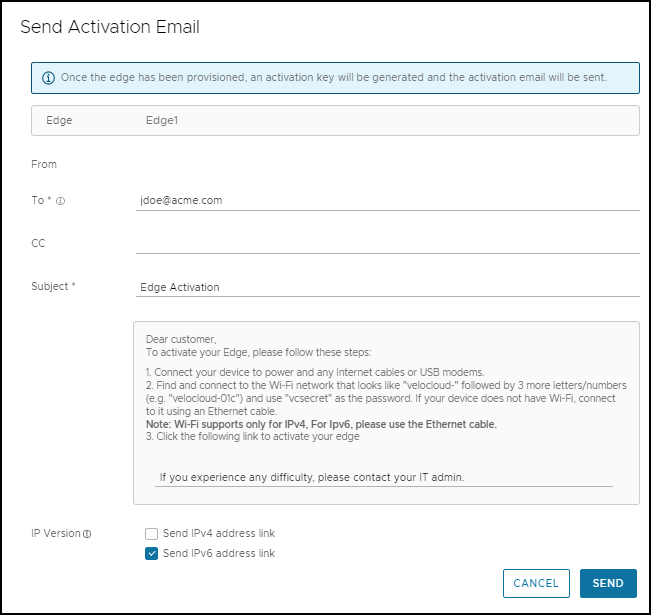
- If you configure the SD-WAN Edge 510 LTE device, you can run the “LTE Modem Information” diagnostic test for troubleshooting purposes. The LTE Modem Information diagnostic test will retrieve diagnostic information, such as signal strength, connection information, etc.
- The DSL Status diagnostic test is available only for the 610, 620, 640, and 680 devices. Running this test will show the DSL status, which includes information such as Mode (Standard or DSL), Profile, xDSL Mode, and so on.
For information on how to run a diagnostic test, see the Arista VeloCloud SD-WAN Troubleshooting Guide.
Activate an Edge Device
The Site Contact performs the steps outlined in the Edge activation procedure email.
In general, the Site Contact completes the following steps:
Edge Activation using an iOS Device and an Ethernet Cable
There are multiple ways to activate a VeloCloud SD-WAN Edge. It is recommended to use the Edge Auto-activation push activation whenever possible. Alternatively, you can use the email activation (pull activation) method using an iOS device and an Ethernet cable.
- iPhone/iPad with email access
- Ethernet adapter suitable for phone or tablet
- In your iOS device, go to . Select the appropriate interface. Under the IPv4 Address, select Configure IP as Automatic.
Figure 6. Configure IP 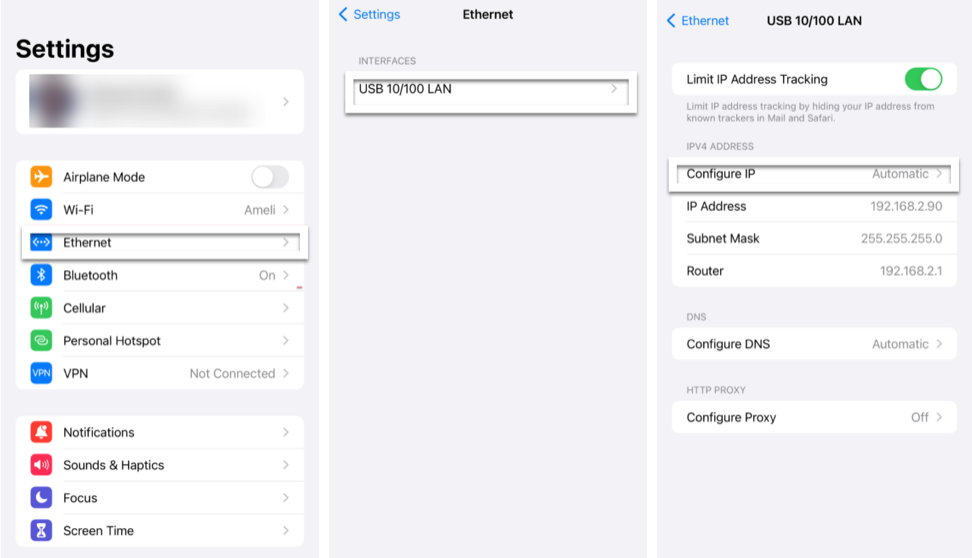
- Open the activation email from your phone, and then select the activation link displayed at the bottom of the screen to activate your Edge.
The following screenshot is an example.
Figure 7. Sample Email 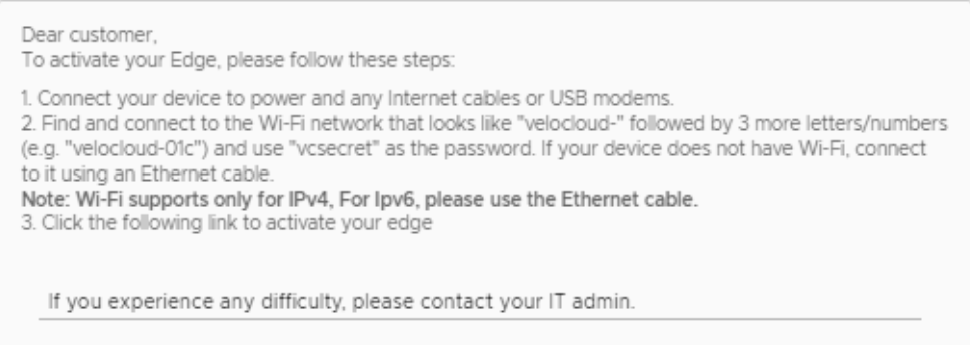 You can see the activation progress on your phone screen. Once complete, Activation successful message is displayed. Your Edge device is now activated.
Edge Activation using an Android Device and an Ethernet Cable
The procedure below describes the Edge email activation (pull activation) using an Android device and an Ethernet cable.
- Android phone with email access
- Ethernet adapter suitable for the phone
- Open the activation email from your phone, and then select the activation link displayed at the bottom of the screen to activate your Edge.
The following screenshot is an example.
Figure 8. Sample Email You can see the activation progress on your phone screen. Once complete, an Activation successful message is displayed. Your Edge device is now activated.
Request RMA Reactivation
Initiate a Return Merchandise Authorization (RMA) request either to return the existing Edge or to replace an Edge.
- Replace an Edge due to a malfunction—A typical scenario that requires an Edge RMA reactivation occurs when a malfunctioned Edge of the same model needs replacement. For example, a customer needs to replace a 520 Edge model with another 520 Edge model.
- Upgrade an Edge hardware model—Another common scenario that requires an Edge RMA reactivation is when you want to replace an Edge with a different model. Usually this is due to a scaling issue in which you have outgrown the capacity of the current Edge.
Request RMA Reactivation Using Edge Auto-activation
To request RMA reactivation using Zero Touch Provisioning:
Return the old Edge to Arista so that the logical entry for the old Edge with the state RMA Requested gets removed from the page.
Request RMA Reactivation Using Email
To request RMA reactivation using email: