Add a Custom Route Table Entry
Describes how to add a custom route entry in a custom route table.
Ensure you have created a VPC and VSwitches. For steps, see Create a Virtual Private Cloud and Create a VSwitch.
Ensure you have a custom route table associated with a VSwitch. For steps, see Create Custom Route Tables and Associate VSwitches.
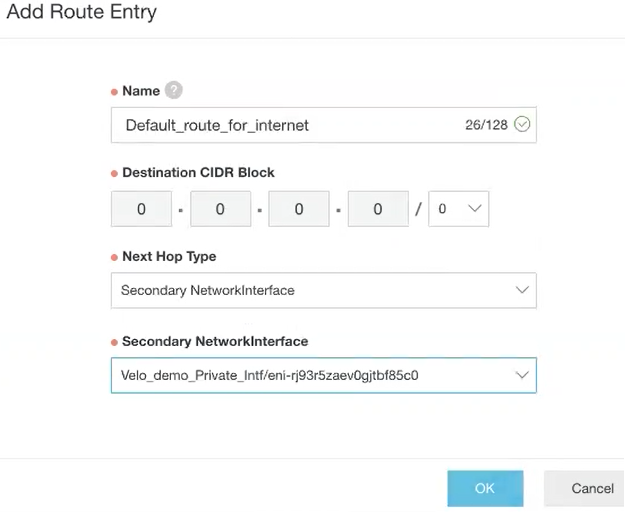
- In the Route Table Details area, select Route Entry List tab, and then select Add Route Entry. The Add Route Entry page appears.
Figure 1. Add Route Entry