
Create a LAN Instance
Describes how to create a LAN (Linux) instance on the ECS console.
Ensure you have an AliCloud account and login information.
- Log on to the ECS console.
- In the left-side navigation pane, select .
- On the Instances page, select Create Instance. The Custom Launch purchase page appears.
- Set up Basic Configurations by performing the following steps.
- Select a storage space. By default, a 40 GiB Ultra Cloud Disk is selected.
Figure 1. Configuring the Image 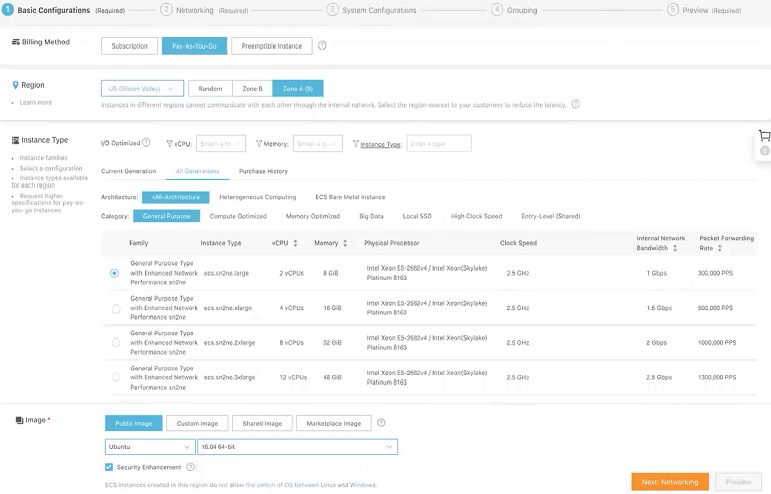
- Select a storage space. By default, a 40 GiB Ultra Cloud Disk is selected.
- Select Next: Networking to set up the networking and security group configuration.
- Add an Elastic Network Interface (ENI). You can skip this step if the selected instance type does not support ENI.
Figure 2. Adding an ENI 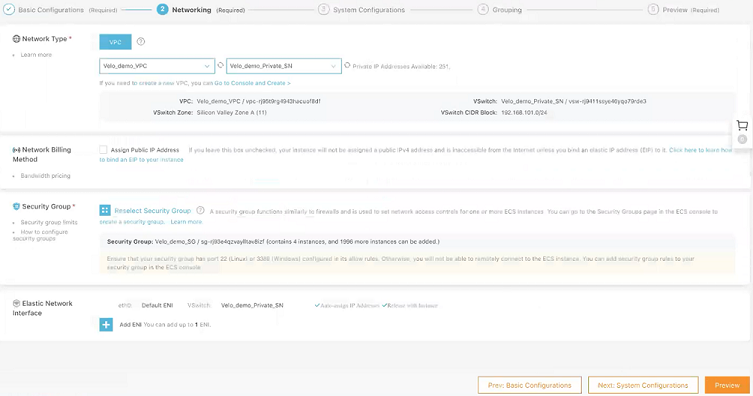
- Add an Elastic Network Interface (ENI). You can skip this step if the selected instance type does not support ENI.
- Select Next: System Configurations.
- In the Instance Name text box, enter a unique name for the LAN instance.
Figure 3. Instance Name 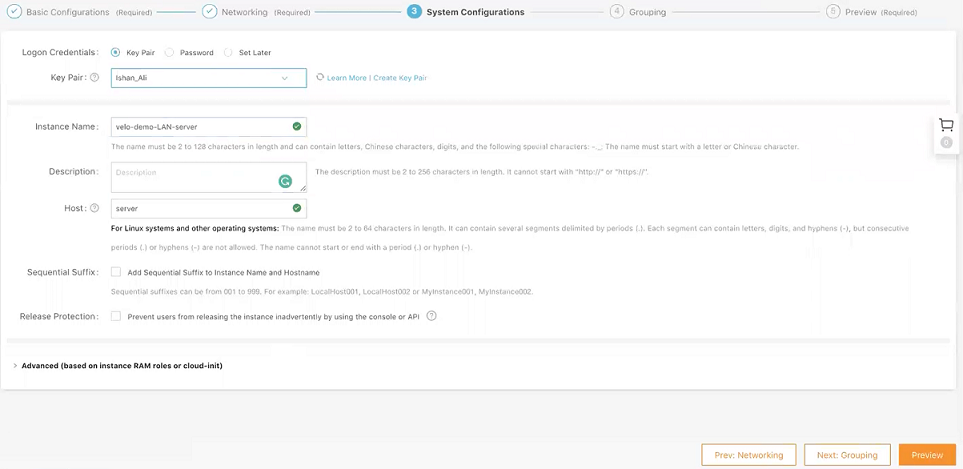
- In the Instance Name text box, enter a unique name for the LAN instance.
- Select Next: Grouping and set the options as needed.
- Select Next: Preview and confirm the selected configuration. You can also select the edit icon to modify the configurations.
- Read and confirm Terms of Service, and then select Create Instance.
- Select Console to return to the ECS console. Select the refresh button to check if the LAN instance is created. If the newly created LAN instance has a Running status, then the instance created successfully.