Provision an Edge on the Orchestrator
To provision an Edge, perform the following steps:
Ensure you have the Orchestrator host name and admin account to login.
- Log in to the Orchestrator application as Admin user, with your login credentials.
- Go to Configure > Edges .
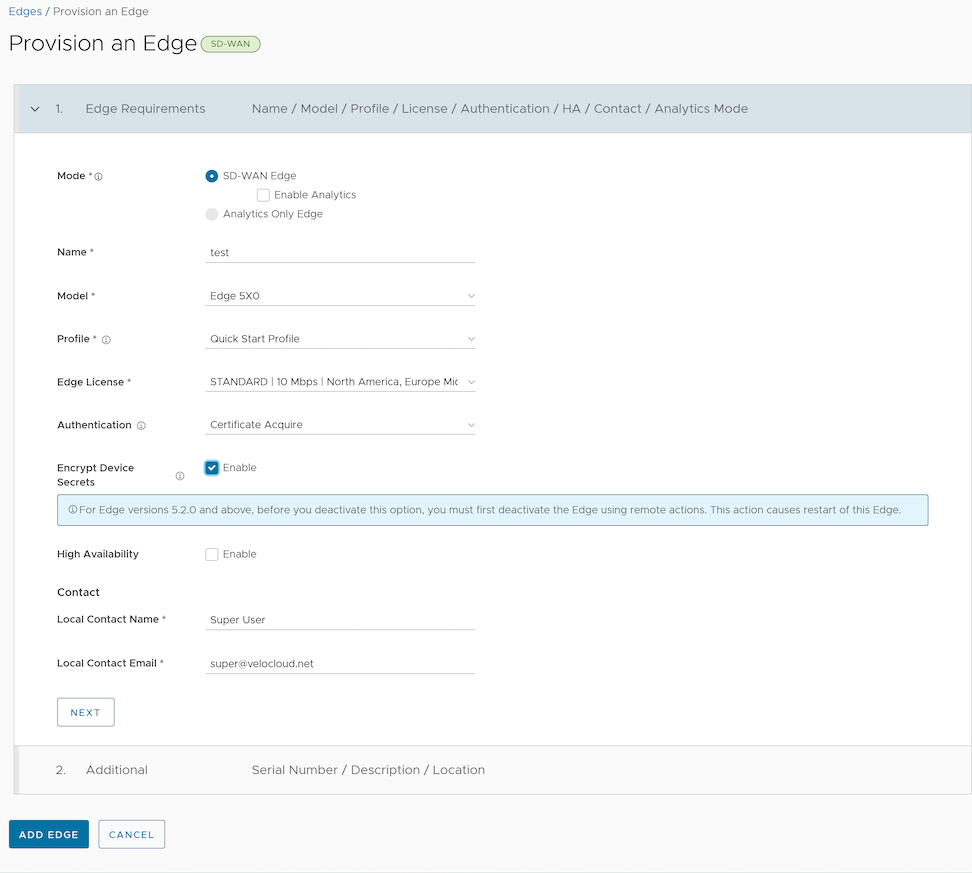
- In the Edges screen, select Add Edge. The Provision an Edge screen appears.
Figure 1. Provisioning an Edge 
- You can configure the following options:
Table 1. Option Descriptions Option Description Mode By default, VeloCloud Edge (formerly known as SD-WAN Edge) mode is selected. Name Enter a unique name for the Edge. Model Select Virtual Edge from the menu. Profile Select Quick Start Profile from the menu. Note: If an Edge Staging Profile displays as an option due to Edge Auto-activation, it indicates that this Profile is used by a newly assigned Edge, but has not been configured with a production Profile.Edge License Select an Edge license from the menu. The list displays the licenses assigned to the Enterprise, by the Operator. Authentication Choose the mode of authentication from the drop-down menu: - Certificate Deactivated: Edge uses a pre-shared key mode of authentication.
Warning: This mode is not recommended for any customer deployments.
- Certificate Acquire: Selected by default and recommended for all customer deployments. With Certificate Acquire mode, certificates are issued at the time of Edge activation and renewed automatically. The Orchestrator instructs the Edge to acquire a certificate from the certificate authority of the Orchestrator by generating a key pair and sending a certificate signing request to the Orchestrator. Once acquired, the Edge uses the certificate for authentication to the Orchestrator and for establishment of VCMP tunnels.
Note: After acquiring the certificate, the option can be updated to Certificate Required, if needed.
- Certificate Required: This mode is only appropriate for customer enterprises that are "static". A static enterprise is defined as one where no more than a few new Edges are likely to be deployed and no new PKI oriented changes are anticipated.
Important: Certificate Required has no security advantages over Certificate Acquire. Both modes are equally secure and a customer using Certificate Required should do so only for the reasons outlined in this section.Certificate Required mode means that no Edge heartbeats are accepted without a valid certificate.With this mode, the Edge uses the PKI certificate. Operators can change the certificate renewal time window for Edges by editing the Orchestrator's System Properties. For more information, contact your Operator.CAUTION: Using this mode can cause Edge failures in cases where a customer is unaware of this strict enforcement.
Note:- With the Bastion Orchestrator feature enabled, the Edges that are to be staged to Bastion Orchestrator should have the authentication mode set to either Certificate Acquire or Certificate Required.
- When an Edge certificate is revoked, the Edge is deactivated and needs to go through the activation process. The current QuickSec design checks certificate revocation list (CRL) time validity. The CRL time validity must match the current time of Edges for the CRL to have impact on new established connection. To implement this, ensure the Orchestrator time is updated properly to match with the date and time of the Edges.
Encrypt Device Secrets Select Enable to allow the Edge to encrypt the sensitive data across all platforms. This option is also available on the Edge Overview page. Note: For Edge versions 5.2.0 and above, before you deactivate this option, you must first deactivate the Edge using remote actions. This causes restart of the Edge.High Availability Select Enable to apply High Availability (HA). Edges can be installed as a single standalone device or paired with another Edge to provide High Availability (HA) support. Local Contact Name Enter the name of the site contact for the Edge. Local Contact Email Enter the email address of the site contact for the Edge. - Certificate Deactivated: Edge uses a pre-shared key mode of authentication.
- Enter all the required details and select Next to configure the following additional options:
Note: Next activates only when you enter all the required details.
Table 2. Additional Option descriptions Option Description Serial Number Enter the serial number of the Edge. If specified, the Edge must display this serial number on activation. Note: When deploying virtual Edges on AWS Edges, make sure to use the instance ID as the serial number for the Edge.Description Enter an appropriate description. Location select the Set Location link to set the location of the Edge. If not specified, the location is auto-detected from the IP address when the Edge is activated. - Select Add Edge. The Edge is provisioned, and the activation key is displayed on the top of the page. Make a note of the activation key to use it for launching the Edge from the AliCloud Console.
Note: The activation key expires in one month if the Edge device is not activated with it.
- Configure Virtual Edge interfaces. The following steps are explained considering Topology A.
- Go to Configure > Edges . The Edges page displays the existing Edges.
- Select the link to an Edge or select the View link in the Device column of the Edge. The configuration options for the selected Edge are displayed in the Device tab.
- Go to the Interface Settings area.
- In the Connectivity category, expand Interfaces. Different types of Interfaces available for the selected Edge are displayed.
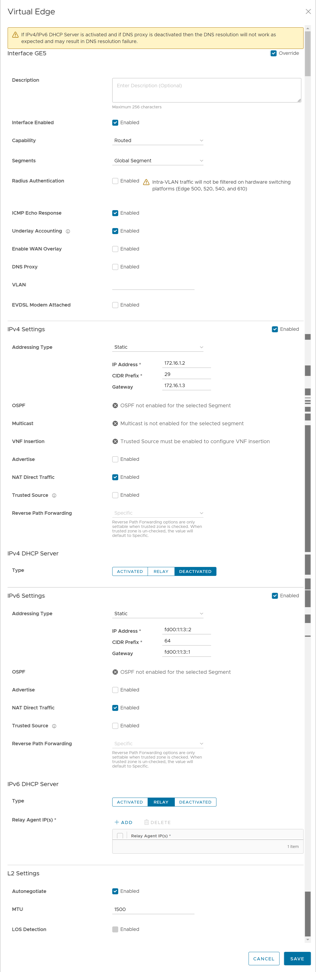
- Select Override Interface check box. Select the link to the GE2 Interface to edit the settings.
Figure 2. Creating a Virtual Edge 
- Now select the link to the GE3 Interface and select Override Interface check box.
- Deactivate WAN Overlay and NAT Direct Traffic, as this interface will be used LAN-side, and select Save. For more information, see the topic Configure Interface Settings for Edges in VeloCloud SD-WAN Administration Guide.
Note: If you are using an Edge instance with only two interfaces as illustrated in Topology B, then the public interface (GE2) is used for both WAN and LAN connectivity. For the LAN network to point to the GE2 interface, under Static Route Settings, configure a static route on the Edge that points to the Private Subnet/VSwitch. - Under the Configure VLAN area, edit the VLAN settings to update the Edge LAN IP Address.
- (Optional) If using a Jump Host and want to allow SSH access to the Edge from the jump server, make sure to activate the Support Access for the Jump Host server IP in the Firewall page.
- Select Save.
Create a Virtual Edge Instance on the ECS Console
Instances are the core components of Elastic Compute Service (ECS). This topic describes how to create a Pay-As-You-Go Edge instance on the ECS console.
- Ensure you have an AliCloud account and login information.
- Log on to the ECS console.
- In the left-side navigation pane, select Instances & Images > Instances .
- On the Instances page, select Create Instance. The Custom Launch purchase page appears.
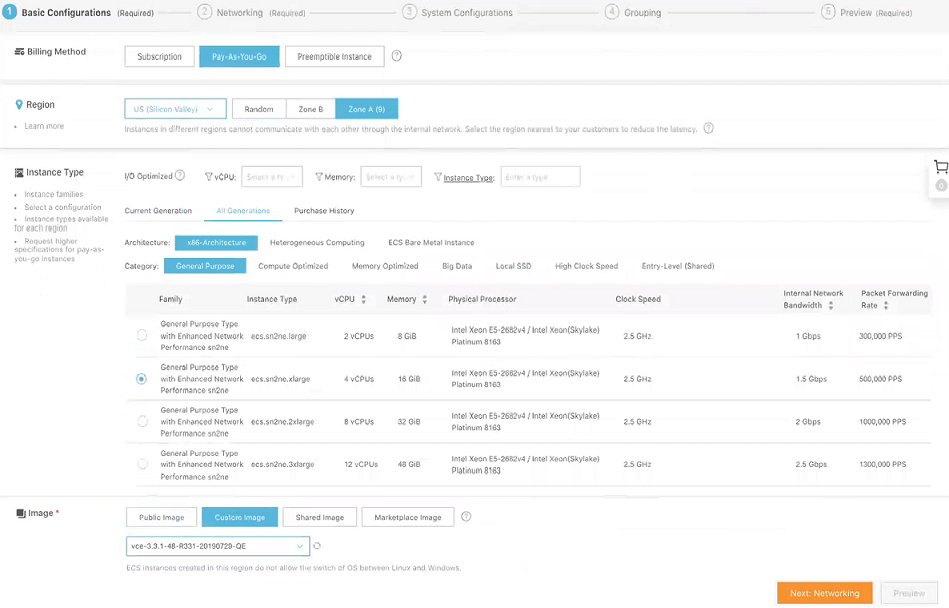
- Set up Basic Configurations by performing the following steps.
- Select a billing method. For example, Pay-As-You-Go.
- From Region menu, select a region. The system randomly allocates a zone by default.
Note: After an instance is created, you cannot change its region or zone.
- In the Instance Typearea, go to All Generations > x86-Architecture > General Purpose and select the 4 vCPU + 16 GiB memory (ecs. sn2ne.xlarge) instance type. The selected region determines the available instance type family.
- In the Image area, select Custom Image and select an Edge image.
Partners or Customers must contact the Arista Support Team to obtain the URL for the required image needed to create an AliCloud instance for deployment by sharing their AliCloud account details and the region.
- Select a storage space. By default, a 40 GiB Ultra Cloud Disk is selected.
Figure 3. Basic Configuration 
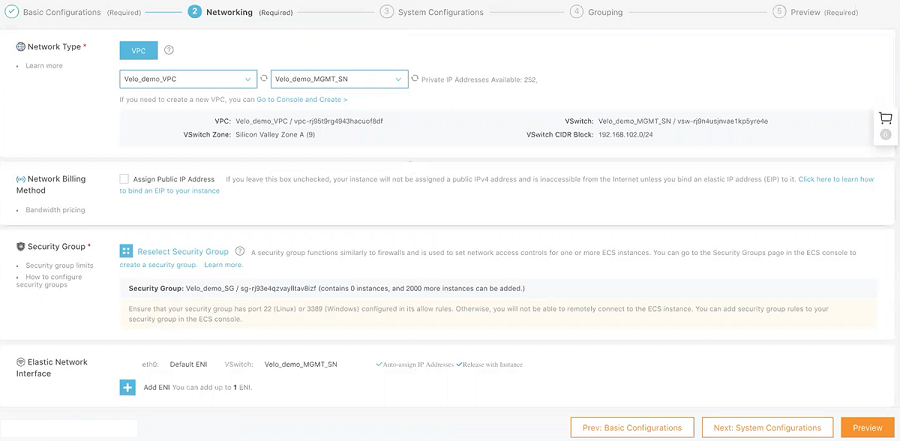
- Select Next: Networking to set up the networking and security group configuration.
- Select VPC as the network type and select the VPC where you are going to deploy your Edge and attach the Console interface of your Edge to MGMT_SN.
- Set the network billing method.
- Select your VPC-type security group.
- Add an Elastic Network Interface (ENI). You can skip this step if the selected instance type does not support ENI.
Figure 4. Adding an ENI 
- Select Next: System Configurations.
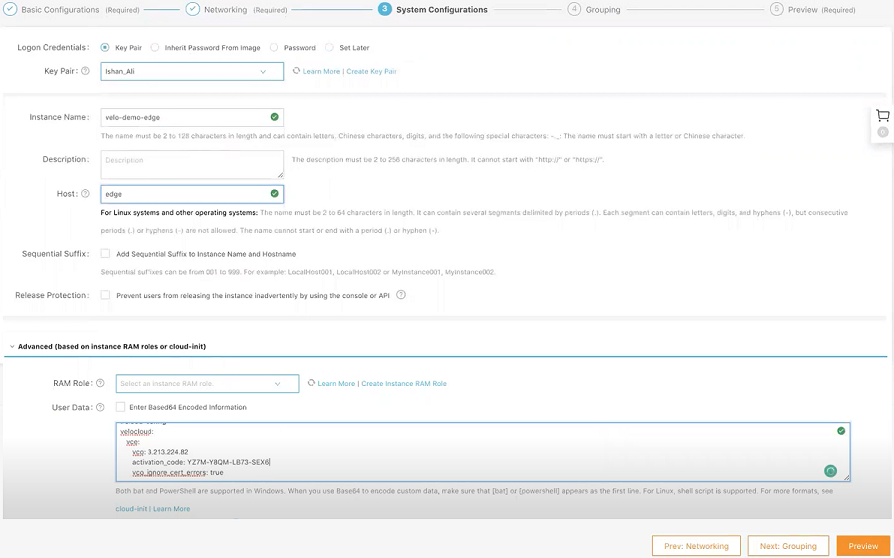
- Configure Logon Credentialsby selecting one of the following options: Key Pair, Inherit Password From Image, and Password. By default, Set Lateroption is selected.
- In the Instance Name text box, enter a unique name for your Edge instance.
- Under the Advance area, you can provide the
cloud-inituser data for your edge in the following sample format for activation purpose. According to your Orchestrator set up, you must change the orchestrator name and activation code.#cloud-config velocloud: vce: vco: 1.211.224.11 activation_code: 12XX-ABC1-6DD3-3EFG vco_ignore_cert_errors: true
Figure 5. System Configuration 
- Select Next: Grouping and set the options as needed.
- Select Next: Preview and confirm the selected configuration. You can also select the edit icon to modify the configurations.
- Read and confirm Terms of Service, and then select Create Instance.
- Select Console to return to the ECS console. Select the refresh button to check if the Edge instance is created. If the newly created Edge instance is in a Running status, then the Edge is created successfully.