
External Certificate Authority
The External Certificate Authority (CA) feature is for large enterprises and government customers who deploy an on-premise Orchestrator and have a requirement to use their own certificate authority (CA) rather than the default self-signed Orchestrator certificate authority. This section covers how to enable and configure the External CA.
hen you configure an External CA, instead of the Orchestrator receiving a certificate signing request (CSR) and issuing device certificates itself, the Orchestrator must pass the CSR to the external CA for issuance. The device certificate will be returned to the Orchestrator and sent to the Edge or Gateway.
The system expects that when a customer uses this feature to deploy a commercial certificate authority, for example, PrimeKey (EJBCA PKI), or, in some cases, to have implemented their own proprietary CA.
- Manual Mode supports any certificate authority and offers flexibility and control, with the user manually performing each step in the certificate process.
- Asynchronous Mode supports any certificate authority, enabling scriptable manual steps and automated recurring tasks.
The very first mode, Synchronous or Automated Mode, includes these modes. In Synchronous mode, the Orchestrator integrates directly with an external CA (which, for Release 5.0.0 and later, offered PrimeKey EJBCA PKI as the only available external certificate authority) and via REST APIs for certificate requests, renewals, and revocations.
Enable External CA
The Operator Superuser must enable the External CA feature through two specific System Properties. Only an Operator with the Superuser role can modify these settings.
Procedure
Enable the ca.external.configuration first. The system creates this property manually with a JSON data type, and the JSON is populated consistently with the example shown in the Sample External CA Configuration section.
Only after the ca.external.configuration is created and enabled, should the Operator enable the second system property: ca.external.enable.
- On the Orchestrator UI, select System Properties.
- Using the search box on the System Properties page, enter
ca.external.enableas shown in the following image.Figure 1. Edit System Properties 
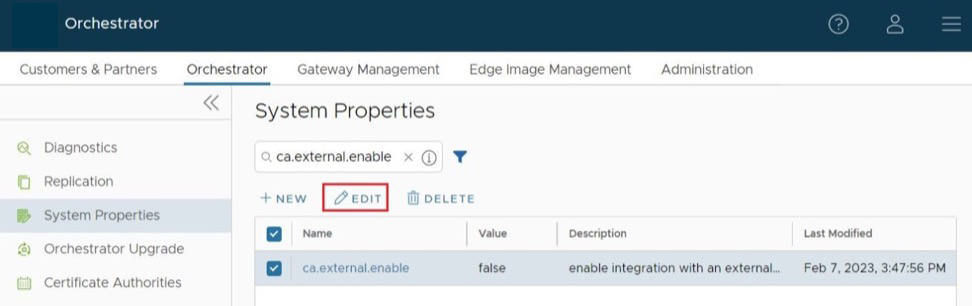
- After the
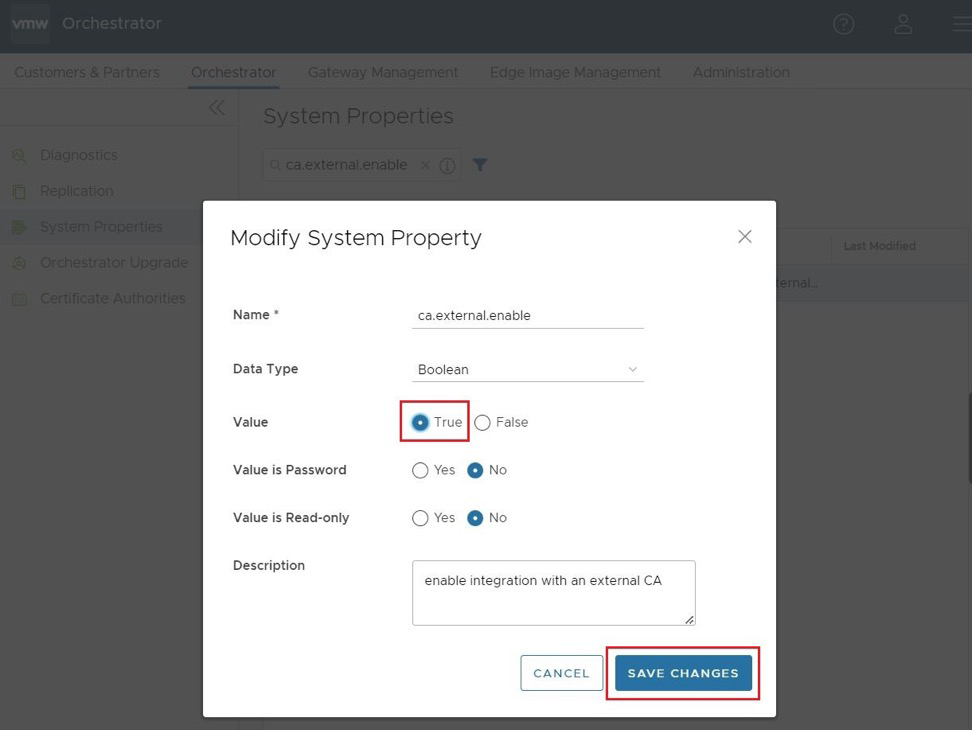
ca.external.enableproperty is located, either select that property or check the box and select Edit. - Set the
ca.external.enableproperty to True, then select Save Changes to complete the change, as shown in the following image.Figure 2. Modify System Properties 
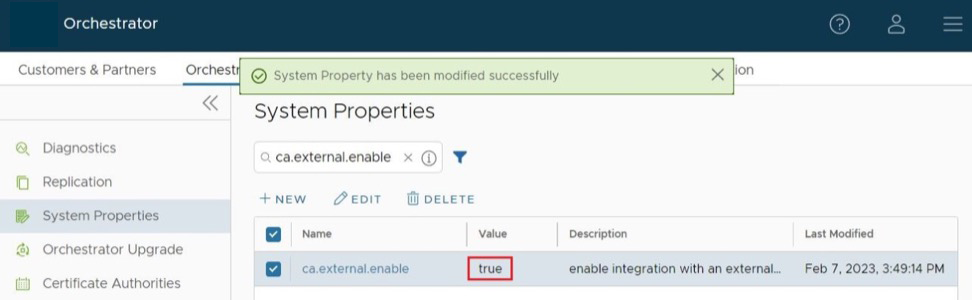
The System Property page displays a confirmation that the property was successfully modified, that
ca.external.enableis now True.Figure 3. Confirm System Properties 
Configure External CA
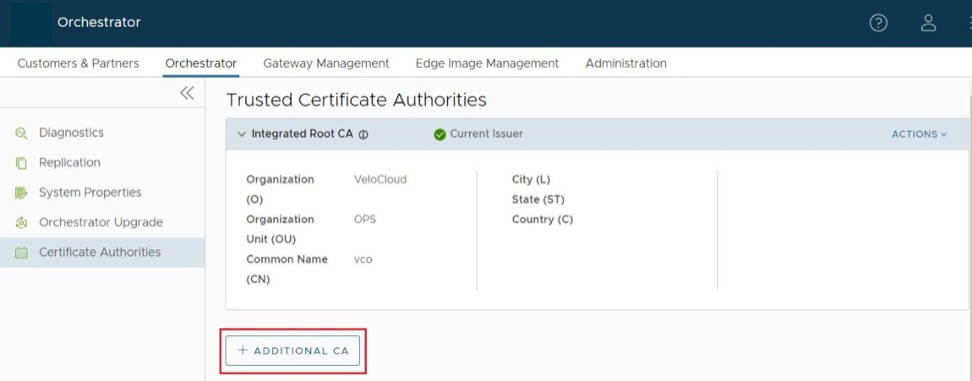
After enabling the External CA System Property, the Operator can now select Orchestrator > Certificate Authorities to begin configuring an external certificate authority.
- Automated (Synchronous): With Automated mode, only one external certificate authority is supported: PrimeKey EJBCA PKI.
- Manual: Manual mode supports any certificate authority and offers flexibility and control, with the user performing each step in the certificate process.
Figure 5. Manual Mode for Certificate Processing 
- Asynchronous: Asynchronous Mode supports any certificate authority and allows scripting manual steps while automating recurring tasks.
Figure 6. Asynchronous Mode for Certificate Processing 
- On the Orchestrator > Certificate Authorities page, select + Additional CA.
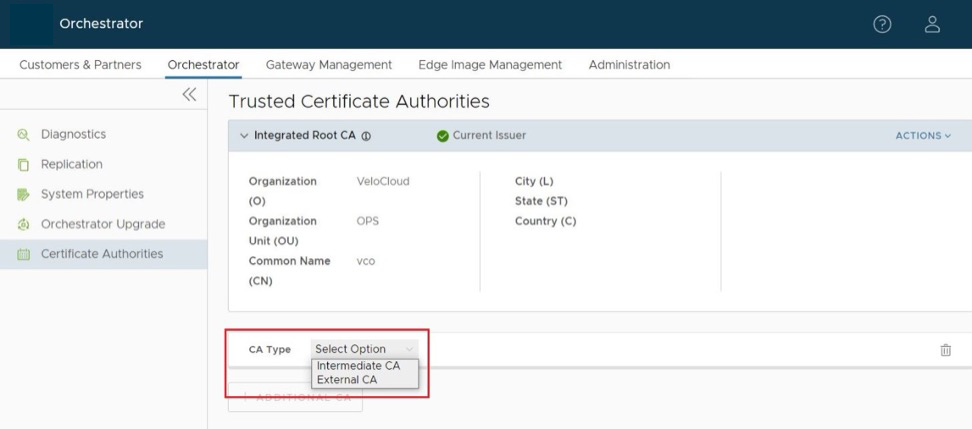
- After selecting + Additional CA, the UI will change to CA Type with a drop-down menu offering Intermediate CA and External CA. Select External CA.
Figure 7. Add Additional CA 
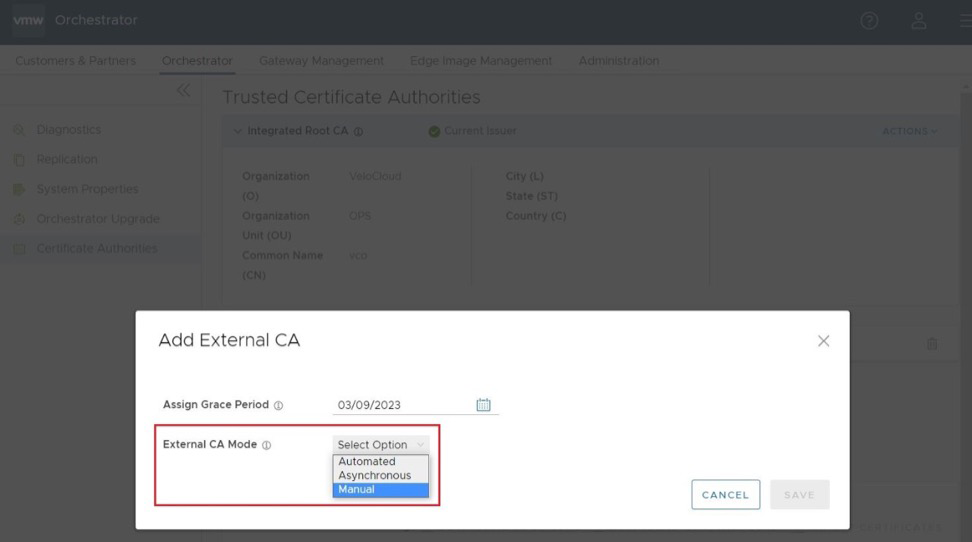
- After the External CA is selected, the screen changes to the Add External CA screen where an Operator can choose between the three previously mentioned External CA Modes: Automated (Synchronous), Asynchronous, and Manual.
Figure 8. Select CA Modes 
- After selecting a CA Mode, the Add External CA screen changes to allow further configuration of the external CA. Here, the Operator would paste in the CA Root Certificate.
By checking the Activate VCO to poll for CRL box , the Operator elects to have the Orchestrator to conduct certificate revocation checks using the Certificate Revocation List (CRL). When you select this option, two additional configuration parameters appear to be configured by the Operator:
- CRL Poll Interval in Minutes determines how often in minutes the Orchestrator will check the latest CRL for certificate revocation.
- CRL Distribution Point is the URL where the Orchestrator retrieves the latest CRL.
Figure 9. Latest CRL Distribution Point 
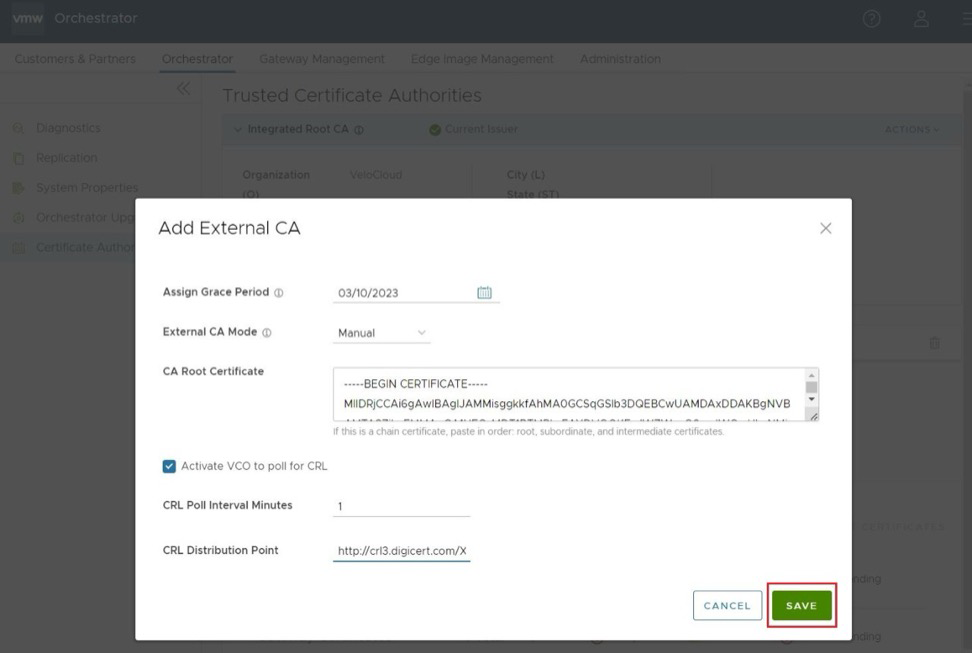
- After the Operator fills the required fields, they would select Save.
- After configuring an external CA, the Operator will have newly available options to import CRL and download CRL.
Figure 10. Import CRL 
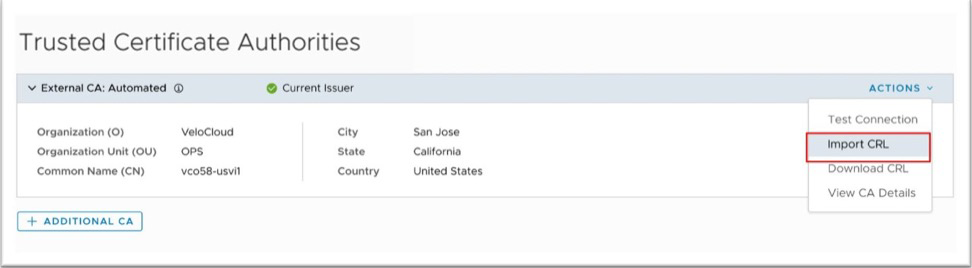
Figure 11. Download CRL 
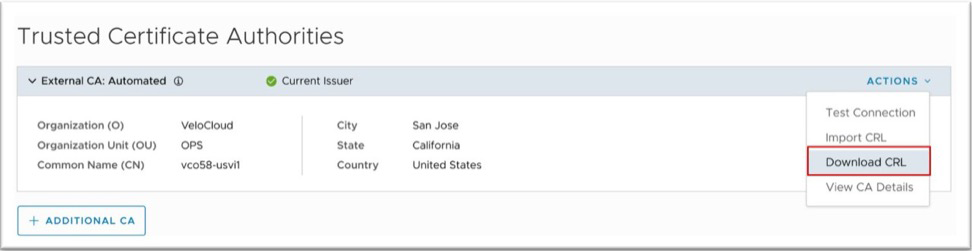
Using Import CRL while also having Orchestrator CRL Polling configured, an Operator can perform batch or individual imports and exports.
Figure 12. Batch Import and Exports 
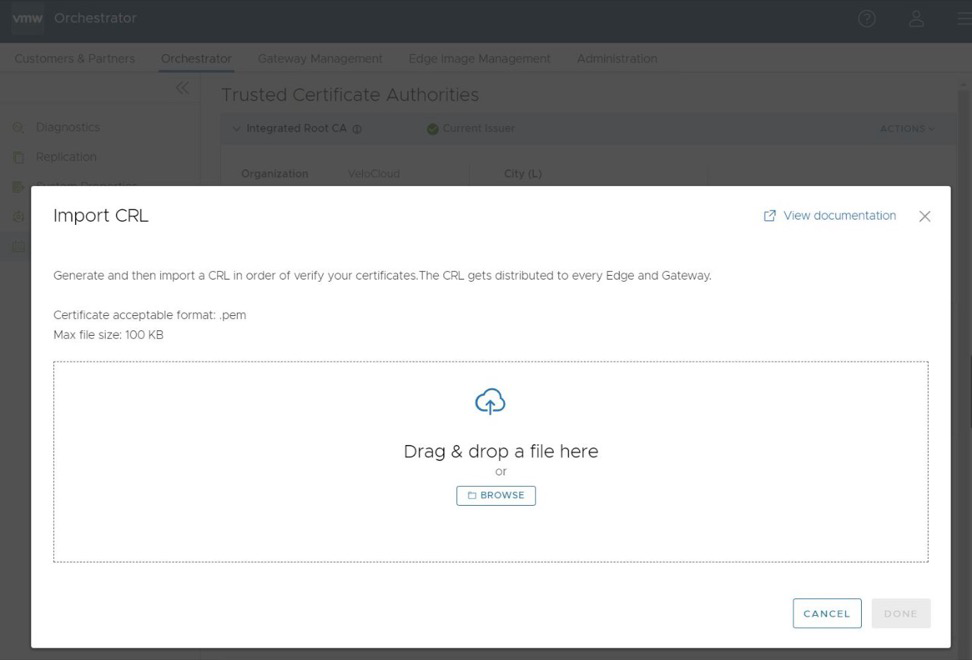
The CRL would perform a validation after any import of your certificates, and the Orchestrator distributes your CRL to every Edge and Gateway connected to your Orchestrator.
ca.external.caCertificate. This System Property appears after enabling External CA, and it establishes connectivity to a valid external CA. This property requires a PEM (Privacy-Enhanced Mail)- encoded certificate.Sample External CA Configuration
ca.external.configuration field.
{
"integrationType": "SYNCHRONOUS",
"csrDistinguishedName": {
"CN_PID_SN": "VMWare-SDWAN"
},
"synchronous": {
"synchronousIntegrationType": "EJBCA",
"ejbca": {
"serverCaCertificate": "-----BEGIN CERTIFICATE-----\nMIIFFzCCA3+gAwIBAgIUGgattlewRnm/gyPxJ7PW6uJOjCcwDQYJKoZIhvcNAQEL\nBQAwgZIxIzAhBgoJkiaJk/IsZAEBDBNyLTA1OTVhMTNjMTUzZDc2YWU1MRUwEwYD\nVQQDDAxNYW5hZ2VtZW50Q0ExHjAcBgNVBAsMFWFtaS0wMmE0NDc0YzFmNzQ5NDBh\nODE0MDIGA1UECgwraXAtMTAtODEtMTI1LTEzMi51cy13ZXN0LTIuY29tcHV0ZS5p\nbnRlcm5hbDAeFw0yMTAyMDQxOTA0MTRaFw00NjAyMDUxOTA0MTNaMIGSMSMwIQYK\nCZImiZPyLGQBAQwTci0wNTk1YTEzYzE1M2Q3NmFlNTEVMBMGA1UEAwwMTWFuYWdl\nbWVudENBMR4wHAYDVQQLDBVhbWktMDJhNDQ3NGMxZjc0OTQwYTgxNDAyBgNVBAoM\nK2lwLTEwLTgxLTEyNS0xMzIudXMtd2VzdC0yLmNvbXB1dGUuaW50ZXJuYWwwggGi\nMA0GCSqGSIb3DQEBAQUAA4IBjwAwggGKAoIBgQC2r0YYVKnusA7NS6aCSjbRdzMA\nNgbF1j3+aeWn6ZokjpFsk9Tavnu0c9gETIMfVVFj6jCyTLZcHWuPt2r1aEfvuDyk\nW/u4kY8IaGSE5Z5+QH2I8gifTfegQBqFBSk8q4dN7oOnoXFKhUgCRtTf6hd7aSji\nynIUkEV6P/t5q+Mwql1EK6RdZzL6w9ycQOkG7mitfW4onJJcbIKy3abB/vkiTmd8\nSQ10DyDXOzN6gwCrcUV0RfxIgd4YKN8Cj+/+bMw+It8mn5Dd/xl9FutYAQ+brZhy\nSDw5m2W66y/znh3Fr1+DUn8b0wlgHrwPSi9i/QlOefRDMvFmjiDyXq+E/peirDyl\njVxYwn0ySgO5TympwkWw1Riibp4fJpYtwYT4EJU85em1rD6PPrzfBPsGQeG4ljQE\nCZ2YrnOLctbv+sF5rYQzTl0lOrLMAuqJLyV4Shv+3Oj1SzXKwkqJC0sCLcX+djmq\nYOJ9YxBke7DQKubTezHkyuk9tarEq5iHr68Ig3sCAwEAAaNjMGEwDwYDVR0TAQH/\nBAUwAwEB/zAfBgNVHSMEGDAWgBRp8EFk1aYW+s/tweOUwuXh/xuMJzAdBgNVHQ4E\nFgQUafBBZNWmFvrP7cHjlMLl4f8bjCcwDgYDVR0PAQH/BAQDAgGGMA0GCSqGSIb3\nDQEBCwUAA4IBgQCzAO0RZIHJUJw2xbcLr2Cvr0tj+3qbY5f/LYN5GfyMk5RjLK+u\nbaius7FxpRpw40oZ/FH2ichDD4FO8ulqJt4znU3VtwJ0/JmaY2x0XqwEI0CWiEiE\naKiSMzaHjsMvJ7gNQSfcB+QEm8IM/PSPKcxNj2+QnHtDnQwgb5iMN6n88Bjeygrk\nJG0RH0EUJ0sQr9pXo+Gcn66b99HgEyIjojqsGC1dYzkZVHQuFH7RINfU//1OmnRN\nmb6JgjNGgbdPKKHdWrfwrGpCiz1c44yznlkWVFrMdbLA1B+1uLpb8Xka7Hq5qZZn\nLVC0O7Q483FBa8Lkg+RXQjIxYXgx4wkiV600UyKP1pwNSLMJvUUBmIM/Byl1h8xR\nyKIIZn7rc5wA4aKcfnJ9CUVfKCjtUPZffOWlvMt8bDZfaloif20Z0KydJyAStl3Z\nQbsMvcA6747aQQ25JD4tid5rDeRDb2bYi7nLl+lNnhmn5ZB4qGgnaXGj3oFDoN0R\n+kEK69DlZRNudn4=\n-----END CERTIFICATE-----",
"apiCertificate": "-----BEGIN CERTIFICATE-----\nMIIEKzCCApOgAwIBAgIUM83EYfZz4vi4ty1EOJr+n6wMksAwDQYJKoZIhvcNAQEL\nBQAwgZIxIzAhBgoJkiaJk/IsZAEBDBNyLTA1OTVhMTNjMTUzZDc2YWU1MRUwEwYD\nVQQDDAxNYW5hZ2VtZW50Q0ExHjAcBgNVBAsMFWFtaS0wMmE0NDc0YzFmNzQ5NDBh\nODE0MDIGA1UECgwraXAtMTAtODEtMTI1LTEzMi51cy13ZXN0LTIuY29tcHV0ZS5p\nbnRlcm5hbDAeFw0yMTAyMDUwMDA1MTRaFw0yNjAyMDUwMDA1MTNaMBUxEzARBgNV\nBAMMClN1cGVyQWRtaW4wggEiMA0GCSqGSIb3DQEBAQUAA4IBDwAwggEKAoIBAQC/\nrPdG0oY89GGUgHbV9iG3n3Y1mPBmQ+iVBvKYD3YpM7fG+KnVQTdJLrYoH5vP7lVY\nQj9H6pjxq0Bh53Mse2Fl9UE/Gew6IZiRd2OK9yM1xRKH7hjPB3tqFlA98mar+BYA\nGPhapmq+sSFz6TS2ssToUllG8QgJeMxh6+vSP/Ca9O+HiDB7TqECufVv6lrL7sfK\nqfyQ5YzITKm7IGDQfdCiorwndvd1i1NB+vviiYsk1fEW8gvRUu7wMRlzmPwxnUxd\nKmb/b7+O65md7+FlkqU6EzYMQ/224ZJonwJfzmNTO1AGt4aaJDNKn1i5wV22xqqQ\nZvA6nrkBd+06pUwVTen1AgMBAAGjdTBzMAwGA1UdEwEB/wQCMAAwHwYDVR0jBBgw\nFoAUafBBZNWmFvrP7cHjlMLl4f8bjCcwEwYDVR0lBAwwCgYIKwYBBQUHAwIwHQYD\nVR0OBBYEFFj+bk/epA/jPXZywy1D4XV5sWlMMA4GA1UdDwEB/wQEAwIF4DANBgkq\nhkiG9w0BAQsFAAOCAYEARNN08PUMCAWI+wLpu4FRuApRJrWn7U07D2ZDirV5a7pq\nICCbREe34EYmbLyqdUCMHS8xJlPun5ER3E5YFzckC7wJ9y2h8giB7O3cjx/wWkax\nNEkz/Is634XZveIRNf1TmV9/71LnfUBDJjHYFPNzyw6CBtVn/niL1Q9o3SvbbZLQ\nCcdcpFm1rxku0UOuCaQgOSuLn5nqTFCNi4Sx40shg8wDrc1AUuv+yX09dM2G+27h\ndCJrkqHwbtWQMY2sOBdTIq6TMyJyrsvTCTQ67vqRtdJuSqOw/CnPnSo2/lSrkNWC\nIl7mQzq6+2ayQBxsm6xuHXD0INoRB+flq/QhY+CQIaTLYLezVITo0bZhe0TpNqYK\nlINUWjxI8mCBBiXZZ9zxbyOqzZouZcNH12OCEqU8alTfyW0EpGYClemRTgXxboDK\n+uEwKH6sngYMkG0Usni4WIKBvZV2dJa5o8RhuCUFhwBJ2aHuiTq86RLrazJBE3wA\nGvpl0ZmGVYmond3aBOYu\n-----END CERTIFICATE-----",
"apiKey": "-----BEGIN PRIVATE KEY-----\nMIIEvgIBADANBgkqhkiG9w0BAQEFAASCBKgwggSkAgEAAoIBAQC/rPdG0oY89GGU\ngHbV9iG3n3Y1mPBmQ+iVBvKYD3YpM7fG+KnVQTdJLrYoH5vP7lVYQj9H6pjxq0Bh\n53Mse2Fl9UE/Gew6IZiRd2OK9yM1xRKH7hjPB3tqFlA98mar+BYAGPhapmq+sSFz\n6TS2ssToUllG8QgJeMxh6+vSP/Ca9O+HiDB7TqECufVv6lrL7sfKqfyQ5YzITKm7\nIGDQfdCiorwndvd1i1NB+vviiYsk1fEW8gvRUu7wMRlzmPwxnUxdKmb/b7+O65md\n7+FlkqU6EzYMQ/224ZJonwJfzmNTO1AGt4aaJDNKn1i5wV22xqqQZvA6nrkBd+06\npUwVTen1AgMBAAECggEAL5DVVnp0/JhqxMbydptbd613UMqw0bgFdkIgnrKrkIL4\nlsRrpPPHq/4PDzr02C9dd4cNHCQwKzzjv8gHkWDW5U3tEKM2t6BRs7usdLZqwvOy\naxAfkPTa4BNEe3L1nrR0hTatHxXQRJ1BX3nebn5DliGlbRDwfSVAlwZMYcMjStiS\nZNyS71vrxRmYFyUNyjGDCZsBDRdSb41cQJ0GmwMd2B8AE5I0spMZm2Y5FM0ZcddX\nlDcELonz1LCTNZaXyhdDBCQ8ecWrSWJZ8REhTlK/wsTtPbLi1OxIAemcLxzTJQRC\n0tyWzA2zl90hmpJs3of7geGvDCDwRu/MgvuH31MFwQKBgQDxbHm/982/txuB440+\nMm+x/Ma5HzZg0l8sMdH0wQ5qJYd/lrgz2Ik79FqmFPh0l6LcekA0zGri+4PiRVRx\nAlY9pLFdegIY6jJpvJxJH+kQ00xEdeUSZ1O0aAn4dlsHaX3wg+SBJ0NiZxsOeQ9m\nrMDKYT7LE3F5indOimDCug2GoQKBgQDLP5FPvA3uWh5Lff14yhVb0T1oiyeiqe01\nylO7LkCI0s002/M7U0gWXd2XNqAr98KRFtVsbf9gZxsKXTvDI+Vsd11xGGfNZXmM\nwodSK9zIeL4Eve7mRtcB/ZDjtqOn0Um2YeVfXZrEacQoopYo7B4pwjpJmIq/40w3\nOlhXOXEm1QKBgQDPkd9/8LQCwJEy9Q1sS3sDQf0uDyr2xgkz+0W0NQSKuOeuCE0p\nrmQXmzkREHip7fIFtEpd2t+PdoZm1gsK+uJhL6ebYhpJh5p+lL6elIQThkhNmDuy\nvgoW01i3OjN7xPSWBSBC9xoVkeaOZAGc2q0Lk96kRXxL7oQzkAAvjD2y4QKBgHEe\neQaSmIJO/8tuXLNsbYTDqNTVlgKvZoloiT+FV3+PK4y+2dnr2RQxu9GcIns2EsDj\nn3cQpXCHEgKrr0ZFZTwAFy6JscQcNRFFd0Ehjmi44rEK8LqTNLkz4f8KuHz/O3JZ\ne+qe0zN71iPzkXVHLOZ65ivtzVNM8y9NtrsdCj/dAoGBAJNM0+Fbt3i1El+U/jOQ\nKwD8vBVwsJEZ0UspoxETTAnu0sgIUbRECVhn/BQ5ja3HusRaDRsKb7ROLyjnRuC7\nnR/wM//oENnRm50hEi4Ocfp0eAOx7XQOUuE08XhUMyXp00mOCo1NwOFtL0WdG6Bk\nSNV2aPx+2+DGSZEVbuLXviHs\n-----END PRIVATE KEY-----",
"host": "ip-10-81-125-132.us-west-2.compute.internal",
"port": "443",
"distinguishedName": "UID=r-0595a13c153d76ae5,CN=ManagementCA,OU=ami-02a4474c1f74940a8,O=ip-10-81-125-132.us-west-2.compute.internal",
"certificateProfile": "ENDUSER",
"endEntityProfile": "EMPTY"
}
}
}
Monitoring External CA
Monitoring certificates is done on the same Orchestrator > Certificate Authorities page.
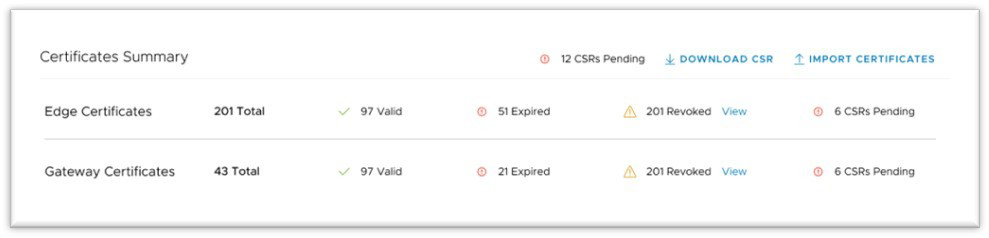
The Certificates Summary page provides an Operator with a visual status of key indicators for their certificates' life cycle. The Operator would also import certificates and download CSRs in this section.
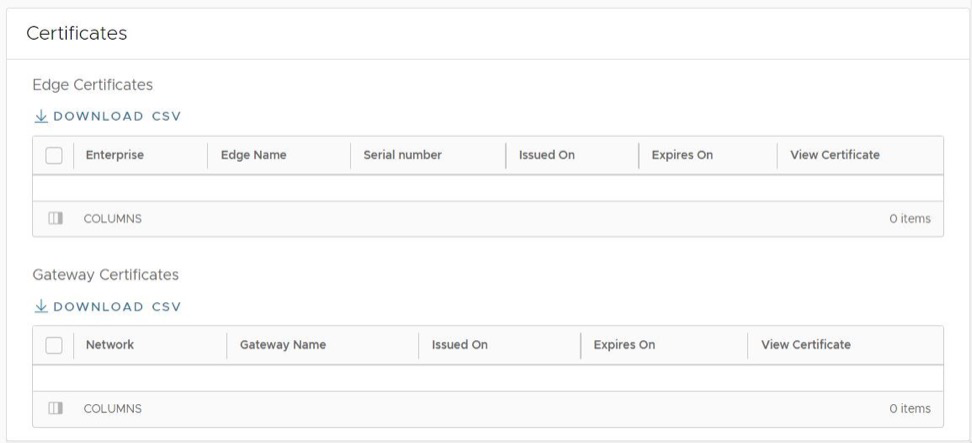
In the Certificates section, the Operator can download a complete list of all Edge or Gateway certificates in the .csv format.
An Operator, Partner, or Customer administrator can also examine a particular Edge's certificate by navigating to Configure > Edge > Overview .
Limitations
- The customer can enable an External CA on an on-premises Orchestrator. This feature is not available on Orchestrator.
- On an Orchestrator using Release 5.0.0, this feature can only use PrimeKey EJBCA PKI as an external CA.
