
Manage Gateway Pools and Gateways
Arista network consists of multiple service Gateways deployed at top tier network and cloud data centers. The Gateway provides the advantage of cloud-delivered services and optimized paths to all applications, branches, and data centers. Service providers can also deploy their own Partner Gateways in their private cloud infrastructure.
Manage Gateway Pools
Gateways can be organized into pools that are then assigned to a network. An unpopulated default Gateway pool is available after you install Orchestrator. If required, you can create additional Gateway pools.
The New Gateway Pool and Download options are available only for Partners with Gateway management access activated. If the Gateway management access is deactivated for a Partner, then the Partner will have only read-only permission for the configured Gateway pools. To request Gateway Management access, Partners must contact the Operator Super user.
To manage Gateway pools, perform the following steps:
- In the Orchestrator UI, select the Gateway Management tab and go to Gateway Pools in the left navigation pane.
The Gateway Pools page appears.
Figure 1. Manage Gateway Pools 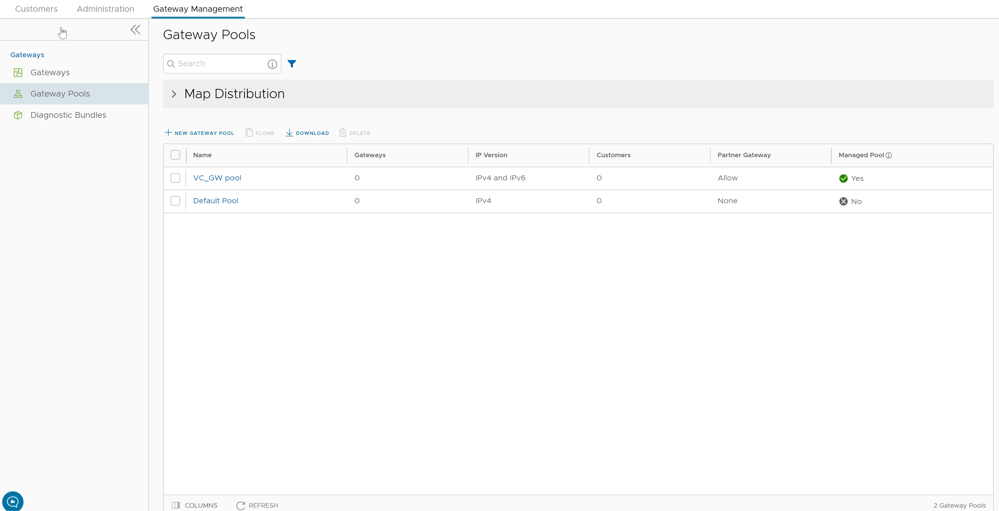
Create New Gateway Pool
- In the New Gateway Pool dialog, configure the following details and select Create.
Figure 2. Create New Gateway Pool 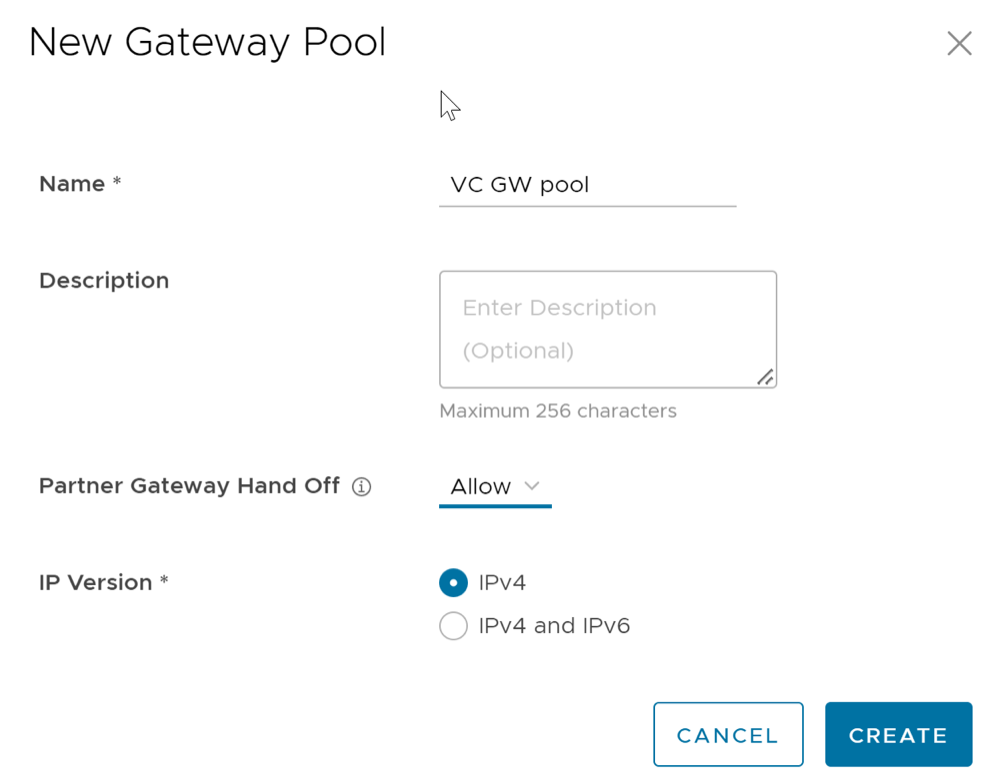
Table 2. Create Gateway Pool Field Descriptions Field Description Name Enter a name for the new Gateway pool. Description Enter a description for the Gateway pool. Partner Gateway Hand Off This option determines the method to hand off the Gateways to Partners. Choose one of the following options from the drop-down list: - None – Select this option when Partner Gateway hand off is not required.
- Allow – Select this option when you want the Gateway pool to support a mix of both the Partner Gateways and Cloud Gateways.
- Only Partner Gateways – Select this option when Edges in the Enterprise should not be assigned with Cloud Gateways from the pool, and will only be assigned with the Gateways that are set for an individual Edge.
IP Version Choose one of the following address types with which the Gateway pool should be enabled: - IPv4 – Allows to add IPv4 only Gateways.
- IPv4 and IPv6 – Allows to add Gateways with IPv4 and IPv6 addresses.
Note: If you want to use Edges with IPv6 support, then choose IPv4 and IPv6.
Clone a Gateway Pool
- In the Gateway Pools table, select the Gateway pool that you want to clone and select Clone. The New Gateway Pool dialog with the cloned settings appears.
Figure 3. Clone a New Gateway Pool 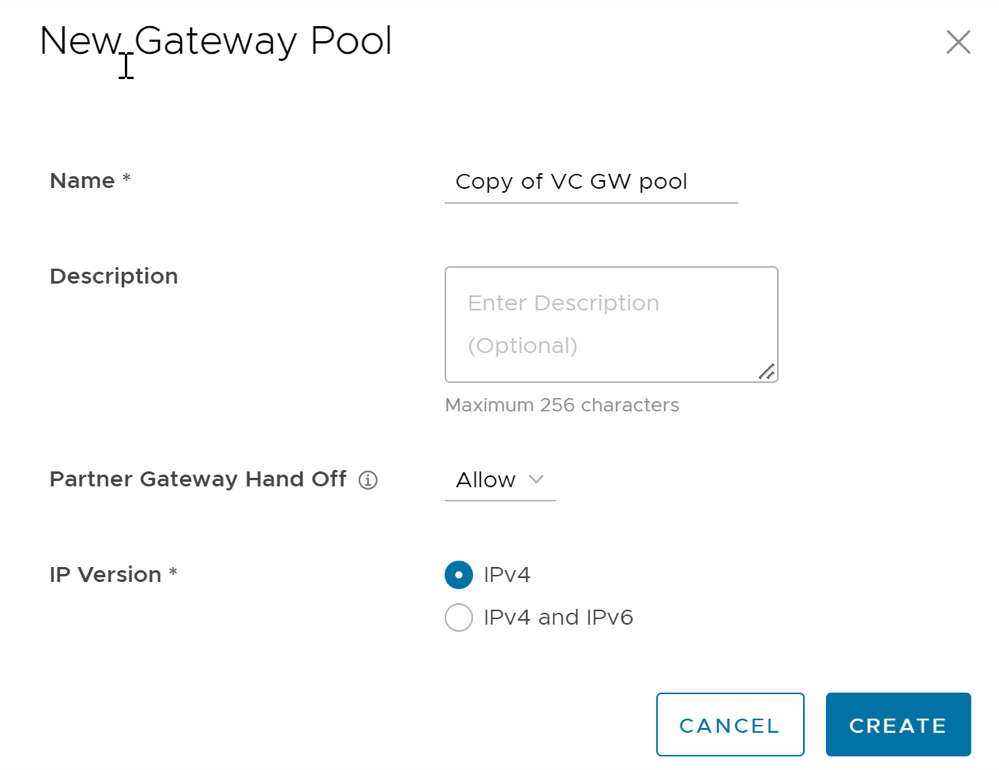
The Gateway pool clones the existing configuration from the selected Gateway pool. If required, you can modify the details. For additional information on the options, see Create New Gateway Pool.
Configure Gateway Pools
Whenever you create a new Gateway pool or clone a pool, you are redirected to the Gateway Pool Overview page to configure the properties of the pool.
To configure an existing Gateway pool:
- Configure the following details for the Gateway pool:
Figure 4. Configure Gateway Pools 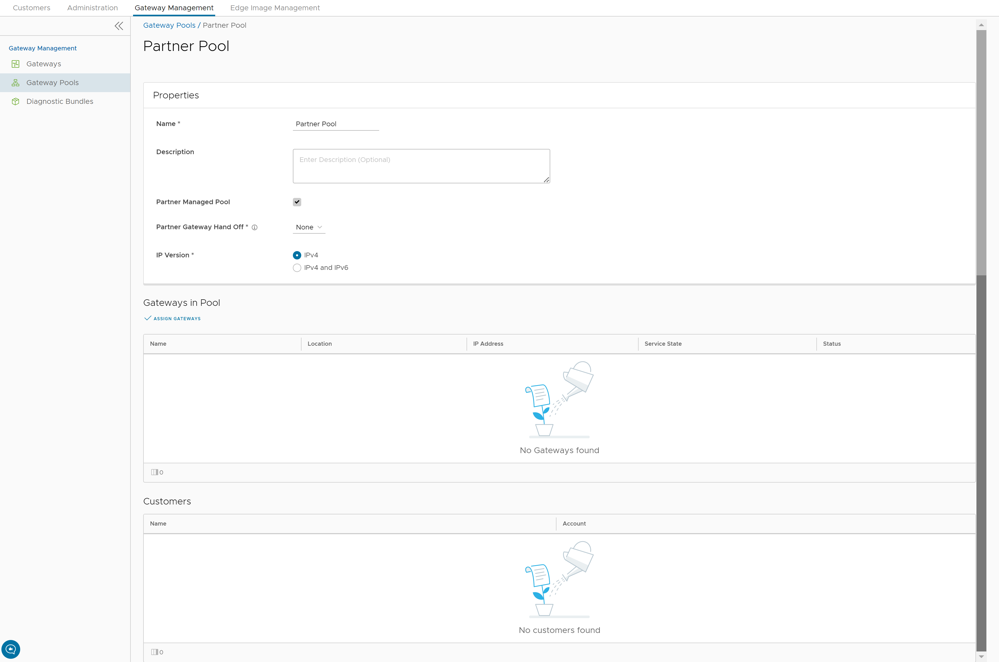
- In the Properties section, the existing Name, Description, Partner Gateway Hand Off details, and the Association Type are displayed. If required, you can modify these details.
- In the Gateways in Pool section, select Manage to add Gateways to the pool. The Assign Gateways to Gateway pool dialog appears.
- In the Assign Gateways to Gateway pool dialog, move the required Gateways from the Available pane to Assigned pane using the Arrows and select Update.
Figure 5. Assign Gateways to a Gateway Pool 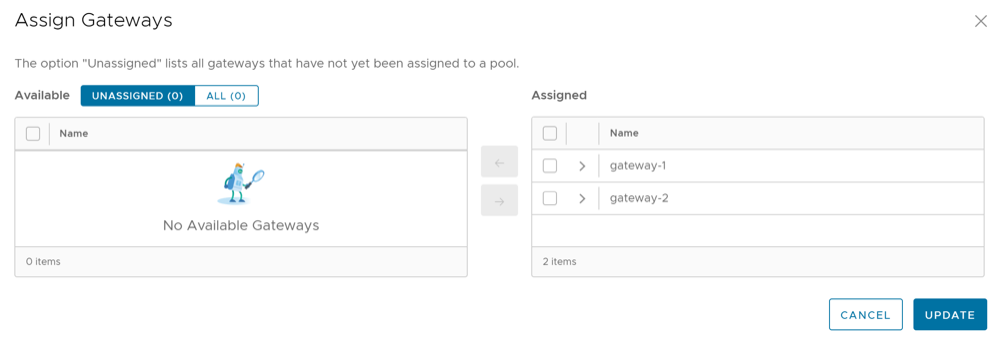
- The Gateways assigned to the selected Gateway pool are displayed as follows.
Figure 6. View Gateways in a Gateway Pool 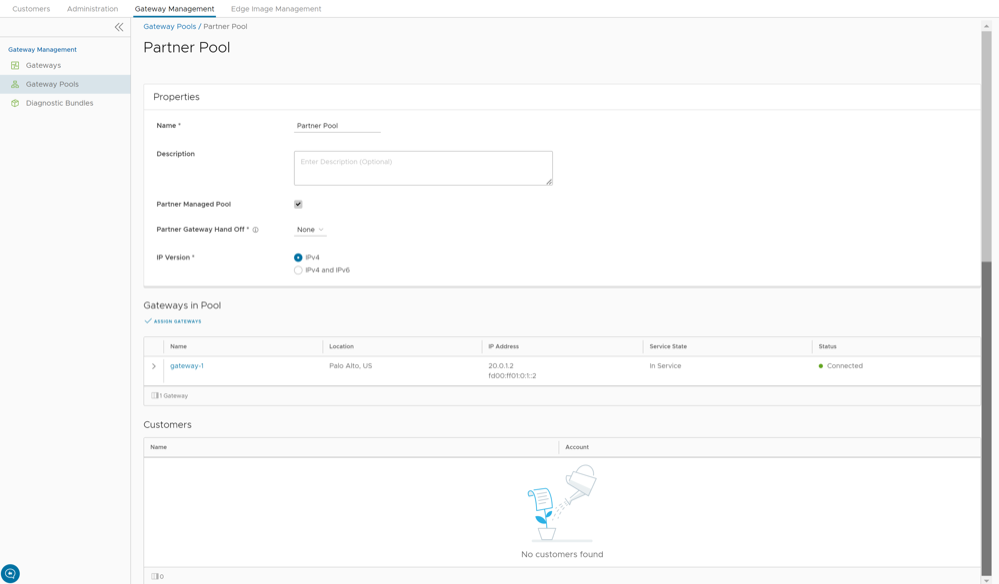
- For a new customer, see Create New Partner Customer.
- For an existing customer, see Configure Partner Customers.
Manage Gateways
By default, the Gateways named as gateway-1 and gateway-2 are available when you install Orchestrator. If required, you can create additional Gateways.
Partner Super user and Admin with Gateway management access activated can create, manage, and delete Gateways created by a Partner or Partner managed Gateways created by an Operator. The Partner IT support users can only view the configured Gateways.
- In the Orchestrator UI, select the Gateway Management tab and go to Gateways in the left navigation pane.
The Gateways page appears.
Figure 7. Manage Gateways 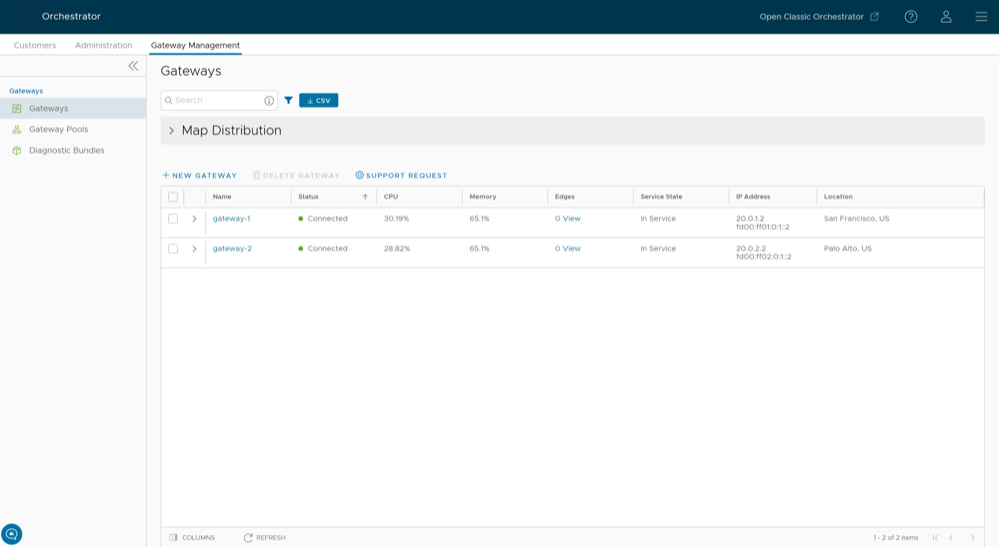
To search a specific Gateway, enter a relevant search text in the Search box. For advanced search, select the filter icon next to the Search box to filter the results by specific criteria.
The Map Distribution section is used for displaying the Gateways on a map. You can select the + and - buttons to zoom in and zoom out the map, respectively.
The Gateways table displays the existing Gateways with the following details.
Table 3. Manage Gateways Field Descriptions Field Description Name Name of the Gateway Status Reflects the success or failure of periodic heartbeats sent by mgd to the Orchestrator and does not indicate the status of the data and control plane. The following are the possible statuses: - Connected – Gateway is heart beating successfully to the Orchestrator.
- Degraded – Orchestrator has not heard from the Gateway for at least one minute.
- Offline – Orchestrator has not heard from the Gateway for at least two minutes.
CPU Average CPU utilization of all the cores in the system at the time of the last heartbeat. Memory Percentage usage of the physical memory by all processes in the system as reported by psutil.phymem_usageat the time of the last heartbeat. This is similar to estimating the percentage of memory usage using the free command.Edges Number of Edges connected to the Gateway at the time of the last heartbeat. Note: Select View next to the number of Edges, to view all the Edges assigned to the Gateway as well as their online/offline status on the Orchestrator. This option does not display the Edges that are actually connected to the Gateway.Service State The user-configured service state of the Gateway and whether it is eligible to be assigned to new Edges. IP Address The public IP address that public WAN links of an Edge use to connect to the Gateway. This IP address is used to uniquely identify the Gateway. If the Gateway is enabled to accommodate both IPv4 and IPv6 addresses, this column displays both the IP addresses. Location Location of the Gateway from GeoIP (by default) or as manually entered by the user. This is used for geographic assignment of the Gateway to Edges and should be verified. On the Gateways page, you can perform the following activities:
- New Gateway – Creates a new Gateway. See Create New Gateway.
- Delete Gateway – Deletes the selected Gateway. You cannot delete a Gateway that is already being used by a Partner or an Enterprise Customer.
- Stage to Bastion- Stages a Gateway to the Bastion Orchestrator.
- Unstage from Bastion- Removes a Gateway from the Production Orchestrator.
Note: Stage to Bastion and Unstage from Bastion options are available only when the Bastion Orchestrator feature is enabled using the
session.options.enableBastionOrchestratorsystem property.For additional information, see Bastion Orchestrator Configuration Guide.
- Support Request – Redirects to a Knowledge Base article that has instructions on how to file a support request.
Create New Gateway
- In the New Gateway dialog, configure the following details:
Figure 8. Create New Gateway 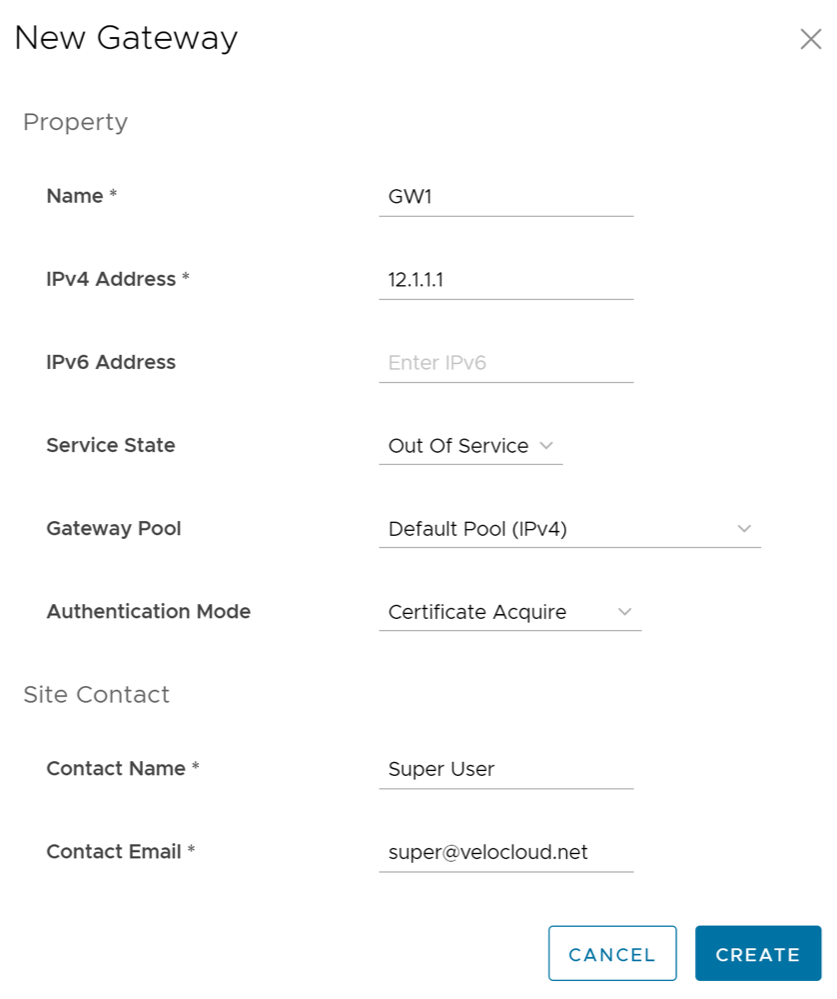
Table 4. Create New Gateway Field Descriptions Field Description Name Enter a name for the new Gateway. IPv4 Address Enter the IPv4 address of the Gateway. IPv6 Address Enter the IPv6 address of the Gateway. Service State Select the service state of the Gateway from the drop-down list. The following options are available: - In Service- The Gateway is connected and available.
- Out of Service- The Gateway is not connected.
- Quiesced- The Gateway service is quiesced or paused. Select this state for backup or maintenance purposes.
Note: The Quiesced and Out of Service states are only applicable for Cloud Gateway deployment.Gateway Pool Select the Gateway Pool from the drop-down list, to which the Gateway would be assigned. Authentication Mode Select the authentication mode of the Gateway from the following available options: - Certificate Not Required- Gateway uses a pre-shared key mode of authentication.
- Certificate Acquire- This option is selected by default and instructs the Gateway to acquire a certificate from the certificate authority of the Orchestrator, by generating a key pair and sending a certificate signing request to the Orchestrator. Once acquired, the Gateway uses the certificate for authentication to the Orchestrator and for establishment of VCMP tunnels.
Note: After acquiring the certificate, the option can be updated to Certificate Required.Note: With the Bastion Orchestrator feature enabled, the Gateways that are to be staged to Public Orchestrator should have the Authentication mode set to either Certificate Acquire or Certificate Required.
- Certificate Required- Gateway uses the PKI certificate. Operators can change the certificate renewal time window for Gateways using the system properties.
Contact Name Enter the name of the Site Contact. Contact Email Enter the Email ID of the Site Contact. Note:- Once you have created a Gateway, you cannot modify the IP addresses.
- Release 4.3.x and 4.4.x support Greenfield deployment of Gateways for IPv6. If you have upgraded a Gateway from a previous version earlier than 4.3.0, you cannot configure the upgraded Gateway with the IPv6 address.
- Release 4.5.0 supports both the Greenfield and Brownfield deployment of Gateways for IPv6. If you have upgraded a Gateway from a previous version earlier than 4.5.0, you can dynamically configure IPv6 address for the Gateway.
To configure additional settings for the Gateway, see Configure Gateways.
Configure Gateways
To configure an existing Gateway:
- In the Overview tab, you can configure the following details:
Figure 9. Configure Gateways 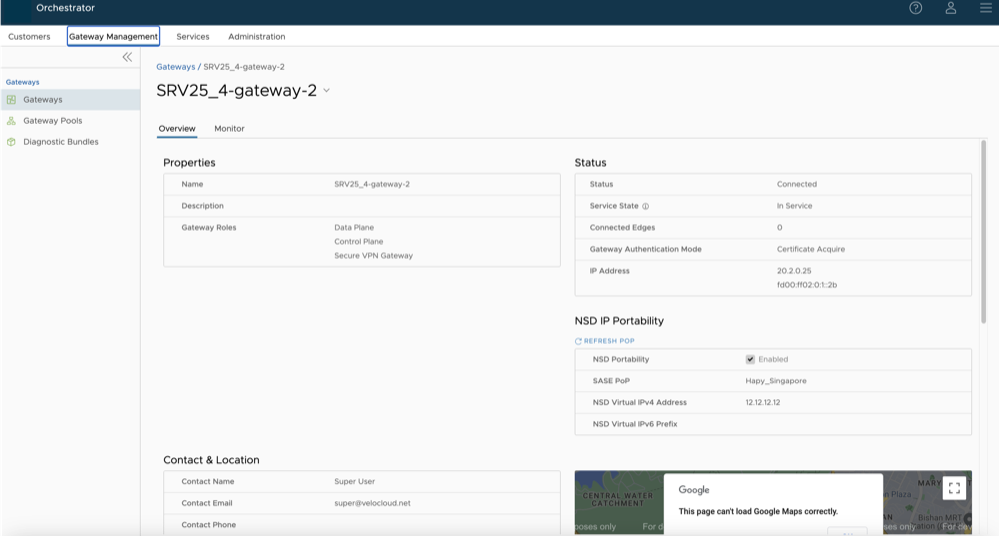
Table 5. Configure Gateways Option Descriptions Option Description Properties Displays the existing Name and Description of the selected Gateway. If required, you can modify the information. You can also configure the Gateway Roles, as required:- Data Plane- Enables the Gateway to operate in the Data plane and is selected by default.
- Control Plane- Enables the Gateway to operate in the Control plane and is selected by default.
- Secure VPN Gateway- Select the option to use the Gateway to establish an IPsec tunnel to a Non SD-WAN Destination.
- Partner Gateway- Select the check box to allow the Gateway to be assigned as a Partner Gateway for Edges. If you select this option, configure the additional settings in the Partner Gateway (Advanced Handoff) Details section.
- CDE- Enables the Gateway to operate in Cardholder Data Environment (CDE) mode. Select this option to assign the Gateway for customers who require to transmit PCI traffic.
Status You can configure the following details: - Status- Displays the status of the Gateway which reflects the success or failure of periodic heartbeats sent to the Orchestrator. The following are the available statuses:
- Connected- Gateway is heart beating successfully to the Orchestrator.
- Degraded- Orchestrator has not heard from the Gateway for at least one minute.
- Offline- Orchestrator has not heard from the Gateway for at least two minutes.
- Service State- Select the Service State of the Gateway from the following available options:
- In Service- The Gateway is connected, and it is available for Primary or secondary tunnel assignments. When the Service state of the Gateway is switched from the 'Out Of Service' to 'In Service' state, the Primary or Secondary assignments, Super Gateways, Edge-to-Edge routes are recalculated for each Enterprise using the Gateway.
- Pending Service- The Gateway is connected, and it is pending for tunnel assignments.
- Out of Service- The Gateway is not connected or not available for any assignments. All the existing assignments are removed.
- Quiesced- The Gateway service is quiesced or paused. No new tunnels or NSD sites can be added to the Gateway. However, the existing assignments would still remain in the Gateway. Select this state for backup or maintenance purposes.
Note: The Quiesced and Out of Service states are only applicable for Cloud Gateway deployment.
When the Service state is Quiesced, Orchestrator provides a self-service migration functionality that allows you to migrate from your existing Gateway to a new Gateway without your Operator’s support.
For additional information, see Migrate Quiesced Gateways.Note:Self-service migration is not supported on Partner Gateways.
- Connected Edges- Displays the number of Edges connected to the Gateway. This option is displayed only when the Gateway is activated.
- Gateway Authentication Mode- Select the authentication mode of the Gateway from the following available options:
- Certificate Deactivated- Gateway uses a pre-shared key mode of authentication.
- Certificate Acquire- This option is selected by default and instructs the Gateway to acquire a certificate from the certificate authority of the Orchestrator, by generating a key pair and sending a certificate signing request to the Orchestrator. Once acquired, the Gateway uses the certificate for authentication to the Orchestrator and for establishment of VCMP tunnels.
Note: After acquiring the certificate, the option can be updated to Certificate Required.
- Certificate Required- Gateway uses the PKI certificate. Operators can change the certificate renewal time window for Gateways using the system property
gateway.certificate.renewal.window.
Note: When Gateway certificate is revoked, the Gateway does not receive certificate revocation list (CRL) as it loses TLS connection immediately. Anyway, the Gateway is still operable.Note: The current QuickSec design checks CRL time validity. The CRL time validity must match with current time of Edges for the CRL to have impact on new established connection. To implement this, ensure to update Orchestrator time properly to match with date and time of Edges.- IP Address- Displays the public IP address that public WAN links of an Edge use to connect to the Gateway. This IP address is used to uniquely identify the Gateway. If you have configured the Gateway with both IPv4 and IPv6 addresses, this field displays both the IP addresses.
If you have created IPv4 only Gateway or if there is an existing IPv4 Gateway upgraded from previous versions, you can enter the IPv6 address to support the dual stack. After you save the changes, the IPv6 address is not sent to the Edges immediately. You can trigger the rebalance operation to push the IPv6 address to the customer and the associated Edges manually or the IPv6 address is sent to the Edges during the next Control Plane update.
Note: Adding IPv6 address is a one-time activity and once you save the changes, you cannot modify the IP addresses.CAUTION: An incorrectly configured IPv6 address, when pushed to Edges, might lead to failure of the IPv6 tunnelling to the IPv6 Gateway. In such cases, you need to deactivate the Gateway and create a new one to activate both the IPv4 and IPv6 ad
Contact & Location Displays the existing contact details. If required, you can modify the information. NSD IP Portability Beginning with the 6.0 Orchestrator release, the NSD IP Portability for the Gateway is supported. Portable NSD IPs allow an Operator to move NSD configurations to different Gateways in the POP without requiring the customer to reconfigure their tunnels.Note: For a Partner user, the NSD Portability functionality is read-only and cannot be edited.Figure 10. NSD IP Portability 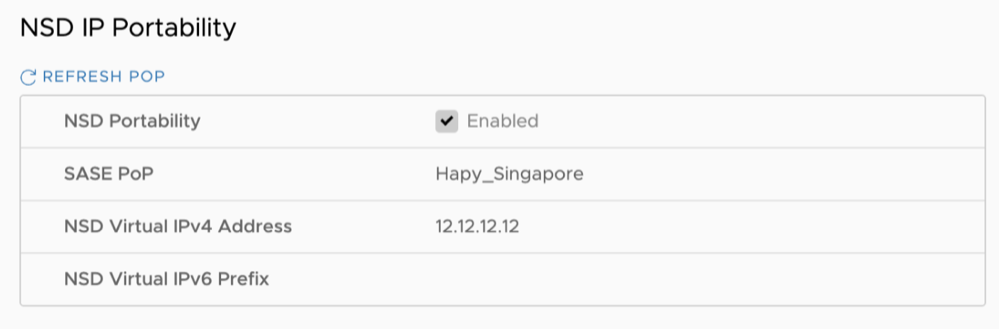
Syslog Settings Gateways can export NAT information via a remote syslog server or via telegraf to the desired destination. For additional information, see the Configure NAT Entry Syslog for Gateways section in the VeloCloud SD-WAN Operator Guide. Customer Usage Displays the usage details of different types of Gateways assigned to the customers. Pool Membership Displays the details of the Gateway pools to which the current Gateway is assigned. Partner Gateway (Advanced Handoff) Details This section is available only if you select the Partner Gateway check box. You can configure advanced handoff settings for the Partner Gateway. For additional information, see the Partner Gateway (Advanced Handoff) Details section below. Cloud Web Security This section allows you to configure the Generic Network Virtualization Encapsulation (Geneve) endpoint IP address and Points-of-Presence (PoP) name for Cloud Web Security, if the Cloud Web Security Gateway Role is enabled.
Monitor Gateways
To monitor the Gateways:
- The Gateways page displays the list of available Gateways.
Figure 11. Monitor Gateways 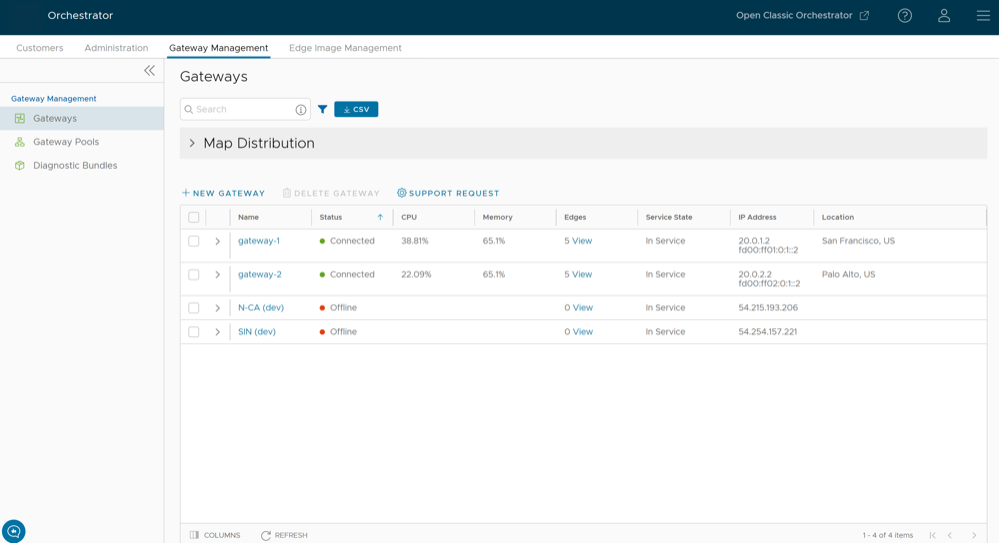
- Select the link to a Gateway to view the details of the selected Gateway.
Figure 12. View Gateway Details 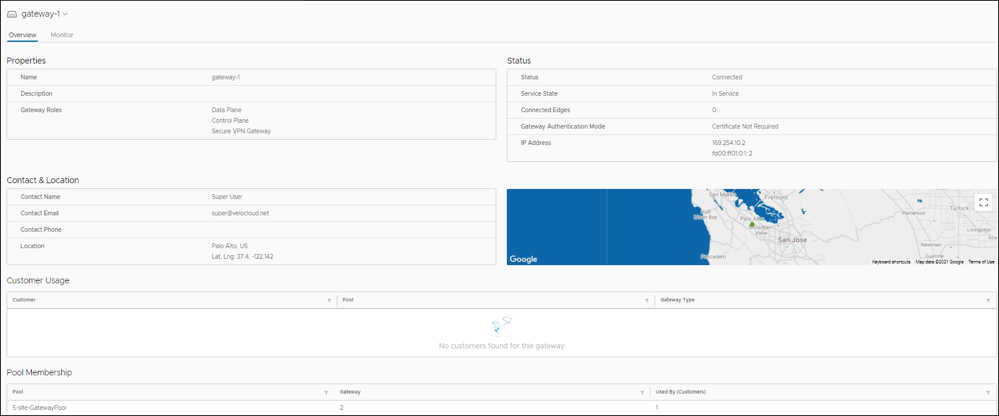
The Overview tab displays the properties, status, location, customer usage, and Gateway Pool of the selected Gateway.
Note: You can only view the details of the selected Gateway, using this tab. To configure the options, navigate to the Gateways page in the Partner portal of the Orchestrator. - Select the Monitor tab to view the usage details of the selected Gateways.
Figure 13. View Usage Details of the Gateway 
At the top of the page, you can choose a specific time period to view the details of the Gateway for the selected duration.
The page displays graphical representation of usage details of the following parameters for the period of selected time duration, along with the minimum, maximum, and average values.- CPU Percentage – Percentage of usage of CPU.
- Memory Usage – Percentage of usage of memory.
- Flow Counts – Count of traffic flow.
- Over Capacity Drops – Total number of packets dropped due to over capacity since the last sync interval. Occasional drops are expected, usually caused by a large burst of traffic. However, a consistent increase in drops usually indicates a Gateway capacity issue.
- Tunnel Count – Count of tunnel sessions for both the IPv4 and IPv6 addresses.
Hover the mouse on the graphs to view more details.
SD-WAN Gateway Migration
VeloCloud Orchestrator provides a self-service migration functionality that allows you to migrate from your existing Gateway to a new Gateway without your Operator’s support.
- Achieve operational efficiency.
- Decommission old Gateways.
Gateways are configured with specific roles. For example, a Gateway with data plane role is used to forward data plane traffic from source to destination. Similarly, a Gateway with Control Plane role is called a Super Gateway and is assigned to an Enterprise. Edges within the Enterprise are connected to the Super Gateway. Also, there is a Gateway with Secure VPN role that is used to establish an IPSec tunnel to a Non SD-WAN destination (NSD). The migration steps may vary based on the role configured for the Gateway. For additional information about the Gateway roles, see the “Configure Gateways” section in the Arista VeloCloud SD-WAN Operator Guide.
The following figure illustrates the migration process of the Secure VPN Gateway:
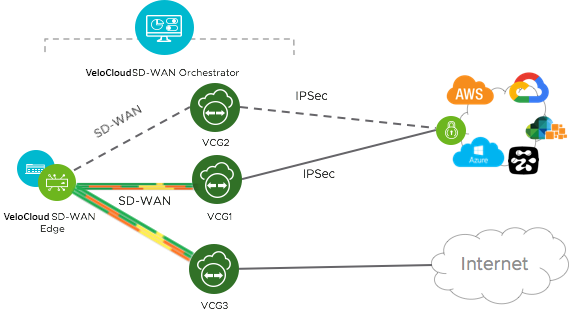
In this example, an SD-WAN Edge is connected to an NSD through a Secure VPN Gateway, VCG1. The VCG1 Gateway is planned to be decommissioned. Before decommissioning, a new Gateway, VCG2 is created. It is assigned with the same role and attached to the same Gateway pool as VCG1 so that VCG2 can be considered as a replacement to VCG1. The service state of VCG1 is changed to Quiesced. No new tunnels or NSDs can be added to VCG1. However, the existing assignments remain in VCG1. Configuration changes with respect to the IP address of VCG2 are made in the NSD, an IPSec tunnel is established between VCG2 and NSD, and the traffic is switched from VCG1 to VCG2. After confirming that VCG1 is empty, it is decommissioned.
Following is the high-level workflow of Secure VPN Gateway migration based on the User roles:
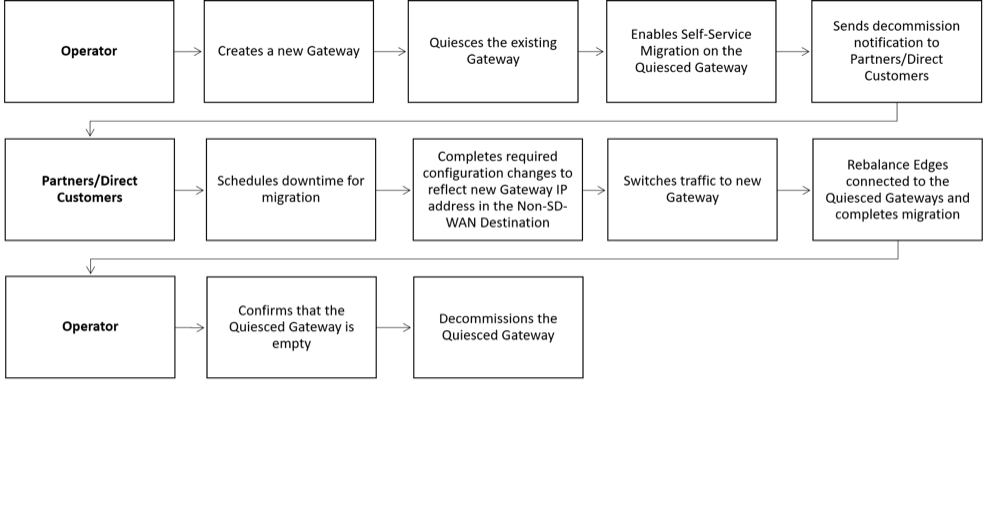
Limitations of VeloCloud Gateway Migration
- Self-service migration is not supported on Partner Gateways.
- There will be a minimum service disruption based on the time taken to switch Non SD-WAN Destinations (NSDs) from the quiesced Gateway to the new Gateway and to rebalance the Edges connected to the quiesced Gateway.
- If the NSD is configured with redundant Gateways and one of the Gateways is quiesced, the redundant Gateway cannot be the replacement Gateway for the quiesced Gateway.
- During self-service migration of a quiesced Gateway, the replacement Gateway must have the same Gateway Authentication mode as the quiesced Gateway.
- For a customer deploying a NSD via Gateway where BGP is configured on the NSD, if the customer migrates the NSD to a different Gateway using the Self-Service Gateway Migration feature on the Orchestrator, the BGP configurations are not migrated and all BGP sessions are dropped post-migration.
In this scenario, the existing Gateway assigned to the NSD is in a quiesced state and requires migration to another Gateway. The customer then navigates to on the Orchestrator and initiates the Gateway Migration process to move their NSD to another Gateway. Post-migration, the BGP Local ASN & Router ID information is not populated on the new Gateway and results in NSD BGP sessions not coming up with all routes being lost and traffic using those routes is disrupted until the user manually recreates all BGP settings.
This is a Day 1 issue and while the Gateway Migration feature accounts for many critical NSD settings, the NSD's BGP settings that are not accounted for, and their loss post-migration is an expected behavior.
Workaround: The migration of a Gateway should be done in a maintenance window only. Prior to the migration, the user should document all BGP settings and be prepared to manually reconfigure these settings post-migration to minimize impact to customer users.
Migrate Quiesced Gateways
Before you migrate the Edges and NSDs (if configured) from the quiesced Gateway to the new Gateway, ensure that you schedule a maintenance window as traffic may be disrupted during migration.
To avoid any service disruption, ensure that you migrate to the new Gateway within the Migration Deadline mentioned in the notification email.
To migrate from a quiesced Gateway to a new Gateway, perform the following steps:
- In the SD-WAN service of the Enterprise portal, go to . The list of quiesced Gateways appears.
Figure 16. Quiesced Gateways List 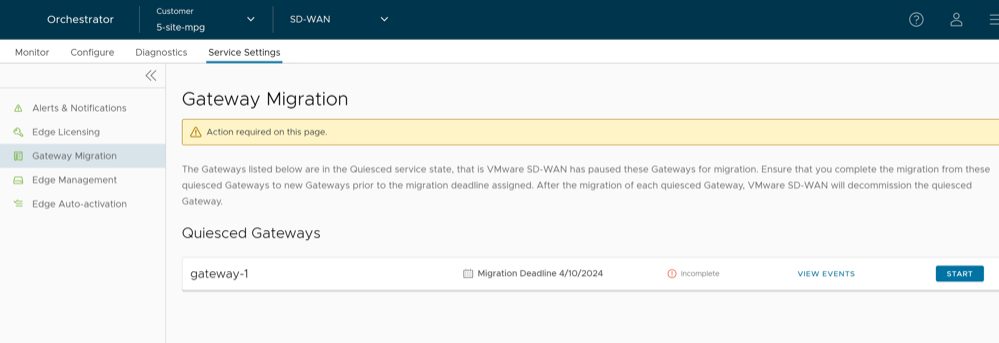
- Make the required configuration to all the NSDs that are configured through the quiesced Gateway.
Figure 17. Configure NSDs 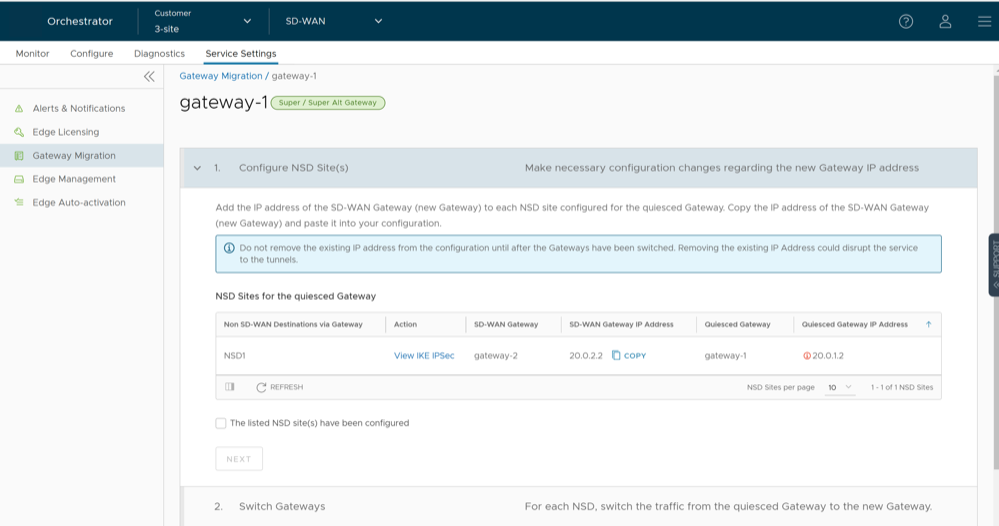
- Select the View IKE IPSec link to view a sample configuration for the NSD. Copy the template and customize it to suit your deployment.
- Add the IP address of the SD-WAN Gateway (new Gateway IP) to each NSD configured for the quiesced Gateway.
For example, if you have configured an NSD for AWS, you must add the IP address of the new Gateway in the NSD configuration in the AWS instance.
- After making the configuration changes to all the NSDs, select the The listed NSD site(s) have been configured check box, and then select Next.
Note: The Configure NSD Site(s) option is not available for NSDs configured automatically as well as for Gateways with Data Plane role that are not attached to any NSDs. - Select each NSD and select Switch Gateway to switch the traffic from the quiesced Gateway to the new Gateway.
Figure 18. Switch to New Gateway 
- In the Switch Gateway pop-up window, select the The NSD site has been configured check box to confirm that you have made the required changes to the remote-end NSD configuration.
Figure 19. Non-SD-WAN Configuration 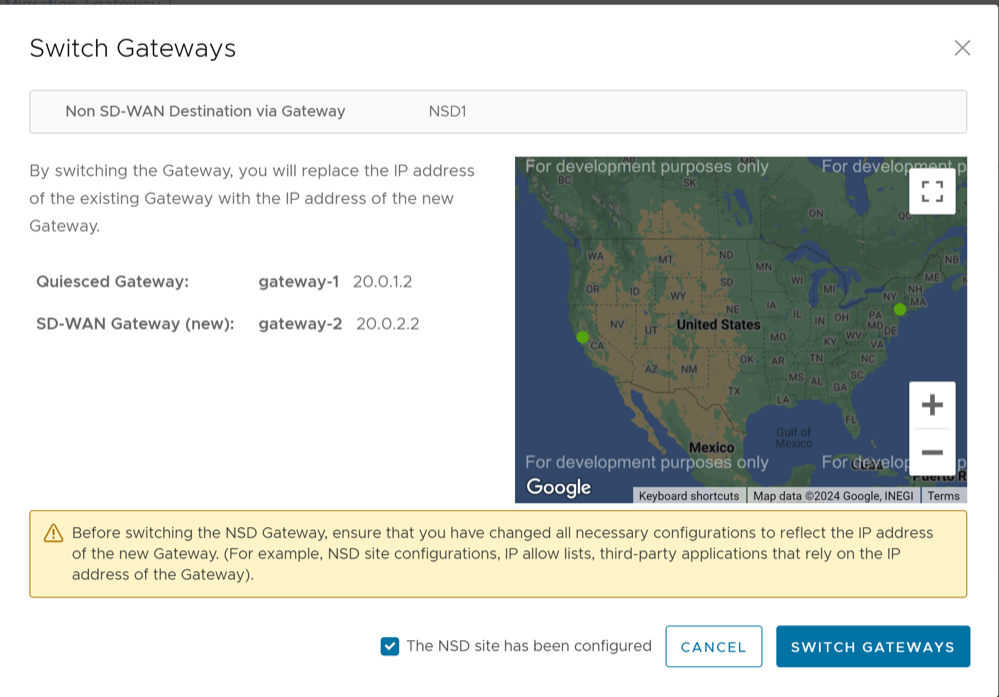 Note: This confirmation is not applicable for NSDs configured automatically.
 - Select Switch Gateway.
It may take few minutes to verify the tunnel status. The IP address of the quiesced Gateway is replaced with the IP address of the new Gateway so that the traffic switches to the new Gateway. The Migration Status changes to "NSD Tunnels are up and running" as shown in the following screenshot. If the Switch Gateway action fails, see What to do When Switch Gateway Action Fails.
Figure 20. Gateway Migration- Service Setting 
- Select Next.
Note: The Switch Gateway option is not available for Gateways with Data Plane role that are not attached to any NSDs.
- Rebalance Cloud Gateways (Primary or Secondary or Super Gateways) of all Edges or the required Edges that are connected to the quiesced Gateway so that the Edges get reassigned to the new Gateway. You can rebalance Gateways from the page as well.
Figure 21. Rebalance All Connected Edges- Super Gateway 
When rebalancing Super Gateways, all the Edges connected to the quiesced Gateway will be rebalanced. Rebalancing of selected Edges is not allowed.
Figure 22. Rebalance All Connected Edges- Primary or Secondary Gateway 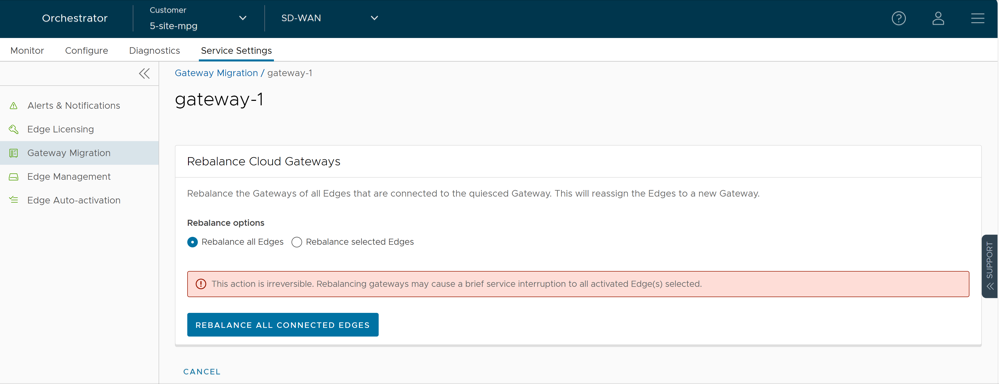
Figure 23. Rebalance Selected Edges- Primary or Secondary Gateway 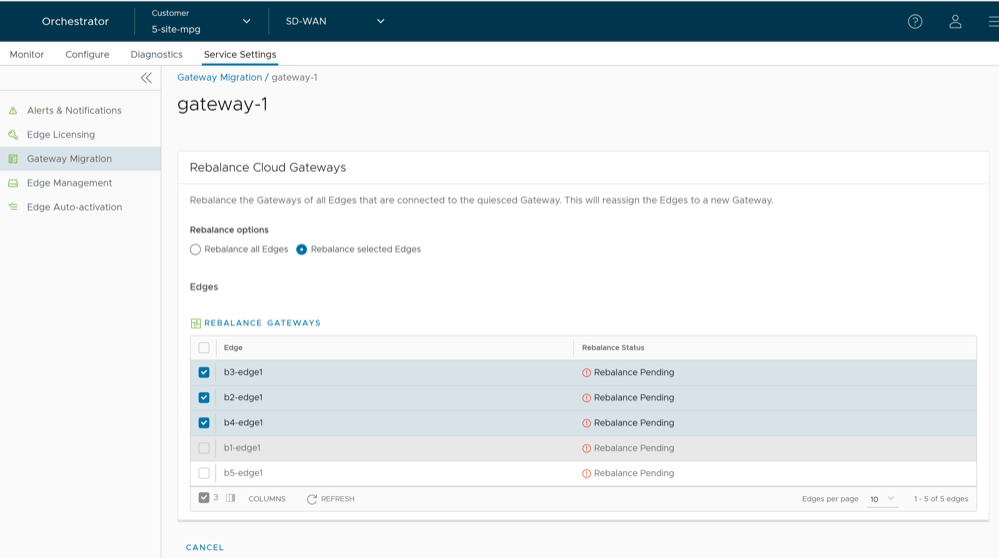 Select the Edges that are connected to the quiesced Gateway and select Rebalance Gateways to reassign Edges to the new Gateway.
Figure 24. Re-assign Edges to the New Gateway 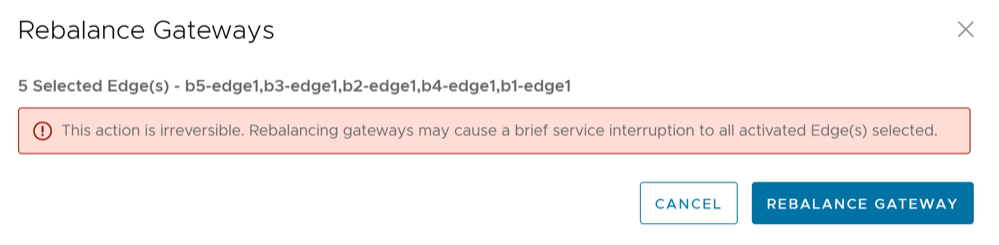
- In the Switch Gateway pop-up window, select the The NSD site has been configured check box to confirm that you have made the required changes to the remote-end NSD configuration.
- Select Rebalance Gateway to complete the Gateway migration. The Edges connected to the quiesced Gateway are migrated to the new Gateway.
Figure 25. Rebalance Gateway 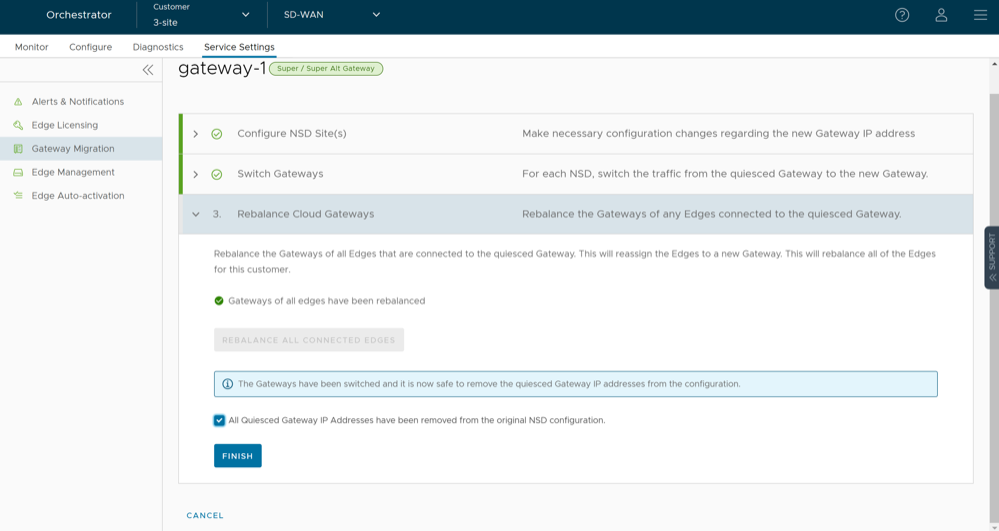
- Select Finish.
Go to the Gateway Migration page and select Review to review the migration steps, if required.
Figure 26. Review Gateway Migration 
The Gateways that have been migrated remain in this page until the Migration Deadline assigned for the quiesced Gateway. After the Migration Deadline, you can view the history of migration events in the page.
Figure 27. Monitor Events 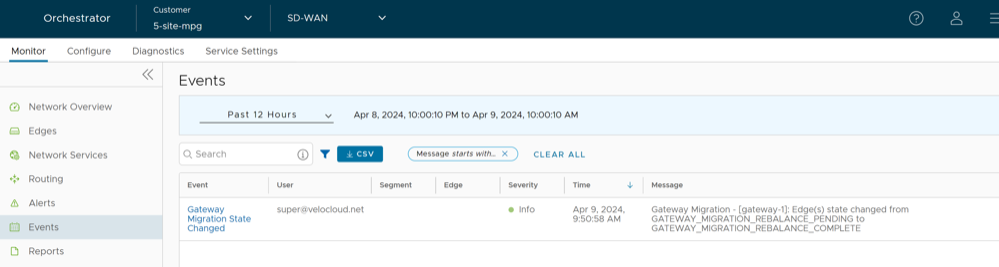
What to do When Switch Gateway Action Fails
Select View Events on the Gateway Migration page to view the history of migration events in the page.
Diagnostic Bundles for Gateways
Request Diagnostic Bundles for Gateways
To generate a new Diagnostic bundle:
- In the Request Diagnostic Bundle dialog, configure the following details and select Submit.
Figure 28. Request Diagnostic Bundle 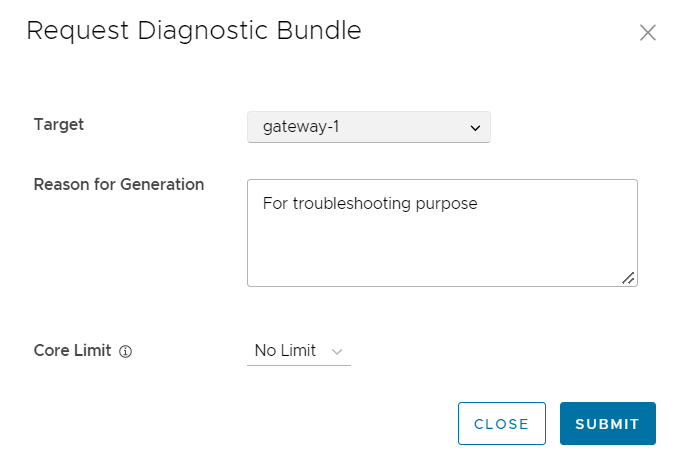
Table 7. Diagnostic Bundle Field Descriptions Field Description Target Select the target Gateway from the drop-down list. The data is collected from the selected Gateway. Reason for Generation Optionally, you can enter your reason for generating the bundle. Core Limit Select a Core Limit value from the drop-down, which is used to reduce the size of the uploaded bundle when the Internet connectivity is experiencing issues. Note: The Request Diagnostic Bundle and Download Bundle options are available only for Partners with Gateway management access activated. If the Gateway management access is deactivated for a Partner, then the Partner can only view the generated Diagnostic bundles and download only the CSV file, but cannot request a new Diagnostic bundle or download the generated bundle. To request Gateway Management access, Partners should contact the Operator Super user.The Diagnostic Bundles page displays the details of the bundle being generated, along with the status.
Figure 29. Diagnostic Bundles List 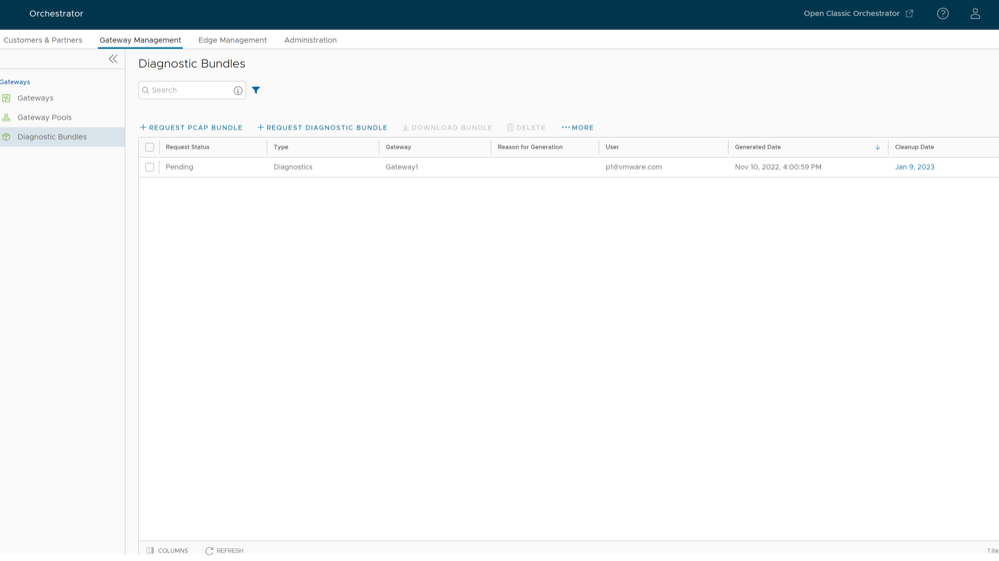
- Download Diagnostic Bundle- You can download the generated Diagnostic bundles to troubleshoot an Edge. To download a generated bundle, select the link next to Complete in the Request Status column or select the bundle and select Download Bundle. The bundle is downloaded as a ZIP file. You can send the downloaded bundle to a Arista Support representative for debugging the data.
- Delete Diagnostic Bundle- The completed bundles get deleted automatically on the date displayed in the Cleanup Date column. You can select the link to the Cleanup Date or choose the bundle and select to modify the Date.
Figure 30. Delete Diagnostic Bundle 
In the Update Cleanup Date dialog, choose the date on which the selected Bundle would be deleted.
If you want to retain the Bundle, select the Keep Forever check box, so that the Bundle does not get deleted automatically.
To delete a bundle manually, select the bundle and select Delete.
Request Packet Capture Bundle for Gateways
To generate a PCAP bundle:
- In the Request PCAP Bundle dialog, configure the following details and select Generate.
Figure 31. Request PCAP Bundle 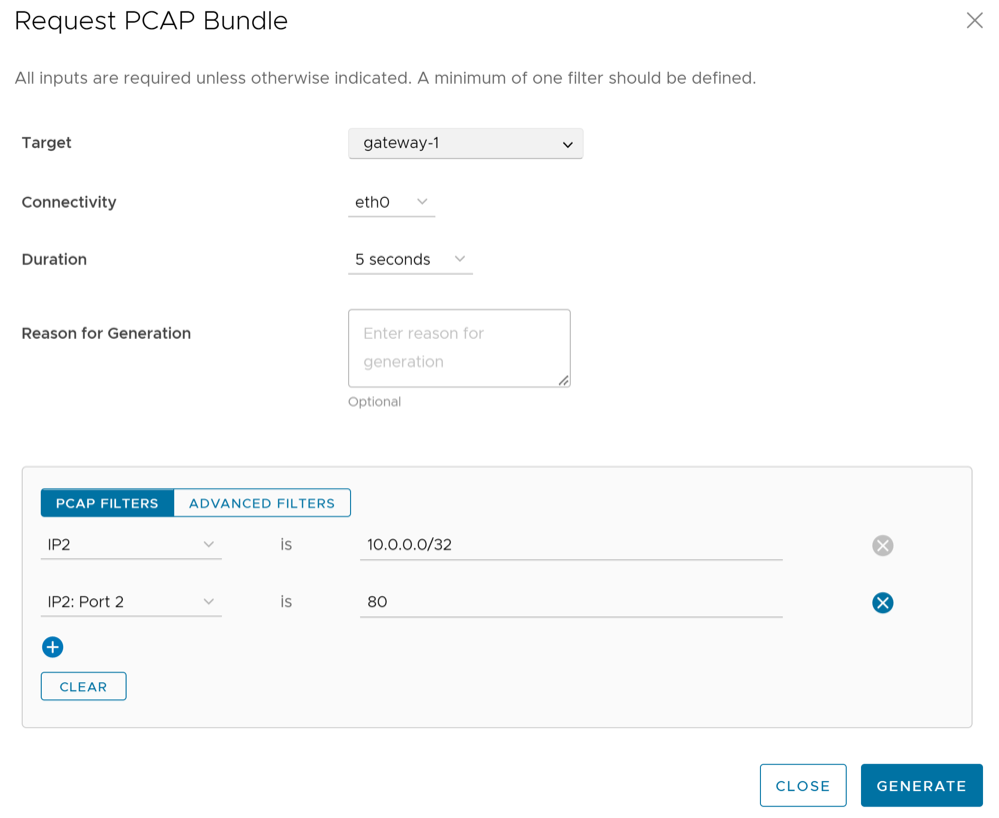
Table 8. PCAP Bundle Field Descriptions Field Description Target Choose the target Gateway from the drop-down list. The packets are collected from the selected Gateway. Connectivity Choose an Interface or an Edge ID from the drop-down list. The packets are collected on the selected Interface or Edge associated to the Gateway. Duration Choose the time in seconds. The packets are collected for the selected duration. The default value is 5 seconds. Reason for Generation Optionally, you can enter your reason for generating the bundle. PCAP Filters You can define PCAP filters by which you want to control the PCAP data to be generated by choosing the following options: - IP1- Enter an IPv4 address, or IPv6 address, or Subnet mask.
- IP2- Enter an IPv4 address, or IPv6 address, or Subnet mask.
- IP1:Port1- Enter a Port ID associated with IP1.
- IP2:Port2- Enter a Port ID associated with IP2.
- Protocol- Select a protocol from the list.
Note: If you choose to use the PCAP filtering capability then you must define at least one filter.Advanced Filters You can define free form filters by which you want to control the PCAP data to be generated. Note: The Request Diagnostic Bundle and Request PCAP Bundle options are available only for Partners with Gateway management access activated. If the Gateway management access is deactivated for a Partner, then the Partner can only view the generated Diagnostic bundles and download only the CSV file, but cannot request a new Diagnostic or PCAP bundle or download the generated bundle. To request Gateway Management access, Partners should contact the Operator Super user.The Diagnostic Bundles page displays the details of the PCAP bundle being generated, along with the status.