
Edge Licensing

Orchestrator provides different types of Licenses for the Edges. Partner users can manage and assign licenses to their Enterprise customers.

Only Operators can activate the Edge Licensing feature and assign the licenses to a Partner user. If the Edge Licensing is not activated for you, contact your Operator.

The Edge licenses are available with the following components:
Table 1. Edge Licenses- Components and Attributes
Component Supported Attributes
Bandwidth 10M, 30M, 50M, 100M, 200M, 350M, 500M, 750M, 1G, 2G, 5G, 10G
Editions Standard, Enterprise, Premium
Region North America, Europe Middle East and Africa, Latin America, Asia Pacific
Term 12 months, 36 months, 60 months

An Operator can assign different types of Edge licenses from the 324 types of licenses available with various combinations.

Apart from the above list, Arista offers a trial version of license with the following attributes:

Table 2. Trial Licenses- Components and Attributes
Component Supported Attributes
Bandwidth 10 Gbps
Edition POC
Region North America, Europe Middle East and Africa, Asia Pacific and Latin America
Term 60 Months
Note: You can assign the POC license to a Customer as a trial. When required, you can upgrade the license to any required Edition.

To access the Edge Licensing feature:

  1. Login to the Orchestrator as a Partner.
  2. In the Partner portal, from the top menu, select Edge Management, and then from the left menu, select Edge Licensing.
    Figure 1. Edge Licensing
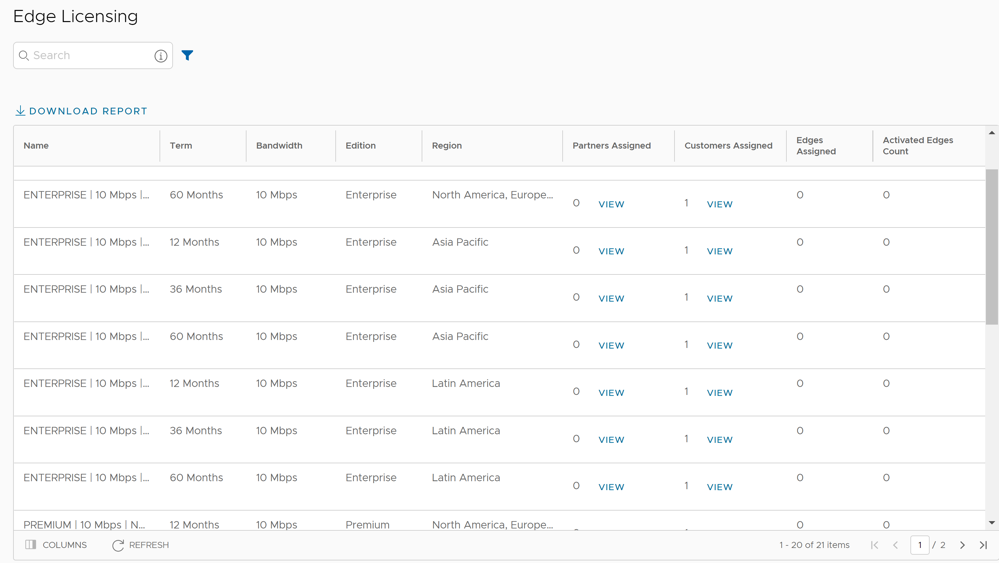
  3. You can view the following options on this page:
    Table 3. Edge Licensing- Options and Descriptions
    Option Description
    Search Enter a term to search for a matching text across the table. You can select the advanced search option to use filters to narrow down the search results.
    Download Report Select this option to download a report of the licenses, associated customers, and Edges in a CSV format.
    Columns Select the columns to be displayed in the table.
    Refresh Select this option to refresh the displayed list of licenses.


  4. Selecting the View link under the Partners assigned column, displays the Edge license details of the selected Partner.
  5. Selecting the View link under the Customers assigned column, displays the Edge license details of the selected Customer.
To manage Edge licensing for Customers, see Manage Edge Licenses for Customers.

To assign the Edge licenses to Customers, see Create New Partner Customer.

Manage Edge Licenses for Customers

A Partner user can manage the Edge Licenses and assign them to Customers.
  1. Login to the Orchestrator as a Partner and select Manage Partner Customers.
  2. Select the link to a customer name to navigate to the Enterprise portal.
  3. In the Enterprise portal, select Service Settings > Edge Licensing .
    Figure 2. Edge Licensing for Customers
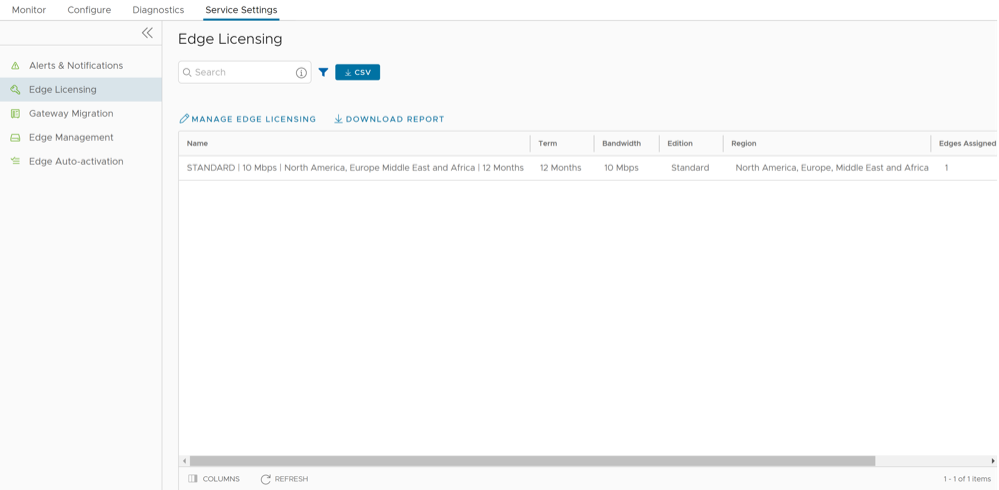
  4. Select Manage Edge Licensing.
    Figure 3. Select Edge Licenses
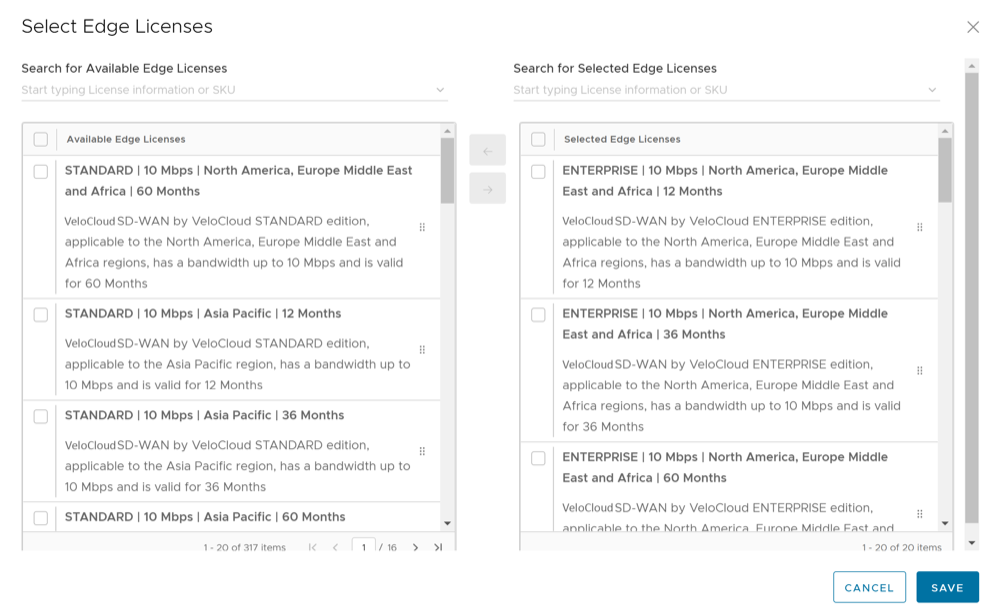
  5. In the Select Edge Licenses window, choose the relevant licenses based on the Bandwidth, Term, Edition, and Region, and then move them to the Selected Edge Licenses pane.
    Note: Apart from the existing licenses, Arista offers a trial version of license with the Edition as POC. If you select a POC license, you cannot choose the other licenses.
  6. Select Save. The selected licenses are displayed in the Edge Licensing window.
    Note: If you have selected the POC license, you can select Upgrade Edge License to upgrade the license to the next level. Choose Standard, Enterprise or Premium Edition from the list. You cannot downgrade a License type to the previous Edition.
  7. Select Download Report to generate a report of the licenses and the associated Edges in CSV format.
When you create an Edge, you can choose and assign an Edge License from the list.
You can assign a license to an existing Edge:
  1. In the SD-WAN service of the Enterprise portal, select Configure > Edges .
  2. To assign license to each Edge, select the link to the Edge and select the License under the Properties area in the Edge Overview page. You can also select the Edge and select Assign Edge License to assign the license.
  3. To assign a license to multiple Edges, select the appropriate Edges, select Assign Edge License , and select the license.