
Activate Edges Using Email
In this method, the Edge is shipped to the Customer site with a factory-default configuration. Prior to activation, the Edge contains no configuration or credentials to connect to the Enterprise network.
- Send an Activation Email. The administrator initiates the activation process by sending an activation procedure email to the person that will install the Edge, typically a Site Contact. For additional information, see Send Edge Activation Email.
- Activate the Edge Device. The instructions in the activation procedure email activates the Edge device. For additional information, refer to Activate an Edge Device.
Send Edge Activation Email
The administrator initiates the activation process of an Edge by sending an activation procedure Email to the person installing the Edge, typically a Site Contact.
- In the SD-WAN service of the Enterprise portal, go to .
- The Edges page displays the existing Profiles.
- Select the link to the Edge to be activated or select the View link in the Device column of the Edge.
- Select the Overview tab. For an Edge that is not activated, the Edge Status section displays the option to send an activation Email:
Figure 1. Activate Edge 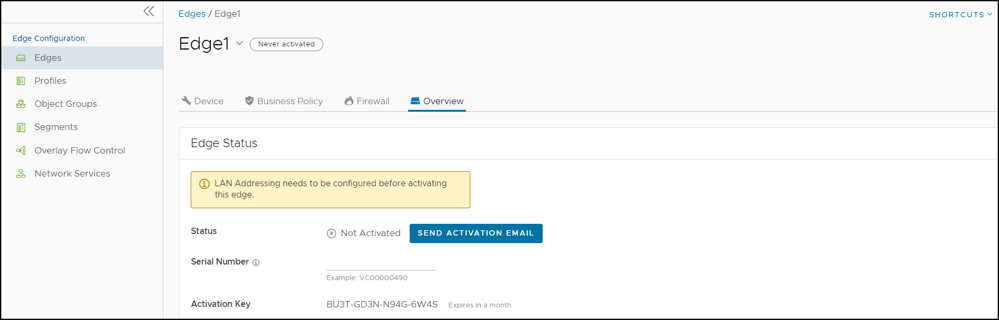
- Select Send Activation Email.
Figure 2. Activation Email 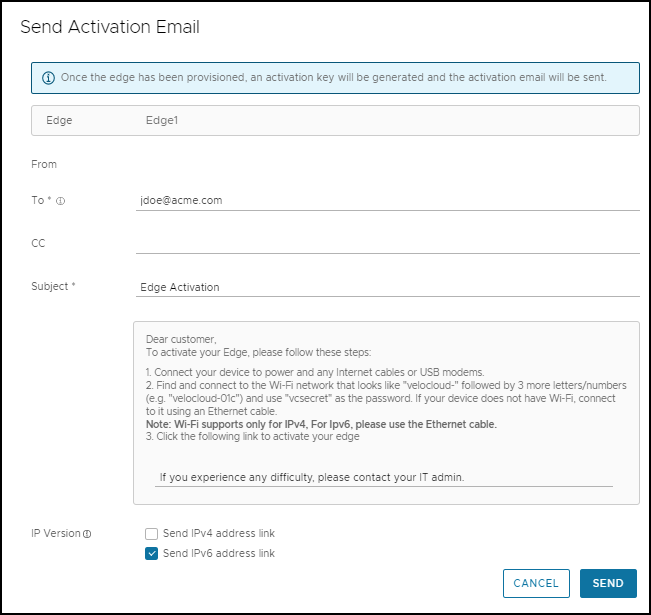
- Enter the details like Email address of the recipient, the Site contact, and Subject line. A default Email message is available. If required, you can add the contact details of IT admin in the message. Select the IP version of the activation link to be sent. You can select the link to contain either IPv4 address or IPv6 address, or both.
- Select Send and the activation Email is sent to the Site contact.
- For the Edge 510 LTE device, the Activation Email consists of Cellular Settings like SIM PIN, Network, APN, and Username. A supported factory default image is required.
- For the 610, 620, 640, 680, and 610 LTE devices with SFP that are configured with ADSL2/VDSL2, the activation email consists of configuration settings like Profile, PVC, VPC, and so on. A supported factory default image is required.
- If you configure the SD-WAN Edge 510 LTE device, you can run the “LTE Modem Information” diagnostic test for troubleshooting purposes. The LTE Modem Information diagnostic test will retrieve diagnostic information, such as signal strength, connection information, etc.
- The DSL Status diagnostic test is available only for the 610, 620, 640, and 680 devices. Running this test will show the DSL status, which includes information such as Mode (Standard or DSL), Profile, xDSL Mode, and so on.
Activate an Edge Device
The Site Contact performs the steps outlined in the Edge activation procedure email.
- Connect the Edge to a power source and insert any WAN link cables or USB modems for Internet connectivity.
- Connect a personal computer or mobile device (with access to the activation email) to your Edge by one of two methods:
Note: The connected personal computer or mobile device cannot directly access the public internet through the Edge device until it is activated.
- Find and connect to the Wi-Fi network that looks like VeloCloud- followed by three more letters/numbers (for example, velocloud-01c) with the password vcsecret.
Note: Refer to the Wi-Fi SSID from the Edge device. The default Wi-Fi is vc-wifi. The Edge activation email provides instructions for using one or more Wi-Fi connections.
- If the Edge is not Wi-Fi capable (for example, a 6x0N model or a 3x00 model), use an Ethernet cable to connect to either an Ethernet-equipped computer or a mobile device with an Ethernet adapter to one of the Edge’s LAN ports.
Note: For additional information about using either an iOS or Android mobile device with an Ethernet adapter to activate an Edge, refer to the below sections:
- Find and connect to the Wi-Fi network that looks like VeloCloud- followed by three more letters/numbers (for example, velocloud-01c) with the password vcsecret.
- Select the hyperlink in the email to activate the Edge.
During the Edge activation, the activation status screen appears on your connected device.
The Edge downloads the configuration and software from the Orchestrator and reboots multiple times to apply the software update (If the Edge has a front LED status light, that light would blink and change colors multiple times during the activation process).
Once the Edge activation process successfully completes, the Edge is ready for service (if the Edge has a front LED status light, the light would show as solid green). Once an Edge is activated, it is “useable” for routing network traffic. In addition, more advanced functions such as monitoring, testing, and troubleshooting are also available.
Edge Activation using an iOS Device and an Ethernet Cable
There are multiple ways to activate a VeloCloud SD-WAN Edge. It is recommended to use the Edge Auto-activation push activation whenever possible. Alternatively, you can use the email activation (pull activation) method using an iOS device and an Ethernet cable.
- iPhone/iPad with email access
- Ethernet adapter suitable for phone or tablet
- Complete the Edge configuration on the Orchestrator software. For details, refer to the Configure Edge Device section in the Arista SD-WAN Administration Guide.
- Navigate to , and then select the Send Activation Email button.
- Enter the email address of the person activating the Edge, and then select Send.
- Power up the Edge, and then connect it to an available internet connection using an Ethernet cable.
Note: Refer to Edge Activation Guides to check details of the model you are installing to determine the correct port.
- Connect an Ethernet adapter to your phone, and then connect the Edge’s LAN port to the Ethernet adapter.
Note: The Edge is configured by default to acquire a DHCP IP address from the ISP on the WAN (uplink). The Edge also assigns a DHCP address to the phone connected to the LAN port. When the WAN connection is fully operational, the cloud LED on the front of the Edge turns green.
- In your iOS device, go to . Select the appropriate interface. Under the IPv4 Address, select Configure IP as Automatic.
Figure 3. Ethernet Setting 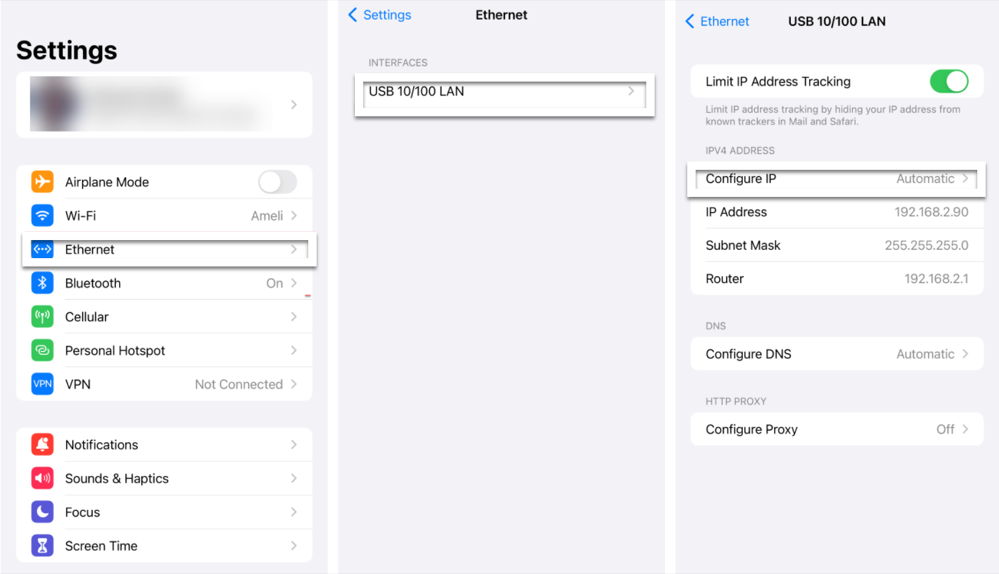
- Open the activation email from your phone, and then select the activation link displayed at the bottom of the screen to activate your Edge. The following screenshot is an example.
Figure 4. Activation Email for iOS Device 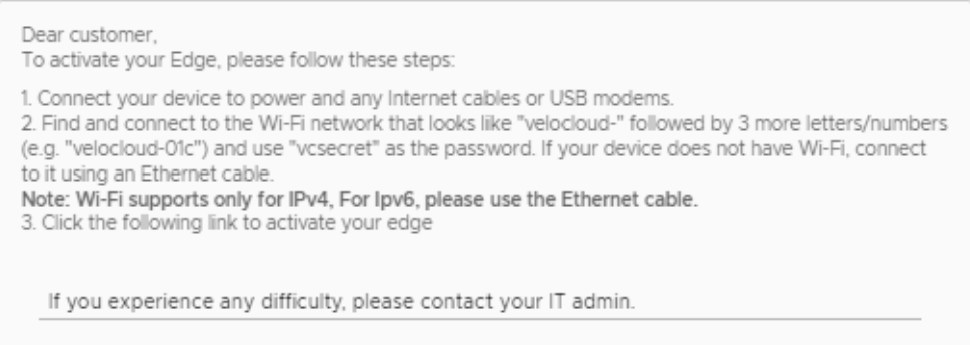
- You can see the activation progress on your phone screen. Once complete, Activation successful message is displayed.
Your Edge device is now activated.
Edge Activation using an Android Device and an Ethernet Cable
The procedure below discusses the Edge email activation (pull activation) using an Android device and an Ethernet cable.
- Android phone with email access
- Ethernet adapter suitable for the phone
- Complete the Edge configuration on the Orchestrator software. For details, refer to the Configure Edge Device section in the Arista SD-WAN Administration Guide.
- Navigate to , and then select the Send Activation Email button.
- Enter the email address of the person activating the Edge, and then select Send.
- Power up the Edge, and then connect it to an available internet connection using an Ethernet cable.
Note: Refer to Edge Activation Guides to check details of the model you are installing to determine the correct port.
- Connect an Ethernet adapter to your phone, and then connect the Edge’s LAN port to the Ethernet adapter.
Note: The Edge is configured by default to acquire a DHCP IP address from the ISP on the WAN (uplink). The Edge also assigns a DHCP address to the phone connected to the LAN port. When the WAN connection is fully operational, the cloud LED on the front of the Edge turns green.
- Open the activation email from your phone, and then select the activation link displayed at the bottom of the screen to activate your Edge. The following screenshot is an example.
Figure 5. Activation Email for Android Device - You can see the activation progress on your phone screen. Once complete, Activation successful message is displayed.
Your Edge device is now activated.