
Integrate VeloCloud SD-WAN with Microsoft Route Server
You can integrate VeloCloud SD-WAN with Microsoft Route Server for the Establish Branch-to-Cloud Connectivity and Establish Branch-to-AVS Connectivity use cases.
Prerequisites
- Obtain Enterprise account access to VeloCloud Orchestrator.
- On the VeloCloud Edges, run software version 4.2.0 or newer.
- Obtain access to the Microsoft Azure portal with the appropriate IAM roles.
Establish Connectivity
- Deploy a 2-member cluster in a region.
- Deploy the Route Server.
- Connect on-premises either to Microsoft Azure resources and/or to Azure VeloCloud Solutions (AVS)
Establish Branch-to-Cloud Connectivity
This section describes the steps to integrate VeloCloud SD-WAN with Microsoft Route Server for the Establish Branch-to-Cloud Connectivity use case.
The following figure illustrates the branch-to-cloud connectivity.
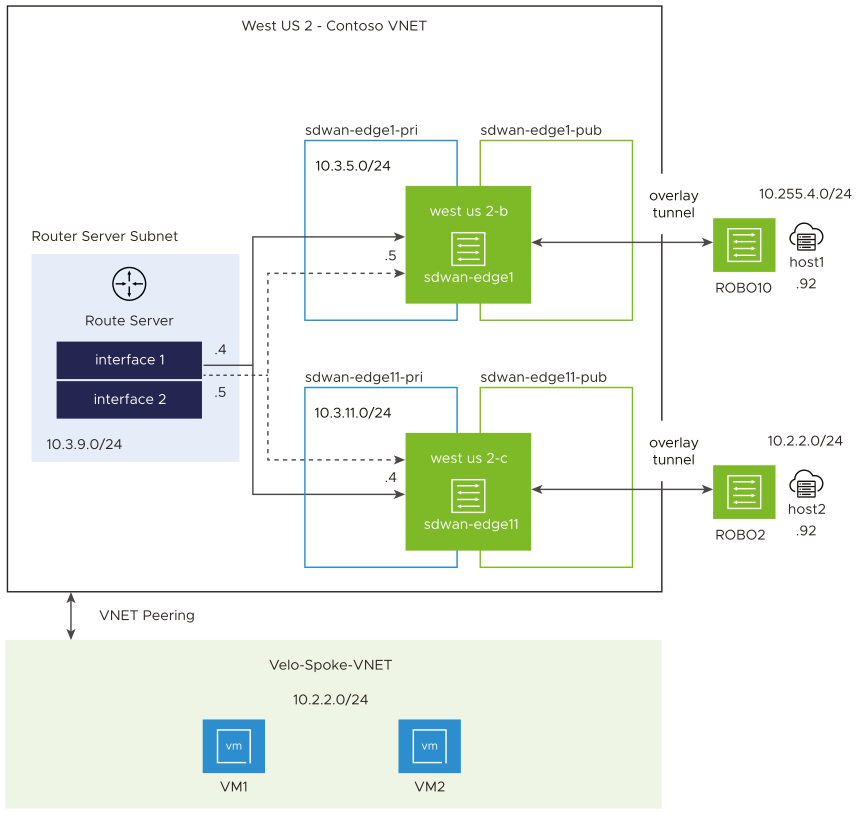
To create Edge instances and Route Server and to establish branch-to-cloud connectivity, perform the following tasks:
- Retrieve the Azure Route Server IPs and ASN.
Figure 2. Azure Route Server IPs and ASN Details 
- From the Orchestrator, for the first Edge called sdwan-edge1:
- Statically assign an IP address to GE3 interface, which can be retrieved by selecting .
Figure 3. Configure GE3 Routed Interface 
Figure 4. GE3 Interface Settings 
- Configure the static routes for your Edge to be able to reach the Route Server IPs.
Figure 5. Configure Static Routes 
- Configure BGP by assigning your local ASN, neighbour IP/ASN (from step 4.) and configure eBGP multi-hop.
Figure 6. Configure BGP Settings 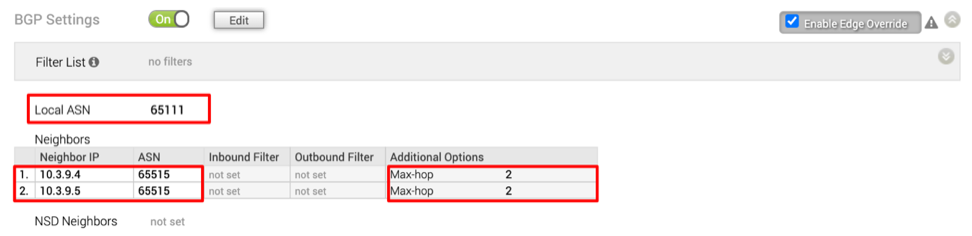
- Statically assign an IP address to GE3 interface, which can be retrieved by selecting .
- From the Azure portal, complete the Route Server configuration by completing the following steps:
- Configure its peers, as shown in the following image.
Figure 7. Configure Peers for RouteServer 
- Configure Route Exchange, as explained here: Quickstart: Create and configure Route Server using the Azure portal, and as shown in the following image.
Figure 8. Configure Route Exchange for RouteServer 
- Configure its peers, as shown in the following image.
- Verify that the four BGP sessions are UP.
Figure 9. Verify BGP Sessions 
- Configure VNET peering.
Figure 10. Configure VNET Peering 
- Verify route exchange as follows:
- The Spoke VNET routes that are learned from the Route Server.
Figure 11. Verify Spoke VNET Route Exchange 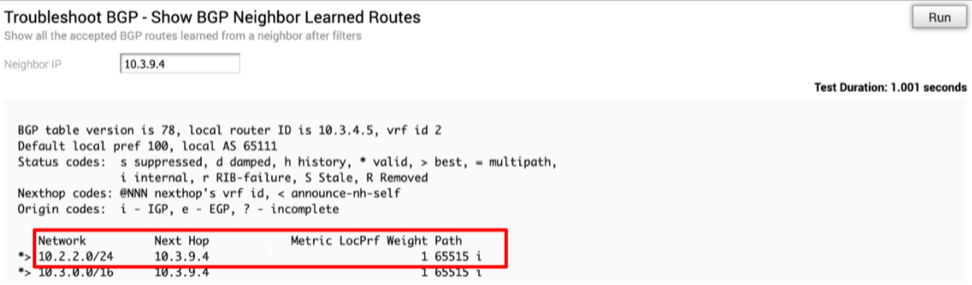
- The ROBO Site routes that are advertised to the Route Server.
Figure 12. Verify ROBO Site Route Exchange 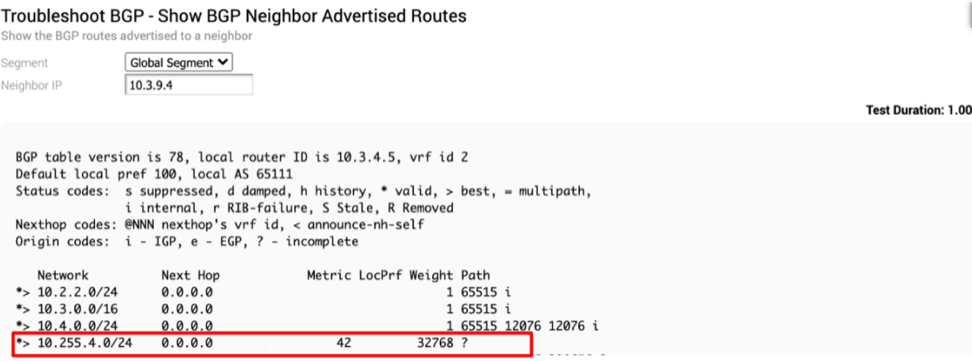
- The Spoke VNET routes that are learned from the Route Server.
Run a ping test to verify the connection between the ROBO Edge instance and VM1 or VM2.
Establish Branch-to-AVS Connectivity
This section describes the steps to integrate VeloCloud SD-WAN with Microsoft Route Server for the Establish Branch-to-AVS Connectivity use case.
Azure VeloCloud Solution (AVS) enables enterprises to set up private clouds in Azure. The private cloud contains Arista’s software defined datacenter clusters, built from dedicated bare-metal infrastructure from Azure. All private clouds are provisioned with vCenter Server, vSphere, vSAN, and NSX-T. Organizations can migrate workloads from on-premises environments, create or deploy new virtual machines, and consume Azure services from private clouds using the familiar Arista tools.
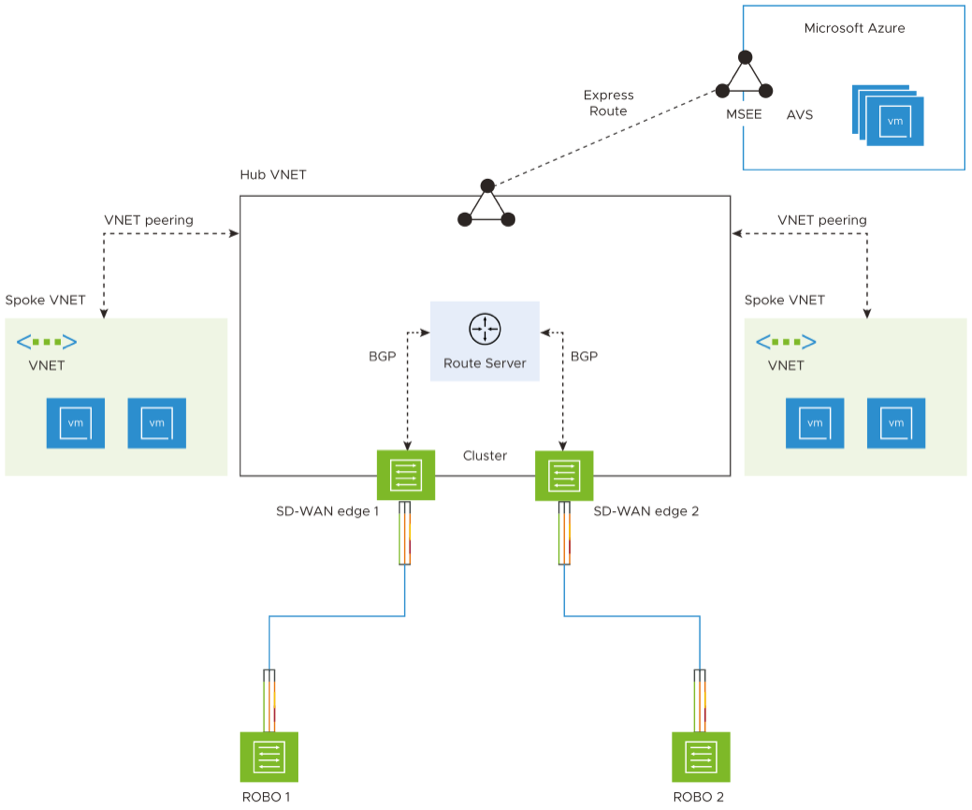
Complete the following tasks to establish branch-to-AVS connectivity:
- From the Azure Portal, configure a Virtual Network Gateway for Express Route as well as a Gateway Subnet, as shown in the image below. For instructions, refer to Configure a Virtual Network Gateway for ExpressRoute.
Figure 14. Configure Virtual Network Gateway 
- Connect your Virtual Network to your Express Route Server:
- From the Azure Portal, look up your AVS Private Cloud and request an Authorization Key.
Figure 15. Manage Connectivity of Virtual Network to Express Route Server 
- Connect your Virtual network to your Express Route Server, as shown in the following image.
Figure 16. Connect Virtual Network to Express Route Server 
For information, see Azure VMware Solution Networking and interconnectivity concepts.
- From the Azure Portal, look up your AVS Private Cloud and request an Authorization Key.
- Verify the AVS subnets are advertised by the Route Server to your virtual Edge instances.
The following image below shows the subnet Private Cloud Management Network.
Figure 17. Verify Connectivity of Virtual Network to Express Route 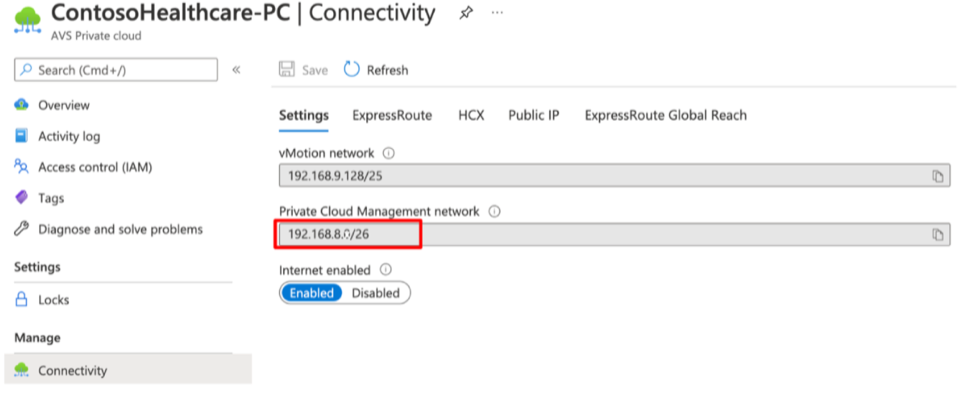
- Log into Orchestrator and verify it is being learned by the virtual Edge.
Figure 18. Show BGP Neighbor Learned Routes 
Run a ping test to verify the connection between the on-prem Edge instance, host1 and your workloads that reside in AVS.