
Cloud Security Services
Cloud Security Service (CSS) is a cloud-hosted security that protects an Enterprise branch and/or data center. The security services include firewalls, URL filtering, and other such services.
In CSS, you can define and configure a cloud security service instance and establish a secure tunnel directly from the Edge to the CSS.
- Simplified configuration.
- Saves link bandwidth costs by offloading non-enterprise traffic to the internet.
- The branch sites are protected from malicious traffic by redirecting the Internet traffic to a cloud security service.
Configure a Cloud Security Service
The Cloud Security Service (CSS) establishes a secure tunnel from an Edge to the cloud security service sites. This ensures secured traffic flow to the cloud security services.
To configure a Cloud Security Service, perform the following steps:
- On the Network Services page, navigate to , and select New.
Figure 1. Configure a New Cloud Security Service 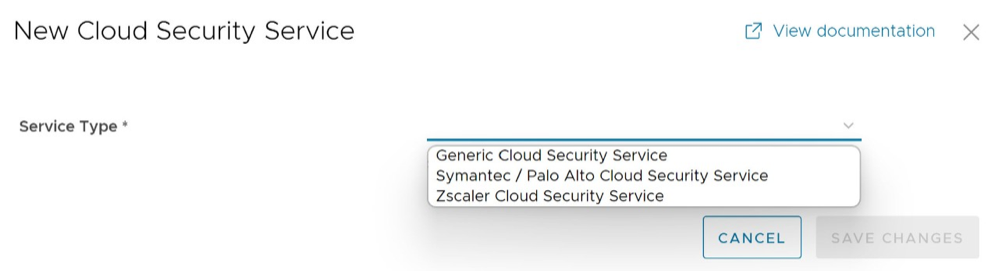
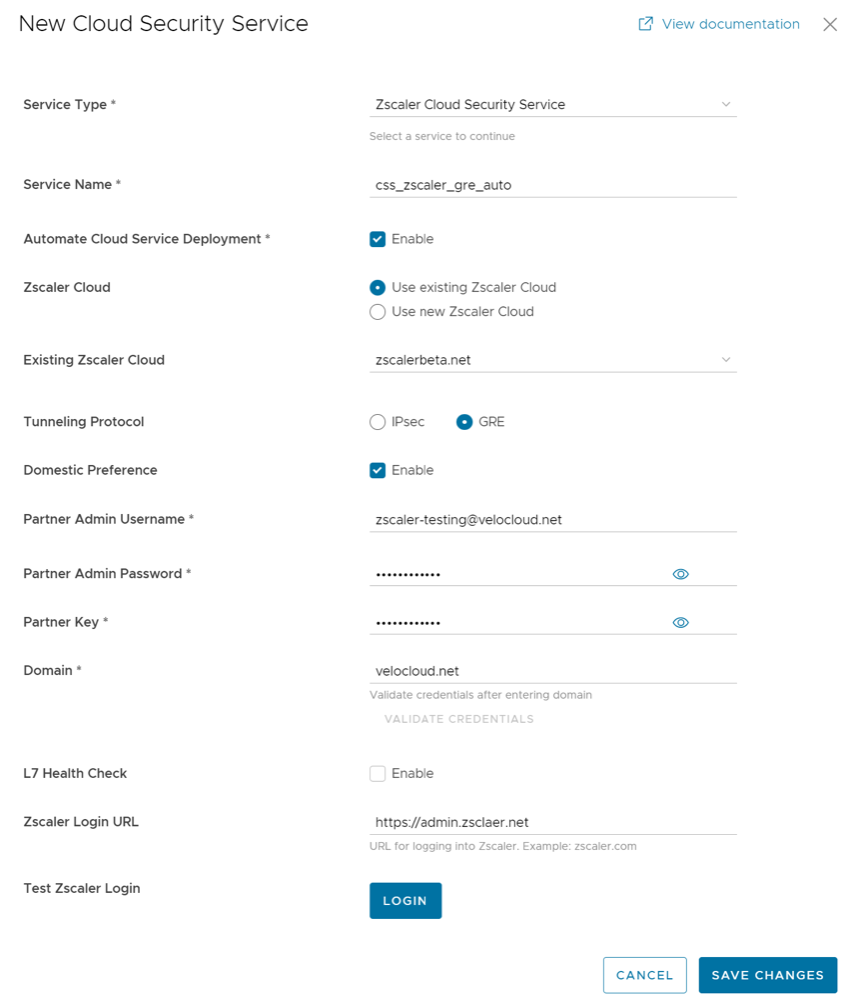
Configure Automatic Tunnels from SD-WAN Edge to Zscaler
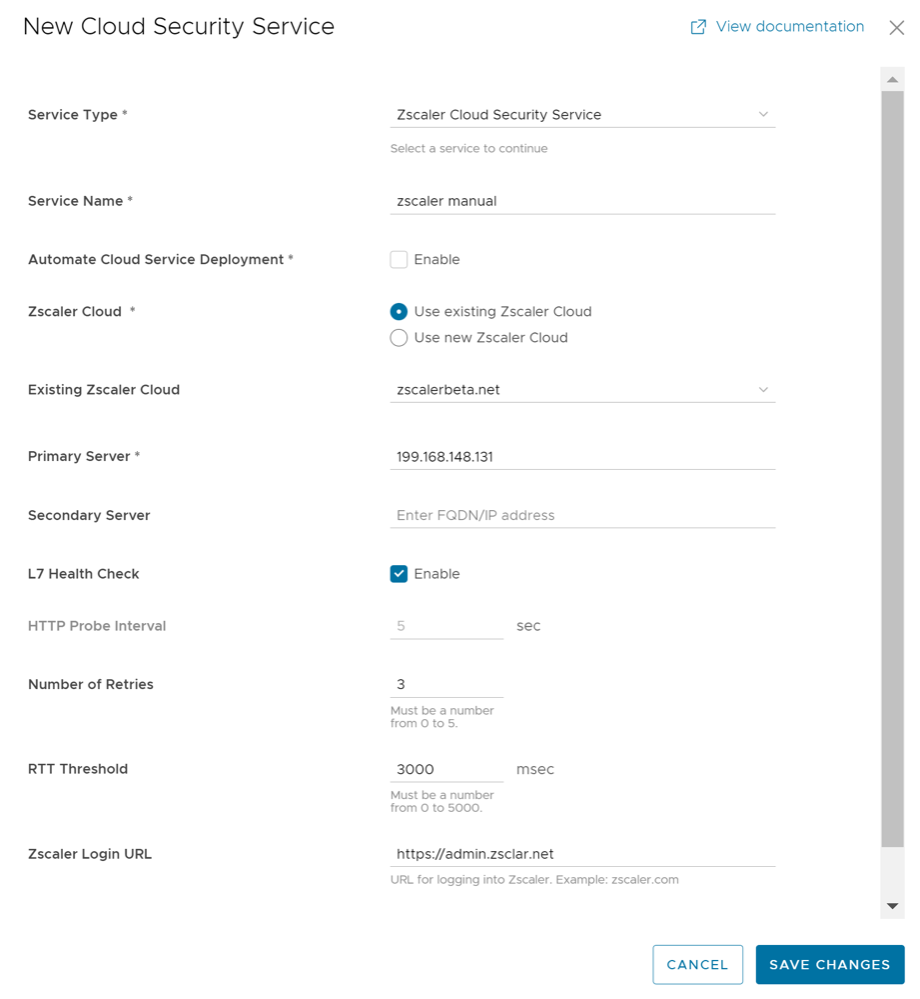
Configure Manual Tunnels from SD-WAN Edge to Zscaler
The configured cloud security services are displayed under the Cloud Security Service area in the Network Services window.

Configure Cloud Security Services for Profiles
Enable Cloud Security Service (CSS) to establish a secured tunnel from an Edge to cloud security service sites. This enables the secured traffic being redirected to third-party cloud security sites. At the Profile level, Velocloud SD-WAN and Zscaler integration supports automation of IPsec and GRE tunnels.
- Ensure that you have access permission to configure network services.
- Ensure that your VeloCloud Orchestrator has version 3.3.x or above.
- You should have Cloud security service gateway endpoint IPs and FQDN credentials configured in the third party Cloud security service.
- Configure the following settings:
Figure 5. Configure Cloud Security Services for Profiles 
Table 4. Cloud Security Service Option Description Option Description Cloud Security Service Select a cloud security service from the drop-down menu to associate with the profile. You can also select New Cloud Security Service from the drop-down to create a new service type. For additional information about how to create a new CSS, see Configure a Cloud Security Service. Note: For cloud security services with Zscaler login URL configured, Login to Zscaler button appears in the Cloud Security Service area. selecting the Login to Zscaler button will redirect you to the Zscaler Admin portal of the selected Zscaler cloud.Tunneling Protocol This option is available only for Zscaler cloud security service provider. If you select a manual Zscaler service provider then choose either IPsec or GRE as the tunneling protocol. By default, IPsec is selected. Note: If you select an automated Zscaler service provider then the Tunneling Protocol field is not configurable but displays the protocol name used by the service provider.Hash Select the Hash function as SHA 1 or SHA 256 from the drop-down. By default, SHA 1 is selected. Encryption Select the Encryption algorithm as AES 128 or AES 256 from the drop-down. By default, None is selected. Key Exchange Protocol Select the key exchange method as IKEv1 or IKEv2. By default, IKEv2 is selected. This option is not available for Symantec cloud security service.
Login to Zscaler Select Login to Zscaler to login to the Zscaler Admin portal of the selected Zscaler cloud.
Configure Cloud Security Services for Edges
When you have assigned a profile to an Edge, the Edge automatically inherits the Cloud Security Service (CSS) and attributes configured in the profile. You can override the settings to select a different cloud security provider or modify the attributes for each Edge.
To override the CSS configuration for a specific Edge, perform the following steps:
- In the SD-WAN service of the Enterprise portal, select . The Edges page displays the existing Profiles.
- Select the link to an Edge or select the View link in the Device column of the Edge. The configuration options for the selected Edge are displayed on the Device tab.
- Under the VPN Services category, in the Cloud Security Service area, the CSS parameters of the associated profile are displayed.
- In the Cloud Security Service area, select the Override check box to select a different CSS or to modify the attributes inherited from the profile associated with the Edge. For additional information on the attributes, see Configure Cloud Security Services for Profiles.
- Select Save Changes in the Edges window to save the modified settings.
Manual Zscaler CSS Provider Configuration for Edges
At the Edge level, for a selected manual Zscaler CSS provider, you can override the settings inherited from the profile and can configure additional parameters manually based on the tunneling protocol selected for tunnel establishment.
If you choose to configure an IPsec tunnel manually, apart from the inherited attributes, you must configure a Fully Qualified Domain Name (FQDN) and Pre-Shared Key (PSK) for the IPsec session.
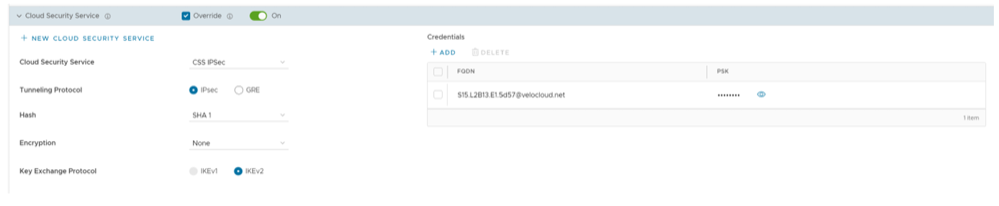
- Under GRE Tunnels, select +Add.
Figure 7. Configure GRE Tunnel Manually 
- When the Configure Tunnel window appears, configure the following GRE tunnel parameters, and select Update.
Figure 8. Configure Tunnel Parameters 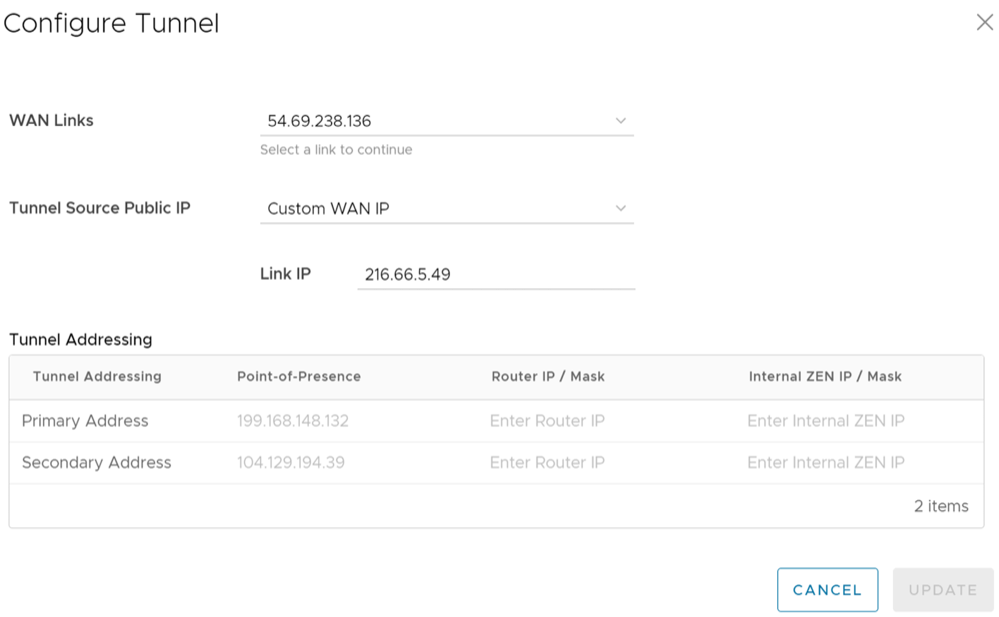
Table 5. Configure Tunnel Option Descriptions Option Description WAN Links Select the WAN interface to be used as source by the GRE tunnel. Tunnel Source Public IP Choose the IP address to be used as a public IP address by the Tunnel. You can either choose the WAN Link IP or Custom WAN IP. If you choose Custom WAN IP, enter the IP address to be used as public IP. Source public IPs must be different for each segment when Cloud Security Service (CSS) is configured on multiple segments. Primary Point-of-Presence Enter the primary Public IP address of the Zscaler Datacenter. Secondary Point-of-Presence Enter the secondary Public IP address of the Zscaler Datacenter. Primary Router IP/Mask Enter the primary IP address of Router. Secondary Router IP/Mask Enter the secondary IP address of Router. Primary Internal ZEN IP/Mask Enter the primary IP address of Internal Zscaler Public Service Edge. Secondary Internal ZEN IP/Mask Enter the secondary IP address of Internal Zscaler Public Service Edge.
- The Router IP/Mask and ZEN IP/Mask are provided by Zscaler.
- Only one Zscaler cloud and domain are supported per Enterprise.
- Only one CSS with GRE is allowed per Edge. An Edge cannot have more than one segment with Zscaler GRE automation enabled.
- GRE-WAN: Edge supports maximum of four public WAN links for a Non SD-WAN Destination (NSD) and on each link, it can have up to two tunnels (primary/secondary) per NSD. So, for each NSD, you can have maximum of eight tunnels and 8 BGP connections from one Edge.
- GRE-LAN: Edge supports one link to Transit Gateway (TGW), and it can have up to two tunnels (primary/secondary) per TGW. So, for each TGW, you can have maximum of two tunnels and 4 BGP connections from one Edge (two BGP sessions per tunnel).
Automated Zscaler CSS Provider Configuration for Edges
- IPsec/GRE Tunnel Automation
- Zscaler Location/Sub-Location Configuration
IPsec/GRE Tunnel Automation
- In the SD-WAN service of the Enterprise portal, select .
- Select an Edge you want to establish automatic tunnels.
- Select the link to an Edge or select the View link in the Device column of the Edge. The configuration options for the selected Edge are displayed in the Device tab.
- Under the VPN Services category, in the Cloud Security Service area, the CSS parameters of the associated profile are displayed.
- In the Cloud Security Service area, select the Override check box to select a different CSS or to modify the attributes inherited from the profile associated with the Edge. For additional information on the attributes, see Configure Cloud Security Services for Profiles.
- From the Cloud Security Service drop-down menu, select an automated CSS provider and select Save Changes.
Figure 9. Override Zscaler CSS Provider Configuration for Edges Automatically 
The automation will create a tunnel in the segment for each Edge's public WAN link with a valid IPv4 address. In a multi-WAN link deployment, only one of the WAN Links will be utilized for sending user data packets. The Edge chooses the WAN link with the best Quality of Service (QoS) score using bandwidth, jitter, loss, and latency as criteria. Location is automatically created after a tunnel is established. You can view the details of tunnel establishment and WAN links in the Cloud Security Service section
Note: After automatic tunnel establishment, changing to another CSS provider from an Automated Zscaler service provider is not allowed on a Segment. For the selected Edge on a segment, you must explicitly deactivate Cloud Security service and then reactivate CSS if you want to change to a new CSS provider from an Automated Zscaler service provider.
Zscaler Location/Sub-Location Configuration
After you have established automatic IPsec/GRE tunnel for an Edge segment, Location is automatically created and appears under the Zscaler section of the Edge Device page.
- You check that the tunnel is established from the selected Edge and Location is automatically created. You will not be allowed to create a Sub-location if the VPN credentials or GRE options are not set up for the Edge. Before configuring Sub-locations, ensure you understand about Sub location and their limitations. See https://help.zscaler.com/zia/understanding-sublocations.
- You select the same Cloud Subscription that you used to create the Automatic CSS.
- In the SD-WAN service of the Enterprise portal, select .
- Select an Edge and select the icon under the Device column. The Device Settings page for the selected Edge appears.
- Go to the Zscaler section and turn on the toggle button.
Figure 10. Override Zscaler Location Configuration 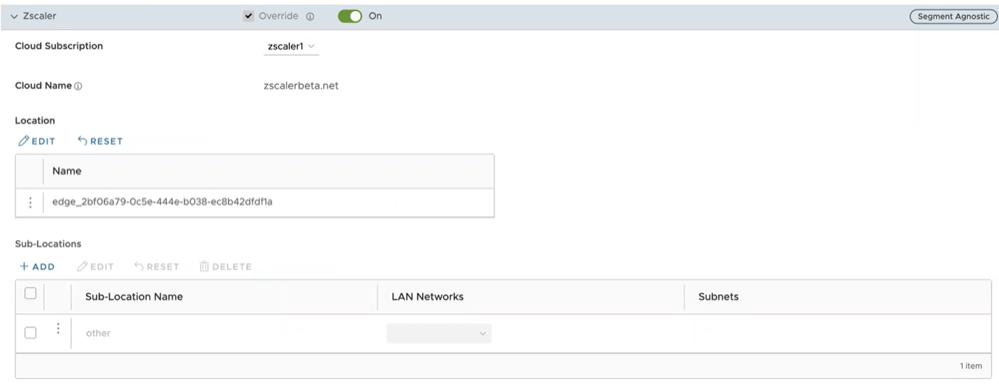
- From the Cloud Subscription drop-down menu, select the same Cloud Subscription that you used to create the Automatic CSS. The Cloud Name associated to the selected Cloud Subscription automatically appears.
Note:
- Cloud Subscription must have same Cloud name and Domain name as CSS.
- If you want to change provider for "Cloud Subscription", you must first remove the "Location" by deactivating CSS and Zscaler, and then perform the creation steps with the new provider.
In the Location table, selecting View under the Action Details column displays the actual values for the configuration fetched from Zscaler, if present. If you want to configure the Gateway options and Bandwidth controls for the Location, select the Edit button under Gateway Options. For additional information, see the section "Configure Zscaler Gateway Options and Bandwidth Control".
- To create a Sub-location, in the Sub-Locations table, select the + icon under the Action column.
- In the Sub-Location Name text box, enter a unique name for the Sub-location. The Sub location name should be unique across all segments for the Edge. The name can contain alphanumeric with a maximum word length of 32 characters.
- From the LAN Networks drop-down menu, select a VLAN configured for the Edge. The Subnet for the selected LAN network will be populated automatically.
Note: For a selected Edge, Sub-locations should not have overlapping Subnet IPs.
- Select Save Changes.
Figure 11. Create Zscaler Sub-locations 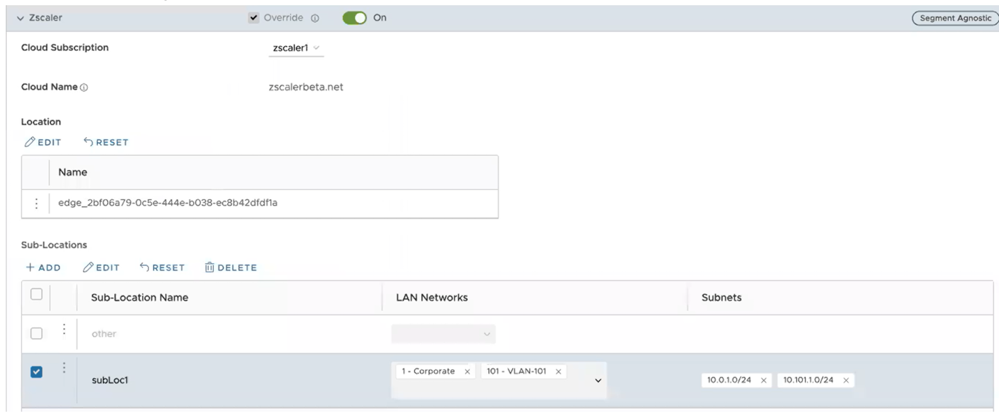 Note: After you create at least one Sub-location in the Orchestrator, an “Other” Sub location is automatically created in the Zscaler side, and it appears in the Orchestrator UI. You can also configure the “Other” Sub-location’s Gateway options by selecting the Edit button under Gateway Options in the Sub-Locations table. For additional information, see the section "Configure Zscaler Gateway Options and Bandwidth Control".
 - After creating a Sub-location, you can update the Sub-location configurations from the same Orchestrator page. Once you select Save Changes, the Sub-location configurations on the Zscaler side will be updated automatically.
- To delete a Sub-location, select the - icon in the Action column.
Note: When the last Sub-location is deleted from the table, the "other" Sub-location also gets deleted automatically.
Configure Zscaler Gateway Options and Bandwidth Control
To configure Gateway options and Bandwidth controls for the Location and Sub-location, select the Edit button under Gateway Options, in the respective table.
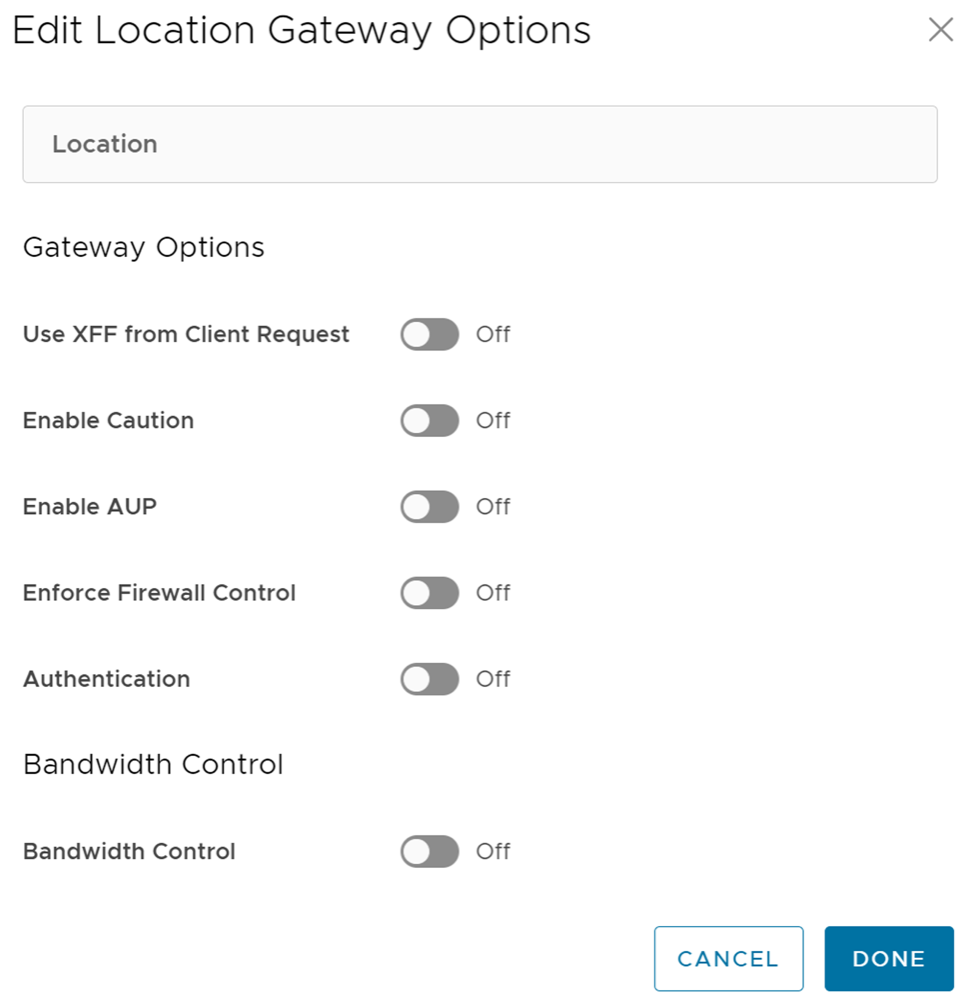
Configure the Gateway options and Bandwidth controls for the Location and Sub-location, as needed, and select Save Changes.
| Option | Description |
|---|---|
| Gateway Options for Location/Sub-Location | |
| Use XFF from Client Request | Enable this option if the location uses proxy chaining to forward traffic to the Zscaler service, and you want the service to discover the client IP address from the X-Forwarded-For (XFF) headers that your on premises proxy server inserts in outbound HTTP requests. The XFF header identifies the client IP address, which can be leveraged by the service to identify the client’s sub location. Using the XFF headers, the service can apply the appropriate sub location policy to the transaction, and if Enable IP Surrogate is turned on for the location or sub-location, the appropriate user policy is applied to the transaction. When the service forwards the traffic to its destination, it will remove the original XFF header and replace it with an XFF header that contains the IP address of the client gateway (the organization’s public IP address), ensuring that an organization's internal IP addresses are never exposed to externally.
Note: This Gateway option is only configurable for Parent location.
|
| Enable Caution | If you have not enabled Authentication, you can enable this feature to display a caution notification to unauthenticated users. |
| Enable AUP | If you have not enabled Authentication, you can enable this feature to display an Acceptable Use Policy (AUP) for unauthenticated traffic and require users to accept it. If you enable this feature:
|
| Enforce Firewall Control | Select to enable the service's firewall control.
Note: Before enabling this option, user must ensure if its Zscaler account has subscription for "Firewall Basic".
|
| Enable IPS Control | If you have enabled Enforce Firewall Control, select this to enable the service's IPS controls.
Note: Before enabling this option, user must ensure if its Zscaler account has subscription for "Firewall Basic" and "Firewall Cloud IPS".
|
| Authentication | Enable to require users from the Location or Sub-location to authenticate to the service. |
| IP Surrogate | If you enabled Authentication, select this option if you want to map users to device IP addresses. |
| Idle Time for Dissociation | If you enabled IP Surrogate, specify how long after a completed transaction, the service retains the IP address-to-user mapping. You can specify the Idle Time for Dissociation in Mins (default), or Hours, or Days.
|
| Surrogate IP for Known Browsers | Enable to use the existing IP address-to-user mapping (acquired from the surrogate IP) to authenticate users sending traffic from known browsers. |
| Refresh Time for re-validation of Surrogacy | If you enabled Surrogate IP for Known Browsers, specify the length of time that the Zscaler service can use IP address-to-user mapping for authenticating users sending traffic from known browsers. After the defined period of time elapses, the service will refresh and revalidate the existing IP-to-user mapping so that it can continue to use the mapping for authenticating users on browsers. You can specify the Refresh Time for re validation of Surrogacy in minutes (default), or hours, or days.
|
| Bandwidth Control Options for Location | |
| Bandwidth Control | Enable to enforce bandwidth controls for the location. If enabled, specify the maximum bandwidth limits for Download (Mbps) and Upload (Mbps). All sub locations will share the bandwidth limits assigned to this location. |
| Download | If you enabled Bandwidth Control, specify the maximum bandwidth limits for Download in Mbps. The allowable range is from 0.1 through 99999. |
| Upload | If you enabled Bandwidth Control, specify the maximum bandwidth limits for Upload in Mbps. The allowable range is from 0.1 through 99999. |
Bandwidth Control Options for Sub-Location (if Bandwidth Control is enabled on Parent Location)
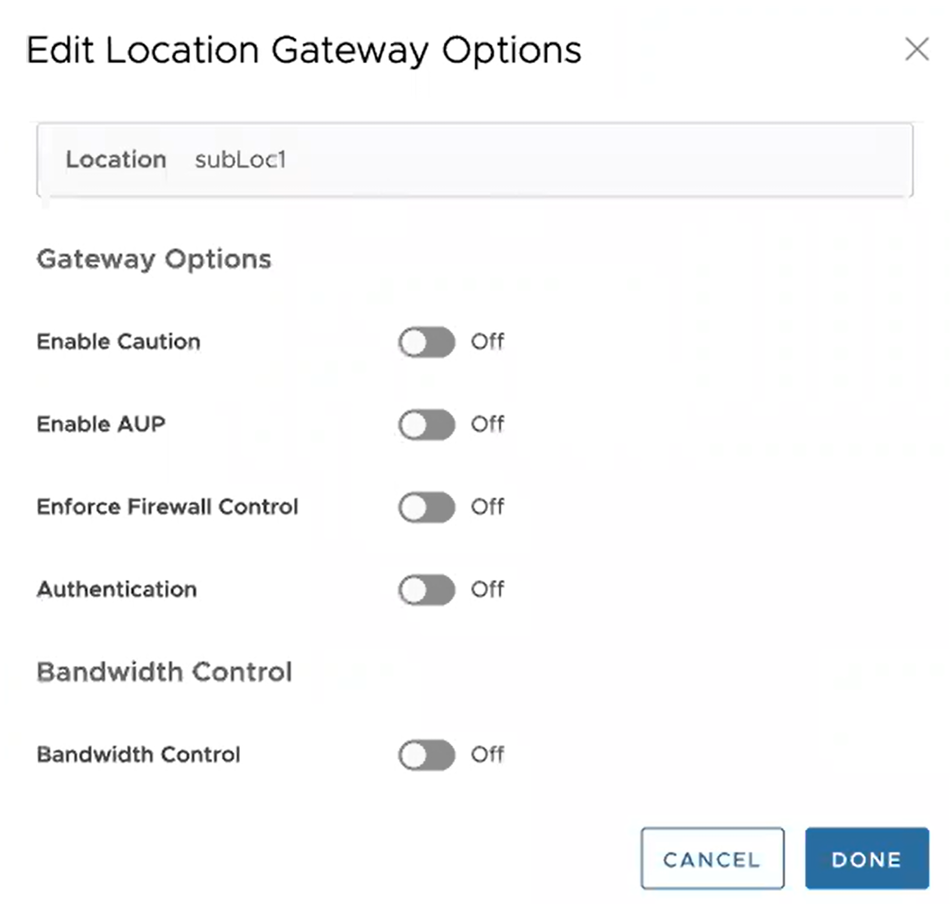 Note: The following bandwidth control options are configurable for sub-location only if you have bandwidth control enabled on the parent location. If the bandwidth control is not enabled on the parent location, then the bandwidth control options for sub-location are the same as location (Bandwidth Control, Download, Upload).
|
|
| Use Location Bandwidth | If you have bandwidth control enabled on the parent location, select this option to enable bandwidth control on the sub-location and use the download and upload maximum bandwidth limits as specified for the parent location. |
| Override | Select this option to enable bandwidth control on the sub-location and then specify the maximum bandwidth limits for Download (Mbps) and Upload (Mbps). This bandwidth is dedicated to the sub-location and not shared with others. |
| Disabled | Select this option to exempt the traffic from any Bandwidth Management policies. Sub-location with this option can only use up to a maximum of available shared bandwidth at any given time. |
Limitations
- In 4.5.0 release, when a Sub-location is created, Orchestrator automatically saves the "Other" Sub location. In earlier version of Orchestrator, the Zscaler "Other" Sub-location was not saved in Orchestrator. After upgrading Orchestrator to 4.5.0 release, the "Other" Sub-location will be imported automatically only after a new normal (non-Other) Sub-location is created using automation.
- Zscaler Sub-locations cannot have overlapping IP addresses (subnet IP ranges). Attempting to edit (add, update, or delete) multiple Sub-locations with conflicting IP addresses may cause the automation to fail.
- Users cannot update the bandwidth of Location and Sub-location at the same time.
- Sub-locations support the Use Location Bandwidth option for bandwidth control when its Parent Location bandwidth control is enabled. When user turns off the Location bandwidth control on a Parent Location, the Orchestrator does not check or update the Sub-location bandwidth control option proactively.
Configure Business Policies with Cloud Security Services
You can create business policies to redirect the traffic to a Cloud Security Service (CSS).
For additional information on business policies, see Create Business Policy Rule.
- Under , select +ADD. The Add Rule dialog box appears.
Figure 14. Add Business Policy Rule with CSS 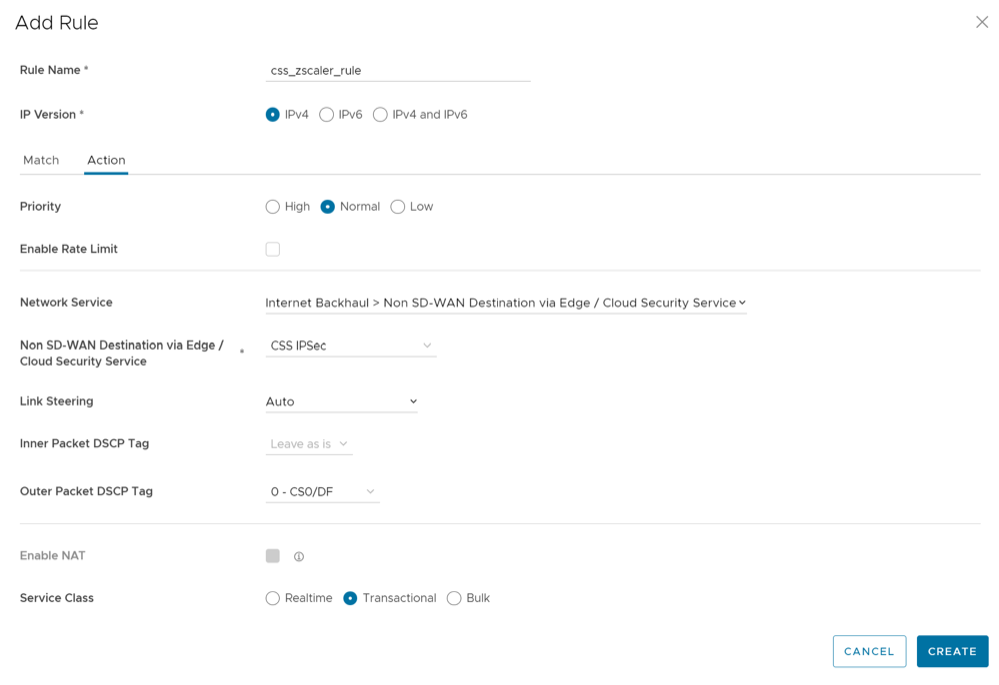
- Navigate to , select an Edge, and select the Business Policy tab.
- Under , select +ADD. The Add Rule dialog box appears.
- Define the rule with cloud security service associated with the Edge.
The Business Policy tab of the Edge displays the policies from the associated profile along with the policies specific to the Edge.
Monitor Cloud Security Services
You can view the details of Cloud Security Services (CSS) configured for the Enterprise from the page.
To monitor the cloud security service sites:
- Select the Cloud Security Service Sites tab to view all the CSS configured for the Enterprise along with the following configuration details.
Figure 15. Monitor Cloud Security Service Sites 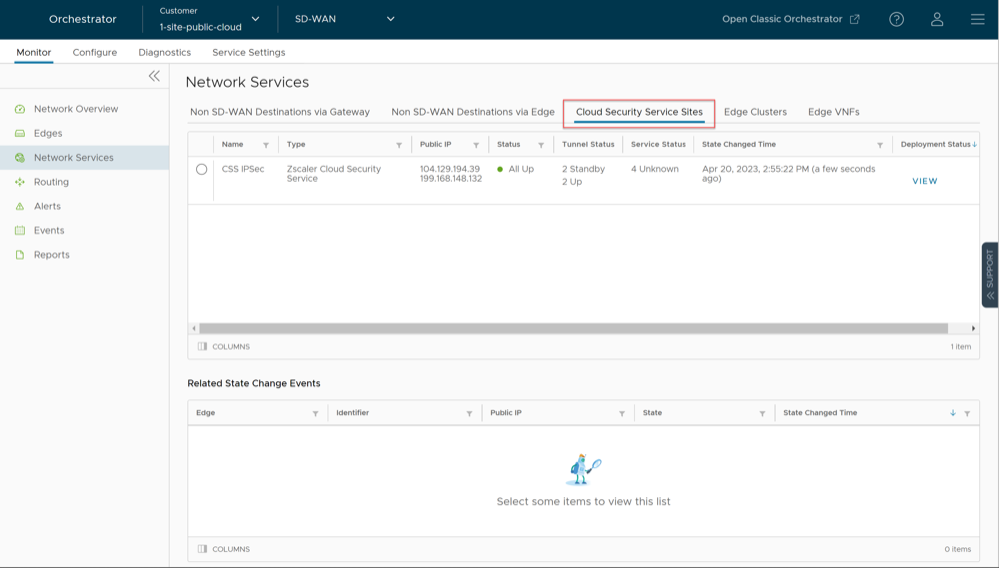
Table 7. Monitor Cloud Security Service Sites Field Descriptions Field Description Name The name of the CSS provider. Type The type of the CSS provider. Public IP The Public IP address of the CSS provider. Status The overall status of the CSS provider: - White- Specifies two possible states:
- ALL_STANDBY- The CSS provider is in this state if all the tunnels associated with the CSS provider are in STANDBY mode.
- UNKNOWN- The CSS provider is in this state if the overall status of the CSS provider is undetermined.
- Green- The CSS provider is in ALL_UP state if all the tunnels associated with the CSS provider are UP.
- Red- The CSS provider is in ALL_DOWN state if all the tunnels associated with the CSS provider are DOWN.
- Amber- The CSS provider is in PARTIAL state if the tunnels associated with the CSS provider are partially UP, DOWN, or in STANDBY mode.
Tunnel Status The status of tunnels created from the CSS provider from different Edges: - White- Specifies two possible states:
- UNKNOWN- The tunnel is in this state if the tunnel is unestablished.
- NOT ENABLED- The tunnel is in this state if the tunnel is not enabled.
- Grey- The tunnel associated with the CSS provider is in STANDBY mode.
- Green- Specifies two possible states:
- ALL_UP- All the tunnels associated with the CSS provider are UP.
- UP- A specific tunnel associated with the CSS provider is UP.
- Red- Specifies two possible states:
- ALL_DOWN- All the tunnels associated with the CSS provider are DOWN.
- DOWN- A specific tunnel associated with the CSS provider is DOWN.
Note: The numbers that appear on the Tunnel Status and Service Status icons signify the number of Edges associated with that state for the respective CSS provider.
Service Status The status of the external service as recorded by each Edge: - Green- The Layer 7 (L7) Health status of external service is UP.
- Red- The L7 Health status of external service is DOWN due to one of the following reasons:
- The Zen service does not respond to 'N' (Default = 3) consecutive HTTP probe messages.
- The HTTP response (200 OK) time exceeds the set time (Default = 300 milliseconds).
- The Zen server responds with 4xx HTTP error code.
- Amber- The L7 Health status of external service is DEGRADED if the HTTP load time exceeds 'N' seconds (Default = 3 seconds).
- Grey- The L7 Health status of external service is UNKNOWN.
State Changed Time The date and time by when the state change occurred. Deployment Status Allows to view the deployment status of the CSS provider. - White- Specifies two possible states:
- Select the radio button before the CSS provider name to view the related state change events.
Figure 16. Related CSS State Change Events 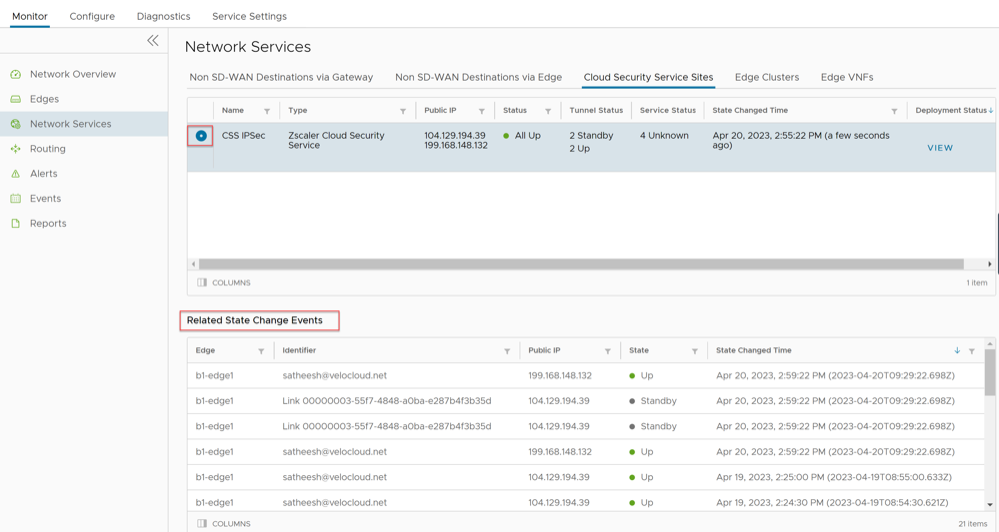
- Select the View link in the Deployment Status column to view the deployment status of the CSS provider.
Figure 17. View CSS Deployment Status 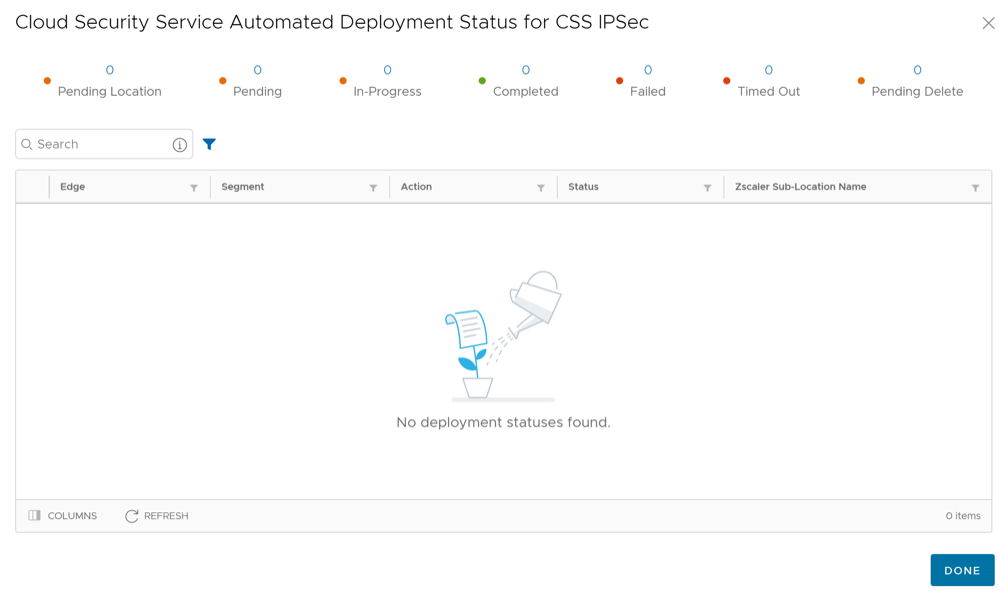 The following are the seven different states for an Edge action:
- Pending Location- The Edge action is in this state until a Zscaler location is created. This state is only for applicable for Sub-location Edge actions.
- Pending- The Edge action is in this state as it waits for a backend worker process to pick it up and start working on it.
- In-Progress- The Edge action is in this state after a backend worker process picks up the Edge action and starts working on it.
- Completed- The Edge action is in this state if the Edge action task is successfully completed.
- Failed- The Edge action is in this state if an error has occurred.
- Timed Out- The Edge action is in this state if it takes more than the expected amount of time to complete the Edge action task.
- Pending Delete- The Edge action is in this state if it is pending deletion.
-
Note: Currently, the "Pending Location" and "Pending Delete" states are not used and these states will be removed from the UI in the future release.
Monitor Cloud Security Services Events
You can view the events related to cloud security services from the page.
To view the events related to cloud security service sites, you can use the Search and Filter options. Select the Filter icon and choose to filter either by the Event or by the Message column.
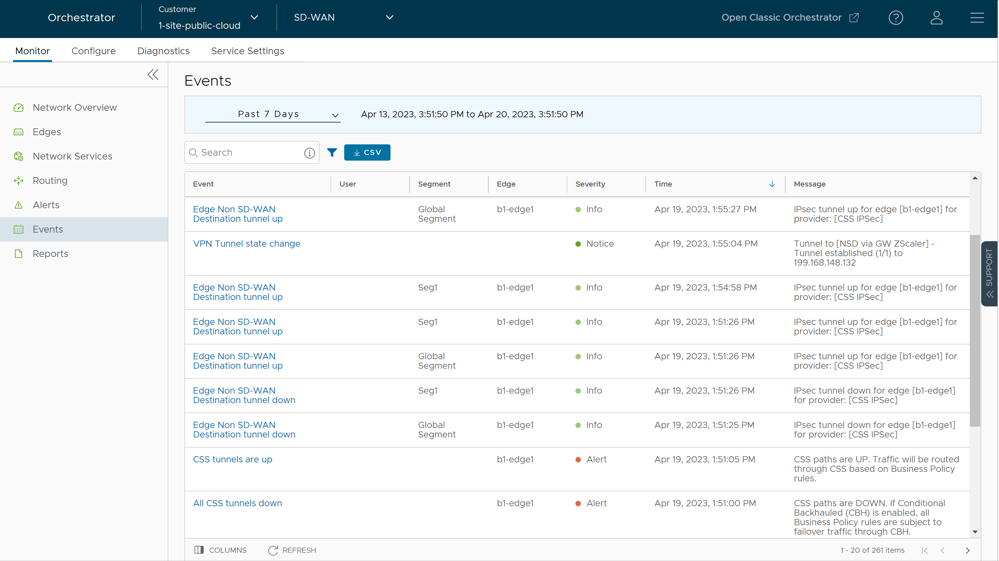
The following table includes the Enterprise events which help track various Edge actions related to CSS deployment, Location, and Sub-location automation.
| Events | Description |
|---|---|
| Call made to external API | An API call to some external service has been made. |
| CLOUD_SECURITY_PROVIDER_ADDED | A new CSS provider has been added. |
| CLOUD_SECURITY_PROVIDER_UPDATED | A new CSS provider has been updated. |
| CLOUD_SECURITY_PROVIDER_REMOVED | A CSS provider has been removed. |
| Cloud Security Service site creation enqueued | A CSS site creation task has been enqueued. |
| Cloud Security Service site update enqueued | A CSS site update task has been enqueued. |
| Cloud Security Service site deletion enqueued | A CSS site deletion task has been enqueued. |
| Network Service created | A CSS site has been created. |
| Network Service updated | A CSS site has been updated. |
| Network Service deleted | A CSS site has been deleted. |
| CSS tunnels are up | The CSS paths are UP. The traffic will be routed through CSS based on the Business policy rules configured. |
| All CSS tunnels are down | The CSS paths are DOWN. |
| Edge Non SD-WAN Destination tunnel up | The tunnel is UP for the Edge. |
| Edge Non SD-WAN Destination tunnel down | The tunnel is DOWN for the Edge. |
| Zscaler Location creation enqueued | An Edge action has been enqueued to create a location. |
| Zscaler Location update enqueued | An Edge action has been enqueued to update a location. |
| Zscaler Location deletion enqueued | An Edge action has been enqueued to delete a location. |
| Zscaler Location object created | A Zscaler location object is created. |
| Zscaler Location object updated | A Zscaler location object is updated. |
| Zscaler Location object deleted | A Zscaler location object is deleted. |
| Zscaler Sub Location creation enqueued | An Edge action has been enqueued to create a sub-location. |
| Zscaler Sub Location update enqueued | An Edge action has been enqueued to update a sub-location. |
| Zscaler Sub Location deletion enqueued | An Edge action has been enqueued to delete a sub-location. |
| Zscaler Sub Location object created | A Zscaler Sub-location object is created. |
| Zscaler Sub Location object updated | A Zscaler Sub-location object is updated. |
| Zscaler Sub Location object deleted | A Zscaler Sub-location object is deleted. |