
Data Plane Development Kit (DPDK) Mode
This section focuses on the new DPDK-based AWE-7200R and CloudEOS router while highlighting the changes from the existing kernel-based AWE-7200R and CloudEOS router.
The Arista AWE-7200R and CloudEOS router provide a cloud-grade, feature-rich, multi-cloud, and multi-hypervisor virtual router that empowers enterprises and cloud providers to build consistent, highly secure, and scalable multi-cloud networks.
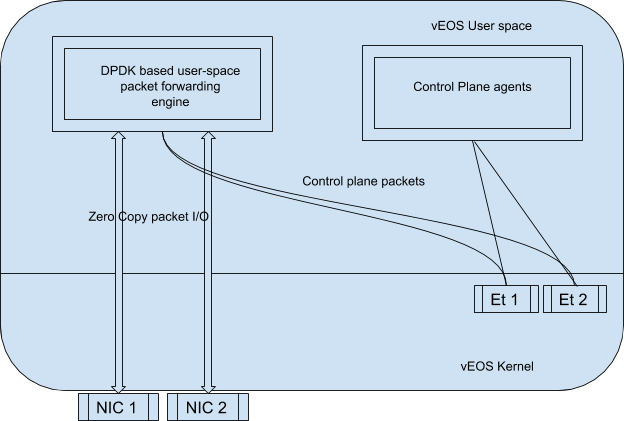
The AWE-7200R and CloudEOS router can run in two modes: DPDK (high performance) and kernel, each with a set of supported features. Beginning with AWE-7200R and CloudEOS router-router-4.23.0FX and later, new installations of the AWE-7200R and CloudEOS router from the hypervisor image or on the public cloud run in high-performance DPDK mode by default. In the future, all the new features and developments use the DPDK mode.
Both types of AWE-7200R and CloudEOS router perform all the packet forwarding operations in software but use different software components. DPDK-based AWE-7200R and CloudEOS router, which uses DPDK to perform packet forwarding operations, has more efficient performance. While DPDK mode has more features than the kernel mode, certain features are available only in the kernel mode, like Zone-Based Segmentation (ZSS) and sFlow.
Platform Compatibility
The following platforms support AWE-7200R and CloudEOS router-DPDK mode.
- vmware esxi 8.0+
- Supported NICs
- vmware vmxnet3 ( para-virtualized )
- Intel x520/82599 PCIe passthrough and SRIOV mode
- Supported NICs
- Linux / KVM
- RHEL/CentOS 9.5+
- Ubuntu 25.10+
- Supported NICs
- Virtio-net ( para-virtualized )
- Intel x520/82599 PCIe passthrough and SRIOV mode
- Supported NICs
Hardware Resource Requirements
The AWE-7200R and CloudEOS router DPDK mode depends on the features available on CPUs, and AWE-7200R and CloudEOS router VMs must be deployed on only certain types of server platforms to meet performance benchmarks. The ideal server configuration should have the following parameters:
- Intel E5-26XX v4 or later class of CPU
- Higher than 2.2 GHz core frequency for best performance
- Minimum 2 CPU cores reserved for AWE-7200R and CloudEOS router
- The hypervisor software uses at least 2 additional cores.
-
- Disable Hyper-threading for best performance.
- Non-NUMA or ensure AWE-7200R and CloudEOS router receives resources from a single NUMA node.
- Disable power saving and frequency scaling features in BIOS/Firmware/hypervisor.
- High-speed hard drive (~7200 RPM) or SSD and minimum 8 GB of free disk space.
- Reserve at least 4 GB of RAM for AWE-7200R and CloudEOS router.
- 4 GB RAM only supports 3 VRFs.
- Requires 8 GB to support up to 8 VRFs.
- Server should have more memory for use by hypervisor software.
In addition to the server requirements, you must configure the hypervisor to provide memory and CPU reservation for AWE-7200R and CloudEOS router VMs to ensure optimum performance. In addition, map each vCPU used by the AWE-7200R and CloudEOS router VM to a unique physical CPU core. These configurations and settings depend on the type of hypervisor used, and the information usually documented in the configuration guide(s) provided by the hypervisor vendor.
Upgrading to DPDK Mode from Kernel Mode
By default, all the new AWE-7200R and CloudEOS router installations from the hypervisor image or public cloud run in high-performance DPDK mode beginning with CloudEOS 4.23.0FX and AWE-7200R Series routers.
- Ensure that you do not enable features unsupported by DPDK mode.
- Review the memory requirements for DPDK mode listed in Hardware Resource Requirements. DPDK requires more memory than the kernel mode.
- When upgrading an existing instance, ensure the instance has sufficient memory to run in DPDK mode.
- DPDK mode runs the datapath cores in poll mode and runs the CPU at 100%.
To perform following actions, ensure the system has a configuration to allow bash access, at least temporarily, and then perform the following actions on AWE-7200R and CloudEOS:
router# conf t
router(config)# bash sudo su -
Arista Networks EOS shell
-bash-4.3# cat /mnt/flash/WAN-config
# Use 'MODE' to set the forwarding plane for WAN. If 'MODE' is set multiple times
# the last configuration takes effect.
# 'MODE=linux' runs WAN with linux forwarding plane
MODE=linux
# 'MODE=sfe' runs WAN with DPDK forwarding plane
#MODE=sfe
Use a text editor to modify this file by commenting out MODE=linux and un-commenting MODE=sfe. After modification, verify the changes and then save the file. The file should look like the following example.
-bash-4.3# cat /mnt/flash/WAN-config
# Use 'MODE' to set the forwarding plane for WAN. If 'MODE' is set multiple times
# the last configuration takes effect.
# 'MODE=linux' runs WAN with linux forwarding plane
#MODE=linux
# 'MODE=sfe' runs WAN with DPDK forwarding plane
MODE=sfe
-bash-4.3# exit
logout
router(config)# reload
After reloading, the AWE-7200R and CloudEOS boot up in DPDK mode.
AWE-7200R and CloudEOS-DPDK Mode Verification
switch# show agent sfe ping

show agent sfe ping

Agent Name   Last Ping   Max Ping       Max Ping Response Seen  Last Ping Response Seen
----------------------   ------------   ----------------------  -----------------------
Sfe          1.571 ms    2209.819 ms    2019-11-15 11:14:05     2019-12-12 15:02:48
A system in DPDK mode uses 100% of CPU cycles for each datapath vCPU. To ensure packet forwarding tasks and CPU intensive tasks do not prevent control plane and management operations, EOS dedicates CPU cores for control and management functions.
The Linux top command followed by 1 displays detailed CPU utilization. The following output displays the top results for AWE-7200R and CloudEOS with 2 cores. Depending on the version, either Sfe or bessd displays using 100% of the datapath core.
veos-CLI(config)# bash top -n 1

Tasks: 236 total,   1 running, 235 sleeping,   0 stopped,   0 zombie

%Cpu0  :  1.6 us,  0.7 sy,  0.0 ni, 95.1 id,  0.0 wa,  2.6 hi,  0.0 si,  0.0 st
%Cpu1  :100.0 us,  0.0 sy,  0.0 ni,  0.0 id,  0.0 wa,  0.0 hi,  0.0 si,  0.0 st
KiB Mem:   8122156 total,  4642632 used,  3479524 free,   255624 buffers
KiB Swap:        0 total,        0 used,        0 free,  1857744 cached

  PID USER      PR  NI  VIRT  RES  SHR S  %CPU %MEM    TIME+  COMMAND
 3355 root      20   0 2186m 239m 201m S 100.1  3.0  39262:38 Sfe [or bessd]
 2544 root      20   0  375m  58m  38m S   0.3  0.7 192:36.08 ProcMgr-worker
 2705 root      20   0  403m 180m 142m S   0.3  2.3 135:53.49 Sysdb
 3102 root      20   0  379m 111m  95m S   0.3  1.4   8:06.90 Ira
 3119 root      20   0  373m  86m  70m S   0.3  1.1  24:34.26 StpTxRx
AWE-7200R and CloudEOS router vCPU Core Allocation
- 2-core
- 4-core
- 8-core
- On 2-core and 4-core VMs, a single core reserve for the management and control plane, and the remaining core(s) reserve for packet-forwarding or data-plane operations.
- On 8-core VMs, two cores reserve for control and management functions, and the remaining reserve for data-plane functions.
| cpu1 cpu2 | cpu3 | cpu4 | cpu5 | cpu6 | cpu7 | cpu8 | Memory | ||
|---|---|---|---|---|---|---|---|---|---|
| 2 cores | CP DP | N/A | 4 or 8 GB | ||||||
| 4 cores | CP DP | N/A | 8 GB | ||||||
| 8 cores | CP | DP | >=8 GB | ||||||
Monitoring Datapath CPU Utilization in DPDK Mode
Since DPDK runs in poll mode, it always displays CPU utilization at 100% utilized. To verify this, use the sfe platform command and locate the CPU percentage used for packet processing.
router# platform sfe bessctl

shType "help" for more information.
localhost:10514 $ show busy
   Worker ID      Busy       PPS
           0         0         0
           1         0         0
           2         0         0

localhost:10514 $ show busy
   Worker ID      Busy       PPS
           0         0         0
           1         0         0
           2         0         0
In addition, CloudEOS records a syslog message if the CPU utilization spikes over 80% for 60 seconds while performing packet processing.
2019-10-28 23:44:11.776909  8908 Log
0 %SFE-4-CORE_SUSTAINED_BUSY: Software Data Plane Forwarding service is experiencing heavy load as it has been 80 percent busy over last 60 seconds
2019-10-29 15:54:53.394284  8908 Log
0 %SFE-4-CORE_SUSTAINED_BUSY: Software Data Plane Forwarding service is experiencing heavy load as it has been 80 percent busy over last 60 seconds
General Troubleshooting
To find information about packet forwarding agents, check the following log file.
router-CLI(config)# bash cat /var/log/agents/bessd.INFO
In case of errors, the system generates another log file accessed using the following command.
router-CLI(config)# bash cat /var/log/agents/bessd.FATAL
In addition to the log files, the commands, syslog and show-tech, provide valuable sources of troubleshooting information.