Deployment Strategy

The following is a simple guide on what tools are available in the Orchestrator, how to use the tools, and how to activate EFS to start inspecting traffic.
  1. Day 0 Plan
    1. Run Reports:
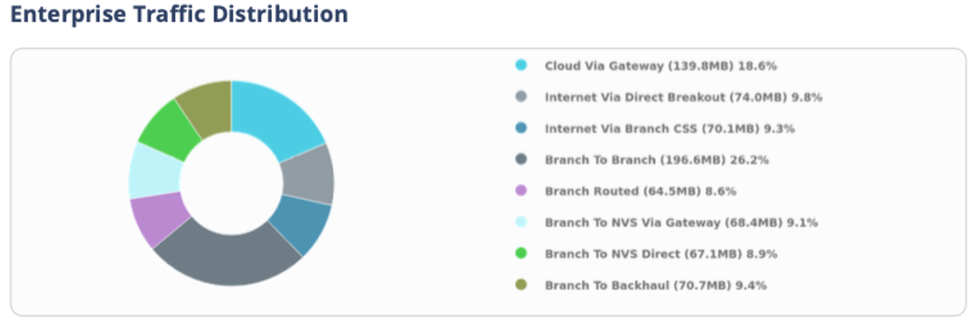
      1. Running a Report for the entire VeloCloud SD-WAN network or even a single Edge can give you a quick glimpse of the types of traffic patterns and the corresponding percentage of the total traffic.
      2. To run a Report, see the topic Monitor Enterprise Reports in the Arista VeloCloud Administration Guide. The report displays the Enterprise Traffic Distribution as shown below.
        Figure 1. Enterprise Traffic Distribution
    2. Investigate Edge Utilization
      Note: To speed up the following process, contact your Arista representative to get the Edge utilization metrics of your entire VeloCloud SD-WAN network.
      1. Analyzing key utilization metrics such as CPU and memory usage, throughput, and flow count can help you make informed decisions about whether and how to deploy EFS. These metrics can provide insights into your current infrastructure usage and help you identify potential bottlenecks.
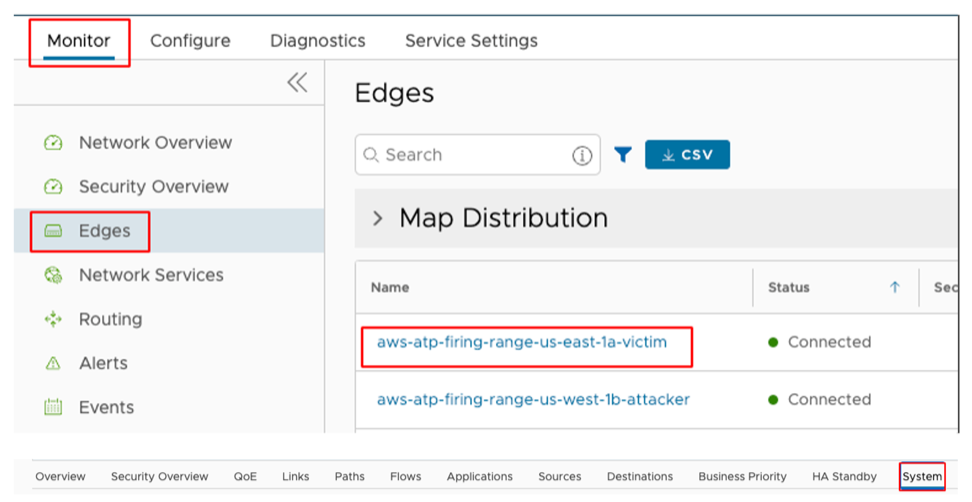
      2. To view the CPU, memory usage, and flow counts, go to Monitor > Edges . Select the Edge you are investigating and go to System.
        Figure 2. Monitor Edges
      3. Select a time range for analysis based on the type of Enterprise and the desired sample size. For example, a one-month time range may be sufficient for a small business, while a full year may be necessary for a large corporation.
        Figure 3. Selecting Time Range
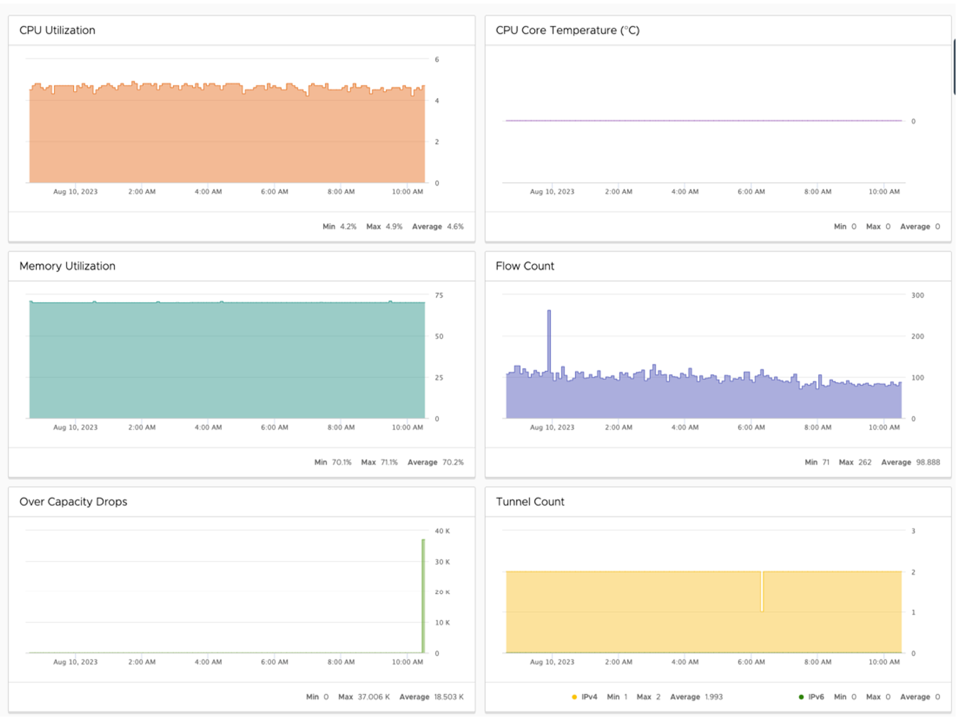
      4. The most important metrics for planning are CPU, Memory, Flow Count, and Over Capacity Drops. Specifically, the maximum and average values. It is important to cross-check the flow counts with the Arista VeloCloud SD-WAN Edge platform specifications.
        Figure 4. Monitor Edge Metrics
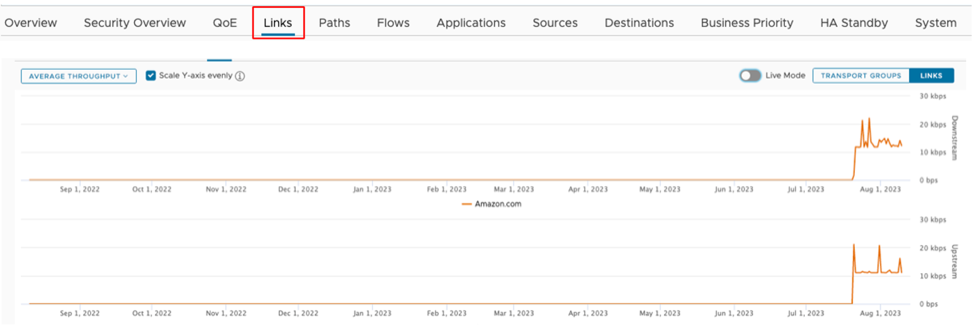
      5. To view Average Throughput, select the Links tab.
        Figure 5. Links Tab
      6. Make sure to cross-check these numbers with the Arista VeloCloud SD-WAN Edge platform specifications.

        Adequate planning is essential for a smooth deployment. Now that you have investigated the branch site using the above tools, you can now develop a deployment strategy. Your strategy can be as simple as inspecting all traffic, assuming the branch has capacity, or gradually adding inspection to traffic and monitoring.
  2. Day 1 Deploy: Activate EFS
    Note: Enhanced Firewall Services (EFS) is a licensed feature. EFS will only show up in a properly licensed environment.
    CAUTION: Activating or deactivating EFS may cause a disruption in network traffic.
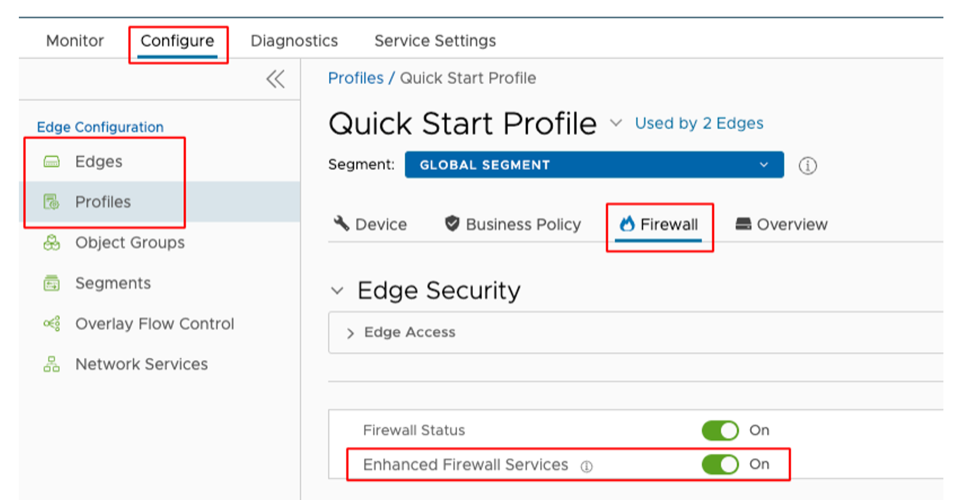
    1. Enabling EFS can be done on either the Profile or Edge level.
    2. Go to Configure > Profile/Edge . Select the Profile or Edge you want to configure and select the Firewall tab. Make sure the Enhanced Firewall Services toggle is set to "On".
      Figure 6. Configure Enhanced Firewall Services
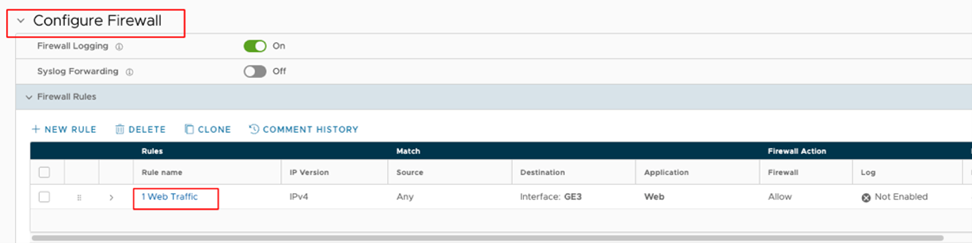
    3. Go to Firewall Rules and select an ALLOW firewall rule you would want EFS to inspect.
      Figure 7. Firewall Rules
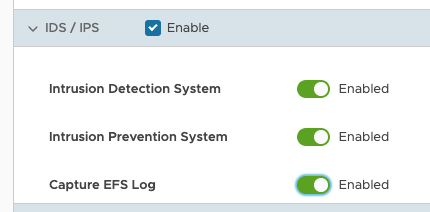
    4. Select the Rule link that you want to inspect and go to the IDS/IPS section. Select Enable check box and then configure the following options as required:
      Figure 8. IDS/IPS
      • Intrusion Detection System: Enable this option if you want for malicious traffic to be allowed but alerted.
      • Intrusion Prevention System: Enable this option if you want EFS to alert and prevent malicious traffic.
      • Capture EFS Log: Enable this option to log any traffic that is seen as malicious by the EFS.
  3. Day 2 Monitor and Optimize: After EFS has been activated and applied to ALLOW firewall rules, it is important to monitor the site for abnormalities. Utilizing the same metrics used for planning can provide a good indication of whether or not a site is stable. In addition to the tools provided by the Orchestrator, it is important to also be on the lookout for trouble tickets that relate to the site you worked on. If any metrics increase significantly, or if you observe Event log entries like EDGE_MEMORY_USAGE by navigating to Monitor > Events , or if there is a surge in user complaints from the site, you may need to roll back the changes and reevaluate.
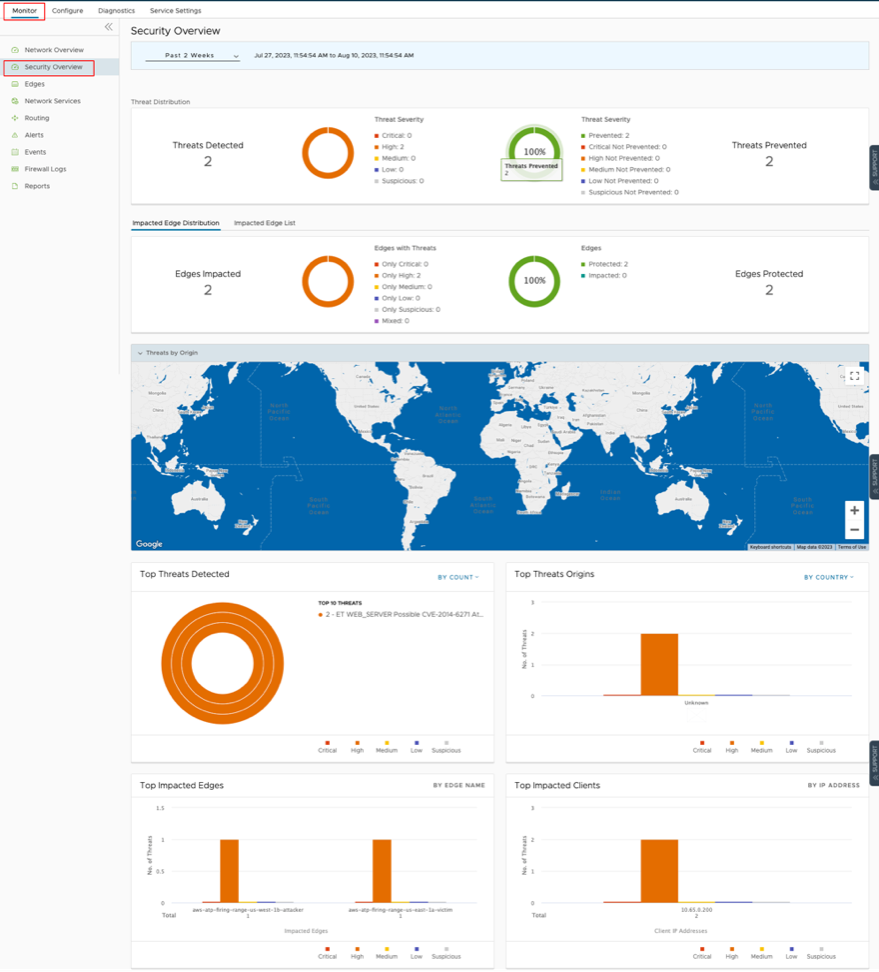
  4. Day N Maintain: Now that EFS has been deployed it is important to monitor your network for malicious activity. Integrating with a SIEM solution and/or monitoring the Security Overview dashboard can notify you of malicious events. The Security Overview dashboard offers a holistic view of your Enterprise's threat landscape, allowing you to quickly react to attacks.
    1. Go to Monitor > Security Overview .
      Figure 9. Monitor Security Overview
    2. If you want to investigate a single Edge. On this dashboard, select Impacted Edge List. Select an Edge, and then select Security Overview.
      Figure 10. Impacted Edge List
      Figure 11. Security Overview

False Positive Workarounds

A False Positive, with regards to IDS/IPS, is a situation where legitimate traffic is being blocked/flagged by the IDS/IPS.

If you believe that the IDS/IPS might be incorrectly blocking legitimate traffic, follow the steps outlined below, starting from granular approaches and moving to more broad solutions, to resolve the problem.

In all cases, submit a support ticket outlining the type of traffic being dropped and the Signature ID that the traffic is hitting. To collect the appropriate data to submit in your support ticket, refer to the Firewall logs or your logging infrastructure that is collecting your syslogs.

If you use the Orchestrator-hosted logging, navigate to Monitor > Firewall Logs and find the suspected traffic. From these logs, gather the Source IP, Destination IP, Application, and Signature ID and add that to your support ticket.

CAUTION: Activating and deactivating the Enhanced Firewall Service (EFS) may cause a disruption in network traffic.
  1. Method 1: Create a More Targeted Firewall Rule Above the Offending Firewall Rule:The most specific solution is to create a more targeted firewall rule above the offending firewall rule by performing the following steps:
    1. Navigate to Monitor > Firewall Logs and filter the log entries to match the incorrectly blocked traffic. Note the Source/Destination IP/Port, Protocol, and Application. You will use that information to create a new firewall rule. Also note the Rule and Edge Name.
    2. Under the Configure tab, navigate to the Edges view and select the affected Edge.
    3. Navigate to the Firewall tab and expand the Firewall Rules area.
    4. Select + New Rule and create a more specific rule based on the data you collected from the logs. Make sure to not activate IDS/IPS and then select Create.
    5. Select the firewall rule you just created and drag it to right above the offending firewall rule.
    6. Select Save Changes.
    7. Verify the change is working as intended and the traffic is not being blocked.
  2. Method 2: Deactivate EFS at the Rule level: To further limit the scope of change you can select the offending rule and deactivate EFS at the firewall rule level. To deactivate EFS at the Rule level:
    1. Navigate to Monitor > Firewall Logs and select the appropriate log entry. From the Rule and Edge columns, note the Rule name and the Edge name.
    2. Under the Configure tab, navigate to the Edges view and select the affected Edge.
    3. Navigate to the Firewall tab and expand the Firewall Rules area.
    4. Find the offending Rule and select it. If the Rule is under the Rules From Profile area then you will need to navigate to the Profile and edit the rule from there. The steps to edit the rule at the Profile level are same as editing the rule at the Edge level.
    5. After selecting the Rule, scroll down to the IDS/IPS section. From the IDS/IPS section you can deactivate both IDS/IPS or you can just deactivate IPS.
    6. To deactivate both IPS and IDS, unselect the Enable check box.
    7. To deactivate only the IPS, toggle the Enable button next to Intrusion Prevention System.
    8. Verify the change is working as intended and the traffic is not being blocked.
  3. Method 3: Deactivate EFS at the Edge level: If the issue is isolated at a single branch, then to limit the scope of changes, it might be best to deactivate EFS on the affected Edge. To deactivate EFS at the Edge level:
    1. Navigate to Configure > Edges and select the appropriate Edge to deactivate EFS.
    2. Navigate to the Firewall tab.
    3. In the Enhanced Firewall Services area, select the Override check box and then toggle the Enhanced Firewall Services button to Off.
    4. Verify the change is working as intended and the traffic is not being blocked.
  4. Method 4: Deactivate EFS at the Profile level: If the issue is seen across several branches, then it might be prudent to deactivate EFS at the Profile level. To deactivate EFS at the Profile level:
    1. Navigate to Configure > Profiles and select the Profile that covers the desired Edges.
    2. From the Profile view, select the Firewall tab.
    3. Toggle the Enhanced Firewall Services button to Off.
    4. Verify the change is working as intended and the traffic is not being blocked.

Best Practices

The deployment of EFS, or any new feature, requires careful consideration and planning.

Understanding your network:
  • Common traffic flows - Analyzing the primary direction of your network traffic (branch-to-branch, branch-to-hub, or branch-to-internet) can help you determine the best starting point for deploying EFS.
  • Known security measures - Understanding the placement of firewalls with capabilities similar to EFS within your network can inform your decisions regarding traffic inspection. It might be more efficient to leverage existing security hardware.
  • Performance pain points - As networks expand, a location that initially began as a small branch might evolve into a medium or even large branch. If the Edge, originally designed for the smaller branch, has not been updated, it might be inadequately equipped to handle EFS, potentially compromising the site's performance.

Some of these factors can be understood through experience with the network, while others will require some investigative work. The Orchestrator provides you with easy-to-use tools and dashboards to accurately formulate a deployment strategy.

Traffic Patterns

This section discusses monitoring and inspecting network traffic patterns to detect threats and troubleshoot performance issues.

The Branch Attack Surface

An adversary has numerous ways to gain initial access to an Enterprise's network. Some of those ways include the following:
  • Internet of Things (IoT) - These devices have become ubiquitous as there seems to be a race to turn everything “smart.” Everything wants access to the network, such as sensors, printers, security cameras, door locks, and so on. Unfortunately, security is usually an afterthought when creating these devices.
  • Employees - Employees are prime targets for adversaries to leverage for initial access. Disgruntled employees can sell access to your network, and inattentive employees can be susceptible to phishing campaigns.
  • Physical Security - Physical security vulnerabilities could provide opportunities for malicious actors to gain access to machines or open ports. This could allow them to steal data, launch attacks, or disrupt operations. It is important to implement strong physical security measures to protect against these risks.
  • Network Devices - Network devices that are not patched offer adversaries the means to spread through the network. This is because unpatched devices may contain vulnerabilities that can be exploited by attackers. Once an attacker has gained access to an unpatched device, they can then use it to move laterally through the network and gain access to other devices. This can lead to a data breach, financial loss, or even physical damage. Therefore, it is important to keep all network devices up to date with the latest security patches.

Protecting internal traffic is as important as securing the network perimeter. Adversaries have multiple methods of bypassing a robust security stack that protects the boundary between the internal network and the outside world. Without a layered defense, a threat actor essentially has free rein over the internal network. A solid understanding of network segmentation will make it easier to create firewall policies that add the appropriate level of security without compromising performance.
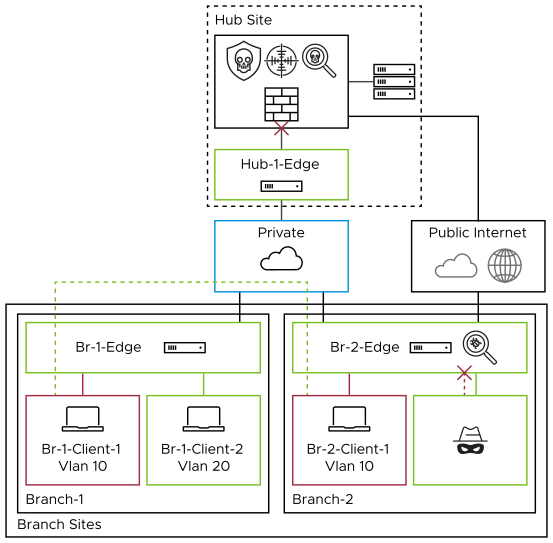
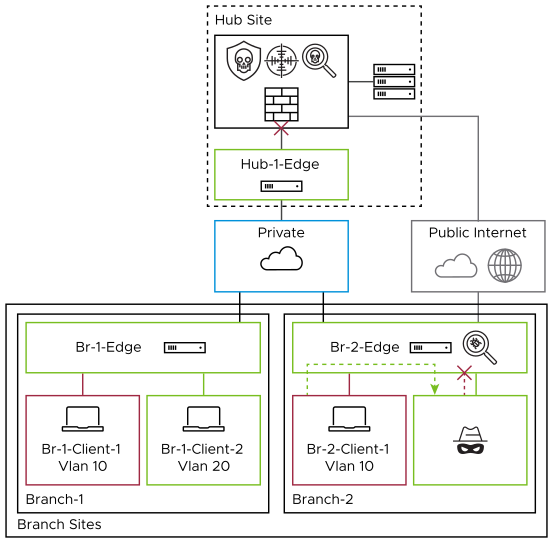
Private Access

Figure 1. Inter-Branch Communication


Figure 2. Intra-Branch Communication
Examples of Inter-branch and Intra-branch traffic:
  • Doctors' office downloading MRI images from Imaging Center
  • IoT device communications
  • Application traffic

As branch sites typically have less security in place than hubs, it would be more prudent to add additional security checks for this traffic flow. The goal of EFS is to easily add these checks to secure the branch and limit the blast radius of an attack, thus hindering a hacker's ability to use techniques such as lateral movement.

Lateral Movement- Once an attacker gains access to a machine on an internal network, they will typically need to find a way to move laterally through the network in order to find sensitive information. One common way that an attacker might move laterally is by exploiting vulnerabilities in software that is used internally by the company. EFS can detect and prevent malicious movement that uses known exploits.
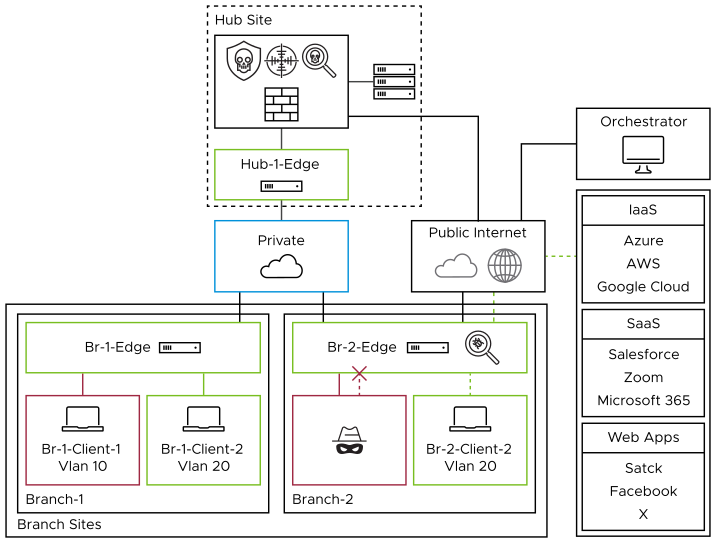
Internet Access without Secure Web Gateway (SWG)

Figure 3. Direct Internet Access

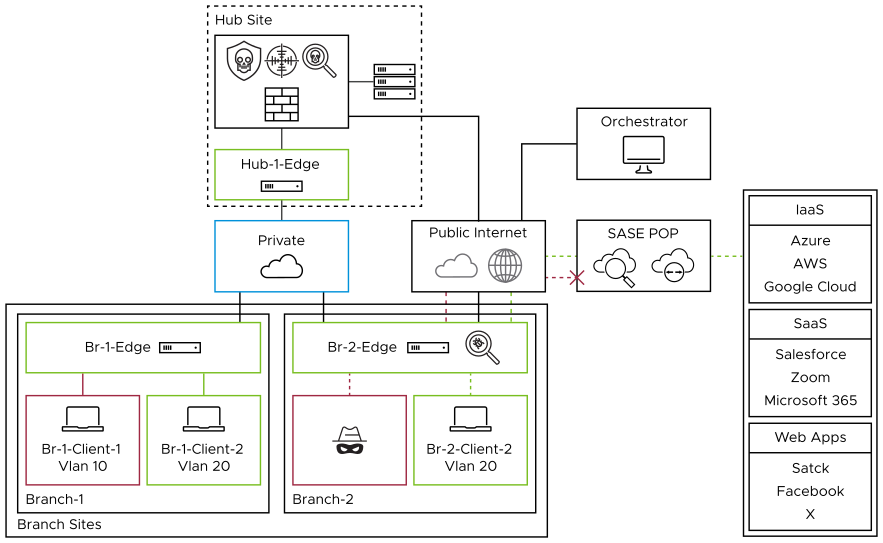
Branch with Internet Access with Secure Web Gateway (SWG)

Figure 4. Internet Access with SWG

Combine EFS with any third-party SSE solution to provide a more well-rounded security approach. EFS protects your network from malicious activity by analyzing traffic patterns against signatures of known threats and anomalous behavior. In contrast, a third-party SSE primarily focuses on Internet-bound traffic, with features such as SSL Decryption, DLP, CASB, and URL and Content Filtering. Together, they provide a multi-tiered defense, protecting internal network operations and external web interactions from various cyber threats.

Design Considerations

Although Enhanced Firewall Services (EFS) can be set up with a few mouse clicks, a thorough understanding of the network, traffic flows, and current configurations is required before activating and configuring the feature.

Performance Impact

Traffic inspected by the IDPS with Stateful Firewall may experience a performance impact. There is a balancing act between securing the network and making it performant. By understanding your network, EFS can be applied to the appropriate traffic.
Logging

Logging is essential when it comes to troubleshooting issues, investigating threats, and complying with PCI DSS, NIST, and others. VeloCloud SD-WAN accomplishes this by utilizing regionally hosted logging infrastructure and/or exporting logs via syslog to a central log server, Security Orchestration, Automation and Response (SOAR), or Security Information and Event Management (SIEM) such as Splunk or QRadar. These two features are not mutually exclusive, so both can be used together.
Note: Avoid logging for firewall rules that are either highly permissive or overly strict. Excessive logging may cause unnecessary stress on the hard disk, potentially causing hard disk failure.

Syslog

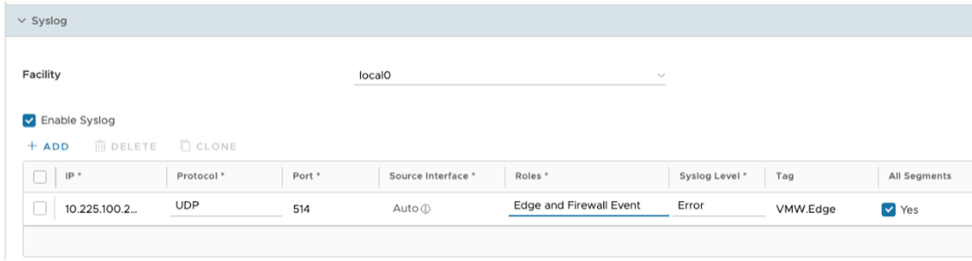
Companies with an existing central log server, SIEM, or SOAR can export the logs via syslog into those solutions. The following image depicts the syslog configuration. You can configure the feature at the Profile or Edge level. It is important to note that syslog traffic is not encrypted.
Figure 1. Syslog Configuration
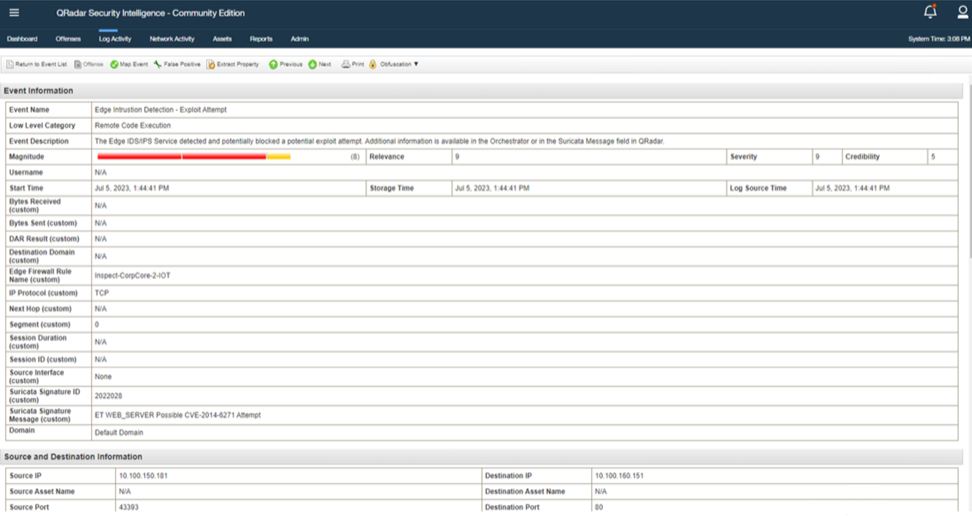
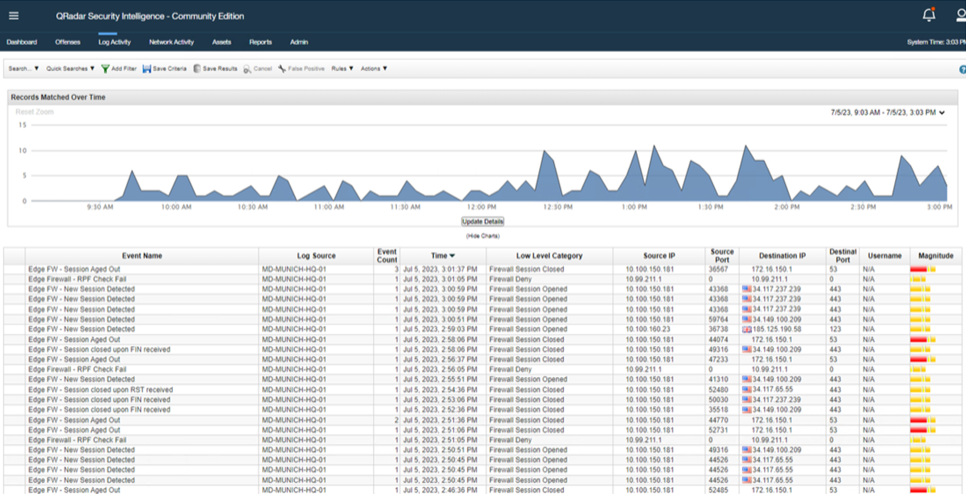
The following images are examples of an QRadar instance receiving logs from an Edge device.
Figure 2. QRadar View - Example 1
Figure 3. QRadar View - Example 2

Known Limitations

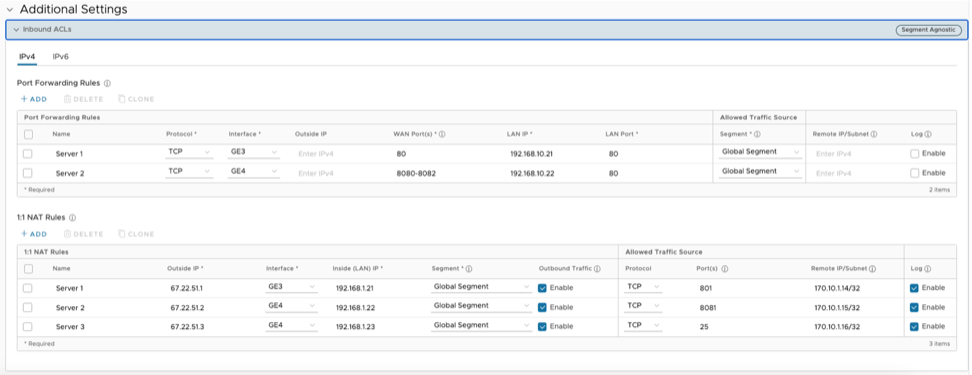
In 5.2 release, traffic that hits a 1:1 NAT or Port Forwarding rule is not inspected by the IDPS Engine. This limitation will be addressed in a future release.
Figure 4. 1:1 NAT and Port Forwarding Configuration

Reference Architecture

The reference architecture describes the basic topology, use cases, and functionality of the EFS components when activated for accessing applications in a multi-cloud environment, whether it be for branch-to-branch traffic, branch-to-hub traffic, or when accessing SaaS applications on the public cloud.
Topology

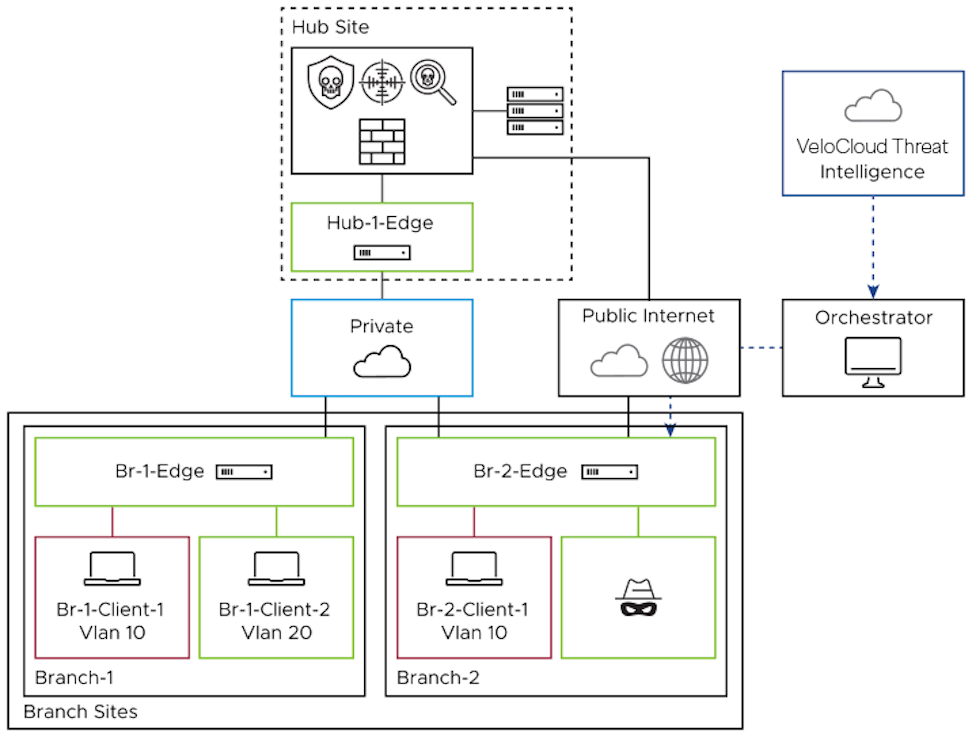
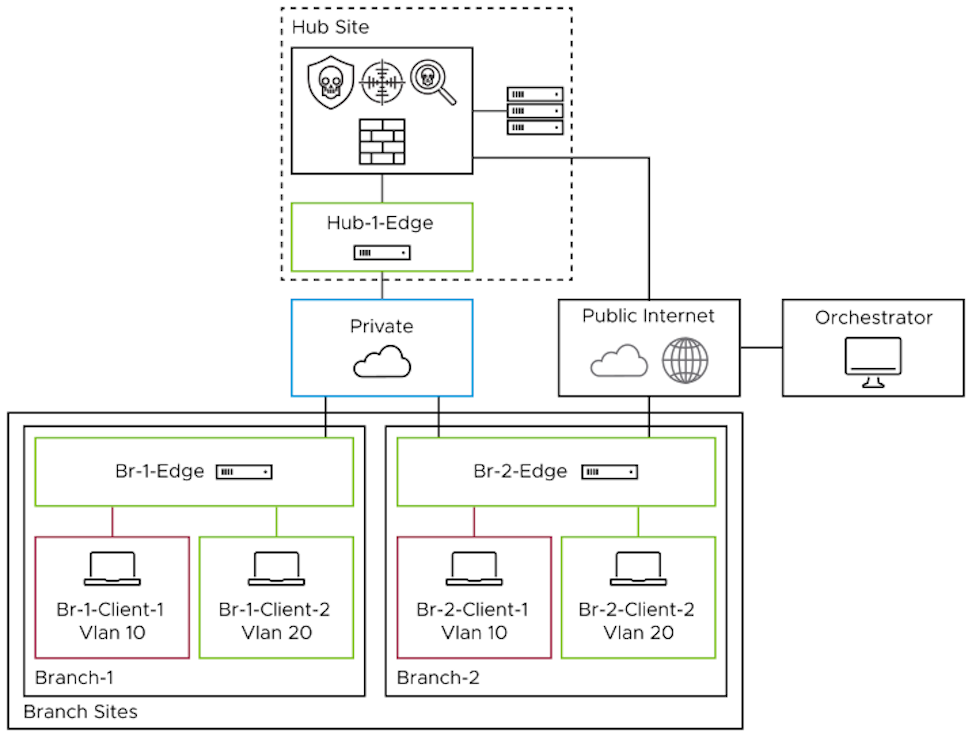
This guide uses the following topology. The topology illustrates use of the Edge at the branches and at the hub site with EFS functionality.
Figure 1. Topology Diagram

Use Cases

Table 1. Use Cases
Use Case Description
Private Access Private Access refers to those inter and intra-branch communications. While perimeter security is essential, internal traffic protection with EFS ensures that potential threats within the network are promptly identified and neutralized, thus maintaining the integrity and confidentiality of organizational assets.
Internet Access without Secure Web Gateway (SWG) Direct Internet Access (DIA) provides direct connectivity to the Internet, which can improve efficiency and user experience. However, it also introduces new security challenges. Deploying EFS ensures that this convenience does not come at the cost of security, safeguarding your Enterprise from potential threats.
Internet Access with Secure Web Gateway (SWG) A more comprehensive approach for securing Internet/SaaS traffic would be to pair EFS with a third party SSE (Secure Service Edge) and its many security capabilities, such as sandboxing, SSL decryption, URL and content filtering, Data Loss Prevention (DLP), and Cloud Access Security Broker (CASB).

EFS Features

IDS/IPS

The following diagram illustrates the signature flow. The Edge employs a Suricata solution for IDPS engine and signatures. The Arista VeloCloud Security team carefully curates and verifies signatures from third-party agencies. To ensure the Edge has the most up-to-date signatures, the Orchestrator queries the VeloCloud Threat Intelligence cloud every 4 hours.
Figure 2. Signature Flow Diagram

Hosted Logging

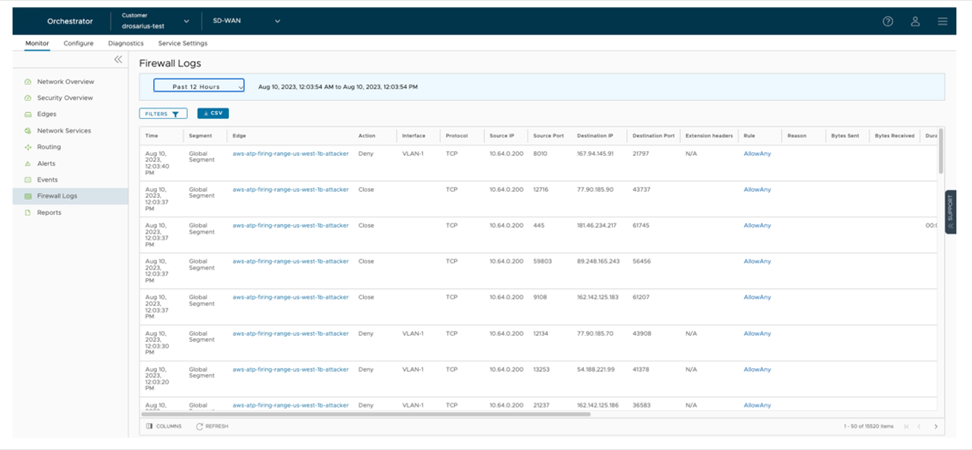
Regionally hosted logging is included in the base VeloCloud SD-WAN license. This means that logs are stored in the same region as the Orchestrator (virtual controller). By default, 15 GB of logs per Enterprise or seven days of logs per Edge, whichever comes first, kept. Logs can be viewed under the Firewall Logs section of the dashboard. There are options to search and filter for the specific data needed for troubleshooting or investigating. From this view, there is also a button to export the logs locally into a CSV format.
Note: Arista strongly recommends not enabling firewall logging on allow rules. Non-DENY logs will be rate-limited to 50K messages per hour.


Figure 3. Hosted Logging View

Security Overview Dashboard

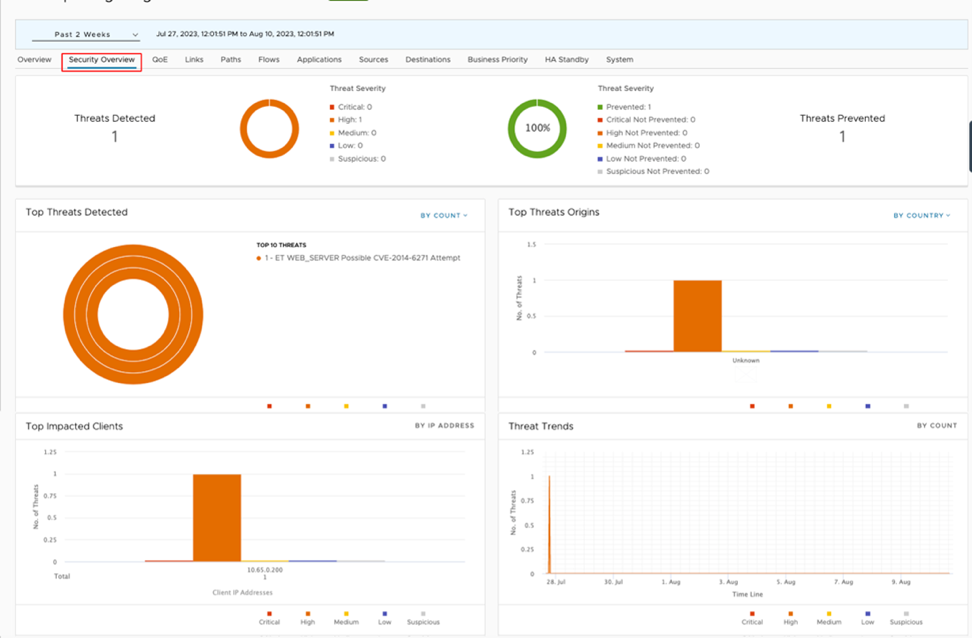
The Security Overview dashboard provides a comprehensive overview of your Enterprise's threat landscape. A quick response is essential in addressing threats. This dashboard displays threats and their severity, the source of attacks, and the affected Edges, allowing you to take corrective action quickly.
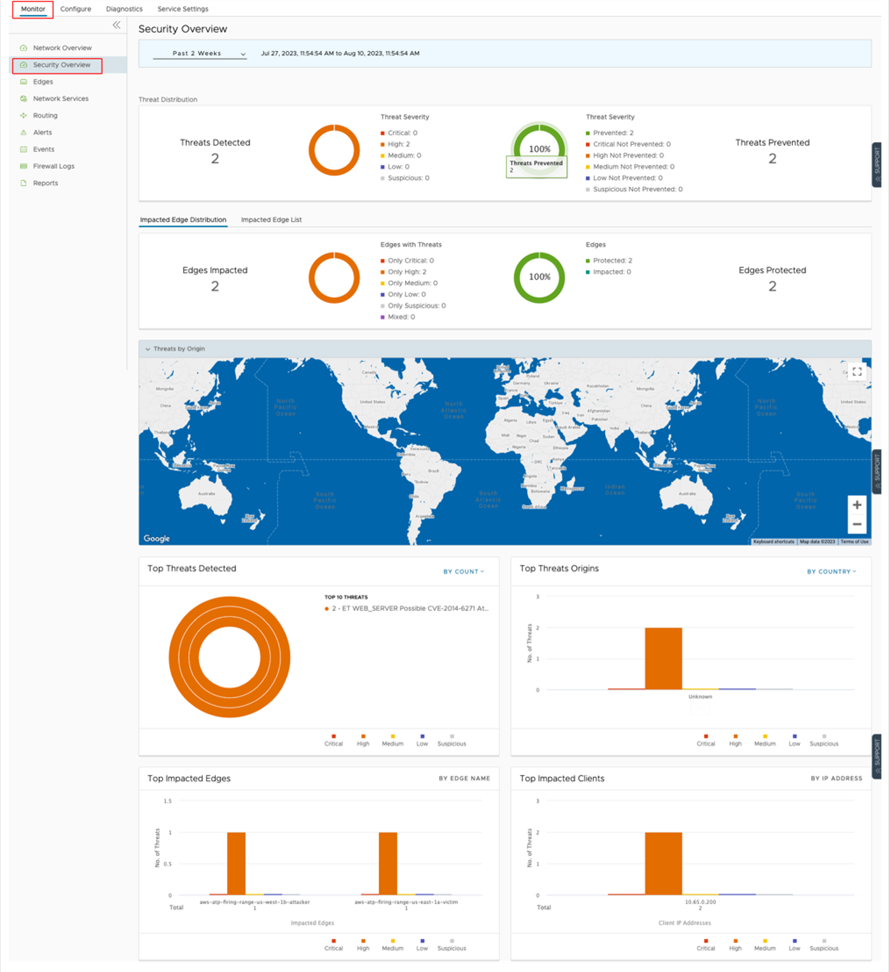
Figure 4. Security Overview Dashboard

Solution Components

  • VeloCloud Orchestrator (Hosted by Arista or On-prem)
    • On-prem deployments require additional conversation and configuration. Contact the VeloCloud Support team.
  • VeloCloud Edge. All actively selling Edge types (physical and virtual) support Enhanced Firewall Services (EFS).

System Requirements

To benefit from Enhanced Firewall Services (EFS), use a Premium V2 Arista VeloCloud license or an add-on license (SDEX-EFS-100M-1M) with all other SD-WAN license editions.

Overview

A significant number of network breaches originate in branch offices. Branch offices are vulnerable to a variety of attack vectors, including sophisticated phishing campaigns, lax physical security, and insider threats from disgruntled or careless users. These threats can be used to gain access to the network. With proper defenses, the damage from these attacks can be limited to the branch office and prevented from spreading to more sensitive areas of the network, such as the data center. Enhanced Firewall Services (EFS) are natively integrated security services in the VeloCloud Edge that can help protect branch offices from attacks.

Purpose

This design guide outlines how an organization can use the EFS feature set to enhance its security footprint. The topic areas covered in this design guide include:
  • Identified use cases
  • Architecture
  • Design considerations
  • Traffic patterns
  • Security best practices
  • Deployment strategy
The guide provides detailed information on each topic, as well as recommendations for how to implement EFS in a secure manner.

Target Audience

This design guide is intended for all network and security architects, engineers, and administrators who design, deploy, or maintain a VeloCloud solution.

VeloCloud SD-WAN Design Guide for Enhanced Firewall Services

This design guide outlines how an organization can use the Enhanced Firewall Services (EFS) feature set to enhance its security footprint.

Design Guide
VeloCloud SD-WAN
Enhanced Firewall Services
Arista Networks

www.arista.com

Version 6.4

DOC-08385-02

Headquarters
5453 Great America Parkway
Santa Clara, CA 95054, USA
+1-408 547-5500
www.arista.com
Support
+1-408 547-5502
+1-866 476-0000
This email address is being protected from spambots. You need JavaScript enabled to view it.
Sales
+1-408 547-5501
+1-866 497-0000
This email address is being protected from spambots. You need JavaScript enabled to view it.
© Copyright 2025 Arista Networks, Inc. The information contained herein is subject to change without notice. Arista Networks and the Arista logo are trademarks of Arista Networks, Inc., in the United States and other countries. Other product or service names may be trademarks or service marks of others.