
Application Maps
The Application Maps have JSON files consisting of various Applications with definitions used while creating Business Policies.
From the Operator portal, select Services, and then select Application Maps. The following screen displays:
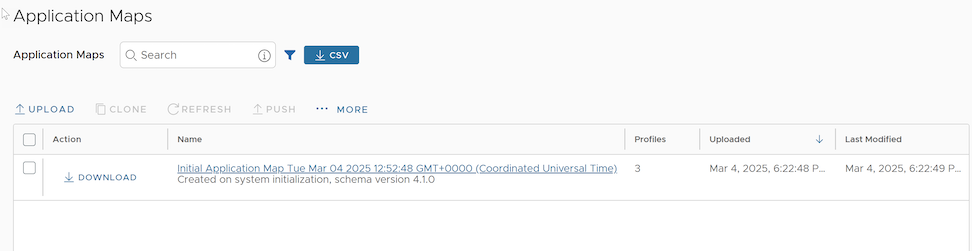
Note: Starting from the 5.4.0 release, Edge Image Management is renamed to Services.
You can perform the following actions on this page:
- Upload Application Map
- Clone Application Map
- Refresh Application Map
- Push Application Map
- Edit Application Map
- Delete Application Map
Upload Application Map
VeloCloud SD-WAN provides an initial Application Map with possible applications. You can also upload your JSON file with Applications to use in Business Policies.
- To upload a map file, select Upload.
- In File Upload, you can either drag and drop, or browse and select the Application Map file to upload.
- Select Done. The file uploads after validating the content.
- The Application Map file has a JSON format and you can customize the applications as per your requirements. The following example illustrates a customized JSON file for the application BitTorrent.
{
  "id": 15,
  "name": "APP_BITTORRENT",
  "displayName": "bittorrent",
  "class": 14,
  "description": "BitTorrent is a peer-to-peer protocol. [Note: bittorrent is also known as kadmelia.]",
  "knownIpPortMapping": {},
  "protocolPortMapping": {},
  "doNotSlowLearn": 1,
  "mustNotUseGateway": 1
}
Clone Application Map
You can create a new Application Map by cloning an existing Application Map.
- Select an existing Application Map, and then select Clone.
- On the Clone Application Map, enter a new name and description for the Application.
- Select Clone.
Refresh Application Map
You can update the Application definitions, managed by third party SaaS providers, listed in the Application Map.
- Select one or more Application Maps, and then select Refresh. Refresh Application Maps appears which lists the details of the selected Application Map(s) and Profile Count associated with the selected Application Map(s).
- Select Refresh to refresh the selected Application Map(s).
Note: The Application map Refresh operation serves to update application definitions managed by third party SaaS providers, for example Microsoft Office365®. It does not push those updates to associated Edges. After Refresh, use Push to update Edges assigned to a selected application map.
Push Application Map
You can push the latest updates of the Application definitions available in Application Maps to the associated VeloCloud Edges.
- Select an Application Map, and then select Push.
- Select Push to Edges to update the latest Application definitions available in the selected Application Map.
Note: This option pushes the Application definitions only when any updates are available.Important: When you change an application map and push those changes to the Edges from the Orchestrator, all Edge flows flush. This ensures all Edge flows apply the updated version of the application map. As a result, you should only push an update to a custom application map in a maintenance window to minimizes disruption from an Edge flow flush.Note: On Hosted Orchestrators, the Cloud Operations team updates and pushes all application maps on the first Saturday of each month. The application map refresh operation serves to update application definitions managed by third-party SaaS providers, for example, Microsoft 365. Schedule updates and pushes to minimize the disruption to customer traffic as follows:
Table 1. Application Definitions by Region Region Local Time UTC Time Day of the Month Asia Pacific 02:00 18:00 UTC 1st Saturday of the month Europe 02:00 00:00 UTC 1st Saturday of the month North America 02:00 08:00 UTC 1st Saturday of the month As noted earlier, an application map refresh and push flushes all flows for the Edges associated with that map and customers should anticipate this in the monthly maintenance window when performed.
Edit Application Map
You can add or update the application details available in the existing Application Maps.
- Select an Application Map, and then select to edit the associated Application.
- Select Add to add a new application along with the ID. Update details like Name, Display Name, Description, Category, TCP Ports, UDP Ports, and IP/Subnets.
- Select Delete to delete the selected application.
- Select Save Changes to save the entered details.
Figure 2. Edit Application Map 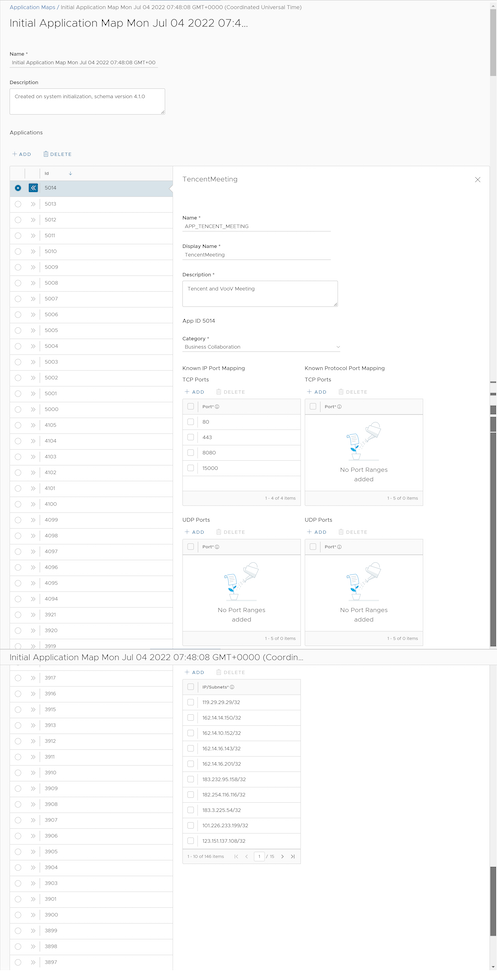
Delete Application Map
You can delete a selected Application Map, but you cannot delete a map assigned to an Operator profile.
- Select an Application Map and then select .
- Enter the Number of Application maps selected and select Delete.