
Configuring Business Policy
VeloCloud provides an enhanced Quality of Service feature called Business Policy. Orchestrator allows you to configure business policy rules at the Profile and Edge levels. The business policy uses the parameters such as source IP address/port, destination IP address/port, domain name, address and port group, applications, application categories, and DSCP tags to create business policy rules. Operators, Partners, and Admins of all levels can create a business policy.
Configure Business Policies
You can configure Business Policy rules using the Business Policy tab in the Profile Configuration page. Optionally, you can also override the Profile Business Policy rules at the Edge-level.
- Ensure that you have the details of IP addresses configured in the network devices.
- For an Enterprise user to configure the Customizable QoE settings, an Operator Super user must select the Customizable QoE check box, by navigating to .
Business Policy Rules are now Segment aware. All Segments available for configuration are listed in the Segment drop-down menu, located at the top of the screen. By default, Global Segment [Regular] Segment is selected. When you choose a Segment to configure from the Segment drop-down menu, the settings and options associated with that Segment appear in the Configure Business Policy area. For more information. see Configure Segments with the New Orchestrator UI.
Configure Business Policy for a Profile
Based on the business policy configuration, Arista examines the traffic being used, identifies the Application behavior, the business service objective required for a given app (High, Medium, or Low), and the Edge WAN Link conditions. Based on this, the Business Policy optimizes Application behavior driving queuing, bandwidth utilization, link steering, and the mitigation of network errors.
- In the SD-WAN service of the Enterprise portal, go to . The Profiles page displays the existing Profiles.
- Select the link to a Profile, and then select the Business Policy tab. Alternatively, you can select the View link in the Biz. Pol column of the Profile.
- The existing pre-defined business policy rules are displayed as shown in the following screenshot. The Configure Business Policy section displays the business policy rules listed in order of highest precedence. Network traffic is managed by identifying its characteristics then matching the characteristics to the rule with the highest precedence. A number of rules are predefined and you can add your own rules to customize your network operation by selecting the +ADD button.
Figure 1. Configuring Business Policy 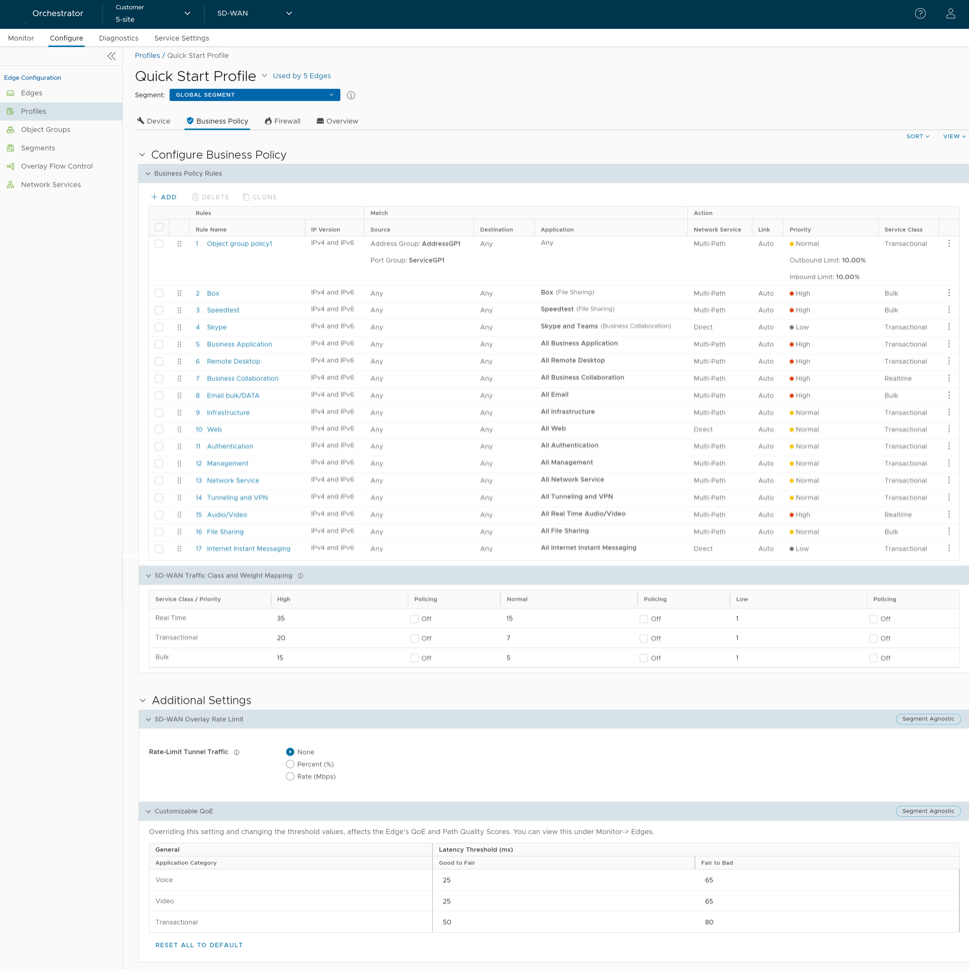
- You can configure the following options:
Table 1. Business Policy Option Descriptions Option Description Business Policy Rules Add Select to create a new business policy. For more information, see Create Business Policy Rule. Delete Select to delete the selected business policies. Clone Select to duplicate the selected business policy. SD-WAN Traffic Class and Weight Mapping Allows to define traffic class with priority and service class, along with mapping of scheduler weight. For more information, see Overlay QoS CoS Mapping. Additional Settings SD-WAN Overlay Rate Limit Allows you to configure rate limit for tunnel traffic. For more information, see Tunnel Shaper for Service Providers with Partner Gateway. Customizable QoE Allows you to configure the minimum and maximum latency threshold values, in the range 1ms to 1000ms, for Voice, Video, and Transactional application categories. Selecting Reset All To Default, resets all the values to the default values. The default values are listed in the note below the table. Sort You can sort the business policy rules using the following options: - Sort by category
- Sort by segment aware
View From the View drop-down menu, choose: - Expand All- Expands and shows all the business policy related details and settings.
- Collapse All- Collapses all the business policy related details and settings.
Note:- The default latency threshold values are:
The Good to Fair value must always be less than the Fair to Bad value.Table 2. Default Latency Threshold Values Application Category Good to Fair Fair to Bad Voice 25 65 Video 30 65 Transactional 50 80
- Whenever the Customizable QoE values are modified for a Profile or an Edge, an event is created on the page.
- The Customizable QoE configuration settings are applied only to the Edge versions 5.2.0 and above.
- Whenever the threshold values are changed for an Edge, all the tunnels to the corresponding Gateway inherit the same threshold values.
- By default, Profile configurations are applied to all the Edges associated with the Profile. If required, you can add or modify business policy rules and override other configurations for a specific Edge.
Configure Business Policy for an Edge
- In the SD-WAN service of the Enterprise portal, select . The Edges page displays the existing Edges.
- Select the link to an Edge, and then select the Business Policy tab. Alternatively, you can select the View link in the Business Policy column of the Edge. The Configure Business Policy page appears.
Figure 2. Configure Business Policy 
- The business policy rules and other settings inherited from the associated Profile are displayed under the Rules From Profile section of the Configure Business Policy page. You can edit the existing rules or add new rules for the selected Edge, by selecting the Override check box. The new and overridden rules appear in the Edge Overrides section.
Create Business Policy Rule
Business Policy rules are configured to steer the traffic, bandwidth management and ensure quality of service based on criterion like application, source and destination etc. Operators, Partners, and Admins of all levels can create a business policy. The business policy matches parameters such as IP addresses, ports, VLAN IDs, interfaces, domain names, protocols, operating system, object groups, applications, and DSCP tags. When a data packet matches the match conditions, the associated action or actions are taken. If a packet matches no parameters, then a default action is taken on the packet. You can create business policies for a Profile and Edge.
Before you begin:
Ensure that you have the details of IP addresses of your network.
- In the SD-WAN service of the Enterprise portal, go to . The Profiles page displays the existing Profiles.
- Select the link to a Profile or select the View link in the Device column of the Profile. The configuration options are displayed in the Device tab.
- Select the Business Policy tab.
From the Profiles page, you can navigate to the Business Policy page directly by selecting the View link in the Biz.Pol column of the Profile.
- In the Business Policy page, select + ADD. The Add Rule window is displayed.
Figure 3. ADD Rule Window 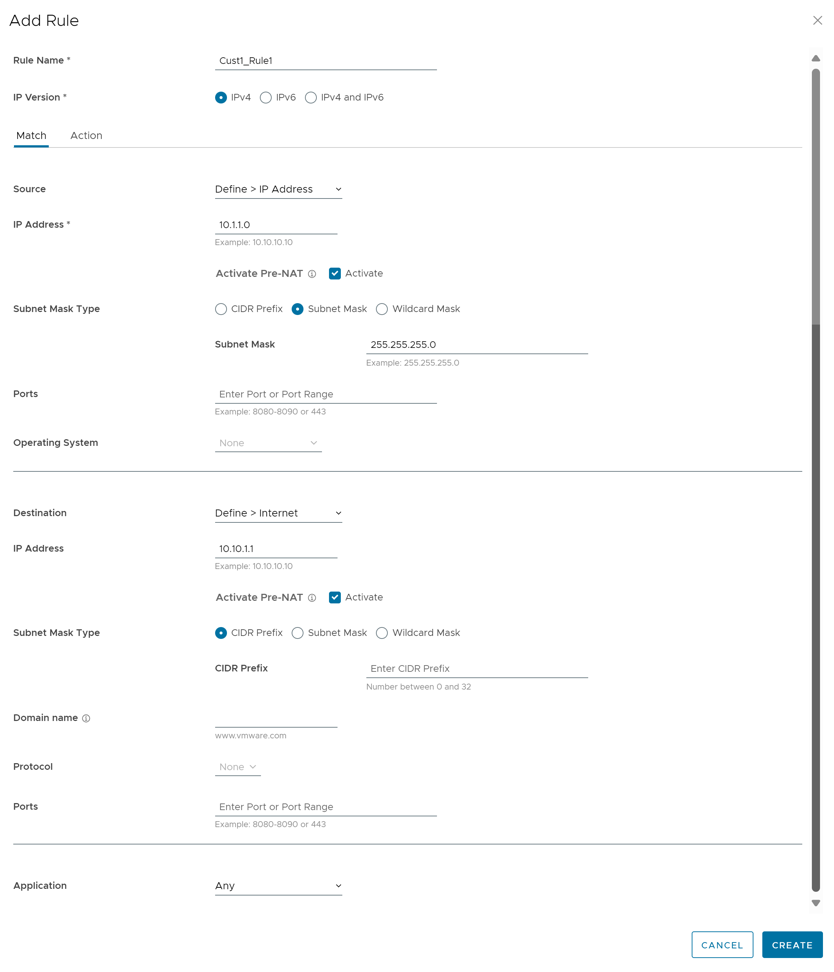
- Enter the Rule Name and select the IP version. You can configure the Source and Destination IP addresses according to the selected IP version, as follows:
- IPv4 and IPv6 – Allows to configure both IPv4 and IPv6 addresses in the matching criteria. If you choose this mode, you can choose the IP addresses from Object Groups containing Address Groups with both type of Address Groups. By default, this address type is selected.
- IPv4 – Applies to traffic with only IPv4 address as source and destination.
- IPv6 – Applies to traffic with only IPv6 address as source and destination.
Note:
- When you upgrade, the Business policy rules from previous versions are moved to IPv4 mode.
- For Symantec WSS integration, only IPv4 is supported.
- In the Match tab, configure the match criteria for Source, Destination, and Application traffic.
Table 3. Match Field Descriptions Field Description Source Allows to specify the source for packets. Select any of the following options: - Any- Allows all source addresses by default.
- Object Group- Allows you to select a combination of address group and service group.
- If address type is IPv4, then only IPv4 address from Address Groups are considered to match the traffic source.
- If address type is IPv6, then only IPv6 address from Address Groups are considered to match the traffic source.
- If address type is both IPv4 and IPv6, then IPv4 and IPv6 both addresses from Address Groups are considered to match the traffic source.
Note: If the selected address group contains any domain names, then they would be ignored when matching for the source.Activate Pre-NAT- Selecting this option allows the business policy to match with both, pre-NAT and post-NAT IPv4 addresses, on the LAN side for the Source IP.Note: The Pre NAT option is supported for IPv4 and Mixed mode object groups but not for IPv6 object groups.For more information, see Object Groups and Configure Business Policies with Object Group. - Define- Allows you to define the source traffic from a specific VLAN, Interface, IP Address, Port, or Operating System. Select one of the following options:
- VLAN- Matches traffic from the specified VLAN, selected from the drop-down menu.
- Interface- Matches traffic from the specified interface selected from the drop-down menu.
Note: If an interface cannot be selected, then the interface is either not activated or not assigned to this segment.
- IP Address- Matches traffic from the specified IP address (IPv4 or IPv6).
Note: This option is not available if you select IPv4 and IPv6 (Mixed mode) as the IP version. In the Mixed mode, the traffic is matched based on either the specified VLAN or interface.Activate Pre-NAT- Selecting this option allows the business policy to match with both, pre-NAT and post-NAT IPv4 addresses, on the LAN side for the Source IP.Note: The Pre-NAT option is applicable only for IPv4 address matching.Along with the IP address, you can specify one of the following address types to match the source traffic:
- CIDR prefix- Choose this option if you want the network defined as a CIDR value (for example: 172.10.0.0 /16).
- Subnet mask- Choose this option if you want the network defined based on a Subnet mask (for example, 172.10.0.0 255.255.0.0).
- Wildcard mask- Choose this option if you want the ability to narrow the enforcement of a policy to a set of devices across different IP subnets that share a matching host IP address value. The Wildcard mask matches an IP, or a set of IP addresses based on the inverted Subnet mask. A '0' within the binary value of the mask means the value is fixed and a '1' within the binary value of the mask means the value is wild (can be 1 or 0). For example, a Wildcard mask of 0.0.0.255 (binary equivalent = 00000000.00000000.00000000.11111111) with an IP Address of 172.0.0, the first three octets are fixed values, and the last octet is a variable value. This option is available only for IPv4 address.
- Ports- Matches traffic from the specified source port or port range.
- Operating System- Matches traffic from the specified operating system, selected from the drop-down menu.
Destination Allows to specify the destination for packets. Select any of the following options: - Any- Allows all destination addresses by default.
- Object Group- Allows you to select a combination of address group and service group. Activate Pre-NAT- Selecting this option allows the business policy to match with both, pre-NAT and post-NAT IPv4 addresses, on the LAN side for the Destination IP.
Note: The Pre NAT option is supported for IPv4 and Mixed mode object groups but not for IPv6 object groups.For more information, see Object Groups and Configure Business Policies with Object Group.
- Define- Allows you to define the matching criteria for the destination traffic to a specific IP Address, Domain Name, Protocol, or Port. Select one of the following options, by default, Any is selected:
- Any- Matches all destination traffic.
- Internet- Matches all Internet traffic (traffic that does not match an SD-WAN Route) to the destination.
Note:Activate Pre-NAT- Selecting this option allows the business policy to match with both, pre-NAT and post-NAT IPv4 addresses, on the LAN side for the Source IP.
- This option is not available if you select IPv4 and IPv6 (Mixed mode) as the IP version. In the Mixed mode, the traffic is matched based on either the specified VLAN or interface.
- For Symantec WSS integration, you must select this option.
Note: The Pre-NAT option is applicable only for IPv4 address matching.Along with the IP address, you can specify the Subnet mask type and domain name to match the destination traffic. - Edge- Matches all traffic to an Edge.
- Non SD-WAN Destination via Gateway- Matches all traffic to the specified Non SD-WAN Destination through Gateway, associated with a Profile. Ensure that you have associated your Non SD-WAN sites via Gateway at the Profile level.
- Non SD-WAN Destination via Edge- Matches all traffic to the specified Non SD-WAN Destination through Edge, associated with an Edge or Profile. Ensure that you have associated your Non SD-WAN sites via Edge at the Profile or Edge level.
- Domain name- Matches traffic for the entire domain name or a portion of the domain name specified in the Domain Name field. For example, \"salesforce\" will match traffic to \" www.salesforce.com \".
- Protocol- Matches traffic for the specified protocol, selected from the drop-down menu. The supported protocols are: GRE, ICMP, TCP, and UDP.
Note: ICMP is not supported in Mixed mode.
- Ports- Matches traffic from the specified source port or port range.
Application Select any one of the following options: - Any- Applies the business policy rule to any application by default.
- Define- Allows to select a specific application to apply the business policy rule. In addition, a DSCP value can be specified to match the traffic coming in with a preset DSCP/TOS tag.
Note:- When creating a business policy rule matching an application only, to apply the Network Service Action for such application, the Edge might need to use DPI (Deep Packet Inspection) Engine. Generally, the DPI does not determine the application based on the first packet. The DPI Engine usually needs the first 5-10 packets in the flow to identify the application. For the first few packets received, traffic is unclassified and matches a less specific business policy, which might cause the traffic to take a different path, i.e. 'Direct' instead of 'Multipath', depending on the policy it matches. Once DPI determines the traffic type, it matches a more specific policy configured for this type of traffic. However, that flow continues to take the path from the original policy it matched, because steering to a new path would break the flow. This can cause the first flow to a specific Destination IP and port to take one path. Once the app cache in populated, the subsequent flows to the same Destination IP and port take another path as configured in a more specific policy for this type of traffic.
- Once the DPI classifies the traffic, it adds the Destination IP and port to the app cache, and immediately classifies any subsequent flows to that same Destination IP and port. The app cache entry expires after 10 minutes of no traffic going to that Destination IP and port. The next flow to that Destination IP and port must go through the DPI again and may take an unexpected path based on the policy it matches before the DPI identifies the application.
- In the Action tab, configure the actions to be performed when the traffic matches the defined criteria.
Note: Depending on your Match choices, some Actions may not be available.
Figure 4. Add Rule Page 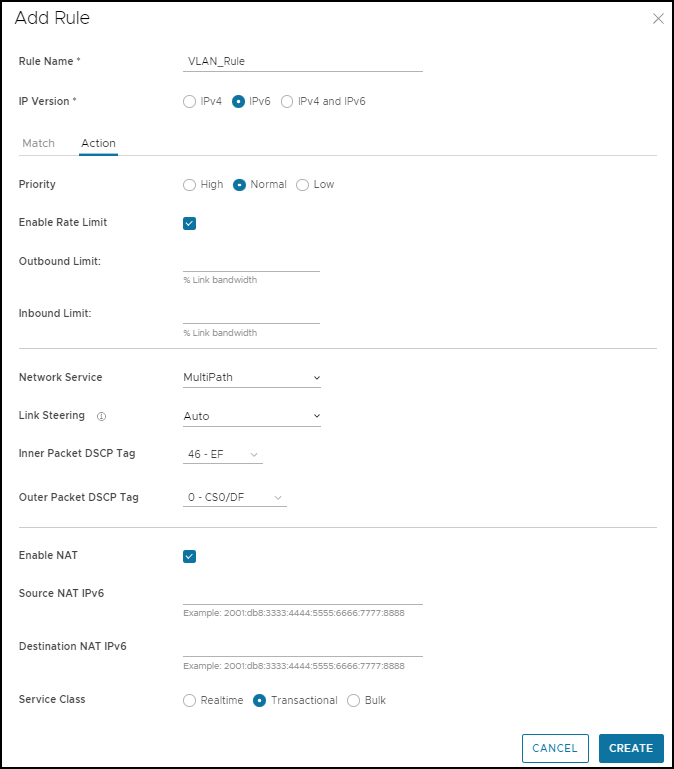
Table 4. Add Rule Field Descriptions Field Description Priority Designate the priority of the rule as one of the following: - High
- Normal
- Low
Enable Rate Limit Select the Enable Rate Limit check box to set limits for inbound and outbound traffic directions. Note: Rate limiting is performed per flow. Rate limiting for upstream traffic only works when you specify a link or Edge interface in the Business Policy. If you set the Steering option to Auto, Transport, or Group, the rate limit will apply to the total bandwidth of all the corresponding links. This may not enforce a strict rate limit as you expect. If you want to enforce a strict rate limit, you should steer traffic to a single link or Edge interface in the Business Policy.Network Service Set the Network Service to one of the following options: - Direct- Sends the traffic out of the WAN circuit directly to the destination, bypassing the Gateway.
Note: The Edge by default prefers a secure route over a business policy. In practice this means the Edge will forward traffic via Multipath (Branch to Branch or Cloud via Gateway, depending on the route) even if a business policy is configured to send that traffic via the Direct path if the Edge has received either secure default routes or more specific secure routes from the Partner Gateway or another Edge. This behavior can be overridden for Partner Gateway secure routes by activating the "Secure Default Route Override" feature for a customer. A Partner Super User or an Operator can activate this feature which overrides all Partner Gateway secure routes that also match a business policy. "Secure Default Route Override" does not override Hub secure routes.
- Multi-Path- Sends the traffic from one Edge to another Edge.
- Internet Backhaul- This network service is activated only if the Destination is set as Internet.
Note: The Internet Backhaul Network Service only applies to Internet traffic (WAN traffic destined to network prefixes that do not match a known local route or VPN route).For information about these options, see Configure Network Service for Business Policy Rule.
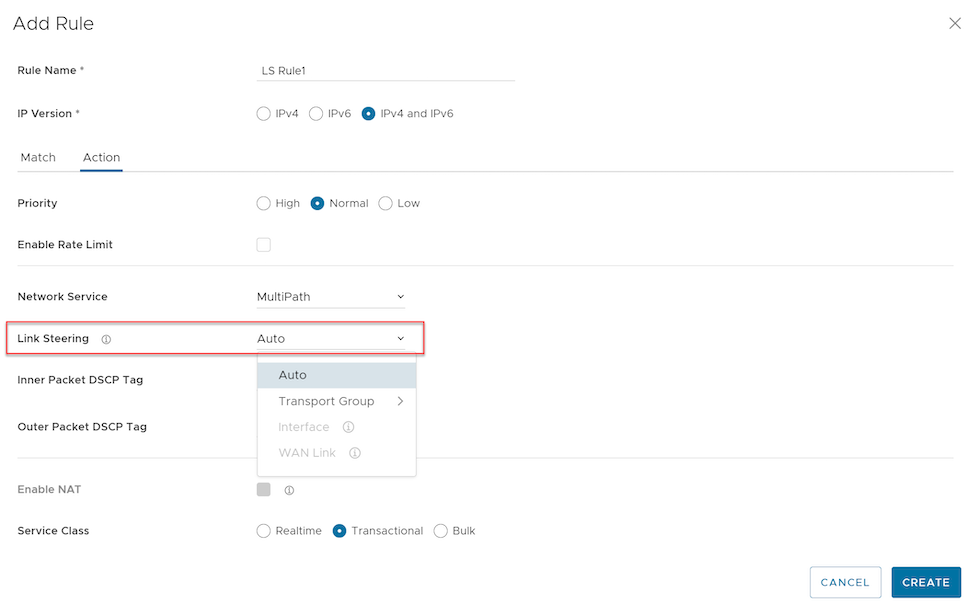
Link Steering Select one of the following link steering modes: - Auto- By default, all applications are set to automatic Link Steering mode. When an application is in the automatic Link Steering mode, the DMPO automatically chooses the best links based on the application type and automatically activates on-demand remediation when necessary.
- Transport Group- Specify any one of the following transport group options in the steering policy so that the same Business Policy configuration can be applied across different device types or locations, which may have completely different WAN carriers and WAN interfaces:
- Public Wired
- Public Wireless
- Private Wired
- Interface- Link steering is tied to a physical interface and will be used primarily for routing purposes.
Note: This option is only allowed at the Edge override level.
- WAN Link- Allows to define policy rules based on specific private links. For this option, the interface configuration is separate and distinct from the WAN link configuration. You will be able to select a WAN link that was either manually configured or auto-discovered. This option is only allowed at the Edge override level.
- Transport Group- Specify any one of the following transport group options in the steering policy so that the same Business Policy configuration can be applied across different device types or locations, which may have completely different WAN carriers and WAN interfaces:
- Inner Packet DSCP Tag- Select an Inner Packet DSCP Tag from the drop-down menu.
- Outer Packet DSCP Tag- Select an Outer Packet DSCP Tag from the drop-down menu.
Note: When the Network Service is configured as Direct, the IPv6 only Interfaces and IPv6 only WAN links are not supported in Link Steering mode.For more information about the link steering modes and DSCP, DSCP marking for both Underlay and Overlay traffic, see Configure Link Steering Modes.Enable NAT Activate or deactivate NAT. This option is not available for IPv4 and IPv6 mode. For more information, see Configuring Policy-based NAT. Service Class Select one of the following Service Class options. Apps/Categories fall in one of these categories: - Real-time
- Transactional
- Bulk
Note: This option is only for a custom application.Arista - After configuring the required settings, select Create.
A business policy rule is created for the selected Profile, and it appears under the Business Policy Rules area of the Profile Business Policy page.Note: The rules created at the Profile level cannot be updated at the Edge level. To override the rule, user needs to create the same rule at the Edge level with new parameters to override the Profile level rule.For the IPv6 and IPv4 and IPv6 modes, you can only Create Business policy rules from the Orchestrator. You can perform the rest of the operations like Update and Delete only through API.
Related Information: Overlay QoS CoS Mapping
Configure Network Service for Business Policy Rule
While creating or updating a Business Policy rule and action, you can set the Network Service to Direct, Multi-Path, and Internet Backhaul.
Direct
- NAT must hit traffic in the edge routing table with Next Hop as either Cloud VPN or Cloud Gateway.
- NAT works for traffic to public IP addresses only, even if Business Policy allows to configure private IP addresses as destination.
Multi-Path
Sends the traffic from one Edge to another Edge, and from an Edge to a Gateway.
Internet Backhaul
- Backhaul Hubs
- Non SD-WAN Destinations via Gateway
- Non SD-WAN Destinations via Edge/Cloud Security Service
Note: Mixed IP mode (IPv4 and IPv6) is not supported for NSD via Edge and CSS.
- Arista Cloud To Cloud Interconnect- VeloCloud SD-WAN supports interconnection of multiple Hub Edges or Hub Clusters to increase the range of Spoke Edges that can communicate with each other. This feature "Hub or Cluster Interconnect" allows communication between the Spoke Edges connected to one Hub Edge or Hub Cluster and the Spoke Edges connected to another Hub Edge or Hub Cluster, using multiple overlay and underlay connections. For more information, see Hub or Cluster Interconnect.
You should be able to configure multiple VeloCloud Sites for backhaul to support the redundancy that is inherently built into the Non SD-WAN Destination connection, but keep a consistent behavior of service unavailability leading to traffic being dropped.
Configuring Network Service Rules
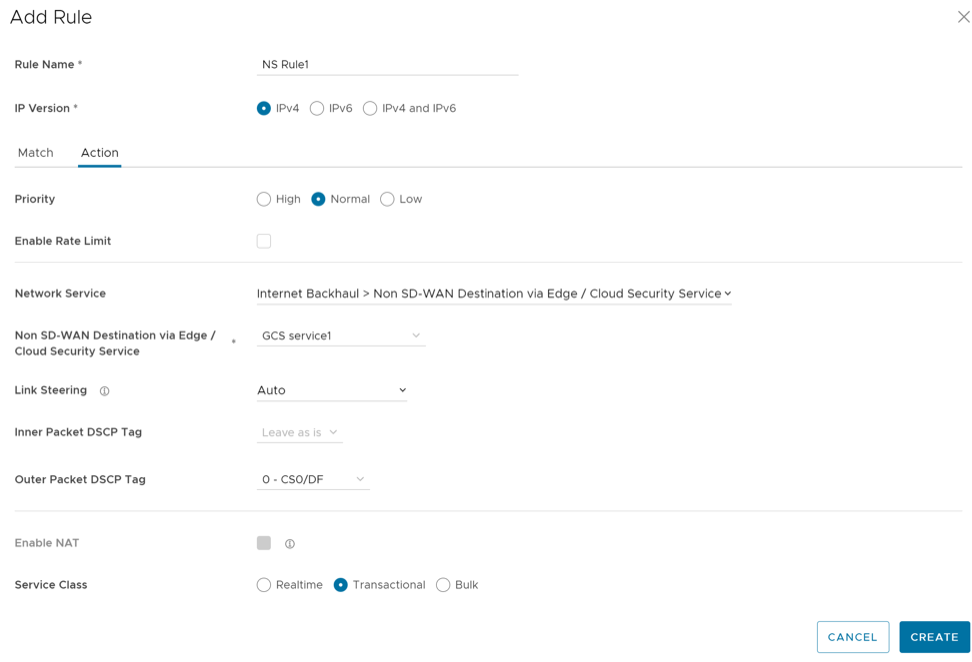
If Conditional Backhaul is enabled at the profile level, by default it will apply for all Business Policies configured for that profile. You can deactivate conditional backhaul for selected policies to exclude selected traffic (Direct, Multi-Path, and CSS) from this behavior by selecting the Turn off Conditional Backhaul check box in the Action area of the Configure Rule screen for the selected business policy.
For more information about how to enable and troubleshoot the Conditional Backhaul feature, see Conditional Backhaul.
Configure Link Steering Modes
In the Business Policy, you can configure link steering with different modes.
To create or configure a Business Policy, see Create Business Policy Rule.
Automatic Link Selection
By default, all applications receive the automatic Link steering mode. This means the DMPO automatically selects the best links based on the application type and automatically enables on-demand remediation when necessary. There are four possible combinations of Link Steering and On-demand Remediation for Internet applications. Traffic within the Enterprise (VPN) always goes through the DMPO tunnels, and always receives the benefits of on-demand remediation.
| Scenario | Expected DMPO Behavior |
|---|---|
| At least one link satisfies the SLA for the application. | Choose the best available link. |
| Single link with packet loss exceeding the SLA for the application. | Enable FEC for the real-time applications sent on this link. |
| Two links with loss on only one link. | Enable FEC on both links. |
| Multiple links with loss on multiple links. | Enable FEC on two best links. |
| Two links but one link appears unstable, i.e. missing three consecutive heartbeats. | Mark link unusable and steer the flow to the next best available link. |
| Both Jitter and Loss on both links. | Enable FEC on both links and enable Jitter buffer on the receiving side. Jitter buffer is enabled when Jitter is greater than 7 ms for voice and greater than 5 ms for video. The sending DMPO endpoint notifies the receiving DMPO endpoint to enable Jitter buffer. The receiving DMPO endpoint will buffer up to 10 packets or 200 ms of traffic, whichever happens first. The receiving DMPO endpoint uses the original time stamp embedded in the DMPO header to calculate the flow rate to use in de-jitter buffer. If the flow is not sent at a constant rate, the Jitter buffering is not enabled. |
Link Steering by Transport Group
A Transport Group represents WAN links bundled together based on similar characteristics and functionality. Defining a Transport Group allows business abstraction so that a similar policy can apply across different Hardware types.
Different locations may have different WAN transports, for example, WAN carrier name, WAN interface name. DMPO uses the concept of Transport Group to abstract the underlying WAN carriers and interfaces from the Business Policy configuration. The Business Policy configuration can specify the transport group such as Public Wired, Public Wireless or Private Wired in the steering policy so that the same Business Policy configuration can apply across different device types or locations, which may have completely different WAN carriers and WAN interfaces. When the DMPO performs the WAN link discovery, it also assigns the transport group to the WAN link. This is the most desirable option for specifying the links in the Business Policy because it eliminates the need for IT administrators to know the type of physical connectivity or the WAN carrier.
If you choose the Preferred option, the Error Correct Before Steering checkbox displays.
If you select Error Correct Before Steering, the Loss% variable textbox displays. When you define a loss percentage, 4% for example, the Edge continues to use the selected link or transport group and apply error correction until loss reaches 4% when it steers traffic to another path. If you do not enable Error Correct Before Steering, the Edge starts steering traffic away if the loss for the link exceed the application SLA. For example, the real-time application SLA is 0.3% by default. If you do not select this checkbox, the application steers before Error Correction occurs.
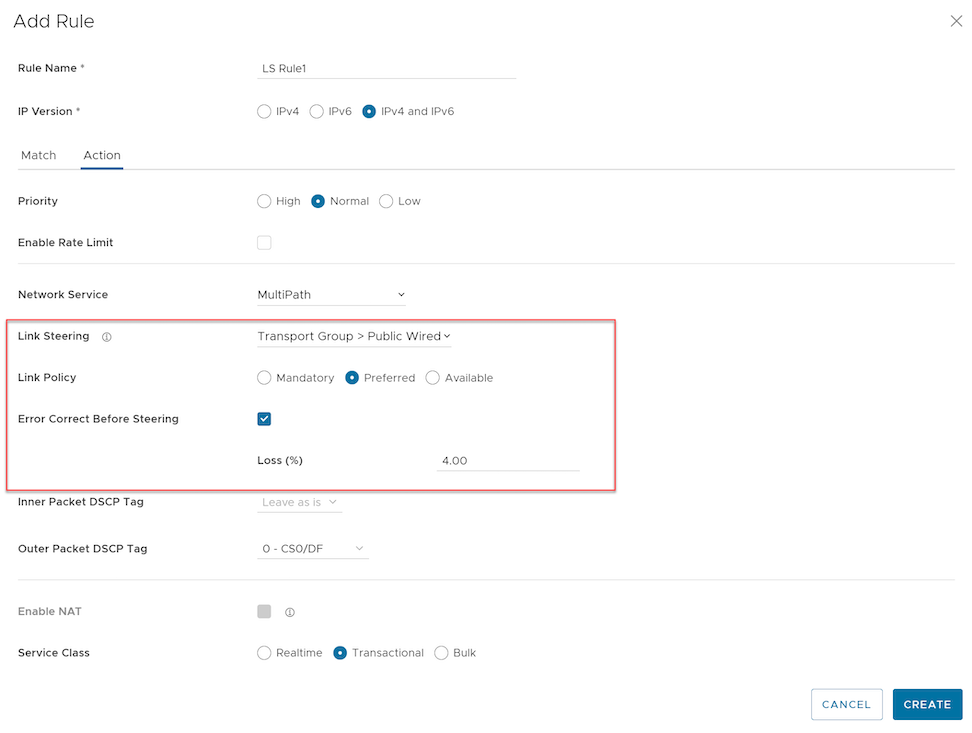
This option is allowed at both the Edge Override level and Profile level.
Link Steering by Interface
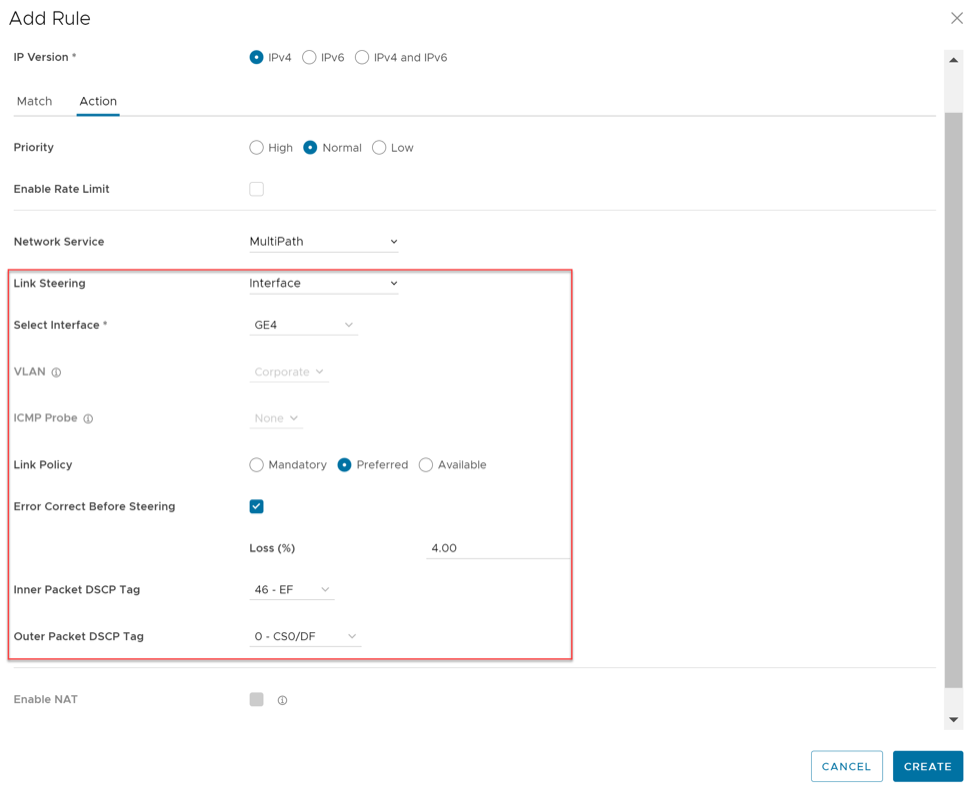
For this option, the link steering is tied to a physical interface. Link steering by interface will be used primarily for routing purposes. However, even though it logically should only be used for routing traffic directly from the VeloCloud Site, if the rule specified has a Network Service requiring Internet Multi-path benefits, it will pick a single WAN link connected to the interface.
If you choose the Preferred option, the Error Correct Before Steering checkbox displays. If you select the checkbox, an additional Loss% variable becomes available. If not enabled, the Edge starts steering traffic away if the loss for the link exceeds the application SLA, for example, the Real-Time application SLA has 0.3% by default. With Error Correct Before Steering applied and Loss percentage defined, 4% in this example, the Edge continues to use the selected link or transport group and applies error correction until loss reaches 4%, when it steers traffic to another path. If you do not select this checkbox, the application steers traffic before Error Correction occurs.
This option is only allowed at the Edge override level. This ensures that the link options provided always match the Edge hardware model.
WAN Link
For this option, the interface configuration is separate and distinct from the WAN link configuration. Select a WAN link that was either manually configured or auto-discovered.
WAN Link Menu
You can define policy rules based on specific private links. If you have created private network names and assigned them to individual private WAN overlays, these private link names display in the WAN Link menu.
For information on how to define multiple private network names and assign them to individual private WAN overlays, see Configure Private Network Names.
If you select the Preferred option, the Error Correct Before Steering checkbox displays. If you do not select this checkbox, the application steers traffic before Error Correction occurs.
This option is only allowed at the Edge override level.

For the Interface and WAN Link choices, you must select one of the following options:
| Option | Description |
|---|---|
| Mandatory | Indicates that traffic will be sent over the WAN link or link Service-group specified. If the link specified (or all links within the chosen service group) is inactive or if a Multi-path gateway route is unavailable, the corresponding packet will be dropped. |
| Preferred | Indicates that traffic should preferably be sent over the WAN link or link Service-group specified. If the link specified (or all links within the chosen service group) is inactive, or if the Multi-path gateway route chosen is unstable, or if the link Service Level Objective (SLO) is not being met, the corresponding packet will be steered on the next best available link. If the preferred link becomes available again, traffic will be steered back to the preferred link. |
| Available | Indicates that traffic should preferably be sent over the WAN link or link Service-group specified as long as it is available (irrespective of link SLO). If the link specified (or all links within chosen service group) are not available, or if the selected Multi-path gateway route is unavailable, the corresponding packet will be steered to the next best available link. If the preferred link becomes available again, traffic will be steered back to the available link. |
Link Steering and DSCP Marking for Underlay and Overlay Traffic Overview
VeloCloud SD-WAN supports DSCP remarking of packets forwarded by the Edge to the Underlay. The Edge can re-mark underlay traffic forwarded on a WAN link as long as you enable Underlay Accounting on the interface. DSCP re-marking is enabled in the Business Policy configuration in the Link Steering area. See Create Business Policy Rule. The example assumes that the Edge is connected to MPLS with both underlay and overlay traffic forwarded MPLS. If the traffic matches the network prefix 172.16.0.0/12, the Edge re-marks the underlay packets with a DSCP value of 16 or CS2 and ignore the Outer Packet DSCP Tag field. For overlay traffic sent toward MPLS matching the same business policy, the DSCP value for the outer header sets to the Outer Packet DSCP tag.
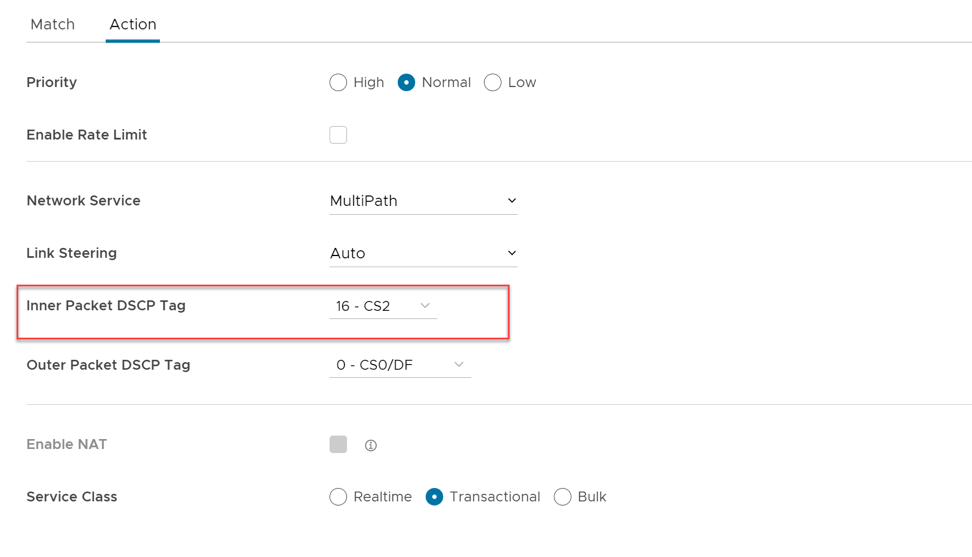
Link Steering and DSCP Marking for Underlay Traffic Use Case
Edges that are connected to MPLS normally mark DSCP on the packet before sending to the PE for the SP to treat the packet according to the SLA. Underlay Accounting must be enabled on the WAN interface for DSCP marking on Underlay traffic via Business Policy to take effect.
Configuring Link Steering with Underlay DSCP
- Verify that Underlay Accounting is activated for WAN Overlay by default in the Orchestrator by navigating to and selecting an Edge model.
Figure 11. Configuring Link Steering with Underlay DSCP 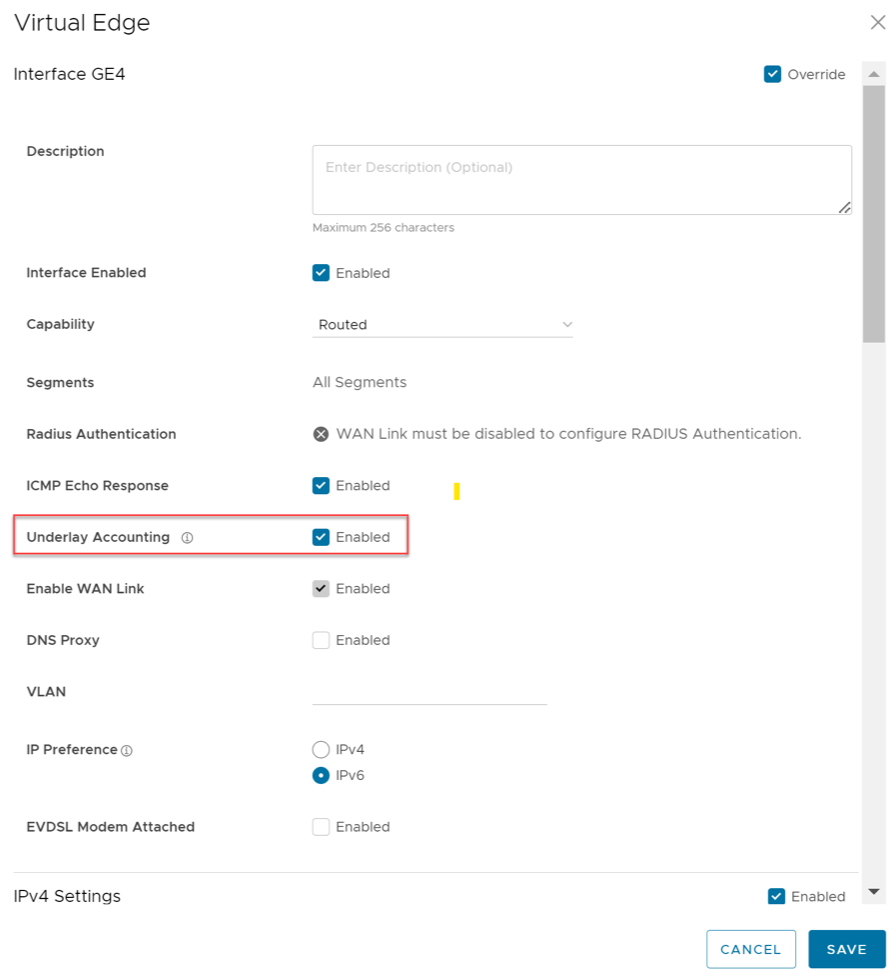
- From the SD-WAN service of the Enterprise portal, go to .
- From the Business Policy screen, select an existing rule or select +ADD to create a new rule.
- In the Action section, go to the Link Steering area.
- Select one of the following as applicable: Auto, Transport Group, Interface, or WAN Link.
- Configure the Action criteria for the underlay traffic and configure Inner Packet DSCP Tagg.
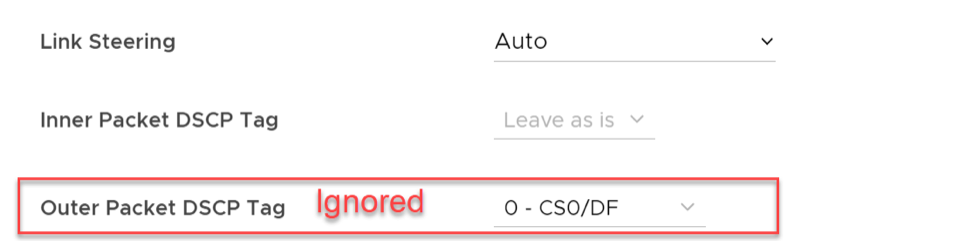
Linking Steering with Overlay DSCP Configuration
- Verify that Underlay Accounting is activated for WAN Overlay by default in the Orchestrator by navigating to and selecting a Edge model.
- From the SD-WAN service of the Enterprise portal, go to .
- From the Business Policy screen, select an existing rule or select +ADD to create a new rule.
- In the Action section, go to the Link Steering area.
- Select one of the following as applicable: Auto, Transport Group, Interface, or WAN Link.
- Configure Action criteria for the Overlay traffic and configure Inner Packet DSCP Tag and Outer Packet DSCP Tag.
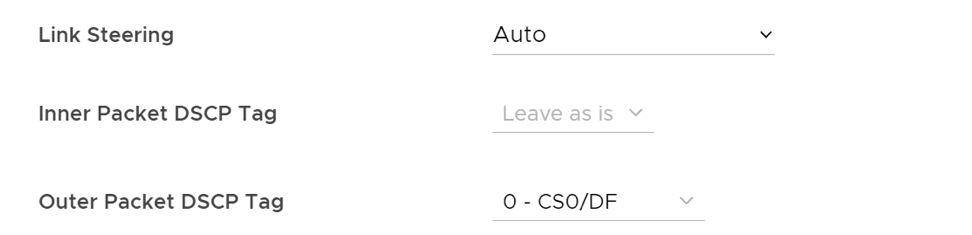
Configuring Policy-based NAT
You can configure Policy-based NAT for both Source and Destination. The NAT can be applied to either Non SD-WAN Destination traffic or Partner Gateway Handoff traffic using Multi-path. When configuring NAT, you must define the traffic to NAT and the action you want to perform. There are two types of NAT configuration: Many to One and One-to-One.
Accessing NAT
You can access the NAT feature from , select +ADD, and then navigate to Action. Rules on a Non SD-WAN Gateway Destination via a Gateway allow NAT and allow Internet rules using Multipath.
Many-to-One NAT Configuration
In this configuration, you can NAT the traffic's source or destination IP originated from the hosts behind the Edge to a different unique source or destination IP address. For example, the user can source NAT all the flows destined to a host or server in the Data Center, which is behind the Partner Gateway with a unique IP address, even though they are originated from different hosts behind an Edge.
The following figure shows an example of the Many to One configuration. In this example, all the traffic originating from the hosts that are connected to VLAN Corporate (behind the Edge destined to an Internet host or a host behind the DC) will get source NAT with the IP address 72.4.3.1.
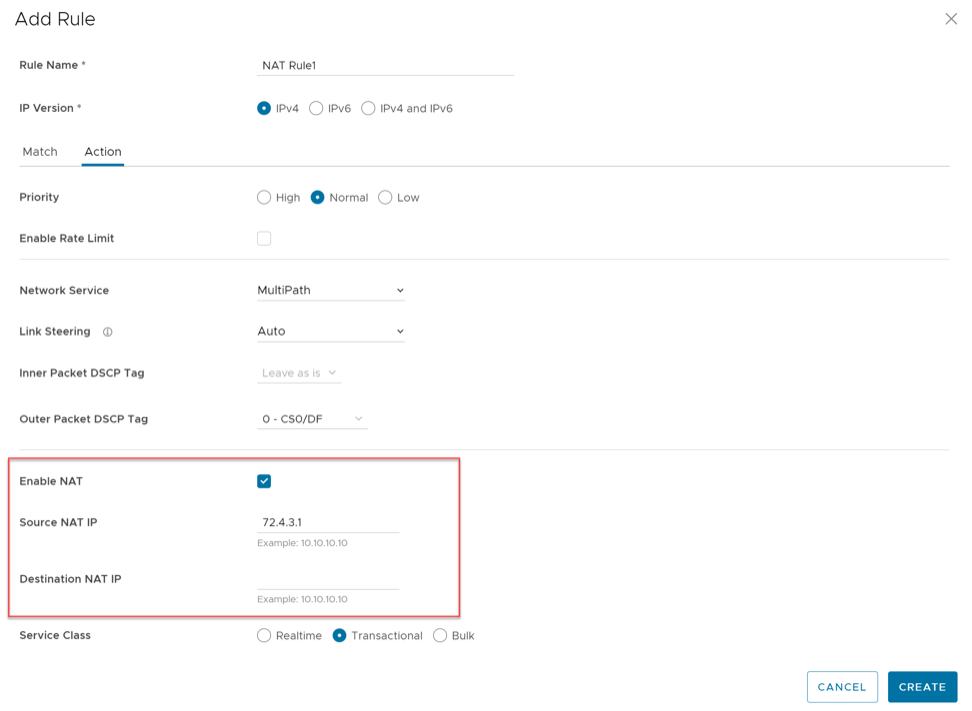
One-to-One NAT Configuration
In this configuration, the Branch Edge NATs a single local IP address of a host or server to another global IP address. If the host in the Non SD-WAN Destination or Data Center sends traffic to the global IP address (configured as the Source NAT IP address in the One-to-One NAT configuration), the Gateway forwards that traffic to the local IP address of the host or server in the Branch.
Overlay QoS CoS Mapping
A Traffic Class is defined with a combination of Priority (High, Normal, or Low) and Service Class (Real-Time, Transactional, or Bulk) resulting into a 3x3 matrix with nine Traffic Classes. You can map Application/Category and scheduler weight onto these Traffic Classes. All applications within a Traffic Class will be applied with the aggregate Quality of Service (QoS) treatment, including Scheduling and Policing.
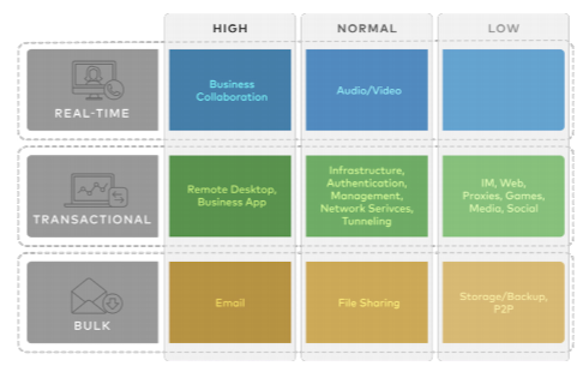
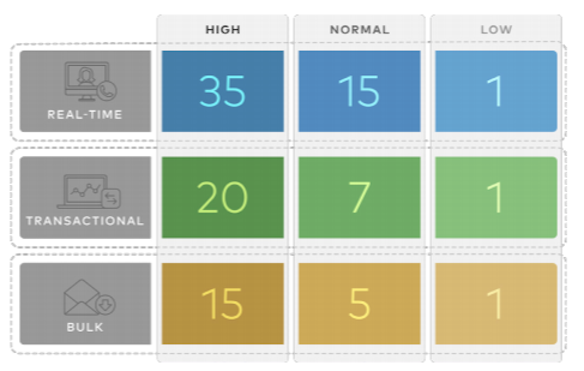
The Business Policy contains the Smart Defaults functionality that maps more than 2,500 applications to Traffic Classes. You can use application-aware QoS without having to define policy. Each Traffic Class is assigned a default weight in the Scheduler, and these parameters can be changed in the Business Policy. Below are the default values for the 3x3 matrix with nine Traffic Classes.
Example
In this example, a customer has 90 Mbps Internet link and 10 Mbps MPLS on the Edge and the aggregate Bandwidth is 100 Mbps. Based on the default weight and Traffic Class mapping above, all applications that map to Business Collaboration have a guaranteed bandwidth of 35 Mbps, and all applications that map to Email will have a guaranteed bandwidth of 15 Mbps. Note that business policies can be defined for an entire category like Business Collaborations, applications, for example,Skype for Business, and more granular sub-applications, for example. Skype File Transfer, Skype Audio, and Skype Video.
Configuring Overlay QoS CoS Mapping
The SD-WAN Traffic Class and Weight Mapping feature is editable only if activated by your Operator. To gain access to this feature, contact your Operator for more information.
Tunnel Shaper for Service Providers with Partner Gateway
This section discusses the Tunnel Shaper for Service Providers with the Partner Gateway.
Service Providers may offer SD-WAN services at a lower capacity compared to the aggregated capacity of WAN links at the local branch. For example, customers may have purchased a broadband link from another vendor and SP offering SD-WAN services, and hosting VeloCloud Partner Gateway has no control over the underlay broadband link. In such situations, in order to ensure that the SD-WAN service capacity is being honored and to avoid congestion towards Partner Gateway, a Service Provider can enable the DMPO Tunnel Shaper between the tunnel and the Partner Gateway.
Tunnel Shaper Example
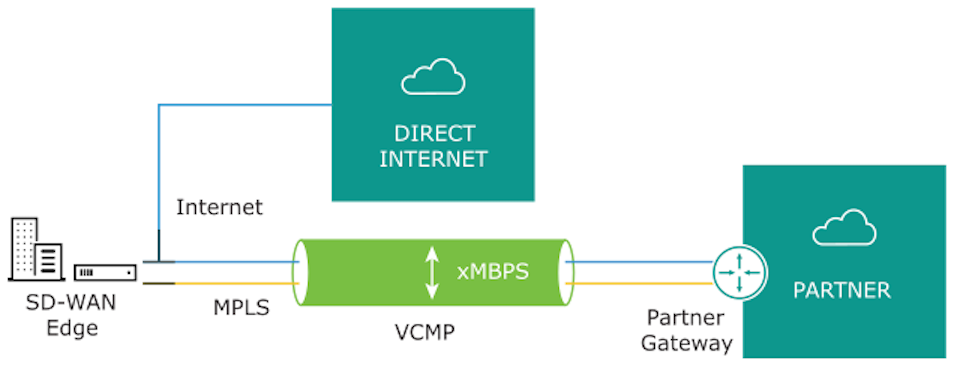
Consider an Edge with two WAN links, 20 Mbps Internet and 20 Mbps MPLS, using a 35 Mbps SD-WAN service offered from a Service Provider (SP). In this case, the bandwidth of SD-WAN service (35 Mbps) is lower than the aggregated bandwidth of the WAN links (40 Mbps). To ensure that the traffic towards the Partner Gateway does not exceed 35 Mbps (displayed as "X" in the image above), the Service Provider can place a Tunnel Shaper on the DMPO tunnel.
Configuring Rate-Limit Tunnel Traffic
The Rate-Limit Tunnel Traffic feature is editable only if it is activated by your Operator. To gain access to this feature, see your Operator for more information.
- Go to from the navigation panel.
- Select the link of the appropriate configuration Profile.
- Select the Business Policy tab and go to Additional Settings.
- In the SD-WAN Overlay Rate Limit area, check the Rate-Limit Tunnel Traffic check box.
- Select either the Percent or Rate (Mbps) radial buttons. By default, None is selected.
- In the Limit text box, type in a numerical limit to the Tunnel Traffic.
- Select Save Changes.
