Maintenance and Field Replacement
This section discusses the following topics:
Considerations
- All fans and power supplies are hot-swappable.
- The switch can be running while a power supply is being installed or removed, but the power supply being replaced must not be connected to a power source.
- All slots must be filled or covered with a blank for operation (even though power supply or fans may not be functional).
- Before you begin, refer to the Arista Networks document Safety Information and Translated Safety Warnings available at: https://www.arista.com/en/support/product-documentation.
Note: Descriptions for the removal and replacement of power supplies and fans are for a representative power supply or fan. Locations of status indicator LEDs may differ. Refer to the front and rear panel illustrations of your device to locate the appropriate LED.
Power Supplies
The following steps are required when removing and replacing power supplies from a switch.
Note: Only a representative power supply module is shown in Figure 1. For the location of the power supply on your switch, refer to Rear Panel.
Removing a Power Supply
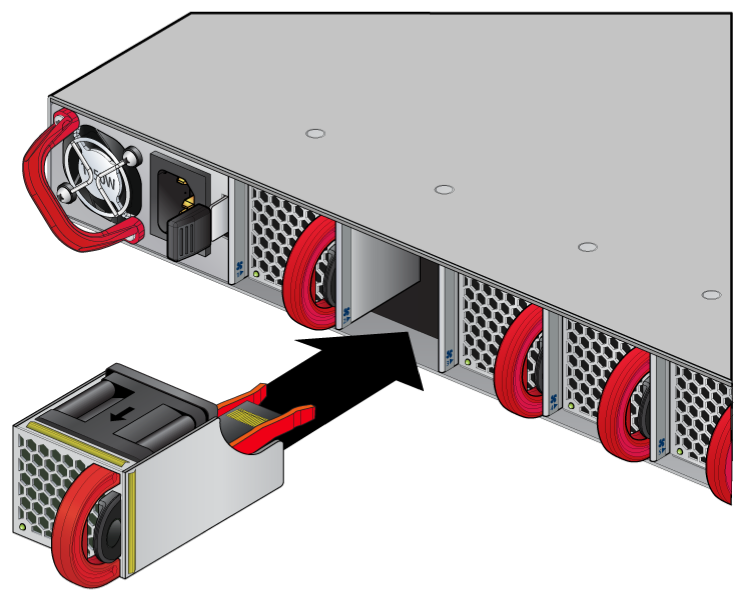
- Push the power supply release lever and remove the power supply (Figure 1).
Figure 1. Remove and Install Power Supply _Numb.png)
1 Release lever 2 Remove PSU
DC-powered Rack SKUs
Note: The power supply for DCS-7060DX4-32C-RV3-F is not hot-swappable.
-
Note: Do not pull only the cable release ring to detach the power cable.Pull gently on the cable release ring, while grasping and pulling on the cable connector housing attached to the PSU, to unlatch and detach the power cable from the PSU.
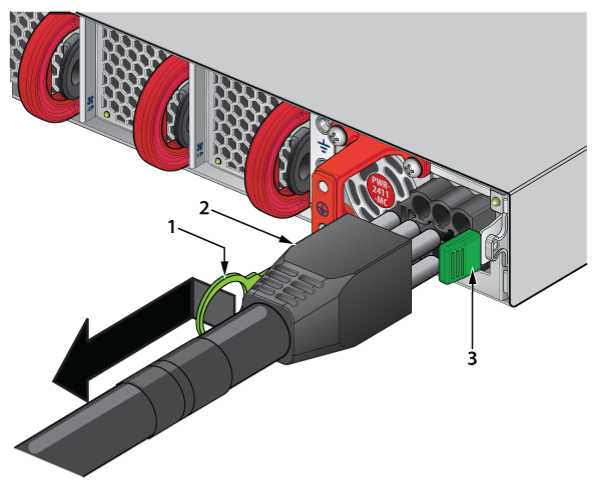
1 PSU cable release ring 1 PSU release lever 2 Power cable
Installing a Power Supply
Fan Modules
Note: Hot swap fans should be used within 30 seconds to prevent the switch from overheating. Ensure that the module you replace matches those already installed in the switch.
Removing a Fan Module
Note: Only a representative fan module is shown in Figure 2. For the location of the fan modules on your switch, refer to Rear Panel.
- Push the fan module release lever and slide the fan module out of the switch (Figure 2).
Figure 2. Removing Fan Module 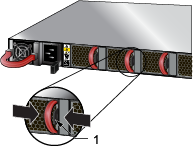
1 Release lever
Installing a Fan Module
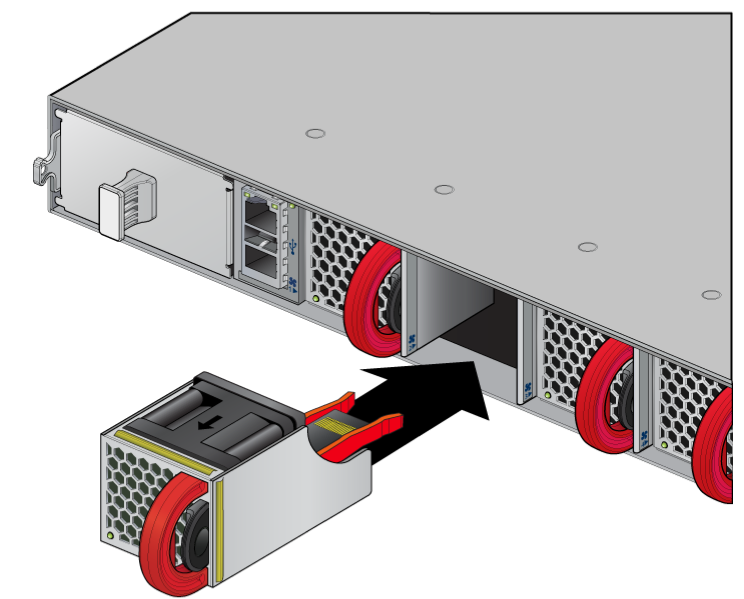
- Slide the new fan module into the switch until the module is fully seated, and the release lever snaps into place (Figure 3).
Figure 3. Inserting the Fan Module