
Initial Switch Access
- Zero Touch Provisioning (ZTP) configures the switch without user interaction.
- Manual provisioning configures the switch with commands entered through the CLI.
Zero Touch Provisioning
Zero Touch Provisioning (ZTP) configures a switch without user intervention by downloading a startup configuration file, startup-config, or a boot script from a location specified by a DHCP server. Configuring the Network for ZTP describes network tasks required to set up ZTP.
If the flash memory does not contain a startup-config or zerotouch-config file, the switch enters ZTP mode when it boots. It remains in ZTP mode until you cancel ZTP mode or until the switch retrieves a startup-config or a boot script. After downloading a file through ZTP, the switch reboots again, using the retrieved file.
Security Considerations
The ZTP process cannot distinguish an approved DHCP server from a rogue DHCP server. For secure provisioning, you must ensure that only approved DHCP servers can communicate with the switch until after completing the ZTP process. Arista also recommends validating the EOS image on your ZTP server by confirming that the MD5 checksum matches the MD5 checksum found on the EOS download page of the Arista website.
% md5sum EOS.swi
3bac45b96bc820eb1d10c9ee33108a25 EOS.swiswitch# bash md5sum /mnt/flash/EOS-4.18.0F.swi
73435f0db3af785011f88743f4c01abd /mnt/flash/EOS-4.18.0F.swi
switch#[admin@switch ~]$ md5sum /mnt/flash/EOS-4.18.0F.swi
73435f0db3af785011f88743f4c01abd /mnt/flash/EOS-4.18.0F.swi
[admin@switch ~]$- Mount the switch in a permanent location.
- Connect at least one management or Ethernet port to a network that can access the DHCP server and the configuration file.
- Provide power to the switch.
You can monitor the ZTP progress on the console port. The Console Port section provides information for setting up the console port. Canceling Zero Touch Provisioning provides information for monitoring ZTP progress and canceling ZTP mode.
Manual Provisioning
- Use the console port for serial access to the switch. These conditions may
require serial access:
- Management ports do not have assigned IP addresses.
- The network is inoperable.
- Unavailable password for the user login.
- The password to access the enable mode is not available.
- It uses the Ethernet management ports for out-of-band network management tasks. That port must have IP address before using a management port for the first time.
Console Port
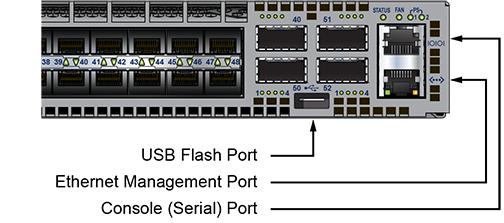
Port Settings
- 9600 baud
- no flow control
- 1 stop bit
- no parity bits
- 8 data bits
Admin Username
The initial configuration provides one username, admin, without an assigned password. You can only log into the switch through the console port using the admin username without a password. After assigning a password to the admin username,log into the switch through any port.
The username command modifies a specified username and can be used to create or delete usernames, including admin.
Example
switch(config)# username admin secret pxq123
switch(config)#
When the switch reboots, EOS loses the passwords unless the startup configuration saves the new or altered passwords.
Canceling Zero Touch Provisioning
Zero Touch Provisioning (ZTP) installs a startup-config file from a network location if flash memory does not contain a startup-config or zerotouch-config file when the switch reboots. Canceling ZTP is required if the switch cannot download a startup-config or boot script file.
No startup-config was found.

The device is in Zero Touch Provisioning mode and is attempting to
download the startup-config from a remote system. The device will not
be fully functional until a valid startup-config is downloaded
from a remote system or Zero Touch Provisioning is cancelled. To cancel
Zero Touch Provisioning, login as admin and type 'zerotouch cancel'
at the CLI.

localhost login:zerotouch cancel command. The switch
immediately boots without installing a startup-config file.
localhost login: admin
admin
localhost>Apr 15 21:28:21 localhost ZeroTouch: %ZTP-5-DHCP_QUERY: Sending DHCP
request on  [ Ethernet10, Ethernet13, Ethernet14, Ethernet17, Ethernet18,
Ethernet21, E-thernet22, Ethernet23, Ethernet24, Ethernet7, Ethernet8,
Ethernet9, Management1, Management2 ]
Apr 15 21:28:51 localhost ZeroTouch: %ZTP-5-DHCP_QUERY_FAIL: Failed to get a
valid DHCP response
Apr 15 21:28:51 localhost ZeroTouch: %ZTP-5-RETRY: Retrying Zero Touch
Provisioning from the beginning (attempt 1)
Apr 15 21:29:22 localhost ZeroTouch: %ZTP-5-DHCP_QUERY: Sending DHCP request on
[ Ethernet10, Ethernet13, Ethernet14, Ethernet17, Ethernet18, Ethernet21,
Ethernet22, Ethernet23, Ethernet24, Ethernet7, Ethernet8, Ethernet9,
Management1, Management2 ]

localhost>zerotouch cancel
zerotouch cancel
localhost>Apr 15 21:29:39 localhost ZeroTouch: %ZTP-5-CANCEL: Canceling Zero
Touch Provisioning
Apr 15 21:29:39 localhost ZeroTouch: %ZTP-5-RELOAD: Rebooting the system
Broadcast messagStopping sshd: [  OK  ]
watchdog is not running
SysRq : Remount R/O
Restarting system

Aboot 1.9.0-52504.EOS2.0
Press Control-C now to enter the Aboot shell
To avoid entering ZTP mode on subsequent reboots, create a startup-config file described in Step 8 of the Ethernet Management Port.
Ethernet Management Port
Arista switches provide one or more Ethernet management ports for configuring the switch and managing the network out of the band. The Figure 1 - Switch Ports section displays the location of the Ethernet management ports on a DCS-7050T-64 switch. Managing the switch requires only one port.
Access the Ethernet management port(s) remotely over a common network or locally through a connected PC. Before you can access the switch through a remote connection, the switch must have an IP address and a static route to the default gateway. Configure a virtual IP address on a modular switch with dual supervisors to access the management port on an active supervisor.
Assigning a Virtual IP Address to Access the Active Ethernet Management Port
This procedure assigns a virtual IP address on modular switches with dual supervisors, which connects to the Ethernet management port of the active supervisor. See the following section to assign a physical IP address to an Ethernet management port.
Assigning an IP Address to a Specific Ethernet Management Port
Use the following steps to assign an IP address to a specific Ethernet management port:
Configuring a Default Route to the Gateway
Use the following steps to configure a default route to a gateway located at 10.0.2.1.