
Integrate VeloCloud SD-WAN with Network Connectivity Center

You can integrate VeloCloud SD-WAN with Network Connectivity Center for the following use cases:
Following are the high-level tasks that you must complete to establish connectivity:
  1. Deploy a 2-member cluster in a region.
  2. Deploy the Network Connectivity Center Hub.
  3. Define and associate spokes to the Network Connectivity Center hub.
  4. Connect on-premises either over Google’s network or to Google Cloud resources.

Prerequisites

Ensure to complete the following prerequisites before you proceed with integrating VeloCloud SD-WAN with the Network Connectivity Center:
  • Obtain Enterprise account access to VeloCloud Orchestrator.
  • Obtain access to the Google Cloud console with the appropriate IAM roles. For instructions, refer to Google Cloud Console.

Branch-to-Branch Connectivity

The following figure depicts the branch-to-branch connectivity across regions:
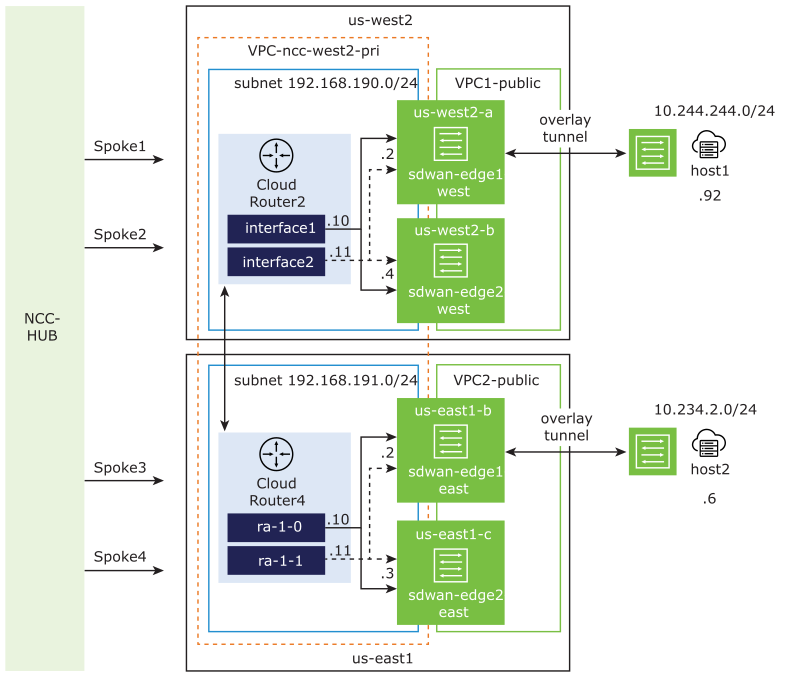
Figure 1. Branch-to-Branch Connectivity

In the above diagram, “ncc-west2-pri” is the hub VPC that is associated to the Network Connectivity Center hub where two subnets are created. The subnet 192.168.190.0/24 is associated to the “us-west2” region and the subnet 192.168.191.0/24 is associated to the “us-east1” region. The “host1” is located on the West coast of the United States, while the “host2” is located on the East coast. You must connect “host1” to “host2” over Google’s network.

For instructions about how to configure branch-to-branch connectivity across regions, see:

Establish Branch-to-Branch Connectivity Using CLI

To create SD-WAN virtual Edge instances and cloud router in the “us-east1” region, complete the following steps using Google's Command Line Interface (CLI) and VeloCloud Orchestrator.

  1. Create two SD-WAN virtual Edge instances. For instructions, refer to Google Cloud Platform Virtual Edge Deployment Guide
  2. Log in to the Orchestrator as an Enterprise user, and then add the two SD-WAN virtual Edge instances into a cluster. For instructions, refer to the Configure Edge Clustering topic in the VeloCloud SD-WAN Administration Guide.
  3. From the Google Cloud Console, activate the VPC network global routing mode for the VPC “ncc-west2-pri”. For instructions, refer to Setting the VPC network dynamic routing mode.
  4. Allow relevant inbound traffic in the VPC “ncc-west2-pri”. For instructions, refer to Using firewall rules.
  5. From the Google Cloud shell, run the following command to create your Network Connectivity Center hub:
    gcloud network-connectivity hubs create hub_name
  6. Run the following command to verify that the two SD-WAN virtual Edge instances that you created in Step 1 are running in the “us-east1” region:
    gcloud compute instances list
    gcloud compute instances list --filter=”name~’instance_name’”

    Following table lists the variable and its description:

    Table 1. Variable Descriptions
    Variable Description Variable Name from Use Case
    instance_name Name of the SD-WAN virtual Edge instances that you created in step 1.
    • sdwan-edge1-east-vm
    • sdwan-edge2-east-vm

    Following is the output you get when the two SD-WAN virtual Edge instances are running in the “us-east1” region:

    NAMEZONEMACHINE_TYPE PREEMPTIBLEINTERNAL_IPEXTERNAL_IP STATUS
    sdwan-edge1-east-vmus-east1-bn1-standard-4 192.168.158.3,192.168.159.3,192.168.191.2198.51.100.0, 198.51.100.255RUNNING
    sdwan-edge2-east-vmus-east1-cn1-standard-4 192.168.158.4,192.168.160.3,192.168.191.3198.51.100.50, 198.51.100.75RUNNING
    
  7. Add the SD-WAN Virtual Edge instances as spokes to the Network Connectivity Center Hub.
    1. Run the following command to collect the Universal Resource Identifier (URI) of the Network Connectivity Center Hub:
      gcloud network-connectivity hubs describe <hub_name>

      Following is the output that appears when you run the above command:

      [
      {
      "createTime": "2021-01-06T23:46:32.477781456Z",
      "description": "My first hub",
      "name": "projects/cloud-254004/locations/global/hubs/ncc-hub",
      "uniqueId": "0eed5bbe-758b-498a-b908-9c6c07c407c5",
      "updateTime": "2021-01-06T23:46:32.885414708Z"
      }
      ]
      
    2. Run the following command to collect the URI of the SD-WAN virtual Edge instances:
      gcloud compute instances list --uri --filter="name~'sdwan'"

      Following is the output that appears when you run the above command:

      https://www.googleapis.com/compute/v1/projects/cloud-254004/zones/us-east1-b/instances/sdwan-edge1-east-vm
      https://www.googleapis.com/compute/v1/projects/cloud-254004/zones/us-east1-c/instances/sdwan-edge2-east-vm
      
    3. Run the following command to create Spokes for the SD-WAN virtual Edge instances:
      gcloud network-connectivity spokes linked-router-appliances create instance_name --hub= hub_URI --router-appliance=instance=” instance_URI”,ip=” instance_interface_ip” --region= region --site-to-site-data-transfer

      Following table lists the variable and its description:

      Table 2. Variable Descriptions
      Variable Description Variable Name from Use Case
      instance_name The name of your SD-WAN virtual Edge instance.
      • sdwan-edge1-east-vm
      • sdwan-edge2-east-vm
      hub_URI The URI of the Network Connectivity Center Hub that you collected in step 7 (a). https://networkconnectivity.googleapis.com/compute/v1/projects/cloud-254004/locations/global/hubs/Hub1
      instance_URI The URI of the SD-WAN virtual Edge instances that you collected in step 7 (b).
      • https://www.googleapis.com/compute/v1/projects/cloud-254004/zones/us-east1-b/instances/sdwan-edge1-east-vm
      • https://www.googleapis.com/compute/v1/projects/cloud-254004/zones/us-east1-c/instances/sdwan-edge2-east-vm
      instance_interface_ip The IP address of the SD-WAN virtual Edge instances.
      • 192.168.191.2 (for sdwan-edge1-east-vm)
      • 192.168.191.3 (for sdwan-edge2-east-vm)
      region The region where your SD-WAN virtual Edge instances are deployed. us-east-1
      Following are the sample commands:
      • For sdwan-edge1-east-vm:
        gcloud network-connectivity spokes linked-router-appliances create sdwan-edge1-east-vm --hub=https://www.googleapis.com/networkconnectivity/v1/projects/cloud-254004/locations/global/hubs/ncc-hub --router-appliance=instance=https://www.googleapis.com/compute/v1/projects/multicloud-254004/zones/us-east1-b/instances/sdwan-edge1-east-vm,ip=192.168.191.2 --region= us-east1 --site-to-site-data-transfer
      • For sdwan-edge2-east-vm:
        gcloud network-connectivity spokes linked-router-appliances create sdwan-edge2-east-vm --hub= https://www.googleapis.com/networkconnectivity/v1/projects/cloud-254004/locations/global/hubs/ncc-hub --router-appliance=instance= https://www.googleapis.com/compute/v1/projects/multicloud-254004/zones/us-east1-c/instances/sdwan-edge2-east-vm,ip= 192.168.191.3 --region= us-east1 --site-to-site-data-transfer
  8. Run the following command to create your cloud router:
    gcloud compute routers create cloud_router_name --region= my_region --network= my_network --asn= asn_value --project= my_project
    

    Following table lists the variable and its description:

    Table 3. Variable Descriptions
    Variable Description Variable Name from Use Case
    cloud_router_name Name of your cloud router. CloudRouter4
    my_region Region that contains your cloud router. us-east1
    my_network Name of the VPC that contains your cloud router. ncc-west2-pri
    asn_value Autonomous System Number assigned to your cloud router. 65200
    my_project The project ID for the cloud router. cloud-254004
  9. Create two interfaces for your cloud router to configure High Availability.
    1. Run the following command to create the primary interface for your cloud router:
      gcloud compute routers add-interface cloud_router_name --interface-name= interface1_name --ip-address= interface1_ip_address --subnetwork= subnet --region= my_region --project= my_project
      
    2. Run the following command to create the secondary interface for your cloud router:
      gcloud compute routers add-interface cloud_router_name --interface-name= interface2_name --ip-address= interface2_ip_address --redundant-interface= interface1_name --subnetwork= subnet --region= my_region --project= my_project
      

      Following table lists the variable and its description:

      Table 4. Variable Descriptions
      Variable Description Variable Name from Use Case
      cloud_router_name Name of your cloud router that you created in step 8. CloudRouter4
      interface1_name Name of the primary interface for your cloud router. ra-1-0
      interface2_name Name of the secondary interface for your cloud router. ra-1-1
      subnet Name of the subnet on which the cloud router is created. ncc-east1-pri-sub
      my_region Region that contains your cloud router. us-east1
      interface1_ip_address Internal IP address for the primary interface. 192.168.191.10
      interface2_ip_address Internal IP address for the secondary interface. 192.168.191.11
      my_project The project ID for the cloud router. cloud-254004
      Following are the sample commands:
      • For primary interface:
        gcloud compute routers add-interface cloudrouter4 --interface-name= ra-1-0 –-ip-address= 192.168.191.10 --subnetwork= ncc-east1-pri-sub --region= us-east1 --project= cloud-254004
        
      • For secondary interface:
        gcloud compute routers add-interface cloudrouter4 --interface-name= ra-1-1 –-ip-address= 192.168.191.11 --subnetwork= ncc-east1-pri-sub --redundant-interface= ra-1-0 --region= us-east1 --project= cloud-254004
        
  10. Create BGP peers on your cloud router. As you have created two interfaces for your cloud router, you must establish two BGP peering relationship for each of the SD-WAN virtual Edge instances that are running in the “us-east1” region.

    Run the following command to create BGP peers for your SD-WAN virtual Edge instances:

    gcloud compute routers add-bgp-peer cloud_router_name --peer-name= peer_name --interface= interface_name --peer-ip-address= peer_ip_address --peer-asn= peer_asn --instance= instance_name --instance-zone= zone --region= region
    

    Following table lists the variable and its description:

    Table 5. Variable Descriptions
    Variable Description Variable Name from Use Case
    cloud_router_name Name of your cloud router that you created in step 8. CloudRouter4
    peer_name Names of the BGP peering sessions.
    • ra-1-0-peer0
    • ra-1-1-peer0
    • ra-1-0-peer1
    • ra-1-1-peer1
    interface_name Name of the interfaces you created in step 9.
    • ra-1-0
    • ra-1-1
    peer_ip_address The IP address of the SD-WAN virtual Edge interface.
    • 192.168.191.2 (for sdwan-edge1-east-vm)
    • 192.168.191.3 (for sdwan-edge2-east-vm)
    peer_asn The peer Autonomous System Number assigned to your cloud router.
    • 65210 (for sdwan-edge1-east-vm)
    • 65211 (for sdwan-edge2-east-vm)
    instance_name The name of your SD-WAN virtual Edge instance.
    • sdwan-edge1-east-vm
    • sdwan-edge2-east-vm
    zone The zone where your SD-WAN virtual Edge instances are deployed.
    • us-east1-b (for sdwan-edge1-east-vm)
    • us-east1-c (for sdwan-edge2-east-vm)
    region The region where your SD-WAN virtual Edge instances are deployed. us-east-1
    Following are the BGP sessions that must be established:
    • One BGP session from the primary interface, ra-1-0 to the first SD-WAN virtual Edge instance, sdwan-edge1-east-vm.
      Sample command:
      gcloud compute routers add-bgp-peer cloudrouter4 --peer-name= ra-1-0-peer0 --interface= ra-1-0 --peer-ip-address= 192.168.191.2 --peer-asn= 65210 --instance= sdwan-edge1-east-vm --instance-zone= us-east1-b --region= us-east1
      
    • One BGP session from the secondary interface, ra-1-1 to the first SD-WAN virtual Edge instance, sdwan-edge1-east-vm.
      Sample command:
      gcloud compute routers add-bgp-peer cloudrouter4 --peer-name= ra-1-1-peer0 --interface= ra-1-1 --peer-ip-address= 192.168.191.2 --peer-asn= 65210 --instance= sdwan-edge1-east-vm --instance-zone= us-east1-b --region= us-east1
      
    • One BGP session from the primary interface, ra-1-0 to the second SD-WAN virtual Edge instance, sdwan-edge2-east-vm.
      Sample command:
      gcloud compute routers add-bgp-peer cloudrouter4 --peer-name= ra-1-0-peer1 --interface= ra-1-0 --peer-ip-address= 192.168.191.3 --peer-asn= 65211 --instance= sdwan-edge2-east-vm --instance-zone= us-east1-c --region= us-east1
      
    • One BGP session from the secondary interface, ra-1-1 to the second SD-WAN virtual Edge instance, sdwan-edge2-east-vm.
      Sample command:
      gcloud compute routers add-bgp-peer cloudrouter4 --peer-name= ra-1-1-peer1 --interface= ra-1-1 --peer-ip-address= 192.168.191.3 --peer-asn= 65211 --instance= sdwan-edge2-east-vm --instance-zone= us-east1-c --region= us-east1
      
  11. Configure BGP on SD-WAN virtual Edge instances, sdwan-edge1-east-vm and sdwan-edge2-east-vm.
    Note: It is recommended that you configure a static internal IP address for your SD-WAN virtual Edge instance so that the IP address does not change every time you reboot the instance. For instructions, refer to Reserving a static internal IP address.
    1. From the Google Cloud Console, retrieve the private interface IP address of SD-WAN virtual Edge instances.
    2. Log in to the Orchestrator as an Enterprise user, and then assign the private interface IP address that you retrieved from the Google Cloud Console to the SD-WAN virtual Edge instances, sdwan-edge1-east-vm and sdwan-edge2-east-vm. For instructions, refer to the Configure Interface Settings topic in the VeloCloud SD-WAN Administration Guide.
    3. Configure BGP for SD-WAN virtual Edge instances, sdwan-edge1-east-vm and sdwan-edge2-east-vm. For instructions, refer to the Configure BGP topic in the VeloCloud SD-WAN Administration Guide.
  12. Verify that the four BGP sessions that you configured in Step 10 are established in the VeloCloud Orchestrator. For instructions, refer to the Monitor BGP Edge Neighbor State section in the VeloCloud SD-WAN Administration Guide.
  13. Repeat Steps 1-13 to create SD-WAN virtual Edge instances and cloud router in the “us-west2” region.

Run a ping test to verify the connection between the SD-WAN virtual Edge instances and cloud routers across the two regions—“us-east1” and “us-west2”. For instructions, refer to the Ping Test topic in the VeloCloud SD-WAN Troubleshooting Guide.

Establish Branch-to-Branch Connectivity Using UI

To create SD-WAN virtual Edge instances and cloud router in the “us-east1” region, complete the following steps using Google Cloud Platform and VeloCloud Orchestrator:

  1. Create two SD-WAN virtual Edge instances. For instructions, refer to Google Cloud Platform Virtual Edge Deployment Guide.
  2. Log in to the Orchestrator as an Enterprise user, and then add the two SD-WAN virtual Edge instances into a cluster. For instructions, refer to the Configure Edge Clustering topic in the VeloCloud SD-WAN Administration Guide.
  3. From the Google Cloud Console, activate the VPC network global routing mode for the VPC “ncc-west2-pri”. For instructions, refer to Setting the VPC network dynamic routing mode.
  4. Allow relevant inbound traffic in the VPC “ncc-west2-pri”. For instructions, refer to Using firewall rules.
  5. On the Google Cloud Console, create a hub “ncc-hub”. For instructions, refer to Create a Hub.
  6. Add two spokes, one each for the two SD-WAN virtual Edge instances that you created in Step 1. Ensure that you select the following when you create the spokes:
    • Select the Network as “ncc-west2-pri”.
    • Select the Spoke type as Router appliance.
    • Select the Region as us-east1.
    • Attach the first spoke to the instance, “sdwan-edge1-east” and the second spoke to the instance, “sdwan-edge2-east”.

    For instructions about how to add spokes, refer to Create a Router appliance spoke.

  7. Create a new cloud router, and then configure BGP sessions for the spokes that you created in Step 6. You must configure two BGP sessions per spoke. Ensure that you select the following when you configure BGP sessions:
    • Enter the ASN of the Edge as the Peer ASN.
    • Select Enabled for BGP peer.
    Note: Create only one cloud router and use the router when configuring the subsequent BGP sessions for the spokes, “sdwan-edge1-east” and “sdwan-edge2-east”.

    For instructions about how to configure BGP sessions, refer to Configure BGP peering on the Cloud Router.

  8. Configure BGP on SD-WAN virtual Edge instances, sdwan-edge1-east and sdwan-edge2-east.
    Note: It is recommended that you configure a static internal IP address for your SD-WAN virtual Edge instance so that the IP address does not change every time you reboot the instance. For instructions, refer to Reserving a static internal IP address.
    1. From the Google Cloud Console, retrieve the private interface IP address of SD-WAN virtual Edge instances.
    2. Log in to the Orchestrator as an Enterprise user, and then assign the private interface IP address that you retrieved from the Google Cloud Console to the SD-WAN virtual Edge instances, sdwan-edge1-east-vm and sdwan-edge2-east-vm. For instructions, refer to the Configure Interface Settings section in the VeloCloud SD-WAN Administration Guide.
    3. Configure BGP for SD-WAN virtual Edge instances, sdwan-edge1-east-vm and sdwan-edge2-east-vm. For instructions, refer to the Configure BGP topic in the VeloCloud SD-WAN Administration Guide.
  9. Verify that the four BGP sessions that you configured in Step 7 are established in the SD-WAN Orchestrator. For instructions, refer to the Monitor BGP Edge Neighbor State topic in the VeloCloud SD-WAN Administration Guide.
  10. Repeat Steps 1-10 to create SD-WAN virtual Edge instances and cloud router in the “us-west2” region.

Run a ping test to verify the connection between the SD-WAN virtual Edge instances and cloud routers across the two regions—“us-east1” and “us-west2”. For instructions, refer to the “Ping Test” section in the VeloCloud SD-WAN Administration Guide.

Establish Branch-to-Cloud Connectivity

When you have multiple VPC networks, set up VPC network peering to establish connectivity between Google Cloud and the various VPC networks so that you can access the resources remotely. For details, refer to VPC Network Peering Overview.
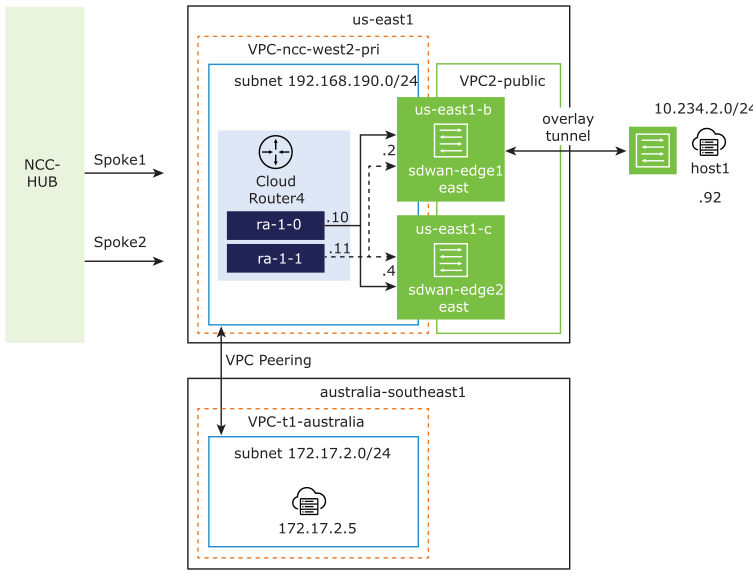
The following figure depicts the branch-to-cloud connectivity using VPC peering across regions:
Figure 2. Branch-to-Cloud Connectivity

In the above diagram, “ncc-west2-pri” is the hub VPC that is associated to the Network Connectivity Center hub. The subnet 192.168.190.0/24 is associated to the “us-east1” region, where host1 is located. The “t1-australia” is the Spoke VPC where an Ubuntu virtual machine is installed. You must establish connectivity from host1, which is an on-prem appliance located on the West coast of the United States to the Ubuntu virtual machine located in Australia.

Complete the following tasks to establish branch-to-cloud connectivity using VPC network peering:

  1. Create SD-WAN virtual Edge instances and cloud router in the “us-east1” region. Refer to Steps 1-13 in Establish Branch-to-Branch Connectivity Using CLI.
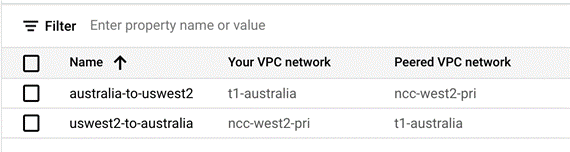
  2. From the Google Cloud Console, set up VPC network peering. For instructions, refer to Using VPC Network Peering.
    Figure 3. VPC Network Peering
  3. Activate custom routes import/export on peered VPC. For instructions, refer to Using VPC Network Peering.
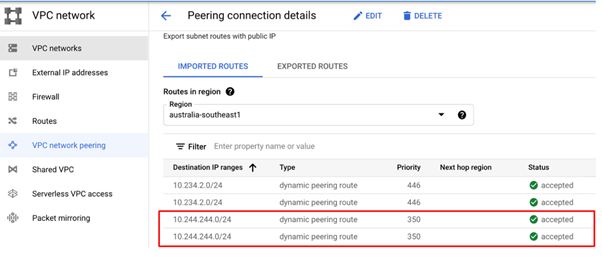
  4. Verify that your network is accepting custom routes from a peer network. For instructions, refer to the “Listing routes from peering connections” section in Using VPC Network Peering.
    Figure 4. Peering Connection Details
  5. Allow relevant inbound traffic in the VPC “t1-australia”. For instructions, refer to Using firewall rules.
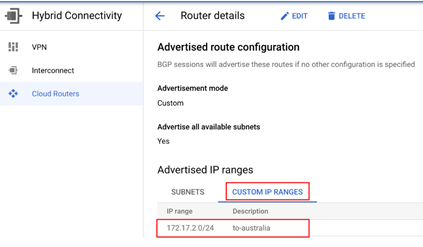
  6. Configure custom IP range on the Cloud Router to match the subnet of the Spoke VPC. This enables the Cloud Router to advertise the Spoke VPC “t1-australia” subnet to the SD-WAN Virtual Edge over BGP. For instructions about how to configure custom IP range, refer to Advertising custom IP ranges.
    Figure 5. Cloud Router Configuration Details
  7. Log in to the Orchestrator and then verify connectivity to the route table on the SD-WAN virtual Edge instances. For instructions, refer to the “Route Table Dump” section in the VeloCloud SD-WAN Troubleshooting Guide.

Run a ping test to verify the connection between the on-prem Edge instance, “host1” located on the West coast of the United States to the Ubuntu virtual machine located in Australia. For instructions, refer to the “Ping Test” section in the VeloCloud SD-WAN Troubleshooting Guide.