Azure Accelerated Networking Support for Virtual Edges
Azure provides Accelerated Networking as an implementation of single root I/O virtualization (SR-IOV), a standard that allows a physical PCIE device to appear as multiple virtual devices (virtual functions). When enabling Accelerated Networking on an interface of a VeloCloud Edge on Azure, SR-IOV support for Mellanox ConnectX-4 and ConnectX-5 Network Interface Cards (NICs) is also automatically enabled in the Edge Virtual Machine (VM).
This topic contains the following sections:
Azure Instance Support
The following table lists instance types that support the Accelerated Networking functionality.
| Software Version | Instance Types |
|---|---|
| Edge Software 5.4 or later | Standard_D3_v2 |
| Standard_D4_v2 | |
| Standard_D5_v2 | |
| Standard_D4_v5 | |
| Standard_D8_v5 | |
| Standard_D16_v5 |
Configure Azure Accelerated Networking
This section provides links to detailed instructions on activating and deactivating Azure Accelerated Networking in various ways.
- Azure portal
- Azure CLI or Azure PowerShell
Activate Accelerated Networking
Activate Accelerated Networking using the Azure portal or the Azure CLI.
Activate Accelerated Networking Using the Azure Portal
- Restart the VM.
Figure 1. Activate Accelerated Networking via Azure Portal 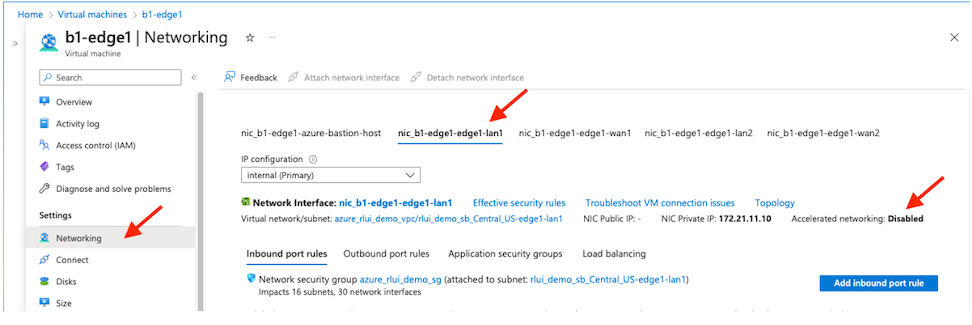 Note: To fully benefit from the Accelerated Networking feature, activate it on all interfaces of the VM.After the VM restarts, if the NIC model type allotted to the interface does not use Mellanox ConnectX4 or ConnectX5, the Edge VM does not activate accelerated networking support for the interface. As a troubleshooting effort, change the NIC model, stop or deallocate the VM, and then restart the VM.Note: Users must stop the VM before activating Accelerated Networking support.
Activate Accelerated Networking Using the Azure CLI
Deactivate Accelerated Networking
Deactivate Accelerated Networking using the Azure Portal
- Stop/deallocate the VM.
- Change the setting of accelerated networking to 'deactivate' or 'false'.
- Restart the VM.
Deactivate Accelerated Networking Using the Azure CLI
Verify Accelerated Networking
To verify Accelerated Networking is activated on the Edge, log into the Edge Virtual Machine (VM) and run lspci from the command line:
edge:b1-edge1:~# lspci
0000:00:00.0 Host bridge: Intel Corporation
440BX/ZX/DX - 82443BX/ZX/DX Host bridge (AGP disabled) (rev 03)
0000:00:07.0 ISA bridge: Intel Corporation
82371AB/EB/MB PIIX4 ISA (rev 01)
0000:00:07.1 IDE interface: Intel Corporation
82371AB/EB/MB PIIX4 IDE (rev 01)
0000:00:07.3 Bridge: Intel Corporation
82371AB/EB/MB PIIX4 ACPI (rev 02)
0000:00:08.0 VGA compatible controller:
Microsoft Corporation Hyper-V virtual VGA
0fcd:00:02.0 Ethernet controller: Mellanox
Technologies MT27710 Family [ConnectX-4 Lx Virtual Function] (rev 80)
8f67:00:02.0 Ethernet controller: Mellanox
Technologies MT27710 Family [ConnectX-4 Lx Virtual Function] (rev 80)
9b19:00:02.0 Ethernet controller: Mellanox
Technologies MT27710 Family [ConnectX-4 Lx Virtual Function] (rev 80)
9b46:00:02.0 Ethernet controller: Mellanox
Technologies MT27710 Family [ConnectX-4 Lx Virtual Function] (rev 80)
This feature does not support the Mellanox ConnectX-3 as the mlx5_core driver does not manage it. If Azure assigns the Edge VM ConnectX-3 Network Interface Cards (NICs), the Edge will behave as it does today without Accelerated Networking support.
Azure Host Servicing
The Azure Accelerated Networking support for Virtual Edges on Azure adds the DPDK failsafe/TAP/MLX PMD model. When Azure performs host maintenance, the system may temporarily remove the Single Root I/O Virtualization (SR-IOV) Virtual Functions (VFs) and add them back later.
For additional information, refer to Microsoft Azure Host Servicing.
The kernel logs these events, which users can view in the output of the dmesg command or within the /var/log/messages file:
edge:b3-edge1:~# egrep 'VF registering|VF unregistering' /var/log/messages
2023-07-25T22:06:11.903 INFO kern kernel:[ 11.091250] hv_netvsc 000d3a92-2dba-000d-3a92-2dba000d3a92 eth1: VF registering: eth5
2023-07-25T22:06:12.049 INFO kern kernel:[ 11.237233] hv_netvsc 000d3a92-245f-000d-3a92-245f000d3a92 eth2: VF registering: eth6
2023-07-25T22:06:12.208 INFO kern kernel:[ 11.396127] hv_netvsc 000d3a92-2178-000d-3a92-2178000d3a92 eth3: VF registering: eth7
2023-07-25T22:06:12.362 INFO kern kernel:[ 11.549624] hv_netvsc 000d3a92-218a-000d-3a92-218a000d3a92 eth4: VF registering: eth8
2023-07-25T22:30:09.188 INFO kern kernel:[ 1448.376507] hv_netvsc 000d3a92-2178-000d-3a92-2178000d3a92 eth3-hv: VF unregistering: eth7
2023-07-25T22:30:14.390 INFO kern kernel:[ 1453.577954] hv_netvsc 000d3a92-218a-000d-3a92-218a000d3a92 eth4-hv: VF unregistering: eth8
2023-07-25T22:30:19.380 INFO kern kernel:[ 1458.568168] hv_netvsc 000d3a92-2dba-000d-3a92-2dba000d3a92 eth1-hv: VF unregistering: eth5
2023-07-25T22:30:26.555 INFO kern kernel:[ 1465.742626] hv_netvsc 000d3a92-245f-000d-3a92-245f000d3a92 eth2-hv: VF unregistering: eth6
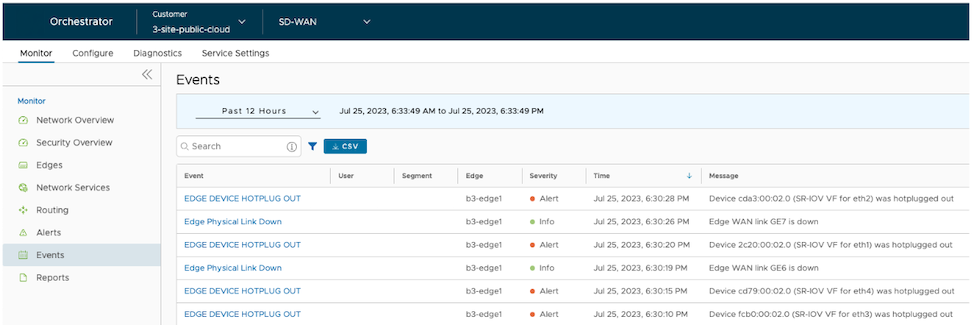
The VeloCloud Edge reports HOTPLUG OUT events directly to the Orchestrator.
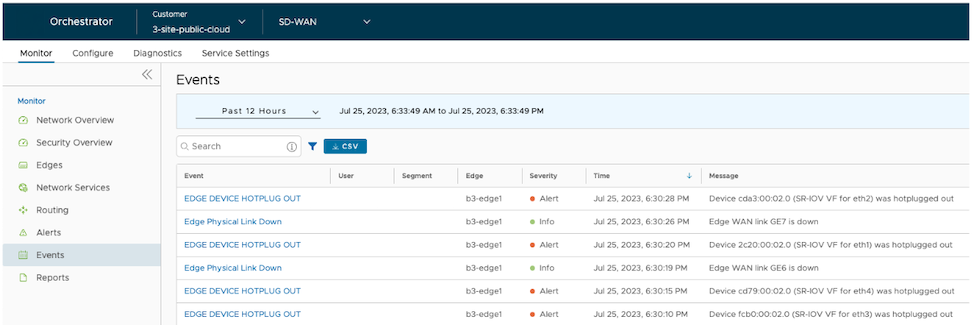
The Edge continues to run during the Azure Host maintenance, and the Paths remain active.
After Azure completes host maintenance and the system re-adds the SR-IOV VFs, users can view the events in the dmesg output or the /var/log/messages file.
edge:b3-edge1:~# egrep 'VF registering|VF unregistering' /var/log/messages
...
2023-07-25T22:31:23.137 INFO kern kernel:[ 1522.324791] hv_netvsc 000d3a92-2dba-000d-3a92-2dba000d3a92 eth1-hv: VF registering: eth5
2023-07-25T22:31:28.381 INFO kern kernel:[ 1527.568576] hv_netvsc 000d3a92-2178-000d-3a92-2178000d3a92 eth3-hv: VF registering: eth6
2023-07-25T22:31:33.416 INFO kern kernel:[ 1532.604181] hv_netvsc 000d3a92-245f-000d-3a92-245f000d3a92 eth2-hv: VF registering: eth7
2023-07-25T22:31:38.468 INFO kern kernel:[ 1537.656531] hv_netvsc 000d3a92-218a-000d-3a92-218a000d3a92 eth4-hv: VF registering: eth8