CloudVision AGNI Appliance Access
This section discusses the following topic:
iDRAC
iDRAC is a GUI based IPMI running on a separate out of band CPU used for monitoring the hardware appliance.
Web Access into iDRAC (System IPMI)
iDRAC supports the following browsers:
- Mozilla Firefox
- Google Chrome
- Safari
- Microsoft Edge
On the management station, open the Web browser and connect to the iDRAC7 using: https://<hostname or IP of iDRAC>.
For example: https://192.168.0.120.
The Login screen appears.
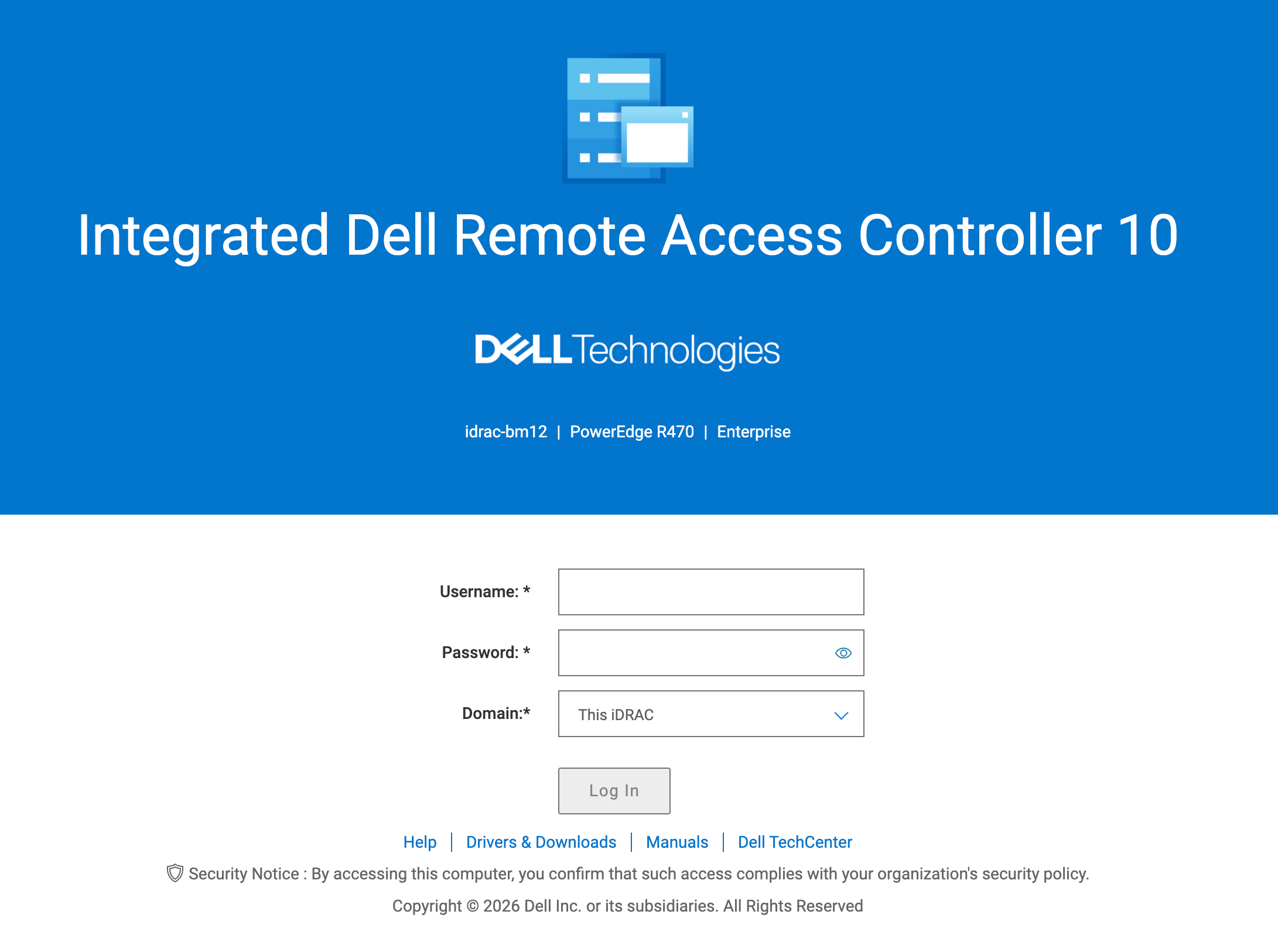
Login using the default username and password, which are:
- Username: root
- Password: Default Password is available on the label. Refer to the Locate the MAC Addresses for the AGNI Appliance section.
Note: Both the username and password are case-sensitive.
Log in to iDRAC using a web console and iDRAC credentials. Navigate to Virtual Console and access the Host console.
Figure 2. Access Virtual Console
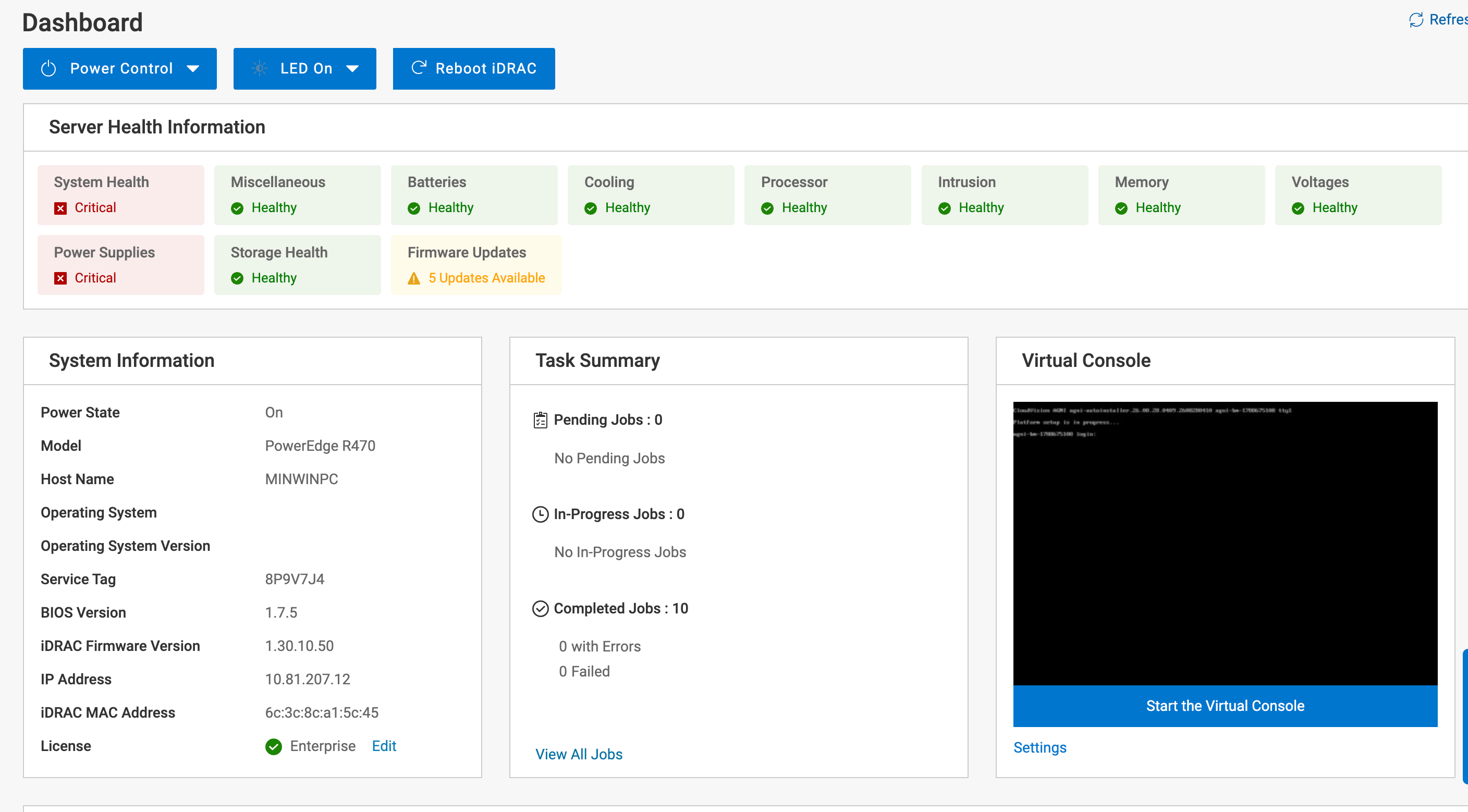
Enter the default login credentials. For additional details, see the DCA-AGNI-200 Appliance Setup and Access Guide on Arista website.
Changing iDRAC Password
You can change the iDRAC password by one of the following methods:
Changing iDRAC Password using Web GUI
- On the iDRAC web interface, navigate to the tab.
Figure 3. iDRAC Settings Screen 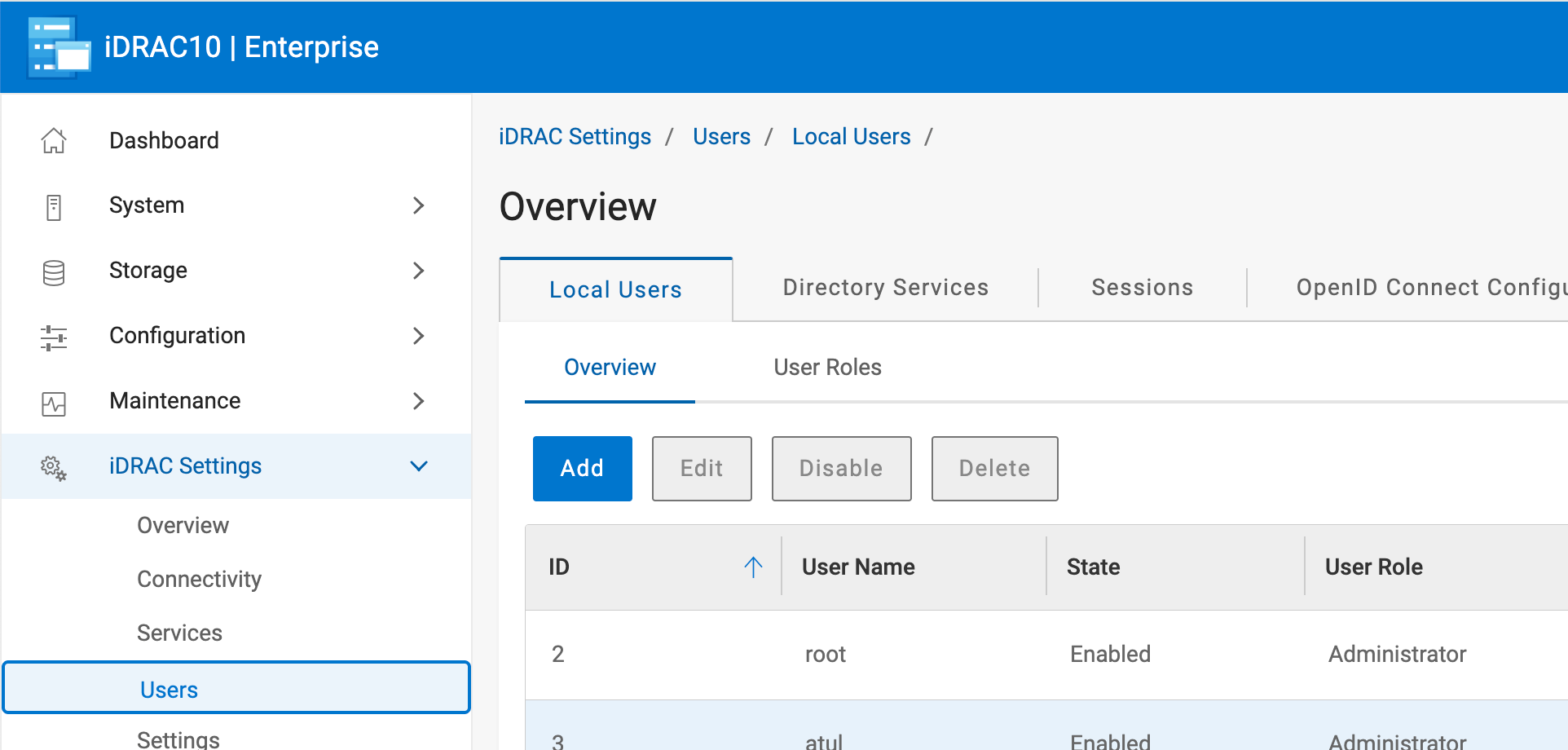
- In the ID column, select user ID 2 then select Edit.
Figure 4. Edit User Credentials 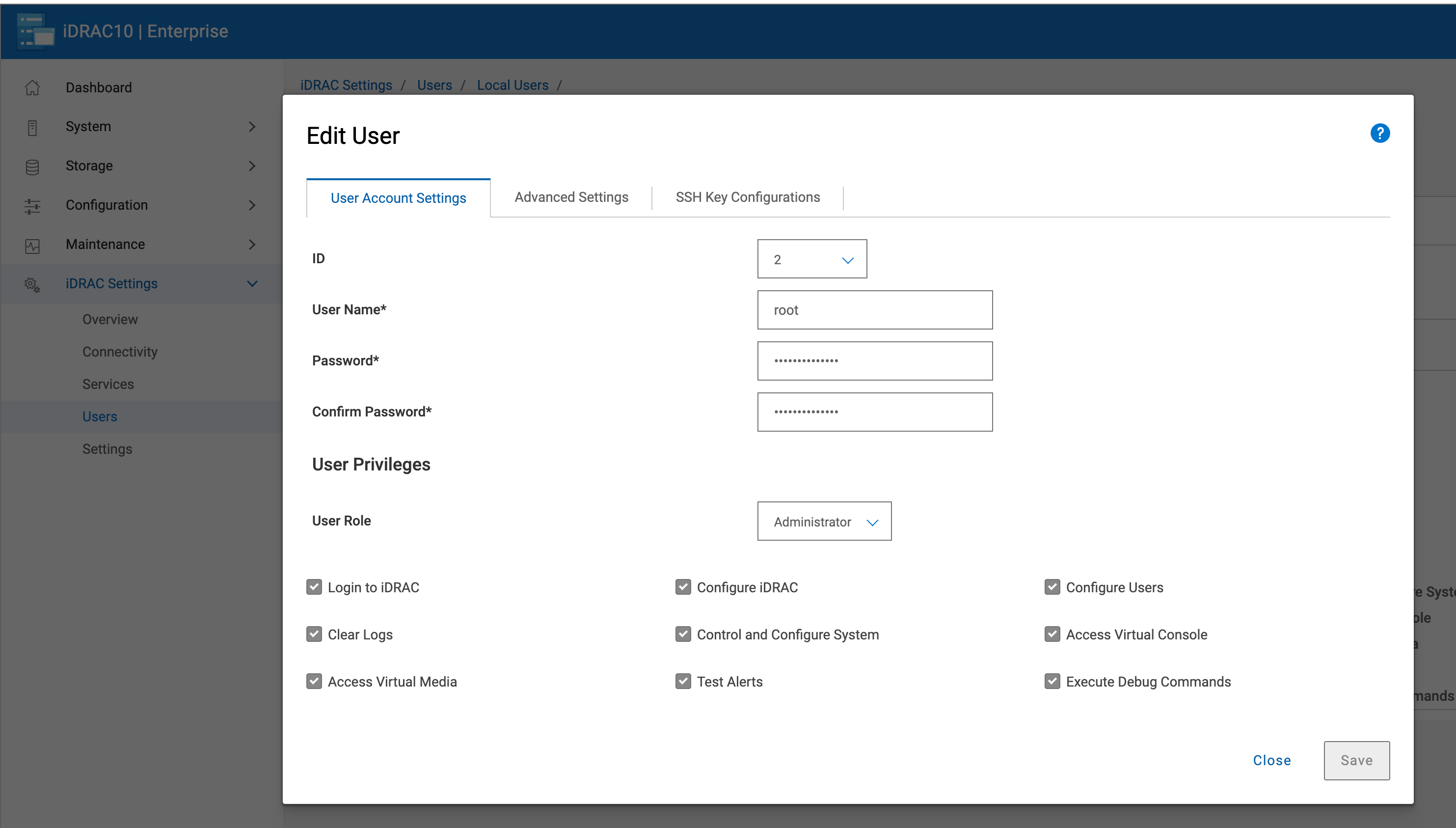
- Select the Save button.
Figure 5. Save the Changes Figure 6. Changes Saved Successfully 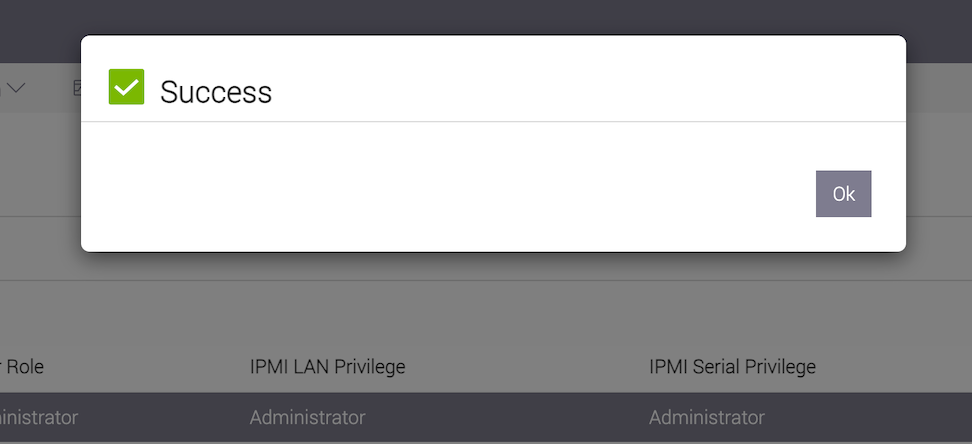
Changing iDRAC Password using Virtual Console
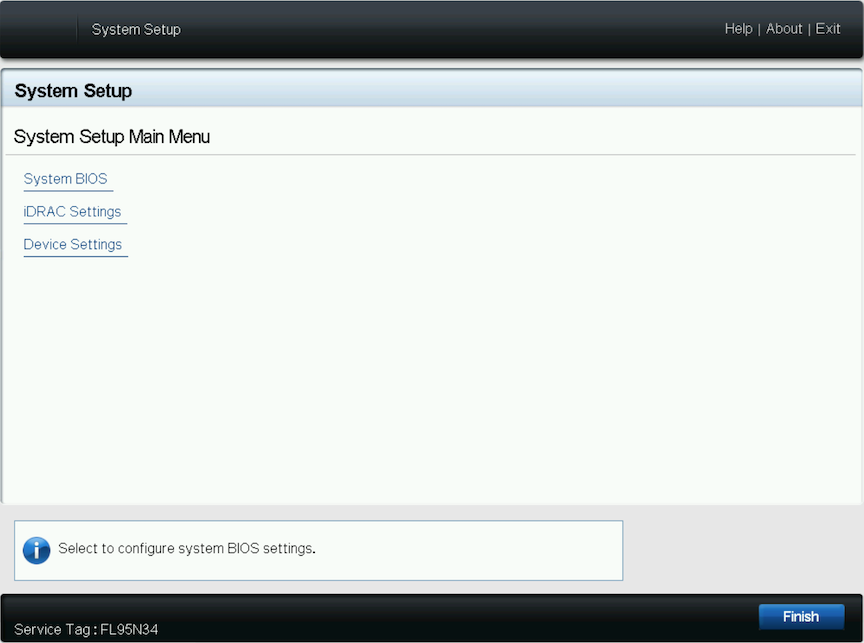
- Press F2 during system POST to access the System Settings page. Select the iDRAC Settings.
Figure 7. System Setup 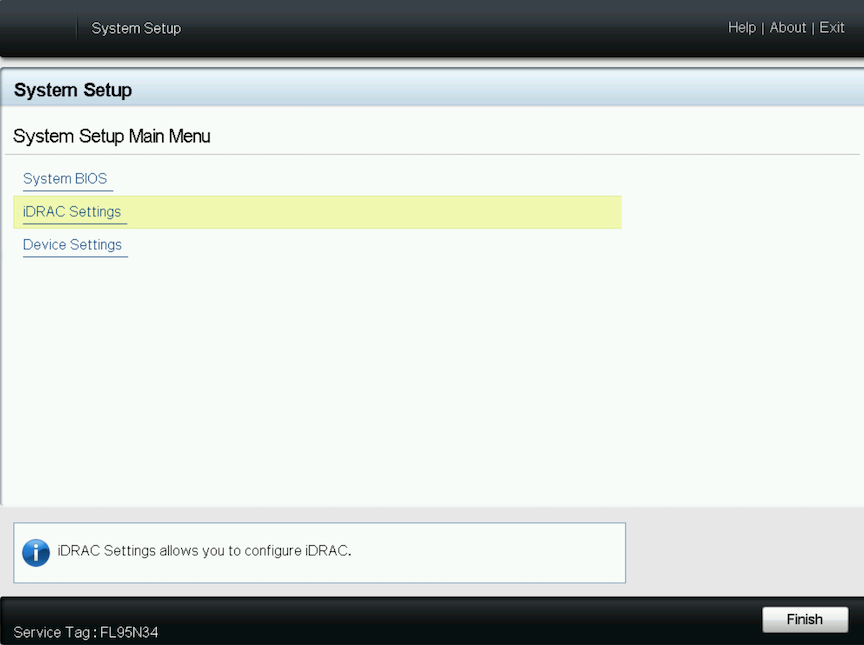
- In the iDRAC Settings page, go to User Configuration.
Figure 8. iDRAC Settings Page 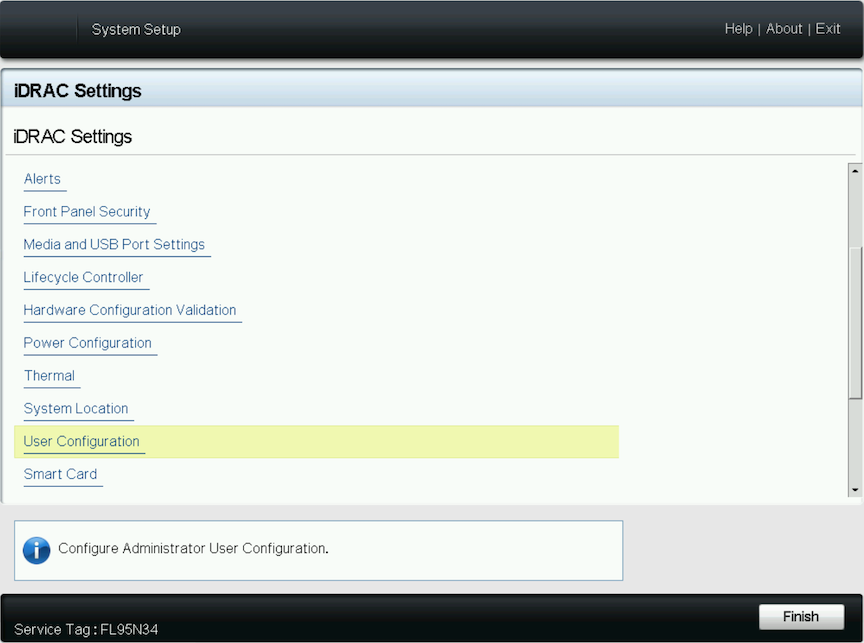
The iDRAC Settings User Configuration page is displayed.
- Enter the new password in the Change Password field.
Figure 9. iDRAC Setting - User Configuration Page 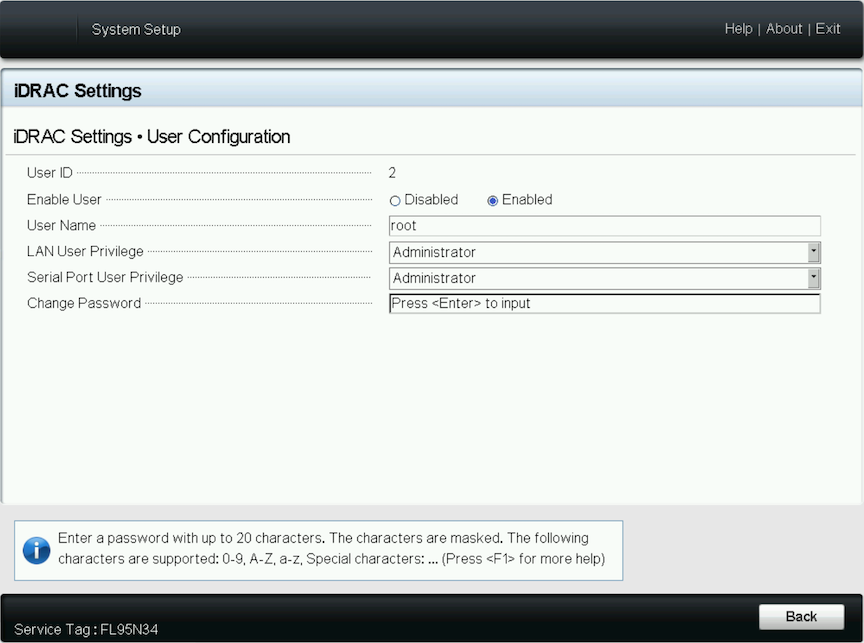
- Type the new password and then select the OK button, or press Enter.
Figure 10. Confirm New Password 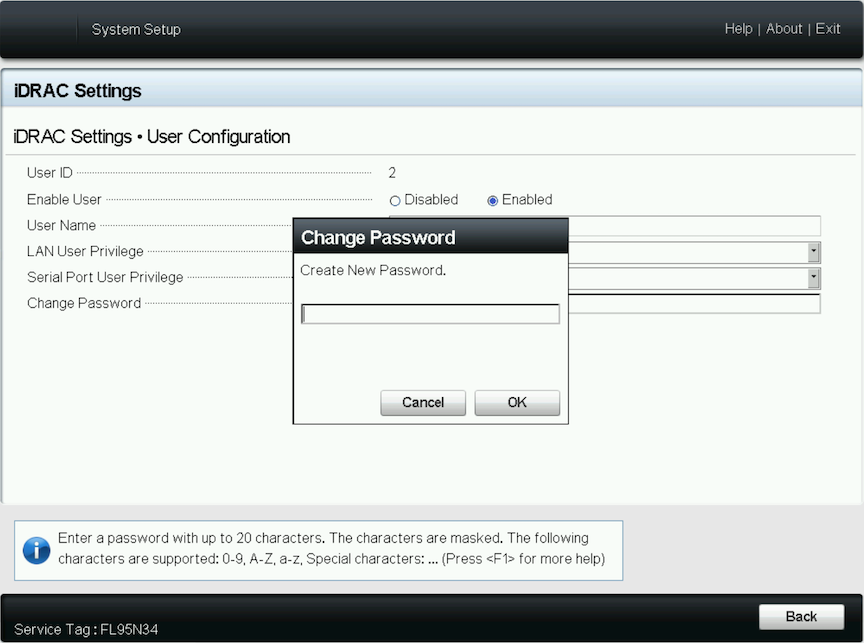
- Select the Back button or select Enter after changing the password.
Figure 11. Password Change 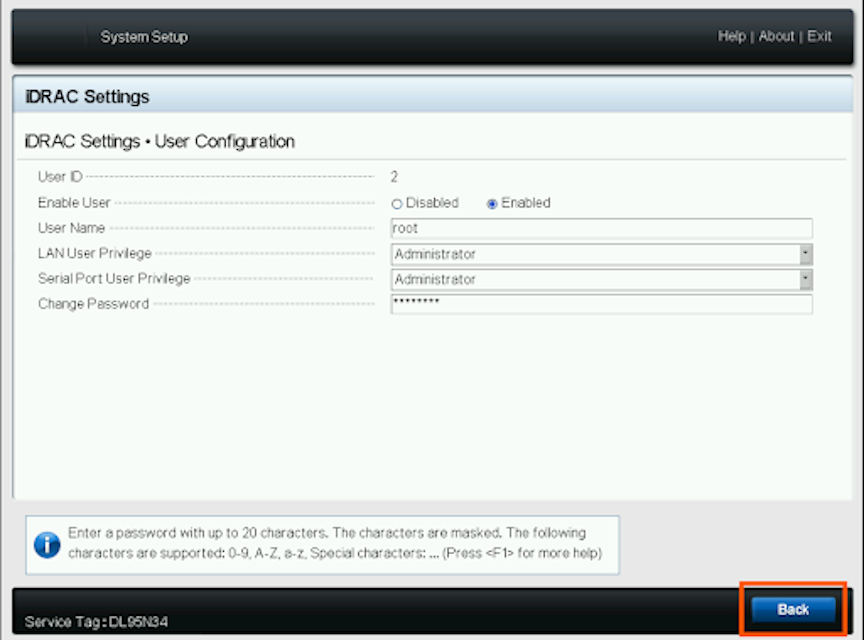
- Select Finish or press Enter.
Figure 12. iDRAC Settings 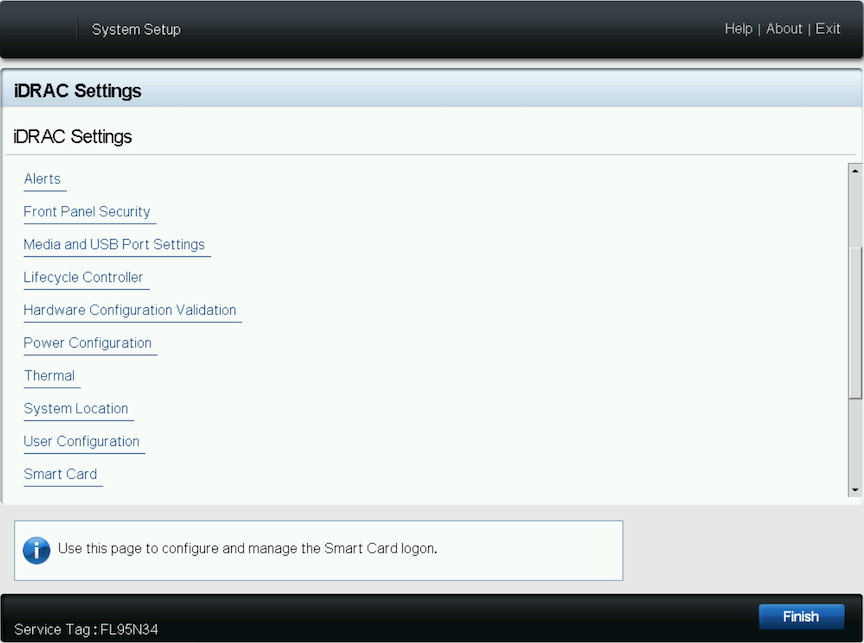
- Select Yes or press Enter to confirm the changes.
Figure 13. Save Changes 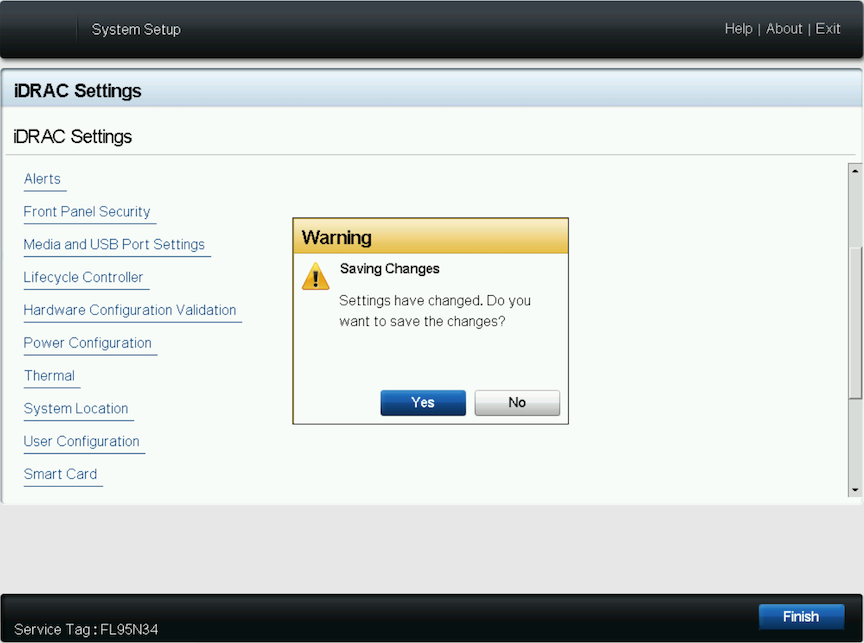
- Select OK or press Enter at the confirmation prompt.
Figure 14. Confirm Changes 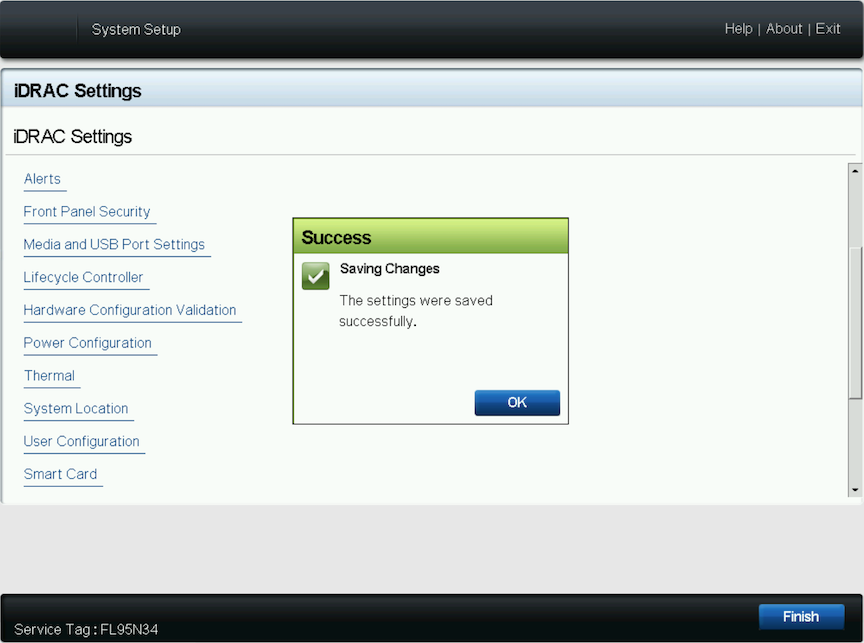
- Select Finish or press Enter.
Figure 15. Select the Finish Button