Configure Edge Overrides
Configuration overrides can be made to some settings that were assigned to an Edge. In most cases, an override must first be activated, and then changes can be made.
Override rules can be added to existing Business Policy and Firewall rules. Override rules have precedence over all other rules defined for Business Policy or Firewall. For additional information, see Create Business Policy Rule and Configure Firewall Rule.
To override configuration settings for a specific Edge:
- In the SD-WAN service of the Enterprise portal, go to . The Edges page displays the existing Edges.
- Select the link to an Edge or select the View link in the Device column of the Edge. The configuration options for the selected Edge are displayed in the Device tab.
Figure 1. Configure Edge Overrides 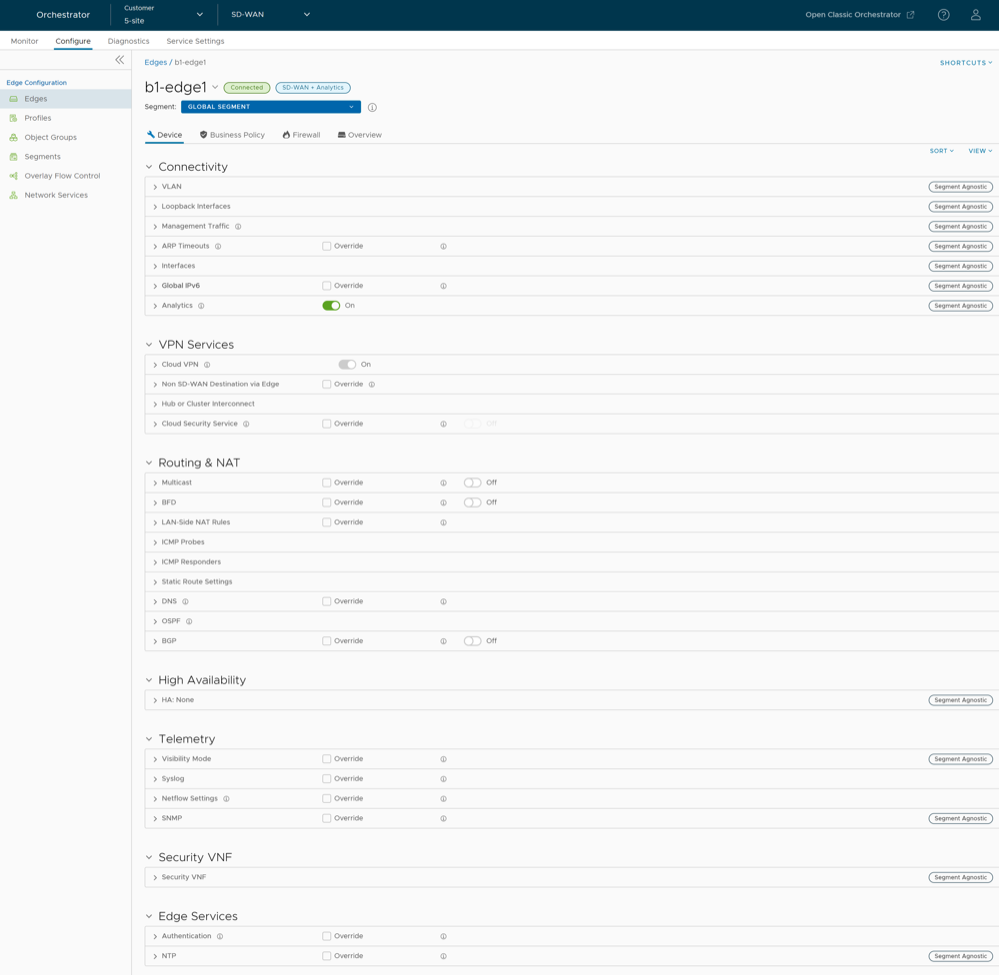
- The View drop-down menu at the left side of the page allows the user to select the view options. The available options are Expand All and Collapse All. By default, the settings are collapsed.
- The Sort drop-down menu at the left side of the page allows the user to select the sort options: Sort by category and Sort by segment aware. You can view the configuration settings sorted by category or segment aware. By default, the settings are sorted by category. If you choose to sort by segmentation, the settings are grouped as segment aware and segment agnostic.
- For some of the settings, the configuration is inherited from the associated Profile. To edit inherited configuration for the Edge, select the Override check box.
- After modifying the required settings, select Save Changes.
Note: On the Device page, whenever you make configuration changes for the selected Edge, an action bar appears at the bottom of the screen. You can select the notification to view the recent configuration changes and save the changes made to the Edge.
- Select the Shortcuts option to perform the following activities:
- Monitor – Navigates to the Monitoring tab of the selected Edge. See Monitor Edges.
- View Events – Displays the Events related to the selected Edge.
- Remote Diagnostics – Enables to run the Remote Diagnostics tests for the selected Edge. See Run Remote Diagnostics.
- Generate Diagnostic Bundle – Allows to generate Diagnostic Bundle for the selected Edge. See Diagnostic Bundles for Edges.
- Remote Actions – Allows to perform the Remote actions for the selected Edge. See Remote Actions.
- View Profile – Navigates to the Profile page, that is associated with the selected Edge.
- View Gateways – Displays the Gateways connected to the selected Edge.
Edge Device Configurations—A Roadmap
At the Edge-level, some configurations are Segment Aware, that is the configurations must be enabled for each segment where they are intended to work. Whereas, other configurations are Segment Agnostic across multiple segments.
The following table provides the list of Edge-level configurations:
| Settings | Description |
|---|---|
| VLAN | Configure the VLANs with both IPv4 and IPv6 addresses for Edges. Click the IPv4 or IPv6 tabs to configure the corresponding IP addresses for the VLANs. For additional information, see Configure VLAN for Edges. |
| Loopback Interfaces | Configure a logical interface that allows you to assign an IP address, which is used to identify an Edge. For additional information, see Configure a Loopback Interface for an Edge. |
| Management Traffic | Configure the management traffic by selecting a source IP for the Edge to transmit the traffic to Orchestrator. For additional information, see Configure Management Traffic for Edges. |
| ARP Timeouts | By default, the Edge inherits the ARP settings from the associated Profile. Select the Override and Override default ARP Timeouts check boxes to modify the values. For additional information, see Configure Address Resolution Protocol Timeouts for Edges. |
| Interfaces | Configure the following settings for the Edge Interfaces:
|
| Global IPv6 | Activate IPv6 configurations globally. See Global IPv6 Settings for Edges. |
| Wi-Fi Radio | Activate or deactivate Wi-Fi Radio and configure the band of radio frequencies. For additional information, see Configure Wi-Fi Radio Overrides.
Note: The Wi-Fi Radio option is available only for the following Edge models: 500, 5X0, Edge 510, Edge 510-LTE, Edge 6X0, and Edge 610-LTE.
|
| Common Criteria Firewall | Common Criteria (CC) is an international certification accepted by many countries. Obtaining the CC certification is an endorsement that our product has been evaluated by competent and independent licensed laboratories for the fulfilment of certain security properties. This certification is recognized by all the signatories of the Common Criteria Recognition Agreement (CCRA). The CC is the driving force for the widest available mutual recognition of secure IT products. Having this certification is an assurance of security to a standard extent and can provide Arista VeloCloud SD-WAN with the much needed business parity or advantage with its competitors.
Enterprise users can configure the Common Criteria Firewall settings. By default, this feature is deactivated. See Configure Common Criteria Firewall Settings for Edges. |
| Settings | Description |
|---|---|
| Cloud VPN | Allows Cloud VPN to initiate and respond to VPN connection requests. In the Cloud VPN, you can establish tunnels as follows:
Select the check boxes as required and configure the parameters to establish the tunnels. See Configure Cloud VPN and Tunnel Parameters for Edges. |
| Non SD-WAN Destination via Edge | Allows to establish tunnel between a branch and Non SD-WAN destination via Edge. See Configure a Tunnel Between a Branch and a Non SD-WAN Destinations via Edge.
Select Add to add Non SD-WAN Destinations. Select New NSD via Edge to create new Non SD-WAN Destination via Edge. See Configure Non SD-WAN Destinations via Edge. |
| Hub or Cluster Interconnect | VeloCloud SD-WAN supports interconnection of multiple Hub Edges or Hub Clusters to increase the range of Spoke Edges that can communicate with each other. This feature allows communication between the Spoke Edges connected to one Hub Edge or Hub Cluster and the Spoke Edges connected to another Hub Edge or Hub Cluster, using multiple overlay and underlay connections. See Hub or Cluster Interconnect. |
| Cloud Security Service | Allows to establish a secured tunnel from an Edge to cloud security service sites. This enables the secured traffic being redirected to third-party cloud security sites. See Configure Cloud Security Services for Edges. |
| Zscaler | Allows to establish a secured tunnel from an Edge to Zscaler sites. See Configure Zscaler Settings for Edges. |
| Gateway Handoff Assignment | Allows to assign Partner Gateways for Profiles or Edges. In order for customers to be able assign Partner Gateways, the Partner Handoff feature must be activated for the customers. See Assign Partner Gateway Handoff. |
| Controller Assignment | Allows to assign Controllers for Profiles or Edges. In order for customers to be able assign Controllers, the Partner Handoff feature must be activated for the customers. See Assign Controllers. |
| Settings | Description |
|---|---|
| Multicast | Configure Multicast to send data to only interested set of receivers. See Configure Multicast Settings for Edges. |
| BFD | By default, the Edge inherits the BFD configuration settings from the associated Profile. If required, you can select the Override check box to modify the settings. For additional information, see Configure BFD for Edges. |
| LAN-Side NAT Rules | Allows you to NAT IP addresses in an unadvertised subnet to IP addresses in an advertised subnet. See LAN-side NAT Rules at Edge Level. |
| ICMP Probes | Configure ICMP probes that check for the network continuity by pinging specified IP address at frequent intervals. See Configure ICMP Probes/Responders. |
| ICMP Responders | Configure ICMP Responders that respond to ICMP probes from a specified IP address. See Configure ICMP Probes/Responders. |
| Static Route Settings | Configure Static Route Settings for special cases in which static routes are needed for existing network attached devices, such as printers. See Configure Static Route Settings. |
| DNS | Use the DNS Settings to configure conditional DNS forwarding through a private DNS service and to specify a public DNS service to be used for querying purpose. See Configure DNS for Edges. |
| OSPF | The OSPF settings configured in the associated Profile are displayed. You can configure OSPF areas only for a Profile and only for a Global Segment. For Edges, you can configure additional OSPF settings for routed Interfaces. For additional information, see Activate OSPF for Edges. |
| BGP | Configure BGP settings for Underlay Neighbors and Non SD-WAN Neighbors. See Configure BGP from Edge to Underlay Neighbors for Edges. |
| Settings | Description |
|---|---|
| High Availability | Activate High Availability for the selected Edge. Choose one of the following options:
For additional information, see Configure High Availability Settings for Edges. |
| Settings | Description |
|---|---|
| Visibility Mode | Choose the visibility mode to track the network using either MAC address or IP address. See Configure Visibility Mode for Edges. |
| Syslog | Configure Syslog collector to receive Orchestrator bound events and firewall logs from the Edges configured in an Enterprise. See Configure Syslog Settings for Edges. |
| Netflow Settings | As an Enterprise Administrator, at the Edge level, you can override the Netflow settings specified in the Profile. See Configure Netflow Settings for Edges. |
| SNMP | Enable the required SNMP version for monitoring the network. Ensure that you download and install all the required SNMP MIBs before enabling SNMP. See Configure SNMP Settings for Edges. |
| Settings | Description |
|---|---|
| Security VNF | Configure security VNF to run the functions of a network service in a software-only form. For additional information, see Security Virtual Network Functions. |
| Settings | Description |
|---|---|
| Authentication | Allows to select a RADIUS server to be used for authenticating a user. For additional information, see Configure Authentication Settings for Edges.
Select New RADIUS Service to create a new RADIUS server. For additional information, see Configure Authentication Services. |
| NTP | Allows to synchronize the system clocks of Edges and other network devices. See Configure NTP Settings for Edges. |
Configure VLAN for Edges
To configure VLAN settings for an Edge:
- On the Device tab, under Connectivity, expand the VLAN section.
Figure 2. Configure VLAN for Edges 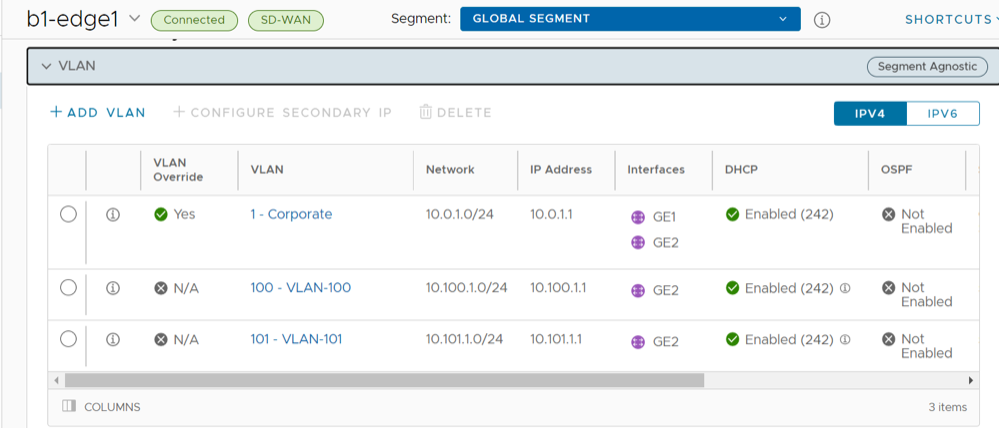
You can add or edit VLANs, or add secondary IP addresses. You can also delete the selected VLAN.
- To add a VLAN, select + Add VLAN.
Figure 3. Add VLAN 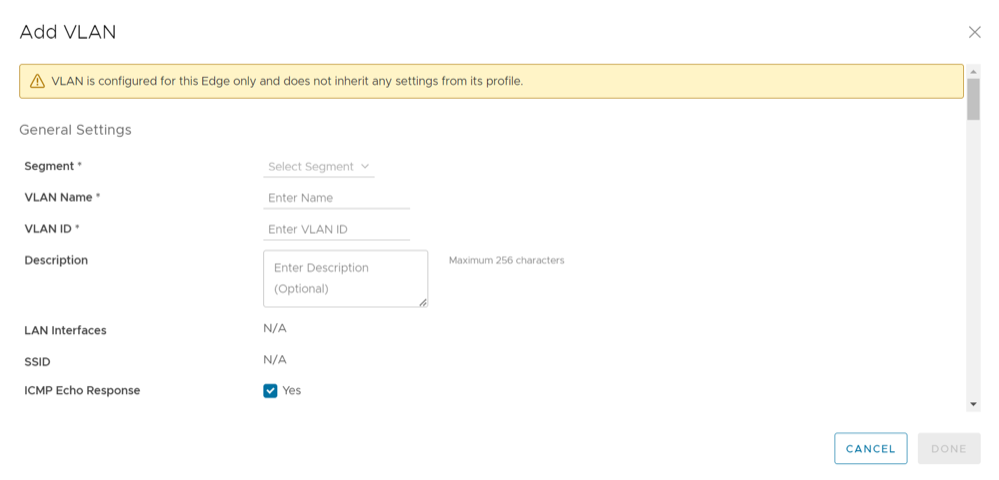
Edit VLANs
To edit the VLAN, complete the following steps:
- Select the Override check boxes to override the VLAN settings inherited from the Profile.
Figure 4. Edit VLANs 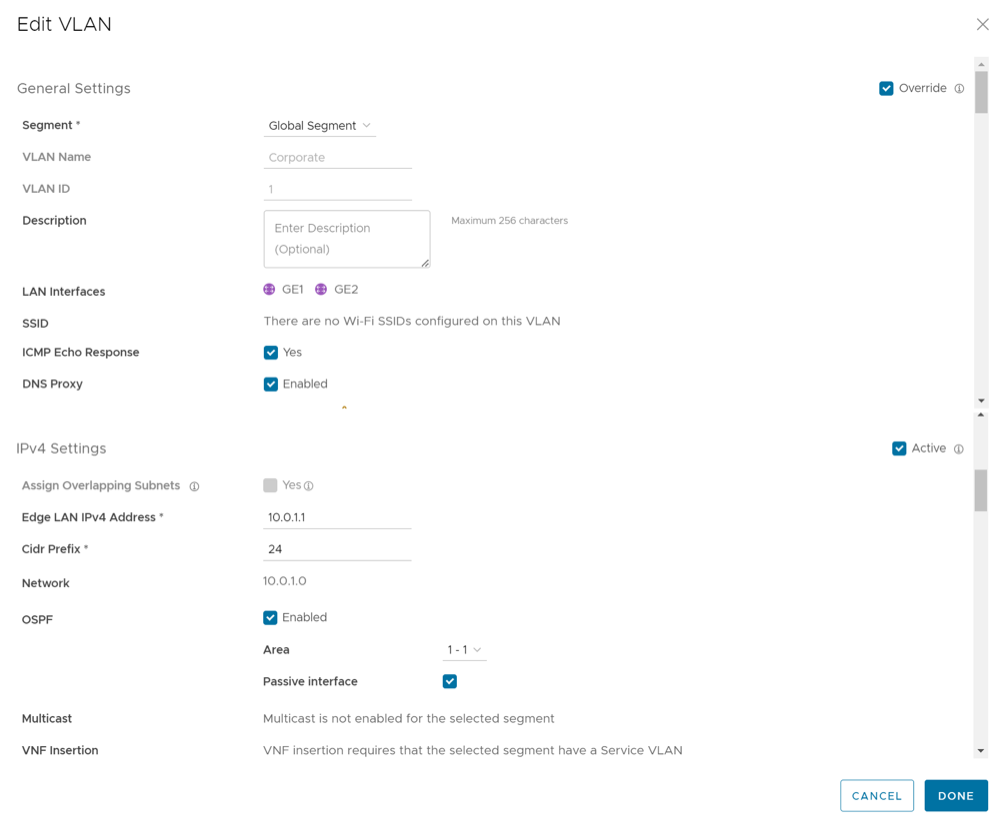 Note: You cannot override the Profile VLAN name and ID.
Secondary IP Addresses
- To add secondary IP addresses to the VLAN, select Add Secondary IP.
Figure 5. Add Secondary IP 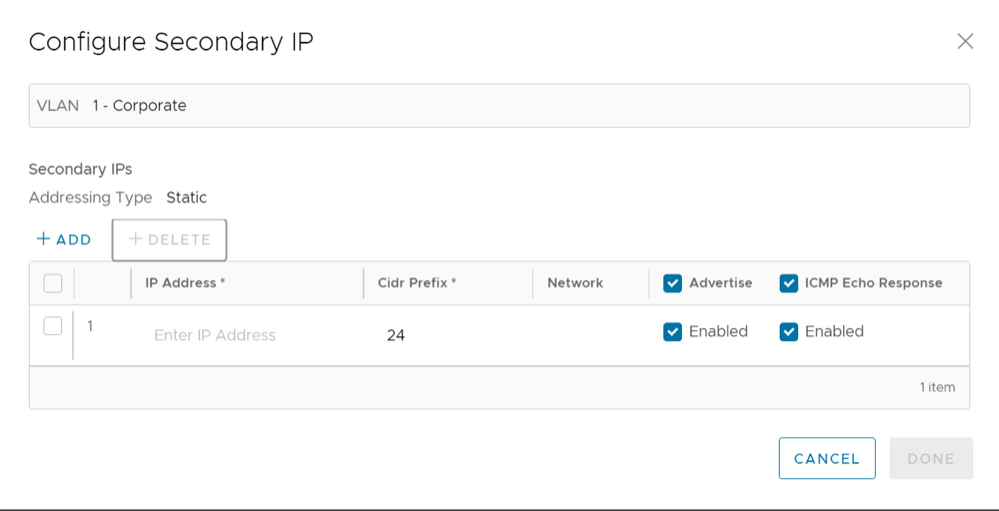
A row to configure a secondary IP displays, as shown in the image above. Configure the Secondary IP VLAN settings from the following table.
Table 9. Secondary IP VLAN Option Descriptions Option Description Addressing Type By default, the addressing type is Static and you cannot modify the type. IP Address Enter the secondary IP address for the selected VLAN. Cidr Prefix Enter the CIDR prefix for the IP address. Network Displays the IP address of the Network, which is auto-generated from the secondary IP address and CIDR prefix. Advertise Select the check box to advertise the secondary IP address network of the VLAN to other branches in the network. ICMP Echo Response Select the check box to enable the VLAN with the secondary IP address to respond to ICMP echo messages.
Loopback Interfaces Configuration
A loopback interface is a logical interface that allows you to assign an IP address, which is used to identify a VeloCloud Edge.
You can configure loopback interfaces only for Edges that are running on version 4.3 and above. The Configure Loopback Interfaces area is not available for Edges that are running on version 4.2 or lower. For such Edges, you must configure Management IP address. For details, refer to Configure Management IP Address for Profiles.
Benefits of Loopback Interfaces
- As loopback interfaces are logical interfaces that are always up and reachable, you can use these interfaces for diagnostic purposes as long as there is layer 3 reachability to at least one physical interface.
- Loopback interfaces can be used as source interface for BGP. This ensures that when the BGP's interface state flaps, the BGP membership does not flap if there is at least one layer 3 connection available.
- Loopback interface IP address can be used as the source IP address for the various services such as Orchestrator Management Traffic, Authentication, DNS, NetFlow, Syslog, TACACS, BGP, and NTP. As loopback interfaces are always up and reachable, these services can receive the reply packets, if at least one physical interface configured for the Edge has layer 3 reachability.
Limitations of Loopback Interfaces
- Only IPv4 addresses can be assigned for loopback interfaces.
- Loopback interfaces can be configured only for Edges. They cannot be configured for Profiles.
- Loopback interfaces must be configured only after the Edge activation is successful.
- For any Edge that is not activated, the version of the customer operator profile is validated based on which either the Management IP Address section or the Loopback Interfaces section is visible. For example, if the version of the customer operator profile is 4.3 or above, the Loopback Interfaces section is visible at the Edge-level. Whereas, if the version of the customer operator profile is 4.2 or lower and the Edge is not activated, the Management IP Address section is visible at the Edge-level and Profile-level.
- Loopback interface IDs must be unique across all segments within an Edge and must start from 1, as Zero (0) is not supported.
- If you choose to configure loopback interfaces and Orchestrator management traffic through API, the default configuration keys for these two properties are not available. You must modify the
updateConfigurationModuleAPI to configure the loopback interface and management traffic source interface selection. - You can access loopback interfaces only through SSH. Loopback interface access through local Web UI is not supported.
- Consider the following when you upgrade or downgrade your Edges:
- If the Management IP address that is configured either at the Profile-level or at the Edge-level is not the default IP address (
192.168.1.1) and when the Edge is upgraded to version 4.3 or above, the loopback interface is automatically created at the Edge-level with the configured Management IP address as the IP address of the loopback interface. - Consider that you have upgraded your Orchestrator to version 4.3 or above, whereas the Edge still runs on version 4.2 or lower. If you update the Management IP address configuration either at the Profile-level or at the Edge-level, and then upgrade your Edge to version 4.3 or above, all changes that you made to the Management IP address configuration will be lost.
- When the Edge is downgraded to a version lower than 4.3, the Management IP address that was configured before the upgrade will be retained at the Profile-level and at the Edge-level.
- Any changes made to the loopback interface configuration will be lost after the Edge downgrade.
- For example, consider that you had the Management IP address as
1.1.1.1. When you upgrade your Edge to version 4.3 or above, the same IP address,1.1.1.1will be the IP address of the loopback interface at the Edge-level. Then, you change the loopback interface IP address to2.2.2.2.When you downgrade your Edge to a version lower than 4.3, you will notice that the Management IP address at the Edge-level will still be1.1.1.1and the Management IP address at the Profile-level will be empty.
- If the Management IP address that is configured either at the Profile-level or at the Edge-level is not the default IP address (
Configure a Loopback Interface for an Edge
To configure a loopback interface for an Edge:
- Scroll down to the Connectivity category and select Loopback Interfaces.
Figure 6. Configure Loopback Interfaces 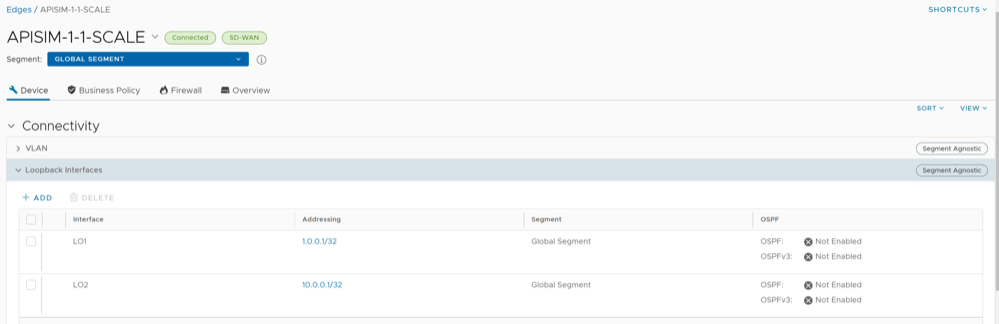
- Select + Add and in the Add Loopback pop-up window, configure the required loopback settings as described in the following table.
Figure 7. Add Loopback 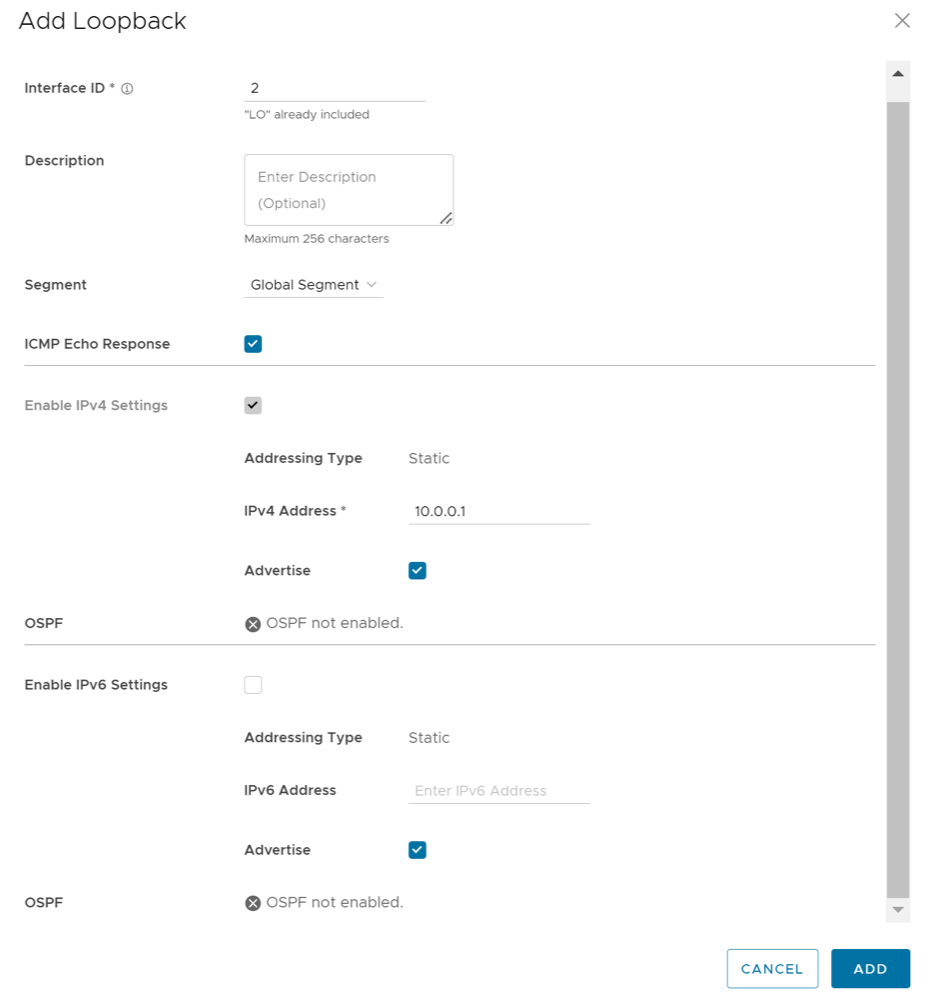
Table 10. Add Loopback Field Descriptions Field Description Interface ID Enter a unique ID for the loopback interface. The ID must be unique across all segments within an Edge and must start from 1, as Zero (0) is not supported. Segment Select a segment from the drop-down list. The loopback interface belongs to the selected segment. ICMP Echo Response Select the check box to enable the loopback interface to respond to ICMP echo messages. IPv4 Settings Addressing Type By default, the addressing type is Static and you cannot modify the type. IP Address Enter the IPv4 address for the loopback interface. CIDR Prefix The CIDR prefix for the loopback interface IPv4 address. The default value is /32. You cannot modify the default value. Advertise Select the check box to advertise the loopback interface to other branches in the network. OSPF Select the check box and choose an OSPF Area from the drop-down list. The loopback interface IP address is advertised in the selected OSPF area. The OSPFv2 configuration supports only IPv4. The OSPFv3 configuration supports only IPv6, which is only available in the 5.2 release. Note: This option is enabled only when you have configured OSPF for the segment that you have selected for the loopback interface. OSPF is not supported on Sub Interfaces, and it is not supported on non Global Segments.For additional information on OSPF settings and OSPFv3, see Activate OSPF for Profiles.
IPv6 Settings Addressing Type By default, the addressing type is Static and you cannot modify the type. IP Address Enter the IPv6 address for the loopback interface. CIDR Prefix The CIDR prefix for the loopback interface IP address. The default value is /128. You cannot modify the default value. Note: You can select the Active check boxes for the IPv4 and IPv6 settings, to enable the corresponding addressing type for the Interface. By default, the option is enabled for IPv4 settings.
| Services/Settings | For details, refer to ... |
|---|---|
| Orchestrator Management Traffic | Configure Management Traffic for Edges |
| Authentication Settings | Configure Authentication Settings for Profiles |
| DNS Settings | Configure DNS for Profiles |
| Netflow Settings | Configure Netflow Settings for Edges |
| Syslog Settings | Configure Syslog Settings for Edges |
| BGP Settings | Configure BGP from Edge to Underlay Neighbors for Profiles |
| NTP Settings | Configure NTP Settings for Edges |
ConfigureManagement Traffic for Edges
To configure the Management Traffic at the Edge level:
- Scroll down to the Connectivity category and select then expand the Management Traffic area.
Figure 8. Configure Management Traffic for Edges 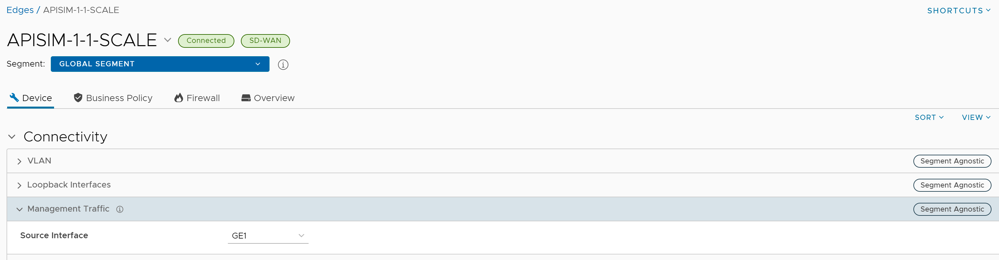
Configure Address Resolution Protocol Timeouts for Edges
To override the ARP timeouts values at the Edge-level, perform the following steps:
- Under the Connectivity category, select ARP Timeouts and select the Override check box.
Figure 9. Override ARP Timeouts 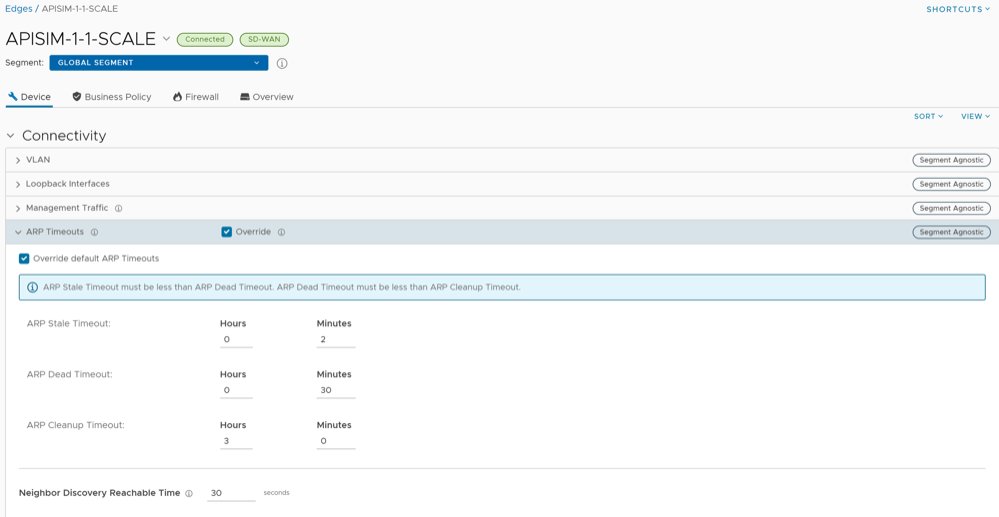
Configure Interface Settings for Edges
An Edge has different types of Interfaces. By default, the Interface configuration settings of an Edge are inherited from the associated Profile. You can modify and configure more settings for each Edge.
The Interface Settings options vary based on the Edge model. For additional information on different Edge models and deployments, see Configure Interface Settings.
- In the SD-WAN service of the Enterprise portal, select . The Edges page displays the existing Edges.
- Select the link to an Edge or select the View link in the Device column of the Edge. The configuration options for the selected Edge are displayed in the Device tab.
- In the Connectivity category, expand Interfaces.
- The different types of Interfaces available for the selected Edge are displayed. Click the link to an Interface to edit the settings. The Interface settings screen appears.
Figure 10. Configure Interface Settings Screen 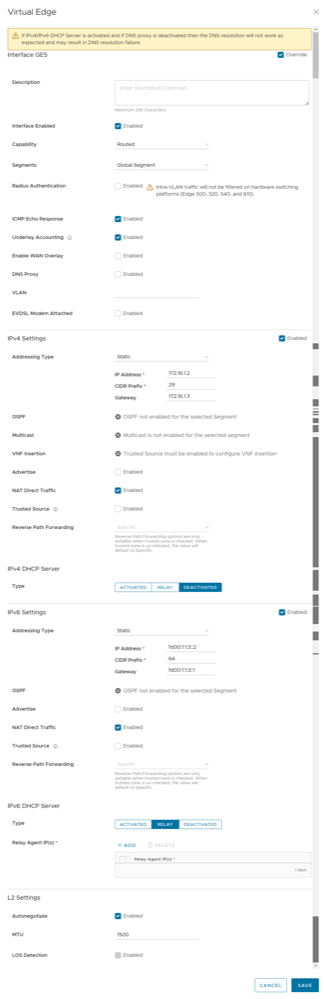 You can edit the settings for the following types of Interfaces, based on the Edge model:
- Switch Port
- Routed Interface
- WLAN Interface
You can also add Sub Interface, Secondary IP address, and Wi-Fi SSID based on the Edge model.
- You can configure the following settings for a Routed Interface of an Edge.
Table 13. Routed Interface Option Descriptions Option Description Description Enter a description. This field is optional. Interface Enabled This option is activated by default. If required, you can deactivate the Interface. When deactivated, the Interface is not available for any communication. Capability For a Switch Port, the option Switched is selected by default. You can choose to convert the port to a routed Interface by selecting the option Routed from the drop-down menu. Segments By default, the configuration settings are applicable to all the segments. Radius Authentication Deactivate the Enable WAN Overlay check box to configure Radius Authentication. Select the Radius Authentication check box and add the MAC addresses of pre-authenticated devices. ICMP Echo Response This check box is selected by default. This helps the Interface to respond to ICMP echo messages. You can deactivate this option for security purposes. Underlay Accounting This check box is selected by default. If a private WAN overlay is defined on the Interface, all underlay traffic traversing the interface are counted against the measured rate of the WAN link to prevent over-subscription. Deactivate this option to avoid this behavior. Note:- Underlay Accounting is supported for both, IPv4 and IPv6 addresses.
- Enabling underlay configuration for LAN is not recommended.
Enable WAN Overlay Select the check box to activate WAN overlay for the Interface. DNS Proxy The DNS Proxy feature provides additional support for Local DNS entries on the Edge, to point certain device traffic to specific domains. You can activate or deactivate this option, irrespective of IPv4 or IPv6 DHCP Server setting. Note: This check box is available only for a Routed Interface and a Routed Sub Interface.VLAN For an Access port, select an existing VLAN from the drop-down menu. For a Trunk port, you can select multiple VLANs and select an untagged VLAN. EVDSL Modem Attached Select this check box to activate an EVDSL Modem which is connected to one of the Ethernet ports on the Edge. IPv4 Settings Select the Enable check box and configure the IPv4 settings. For additional information, see IPv4 Settings section below. IPv6 Settings Select the Enable check box and configure the IPv6 settings. For additional information, see IPv6 Settings section below. L2 Settings Autonegotiate This option is selected by default. When selected, Auto negotiation allows the port to communicate with the device on the other end of the link to determine the optimal duplex mode and speed for the connection. Speed This option is available only when Autonegotiate is not selected. Select the speed that the port has to communicate with other links. By default, 100 Mbps is selected. Duplex This option is available only when Autonegotiate is not selected. Select the mode of the connection as Full duplex or Half duplex. By default, Full duplex is selected. MTU The default MTU size for frames received and sent on all routed interfaces is 1500 bytes. You can change the MTU size for an Interface. LOS Detection This option is available only for a routed Interface of an Edge. Select the check box to activate Loss of Signal (LoS) detection by using ARP monitoring. For additional information, see HA LoS Detection on Routed Interfaces. Note: You can select the check box only when you have activated High Availability on the Edge.
IPv4 Settings
Select the Enabled check box to configure the following IPv4 Settings:
| Option | Description |
|---|---|
| Addressing Type | Select an addressing type:
Note: 31-bit prefixes are supported for IPv4 as per RFC 3021.
|
| OSPF | This option is available only when you have configured OSPF for the selected Segment. Select the check box and choose an OSPF from the drop-down menu. Select toggle advance ospf settings to configure the Interface settings for the selected OSPF.
Note: OSPF is not supported on Sub Interfaces, and it is not supported on non Global Segments.
The OSPFv2 configuration supports only IPv4. The OSPFv3 configuration supports only IPv6.
For additional information on OSPF settings and OSPFv3, see Activate OSPF for Profiles.Note: OSFPv3 is only available in the 5.2 release.
|
| Multicast | This option is available only when you have configured multicast settings for the selected Segment. You can configure the following multicast settings for the selected Interface.
Select toggle advanced multicast settings to configure the following timers:
Note: Currently, Multicast Listener Discovery (MLD) is deactivated. Hence, Edge does not send the multicast listener report when IPv6 address is assigned to Interface. If there is a snooping switch in the network then not sending MLD report may result in Edge not receiving multicast packets which are used in Duplicate Address Detection (DAD). This results in DAD success even with duplicate address.
|
| VNF Insertion | You must deactivate WAN Overlay and select the Trusted Source check box to activate VNF Insertion. When you insert the VNF into Layer 3 interfaces or sub-interfaces, the system redirects traffic from the Layer 3 interfaces or sub interfaces to the VNF. |
| Advertise | Select the check box to advertise the Interface to other branches in the network. |
| NAT Direct Traffic | Select the check box to apply NAT for IPv4 to network traffic sent from the Interface.
CAUTION:
It is possible that an older version of the Orchestrator inadvertently configured NAT Direct on a main interface with either a VLAN or subinterface configured. If that interface is sending direct traffic one or hops away, the customer would not observe any issues because the NAT Direct setting was not being applied. However, when an Edge is upgraded to 5.2.0 or later, the Edge build includes a fix for the issue (Ticket #92142) with NAT Direct Traffic not being properly applied, and there is a resulting change in routing behavior since this specific use case was not implemented in prior releases. In other words, because a 5.2.0 or later Edge now implements NAT Direct in the expected manner for all use cases, traffic that previously worked (because NAT Direct was not being applied per the defect) may now fail because the customer never realized that NAT Direct was checked for an interface with a VLAN or subinterface configured. As a result, a customer upgrading their Edge to Release 5.2.0 or later should first check their Profiles and Edge interface settings to ensure NAT Direct is configured only where they explicitly require it and to deactivate this setting where it is not, especially if that interface has a VLAN or subinterface configured. |
| Trusted Source | Select the check box to set the Interface as a trusted source. |
| Reverse Path Forwarding | You can choose an option for Reverse Path Forwarding (RPF) only when you have selected the Trusted Source check box. This option allows traffic on the interface only if return traffic can be forwarded on the same interface. This helps to prevent traffic from unknown sources like malicious traffic on an Enterprise network. If the incoming source is unknown, then the packet is dropped at ingress without creating flows. Select one of the following options from the drop-down menu:
|
- Activated: Activates DHCP with the Edge as the DHCP server. If you choose this option, configure the following details:
- DHCP Start: Enter a valid IP address available within the subnet.
- Num. Addresses: Enter the number of IP addresses available on a subnet in the DHCP Server.
- Lease Time: Select the period of time from the drop-down menu. This is the duration the VLAN is allowed to use an IP address dynamically assigned by the DHCP server.
- Options: Select Add to add pre-defined or custom DHCP options from the drop-down menu. The DHCP option is a network service passed to the clients from the DHCP server. Choose a custom option and enter the code, data type, and value.
- Relay: Allows exchange of DHCPv4 messages between client and server. If you choose this option, configure the following:
- Relay Agent IP(s): Specify the IP address of Relay Agent. Click Add to add more IP addresses.
- Deactivated: Deactivates the DHCP server.
IPv6 Settings
| Option | Description |
|---|---|
| Addressing Type | Select an addressing type:
|
| OSPF | This option is available only when you have configured OSPF for the selected Segment. Select the check box and choose an OSPF from the drop-down menu. Select toggle advance ospf settings to configure the Interface settings for the selected OSPF.
Note: OSPF is not supported on Sub Interfaces, and it is not supported on non Global Segments.
The OSPFv2 configuration supports only IPv4. The OSPFv3 configuration supports only IPv6, which is only available in the 5.2 release.
For additional information on OSPF settings and OSPFv3, see Activate OSPF for Profiles.Note: OSFPv3 is only available in the 5.2 release.
|
| Advertise | Select the check box to advertise the Interface to other branches in the network. |
| NAT Direct Traffic | Select the check box to apply NAT for IPv6 to network traffic sent from the Interface.
CAUTION: It is possible that an older version of the Orchestrator inadvertently configured NAT Direct on a main interface with either a VLAN or subinterface configured. If that interface is sending direct traffic one or hops away, the customer would not observe any issues because the NAT Direct setting was not being applied. However, when an Edge is upgraded to 5.2.0 or later, the Edge build includes a fix for the issue (Ticket #92142) with NAT Direct Traffic not being properly applied, and there is a resulting change in routing behavior since this specific use case was not implemented in prior releases.
In other words, because a 5.2.0 or later Edge now implements NAT Direct in the expected manner for all use cases, traffic that previously worked (because NAT Direct was not being applied per the defect) may now fail because the customer never realized that NAT Direct was checked for an interface with a VLAN or subinterface configured. As a result, a customer upgrading their Edge to Release 5.2.0 or later should first check their Profiles and Edge interface settings to ensure NAT Direct is configured only where they explicitly require it and to deactivate this setting where it is not, especially if that interface has a VLAN or subinterface configured. |
| Trusted Source | Select the check box to set the Interface as a trusted source. |
| Reverse Path Forwarding | You can choose an option for Reverse Path Forwarding (RPF) only when you have selected the Trusted Source check box. This option allows traffic on the interface only if return traffic can be forwarded on the same interface. This helps to prevent traffic from unknown sources like malicious traffic on an Enterprise network. If the incoming source is unknown, then the packet is dropped at ingress without creating flows. Select one of the following options from the drop-down menu:
|
- Activated: Activates DHCPv6 with the Edge as the DHCPv6 server. If you choose this option, configure the following details:
- DHCP Start: Enter a valid IPv6 address available within the subnet.
- Num. Addresses: Enter the number of IP addresses available on a subnet in the DHCPv6 Server.
- Lease Time: Select the period of time from the drop-down list. This is the duration the VLAN is allowed to use an IPv6 address dynamically assigned by the DHCPv6 Server.
- DHCPv6 Prefix Delegation: Select Add to assign prefixes chosen from a global pool to DHCP clients. Enter the prefix pool name along with the prefix start and end details.
- Options: Select Add to add pre-defined or custom DHCP options from the drop-down menu. The DHCP option is a network service passed to the clients from the DHCP server. Choose a custom option and enter the code, data type, and value.
- Relay: Allows exchange of DHCPv6 messages between client and server. If you choose this option, configure the following:
- Relay Agent IP(s): Specify the IP address of Relay Agent. Select Add to add more IP addresses.
Starting from the 5.2.0 release, VeloCloud Edge supports the DHCPv6 Relay feature. This allows the DHCPv6 clients to communicate with a remote DHCPv6 server. It is mostly similar to the DHCPv4 Relay feature, except that DHCPv6 uses separate message types to allow the Relay agents to insert their own options or to identify the outgoing interface for the reply packet. To activate this feature on an Edge, you must activate IPv6 on the LAN interface of that Edge.
Note:- You must provide the Server IP address as the Relay Agent IP address on the customer-facing Interface.
- If this Interface belongs to a non-global segment, the Server must be reached through the same non-global segment.
- Relay Agent IP(s): Specify the IP address of Relay Agent. Select Add to add more IP addresses.
- Deactivated: Deactivates the DHCP server.
Router Advertisement Host Settings: The Router Advertisement (RA) parameters are available only when you activate IPv6 Settings, and then choose the Addressing Type as DHCP Stateless or DHCP Stateful.
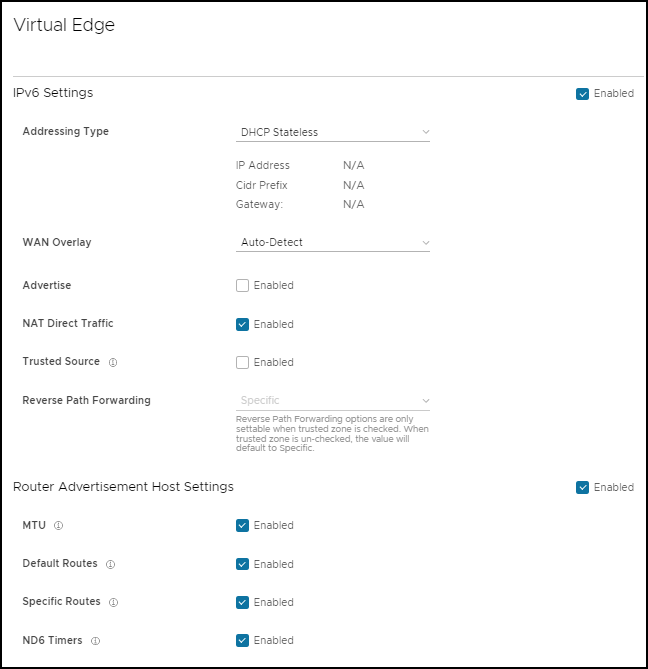
| Option | Description |
|---|---|
| MTU | Accepts the MTU value received through Route Advertisement. If you turn off this option, the MTU configuration of the Interface is considered. |
| Default Routes | Installs default routes when Route Advertisement is received on the Interface. If you turn off this option, then there are no default routes available for the Interface. |
| Specific Routes | Installs specific routes when Route Advertisement receives route information on the Interface. If you turn off this option, the Interface does not install the route information. |
| ND6 Timers | Accepts ND6 timers received through Route Advertisement. If you turn off this option, default ND6 timers are considered. The default value for NDP retransmit timer is 1 second and NDP reachable timeout is 30 seconds. |
Wi-Fi Access Control Based on MAC Address
Wi-Fi Access Control can be used as an additional layer of security for wireless networks. When activated, only known and approved MAC addresses are permitted to associate with the base station.
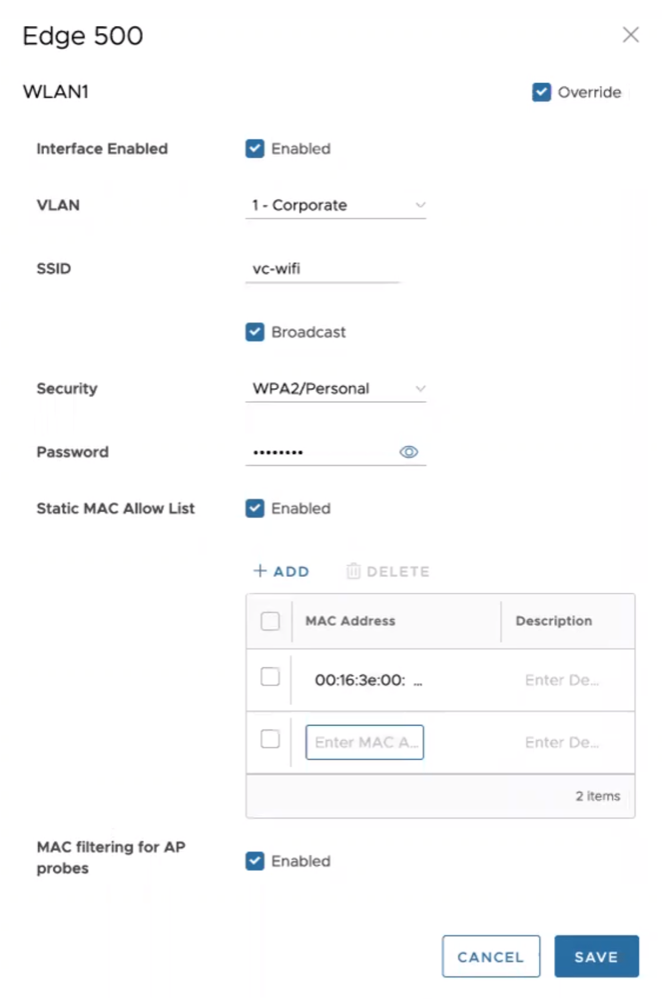
In the SD-WAN Service of the Enterprise portal, select and choose an existing WLAN interface to configure the following parameters.
| Option | Description |
|---|---|
| Interface Enabled | Select the check box to activate the interface. |
| VLAN | Choose the VLAN ID from the drop-down menu. |
| SSID | Enter the SSID. |
| Security | Select either WPA2/Enterprise or WPA2/Personal as the Security option. |
| Static MAC Allow List | Select the check box to permit only the listed MACs to associate with the access point.
When Static MAC Allow List is configured, only the Mac addresses specified in the list are permitted to associate with the access point. |
| Radius ACL Check | Select the check box to associate the MAC address with a RADIUS server. If an access-accept is received, the MAC is allowed to associate with the access point.
Note: RADIUS ACL checks are limited to WPA2/Enterprise security mode.
|
| Add | Select to enter a new MAC address. |
| Delete | Select to remove an existing MAC address. |
| MAC filtering for AP Probes | Enabling MAC Filtering for AP probes prevents probes from unapproved MAC Addresses from actively discovering AP parameters. When the SSID is not broadcast, this can assist in preventing unknown stations from connecting to the network. Some devices are known to use random MAC addresses for probing regardless of AP settings and probe filtering may cause these devices to fail to discover or connect to the network even if their device MAC has been approved. |
- Both, MAC filtering for AP Probes and RADIUS ACL Check cannot happen at the same time.
- VeloCloud Edge does not support Link Layer Discovery Protocol (LLDP).
Configure DHCP Server on Routed Interfaces
To configure DHCP Server settings:
- Select the link to the Routed interface that you want to configure DHCP settings.
Figure 13. Configuring DHCP Server on a Routed Interface 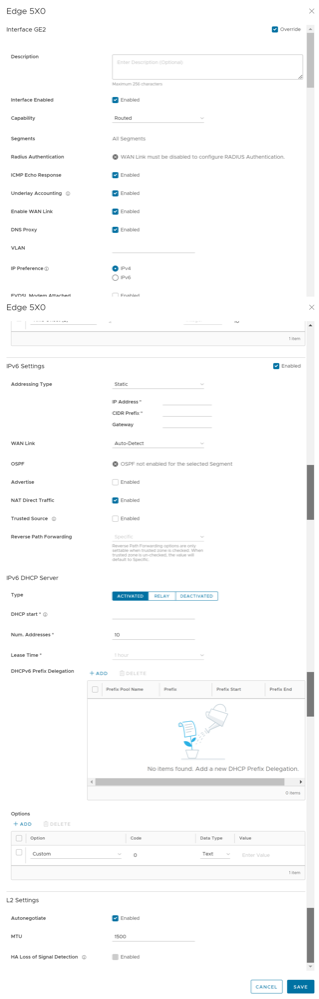
Enable RADIUS on a Routed Interface
- A RADIUS server must be configured and added to the Edge. See Configure Authentication Services.
- RADIUS may be enabled on any routed interface. This includes the interfaces for any Edge model, except for the LAN 1-8 ports on Edge models 500/520/540.
- Select the link to the routed interface that you want to configure RADIUS authentication.
Figure 14. Enabling RADIUS Authentication on a Routed Interface 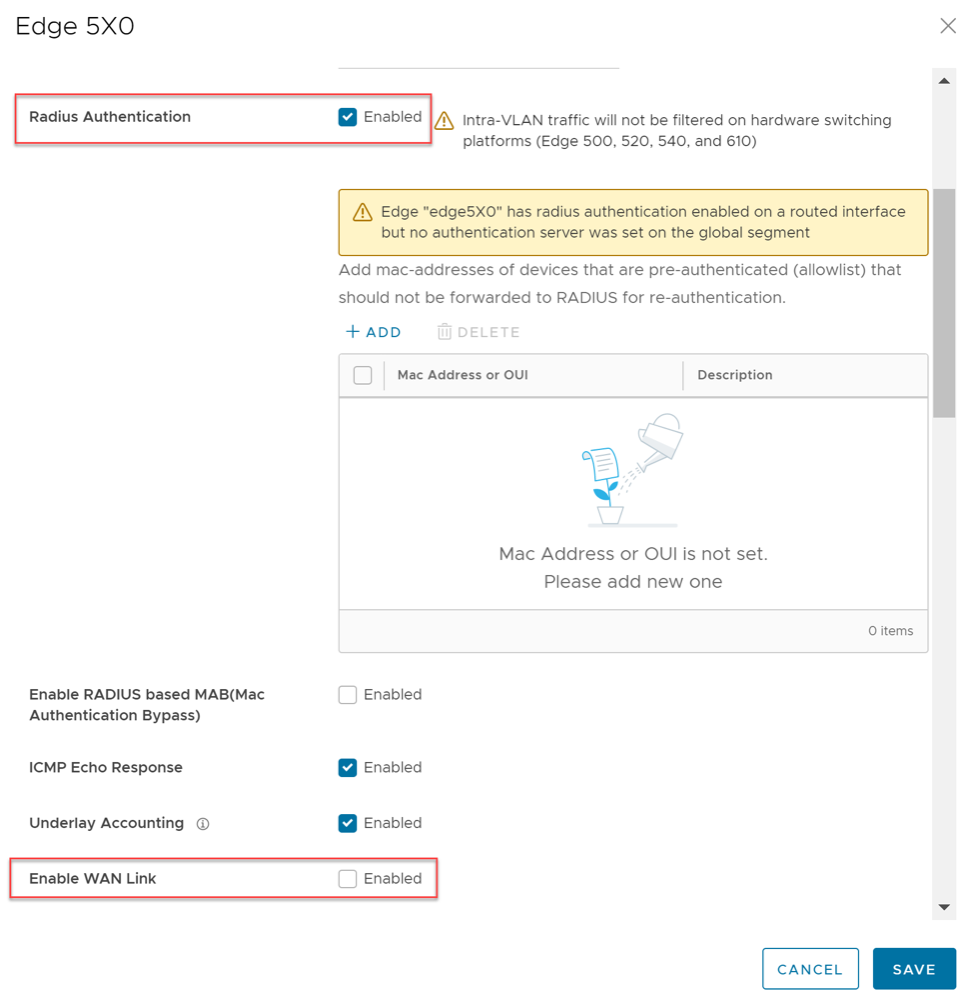
Configure RADIUS Authentication for a Switched Interface
- A RADIUS server must be configured and added to the Edge. See Configure Authentication Services.
- RADIUS may be configured on any switched interface.
Beginning with SD-WAN Release 5.1.0, a user can configure RADIUS authentication to use an Edge's switched interface as they already had been able to do for a routed interface.
The SD-WAN Edge supports both username/password (EAP-MD5) and certificate (EAP-TLS) based 802.1x Authentication methods.
- Select the link to the switched interface (for example GE2 as shown in the following screenshot) that you want to configure RADIUS authentication.
Figure 15. Configuring Interfaces 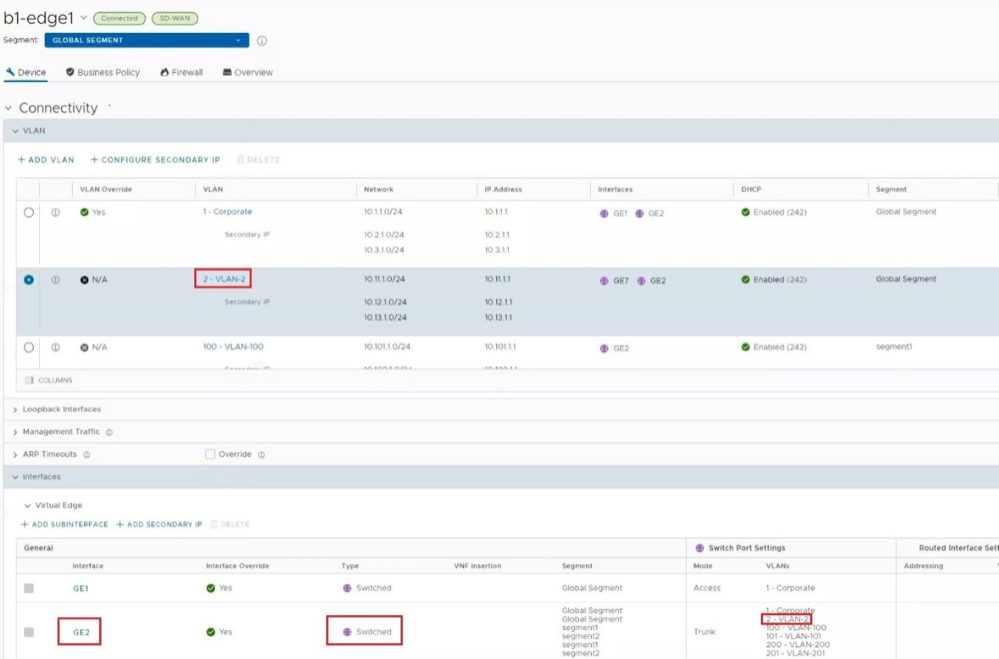
- The Interface settings dialog appears. Add the VLAN where RADIUS authentication will be used to the switched interfaces list of VLANs and select Save.
Figure 16. Adding VLANs to a Switched Interface 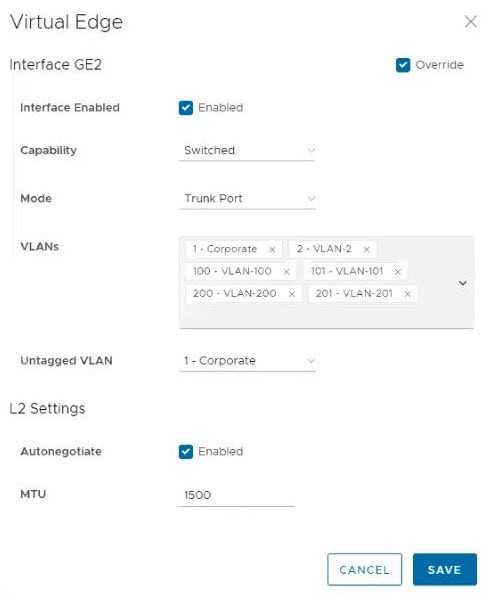
- On the Edit VLAN screen, select the RADIUS Authentication check box.
Figure 17. Configuring RADIUS Authentication on a Switched Interface 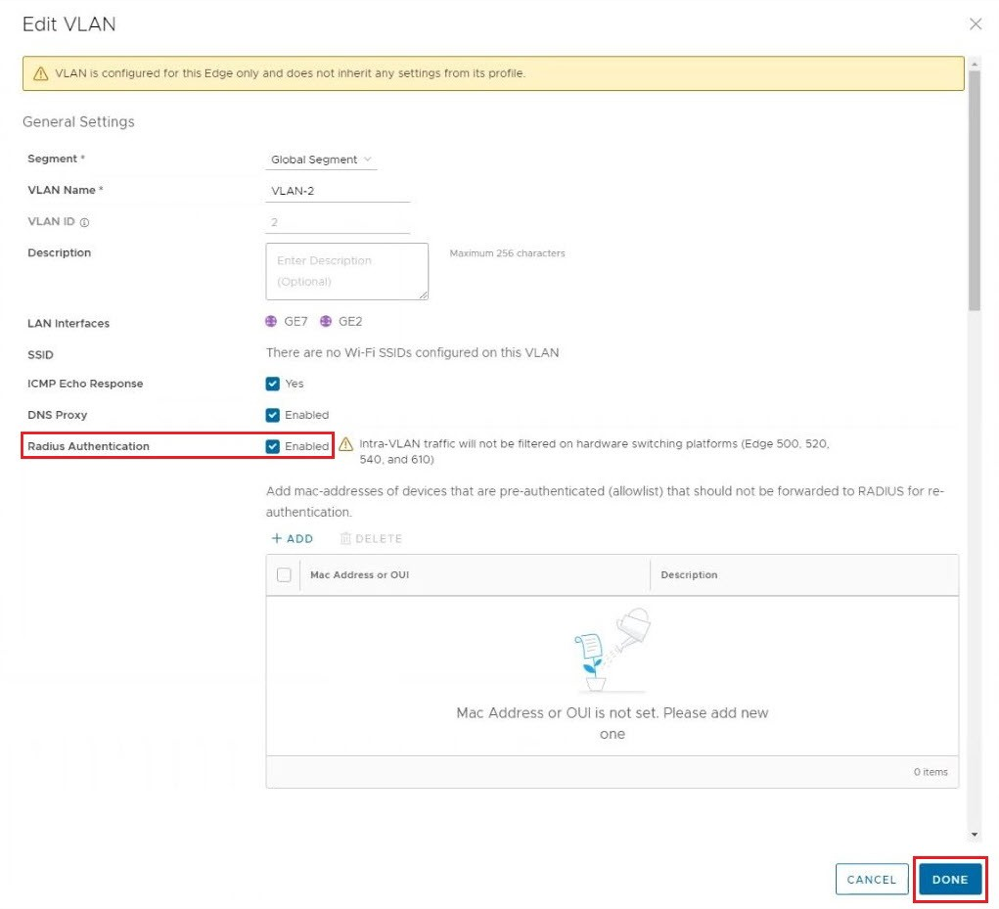
MAC Address Bypass (MAB) for RADIUS-based Authentication
- A RADIUS server must be configured and added to the Edge. See Configure Authentication Services.
- The RADIUS server must have a list of MAC addresses to be bypassed to take advantage of the MAB feature.
- RADIUS authentication must be configured on an Edge's routed interface or switched interface via a VLAN either at the Profile or Edge level.
- L2 traffic will not trigger RADIUS MAB.
- L2 traffic will not be forwarded on Linux-based switches until routed traffic is seen. Hardware switches already do not filter pure L2 traffic, and this limitation remains unchanged.
- If no routed traffic is observed and RADIUS MAB times out (default is 30 minutes), L2 traffic will again be blocked.
- Additional hooks to check 802.1x status for self-destined packets may cause performance degradation when 802.1x is enabled.
- Traffic destined to self and managed entirely by Linux will no longer be filtered prior to 802.1x authentication (DHCP, DNS, ssh, and so forth).
Activating MAB for Routed Interface
- The Interfaces section displays the different types of Interfaces available for the selected Edge.
Figure 18. Configuring Interfaces 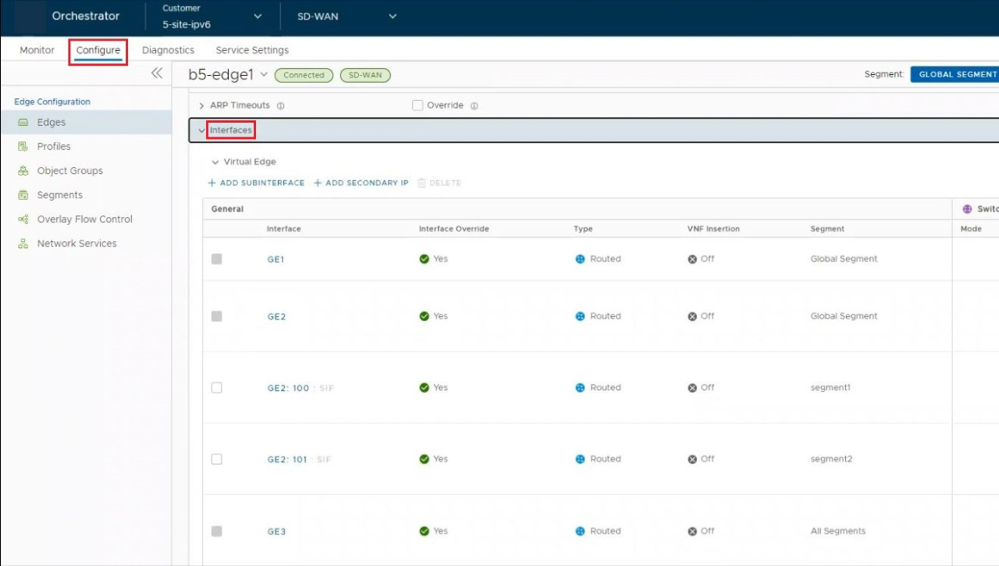
- Select the Interface to edit the Routed interface that is configured for RADIUS authentication.
Figure 19. Activating MAB for Routed Interface 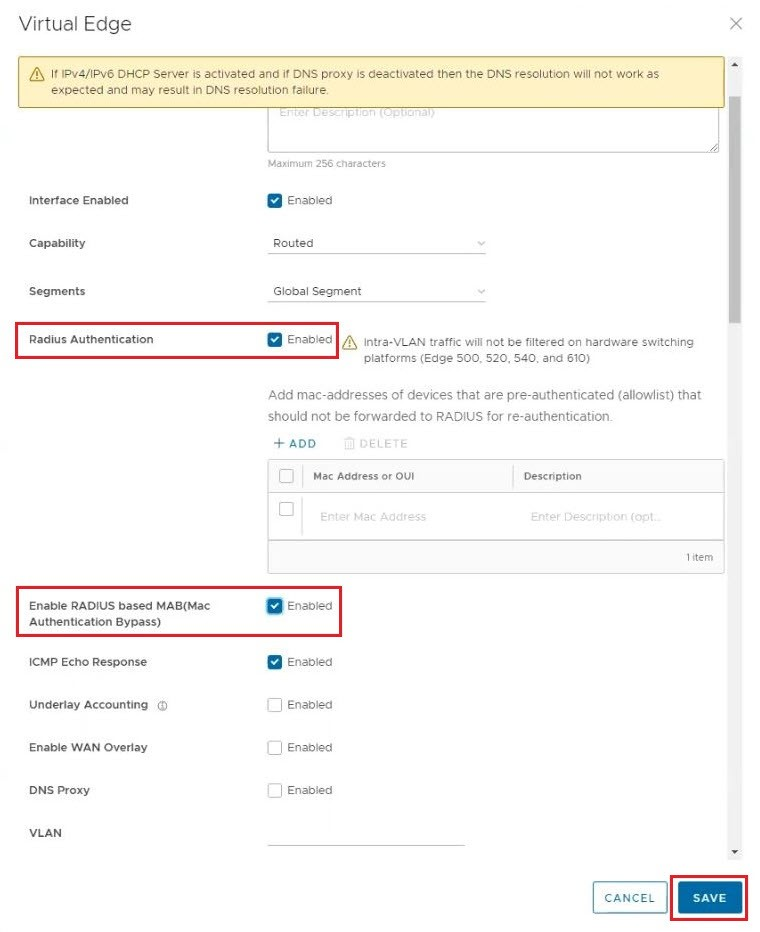
Activating MAB for Switched Port using a VLAN
- The VLAN section displays the VLAN's configured for the selected Edge.
Figure 20. Configuring VLANs 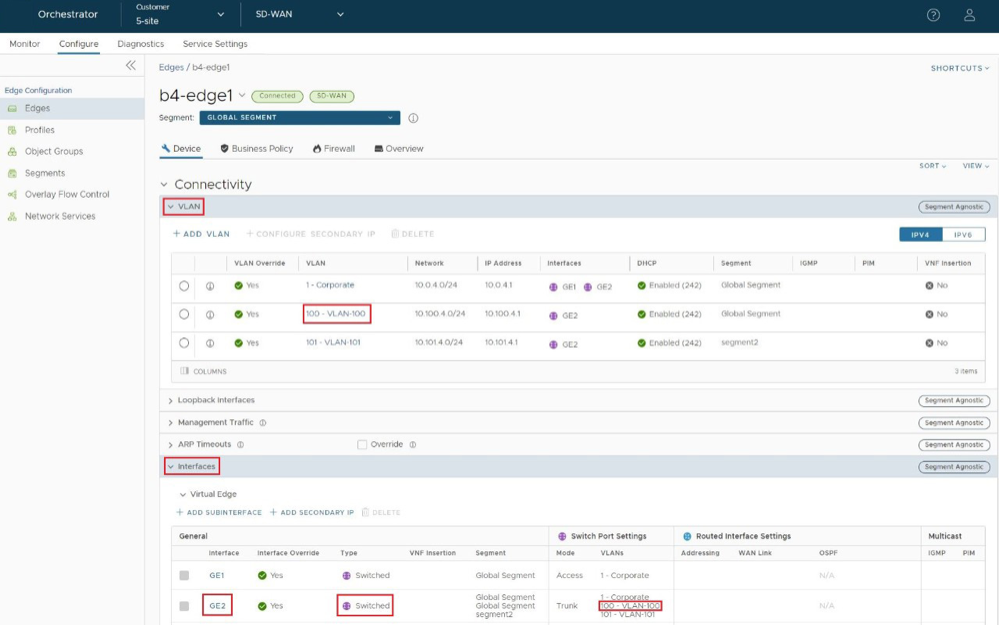
- Select the VLAN to edit the VLAN and configure RADIUS authentication.
Figure 21. Edit VLAN 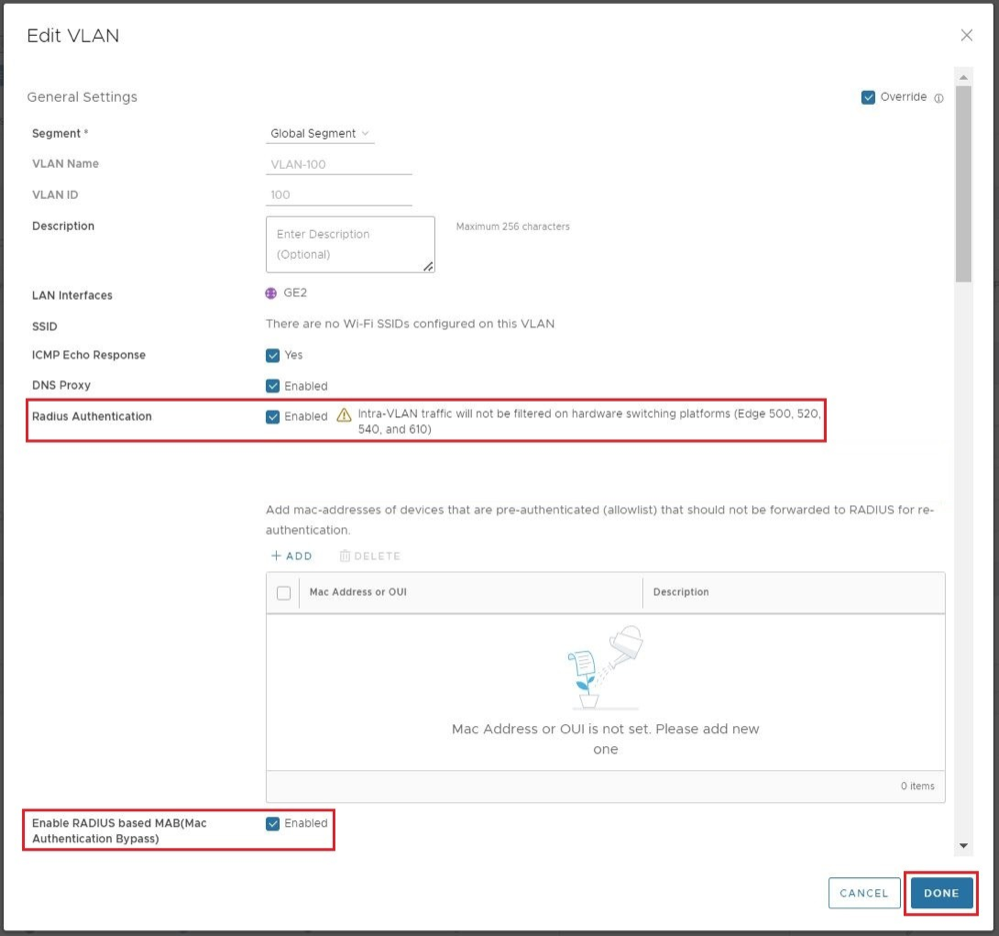
- Select the Interface to edit the Switched interface so that you can assign the VLAN configured for RADIUS.
Figure 22. Activating MAB for Switched Port using a VLAN 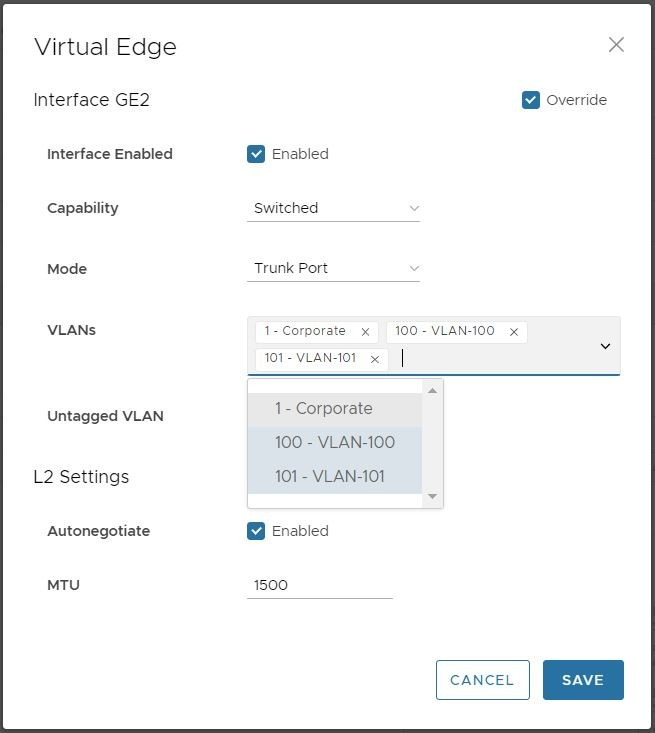
Configure Edge LAN Overrides
To override the LAN settings for an Edge:
- Select the link to a LAN Interface to edit the settings.
The LAN Interface settings screen as shown below appears.
Figure 23. LAN Interface Settings 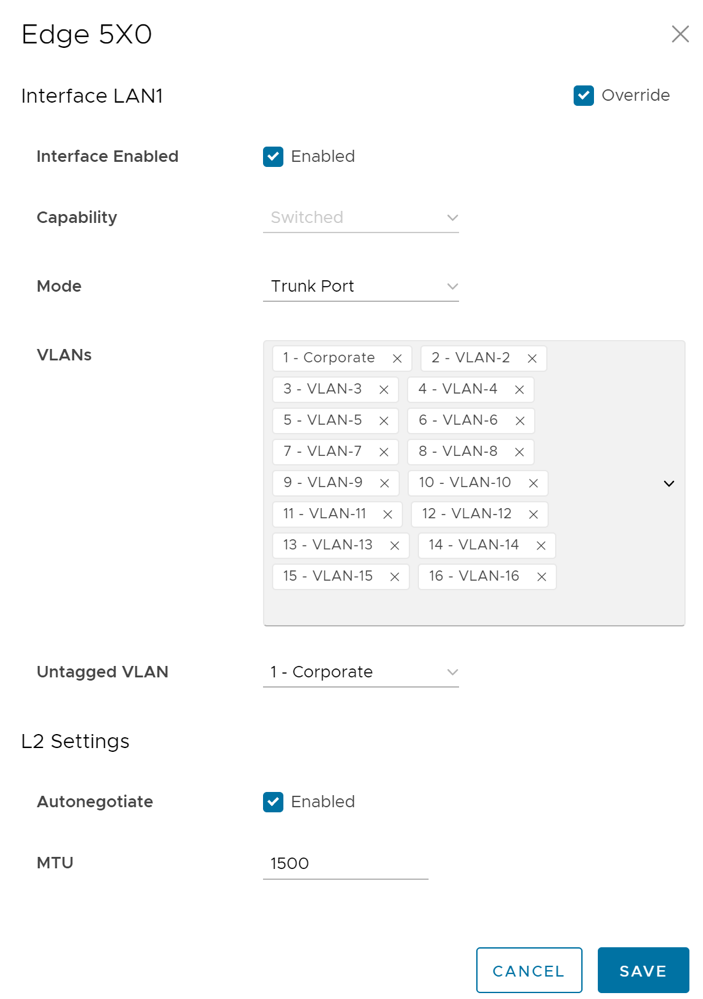
Configure Edge WLAN Overrides
To override the WLAN settings for an Edge:
- Select the link to a WLAN Interface to edit the settings.
The WLAN Interface settings screen as shown below appears.
Figure 24. WLAN Interface Settings 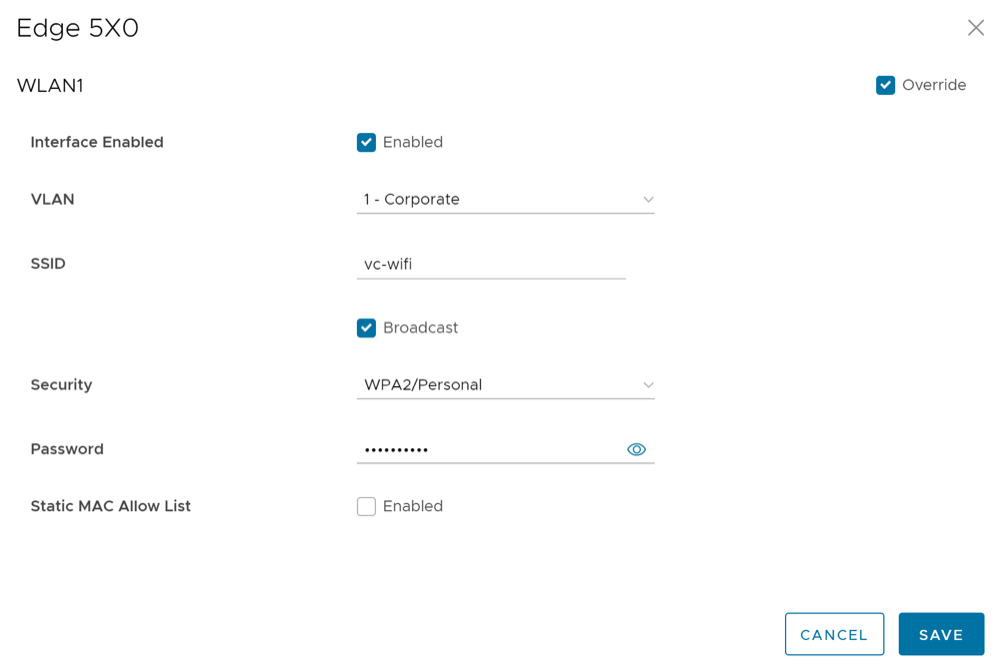
Configure Edge WAN Overlay Settings
- Private Overlay: This is required on a private network where you want to have the Edge build overlay VCMP tunnels directly between private IP addresses assigned to each Edge on the private network.
Note: In a Partner Gateway setup with handoff Interface configured, when an Edge with private Interface has both IPv4 and IPv6 user-defined overlays, the Edge tries to establish IP tunnels towards the public IP address of the Gateway based on the tunnel preference.
- Public Overlay: This is useful when you want to set a custom VLAN or source IP address and Gateway address for the VCMP tunnels, to reach VeloCloud Gateways over the Internet, as determined by the Orchestrator.
You can also modify or delete an existing auto-detected WAN Overlay that has been detected on a routed interface. An auto-detected overlay is available only when the Edge has successfully made a VCMP tunnel over a routed interface configured with WAN Overlay to Gateways designated by the Orchestrator.
To configure WAN Overlay settings for a specific Edge, perform the following steps:
- The WAN Link Configuration section displays the existing Overlays.
Figure 25. WAN Link Configuration 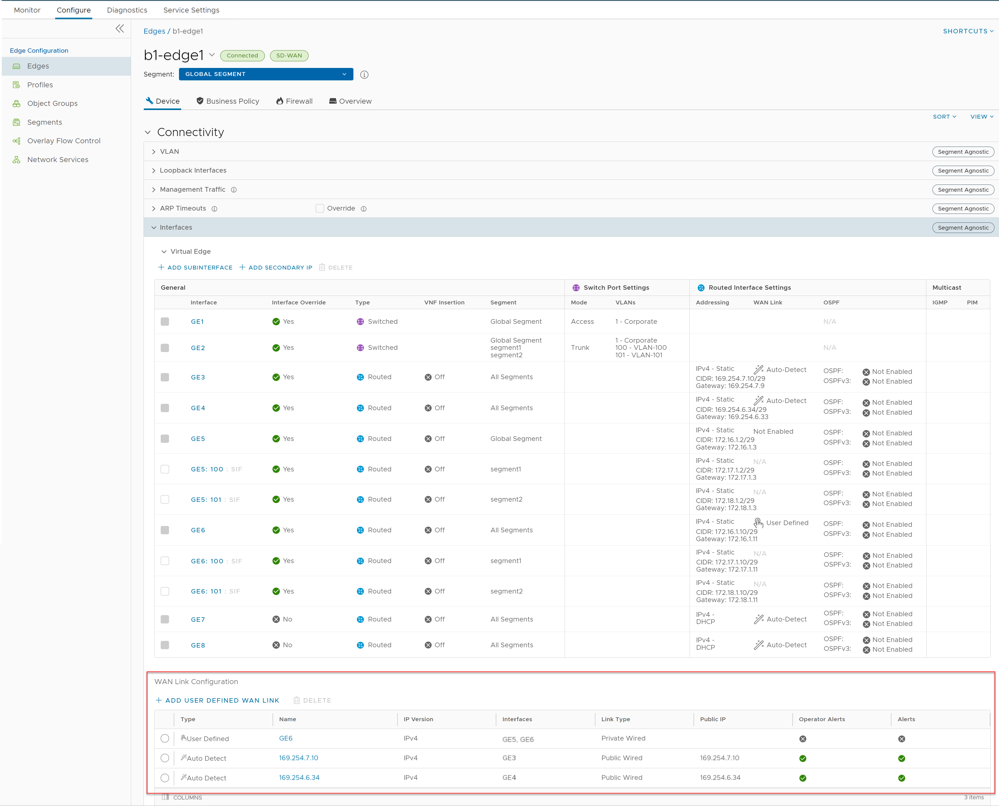
- To create a new Public or Private WAN overlay, select Add User Defined WAN Link.
The Virtual Edge: new link window appears.
Figure 26. Virtual Edge: new link 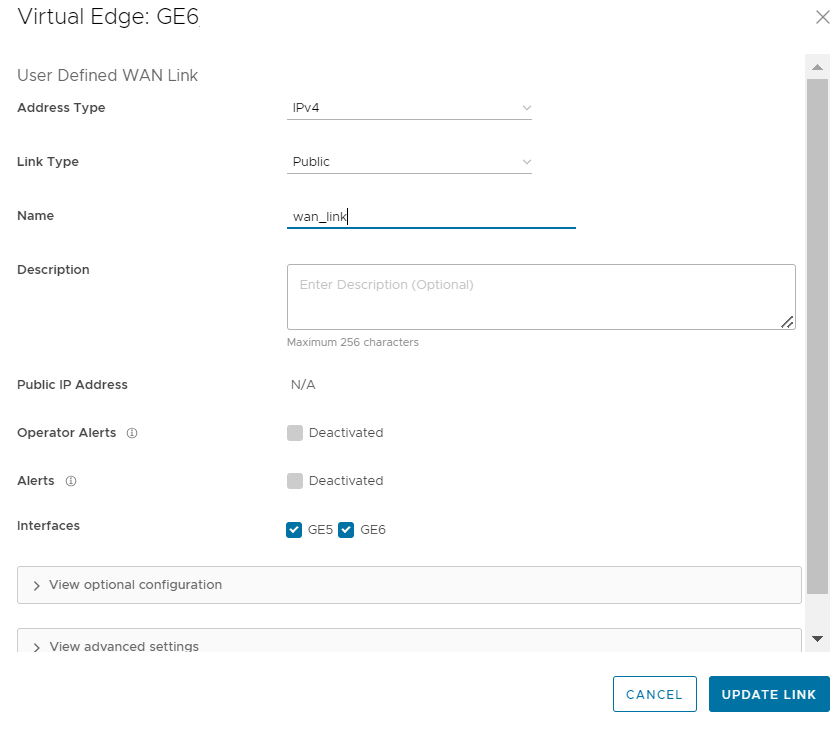
- In the User Defined WAN Overlay section, choose the Link Type from the following available options:
- Public overlay is used over the Internet where SD-WAN cloud Gateways, that are on the Internet, are reachable. The user-defined overlay must be attached to an Interface. The public overlay instructs the Edge to assign primary and secondary gateways over the interface it is attached, to help determine the outside global NAT address. This outside global address is reported to the Orchestrator so that all the other Edges use this outside global address, if configured to build VCMP tunnels to the currently selected Edge.
Note: By default, all routed interfaces will attempt to Auto Detect, that is build VCMP tunnels to, pre-assigned cloud Gateways over the Internet. If the attempt is successful, an Auto Detect Public overlay is created. A User Defined Public overlay is only needed if your Internet service requires a VLAN tag or you want to use a different public IP address from the one that the Edge has learned through DHCP on the public facing interface.
- Private overlay is used on private networks such as an MPLS network or point-to-point link. A private overlay is attached to an interface like any user defined overlay and assumes that the IP address on the interface it is attached is routable for all other Edges on the same private network. This means that there is no NAT on the WAN side of the interface. When you attach a private overlay to an interface, the Edge advises the Orchestrator that the IP address on the interface should be used for any remote Edges configured to build tunnels to it.
The following tables describe the Overlay settings:Table 20. Edge WAN Overlay Settings- Options and Descriptions Option Description Address Type Choose the WAN overlay link to use either IPv4 or IPv6 address. You can also select IPv4 and IPv6, which enables to configure both IPv4 and IPv6 user-defined overlay towards the same ISP as a single link. This option helps preventing oversubscription of a link towards an ISP. Note: When you choose IPv6 address, the Duplicate Address Detection (DAD) is not supported for IP steered overlay. The overlay network is steered when you configure the source IP address in the Optional Configuration.Name Enter a descriptive WAN overlay name for the public or private link. Note: WAN overlay name should only consist of ASCII characters. Non-ASCII characters are not supported.You can reference this name while choosing a WAN link in a Business Policy. See the topic Configure Link Steering Modes.Operator Alerts Sends alerts related to the Overlay network to the Operator. Ensure that you have enabled the Link alerts in the page to receive the alerts. Alerts Sends alerts related to the Overlay network to the Customer. Ensure that you have enabled the Link alerts in the page to receive the alerts. Select Interfaces The Routed Interfaces enabled with IPv4 WAN Overlay or IPv6 WAN Overlay and set to User Defined Overlay are displayed as check boxes. The Interfaces displayed are based on the selected Address Type. Note: If the WAN Overlay link uses a static IPv4 address then you can select one or more routed interfaces and the current user-defined overlay is attached to the selected interface. If a static IPv6 address is configured then you cannot select one or more routed interfaces.Note: For the 610-LTE and Edge 710 5G, you can add User Defined WAN overlay on CELL1 or CELL2. The Orchestrator displays both CELL1 and CELL2, irrespective of SIM presence. Therefore, you must be aware of which SIM slot is enabled (Active) and choose that SIM.Table 21. Public IP Address OverlayOption Description Option Description Public IP Address Displays the discovered public IP address for a public Overlay. This field is populated once the outside global NAT address is discovered using the Gateway method. The following image shows an example of Public Overlay Settings:
Figure 27. Public Overlay Settings 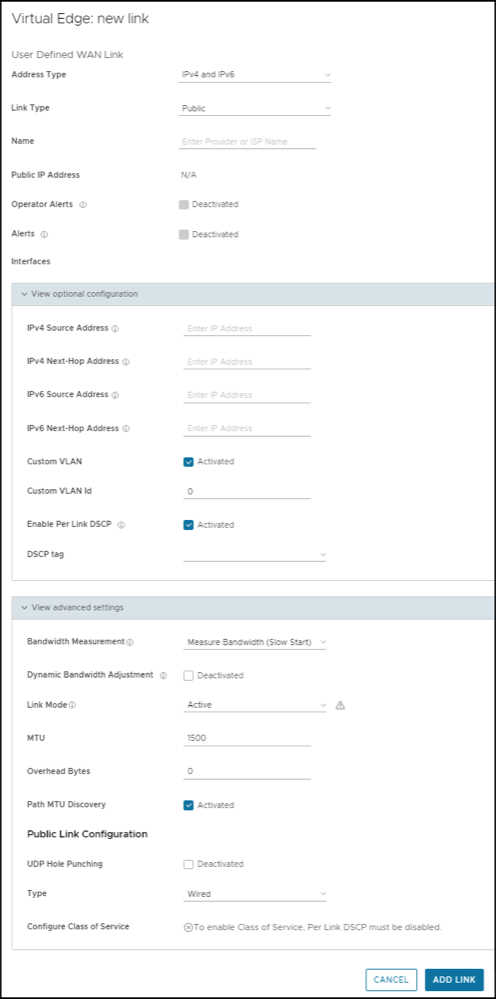
Table 22. Public Overlay Settings- Options and Descriptions Option Description SD-WAN Service Reachable When creating a private overlay and attaching it to a private WAN like MPLS network, you may also be able to reach the internet over the same WAN, usually through a firewall in the data center. In this case, it is recommended to enable SD-WAN Service Reachable as it provides the following: - A secondary path to the internet for access to internet hosted Gateways. This is used if all the direct links to the internet from this Edge fail.
- A secondary path to the Orchestrator, when all the direct links to the internet from this Edge fail. The management IP address the Edge uses to communicate must be routable within MPLS, otherwise NAT Direct would need to be checked on the private interface for the Orchestrator traffic to come back properly.
Note: The Edge always prefers the VCMP tunnel created over a local internet link (short path), compared to the VCMP tunnel created over the private network using a remote firewall to the internet (long path).Note: Per-packet or round-robin load balancing will not be performed between the short and long paths.In a site with no direct public internet access, the SD-WAN Service Reachable option allows the private WAN to be used for private site-to-site VCMP tunnels and as a path to communicate with an internet hosted VeloCloud SD-WAN service.
Public SD-WAN Addresses When you select the SD-WAN Service Reachable check box, a list of public IPv4 and IPv6 addresses of Gateways and Orchestrator is displayed, which may need to be advertised across the private network, if a default route has not been already advertised across the same private network from the firewall. Note: Some IP addresses in the list, such as Gateways, may change over time.The following image shows an example of Private Overlay Settings:Figure 28. Private Overlay Settings 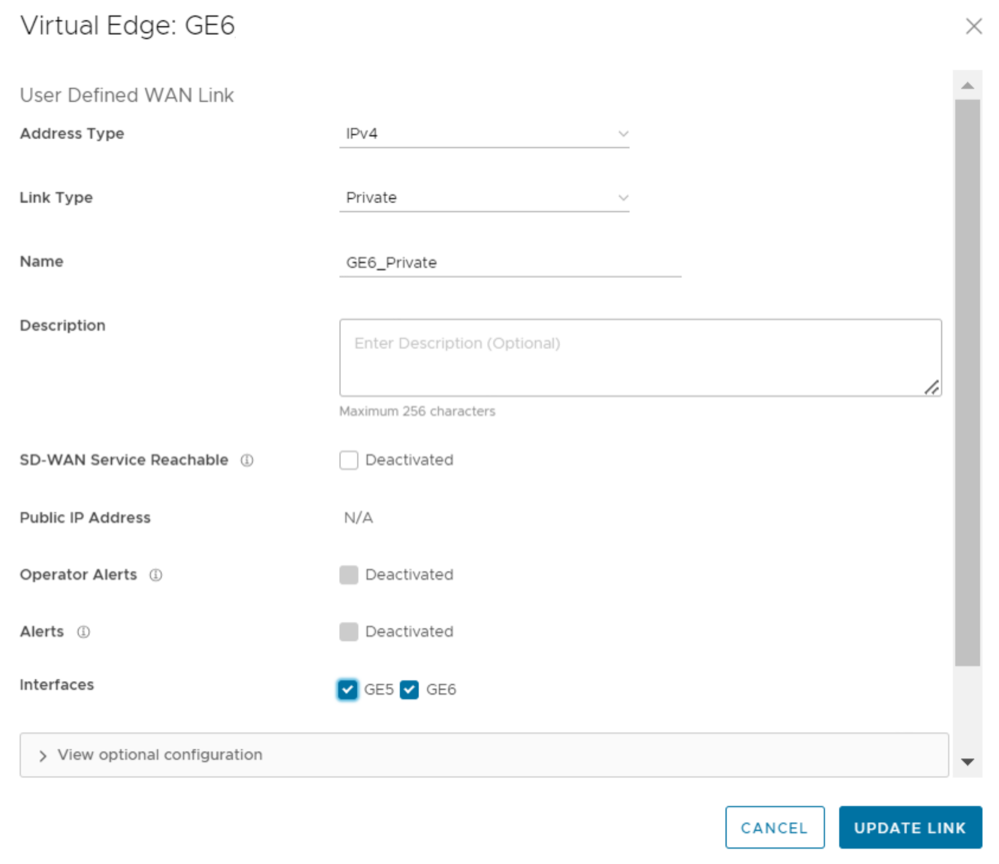
Table 23. Private Overlay Settings- Options and Descriptions Option Description Source IP Address This is the raw socket source IP address used for VCMP tunnel packets that originate from the interface to which the current overlay is attached. Source IP address does not have to be pre-configured anywhere but must be routable to and from the selected interface.
You can enter IPv4 or IPv6 address in the respective fields to establish WAN overlay with the peer.
Next-Hop IP Address Enter the next hop IP address to which the packets, which come from the raw socket source IP address specified in the Source IP Address field, are to be routed. You can enter IPv4 or IPv6 address in the respective fields.
Custom VLAN Select this check box to enable custom VLAN and enter the VLAN ID. The range is 2 to 4094. This option applies the VLAN tag to the packets originated from the Source IP Address of a VCMP tunnel from the interface to which the current overlay is attached.
Enable Per Link DSCP Select this check box to add a DSCP tag to a specific overlay link. The DSCP tag will be applied at the outer header of the VCMP packet going over this overlay link. This will provide the ability to leverage the private network underlay DSCP tag mechanism to treat each overlay uniquely via QoS setting defined at the upstream router. 802.1P Setting Select this check box to set 802.1p PCP bits on frames leaving the interface to which the current overlay is attached. This setting is only available for a specific VLAN. PCP priority values are a 3-digit binary number. The range is from 000 to 111 and default is 000. This check box is available only when the system property
session.options.enable8021PConfigurationmust be set to True. By default, this value is False.If this option is not available for you, contact Arista Support of your operations team to enable the setting.
- Public overlay is used over the Internet where SD-WAN cloud Gateways, that are on the Internet, are reachable. The user-defined overlay must be attached to an Interface. The public overlay instructs the Edge to assign primary and secondary gateways over the interface it is attached, to help determine the outside global NAT address. This outside global address is reported to the Orchestrator so that all the other Edges use this outside global address, if configured to build VCMP tunnels to the currently selected Edge.
- Select View advanced settings to configure the following settings:
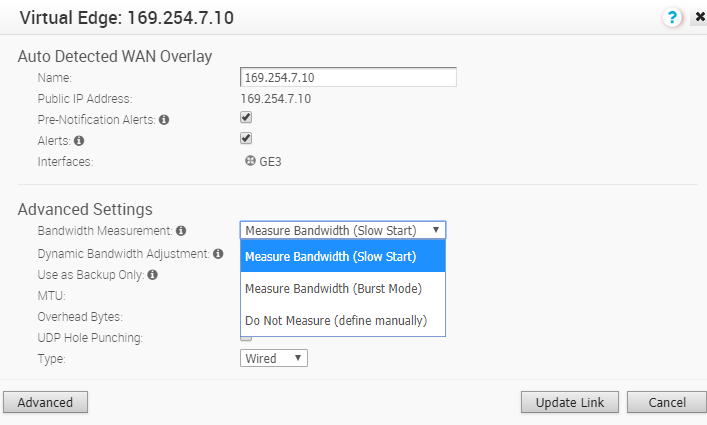
Table 24. Advanced Settings- Options and Descriptions Option Description Bandwidth Measurement Choose a method to measure the bandwidth from the following options: - Measure Bandwidth (Slow Start): When measuring the default bandwidth reports incorrect results, it may be due to ISP throttling. To overcome this behavior, choose this option for a sustained slow burst of UDP traffic followed by a larger burst.
- Measure Bandwidth (Burst Mode): Choose this option to perform short bursts of UDP traffic to an Gateway for public links or to the peer for private links, to assess the bandwidth of the link.
- Do Not Measure (define manually): Choose this option to configure the bandwidth manually. This is recommended for the Hub sites because:
- Hub sites can usually only measure against remote branches which have slower links than the hub.
- If a hub Edge fails and is using a dynamic bandwidth measurement mode, it may add delay in the hub Edge coming back online while it re-measures the available bandwidth.
For additional information, see Bandwidth Measurement Modes.
Upstream Bandwidth Enter the upstream bandwidth in Mbps. This option is available only when you choose Do Not Measure (define manually). Downstream Bandwidth Enter the downstream bandwidth in Mbps. This option is available only when you choose Do Not Measure (define manually). Dynamic Bandwidth Adjustment Dynamic Bandwidth Adjustment attempts to dynamically adjust the available link bandwidth based on packet loss and intended for use with Wireless broadband services where bandwidth can suddenly decrease. Note: This configuration is not recommended for Edges with software release 3.3.x or earlier. You can configure this option for Edges with release 3.4 or later.Note: This configuration is not supported with public link CoS.Link Mode Select the mode of the WAN link from the drop-down. The following options are available: - Active: This option is selected by default. The interface is used as a primary mode to send traffic.
- Backup: This option puts the interface that this WAN Overlay is attached to into Backup Mode. This means that the management tunnels are torn down for this interface, and the attached WAN link receives no data traffic. The Backup link would only be used if all paths from a number of Active links go down, which also drops the number of Active links below the number of Minimum Active Links configured. When this condition is met, management tunnels would be rebuilt for the interface and the Backup Link would become Active and pass traffic.
Only one interface on an Edge can be put into backup mode. When enabled, the interface will be displayed in page as Cloud Status: Standby.
Note: Use this option to reduce user data and SD-WAN performance measurement bandwidth consumption on a 4G or LTE service. However, failover times will be slower when compared to a link that is configured as either Hot Standby or as Active and uses a business policy to regulate bandwidth consumption. Do not use this feature if the Edge is configured as a Hub or is part of a Cluster. - Hot Standby: When you configure the WAN link for Hot Standby mode, the management tunnels are built, which enables a rapid switchover in case of a failure. The Hot Standby link receives no data traffic except for heartbeats, which are sent every 5 seconds.
When all paths from a number of Active links go down, which also drops the number of Active links below the number of Minimum Active Links configured, the Hot Standby link would come up. The traffic is sent through the Hot Standby path.
When the path to the Primary Gateway comes up on Active links such that the number of Active links exceeds the number of Minimum Active Links configured, the Hot Standby link returns to Standby mode and the traffic flow switches over to the Active link(s).
For additional information, see the topic Configure Hot Standby Link.
Once you activate the Backup or Hot Standby link option on an Interface, you cannot configure additional Interfaces of that Edge as either a Backup or Hot Standby Link, as an Edge can have only one WAN link as a Backup or Hot Standby at a time.
Minimum Active Links This option is available only when you choose Backup or Hot Standby as Link Mode. Select the number of active links that can be present in the network at a time, from the drop-down list. When the number of current active links that are UP goes below the selected number, then the Backup or the Hot Standby link comes up. The range is 1 to 3, with the default being 1. MTU The Edge performs path MTU discovery and the discovered MTU value is updated in this field. Most wired networks support 1500 Bytes while 4G networks supporting VoLTE typically only allow up to 1358 Bytes. It is not recommended to set the MTU below 1300 Bytes as it may introduce framing overhead. There is no need to set MTU unless path MTU discovery has failed.
You can find if the MTU is large from the page, as the VCMP tunnels (paths) for the interface never become stable and repeatedly reach an UNUSABLE state with greater than 25% packet loss.
As the MTU slowly increases during bandwidth testing on each path, if the configured MTU is greater than the network MTU, all packets greater than the network MTU are dropped, causing severe packet loss on the path.
For additional information, see the topic Tunnel Overview and MTU.
Overhead Bytes Enter a value for the Overhead bandwidth in bytes. This is an option to indicate the additional L2 framing overhead that exists in the WAN path. When you configure the Overhead Bytes, the bytes are additionally accounted for by the QoS schedular for each packet, in addition to the actual packet length. This ensures that the link bandwidth is not oversubscribed due to any upstream L2-framing overhead.
Path MTU Discovery Select this check box to enable the discovery of Path MTU. After determining the Overhead bandwidth to be applied, the Edge performs Path MTU Discovery to find the maximum permissible MTU to calculate the effective MTU for customer packets. For additional information, see the topic Tunnel Overhead and MTU. Configure Class of Service Edges can prioritize traffic and provide a 3x3 QoS class matrix over both Internet and Private networks alike. However, some public or private (MPLS) networks include their own quality of service (QoS) classes, each with specific characteristics such as rate guarantees, rate limits, packet loss probability etc. This option allows the Edge to understand the public or private network QoS bandwidth available and policing for the public or private Overlay on a specific interface.
Note: Outer DSCP tags must be set in business policy per application/rule and in this feature, each Class of Service line is matching on those DSCP tags set in the business policy.After you select this check box, configure the following:- Class of Service: Enter a descriptive name for the class of service. You can reference this name while choosing a WAN link in a Business Policy. See the topic Configure Link Steering Modes.
- DSCP Tags: Class of service will match on the DSCP tags defined here. DSCP tags are assigned to each application using business policy.
- Bandwidth: Percentage of interface transmit/upload bandwidth available for this class as determined by the public or private network QoS class bandwidth guaranteed.
- Policing: This option monitors the bandwidth used by the traffic flow in the class of service and when the traffic exceeds the bandwidth, it rate-limits the traffic.
- Default Class: If the traffic does not fall under any of the defined classes, the traffic is associated with the default CoS.
Note: The Dynamic Bandwidth Adjustment configuration is not supported with public link CoS.For additional information about how to configure CoS, see the topic Configure Class of Service.
Strict IP precedence This check box is available when you select the Configure Class of Service check box. When you enable this option, 8 VCMP sub-paths corresponding to the 8 IP precedence bits are created. Use this option when you want to combine the Classes of Service into less number of classes in the network of your Service Provider.
By default, this option is deactivated and the VCMP sub-paths are created for the exact number of classes of service that are configured. The grouping is not applied.
Table 25. Advanced Settings- Options and Descriptions Option Description UDP Hole Punching If a Branch to Branch SD-WAN overlay is required and branch Edges are deployed behind NAT devices, that is NAT device is WAN side of the Edge, the direct VCMP tunnel on UDP/2426 will not likely come up if the NAT devices have not been configured to allow incoming VCMP tunnels on UDP port 2426 from other Edges. Use Branch to Branch VPN to enable branch to branch tunnels. See the topics, Configure a Tunnel Between a Branch and Hubs VPN and Configure Cloud VPN and Tunnel Parameters for Edges.
Use to check that one Edge has built a tunnel to another Edge.
UDP hole punching attempts to work around NAT devices blocking incoming connections. However, this technique is not applicable in all scenarios or with all types of NATs, as NAT operating characteristics are not standardized.
Enabling UDP hole punching on an Edge overlay interface, instructs all remote Edges to use the discovered NAT public IP and NAT dynamic source port discovered through Gateway as destination IP and destination port for creating a VCMP tunnel to this Edge overlay interface.
Note: Before enabling UDP hole punching, configure the branch NAT device to allow UDP/2426 inbound with port forwarding to the Edge private IP address or put the NAT device, which is usually a router or modem, into bridge mode. Use UDP hole punching only as a last resort as it will not work with firewalls, symmetric NAT devices, 4G/LTE networks due to CGNAT, and most modern NAT devices.UDP hole punching may introduce additional connectivity issues as remote sites try to use the new UDP dynamic port for VCMP tunnels.
Type When configuring a business policy for an Edge, you can choose the Link Steering to prefer a Transport Group as: Public Wired, Public Wireless or Private Wired. See the topic Configure Link Steering Modes. Choose Wired or Wireless, to put the overlay into a public wired or wireless transport group.
The following image shows Advanced Settings for a Public Overlay:Figure 29. Advanced Settings for a Public Overlay 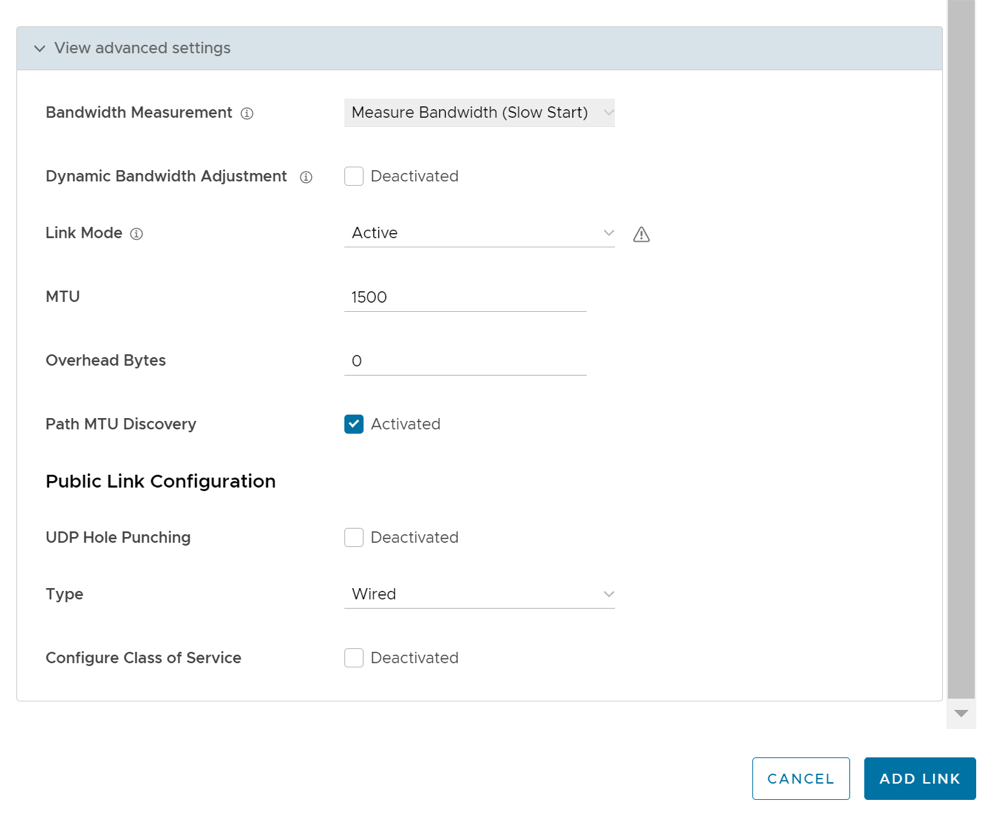
Table 26. Advanced Settings for a Public Overlay Option Description Private Network Name If you have more than one private network and want to differentiate between them to ensure that the Edges try to tunnel only to Edges on the same private network then define a Private Network Name and attach the Overlay to it. This prevents tunneling to Edges on a different private network they cannot reach. In addition, configure the Edges in other locations on this private network to use the same private network name. For example:
Edge1 GE1 is attached to private network A. Use private network A for the private overlay attached to GE1.
Edge1 GE2 is attached to private network B. Use private network B for the private overlay attached to GE2.
Repeat the same attachment and naming for Edge2.
When you enable branch to branch or when Edge2 is a hub site:- Edge1 GE1 attempts to connect to Edge2 GE1 and not GE2.
- Edge1 GE2 attempts to connect to Edge2 GE2 and not GE1.
Configure Static SLA Forces the overlay to assume that the SLA parameters being set are the actual SLA values for the path. No dynamic measurement of packet loss, latency or jitter will be done on this overlay. The QoE report use these values for its Green/Yellow/Red coloring against thresholds. Note: Static SLA configuration is not supported from release 3.4. It is recommended not to use this option, as dynamic measurement of packet loss, latency and jitter will provide a better outcome.The following image shows Advanced Settings for a Private Overlay:
Figure 30. Advanced Settings for a Private Overlay 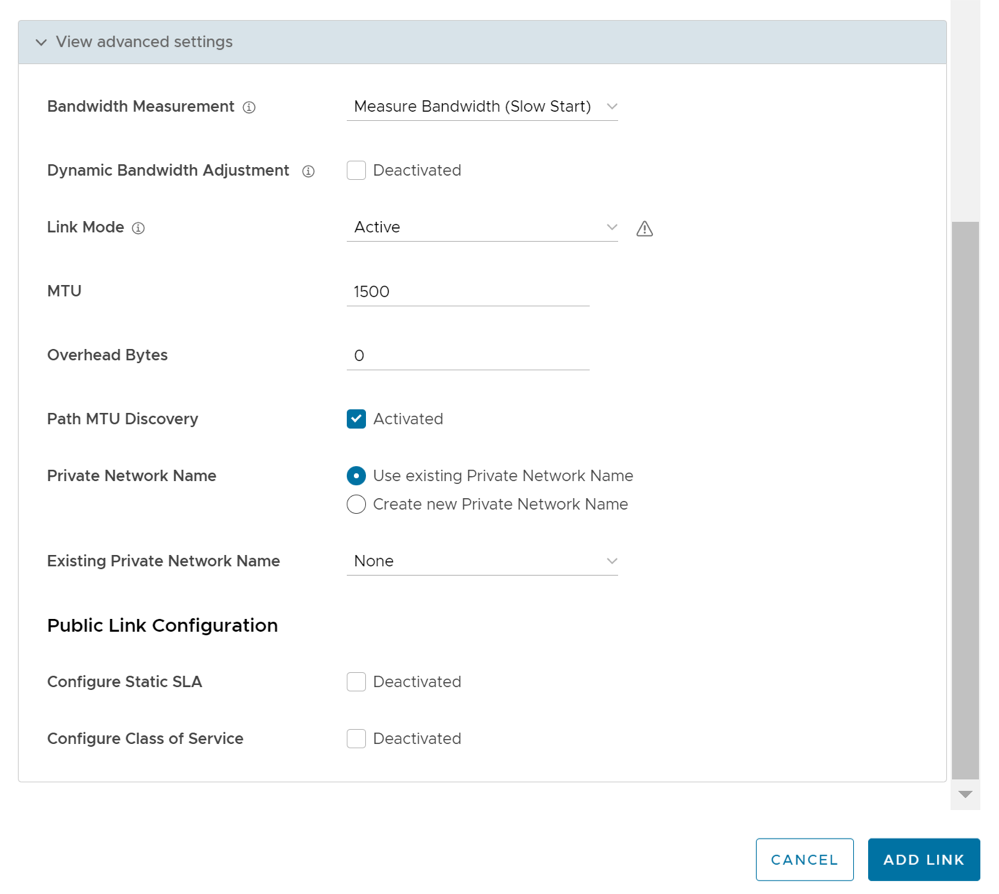
Support for DSCP Value Tag Per User Defined Overlay
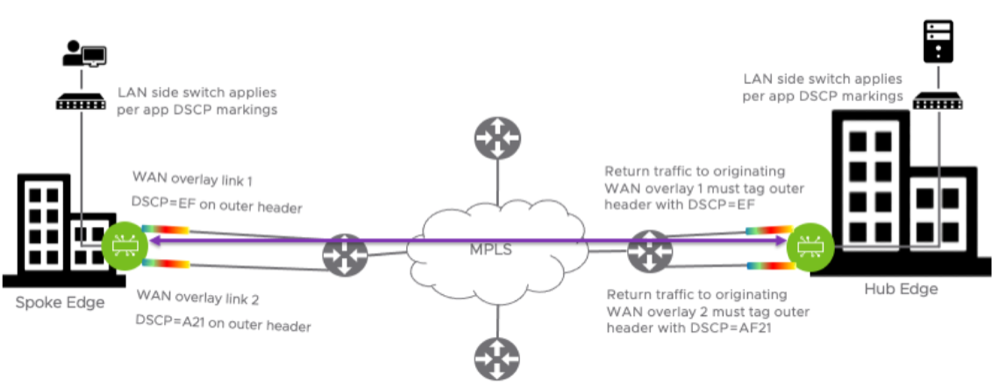
With the 5.0.0 release, network administrators will have the ability to add a DSCP tag to a specific overlay link. The DSCP tag would be applied at the outer header of the VCMP packet going over the overlay link, and will leverage the private network underlay DSCP tag to treat each overlay uniquely via the QoS setting defined on the WAN underlay network.
Enable Per link DSCP Check Box
Select this check box to add a DSCP tag to a specific overlay link. The DSCP tag will be applied at the outer header of the VCMP packet going over this overlay link. This will provide the ability to leverage the private network underlay DSCP tag mechanism to treat each overlay uniquely via QoS setting defined at the upstream router.
Use Case: DSCP Value Per User Defined Overlay
In this use case, the requirement is to apply the WAN overlay DSCP tag value configured on the WAN link to all traffic egressing from this link, for the tunnel originating Edge. The configured DSCP value should apply to the VCMP outer header so that the MPLS network can read the DSCP value and apply differentiated services to the VCMP encapsulated packet. The inner DSCP tag value, coming from the LAN side of the edge network, should be kept unmodified. Requirements on the tunnel destination side: The hub or peer edge that is receiving the tunnel creation request must respond with the same DSCP overlay tag value sent by the tunnel originator on the VCMP outer header. The hub or peer edge terminating the overlay tunnel should not modify the inner DSCP tag destined for the LAN.
In the image below, the Enterprise is using DSCP values on their underlay network to provide differentiated services based on source WAN overlay link/tunnel.
Bandwidth Measurement Modes
This section discusses how bandwidth measurement is performed on a WAN link using the VeloCloud SD-WAN service.
Once a WAN link is detected by the Edge, it first establishes DMPO (Dynamic Multi-Path Optimization) tunnels with one or more VeloCloud Gateways and performs a bandwidth test with the Primary Gateway. The bandwidth test is performed by sending a stream of bidirectional UDP traffic and measuring the received rate at each end. In addition, if the Edge is deployed as a Spoke in a Hub/Spoke topology, the Edge will also establish tunnels with the Hub Edge and perform a bandwidth test if configured to do so.
There are three modes of Bandwidth measurement are available in VeloCloud SD-WAN.
Slow Start Mode
In Slow Start mode, the Edge sends a smaller burst of UDP traffic followed by a larger burst of UDP traffic to the VeloCloud Gateway. Based on the number of packets received by the Gateway, the Gateway calculates the WAN link's speed. In Slow Start mode, the Edge sends this traffic for a fixed duration of 5 seconds. In the first 3 seconds, the Edge sends the UDP traffic at a rate of 5000 packets per second, and for the remaining 2 seconds it sends the traffic at 20000 packets per second. The packet size of this UDP traffic matches the MTU size for that WAN link.
Slow start mode is configured by default for wired links. The Edge sends a steady stream of packets for a short period of time (in case the ISP is throttling the beginning of a session) and then ramps up to a 200 Mbps stream and measures how much is received.
The reason we do this is because there are some ISPs who need packet rates to be ramped up slowly before they allow the full packet rate as part of the link SLA.
Burst Mode
In Burst mode, the Edge sends the UDP packets as single burst (A fixed, high number of packets in one burst) to the Gateway. Based on the number of packets received by the Gateway, the Gateway calculates the speed. It will start the round with 416 packets. If the Gateway response mentions that the packets were received in a very short interval, it will restart with 2000 packets. The packet size of this UDP traffic is the link MTU size.
User Defined Mode (Define Manually)
- For WAN links with greater than 900 Mbps capacity (either upload or download).
- For WAN links on Edges being used as Hubs. (This applies to hubs or any edge with a high number of tunnels.)
- On private links like MPLS, it is recommended to configure the link with a user defined value because a private link has to perform a bandwidth measurement test with every other private link in the customer's network.
- For example in a network with multiple private links where the private peer link bandwidth values are 5 Mbps, 1 Mbps, and 500 Kbps respectively. The private link would do a bandwidth test to each of those private peer links, and may also end up measuring at the lowest peer link value. In a large network with a large number of private links, this would also be undesirable as each bandwidth measurement takes up link resources.
- If the bandwidth measurement is failing for that WAN link and no value is being registered for that link.
- Some other user preference such as deliberately limiting how much of the link capacity is used by the Edge.
Configuration
Important Notes and Limitations
- USB modems are not compatible with the slow start mode of measurement. The recommended bandwidth measurement mode for USB modem is “Burst Mode” (which is configured by default) and for wired WAN links “Slow Start” is recommended (which is configured by default).
- The Dynamic Bandwidth adjustment is recommended on links where available bandwidth can vary over time (especially wireless links). This setting will track WAN congestion and packet loss and adjust bandwidth down and up as needed. To avoid inducing congestion, bandwidth will never be adjusted to be higher than the originally measured value.
- Bandwidth is only measured to the local Gateway path unless the Edge is also a Spoke Edge in a Hub/Spoke topology. In that case bandwidth is also measured between the Spoke Edge and the Hub Edge.
- In a Hub/Spoke topology where the Hub Edge and a connected Spoke Edge have different bandwidth measurement modes configured (for example, the Hub Edge WAN link is configured with a user defined mode but the Spoke Edge's WAN link is configured with either Slow Start or Burst mode), a link measurement will be performed. However, VeloCloud SD-WAN will honor the user defined value if the measured value is greater than the user defined value. This explains why a customer can observe bandwidth measurement events on a Hub Edge even though the Hub Edge's WAN links are configured to not measure bandwidth with a user defined mode.
- When the path to the local Gateway is being measured the rest of the paths are in
WAITING_FOR_LINK_BW. Once the measurement to the local Gateway path is done, the rest of the paths update their values and exchange it with their peer. This is also true when the Hub Edge is being measured by a Spoke Edge in a Hub/Spoke topology. - The wireless links always default to Burst Mode of measurement.
- For wired links the cache is updated only on a successful measurement and this value is valid for 7 days. Bandwidth is only measured if a tunnel flaps or comes up and there is no cache or if there is a value in the cache but the last measurement was 7 days back. Wireless links have a similar behavior, but in their case the cache only needs to be older than 24 hours, and there needs to be a tunnel flap in order to trigger another bandwidth remeasurement.
- If the Automatic bandwidth measurement fails for some reason, a user can trigger a bandwidth measurement manually from the Orchestrator UI by navigating to .
- If the Automatic bandwidth measurement measures less than 90% of the originally measured(cached) value, it will not update the bandwidth. For example this will happen if you have a 1Gig link and downgrade it to a 500Mbps link, the bandwidth measurement will continue giving the old value of 1Gig. To work around this, Arista Support team will need to be engaged to delete the cached bandwidth measurement, then a new "WAN Link Bandwidth Test" can be ran from Remote Diagnostics.
- Hub Edges and Gateways process one bandwidth test at a time, to ensure accurate results. This is relevant to customers who either manually trigger multiple bandwidth measurements in a short time or make a bulk change via an API that can trigger multiple bandwidth measurements where all the tests use the same Hub Edge or Gateway.
SD-WAN Service Reachability via MPLS
In a site with no direct public internet access, the SD-WAN Service Reachable option allows the private WAN to be used for private site-to-site VCMP tunnels and as a path to communicate with an internet hosted Arista service.
- If the Edge is a Hub, and Spoke Edges are using that Hub Edge as the internet breakout, their tunnels to the Gateway may not come up because the Hub Edge may forward those flows back out the private link.
- An Edge with this incorrect setting may appear offline in the Orchestrator. This is because it may try to use the private link to contact the Orchestrator.
MPLS-only Sites
Arista supports private WAN deployments with a hosted Arista service for customers with hybrid environments who deploy in sites with only a private WAN link.
- Enabled SD-WAN service reachability through private link
- Enabled NTP override using private NTP servers
The following image shows a Regional Hub with Internet connection and Edge with only MPLS connection.
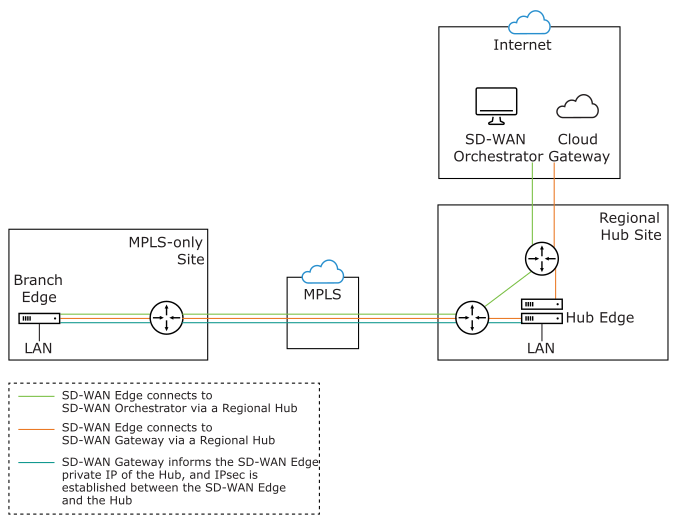
The traffic from the Edge with MPLS-only links is routed to the Orchestrator and Gateway through a Regional Hub, which is able to break out to the public cloud. SD-WAN Service Reachable option allows the Edge to remain online and manageable from the Orchestrator, and allows public internet connectivity through the Gateway irrespective of whether or not there is public link connectivity.
Dynamic Failover via MPLS
If all the public Internet links fail, you can failover critical Internet traffic to a private WAN link. The following image illustrates Resiliency of Orchestrator and Non SD-WAN Destination, Zscaler.
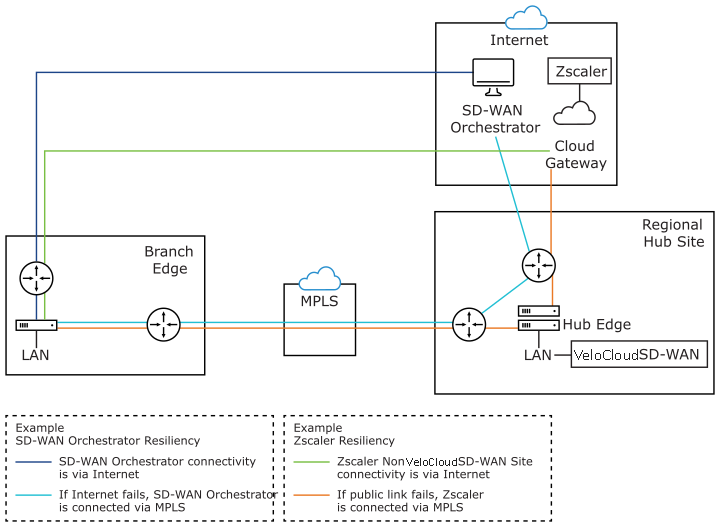
- Orchestrator Resiliency – The Orchestrator connects to the Internet. If the Internet fails, the Orchestrator will connect through MPLS. The Orchestrator connection is established using the IP Address which is advertised over MPLS. The connectivity leverages the public Internet link in the Regional Hub.
- Zscaler Resiliency – The Zscaler connectivity is established through Internet. If the public link fails, then Zscaler connects through MPLS.
Configure SD-WAN Service Reachable
- In the Interface window, select the Override check box and from the WAN Link drop-down menu, select User Defined and select Save.
Figure 35. WAN Link 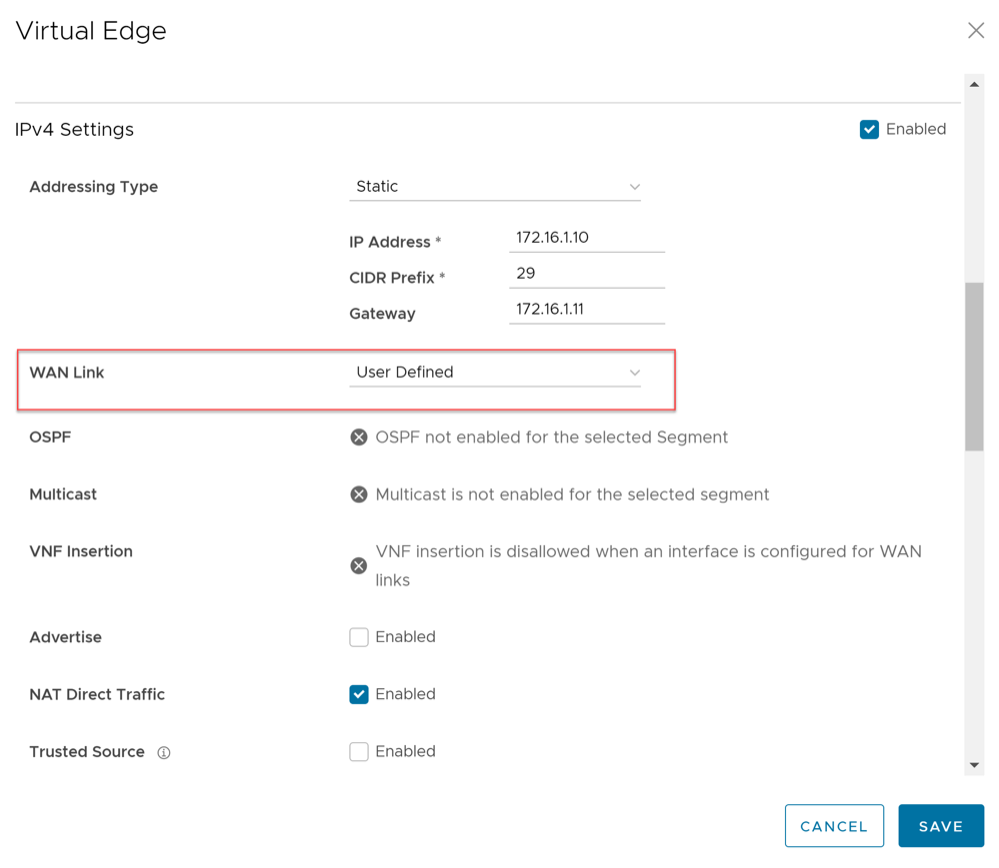 Note: The SD-WAN Service Reachable is available only for a User Defined network.
 - In the WAN Link Configuration section, select the Interface activated with User Defined WAN link.
The User Defined WAN Link window appears.
Figure 36. User Defined WAN Link 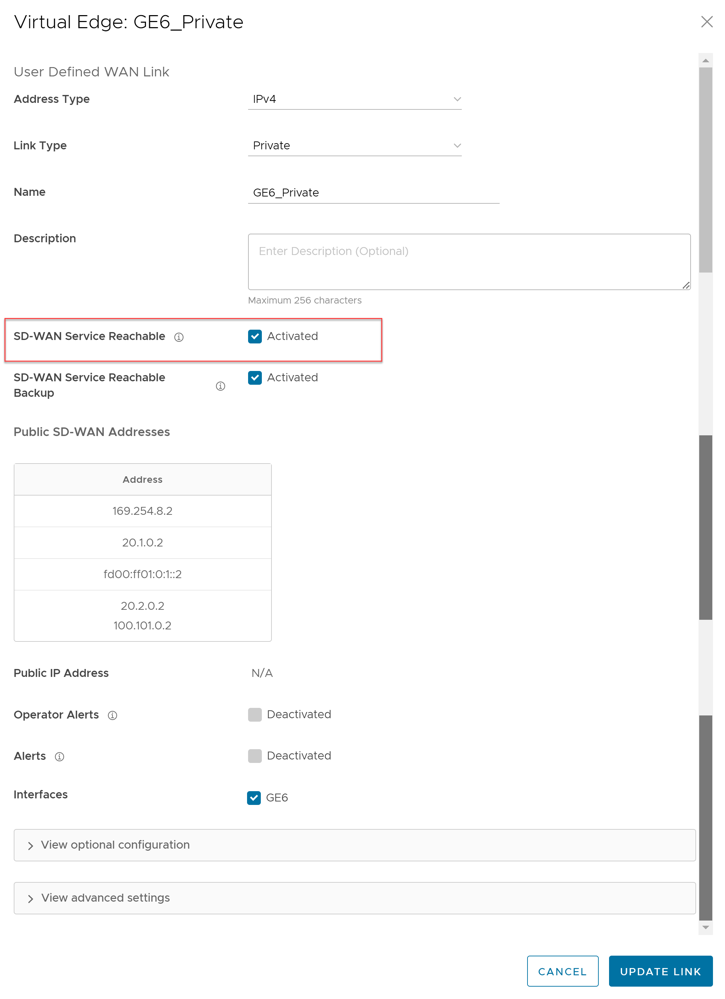
Configure Class of Service
For each Edge consisting of public or private WAN links, you can define the CoS.
- In the WAN Link Configuration section, select Add User Defined WAN Link.
Figure 37. WAN Link Configuration 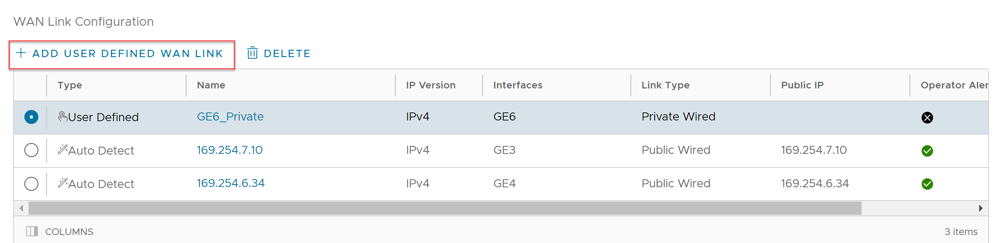
- To configure CoS for the new link, scroll down and select View advanced settings.
Figure 38. View Advanced Settings 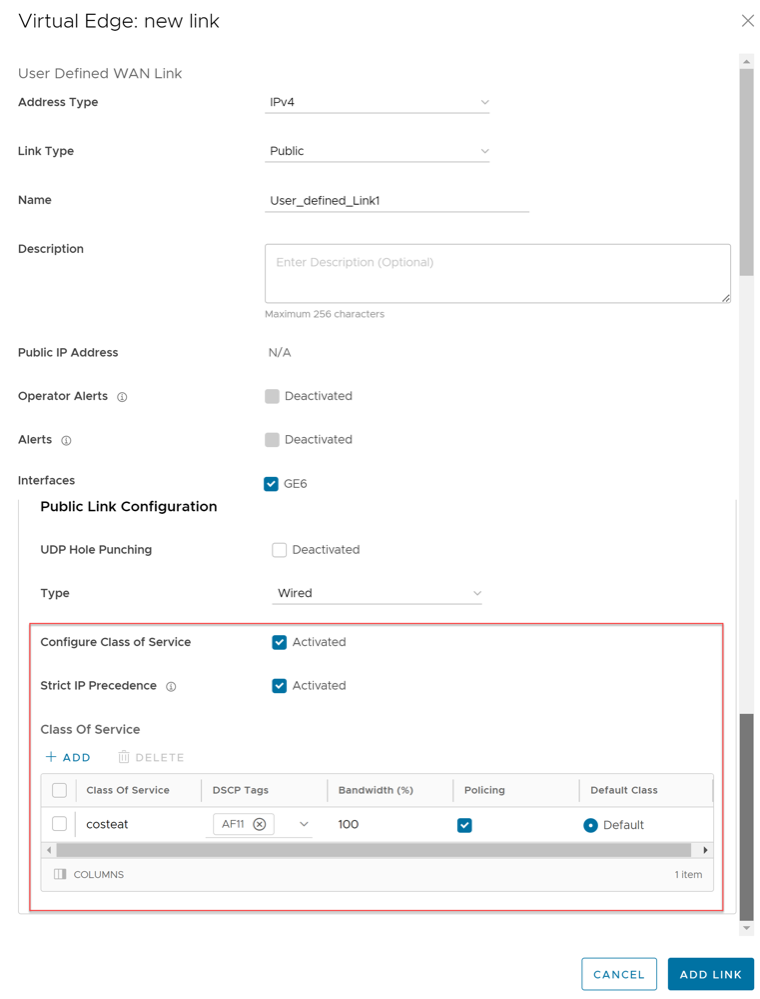
Configure Hot Standby Link
To configure a Hot Standby link on an Edge, ensure that the Edge is upgraded to software image version 4.0.0 or later.
- In the WAN Link Configuration section, you can configure Hot Standby link mode for existing auto-detected or user-defined WAN links or you can create a new WAN link by selecting the Add User Define WAN Link and configure Hot Standby link mode. For steps on how to add a new user defined WAN link, see Configure Edge WAN Overlay Settings.
Figure 39. WAN Link Configuration - To configure Hot Standby link mode for an existing link, select the existing WAN link and modify the settings.
Figure 40. Configure Hot Standby Link Mode for WAN Link 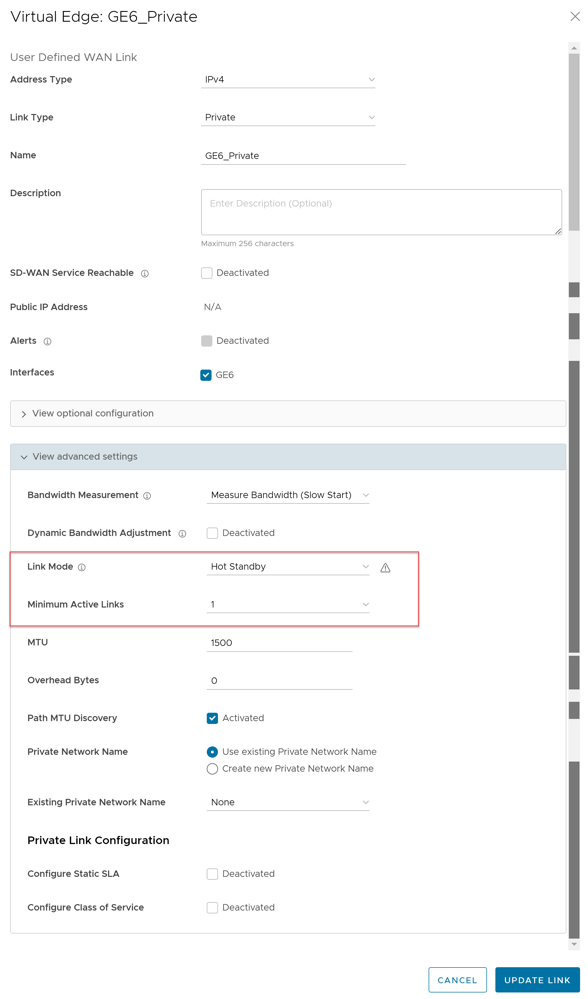
Monitor Hot Standby Links
To view the status of Hot Standby links:
- Select the Paths tab and select an SD-WAN peer to view the status of the paths from the selected Edge.
Figure 41. Monitor Hot Standby Links 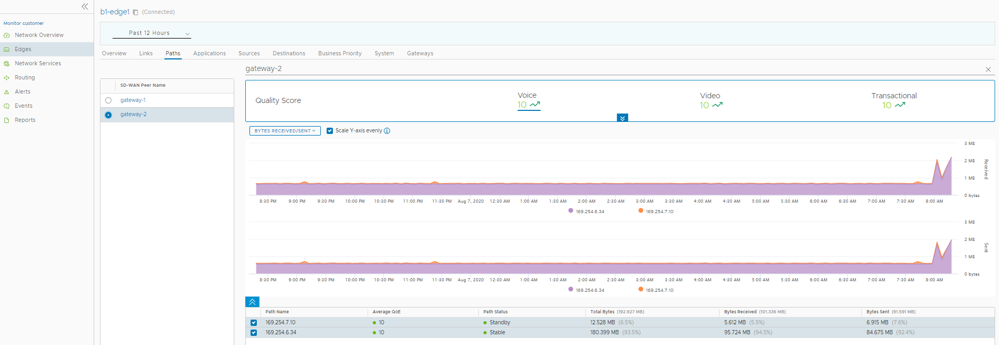
Global IPv6 Settings for Edges
To activate global settings for IPv6 at the Edge level:
- Under the Connectivity category, select Global IPv6 and select the Override check box.
Figure 42. Global IPv6 Settings for Edges 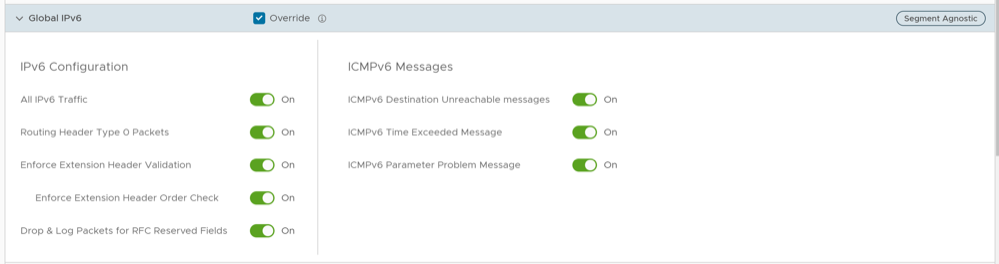
Configure Wi-Fi Radio Overrides
Before configuring the Wi-Fi radio band and channel for the Edge, it is important to set the correct country of operation for the Wi-Fi radio, to conform to local requirements for Wi-Fi transmission. The address is populated automatically after the Edge is activated; however, you can override the address manually, if needed. If you want to change the location of the Edge, go to the Contact & Location section of the Edge Overview configuration page and select Edit Location to set the Edge location, and then select Save Changes.
To override the Wi-Fi Radio settings at the Edge level, perform the following steps:
- Under the Connectivity category, go to the Wi-Fi Radio area and select the Override check box.
Figure 43. Override Wi-Fi Radio Settings 
- Edge 710 supports dual-radio models. In this case, the settings from the common Profile Radio are automatically inherited, so that only one radio is activated. But if these settings are overridden, you have an option to activate both radios to simultaneously transmit on 2.4 and 5 GHz.
Figure 44. Configure Wi-Fi Radio Overrides for Edge 710 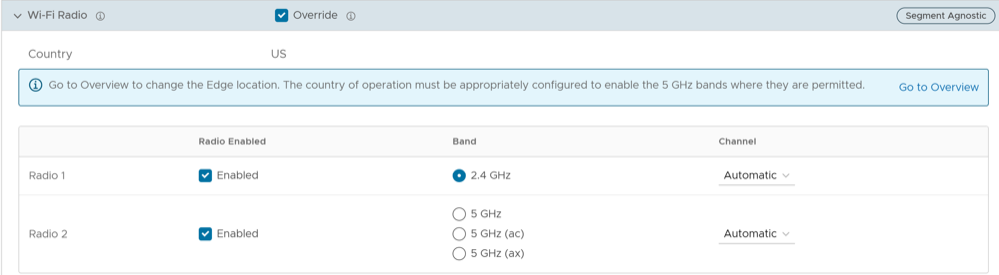 Note:
Note:- Edge 710 has a Wi-Fi 6 card (802.11ax) that has 2 radios; one that can transmit only in the 2.4 GHz band, and one that can transmit only in 5 GHz band. Each band is independently capable of being set up as 802.11n, ac or ax. Typically, you must activate ac and ax on the 5GHz band.
- Dual-radio models independently use both, 2.4 GHz and 5 GHz bands. However, if the 5 GHz band is selected in an unsupported country, it is deactivated, and the 2.4 GHz band is activated by default.
- Single-radio models default to either 2.4 GHz or 5GHz. In case where both bands are selected, the radio transmits in the 5 GHz band, if it is in a supported country, else it is forced to use the 2.4 GHz band, irrespective of the Profile settings.
Configure Automatic SIM Switchover
- You must insert SIM cards in both the SIM slots on the Edge.
- This feature can be activated only on a standalone Edge where High Availability is deactivated. An error is displayed on the Orchestrator if you try to activate both, High Availability and Automatic Switchover features.
- Navigate to , and make sure that the IP Type, L2 Settings, and WAN Overlay settings are same for both Cell1 and Cell2. Other parameters like SIM PIN, Network, and APN need not be same.
- Both Cell1 and Cell2 interfaces must be activated before activating the Automatic Switchover feature. For additional information, see Configure Interface Settings for Edges.
To access this feature, follow the below steps:
- In the Connectivity category, expand Automatic Switchover.
The following screen appears:
Figure 45. Configure Automatic SIM Switchover 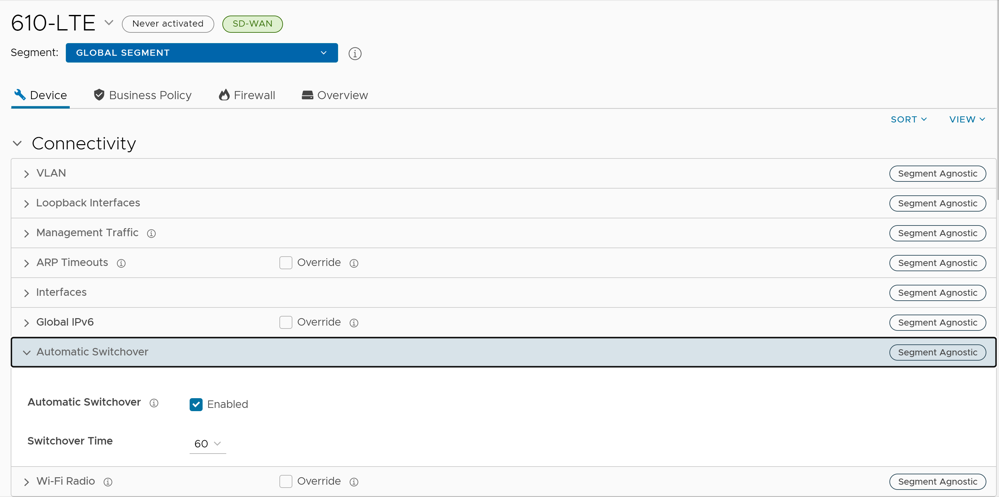
- To monitor the Edge Switchover status, go to , and then select the link to your Edge.
The Overview tab is displayed by default.
Figure 46. Monitor Edges 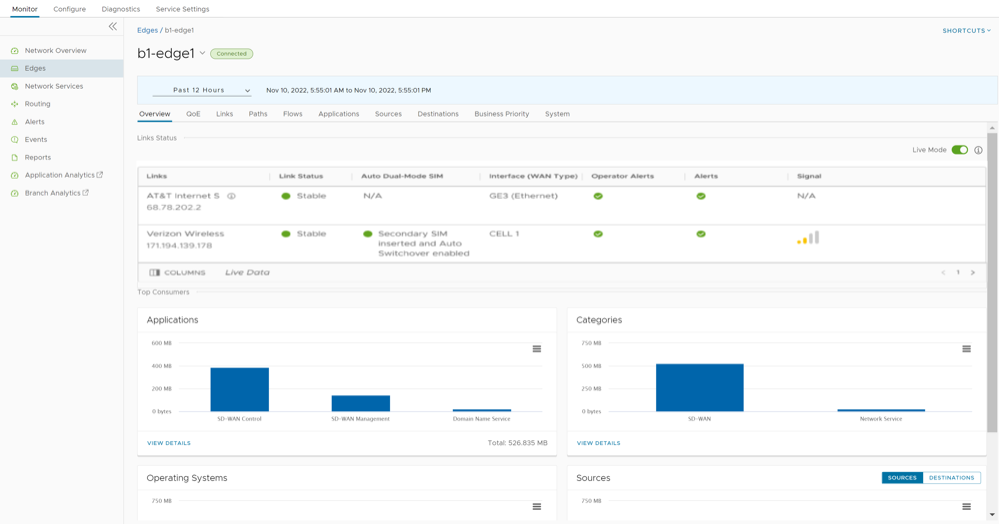
The Auto Dual-Mode SIM column displays the status of the Edge with respect to the Automatic Switchover feature configured on that Edge, and is applicable to Edge 610-LTE and Edge 710 5G.
See the table below for the color code details:
The Signal column displays the signal strength of the Edge. This is indicated by the number of bars, which vary depending on the signal strength. Below are the details:Table 29. Color Code Details Color Status Green Indicates that the Secondary SIM is inserted and the Automatic Switchover feature is activated. Amber / Orange Indicates that the Secondary SIM is inserted and the Automatic Switchover feature is deactivated. Purple Indicates that the Secondary SIM is not inserted and the Automatic Switchover feature is activated. Red Indicates that the Secondary SIM is not inserted and the Automatic Switchover feature is deactivated. Table 30. Signal Details Signal Strength (dB) Number of Bars -10 to -85 4 -86 to -102 3 -103 to -110 2 -111 to -120 1 -121 to -999 0 For additional information, see Monitor Edges.
Configure Common Criteria Firewall Settings for Edges
To configure the CC Firewall settings at the Edge level, perform the following steps:
- Select the link to an Edge or select the View link in the Device column of the Edge. You can also select an Edge and select Modify to configure the Edge.
The Device tab displays the configuration options for the selected Edge.
Figure 47. Device Tab 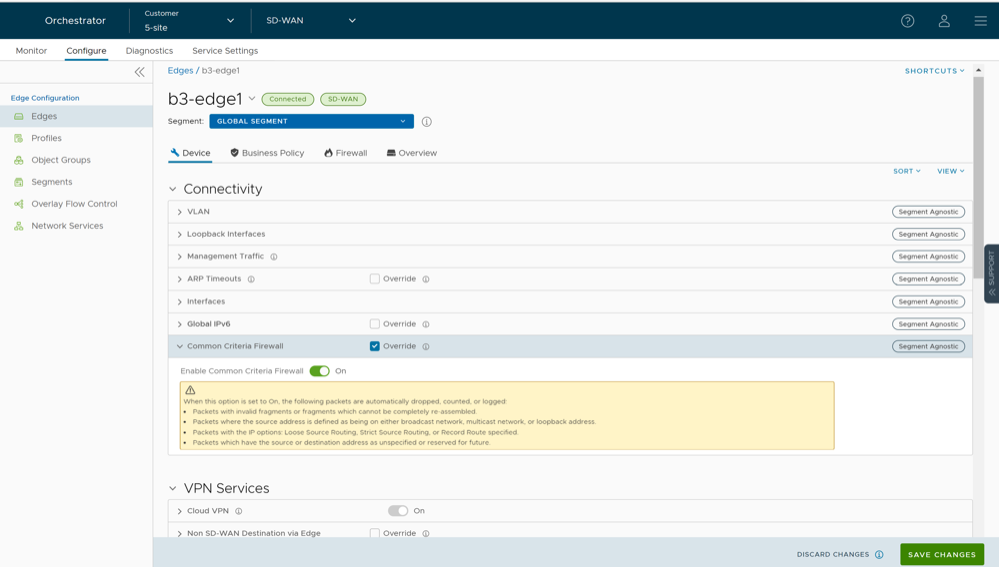
Configure Cloud VPN and Tunnel Parameters for Edges
- Select the Override check box to override the Non SD-WAN Destination settings inherited from the Profile as needed.
Note: Any configuration changes to Branch to Non SD-WAN Destination via Gateway settings can be made only in the associated Profile level.
Figure 48. Non SD-WAN Destination via Edge 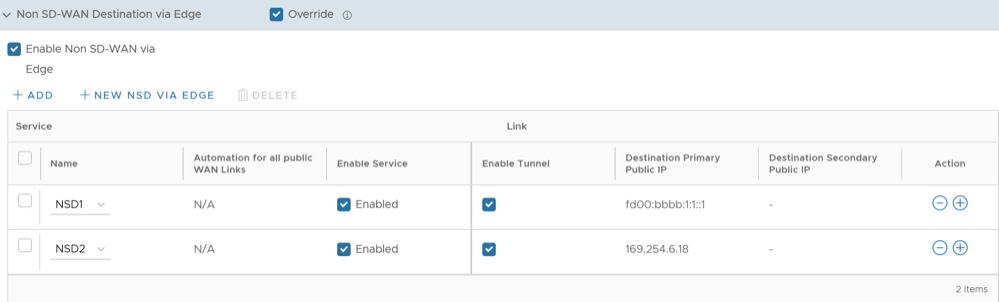
- Under the Action column, select + to add tunnels.
The Add Tunnel pop-up window appears.
Figure 49. Add Tunnel 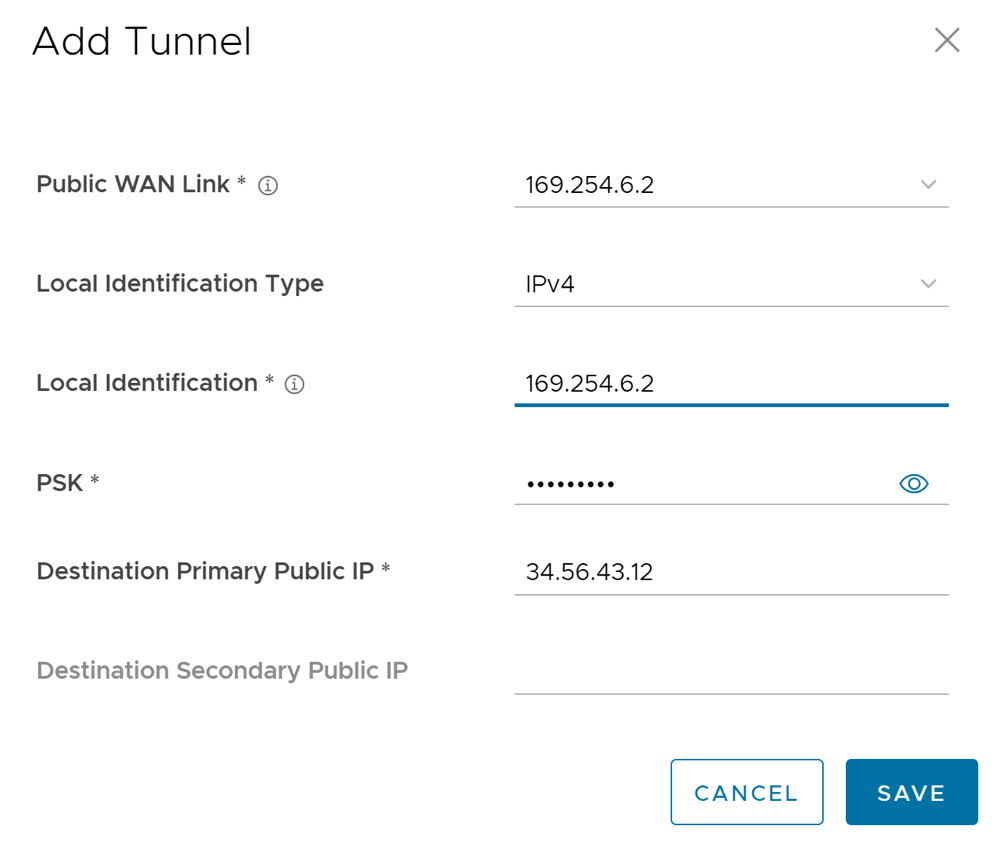
Configure Cloud Security Services for Edges
When you have assigned a profile to an Edge, the Edge automatically inherits the cloud security service (CSS) and attributes configured in the profile. You can override the settings to select a different cloud security provider or modify the attributes for each Edge.
- In the SD-WAN service of the Enterprise portal, select . The Edges page displays the existing Profiles.
- Select the link to an Edge or select the View link in the Device column of the Edge. The configuration options for the selected Edge are displayed on the Device tab.
- Under the VPN Services category, in the Cloud Security Service area, the CSS parameters of the associated profile are displayed.
- In the Cloud Security Service area, select the Override check box to select a different CSS or to modify the attributes inherited from the profile associated with the Edge. For additional information on the attributes, see the topic Configure Cloud Security Services for Profiles.
- Select Save Changes in the Edges window to save the modified settings.
Manual Zscaler CSS Provider Configuration for Edges
At the Edge level, for a selected manual Zscaler CSS provider, you can override the settings inherited from the profile and can configure additional parameters manually based on the tunneling protocol selected for tunnel establishment.
If you choose to configure an IPsec tunnel manually, apart from the inherited attributes, you must configure a Fully Qualified Domain Name (FQDN) and Pre-Shared Key (PSK) for the IPsec session.
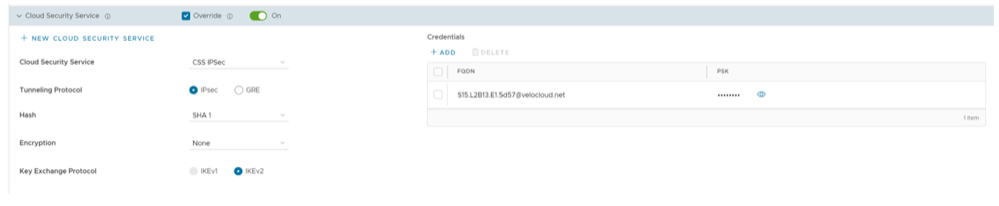
- Under GRE Tunnels, select +Add.
Figure 51. Add GRE Tunnel 
- When the Configure Tunnel window appears, configure the following GRE tunnel parameters, and select Update.
Figure 52. Configure Tunnel 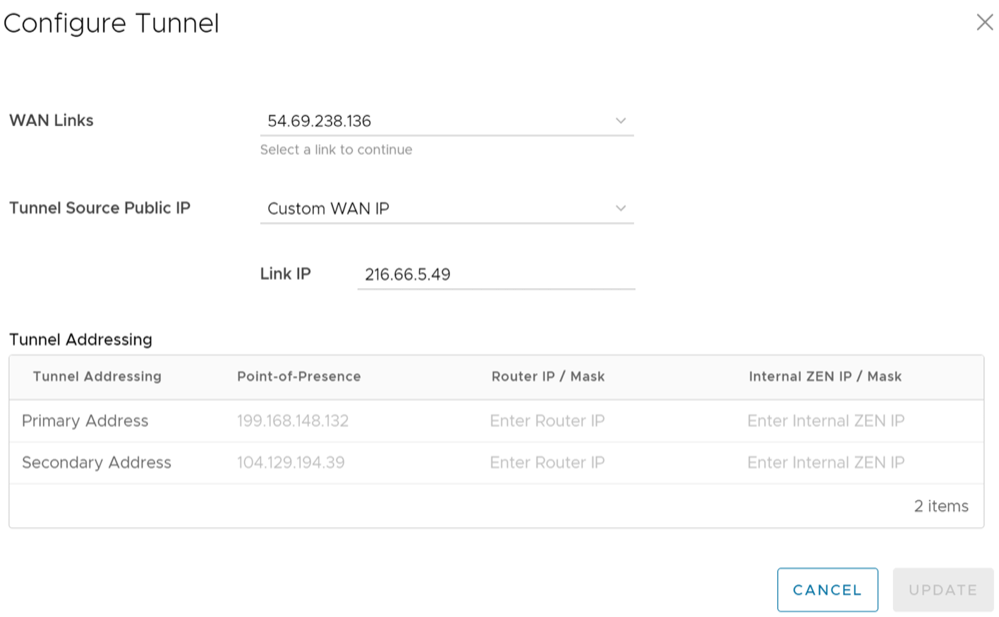
Table 33. Configure Tunnel Field Descriptions Option Description WAN Links Select the WAN interface to be used as source by the GRE tunnel. Tunnel Source Public IP Choose the IP address to be used as a public IP address by the Tunnel. You can either choose the WAN Link IP or Custom WAN IP. If you choose Custom WAN IP, enter the IP address to be used as public IP. Source public IPs must be different for each segment when Cloud Security Service (CSS) is configured on multiple segments. Primary Point-of-Presence Enter the primary Public IP address of the Zscaler Data center. Secondary Point-of-Presence Enter the secondary Public IP address of the Zscaler Data center. Primary Router IP/Mask Enter the primary IP address of Router. Secondary Router IP/Mask Enter the secondary IP address of Router. Primary Internal ZEN IP/Mask Enter the primary IP address of Internal Zscaler Public Service Edge. Secondary Internal ZEN IP/Mask Enter the secondary IP address of Internal Zscaler Public Service Edge.
- The Router IP/Mask and ZEN IP/Mask are provided by Zscaler.
- Only one Zscaler cloud and domain are supported per Enterprise.
- Only one CSS with GRE is allowed per Edge. An Edge cannot have more than one segment with Zscaler GRE automation enabled.
- GRE-WAN: Edge supports maximum of 4 public WAN links for a Non SD-WAN Destination (NSD) and on each link, it can have up to 2 tunnels (primary/secondary) per NSD. So, for each NSD, you can have maximum of 8 tunnels and 8 BGP connections from one Edge.
- GRE-LAN: Edge supports 1 link to Transit Gateway (TGW), and it can have up to 2 tunnels (primary/secondary) per TGW. So, for each TGW, you can have maximum of 2 tunnels and 4 BGP connections from one Edge (2 BGP sessions per tunnel).
Automated Zscaler CSS Provider Configuration for Edges
- IPsec/GRE Tunnel Automation
- Zscaler Location/Sub-Location Configuration
IPsec/GRE Tunnel Automation
- In the SD-WAN service of the Enterprise portal, select .
- Select an Edge you want to establish automatic tunnels.
- Select the link to an Edge or select the View link in the Device column of the Edge. The configuration options for the selected Edge are displayed in the Device tab.
- Under the VPN Services category, in the Cloud Security Service area, the CSS parameters of the associated profile are displayed.
- In the Cloud Security Service area, select the Override check box to select a different CSS or to modify the attributes inherited from the profile associated with the Edge. For additional information on the attributes, see Configure Cloud Security Services for Profiles.
- From the Cloud Security Service drop-down menu, select an automated CSS provider and select Save Changes.
Figure 53. Override Automated Zscaler CSS Provider 
The automation will create a tunnel in the segment for each Edge's public WAN link with a valid IPv4 address. In a multi-WAN link deployment, only one of the WAN Links will be utilized for sending user data packets. The Edge chooses the WAN link with the best Quality of Service (QoS) score using bandwidth, jitter, loss, and latency as criteria. Location is automatically created after a tunnel is established. You can view the details of tunnel establishment and WAN links in the Cloud Security Service section
Note: After automatic tunnel establishment, changing to another CSS provider from an Automated Zscaler service provider is not allowed on a Segment. For the selected Edge on a segment, you must explicitly deactivate Cloud Security service and then reactivate CSS if you want to change to a new CSS provider from an Automated Zscaler service provider.
Zscaler Location/Sub-Location Configuration
After you have established automatic IPsec/GRE tunnel for an Edge segment, Location is automatically created and appears under the Zscaler section of the Edge Device page.
- You check that the tunnel is established from the selected Edge and Location is automatically created. You will not be allowed to create a Sub-location if the VPN credentials or GRE options are not set up for the Edge. Before configuring Sub-locations, ensure you understand about Sub location and their limitations. See https://help.zscaler.com/zia/understanding-sublocations.
- You select the same Cloud Subscription that you used to create the Automatic CSS.
- In the SD-WAN service of the Enterprise portal, select .
- Select an Edge and then select the icon under the Device column. The Device Settings page for the selected Edge appears.
- Go to the Zscaler section and turn on the toggle button.
Figure 54. Override Zscaler Settings 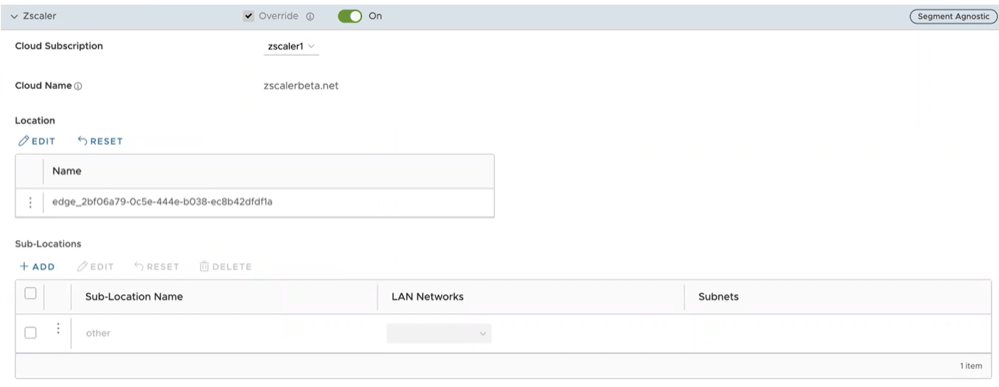
- From the Cloud Subscription drop-down menu, select the same Cloud Subscription that you used to create the Automatic CSS. The Cloud Name associated to the selected Cloud Subscription automatically appears.
Note:
- Cloud Subscription must have same Cloud name and Domain name as CSS.
- If you want to change provider for "Cloud Subscription", you must first remove the "Location" by deactivating CSS and Zscaler, and then perform the creation steps with the new provider.
In the Location table, selecting View under the Action Details column displays the actual values for the configuration fetched from Zscaler, if present. If you want to configure the Gateway options and Bandwidth controls for the Location, select the Edit button under Gateway Options. For additional information, see the section "Configure Zscaler Gateway Options and Bandwidth Control".
- To create a Sub-location, in the Sub-Locations table, select the '+' icon under the Action column.
- In the Sub-Location Name text box, enter a unique name for the Sub-location. The Sub location name should be unique across all segments for the Edge. The name can contain alphanumeric with a maximum word length of 32 characters.
- From the LAN Networks drop-down menu, select a VLAN configured for the Edge. The Subnet for the selected LAN network will be populated automatically.
Note: For a selected Edge, Sub-locations should not have overlapping Subnet IPs.
- Select Save Changes.
Figure 55. Create Sub-locations 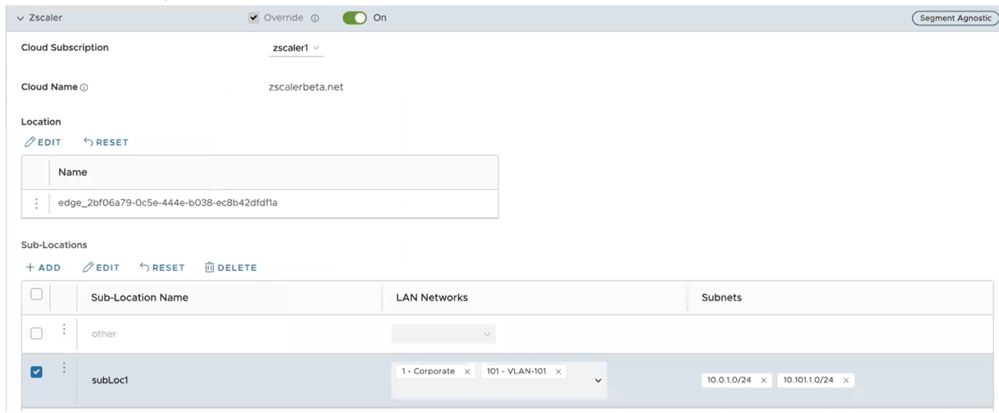 Note: After you create at least one Sub-location in the Orchestrator, an “Other” Sub location is automatically created in the Zscaler side, and it appears in the Orchestrator UI. You can also configure the “Other” Sub-location’s Gateway options by selecting the Edit button under Gateway Options in the Sub-Locations table. For additional information, see the section Configure Zscaler Gateway Options and Bandwidth Control.
 - After creating a Sub-location, you can update the Sub-location configurations from the same Orchestrator page. Once you select Save Changes, the Sub-location configurations on the Zscaler side will be updated automatically.
- To delete a Sub-location, select the - icon under the Action column.
Note: When the last Sub-location is deleted from the table, the "other" Sub-location also gets deleted automatically.
Configure Zscaler Gateway Options and Bandwidth Control
To configure Gateway options and Bandwidth controls for the Location and Sub-location, select the Edit button under Gateway Options, in the respective table.
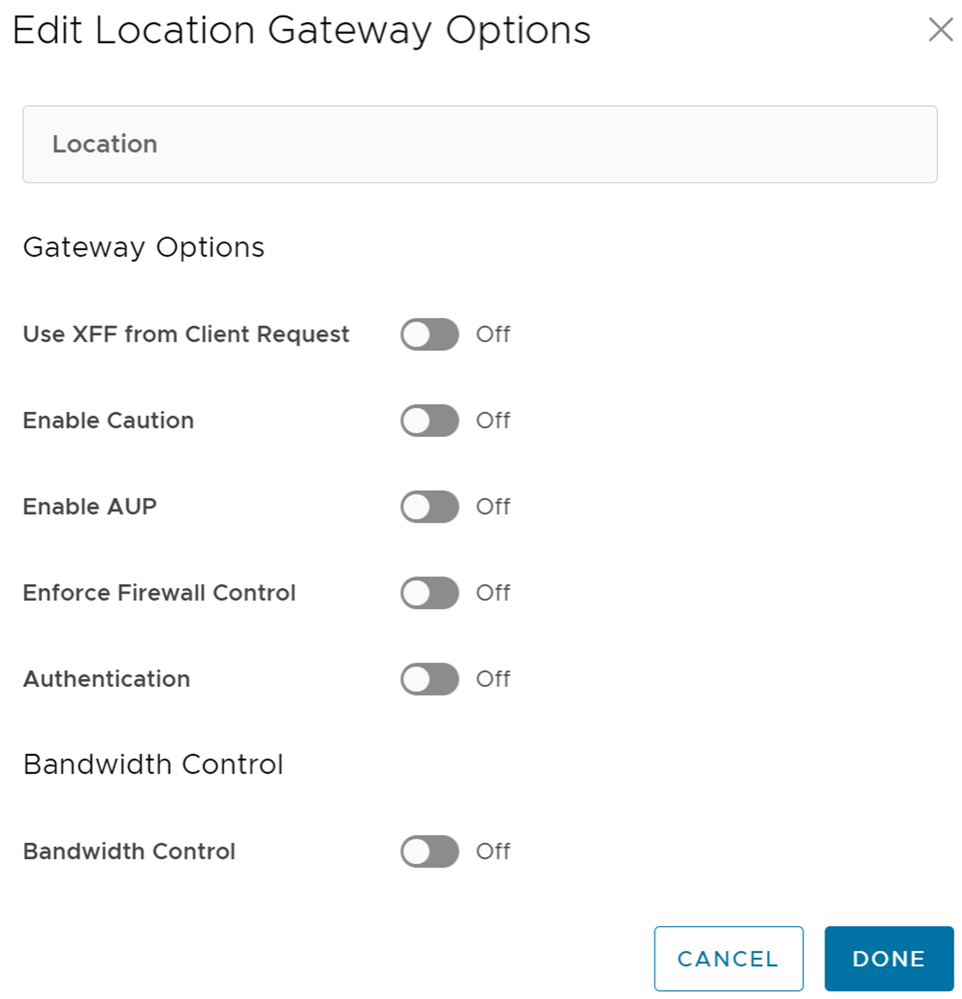
Configure the Gateway options and Bandwidth controls for the Location and Sub-location, as needed, and select Save Changes.
| Option | Description |
|---|---|
| Gateway Options for Location/Sub-Location | |
| Use XFF from Client Request | Enable this option if the location uses proxy chaining to forward traffic to the Zscaler service, and you want the service to discover the client IP address from the X-Forwarded-For (XFF) headers that your on premises proxy server inserts in outbound HTTP requests. The XFF header identifies the client IP address, which can be leveraged by the service to identify the client’s sub location. Using the XFF headers, the service can apply the appropriate sub location policy to the transaction, and if Enable IP Surrogate is turned on for the location or sub-location, the appropriate user policy is applied to the transaction. When the service forwards the traffic to its destination, it will remove the original XFF header and replace it with an XFF header that contains the IP address of the client gateway (the organization’s public IP address), ensuring that an organization's internal IP addresses are never exposed to externally.
Note: This Gateway option is only configurable for Parent location.
|
| Enable Caution | If you have not enabled Authentication, you can enable this feature to display a caution notification to unauthenticated users. |
| Enable AUP | If you have not enabled Authentication, you can enable this feature to display an Acceptable Use Policy (AUP) for unauthenticated traffic and require users to accept it. If you enable this feature:
|
| Enforce Firewall Control | Select to enable the service's firewall control.
Note: Before enabling this option, user must ensure if its Zscaler account has subscription for "Firewall Basic".
|
| Enable IPS Control | If you have enabled Enforce Firewall Control, select this to enable the service's IPS controls.
Note: Before enabling this option, user must ensure if its Zscaler account has subscription for "Firewall Basic" and "Firewall Cloud IPS".
|
| Authentication | Enable to require users from the Location or Sub-location to authenticate to the service. |
| IP Surrogate | If you enabled Authentication, select this option if you want to map users to device IP addresses. |
| Idle Time for Dissociation | If you enabled IP Surrogate, specify how long after a completed transaction, the service retains the IP address-to-user mapping. You can specify the Idle Time for Dissociation in Mins (default), or Hours, or Days.
|
| Surrogate IP for Known Browsers | Enable to use the existing IP address-to-user mapping (acquired from the surrogate IP) to authenticate users sending traffic from known browsers. |
| Refresh Time for re-validation of Surrogacy | If you enabled Surrogate IP for Known Browsers, specify the length of time that the Zscaler service can use IP address-to-user mapping for authenticating users sending traffic from known browsers. After the defined period of time elapses, the service will refresh and revalidate the existing IP-to-user mapping so that it can continue to use the mapping for authenticating users on browsers. You can specify the Refresh Time for re validation of Surrogacy in minutes (default), or hours, or days.
|
| Bandwidth Control Options for Location | |
| Bandwidth Control | Enable to enforce bandwidth controls for the location. If enabled, specify the maximum bandwidth limits for Download (Mbps) and Upload (Mbps). All sub locations will share the bandwidth limits assigned to this location. |
| Download | If you enabled Bandwidth Control, specify the maximum bandwidth limits for Download in Mbps. The allowable range is from 0.1 through 99999. |
| Upload | If you enabled Bandwidth Control, specify the maximum bandwidth limits for Upload in Mbps. The allowable range is from 0.1 through 99999. |
Bandwidth Control Options for Sub-Location (if Bandwidth Control is enabled on Parent Location)
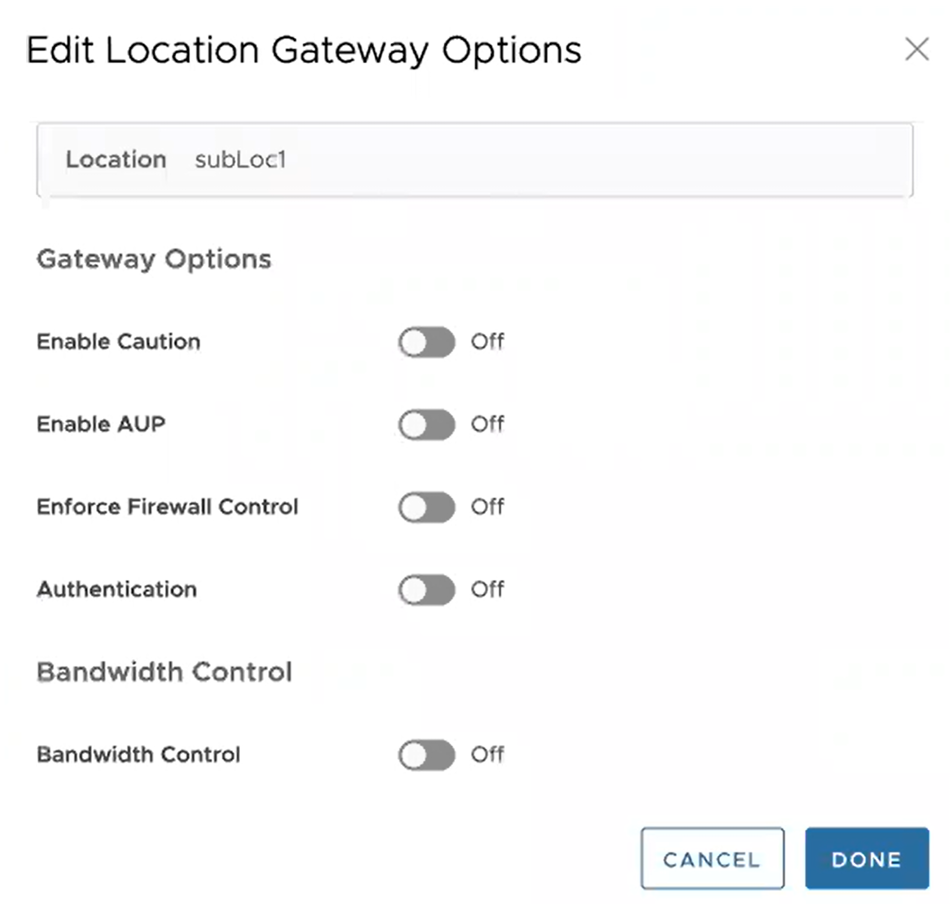 Note: The following bandwidth control options are configurable for sub-location only if you have bandwidth control enabled on the parent location. If the bandwidth control is not enabled on the parent location, then the bandwidth control options for sub-location are the same as location (Bandwidth Control, Download, Upload).
|
|
| Use Location Bandwidth | If you have bandwidth control enabled on the parent location, select this option to enable bandwidth control on the sub-location and use the download and upload maximum bandwidth limits as specified for the parent location. |
| Override | Select this option to enable bandwidth control on the sub-location and then specify the maximum bandwidth limits for Download (Mbps) and Upload (Mbps). This bandwidth is dedicated to the sub-location and not shared with others. |
| Disabled | Select this option to exempt the traffic from any Bandwidth Management policies. Sub-location with this option can only use up to a maximum of available shared bandwidth at any given time. |
Limitations
- In 4.5.0 release, when a Sub-location is created, Orchestrator automatically saves the "Other" Sub location. In earlier version of Orchestrator, the Zscaler "Other" Sub-location was not saved in Orchestrator. After upgrading Orchestrator to 4.5.0 release, the "Other" Sub-location will be imported automatically only after a new normal (non-Other) Sub-location is created using automation.
- Zscaler Sub-locations cannot have overlapping IP addresses (subnet IP ranges). Attempting to edit (add, update, or delete) multiple Sub-locations with conflicting IP addresses may cause the automation to fail.
- Users cannot update the bandwidth of Location and Sub-location at the same time.
- Sub-locations support the Use Location Bandwidth option for bandwidth control when its Parent Location bandwidth control is enabled. When user turns off the Location bandwidth control on a Parent Location, the Orchestrator does not check or update the Sub-location bandwidth control option proactively.
Configure Zscaler Settings for Edges
To configure Zscaler at the Edge level, perform the following steps:
- Under the VPN Services category, select Zscaler.
The Zscaler settings configured for the associated Profile are displayed. If required, you can select the Override check box and modify the Zscaler settings by adding new sub-locations, editing Gateway options for configured location and sub-locations.
Figure 58. Zscaler 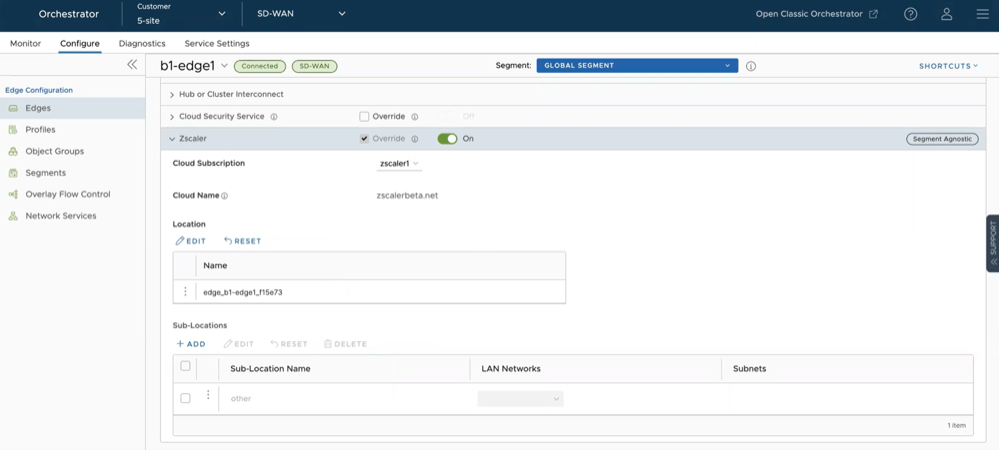
- To edit location Gateway options. select the Edit button under the Location section.
The Edit Location Gateway Options dialog box appears.
Figure 59. Edit Location Gateway Options 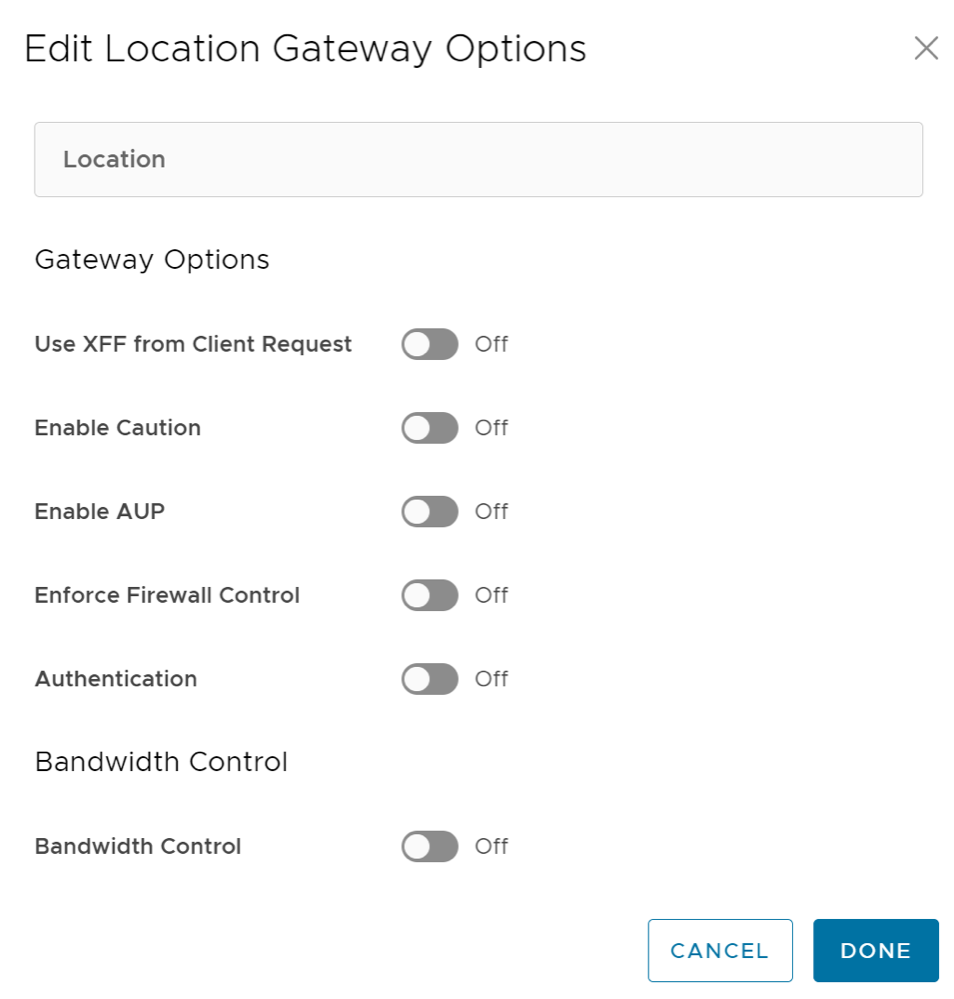
- In the Sub-Locations section, you can perform the following:
- To add sub-locations, select the +ADD button and specify sub-location name, LAN networks, and Subnets.
In prior Orchestrator versions, for the Zscaler sub-location configuration, the Subnets field that takes in subnets ignores the user input if the subnet being added is not directly connected to the Edge device, and users could not modify these subnets using the Orchestrator UI. This limitation presented a challenge for a branch offices where the LAN-side subnets were one hop away due to the presence of a layer 3 switch between the Edge and LAN devices. Release 6.0.0 allows users to add both direct and non-direct subnets.
Figure 60. Sub-Locations 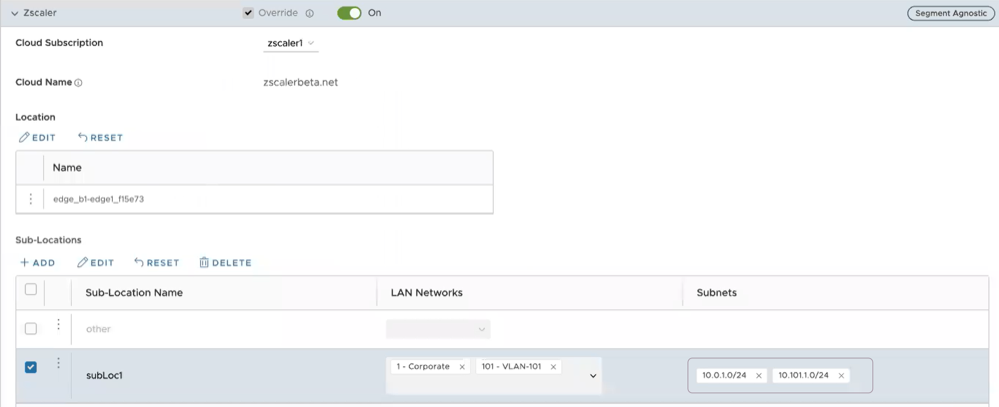
- To edit Gateway options and Bandwidth control settings for selected Sub-Locations, select the Edit button.
Figure 61. Edit Sub-Location 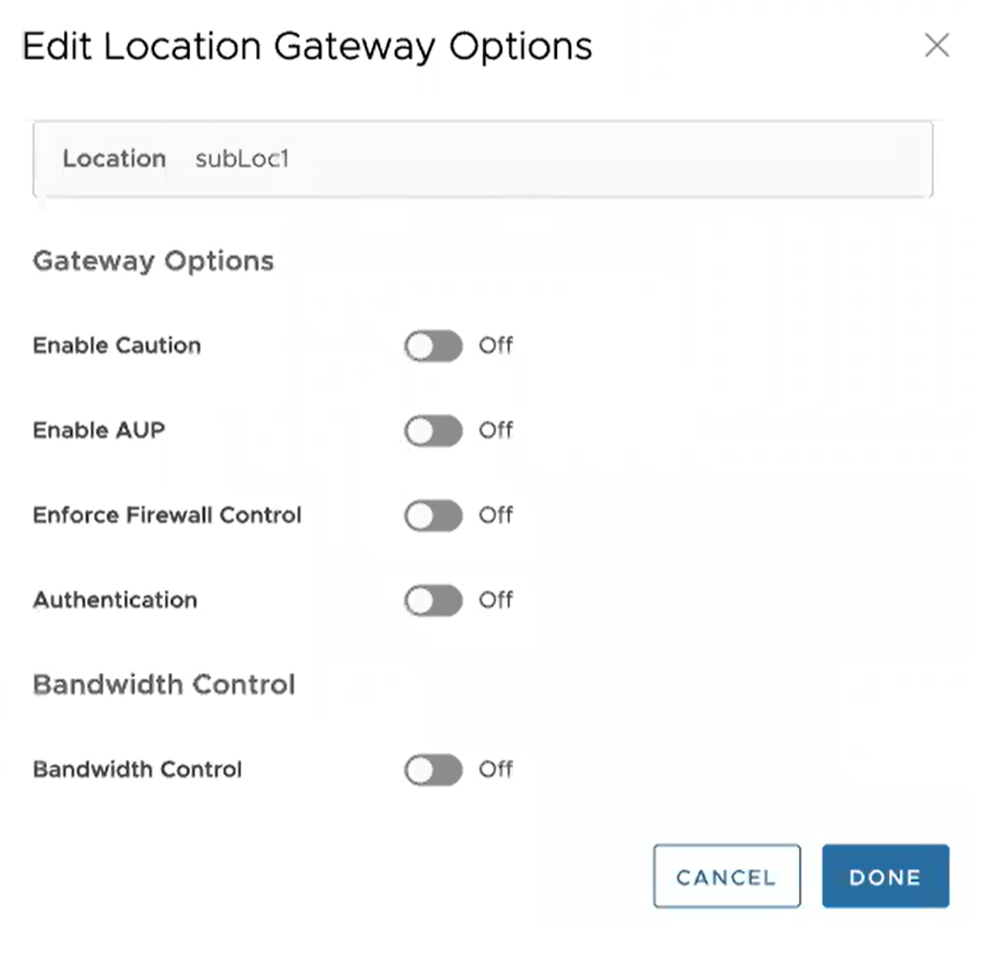
- To reset Zscaler Sub-Location gateway options to default, select Reset.
- To delete sub-locations, select the sub-locations that you want to delete and select the Delete button.
- To add sub-locations, select the +ADD button and specify sub-location name, LAN networks, and Subnets.
Configure Multicast Settings for Edges
The Multicast settings are applied to all the Edges associated with the Profile. You can choose to override the Multicast settings for an Edge:
- Scroll down to the Routing & NAT category and expand the Multicast area.
The Multicast settings configured for the associated Profile are displayed. If required, you can select the Override check box and modify the Multicast settings.
Figure 62. Multicast Settings for an Edge 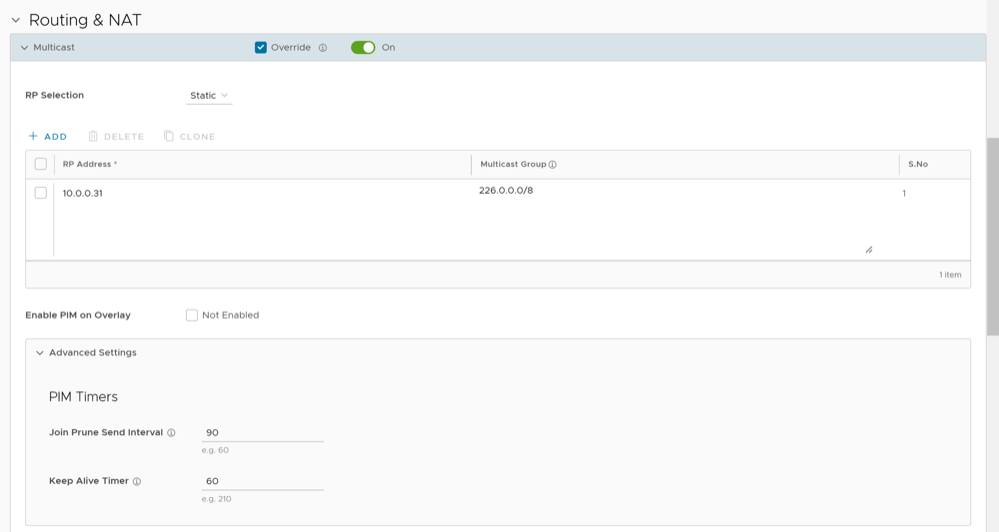
Configure BFD for Edges
To override the configuration for a specific Edge:
- Select the Override check box to modify the BFD configuration settings for the selected Edge.
Figure 63. Configure BFD for Edges 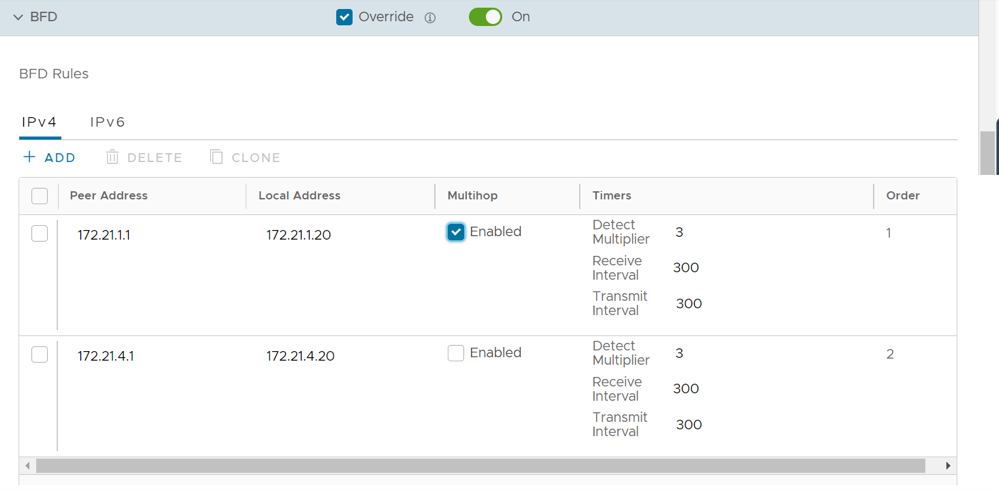
- To enable BFD for BGP, see Configure BFD for BGP for Edges.
- To enable BFD for OSPF, see Configure BFD for OSPF for Edges.
- To view the BFD sessions, see Monitor BFD Sessions.
- To view the BFD events, see Monitor BFD Events.
- For troubleshooting and debugging BFD, see Troubleshooting BFD.
LAN-side NAT Rules at Edge Level
By default, the LAN-Side NAT Rules are inherited by the Edges associated with the Profile. To override the NAT-Side NAT Rules at the Edge level, perform the steps below.
For additional information, see LAN-Side NAT Rules at Profile Level.
- In the LAN-Side NAT Rules area, complete the following for the NAT Source or Destination section: (See the table below for a description of the fields in the steps below).
Figure 64. Override LAN-side NAT Rules at Edge Level 
Table 35. Override LAN-side NAT Rules- Options and Descriptions Option Description Type Determine whether the NAT rule should be applied on the source or destination IP address of user traffic, and accordingly select either Source or Destination as the type from the drop-down menu. Inside Address Enter the "inside" or "before NAT" IPv4 address (if prefix is 32), or subnet (if prefix is less than 32). Outside Address Enter the "outside" or "after NAT" IPv4 address (if prefix is 32), or subnet (if prefix is less than 32). Source Route Optionally, for destination NAT, specify source IPv4 address/subnet as match criteria. Only valid if the type is “Destination”. Ensure the prefix is a value from 1 through 32 and the default value is any. Destination Route Optionally, for source NAT, specify destination IPv4 address/subnet as match criteria. Only valid if the type is “Source”. Ensure the prefix is a value from 1 through 32 and the default value is any. Description Enter a description for the NAT rule.
Configure ICMP Probes/Responders
Configure ICMP Probes
- Scroll down to the Routing & NAT category, select and expand the ICMP Probes section.
Figure 65. Configure ICMP Probes  Note: ICMP probe replies should be received within 100 milliseconds. If three replies do not arrive before 100 milliseconds, the probe status will be marked as down.
Configure ICMP Responders
- Scroll down to the Routing & NAT category, select and expand the ICMP Responders section.
Figure 66. Configure ICMP Responders 
Configure Static Route Settings
To configure the Static Route settings:
- On the IPv4 tab, you can configure the static routes for IPv4 addresses.
Figure 67. Static Route Settings- IPv4 Tab 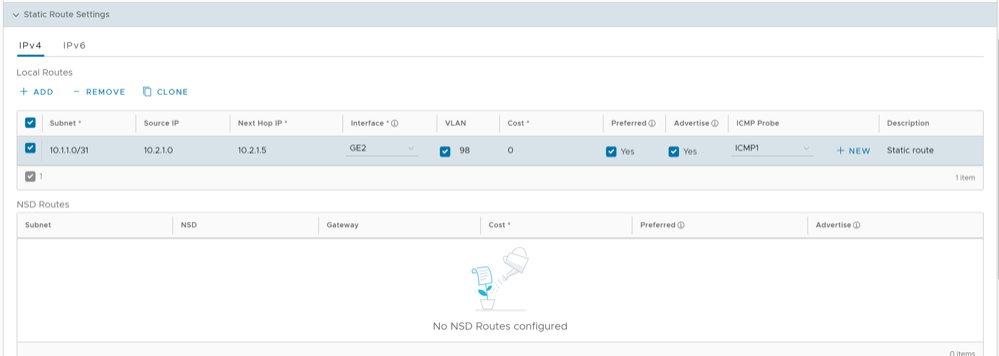
- You can select the IPv6 tab to configure static routes for IPv6 addresses.
Figure 68. Static Route Settings- IPv6 Tab 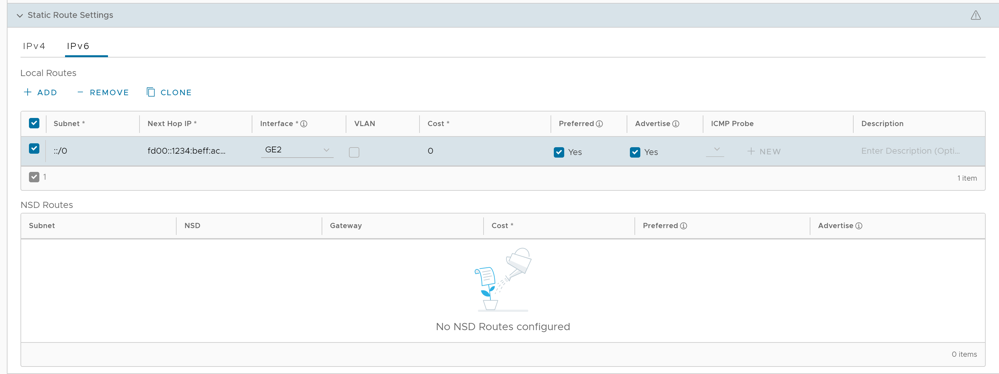
Configure DNS for Edges
The DNS Service can be used for a public DNS service or a private DNS service provided by your company. A Primary Server and Backup Server can be specified. The public DNS service is preconfigured to use Google and Open DNS servers.
The DNS settings are applied to all the Edges associated with the Profile. You can choose to override the DNS settings for an Edge.
- In the Routing & NAT category, select DNS.
The DNS settings configured for the associated Profile are displayed. If required, you can select the Override check box and modify the DNS settings.
Figure 69. DNS Settings 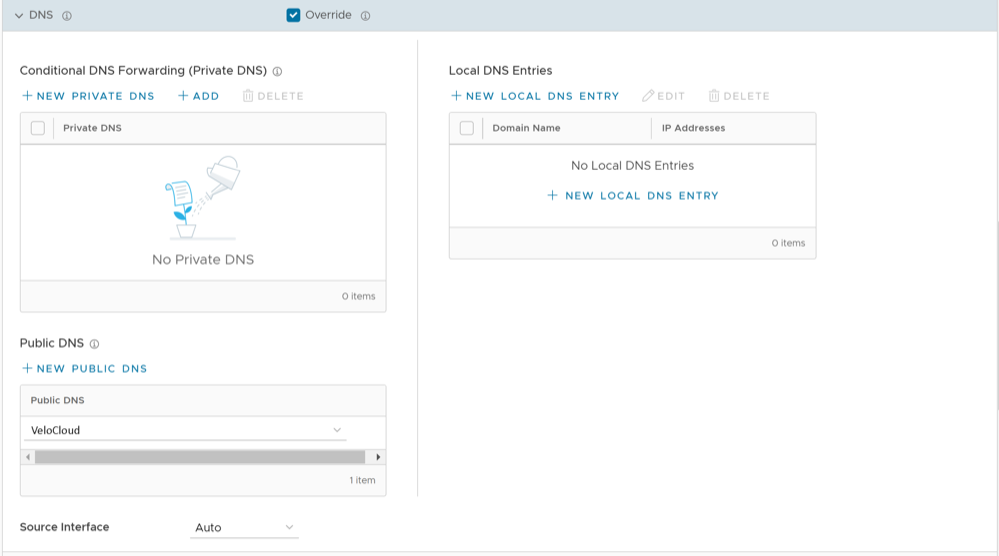
Activate OSPF for Edges
If needed, you can view the OSPF configuration for a specific Edge as follows:
- In the OSPF section, you can view all the inherited OSPF configuration such as OSPF areas, Redistribution settings for OSPFv2/v3, BGP settings, and Route Summarization.
Figure 70. Activate OSPF for Edges 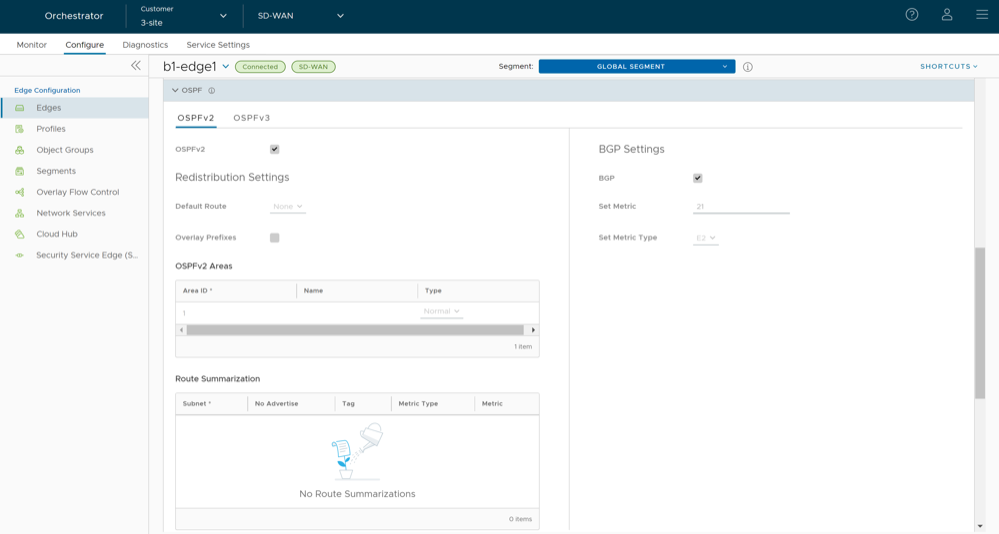
Configure BGP from Edge to Underlay Neighbors for Edges
If required, you can override the configuration for a specific Edge as follows:
Configure High Availability Settings for Edges
- Scroll down to the High Availability section and select and expand HA.
Figure 71. High Availability 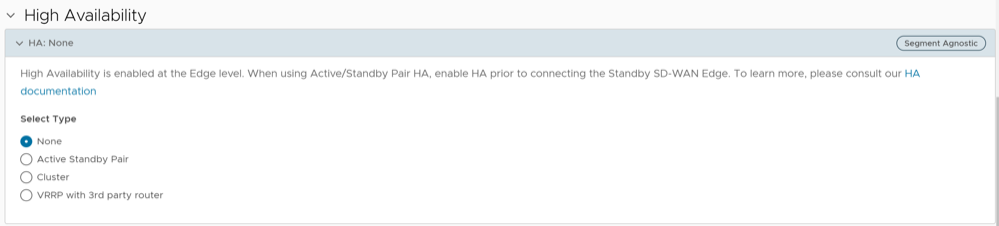
Configure VRRP Settings
- You can enable VRRP only between the Edge and third party router connected to the same subnet through an L2 switch.
- You can add only one Edge to the VRRP HA group in a branch.
- You cannot enable both Active-Standby HA and VRRP HA at the same time.
- VRRP is supported on primary routed port, sub-interface, and VLAN interfaces.
- Edge must be configured as the primary VRRP device, by setting higher priority, in order to steer the traffic through SD-WAN.
- If the Edge is configured as the DHCP server, then virtual IP addresses are set as the default Gateway address for the clients. When you use a separate DHCP server relay for the LAN, then the admin must configure the VRRP virtual IP address as the default Gateway address.
- When DHCP server is enabled in both the Edge and third-party router, then split the DHCP pool between the Edge and third party router, to avoid the overlapping of IP addresses.
- VRRP is not supported on an interface enabled with WAN Overlay, that is on the WAN link. If you want to use the same link for LAN, then create a sub-interface and configure VRRP on the sub-interface.
- You can configure only one VRRP group in a broadcast domain in a VLAN. You cannot add additional VRRP group for the secondary IP addresses.
- Do not add WI-FI link to the VRRP enabled VLAN. As the link failure would never happen, the Edge always remains as the primary device.
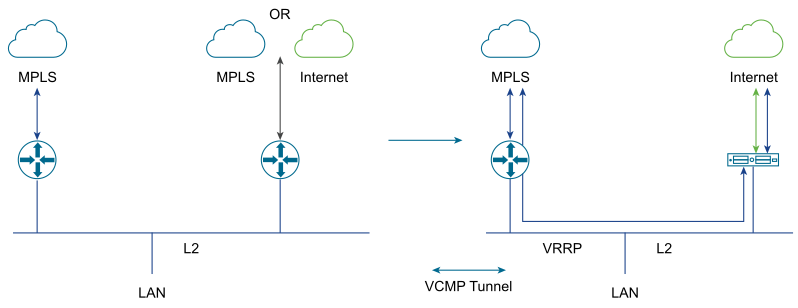
- In the VRRP Settings, select +Add and configure the following:
Figure 73. VRRP Settings 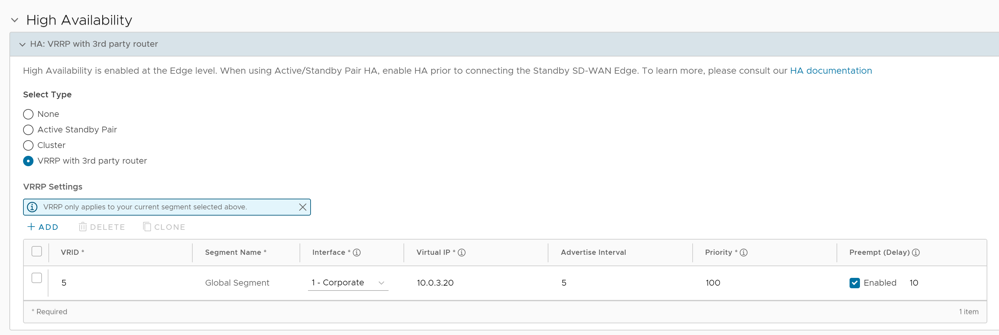
Table 39. VRRP Settings- Options and Descriptions Option Description VRID Enter the VRRP group ID. The range is from 1 to 255. Segment Name Displays the current Segment selected for Edge configuration. Note: The VRRP settings apply only to the current Segment that is selected.Interface Select a physical or VLAN Interface from the list. The VRRP is configured on the selected Interface. Virtual IP Enter a virtual IP address to identify the VRRP pair. Ensure that the virtual IP address is not the same as the IP address of the Edge Interface or the third-party router. Advertise Interval Enter the time interval with which the primary VRRP device sends VRRP advertisement packets to other members in the VRRP group. Priority To configure the Edge as primary VRRP device, enter a value that exceeds the priority value of the third-party router. The default is 100. Preempt Delay Select the check box and enter the preempt delay value so that Edge can preempt the third-party router which is currently the primary device, after the specified preempt delay.
Monitor VRRP Events
You can monitor the events related to changes in VRRP status.
In the SD-WAN service of Enterprise portal, select .
- VRRP HA updated to primary
- VRRP HA updated out of primary
- VRRP Failed
Configure Visibility Mode for Edges
By default, the Visibility mode is inherited by the Edges associated with the Profile. To configure the visibility mode for an Edge:
- Scroll down to the Telemetry category and go to the Visibility Mode area and select the Override check box.
Figure 74. Visibility Mode for an Edge 
Configure Syslog Settings for Edges
To override the Syslog settings at the Edge level, perform the following steps.
- Scroll down to the Telemetry category and go to the Syslog area and select the Override check box.
Figure 75. Syslog Settings for an Edge 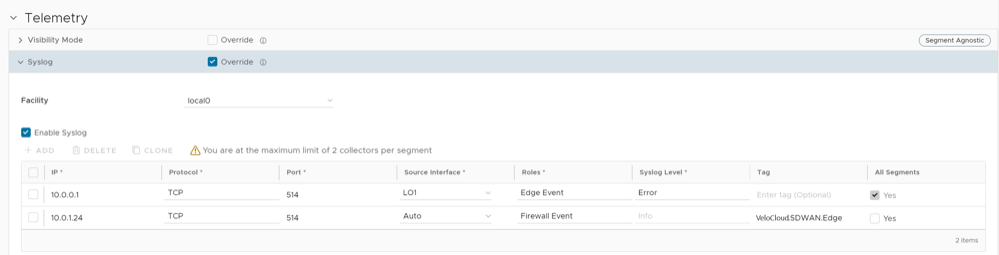
For additional information about Firewall settings at the Edge level, see Configure Edge Firewall.
Configure Netflow Settings for Edges
To override the Netflow settings at the Edge level, perform the following steps:
- Scroll down to the Telemetry category and go to the Netflow Settings area and select the Override check box.
Figure 76. Netflow Settings for an Edge 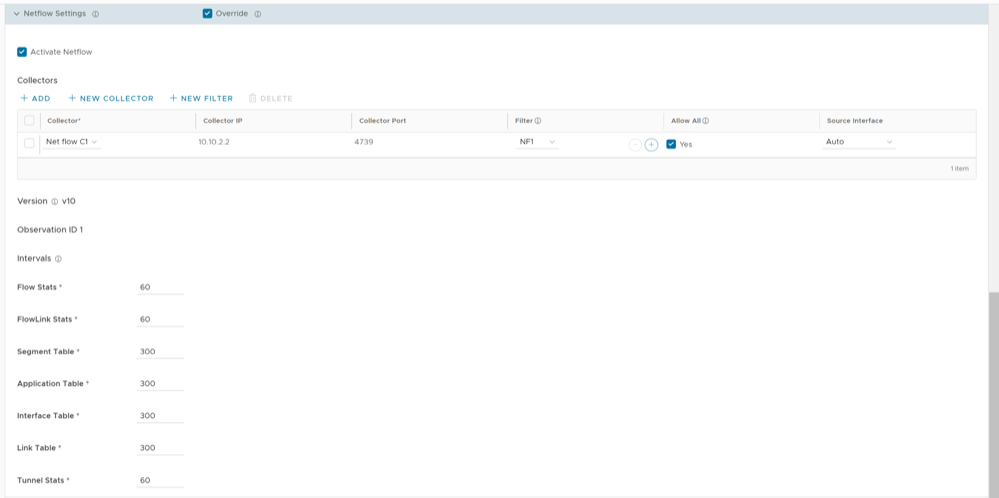
Configure SNMP Settings for Edges
- In the SD-WAN service of the Enterprise portal, go to .
- Select the link to the required Edge, and then go to the MIBs for Edge area. Select VELOCLOUD-EDGE-MIB from the drop-down menu, and then select Run.
- Copy and paste the results onto your local machine.
- Install all MIBs required by
VELOCLOUD-EDGE-MIBon the SNMP manager, includingSNMPv2-SMI,SNMPv2-CONF,SNMPv2-TC,INET-ADDRESS-MIB,IF-MIB,UUID-TC-MIB, andVELOCLOUD-MIB. All these MIBs are available on the Remote Diagnostics page.
- SNMP MIB-2 System
- SNMP MIB-2 Interfaces
- VELOCLOUD-EDGE-MIB
At the Edge level, you can override the SNMP settings specified in the Profile, by selecting the Override check box. The Edge Override option enables Edge specific edits to the displayed settings, and discontinues further automatic updates from the configuration Profile for this module. For ongoing consistency and ease of updates, it is recommended to set configurations at the Profile level rather than Edge level.
To configure SNMP settings at Edge Level:
- Select the Override check box to allow editing.
Figure 77. Configure SNMP Settings for an Edge 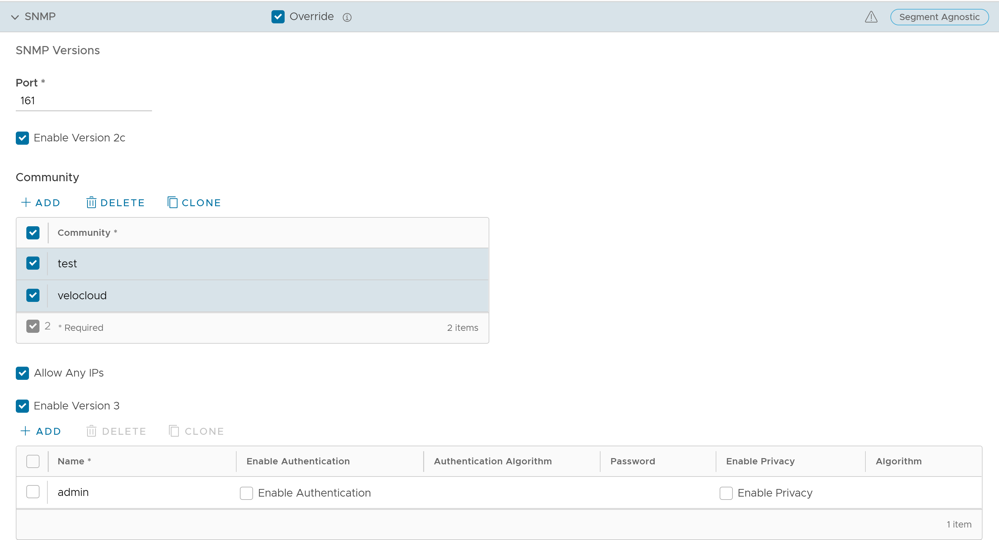
You can select either Enable Version 2c or Enable Version 3, or both SNMP version check boxes.
- Navigate to , and then select a Profile.
- Select the View link in the Firewall column.
- Go to Edge Access located under the Edge Security area.
- Configure SNMP Access and select Save Changes.
Security Virtual Network Functions
Virtual Network Functions (VNFs) are individual network services, such as routers and firewalls, running as software-only virtual machine (VM) instances on generic hardware. For example, a routing VNF implements all the functions of a router but runs in a software-only form, alone or along with other VNFs, on generic hardware. VNFs are administered and orchestrated within the NFV architecture.
- Insert network services in an optimal location to provide appropriate security. For example, insert a VNF firewall in an Internet-connected branch office rather than incur the inefficiency of an MPLS link to hairpin traffic through a distant data center to be firewalled.
- Optimize application performance. Traffic can follow the most direct route between the user and the cloud application using a VNF for security or traffic prioritization. In a VM environment, several VNFs may run simultaneously, isolated from each other, and can be independently changed or upgraded.
The following tables list the third-party firewalls supported by Arista along with the support matrix:
| VeloCloud Edge Platform | Edge 520v | Edge 840 | Edge 620 | Edge 640 | Edge 680 |
|---|---|---|---|---|---|
| Recommended VM Series Firewall Models | VM-50 Lite | VM-100 | VM-50 Lite | VM-100 | VM-100 |
| Number of vCPUs available for VM-Series Firewall | 2 | 2 | 2 | 2 | 2 |
| Memory available for VNF | 4.5 GB | 6.5 GB | 4.5 GB | 6.5 GB | 6.5 GB |
| Storage space available on Edge for VNF | 64 GB | 120 GB | 64 GB | 120 GB | 120 GB |
| VeloCloud software version | Release 3.2.0 or later | Release 3.2.0 or later | Release 3.4.3 or later | Release 3.4.3 or later | Release 3.4.3 or later |
| Panorama version | Release 8.0.5 or later | Release 8.0.5 or later | Release 8.0.5 or later | Release 8.0.5 or later | Release 8.0.5 or later |
| VeloCloud Edge Platform | Edge 520v | Edge 840 | Edge 620 | Edge 640 | Edge 680 |
|---|---|---|---|---|---|
| Memory available for VNF | 2 GB | 4 GB | 2 GB | 4 GB | 4 GB |
| Number of vCPUs available for VNF | 2 | 2 | 2 | 2 | 2 |
| Storage available on Edge for VNF | 64 GB | 100 GB | 120 GB | 120 GB | 120 GB |
| Maximum Throughput of SD-WAN and Checkpoint VNF | 100 Mbps | 1 Mbps | 300 Mbps | 600 Mbps | 1 Gbps |
| VeloCloud software version | Release 3.3.2 or later | Release 3.3.2 or later | Release 3.4.3 or later | Release 3.4.3 or later | Release 3.4.3 or later |
| Checkpoint VNF OS version | Release R77.20 or later | Release R77.20 or later | Release R77.20 or later | Release R77.20 or later | Release R77.20 or later |
| Checkpoint manager software version | Release 80.30 or later | Release 80.30 or later | Release 80.30 or later | Release 80.30 or later | Release 80.30 or later |
| VeloCloud Edge Platform | Edge 520v | Edge 840 | Edge 620 | Edge 640 | Edge 680 |
|---|---|---|---|---|---|
| Recommended VM Series Firewall Models | VM00, VM01, VM01v | VM00, VM01, VM01v, VM02, VM02v | VM00, VM01, VM01v | VM00, VM01, VM01v, VM02, VM02v | VM00, VM01, VM01v, VM02, VM02v |
| Memory available for VNF | 2 GB | 4 GB | 2 GB | 4 GB | 4 GB |
| Number of vCPUs available for VNF | 2 | 2 | 2 | 2 | 2 |
| Storage available on Edge for VNF | 64 GB | 100 GB | 64 GB | 100 GB | 100 GB |
| Maximum Throughput of SD-WAN and FortiGate VNF | 100 Mbps | 1 Mbps | 300 Mbps | 600 Mbps | 1 Gbps |
| VeloCloud software version | Release 3.3.1 or later | Release 3.3.1 or later | Release 4.0.0 or later | Release 4.0.0 or later | Release 4.0.0 or later |
| FortiOS version | Release 6.0 and 6.2.0
Starting from the release 4.0.0, FortiOS version 6.4.0 and 6.2.4 are supported. |
Release 6.0 and 6.2.0
Starting from the release 4.0.0, FortiOS version 6.4.0 and 6.2.4 are supported. |
Release 6.4.0 and 6.2.4 | Release 6.4.0 and 6.2.4 | Release 6.4.0 and 6.2.4 |
You can deploy and forward traffic through VNF on an Edge.
Configure VNF Management Service
Choose the third-party firewall and configure the settings accordingly. You may need to configure additional settings in the third-party firewall as well. Refer to the deployment guides of the corresponding third-party firewall for the additional configurations.
For the VNF Types Check Point Firewall and Fortinet Firewall configure the VNF image by using the System Property edge.vnf.extraImageInfos. You must be an Operator user to configure the system property. If you do not have the Operator role access, contact your Operator to configure the VNF Image.
- In the SD-WAN service of the Enterprise portal, go to , and then under Edge Services area, expand VNFs.
Figure 78. Configure VNF Management Service 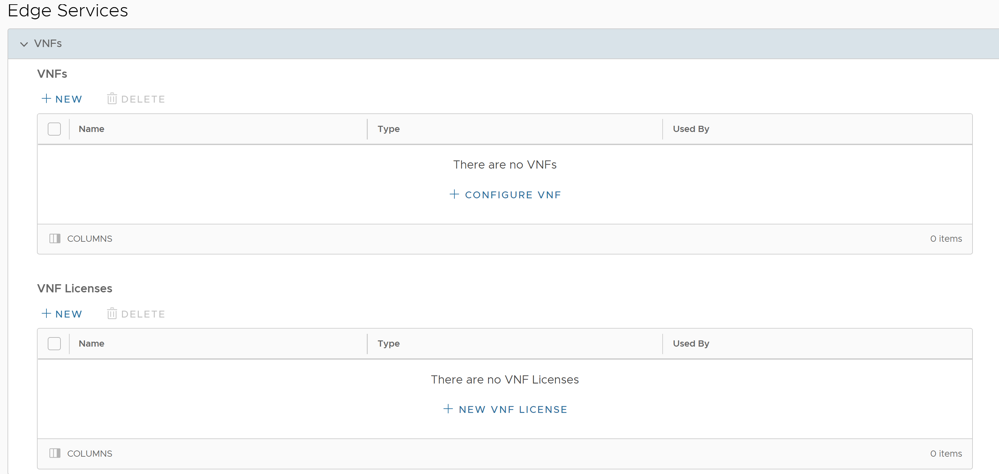
- In the Configure VNF window, enter a descriptive name for the security VNF service and select a VNF Type from the drop-down menu.
Figure 79. Configure VNF 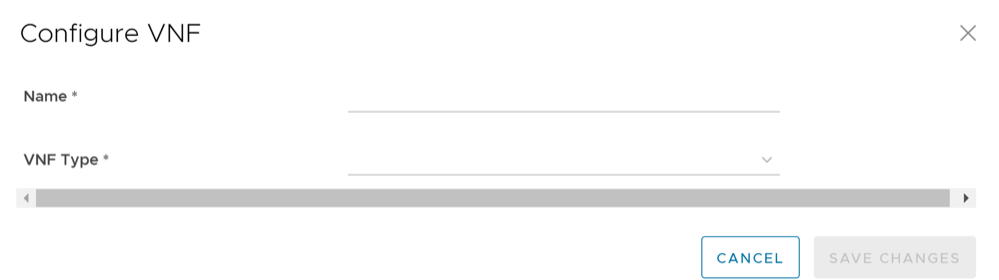
Configure Security VNF without High Availability
- Orchestrator and activated Edge running software versions that support deploying a specific security VNF. For additional information on the supported software versions and Edge platforms, refer to the Support Matrix in Security Virtual Network Functions.
- Configured VNF Management service. For additional information, see Configure VNF Management Service.
- In the Device tab, scroll down to the Security VNF section and select + Configure Security VNF.
The Configure Security VNF window appears.
Figure 80. Configure Security VNF 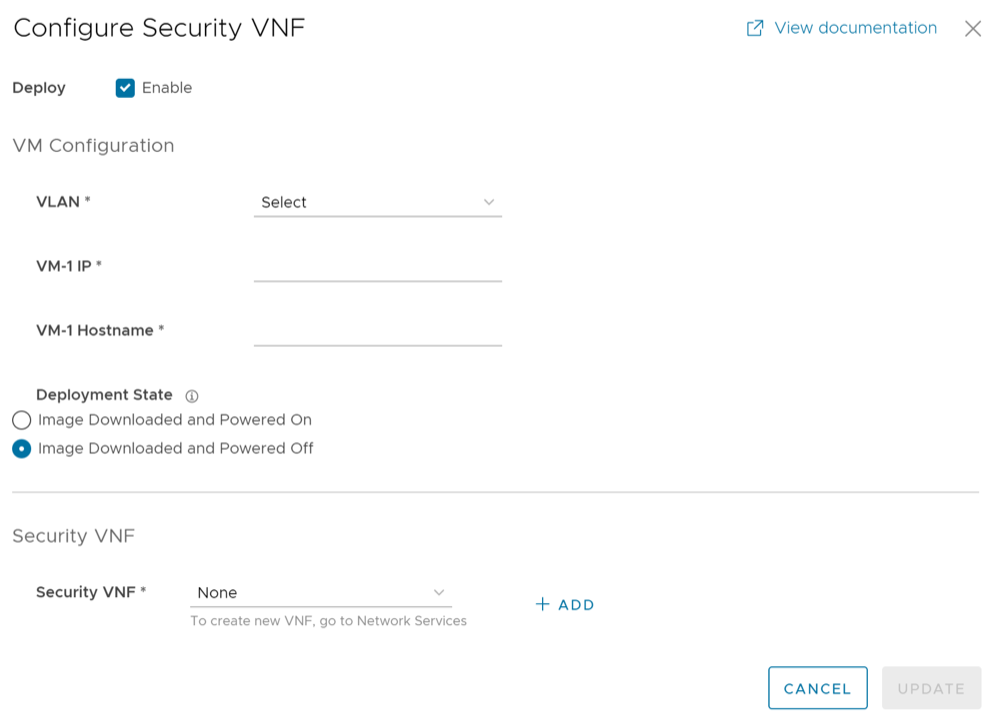
- Under Security VNF, Choose a pre-defined VNF management service from the drop-down menu. You can also select + Add to create a new VNF management service.
For additional information, see Configure VNF Management Service.
- The following image shows an example of Fortinet Firewall as the Security VNF type. If you choose Fortinet Firewall, configure the following additional settings:
Figure 81. Check Point Firewall- Fortinet Firewall 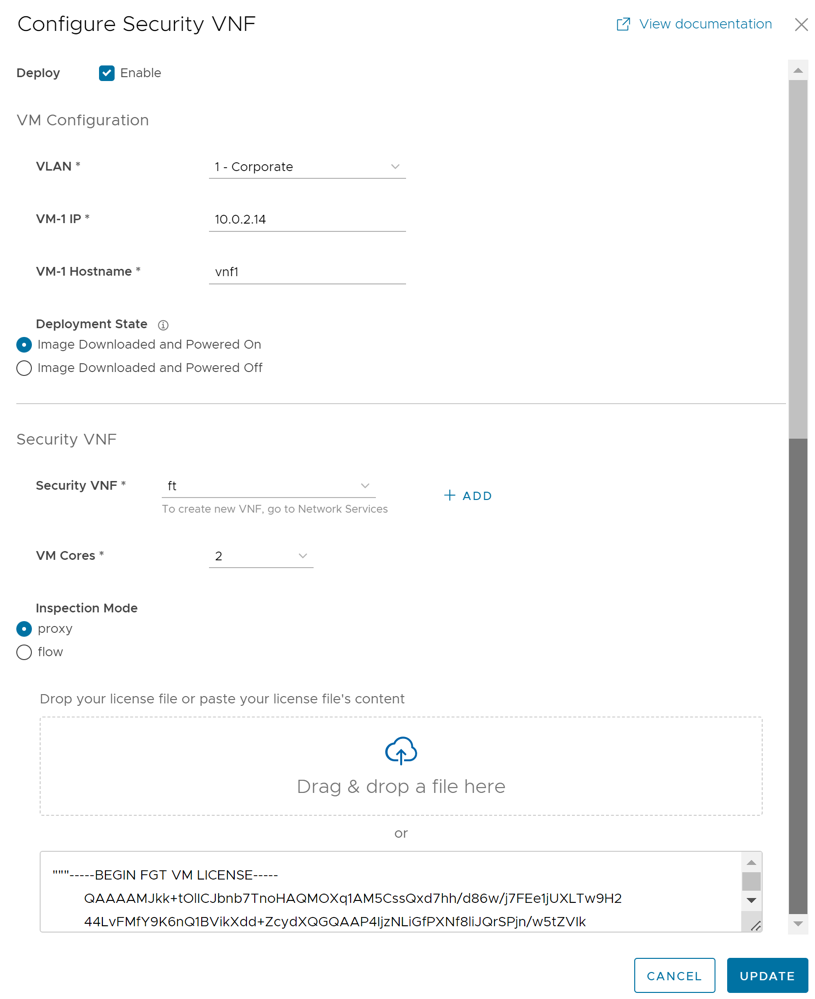
- VM Cores – Select the number of cores from the drop-down list. The VM License is based on the VM cores. Ensure that your VM License is compatible with the number of cores selected.
- Inspection Mode – Choose one of the following modes:
- Proxy – This option is selected by default. Proxy-based inspection involves buffering traffic and examining the data as a whole for analysis.
- Flow – Flow-based inspection examines the traffic data as it passes through the FortiGate unit without any buffering.
- License – Drag and drop the VM License or paste your license content in the text box.
- The following image shows an example of Check Point Firewall as the Security VNF type.
Figure 82. Configure Security VNF- Check Point Firewall 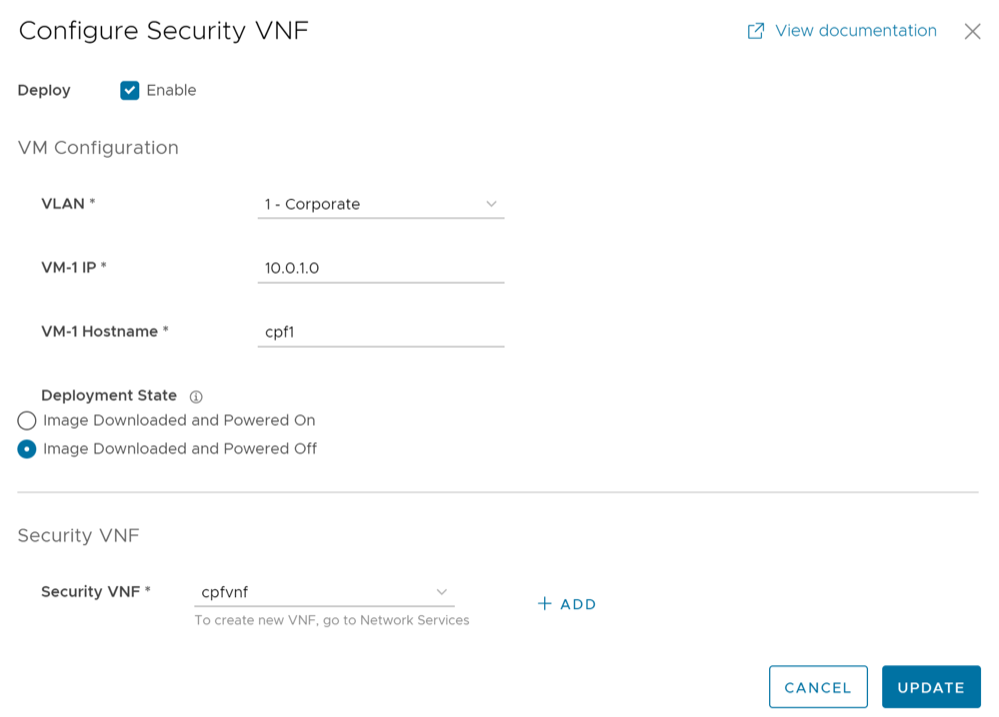
- If you choose Palo Alto Networks Firewall as Security VNF, configure the following additional settings:
Figure 83. Configure Security VNF- Palo Alto Networks Firewall 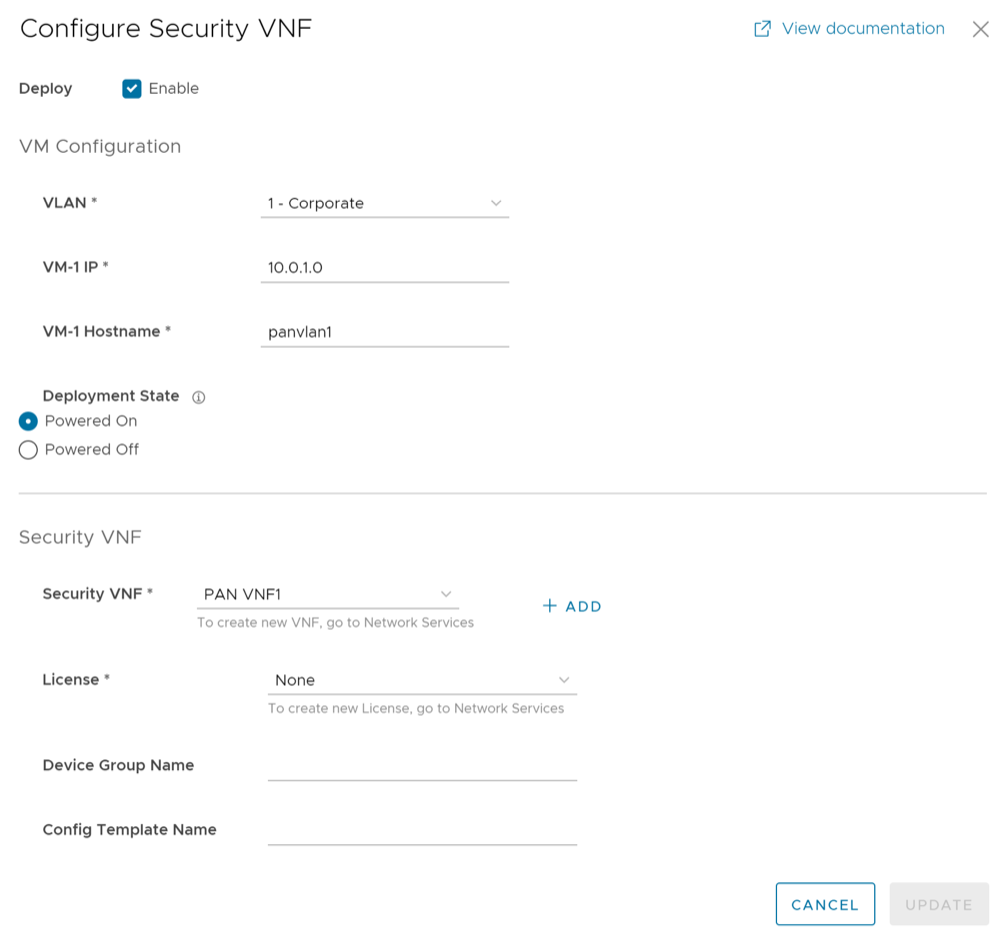
- License – Select the VNF License from the drop-down list.
- Device Group Name – Enter the device group name pre-configured on the Panorama Server.
- Config Template Name – Enter the configuration template name pre-configured on the Panorama Server.
Note: If you want to remove the deployment of Palo Alto Networks Firewall configuration from a VNF type, ensure that you have deactivated the VNF License of Palo Alto Networks before removing the configuration.
- The following image shows an example of Fortinet Firewall as the Security VNF type. If you choose Fortinet Firewall, configure the following additional settings:
- Select Update.
The configuration details are displayed in the Security VNF section.
Figure 84. Security VNF 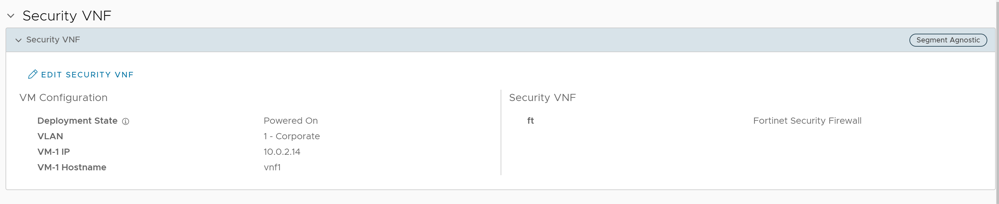
You can insert the security VNF into both the VLAN as well as routed interface to redirect the traffic from the VLAN or the routed interface to the VNF. See Configure VLAN with VNF Insertion.
Configure Security VNF with High Availability
- Orchestrator and activated Edge running software version 4.0.0 or later. For additional information on the supported Edge platforms, refer to the Support Matrix in Security Virtual Network Functions.
- Configured Check Point Firewall VNF Management service. For additional information, see Configure VNF Management Service.
Note: Arista supports only Check Point Firewall VNF on Edges with HA.
- In a standalone Edge, enable HA and VNF.
- In Edges configured with HA mode, enable VNF.
- LAN interface to VNF
- WAN interface to VNF
- Management Interface – VNF communicates with its manager
- VNF Sync Interface – Synchronizes information between VNFs deployed on Active and Standby Edges
The Edges have the HA roles as Active and Standby. The VNFs on each Edge run with Active-Active mode. The Active and Standby Edges learn the state of the VNF through SNMP. The SNMP poll is done periodically for every 1 second by the VNF daemon on the Edges.
VNF is used in the Active-Active mode with user traffic forwarded to a VNF only from the associated Edge in Active mode. On the standby VM, where the Edge in the VM is standby, the VNF will have only traffic to the VNF Manager and data sync with the other VNF instance.
The following example shows configuring HA and VNF on a standalone Edge.
- Scroll down to the High Availability section and from the Select Type options, choose the Active Standby Pair.
Figure 85. High Availability 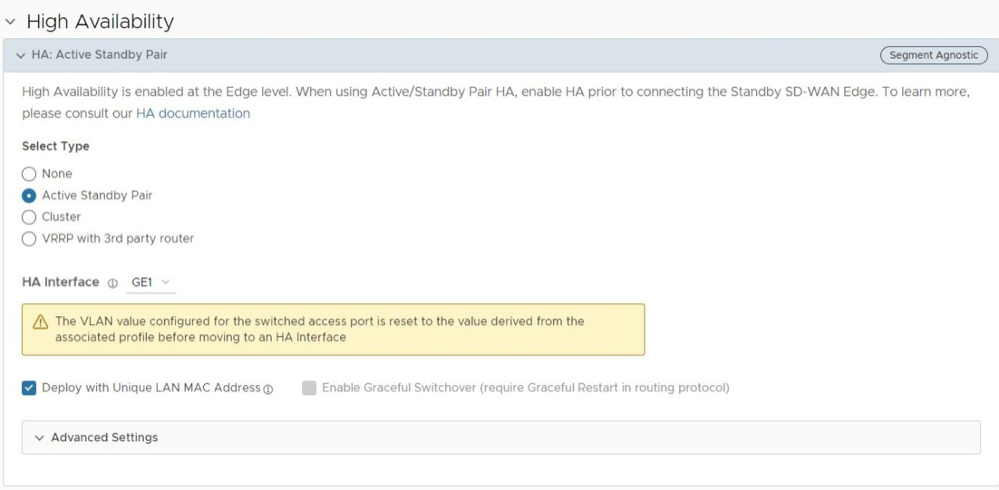
- Navigate to the Security VNF section and select + Configure Security VNF.
The Configure Security VNF window appears.
Figure 86. Configure Security VNF - Under Security VNF, choose a pre-defined Check Point Firewall VNF Management service from the drop-down list. You can also select New VNF Service to create a new VNF management service.
Figure 87. Configure Security VNF- Check Point Firewall For additional information, see Configure VNF Management Service.
You can insert the security VNF into both the VLAN as well as routed interface to redirect the traffic from the VLAN or the routed interface to the VNF. See Configure VLAN with VNF Insertion.
Define Mapping Segments with Service VLANs
To map the segments with the service VLANs:
- Define mapping between the Segments and service VLANs by entering an unique Service VLAN ID for each segment.
Figure 88. Define Mapping Segments with Service VLANs 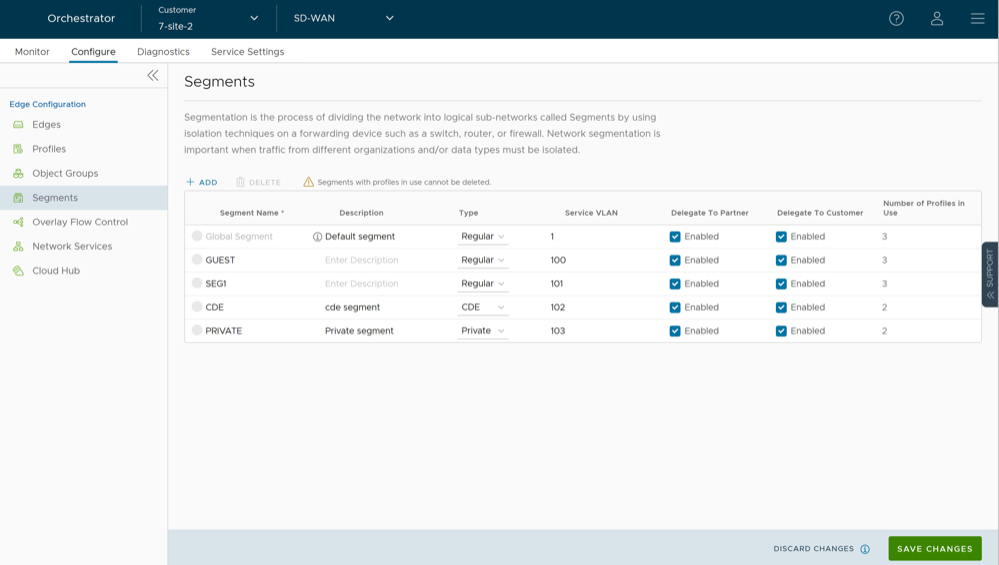
Configure VLAN with VNF Insertion
Map the segments with service VLANs to enable VNF insertion into the VLANs. See Define Mapping Segments with Service VLANs.
- On the Device tab, under Connectivity, expand the VLAN section.
Figure 89. Configure VLAN - In the Edit VLAN window, select the VNF Insertion check box to insert the VNF into VLAN. This option redirects traffic from a specific VLAN to the VNF.
Figure 90. VNF Insertion 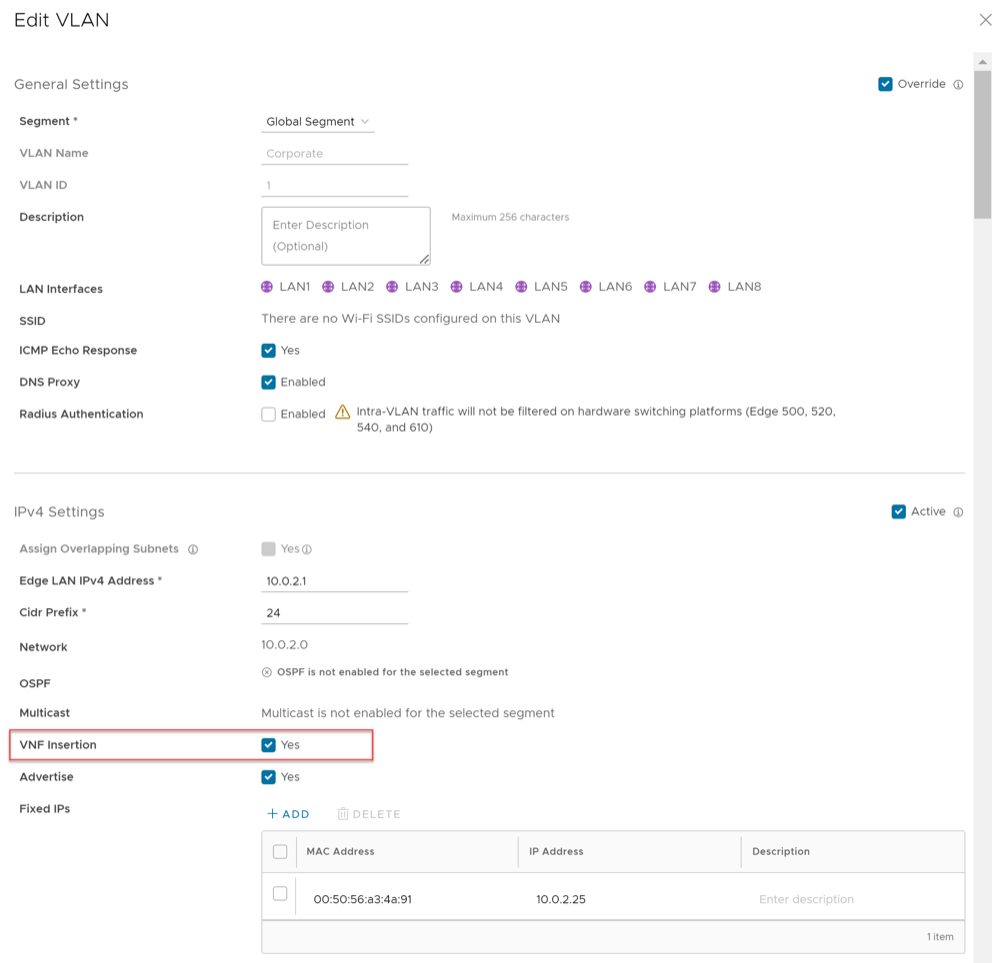
- Select Done.
The VLAN section displays the status of the VNF insertion.
Figure 91. VNF Insertion Status 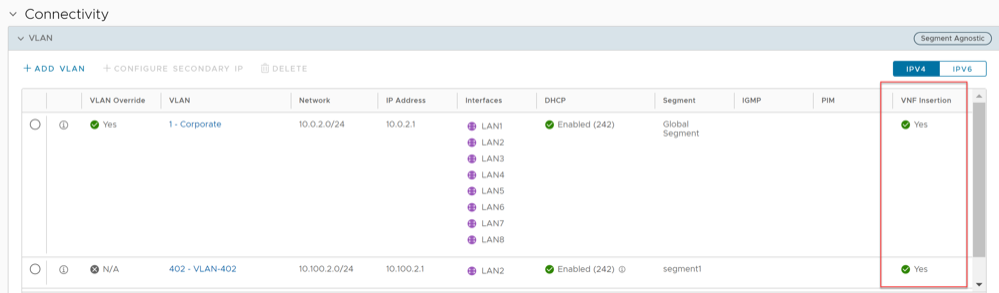
If you choose to use the routed interface, ensure that the trusted source is checked and WAN overlay is turned off on that interface. For additional information, see Configure Interface Settings for Edges.
Monitor VNF for an Edge
To monitor the status of VNFs and VMs of an Edge:
- In the SD-WAN service of the Enterprise portal, select .
The list of Edges along with the details of configured VNFs appears as shown in the following screenshot.
Figure 92. Monitor Edges 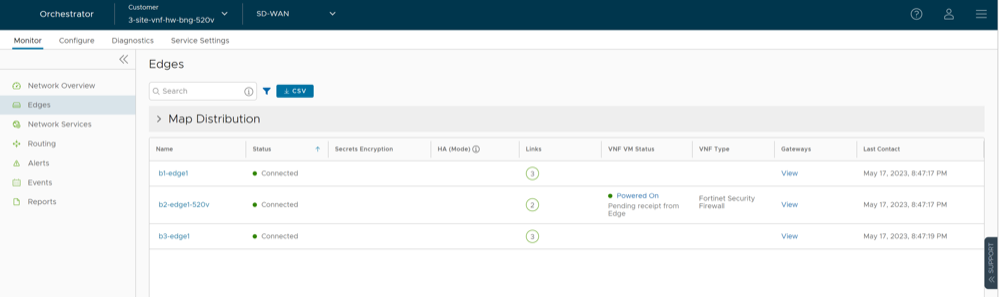
- With mouse pointer, hover-over the link in the VNF VM Status column to view VNF Virtual Machine Status for the Edge. Selecting the link in the VNF VM Status column opens the VNF Virtual Machine Status window, where you can view the deployment status for the Edge.
For the VNFs configured on Edge with HA, the VNF Virtual Machine Status window consists of an additional column that displays the Serial Number of the Edges, as shown in the following screenshot.
Figure 93. VNF Virtual Machine Status 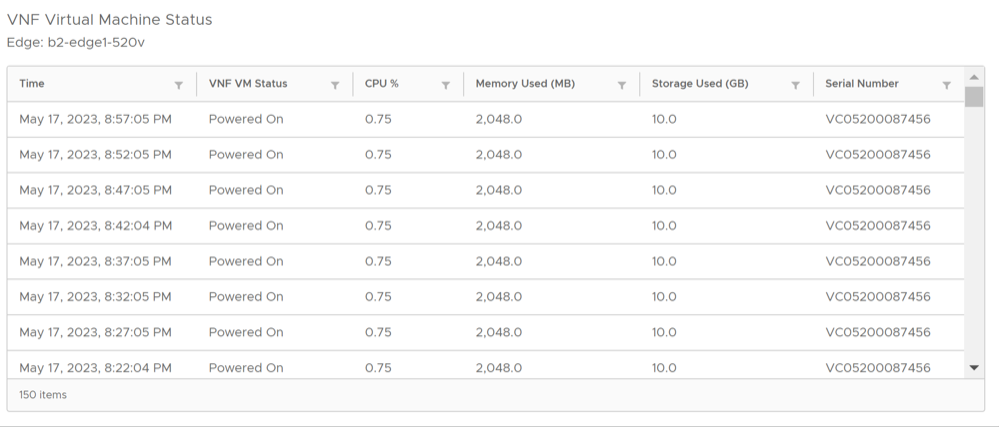
- To monitor the status of VNFs and VMs:
- In the SD-WAN service of the Enterprise portal, select .
The list of Edges along with the details of configured VNFs is displayed.
Figure 94. Monitor Network Services 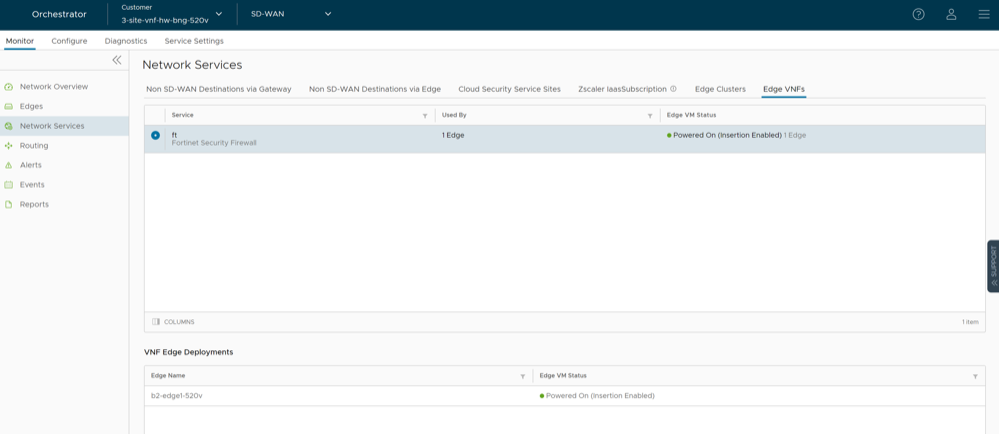
- In the SD-WAN service of the Enterprise portal, select .
Monitor VNF Events
You can view the events when the VNF VM is deployed, when there is a change in the VNF VM configuration, and when a VNF insertion is enabled in a VLAN.
In the SD-WAN service of the Enterprise portal, select .
To view the events related to VNF, you can use the filter option. Click the drop-down arrow next to the Search option and choose to filter either by the Event or by the Message column.
- VNF deployed
- VNF deleted
- VNF turned off
- VNF error
- VNF is DOWN
- VNF is UP
- VNF power off
- VNF power on
- VNF insertion turned off
- VNF insertion turned on
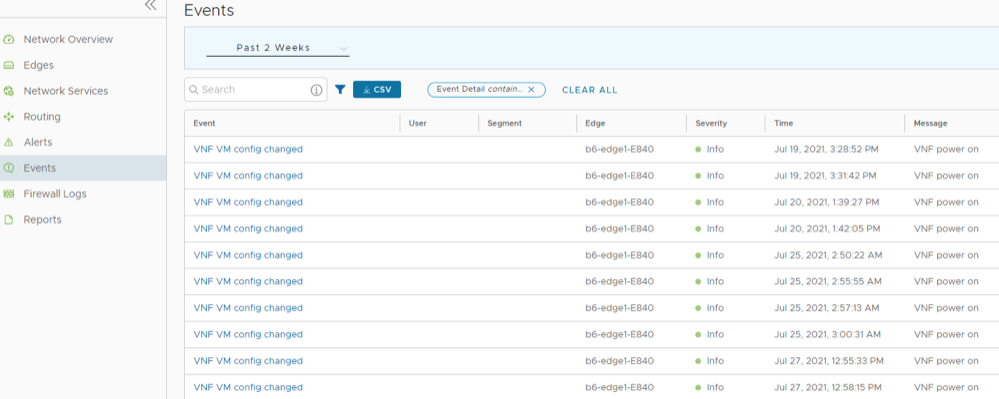
Configure VNF Alerts
To configure alerts and notifications related to the VNF events:
- In the SD-WAN service of the Enterprise portal, select .
The Alert Configuration screen appears.
Figure 96. Alert Configuration 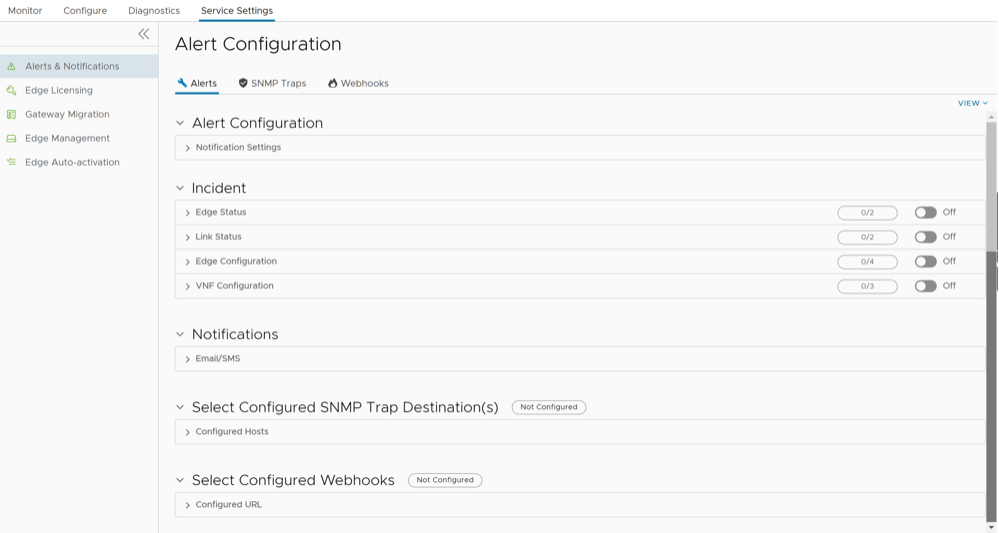
- Under Incidents, select and expand VNF Configuration and turn on the toggle button.
Figure 97. VNF Configuration 
Configure Authentication Settings for Edges
At the Edge-level, you can choose to override the Authentication Settings configured for the Profile.
- Select to expand the Authentication area and select the Override check box.
Figure 98. Authentication Settings for an Edge 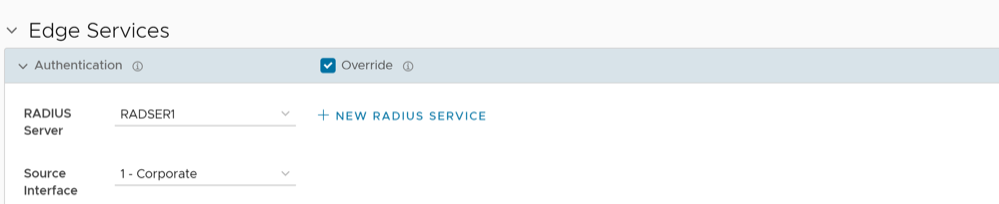
Configure NTP Settings for Edges
- NTP Clients can synchronize to LAN/loopback IP address of the Edge as NTP server but cannot synchronize to WAN IP address.
- NTP synchronization from another segment to LAN interface is not supported.
To override NTP settings at the Edge-level, perform the following steps.
- Select to expand the NTP area and select the Override check box.
Figure 99. NTP Settings for an Edge 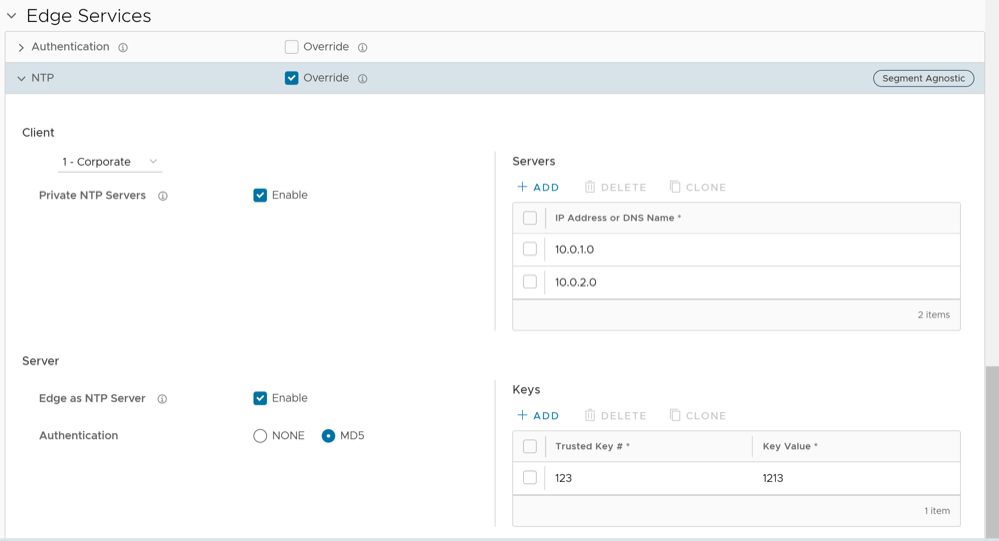
Configure TACACS Services for Edges
- Under Edge Services expand TACACS Services.
Figure 100. TACACS Services for an Edge