
Overview of Layer 2 Subinterfaces
A Layer 2 (L2) subinterface is a logical network endpoint associated with a physical interface, such as an Ethernet port, specifically designated to handle traffic for a single, distinct 802.1Q (VLAN) tag. Unlike a standard switchport or a Layer 3 subinterface, the L2 subinterface acts as a first-class bridging interface tied to a particular VLAN tag, and allows for granular control and isolation of that specific L2 traffic stream.
Use L2 subinterfaces on network devices in service provider or data center environments, for advanced functions like dedicated shaping/QoS or to integrate with technologies like EVPN.
| Concept | Description |
|---|---|
| Logical Bridging Endpoint | The subinterface provides a virtual port that functions as a normal L2 bridge member but logically separated from the parent physical interface. |
| Encapsulation Matching | Traffic steers to the L2 subinterface based on the 802.1Q VLAN tag (outer VID). A frame must arrive on the parent interface with the configured tag to be processed by the subinterface. |
| Routed Parent Port | EOS typically creates Layer 2 subinterfaces on a routed
port,an interface configured with no
switchport, a key distinction from standard L2
trunking. |
| Forwarding VLAN ID | The subinterface ultimately becomes placed into a forwarding VLAN or bridging domain. This allows learning MAC addresses and forwarding traffic like a standard switchport access member for that VLAN. |
| Traffic Control | This feature enables granular Quality of Service (QoS), such as shaping or policing, to be applied directly to the traffic of a specific VLAN on that physical link, which isn't possible with a simple trunk port configuration. |
Like other types of interfaces, a L2 subinterface provides a normal bridging endpoint in the bridging domain.
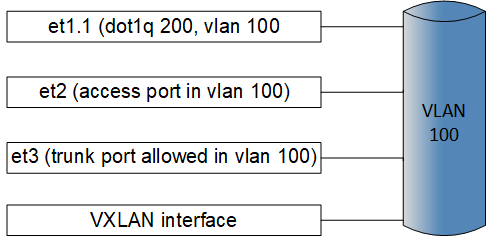
Configuring Layer 2 Subinterfaces
The following sections describe configuring Layer 2 subinterfaces.
Creating a Layer 2 Subinterface
Complete the following steps to configure a Layer 2 (L2) subinterface on an Arista switch:
MAC Address on Layer 2 Subinterface
Configure MAC addresses as either static or dynamic as assigned behind Layer 2 (L2) subinterfaces.
Example
switch(config)# mac address-table static 0000.000a.000a vlan 200 interface et1.1switch# show mac address-table interface et1.1-2
Mac Address Table
--------------------------------------------------------
Vlan Mac Address Type Ports Moves Last Move
---- ----------- ---- ----- ----- ---------
200 0000.000a.000a STATIC Et1.1
200 0000.000b.000b DYNAMIC Et1.2 1 0:00:06 ago
Total Mac Addresses for this criterion: 2MAC address learning can be enabled or disabled on an L2 subinterface using the following commands:
switch(config-if-Et1.1)# show interface ethernet1.1 switchport
Name: Et1.1
Switchport: Enabled
Administrative Mode: tunnel
Operational Mode: tunnel
MAC Address Learning: disabled
Dot1q ethertype/TPID: 0x8100 (active)
Dot1q VLAN Tag: Allowed
Access Mode VLAN: 1 (default)
Trunking Native Mode VLAN: 1 (default)
Administrative Native VLAN tagging: disabled
Trunking VLANs Enabled: ALL
Static Trunk Groups:
Dynamic Trunk Groups:
Source interface filtering: enabled
VLAN forwarding mode: allowedVlansOnlyswitch(config-if-Et1.1)# no mac address learning disabledQoS Feature
Supported QoS features include the following:
Shaping
After creating an L2 subinterface, you can configure a shape rate (in Kbps) on the sub-interface. For example, configure the shape rate to 50000000 Kbps.
switch(config-if-Et1.1)# shape rate 50000000| TC6-7 : | VOQ3 |
| TC4-5 : | VOQ2 |
| TC2-3 : | VOQ1 |
| TC0-1 : | VOQ0 |
VOQ3 is in strict-priority mode to the other VOQs.
VOQ2, VOQ1, and VOQ0 are in WRR with a static credit ratio 2:3:6 (higher ratio implies more credits).
The subinterface inherits the trust mode of the parent interface.
Before EOS Release 4.24.2F, EOS supported shaping only on L2 subinterfaces of parent Ethernet interfaces, for example, Et1.1. Beginning with EOS Release 4.24.2F, EOS supports shaping on L2 subinterface over a port-channel parent interface for example, Po1.1).
Guaranteed Bandwidth
switch(config-if-Et1.1)# bandwidth guaranteed 10000000
switch(config-if-Et1.1)# bandwidth guaranteed percent 10
Policing
For policing to work on the L2 subinterface, you must switch to the QoS profile.
Example
switch(config)# hardware tcam
switch(config-hw-tcam)# system profile qos

Sample Policy-map Configuration:

switch(config)# ip access-list a1
switch(config-acl-a1)# statistics per-entry
switch(config-acl-a1)# 10 permit ip any any

switch(config)# class-map type qos match-any c1
switch(config-cmap-qos-c1)# match ip access-group a1

switch(config)# class-map type qos match-any c2
switch(config-cmap-qos-c2)# match vlan 100 0xfff

switch(config)# ipv6 access-list a1
switch(config-ipv6-acl-a1)# statistics per-entry
switch(config-ipv6-acl-a1)# 10 permit ipv6 any any

switch(config)# class-map type qos match-any c3
switch(config-cmap-qos-c3)# match ipv6 access-group a1

switch(config)# policy-map type quality-of-service p1
switch(config-pmap-quality-of-service-p1)# class c1
switch(config-pmap-quality-of-service-p1-c1)# police cir 10 Mbps bc 100000 bytes
    exit
exitswitch(config-if-Et1.1)# service-policy type qos input p1Interface Counters
To enable the hardware features for counting packets on L2 subinterfaces ingress and/or egress, use the hardware counter feature command, similar to the following example. In the example, enable subinterface layer2 for ingress, and then enable for egress.
switch(config)# hardware counter feature subinterface in layer2
switch(config)# hardware counter feature subinterface out layer2switch# show interfaces et1.1 counters
Port InOctets InPkts
Et1.1 0 0
Port OutOctets OutPkts
Et1.1 0 0switch# clear countersswitch# clear counters et1.1Configuration Considerations
- A total of 256 Layer 2 subinterfaces with shaping are supported across the entire switch and they can be distributed across any number of Ethernet ports.
- When configuring a shape rate on an L2 subinterface over a parent port -channel interface, such as, Po1.1), traffic load-balancing is disabled and is directed to a selected port-channel member. Also, the bandwidth of the port-channel subinterface equals the selected member. However, the show interface command continues to show the bandwidth of the port-channel which is incorrect.
- After configuring a shape rate on an L2 subinterface, the L2 subinterface must be flapped by using the shut” and no shut commands.
- Shaping of BUM traffic on L2 subinterfaces is supported only with “ingress replication”.
- EOS supports Layer 3 forwarding through SVIs .
- EOS does not support control plane processing, such as IGMP snooping and STP BPDU.
- When IGMP protocol packets are expected to be forwarded on L2 subinterfaces, then IGMP snooping must be disabled globally on the entire switch using the no ip igmp snooping command. When IGMP snooping is configured on any VLAN, then IGMP protocol packets are discarded by L2 subinterfaces.
- Double tagged packets arriving on L2 subinterfaces with a single encapsulation dot1q vlan outer_vid command configured will match on the outer VLAN tag, and have only the outer VLAN tags terminated.
- The encapsulation dot1q vlan outer_vid inner inner_vid command is supported for configuring double-tagged L2 subinterfaces.
- EOS does not support the mixing of shaped and non-shaped subinterfaces under the same parent interface.
- Traffic classification on ingress traffic to l2 subinterface is disabled by default. To enable this feature, configure using the qos trust cos command on the parent interface.
- An MLAG environment does not support Layer 2 subinterfaces.
QoS Show Commands
Use the show interfaces status command to display the subinterface status.
switch# show interfaces status sub-interfaces
Port     Name   Status       Vlan     Duplex Speed  Type                Flags Encapsulation
Et1.1           connected    200      full   10G    dot1q-encapsulation       100
Et1.2           connected    200      full   10G    dot1q-encapsulation       101
Use the show vlan command to display the VLAN membership. In the following example, vlan 200 is configured to be displayed.
switch# show vlan 200
VLAN  Name                 Status    Ports
----- ------------------- --------- -------------------
200   office               active    Et1.1, Et1.2, Et5
Use the show qos interface command to display the QoS configuration on an L2 subinterface. In the following example, QoS subinterface Ethernet 1.1 is configured to be displayed.
switch# show qos interface Ethernet 1.1
Ethernet1.1:

   Trust Mode: DSCP
   Default COS: 0
   Default DSCP: 0

   Port shaping rate: 50625 / 50000 kbps
Use the show interface counters with the queue keyword to display the L2 subinterface counters. For example subinterface Ethernet 1.1 is configured to display the L2 subinterface counters.
switch# show interface Ethernet 1.1 counters queue
Aggregate VoQ Counters
Egress   Traffic   Pkts     Octets     DropPkts  DropOctets
Port     Class
------------------------------------------------------------
Et1.1    TC0-1      0        0          0         0
Et1.1    TC2-3      0        0          0         0
Et1.1    TC4-5      0        0          0         0
Et1.1    TC6-7      460266   276159600  109316    65589600
Use the show mac address-table command to display the MAC address on L2 subinterfaces. For example, subinterfaces Et1.1 and Et1.2 are configured to be displayed.
switch# show mac address-table interface et1.1-2
          Mac Address Table
------------------------------------------------------------------

Vlan    Mac Address       Type        Ports      Moves   Last Move
----    -----------       ----        -----      -----   ---------
 200    0000.000a.000a    STATIC      Et1.1
 200    0000.000b.000b    DYNAMIC     Et1.2      1       0:00:16 ago
Total Mac Addresses for this criterion: 2